Ren AI
Ren AI переносит Accountability Dial в Claude, ChatGPT, Cursor и Microsoft 365 Copilot. Подготовьтесь к встрече один на один, составьте отзыв или продумайте сложный разговор. Ничего не будет отправлено без вашего одобрения.
Размещённый MCP-сервер
npx add-mcp 'https://mcp.tryren.com/mcp'Устанавливается в Claude Code, Codex, Cursor и другие
Документация
Ren MCP
Bring Ren into Claude, ChatGPT, Cursor, VS Code, Microsoft 365 Copilot and any other MCP-compatible AI assistant: the same Dial, the same conversations, from wherever you already work. Questions? support@tryren.com.
New to Ren? Start here. You need a Ren account before you connect an assistant. It’s free to start, with $100 in credits and no card.
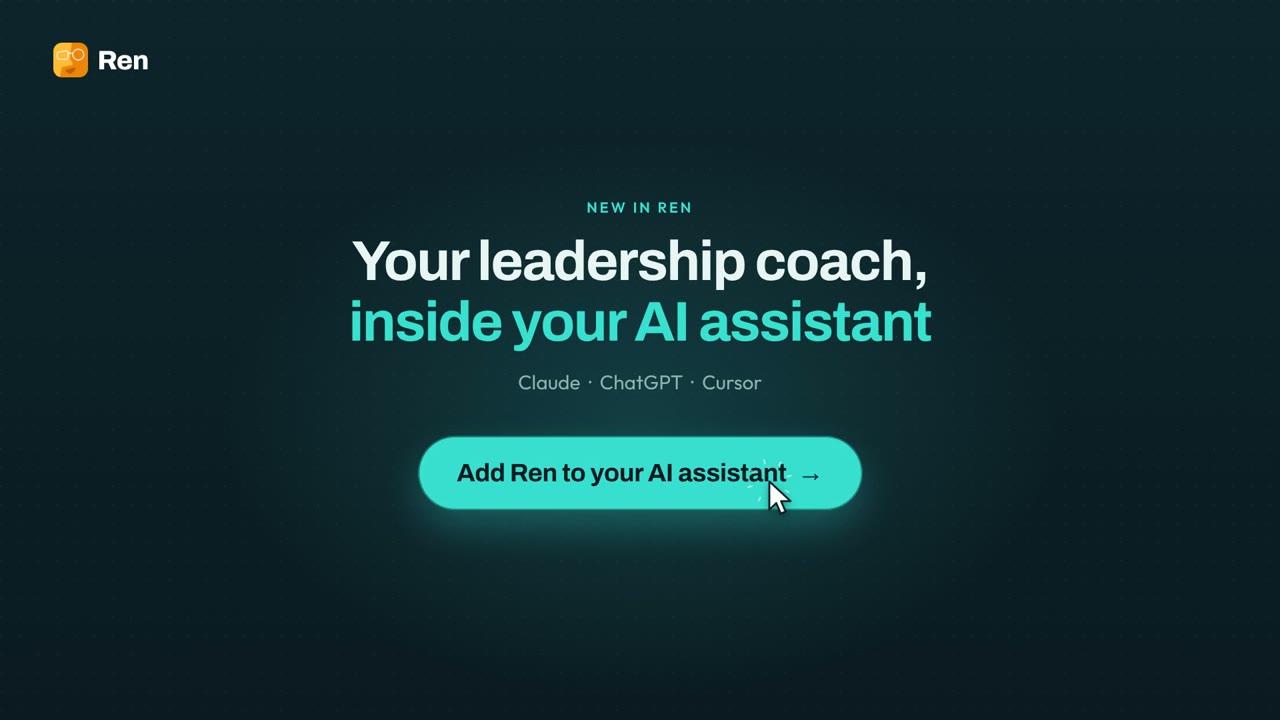
Watch: set up Ren in Claude (2-minute walkthrough)
Ren MCP is a remote MCP (Model Context Protocol) server that puts Ren into Claude, ChatGPT, Cursor, Microsoft 365 Copilot and any other MCP-compatible AI assistant. Once connected, you can ask your assistant to check in with Ren, prep a 1:1, draft a Dial mention, or review your team’s health, the same way you would from the Ren web app or Slack.
Nothing happens on anyone else’s behalf without your explicit approval: Ren drafts, you decide, and only then is anything sent.
- An active Ren account, with onboarding complete.
- An active subscription or trial on your organization’s Ren workspace.
- An assistant that supports remote MCP servers with sign-in: a Claude plan with custom connectors, a ChatGPT plan with Developer mode, Cursor, or Microsoft 365 Copilot through Copilot Studio. Any other MCP host that supports remote, OAuth-authenticated servers works too.
- In Claude.ai, go to Settings → Connectors → Add custom connector.
- Paste in this URL:
https://mcp.tryren.com/mcp - You’ll be asked to log in with your Ren account. There’s no API token to generate or copy. Sign-in is the same OAuth flow you already use for Ren, and your assistant only ever learns your email, nothing else from your profile.
The same URL and instructions are also available inside the Ren app, under Connectors.
- In ChatGPT on the web, go to Settings → Apps & Connectors → Advanced settings and turn on Developer mode. On a Business, Enterprise or Edu workspace, an admin may need to allow custom connectors first.
- Back in Apps & Connectors, select Create. Name it Ren, paste in this URL:
https://mcp.tryren.com/mcpand choose OAuth for authentication. - Sign in with your Ren account when asked.
- In a new chat, open the + menu, choose Developer mode, and turn on Ren for that conversation.
Needs Cursor installed. The button opens Cursor with Ren filled in. Or set it up by hand:
- In Cursor, open Settings → MCP (called Tools & MCP in newer versions) and add a new MCP server. This opens your
mcp.jsonfile. - Add Ren under
mcpServersand save:{ "mcpServers": { "ren": { "url": "https://mcp.tryren.com/mcp" } } } - Ren shows up in the MCP list asking you to log in. Click it and sign in with your Ren account in the browser window that opens.
Put it in ~/.cursor/mcp.json to use Ren in every project, or in a project’s .cursor/mcp.json for that project only. If Ren doesn’t appear, restart Cursor.
Needs VS Code installed. The button opens VS Code with Ren filled in. Or set it up by hand:
- In VS Code, open the Command Palette and run MCP: Add Server.
- Choose HTTP, paste in
https://mcp.tryren.com/mcpand name it ren. - Start the server and sign in with your Ren account when asked. Ren’s tools then show up in Copilot Chat’s agent mode.
Copilot can’t add an outside MCP server from inside a chat. An admin adds Ren once in Copilot Studio, and after that it’s available to whoever that agent is shared with.
- In Copilot Studio, open your agent and go to Tools → Add tool.
- Choose New tool → Model Context Protocol and paste this in as the Server URL:
https://mcp.tryren.com/mcp - Sign in with your Ren account when asked.
Don’t have access to Copilot Studio? Ask your IT or Power Platform admin to add it. Your tenant may also require them to approve it.
Every tool is scoped to your own account and organization, and falls into one of three groups:
Read
Looks things up. Never changes anything.
- list_workspaces
- get_role
- list_my_team
- active_conversations
- team_health
- get_workspace_kpis
- daily_check_in
- ren_suggestions
- read_conversation
- check_invitation_status
Talk with Ren
Opens or continues a conversation with Ren. Anything meant for someone else comes back as a draft only. Nothing is sent from these calls.
- prep_one_on_one
- managing_up
- peer_collaboration
- leading_others
- new_colleague
- growth_reflection
- draft_mention_with_ren
- talk_through_card
- start_plan
- send_message_to_ren
Act
Notifies someone else or changes shared state (e.g. a Slack DM, an invite email). Always requires you to approve the exact text or action first.
- send_mention
- send_dial_message
- invite_team_member
- add_directs
- upload_transcript
Signing in only shares your verified email with Ren MCP. It’s used to look up your existing Ren profile, nothing more. Ren MCP doesn’t read or store anything from your assistant or your other connected tools; if one of Ren’s tools benefits from context you have elsewhere (e.g. a task tracker), it asks you first, every time, before anything is read.
For how Ren handles data more broadly, see our Privacy Policy.
Ren AI is listed as com.tryren/ren in the official MCP Registry, so MCP clients and directories that read the registry can find it. You’ll also find it here:
- Official MCP Registry ↗com.tryren/ren
- Glama ↗MCP connectors
- mcp.so ↗Ren AI
- GitHub ↗Good-Authority/ren-skills-plugin
Questions, issues, or something not working as described? Reach us at support@tryren.com.