Sport MCP
A free strength-training log for iPhone whose MCP connector lets your assistant read your workouts and records, plan your week and log training. OAuth sign-in, no API keys.
Размещённый MCP-сервер
npx add-mcp 'https://sport-mcp.com/mcp'Устанавливается в Claude Code, Codex, Cursor и другие
Документация
Sport MCP is a simple strength log for iPhone. Connect the assistant you already use and it builds your program, schedules your week, and adjusts from what you actually lifted.
Free on the App Store, for iPhone. Steps for Claude, ChatGPT, Gemini, Grok, Muse and Mistral are below; how it works.
Plan me a push day. Bench first, about 45 minutes.
Done. Push Day is on your schedule for today. I added 2.5 kg to your bench.
Push Day
0:00
Bench Press
| Set | Previous | kg | Reps | Done |
|---|---|---|---|---|
| 1 | 82.5 kg × 5 | 85 | 5 | |
| 2 | 82.5 kg × 5 | 85 | 5 | |
| 3 | 80 kg × 5 | 85 | 5 |
Rest 2:30
Try it: check off a set.
A coach that reads your log
Your assistant already knows how to write a training program. What it lacks is your numbers. Sport MCP gives it both a place to put the plan and a record of what happened.
-
Connect
Add Sport MCP to your assistant and sign in with your account. No keys or codes to copy. -
Ask for a plan
Describe your goal, your week and your equipment. The workouts appear in the app, on the days you train. -
Lift and log
Last time's weights are already filled in. Check off each set and the rest timer starts. -
Review and adjust
Your assistant sees what you lifted, not just what it planned, and sets next week from there.
The app stays out of your way
No feed, no streak pressure, no chatbot squeezed into a corner. It is a log: fast to fill in at the gym, clear to read afterwards.
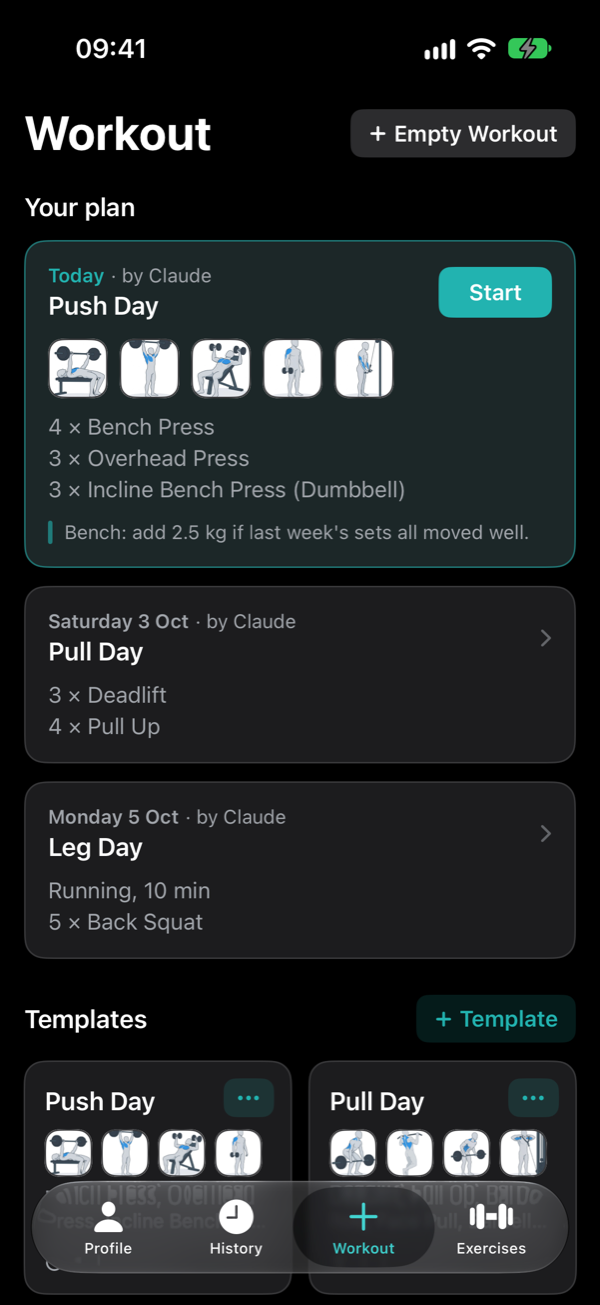
Today's plan, ready Workouts your assistant scheduled, with its notes.
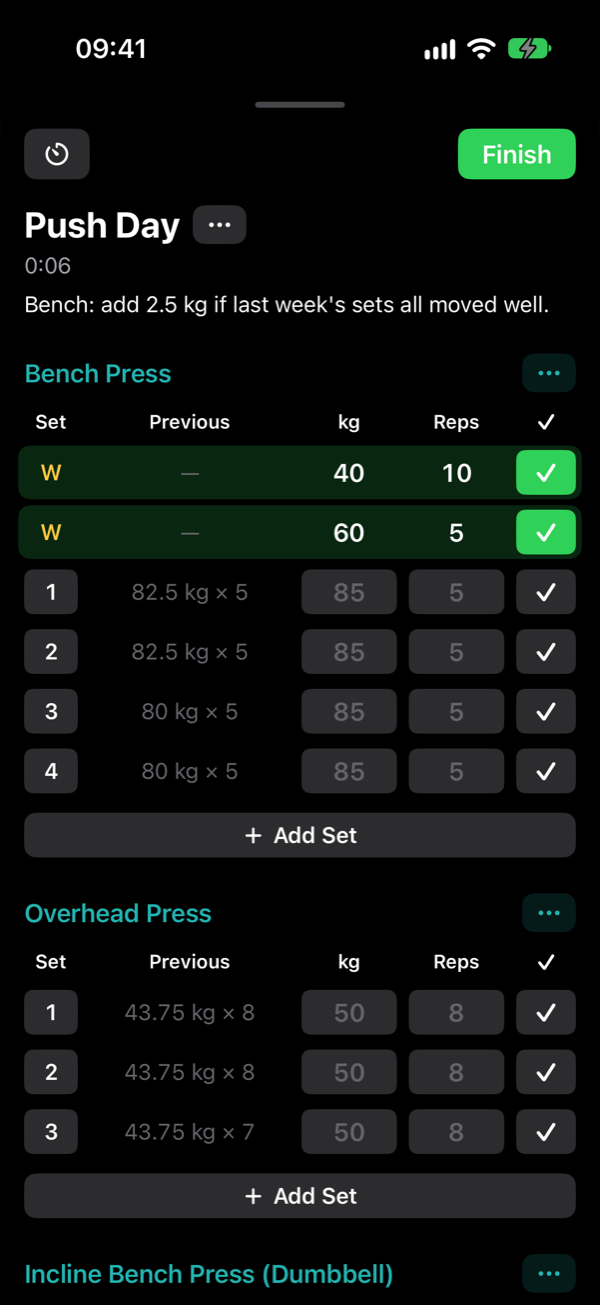
One tap per set Previous weights sit next to every row.
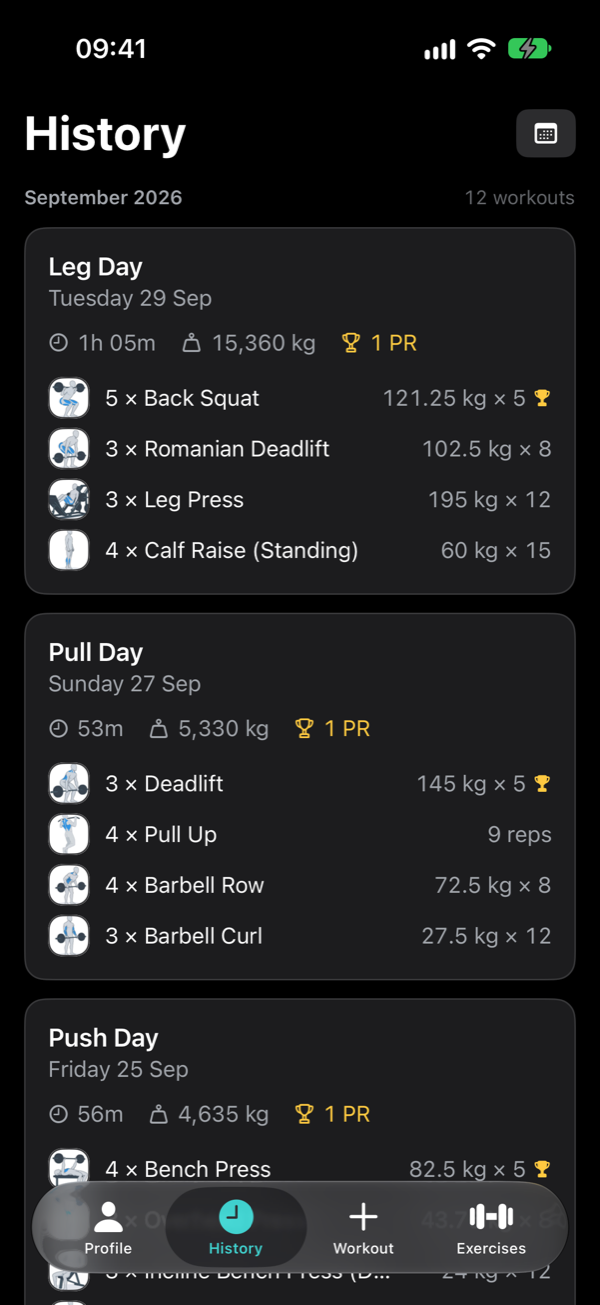
Every workout, kept Duration, volume, best sets and records.
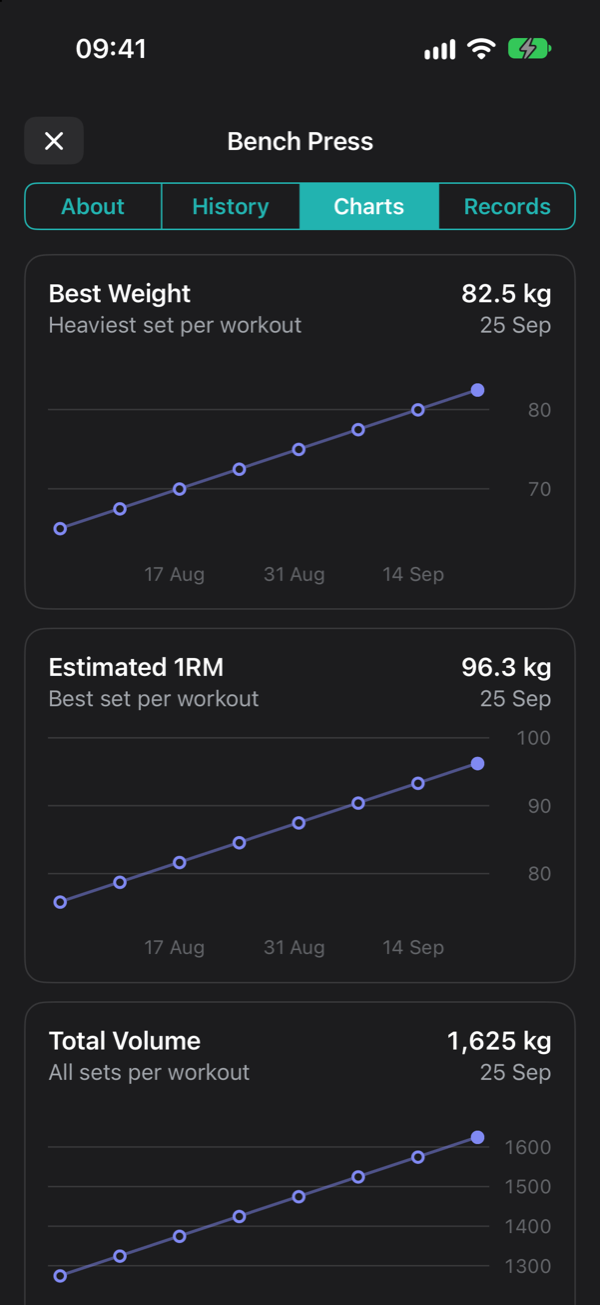
Progress per lift Best weight, estimated 1RM and volume.
Cardio
Plan a run, a row or a ride by time and distance, and log it between your lifts.
Templates
Save workouts you repeat. Build them yourself or let your assistant write them.
Exercise library
About 130 exercises to start, filtered by body part and equipment. Add your own.
Rest timer
Starts when you check off a set and notifies you when the phone is locked.
Records
Heaviest set, estimated one-rep max and best volume, tracked for every lift.
Apple Health
Finished workouts are saved to Health as strength training.
Import
Bring your history over from Strong or Hevy in one step.
Warm-up sets
Every set can have its own weight and reps, so warm-ups ramp up to your working sets. They stay out of your volume and records.
Light and dark
Follows your phone, or pick one. Kilograms or pounds.
Ask the way you would ask a coach
Because your assistant can read your history, its answers use your real numbers. Say "Sport MCP" in the request and it will use your log instead of only answering in the chat.
- Build me a four-day upper/lower split and put it in Sport MCP. I have a barbell, a rack and dumbbells up to 30 kg.
- Plan next week in Sport MCP around my football match on Thursday.
- Look at my Sport MCP log. How has my bench press moved over the last two months?
- I missed Wednesday. Rearrange the rest of my week in Sport MCP.
- My squat has stalled for three weeks. Check my log and tell me what should change.
Connect in about a minute
You sign in on a Sport MCP page, the same way you sign in to the app. Your assistant never sees your password, and you can disconnect it whenever you like.
https://sport-mcp.com/mcp
This is the connector address. It is the same for everyone and for every assistant; signing in is what links it to your account.
Claude
Set up at claude.ai or in the Claude desktop app. Once connected it also works in the Claude app on your phone.
- Open Claude on a computer At claude.ai or in the desktop app, go to Customize → Connectors.
- Add Sport MCP Click +, then Add custom connector. Name it Sport MCP, paste the address and click Add.
- Sign in Click Connect. Claude opens the Sport MCP sign-in page. Sign in with the account you use in the app, then allow.
- Use it in a chat Click +, open Connectors and switch Sport MCP on. It also appears in the Claude app on your phone.
Claude asks before it saves or changes anything in your log, unless you tell it to always allow that.
ChatGPT
Set up at chatgpt.com in a browser with Developer mode turned on. It isn't available in the ChatGPT app.
- Turn on developer mode At chatgpt.com, open Settings → Security and login and turn on Developer mode. If it isn't there, look under Settings → Apps → Advanced settings.
- Add Sport MCP Go to chatgpt.com/plugins and select +. Name it Sport MCP, paste the address under Connection and create it.
- Sign in ChatGPT opens the Sport MCP sign-in page. Sign in with the account you use in the app, then allow.
- Use it in a chat In a new chat, open the + menu, choose Developer mode and select Sport MCP.
ChatGPT asks before it saves or changes anything in your log, unless you tell it to always allow that.
Gemini
For now Gemini offers this in the US only: 18 or older, a personal Google account, Gemini in English and Keep Activity switched on.
- Open Gemini on a computer At gemini.google.com, click Settings, then Connected Apps.
- Add Sport MCP Under Custom apps, click Add a custom app, paste the address and click Next.
- Sign in Gemini opens the Sport MCP sign-in page. Sign in with the account you use in the app, then allow.
- Use it in a chat Type @ and pick Sport MCP, on the web or in the Gemini app on your phone.
Gemini asks before it saves or changes anything in your log, unless you tell it to always allow that.
Grok
Set up in a browser at grok.com.
- Open Grok's connectors In a browser, go to grok.com/connectors.
- Add Sport MCP Click New Connector, choose Custom and paste the address.
- Sign in Grok opens the Sport MCP sign-in page. Sign in with the account you use in the app, then allow.
- Use it in a chat Ask about your training. Grok uses Sport MCP when the question calls for it.
Muse
Muse is Meta's assistant, available in the US for now. Set up from a Muse chat.
- Ask Muse to add Sport MCP In a Muse chat, send this message. If Muse asks for a Client ID, enter sport-mcp.Add a custom MCP connector called Sport MCP. Server URL: https://sport-mcp.com/mcp. It uses the standard sign-in (OAuth); the client ID is sport-mcp.Copy
- Sign in Muse opens the Sport MCP sign-in page. Sign in with the account you use in the app, then allow.
- Check that it works Ask Muse to show your recent workouts. It appears under Connected in the app once it has signed in.
Muse asks before it saves or changes anything in your log, unless you tell it to always allow that.
Mistral
Mistral's assistant is now called Vibe (it was Le Chat). Set up at chat.mistral.ai.
- Open Vibe on a computer At chat.mistral.ai, open Connectors.
- Add Sport MCP Click + Add Connector and switch to Custom MCP Connector. Name it SportMCP, without a space, and paste the address as the Server URL.
- Sign in Click Connect. Vibe opens the Sport MCP sign-in page. Sign in with the account you use in the app, then allow.
- Use it in a chat Click + or type /, choose Tools and switch SportMCP on.
Mistral asks before it saves or changes anything in your log, unless you tell it to always allow that.
Questions
Which assistants work?
Claude, ChatGPT, Gemini, Grok, Muse and Mistral all let you add your own connector, and the steps for each are above. What you need differs: Gemini and Muse offer it in the US only for now. Sport MCP uses the open Model Context Protocol with a standard sign-in, so any other assistant that supports custom connectors can use the same address.
The steps don't match what I see
Assistants rename their menus often. The steps follow each assistant's own documentation as of September 2026. Look for a Connectors, Apps or Plugins page in its settings and an option to add a custom one, then paste the address. If you get stuck, write to support@sport-mcp.com.
Does Sport MCP cost anything?
No. Sport MCP is free, with no purchases, subscriptions or locked features. You use the assistant you already have; Sport MCP has no built-in chatbot and adds no AI fee.
What does my assistant get to see?
Only what you allow. When you connect, you sign in to your Sport MCP account on our page and see exactly what the assistant will be able to read and write before you tap Allow. What it reads goes to the company that runs the assistant (for example Anthropic for Claude) and is handled under their privacy policy. The app never creates or accepts keys or codes, and you can disconnect an assistant in the app at any time. Details in the privacy policy.
Can I use the app without an assistant?
Yes. It is a complete workout log on its own: templates, logging, history, records and charts. Connecting an assistant is optional and you can do it later.
What can the assistant see and change?
It can read your workouts, history and records, create templates, place workouts on your schedule, and log workouts when you ask. It cannot see your password, and it has no access to anything else on your phone.
How do I disconnect?
In the app, open Profile, then Connect an Assistant, and disconnect it there. Access stops right away. You can also remove the connector in your assistant's own settings.
Where is my data stored?
In your account, on servers in the European Union. It is not sold or used for advertising. This site uses no cookies. You can delete your account and everything in it from the app's settings. The privacy policy has the details.