Sinch
Взаимодействие с API Sinch для коммуникационных сервисов, таких как беседы, электронная почта, верификация и голосовая связь.
Документация
Sinch MCP Server — Developer Preview

This repository contains the source code for the Sinch MCP server, which provides a set of tools to interact with the Sinch APIs. This README focuses on using the MCP server with the Claude Desktop client, but it can also be used with any other MCP client.
Tools Overview
Here is the list of tools available in the MCP server (all the phone numbers must be provided in E.164 format, e.g., +33612345678 for France).
Conversation Tools
| Tool | Description | Tags |
|---|---|---|
| send-text-message | Send a plain text message to a recipient on a supported channel. Example prompt: "Send a quick update to the phone number +33612345678 on SMS." | conversation, notification |
| send-media-message | Send an image, video, or document via a media message. Example prompt: "Send the product brochure PDF to the phone number +33612345678 on WhatsApp." | conversation, notification |
| send-template-message | Send a message using a predefined template (omni-template only). Example prompt: "Send the appointment reminder template in Spanish to this user on Messenger." | conversation, notification |
| send-whatsapp-template-message | Send a message using a predefined WhatsApp template. Example prompt: "Send a message using the template "appointment-reminder" on WhatsApp." | conversation, notification |
| send-choice-message | Send a message that includes interactive choices (buttons or quick replies). Example prompt: "Send a RCS survey about preferred ice cream flavor to +33612345678 with the following choices: Vanilla, Strawberry, Hazelnut". | conversation, notification |
| send-location-message | Send a location pin or coordinates to a user. Example prompt: "Send a pin to the Guggenheim Museum location in Bilbao to the phone number +33612345678." | conversation, notification |
| list-conversation-apps | List all configured Conversation apps in the Sinch account. Example prompt: "What messaging apps do I have set up in my account?" | conversation, notification |
| create-conversation-app | Create a new Conversation API app (no channels required at creation). Example prompt: "Create a Conversation app named My Support Bot in the EU region." | conversation, configuration |
| update-conversation-app | Update a Conversation API app display name. Example prompt: "Rename Conversation app abc123 to My Support Bot." | conversation, configuration |
| delete-conversation-app | Delete a Conversation API app by ID. Example prompt: "Delete Conversation app abc123." | conversation, configuration |
| set-sms-channel-on-app | Set (create or replace) the SMS channel on a Conversation app. Example prompt: "Set SMS on app abc123 using service plan XYZ and API token …" | conversation, configuration |
| set-rcs-channel-on-app | Set (create or replace) the RCS channel on a Conversation app. Example prompt: "Set RCS on app abc123 with sender ID … and bearer token …" | conversation, configuration |
| set-whatsapp-channel-on-app | Set (create or replace) the WhatsApp channel on a Conversation app. Example prompt: "Set WhatsApp on app abc123 with sender ID … and bearer token …" | conversation, configuration |
| list-messaging-templates | List the omni-channel message templates (managed by Sinch) for the configured region. WhatsApp-specific templates can be fetched with the list-whatsapp-templates tool. Example prompt: "Show me all message templates in my account." | conversation, notification |
| list-webhooks | List webhooks configured for a Conversation app. Example prompt: "List all webhooks for my Conversation app." | conversation, configuration |
| get-webhook | Get a webhook by ID. Example prompt: "Show me the details of webhook ID abc123." | conversation, configuration |
| create-webhook | Create a webhook that delivers Conversation API events to a target URL. Example prompt: "Create a webhook for inbound messages at https://example.com/callback." | conversation, configuration |
| update-webhook | Update a webhook target URL and/or triggers. Example prompt: "Update webhook abc123 to also receive MESSAGE_DELIVERY events." | conversation, configuration |
| delete-webhook | Delete a webhook by ID. Example prompt: "Delete webhook abc123." | conversation, configuration |
Email tools (Mailgun)
| Tool | Description | Tags |
|---|---|---|
| send-email | Send an email using a predefined HTML template or raw HTML/text content. Example prompt: "Send a welcome email to john@example.com using our onboarding template." | email, notification |
| list-email-templates | List all email templates available for a specific domain. Example prompt: "What email templates do I have available?" | email, notification |
| retrieve-email-info | Retrieve metadata, content and delivery status for a specific email message. Example prompt: "Can you get the delivery status of the email with ID ?" | email, notification |
| list-email-events | Retrieve and group recent email delivery events, such as bounces, opens, or clicks. Example prompt: "Show me all recent email activity for my account." | |
| analytics-metrics | Retrieve email analytics metrics, such as open rates or click-through rates. Example prompt: "What are the open rates during the last week?" |
Verification Tools
| Tool | Description | Tags |
|---|---|---|
| number-lookup | Lookup a phone number for its status and capabilities. Example prompt: "Lookup for the following phone number capabilities: +33501020304." | verification |
| start-sms-verification | Initiate an SMS verification by sending an OTP to a user's phone number. Example prompt: "Start phone verification for the number +33612345678." | verification |
| report-sms-verification | Submit a one-time password (OTP) to complete SMS verification. Example prompt: "Verify the phone number with this code: 1234." | verification |
Voice Tools
| Tool | Description | Tags |
|---|---|---|
| tts-callout | Place a voice call and read aloud a message using Text-to-Speech. Example prompt: "Call the phone number +33612345678 and say: 'Your appointment is tomorrow at 10 AM.'" | voice, notification |
| get-call-information | Get information about a call using its ID. Example prompt: "Get the details of call ID abc123." | voice, notification |
| list-calls | List and filter calls by service, endpoint, time range, type, result, or reason. Example prompt: "List completed calls from today." | voice, notification |
| get-session-information | Get a voice session and all of its call legs using the session ID. Example prompt: "Get details for session 01BX5ZZKBKACTAV9WEVGEMMVRB." | voice, notification |
| create-voice-service | Create a Voice service. Example prompt: "Create a default Voice service named Customer Support." | voice |
| set-voice-service-webhook | Configure the primary webhook and fallback URLs for a Voice service. Example prompt: "Configure the webhook and fallback for service 6e124178-c29d-46a5-943c-5c2ae544aade." | voice |
| remove-voice-service-webhook | Remove webhook handling from a Voice service. Example prompt: "Remove the webhook from service 6e124178-c29d-46a5-943c-5c2ae544aade." | voice |
| assign-number-to-voice-service | Assign an active Sinch number to a Voice service. Example prompt: "Assign +14155550100 to Voice service 6e124178-c29d-46a5-943c-5c2ae544aade." | voice |
| tts-batch-callout | Start a batch of outbound calls that play the same text-to-speech message. Example prompt: "Call these numbers in a batch and read this reminder." | voice, notification |
| get-voice-batch-summary | Get batch execution totals and optionally the state of each session. Example prompt: "Get the summary and session details for batch 01BX5ZZKBKACTAV9WEVGEMMVRB." | voice, notification |
Voice batch, session, and call hierarchy
- A batch groups an asynchronous request to initiate calls to multiple destinations.
tts-batch-calloutreturns a batch ID, and each destination produces its own session. - A session represents one call flow and contains one or more calls.
tts-calloutreturns a session ID directly; useget-session-informationto retrieve its call legs. - A call is one individual leg within a session, identified by a call ID. Use
get-call-informationwhen you need the status or details of that specific leg.
To inspect a batch from top to bottom: use get-voice-batch-summary with session details enabled, pass a returned session ID to get-session-information, and then pass any returned call ID to get-call-information.
RCS Sender Tools
| Tool | Description | Tags |
|---|---|---|
| list-rcs-senders | List all RCS senders for the project, with pagination support. Example prompt: "Show me all my RCS senders." | rcs, configuration |
| get-rcs-sender | Get a full RCS sender by ID, including credentials, state, brand details, test numbers, and country status. Example prompt: "Get the details of my RCS sender abc123." | rcs, configuration |
| create-rcs-sender | Create a new RCS sender. Brand details, questionnaire, and countries can be provided upfront or added incrementally via update-rcs-sender. Example prompt: "Create an RCS sender for the EU region with a CONVERSATIONAL billing category." | rcs, configuration |
| update-rcs-sender | Update an RCS sender's brand, countries, test numbers, or questionnaire. Example prompt: "Update my RCS sender abc123 with the brand logo URL." | rcs, configuration |
| launch-rcs-sender | Submit an RCS sender for Google and carrier review. All brand details, countries, and questionnaire sections must be complete before launching. Example prompt: "Launch my RCS sender abc123." | rcs, configuration |
| add-rcs-test-number | Add test phone numbers to an RCS sender (max 20 per request, 200 total per sender). Example prompt: "Add +14155552671 as a test number to my RCS sender." | rcs, configuration |
| delete-rcs-test-number | Delete a test number from an RCS sender. Example prompt: "Remove test number +14155552671 from my RCS sender." | rcs, configuration |
| resend-rcs-test-number-invite | Resend a test number invite when state is PENDING or UNVERIFIED. Example prompt: "Resend the invite for test number +14155552671 on sender abc123." | rcs, configuration |
| get-rcs-test-number-state | Get the verification state of a single RCS test number. Example prompt: "What is the state of test number +14155552671 on sender abc123?" | rcs, configuration |
| get-rcs-number-capabilities | Get the RCS features supported by a test number's device (actions, rich card layouts, revocation). Example prompt: "What RCS features does +14155552671 support?" | rcs, configuration |
WhatsApp Tools
| Tool | Description | Tags |
|---|---|---|
| get-whatsapp-account | Get the WhatsApp Business Account (WABA) of the project: onboarding state, WABA ID, business details, ban state, daily message limit and compatible regions. Example prompt: "What is the current status of my WhatsApp Business Account?" | whatsapp, configuration |
| list-whatsapp-templates | List the WhatsApp channel-specific message templates (managed by Meta). Omni-channel templates can be fetched with the list-messaging-templates tool. Example prompt: "Show me my WhatsApp templates." | whatsapp, configuration |
| create-whatsapp-template | Create a WhatsApp message template, as a draft or submitted for review. Example prompt: "Create a WhatsApp UTILITY template named order_confirmation in English with body text 'Your order {{1}} has shipped.'" | whatsapp, configuration |
| update-whatsapp-template | Update a WhatsApp message template draft (or reset an APPROVED/REJECTED/PAUSED/DISABLED template to draft) by name and language. Example prompt: "Update the order_confirmation EN WhatsApp template's body text to 'Your order {{1}} has shipped today.' and submit it for review." | whatsapp, configuration |
| delete-single-whatsapp-template-language | Delete a single language variant of a WhatsApp message template by name and language — other languages of the same template name are unaffected. Example prompt: "Delete the draft of the order_confirmation EN WhatsApp template." | whatsapp, configuration |
| delete-all-whatsapp-template-languages | Delete every language variant of a WhatsApp message template by name in one call. Example prompt: "Delete all language variants of the order_confirmation WhatsApp template." | whatsapp, configuration |
Numbers Tools
| Tool | Description | Tags |
|---|---|---|
| list-available-regions | List all regions where phone numbers are available for the project. Can filter by number type (MOBILE, LOCAL, TOLL_FREE). Example prompt: "Which regions have toll-free numbers available?" | numbers |
| list-rented-numbers | List all active (rented) phone numbers for the project. Can filter by region, type, pattern, and capability. Example prompt: "Show me all my active phone numbers in the US." | numbers |
| search-for-available-numbers | Search for phone numbers available to rent, with filters for region, type, pattern, and capabilities. Example prompt: "Find available local numbers in the US that support SMS." | numbers |
| rent-sinch-virtual-numbers | Rent (activate) one or more phone numbers by providing them in E.164 format. Example prompt: "Rent the phone number +12025551234." | numbers |
| release-rented-number | Release a rented phone number from your project. Example prompt: "Release the phone number +12025551234." | numbers |
| get-rented-number-configuration | Get one rented number and its current or scheduled service configuration. Example prompt: "Show the configuration and provisioning status for +12025551234." | numbers, configuration |
Configuration Tools
| Tool | Description | Tags |
|---|---|---|
| sinch-mcp-configuration | List all available tools in the Sinch MCP server and their status. If a tool is disabled, it will display the reason why. Example prompt: "Which tools are available in the Sinch MCP server?" |
Getting Started
Prerequisites
- Node.js 20.x or 22.x (LTS)
- A provisioned Sinch Build account
- Claude Desktop (or any other MCP client). This README is focused on Claude Desktop, but the MCP server can be used with any MCP client.
API credentials
To use the APIs used by the MCP tools, you will need the following credentials:
-
RCS API credentials: RCS must be enabled for your Sinch project. Contact si-richmessaging@sinch.com to activate it. Once enabled, RCS uses the same
PROJECT_ID,KEY_ID, andKEY_SECRETas the Conversation API (see below). -
WhatsApp Template API credentials: uses the same
PROJECT_ID,KEY_ID, andKEY_SECRETas the Conversation API (see below). -
Conversation / Numbers / Voice v2 API credentials:
- (Required)
PROJECT_ID: Select the project you want to use from your Sinch Build dashboard (Located at the left of the top toolbar)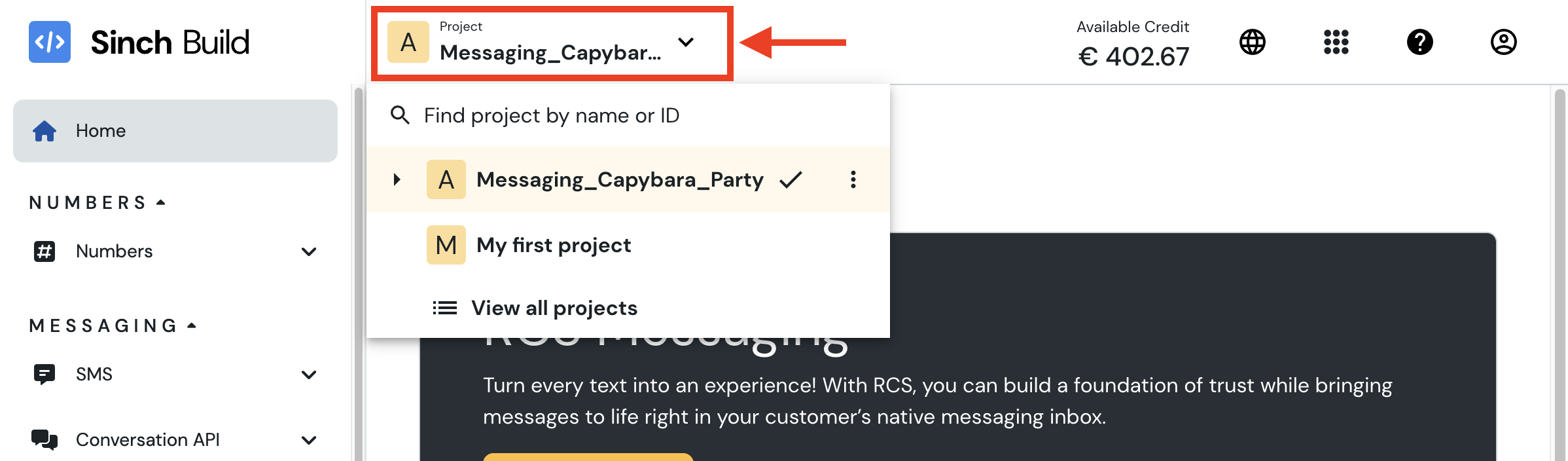
- (Required)
KEY_ID: Select or create a new access key in the Access keys section of the Sinch Build dashboard. - (Required)
KEY_SECRET: This is the secret associated with theAccess Keyyou selected or created in the previous step. Be careful, theAccess Key Secretis only shown once when you create theAccess Key. If you lose it, you will need to create a newAccess Key. CONVERSATION_APP_ID: This is the ID of the conversation app you want to use. You can find it in the Conversation API / Apps section of the Sinch Build dashboard. If you don't set it, you will have to specify it in the prompt.CONVERSATION_REGION: This is the region where your conversation app and templates are located. It can beus,eu, orbr. If you don't set it, it defaults tous(except in multi-tenant mode, where it is required and never defaulted).- When using the SMS channel, you can also set the
DEFAULT_SMS_ORIGINATORenvironment variable to the phone number that will be used as the sender for SMS messages. Depending on your country, this setting may be required. - You can also set the
GEOCODING_API_KEYenvironment variable to your Google Geocoding API key if you want to use the location feature. This is needed to convert an address to a latitude/longitude pair.
- (Required)
-
Verification API credentials: navigate to the Verification / Apps section of the Sinch Build dashboard and create a new app or select an existing one. You will need the following credentials:
- (Required)
APPLICATION_KEY - (Required)
APPLICATION_SECRET
- (Required)
-
Voice service, call, session, and batch tools use
PROJECT_ID,KEY_ID, andKEY_SECRETfrom the project credentials above.- Optionally set
CALLING_LINE_IDENTIFICATIONto an active Sinch number with Voice capability. It is used as the default origin fortts-calloutandtts-batch-callout; callers may also provide the origin to either tool. If neither is set, calls are placed without caller ID.
- Optionally set
-
Mailgun API credentials: navigate to the Mailgun / Domains section of the Mailgun dashboard and create a new domain or select an existing one. You will need the following credentials:
- (Required)
MAILGUN_API_KEY MAILGUN_DOMAINMAILGUN_SENDER_ADDRESS
- (Required)
MCP Server Configuration
The Sinch MCP server is available as an NPM package to the executed. Here is how to set it up in the Claude Desktop configuration file (claude_desktop_config.json). Remember to fill in the environment variables with your own credentials:
{
  "mcpServers": {
    "sinch": {
      "command": "npx",
      "args": ["-y", "@sinch/mcp"],
      "env": {
        "PROJECT_ID": "",
        "KEY_ID": "",
        "KEY_SECRET": "",
        "CONVERSATION_APP_ID": "",
        "CONVERSATION_REGION": "",
        "DEFAULT_SMS_ORIGINATOR": "",
        "GEOCODING_API_KEY": "",
        "APPLICATION_KEY": "",
        "APPLICATION_SECRET": "",
        "CALLING_LINE_IDENTIFICATION": "",
        "MAILGUN_API_KEY": "",
        "MAILGUN_DOMAIN": "",
        "MAILGUN_SENDER_ADDRESS": ""
      }
    }
  }
}
Running the MCP Server locally
Option 1: Start the MCP server with stdio using Claude Desktop
To run the MCP server locally with Claude Desktop, you will need to clone the repository and build the MCP server. This option is useful for local development and testing.
Step 1: Clone the repository
git clone https://github.com/sinch/sinch-mcp-server.git
Step 2: Build the MCP server
cd sinch-mcp-server
npm install
npm run build
Step 3: Setup Claude Desktop configuration
Here is an example of how to configure the MCP server in the Claude Desktop configuration file (claude_desktop_config.json):
{
  "mcpServers": {
    "sinch": {
      "command": "node",
      "args": ["/your/path/to/sinch-mcp-server/dist/index.js"],
      "env": {
        "PROJECT_ID": "",
        "KEY_ID": "",
        "KEY_SECRET": "",
        "CONVERSATION_APP_ID": "",
        "CONVERSATION_REGION": "",
        "DEFAULT_SMS_ORIGINATOR": "",
        "GEOCODING_API_KEY": "",
        "APPLICATION_KEY": "",
        "APPLICATION_SECRET": "",
        "CALLING_LINE_IDENTIFICATION": "",
        "MAILGUN_API_KEY": "",
        "MAILGUN_DOMAIN": "",
        "MAILGUN_SENDER_ADDRESS": ""
      }
    }
  }
}
Step 4: (Optional) Filter the tools available in the MCP server
Too many tools mean bigger context, mean higher tokens usage and more confusion for the LLM to select the right tool to use.
You can filter the tools that are available in the MCP server by using the tags options. For example, if you want to only use the conversation tools, you can add the following options to the args array:
      "args": [
        "/your/path/to/sinch-mcp-server/dist/index.js",
        "--tags",
        "conversation"
      ],
You can combine multiple tags by separating them with commas. For example, if you want to use both conversation and verification tools, you can use the following command:
      "args": [
        "/your/path/to/sinch-mcp-server/dist/index.js",
        "--tags",
        "conversation,verification"
      ],
Available tags: conversation, rcs, whatsapp, email, verification, voice, numbers, notification, configuration, all.
If you want to use all the tools, you can omit the --tags option, or use the tag all:
      "args": [
        "/your/path/to/sinch-mcp-server/dist/index.js",
        "--tags",
        "all"
      ],
Option 2: Start the MCP server remotely and connect to it using SSE
With this option, you can run the MCP server on a remote machine and connect to it using Server-Sent Events (SSE). This is useful if you want to run the MCP server on a cloud server or a dedicated machine. By default, Claude Desktop will connect to the MCP server using STDIO; we will use the supergateway library to connect to the MCP server using SSE.
Step 1: Build the MCP server
cd sinch-mcp-server
npm install
npm run build
Step 2: Set up the MCP server configuration
Copy the file .template.env and rename it .env. Then replace the placeholders with your own credentials and delete any key you don't need. Environment variables are parsed and typed at server startup via T3 Env; missing credentials only cause errors when you invoke a tool that requires them. The .env file should look like this ():
# Conversation / Numbers / Voice v2 API tools related environment variables
PROJECT_ID=
KEY_ID=
KEY_SECRET=
## Optional but recommended: the App ID holding your channels integration configuration. If not set it must be present in the prompt
CONVERSATION_APP_ID=
## Optional, defaults to "us". Other possible values are "eu" and "br"
CONVERSATION_REGION=
## Needed only if you want to send SMS messages: it is the number that will be used as the sender for SMS messages
DEFAULT_SMS_ORIGINATOR=
## Needed only if you want to send location messages: it converts an address to a latitude/longitude pair
GEOCODING_API_KEY=

# Verification tools related environment variables
APPLICATION_KEY=
APPLICATION_SECRET=

# Voice tools related environment variables
## Optional default active Sinch Voice number used by tts-callout and tts-batch-callout
CALLING_LINE_IDENTIFICATION=

# Mailgun tools related environment variables
MAILGUN_DOMAIN=
MAILGUN_API_KEY=
MAILGUN_SENDER_ADDRESS=
Step 3: Start the MCP server
npm run start:stdio
By default, this command will start the MCP with all the tools available. If you want to filter the tools that are available in the MCP server, you can use the --tags option. For example, if you want to only use the conversation tools, you can modify the command as follows:
# Original command
"start:sse": "tsc --project tsconfig.build.json && (npx -y supergateway --stdio \"node dist/index.js\" --port 8000 --baseUrl http://localhost:8000 --ssePath /sse --messagePath /message)"

# Modified command to only use conversation tools
"start:sse": "tsc --project tsconfig.build.json && (npx -y supergateway --stdio \"node dist/index.js --tag conversation\" --port 8000 --baseUrl http://localhost:8000 --ssePath /sse --messagePath /message)"
You can combine multiple tags by separating them with commas. For example, if you want to use both conversation and verification tools, you can use the following command:
"start:sse": "tsc --project tsconfig.build.json && (npx -y supergateway --stdio \"node dist/index.js --tag conversation,verification\" --port 8000 --baseUrl http://localhost:8000 --ssePath /sse --messagePath /message)"
Step 4: Configure the MCP server in Claude Desktop
You can then configure the MCP server in the Claude configuration file as follows:
{
  "mcpServers": {
    "sinch": {
      "command": "npx",
      "args": ["-y", "supergateway", "--sse", "http://localhost:8000/sse"]
    }
  }
}
(Replace the http://localhost:8000/sse with the URL of your MCP server if it is not running locally)
Option 3: Native Streamable HTTP server (recommended for remote)
This option runs a native Streamable HTTP MCP server on /mcp. It is either single-tenant or multi-tenant (See below).
Step 1: Build the MCP server
cd sinch-mcp-server
npm install
npm run build
Step 2: Pick a tenancy
Tenancy is determined by MCP_AUTH_MODE, which is read first:
multi-tenant(client credentials) ifMCP_AUTH_MODEisclient-credentialsmulti-tenant(sinchid-agent) ifMCP_AUTH_MODEissinchid-agentsingle-tenantifMCP_AUTH_MODEis unset —PROJECT_ID,KEY_IDandKEY_SECRETare then required
MCP_AUTH_MODE | Tenancy | PROJECT_ID/KEY_ID/KEY_SECRET | Tools run as |
|---|---|---|---|
| set to a known mode | Multi-tenant | never read | whatever the caller sends |
| set to anything else | — | — | refuses to start |
| unset | Single-tenant | required, all three | the server's env credentials |
Because the mode is read before anything else, credentials left in the environment cannot quietly switch a multi-tenant server back onto one shared account — there, they are not consulted at all, for credential resolution or for telemetry. An unrecognised value is a startup error rather than a fall back to single-tenant, which would drop inbound authentication altogether. With MCP_AUTH_MODE unset, a partial triple also refuses to start: set all three, or none and a mode.
Single-tenant (no MCP_AUTH_MODE)
Use when every client of this MCP instance shares the same Sinch project — in practice, local development. The credentials live on the server, and all three are required:
PORT=8000
PROJECT_ID=
KEY_ID=
KEY_SECRET=
# MCP_AUTH_MODE deliberately unset
Note:
/mcpperforms no inbound authentication in this mode.MCP_AUTH_MODEbeing unset is the entire configuration, so there is no per-caller credential to validate and anyone who can reach the port transacts on that account. Bind it to localhost and do not expose it. For a remotely reachable server, use a multi-tenant mode.
CONVERSATION_REGION stays optional here (defaulting to us) and can still be overridden from the prompt.
Multi-tenant (MCP_AUTH_MODE=client-credentials)
Use when different clients must use different Sinch projects. Each client sends its own credentials on every request:
| Header | Value |
|---|---|
Authorization | Bearer <Base64-encoded projectId:keyId:keySecret> |
The server does not read PROJECT_ID, KEY_ID, or KEY_SECRET from its environment in this mode — not for OAuth-backed tools, and not for span attributes either. OAuth clients are cached in memory with LRU eviction (default 256 entries, configurable via OAUTH_TOKEN_CACHE_MAX_ENTRIES).
In the multi-tenant modes, CONVERSATION_REGION is required: the server refuses to start without it, and it is never defaulted to us. Each deployment is pinned to a single region, and the region cannot be overridden per request or from the prompt.
How the shape check behaves
The shape check exists only in the multi-tenant modes. Requests are checked against the configured shape and rejected with 401 plus a WWW-Authenticate: Bearer challenge otherwise:
client-credentialsrequires a token that decodes toprojectId:keyId:keySecret. A SinchID JWT contains.separators, so it never decodes to a credential triple and is rejected here.x-agent-idis ignored: this deployment never reads it.sinchid-agentrequires a three-segment JWT and anx-agent-idheader — credentials are resolved from the agent installation it names and the Sinch project id from the verified token claim, so a request without it cannot complete. A Base64 credential triple is not a JWT, so it is rejected here. Being JWT-shaped is not enough on its own: the token is then cryptographically verified (see SinchID token verification below) before the request is allowed through.
A request with no Authorization at all gets the RFC 6750 realm-only challenge (Bearer realm="sinch-mcp") with the reason in the response body; a request carrying the wrong kind of token, or a JWT that fails verification, gets error="invalid_token" plus a description.
Two deployments of the same image, each with its own MCP_AUTH_MODE, therefore serve the two audiences on separate hostnames without either accepting the other's credentials. MCP_AUTH_MODE has no effect over stdio.
SinchID token verification (sinchid-agent only)
Every sinchid-agent request's Authorization JWT is verified against the configured JWKS before the request is allowed through: signature (RSA, algorithm pinned to RS256 — never taken from the token's own alg header), issuer, audience, expiry (a token without an exp claim is rejected too), and non-empty project, account, global-user, and scope claims. A forged, expired, wrong-issuer/audience, or incomplete token is rejected with 401 and never reaches session creation or tool execution.
JWT verification requires three environment variables, all required in sinchid-agent mode — the server refuses to start without them:
| Variable | Value |
|---|---|
SINCHID_JWT_ISSUER | Expected iss claim (e.g. https://id.sinch.com/) |
SINCHID_JWT_AUDIENCE | Expected aud claim |
SINCHID_JWT_JWKS_URI | URL of the issuer's JWKS document (public signing keys) |
Secret Manager authentication uses Google Application Default Credentials. For local development, run gcloud auth application-default login; the Google client then uses developer ADC without a per-agent environment-variable credential or fallback. Set GOOGLE_CLOUD_PROJECT when ADC cannot infer the project that owns the secrets. GOOGLE_APPLICATION_CREDENTIALS is only needed locally when a service-account JSON file is supplied; point it at that file's absolute path and never commit it. In Kubernetes, the agent release mounts its deployment-managed sa-key.json from a Secret.
The complete JWKS document is retained in memory. JWKS HTTP requests are aborted after 3 seconds without network activity. After 10 minutes the server attempts to refresh the document, but it does not discard known keys first: if that scheduled refresh fails, tokens using a cached key can still be verified for up to one hour from the last successful fetch. A later successful refresh replaces the document immediately and removes keys the issuer no longer publishes. A token whose key id is absent can trigger at most one refresh attempt per 30-second cooldown, measured from every attempt (including failures), so an outage or a flood of random key ids cannot hammer the JWKS endpoint. A newly published signing key is picked up on the first successful refresh after the cooldown. Unknown keys are rejected with 401 after a successful JWKS lookup; 503 is reserved for cases where an attempted lookup could not complete or the last successful document is too old for stale fallback.
sinchid-agent credentials are loaded at request time from the latest Google Secret Manager version named sinch-agent-m2m_<orderId>_<projectId>. Its payload is the same Base64 projectId:keyId:keySecret blob used by client-credentials. orderId comes from the x-agent-id header, and projectId is derived from the verified token's https://sinch.com/project_id claim. Both identifiers must be canonical UUIDs and are lower-cased when constructing the secret ID. The decoded credential's project must match the verified project. A missing, inaccessible, empty, malformed, mismatched, or invalidly named secret fails closed with a prompt response. This mode never falls back to PROJECT_ID, KEY_ID, or KEY_SECRET; those variables remain exclusive to standalone single-tenant mode.
Authorization credentials format (HTTP only)
- Build a UTF-8 string:
projectId:keyId:keySecret(see API credentials). - Encode with standard Base64 (no line breaks, standard
+//alphabet — not base64url). - Send as
Authorization: Bearer <base64>on each HTTP request (including after MCP session initialization).
The access key secret may contain : characters; only the first two colons separate the three fields.
A request whose Authorization header is missing, uses a scheme other than Bearer, or whose token is not a Base64-encoded projectId:keyId:keySecret triple is not rejected at the HTTP layer: OAuth-backed tools return a prompt response stating Missing or invalid Authorization header (expected "Bearer <Base64 of projectId:keyId:keySecret>").
Example (multi-tenant):
export SINCH_CREDS=$(printf '%s' 'my-project-id:my-key-id:my-key-secret' | base64)

curl -X POST "http://localhost:8000/mcp" \
  -H "Authorization: Bearer ${SINCH_CREDS}" \
  -H "Content-Type: application/json" \
  -H "Accept: application/json, text/event-stream" \
  -d '{"jsonrpc":"2.0","id":1,"method":"initialize","params":{"protocolVersion":"2024-11-05","capabilities":{},"clientInfo":{"name":"example","version":"1.0.0"}}}'
Scope: the Authorization credentials apply to Conversation, Numbers, and Number Lookup tools. Voice, Verification, and Mailgun still use server environment variables for now. Local stdio (Option 1) always uses server environment variables.
x-agent-id header (sinchid-agent only)
Agent integrations (e.g. an agent installed in a Gemini Enterprise app) send an x-agent-id header carrying the unique installation identifier (the Marketplace OrderId). The Sinch project id is derived from the verified https://sinch.com/project_id claim in the Authorization JWT. Together they name which Google Secret Manager secret (sinch-agent-m2m_<orderId>_<projectId>) the server resolves the caller's Sinch credentials from. The x-agent-id header is required on deployments running with MCP_AUTH_MODE=sinchid-agent; a request missing it is rejected with 401 before reaching a tool. Elsewhere it is simply not read — the other modes ignore it, and over stdio credentials always come from the environment. This custom header is a temporary mechanism until a token-exchange capability is available over M2M authentication.
| Header | Value |
|---|---|
x-agent-id | Agent installation identifier (e.g. GE OrderId) |
Authorization user JWT (agent deployments)
After the end-user completes the OAuth login and consent flow, agent integrations may send the resulting Auth0 user JWT on each request:
| Header | Value |
|---|---|
Authorization | Bearer <user JWT> |
Once the token has passed verification (see SinchID token verification above), the server captures the Sinch claims (https://sinch.com/project_id, https://sinch.com/account_id, https://sinch.com/global_user_id) and the standard scope claim in the request context, logging them for audit purposes. The verified https://sinch.com/project_id claim is paired with x-agent-id to resolve M2M API credentials from Secret Manager (sinch-agent-m2m_<orderId>_<projectId>). Single-tenant does not read Authorization; in the multi-tenant modes the token must match the deployment's shape and pass verification, or the request is rejected with 401. In the long term, the user JWT will be exchanged for an M2M JWT, replacing the custom headers.
What the Authorization token is depends on the deployment:
| Deployment | Bearer token | Sinch credentials come from |
|---|---|---|
| Single-tenant | not read, and not required | the server's PROJECT_ID/KEY_ID/KEY_SECRET |
Multi-tenant, client-credentials | Base64 projectId:keyId:keySecret | the token itself |
Multi-tenant, sinchid-agent | SinchID access token (three-segment JWT) | the agent installation (Google Secret Manager) |
The two multi-tenant shapes are disjoint: a JWT contains . separators, which are not in the Base64 alphabet, so a credential triple is never read as a token and a JWT never resolves to credentials. Each multi-tenant deployment accepts only its own shape and answers 401 to the other — see MCP_AUTH_MODE.
Because a request carries a single Authorization header, the audit claims described above are captured only where the token is a JWT — that is, on a sinchid-agent deployment. A client-credentials caller supplies credentials rather than a user token, so no claims are logged for it.
Step 3: Start the HTTP server
npm run start:http:server
The server listens on http://localhost:8000/mcp by default (override with PORT).
Session storage (Redis)
Session identity is stored in Redis, not in process memory, so any pod behind a load balancer can validate any session — no sticky sessions required. Each request builds its own short-lived McpServer and StreamableHTTPServerTransport, closed once the response finishes; nothing is held in memory between requests. Redis is required — the server exits immediately on startup unless both REDIS_HOST and REDIS_PORT are set (REDIS_PASSWORD is optional; TLS turns on automatically once it's set, e.g. for AWS ElastiCache). If Redis is unreachable after a short retry, the server returns 503 Service Unavailable with JSON-RPC error code -32003, distinct from -32001 Session not found.
Because there's no persistent per-session transport, the server doesn't support the standalone GET/SSE stream — GET /mcp returns 405. Server-initiated notifications sent during a POST (e.g. tool progress) work as usual; a notification pushed independently of any request would have nowhere to go once transports are per-request.
Step 4: Example MCP client configuration
Every mode sends the same header shape — what differs is whose credentials the token carries. Single-tenant clients encode the server's triple; multi-tenant clients encode their own.
{
  "mcpServers": {
    "sinch-remote": {
      "url": "https://your-host.example.com/mcp",
      "headers": {
        "Authorization": "Bearer <base64(projectId:keyId:keySecret)>"
      }
    }
  }
}
After the initialize response, include the mcp-session-id header returned by the server on subsequent requests.
Contributing
See CONTRIBUTING.md for contributor guidelines, including how to add new tools and pin GitHub Actions.