RabbitMQ MCP Go
MCP-сервер на Go для интеграции с брокером сообщений RabbitMQ.
Документация
RabbitMQ MCP Go
A Go implementation of Model Control Protocol (MCP) server for RabbitMQ integration.
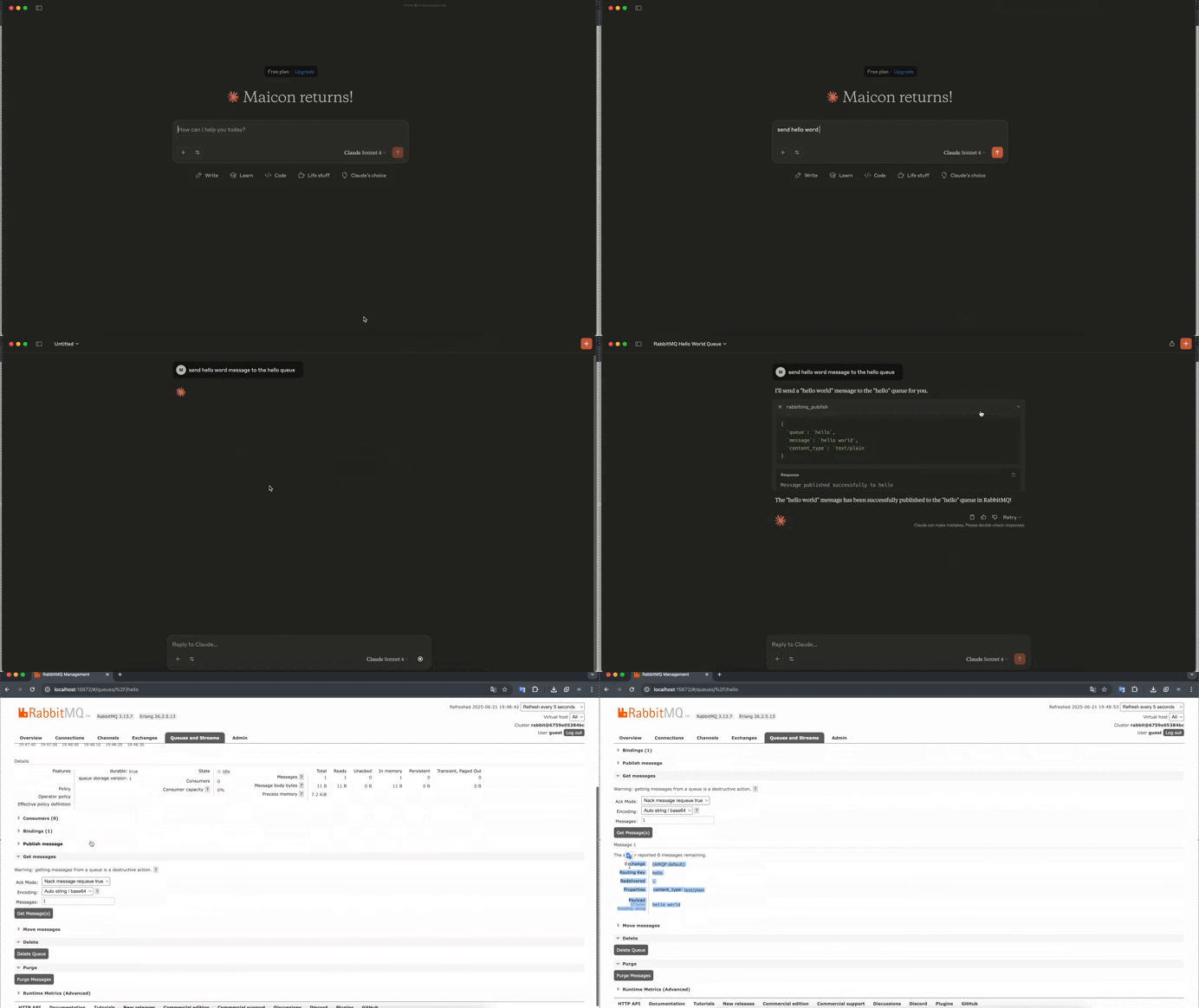
This server provides an implementation for interacting with RabbitMQ via the MCP protocol, enabling LLM models to perform common RabbitMQ operations through a standardized interface.




Overview
The RabbitMQ MCP Server bridges the gap between LLM models and RabbitMQ, allowing them to:
- Publish a message to a RabbitMQ queue or exchange
Project Structure
.
├── cmd/                    # Application entry points
├── internal/              # Private application code
│   ├── config/           # Configuration management
│   ├── tools/            # MCP tools implementations
│   ├── prompts/          # Prompt templates and configurations
│   └── resources/        # Shared resources and utilities
├── pkg/                   # Public library code
├── api/                   # API definitions and documentation
└── scripts/              # Build and utility scripts
Directory Overview
Internal Directory Structure
- tools/: Contains all MCP tool implementations. Each tool is a separate package that implements the MCP tool interface.
- prompts/: Stores prompt templates and configurations used by the MCP tools.
- resources/: Houses shared utilities, helper functions, and reusable components.
- config/: Manages application configuration.
Getting Started
- Install Go 1.24.3:
asdf install golang 1.24.3
- Clone the repository:
git clone https://github.com/yourusername/rabbitmq-mcp-go.git
cd rabbitmq-mcp-go
- Install dependencies:
go mod download
- Build the project:
go build ./cmd/...
MCP Client Integration
Basic Configuration
Add this configuration to your MCP client settings:
{
  "mcpServers": {
    "rabbitmq": {
      "command": "rabbitmq-mcp-server",
      "env": {
        "RABBITMQ_URL": "amqp://guest:guest@localhost:5672/"
      }
    }
  }
}
Cursor Integration
To use with Cursor, create or edit ~/.cursor/mcp.json:
{
  "mcpServers": {
    "rabbitmq": {
      "command": "rabbitmq-mcp-server",
      "env": {
        "RABBITMQ_URL": "amqp://guest:guest@localhost:5672/"
      }
    }
  }
}
Claude Desktop Integration
To use with Claude Desktop, edit your configuration file:
- macOS:
~/Library/Application Support/Claude/claude_desktop_config.json - Windows:
%APPDATA%\Claude\claude_desktop_config.json
{
  "mcpServers": {
    "rabbitmq": {
      "command": "rabbitmq-mcp-server",
      "env": {
        "RABBITMQ_URL": "amqp://guest:guest@localhost:5672/"
      }
    }
  }
}
Using the RabbitMQ Publish Tool
The publish tool allows you to send messages to RabbitMQ queues or exchanges through the MCP interface.
Tool Parameters
queue(string, optional): Queue name to publish toexchange(string, optional): Exchange name to publish tomessage(string, required): Message content to publishcontent_type(string, optional): Content type of the message- Supported values: "text/plain" (default), "application/json"
headers(string, optional): Message headers in JSON format
Example Interactions
1. Publishing to a Queue:
User: "Send a message 'Hello World' to the queue 'my_queue'"
AI Assistant will use the publish tool:
{
  "queue": "my_queue",
  "message": "Hello, World!",
  "content_type": "text/plain"
}
Response:
"Message published successfully to my_queue"
2. Publishing JSON to an Exchange:
User: "Publish order status update to the 'orders' exchange"
AI Assistant will use the publish tool:
{
  "exchange": "orders",
  "message": "{\"order_id\": \"12345\", \"status\": \"completed\"}",
  "content_type": "application/json"
}
Response:
"Message published successfully to orders"
1. Publishing with Headers:
User: "Send a high-priority message to the notifications queue"
AI Assistant will use the publish tool:
{
  "queue": "notifications",
  "message": "Important system update",
  "headers": "{\"priority\": \"high\", \"timestamp\": \"2024-03-20T12:00:00Z\"}"
}
Error Handling
The tool will return an error in the following cases:
- Neither queue nor exchange is specified
- Required message parameter is missing
- Invalid JSON format when content_type is "application/json"
- RabbitMQ connection or publishing errors
Development
To add a new MCP tool:
- Create a new directory under
internal/tools/ - Implement the MCP tool interface
- Register the tool in the main application
- Add corresponding prompts in
internal/prompts/if needed - Document the tool in the tools README
Contributing
Contributions are welcome! Please feel free to submit a Pull Request.
License
This project is licensed under the MIT License - see the LICENSE file for details.