Hronaut
Постоянный локальный браузер для MCP-агентов кодирования. Сохраняйте вкладки, логины и изолированные рабочие пространства между сессиями; проверяйте локальные приложения и делайте паузу для перехвата управления человеком. Windows, macOS и Linux. Исходный код доступен; бесплатно для разрешённого некоммерческого использования, коммерческое — $10/месяц или $60/год за пользователя.
Документация
Hronaut
One browser per project. Never your own Chrome.
Hronaut is a separate, visible browser for every project your coding agent touches. It is for developers and agencies who let Codex, Claude Code, Cursor or another coding agent check signed-in web apps.
Download · Setup guide · Pricing
For Windows, macOS and Linux. 10-day free trial, no card. Then $4/month or $24/year per named user.
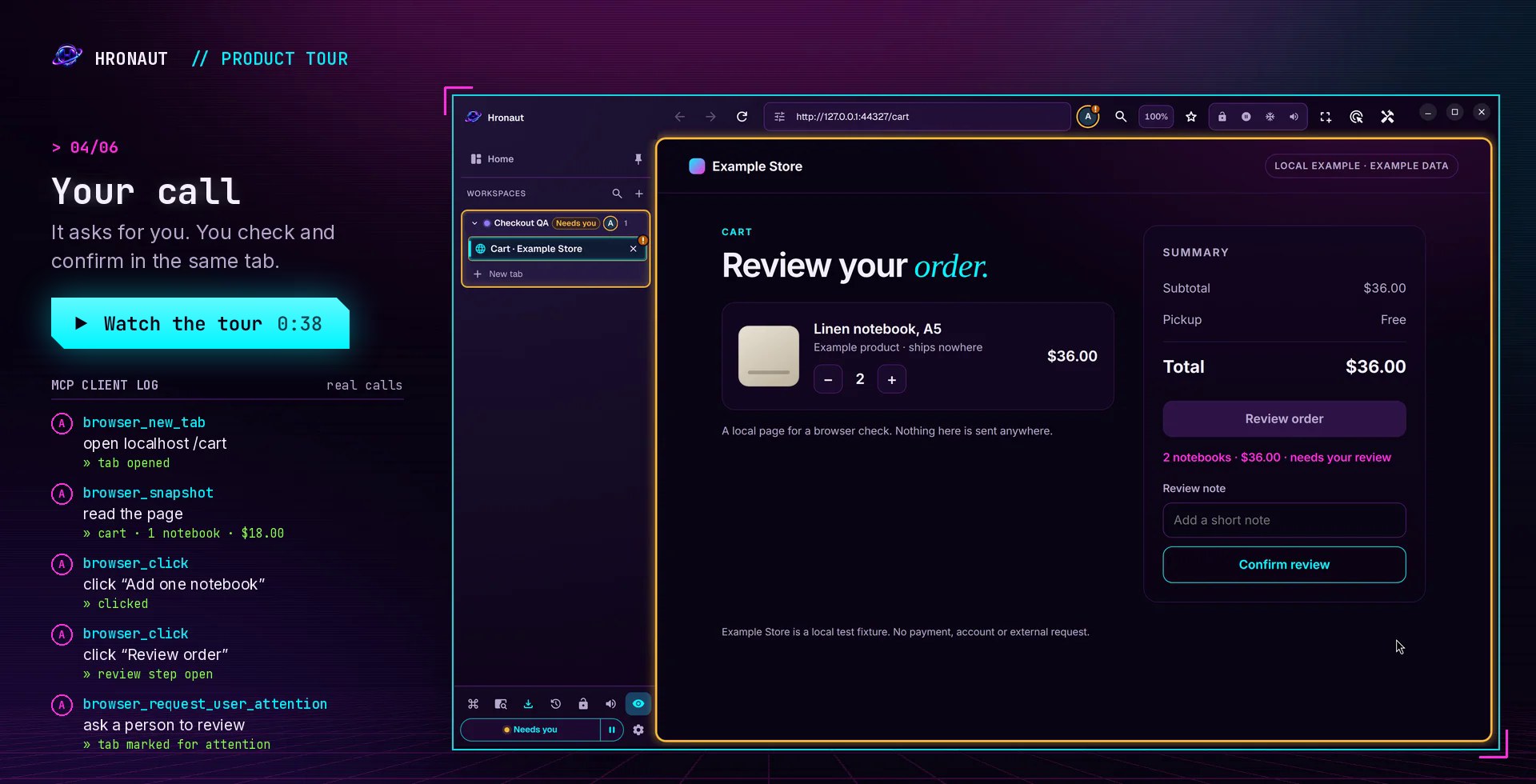
- Your everyday Chrome stays out of it. Agents work in Hronaut, not in the Chrome with your email and bank. They can use what you sign into in Hronaut.
- One workspace per project or client. Each keeps its own cookies and sign-ins, and stays open after the chat ends.
- Watch it, pause it, take over. Do the login or 2FA yourself, then hand the tab back.





Website · Browser MCP decision guide · Releases · Issues · Detailed reference
Start in three steps
- Download the latest Hronaut for Windows, macOS, or Linux and start it.
- On Hronaut Home, choose your coding agent and copy its generated setup, or use the generic setup guide. The in-app setup always reflects the current local endpoint and authentication choice.
- Ask the connected agent:
Using Hronaut, create a new isolated workspace named “Hronaut first run”, open https://example.com, take a semantic snapshot, and tell me the page heading. Use only that task workspace.
A successful run stays visible in Hronaut, creates an isolated workspace, and remains available after that coding-agent conversation ends.
Ready for a real task? Use the copy-ready starter workflows for authenticated handoff, localhost QA, and responsive review without weakening Hronaut's workspace and privacy boundaries.
For recurring work, run the scheduled and triggered browser workflow. Its disposable Docker fixture shows which component owns triggers, browser authority, human takeover, retries, cancellation, and authoritative outcome reconciliation.
Hronaut automates web pages in its own browser, not native desktop applications or other application windows. See browser and native testing boundaries to choose the right test surface, and approval boundaries before consequential actions.
Choose a persistent profile or Hronaut workspaces
A dedicated persistent browser profile can be enough for one project and one identity. Playwright MCP supports this through --user-data-dir; persistence does not require Hronaut. Its profile documentation also explains separate profiles for concurrent browser instances.
Choose Hronaut when you want named profiles managed together in a desktop browser, visible pause and takeover, or deliberate workspace resumption across compatible MCP clients. Each new workspace has separate website storage; bookmarks, history, download records, and remembered permissions remain application-wide. See the workspace contract for the exact boundaries. Hronaut adds a desktop application to run and maintain; its terms are in License.
Each live MCP transport can hold a bounded exclusive write lease for the workspace it creates or resumes. A resume remains usable for read-only inspection when another transport already owns writes, but conflicting mutations return a typed BUSY result without dispatch. Pausing agents, rotating authentication, disconnecting, releasing ownership, or lease expiry revokes that transport's write authority; claim it again only after inspecting fresh state. This lease prevents concurrent writers inside one Hronaut process, not coordination across different Hronaut installations.
Try the short first-run checks for both paths before committing to a workflow. Hronaut's client connection guide and Playwright MCP's client setup instructions cover their respective connections.
Move reviewed setup between machines with portable workspace templates, without copying browser sign-ins. The Support, recovery, and exit path explains how to reconnect a client, replace or remove a workspace, recover local data, and get help.
Keep personal and agent work separate
Open Home to find a project, switch to its tabs, or create a new space. The Open and Archived views keep ongoing and saved work easy to find. Search by workspace name or page title. Each workspace card shows direct agent access and any site restrictions; choose Manage to edit them. Workspace options can hide a workspace from the left sidebar or protect it from permanent deletion. Hidden workspaces stay accessible from Home, and protected workspaces can still be archived.
The browser mute button works from Home before any website tabs exist. It silences existing and future tabs and survives restart. A tab’s Mute / Unmute control can temporarily override browser mute for that tab. Turning browser mute on again clears these exceptions; turning it off restores each tab’s saved mute preference.
Choose Archive when you finish a task. Tabs and sign-ins remain saved, and Undo archive restores an accidental archive immediately. Use Restore workspace in the Archived view to pick up where you left off. Permanent deletion asks for confirmation and removes the workspace’s website data.
Hronaut starts on Home without creating a Default workspace. Opening your first tab creates an isolated workspace. Workspace state saved in an unsupported format stops startup instead of being upgraded.
- Fork a workspace to reuse its cookies and local storage in an independent profile. Choose any active or archived source; the fork starts with a blank tab and keeps the source's site restrictions, or only some of its listed sites if you choose them.
- Disable direct agent access when a workspace should stay under your control. Agents can still fork it, but cannot browse or change its original tabs. The fork receives a copy of its site data, so this setting does not prevent agents from reusing copied sign-ins.
- Copy or Move site data with explicit source and destination controls. Move requires both workspaces archived and verifies the destination before removing transferred data from the source. Profiles with background site-worker storage cannot currently be moved.
Transfers include cookies and local storage, not history, saved passwords, IndexedDB, cache, or downloaded files. They are one-time copies, not ongoing synchronization. Deleting a workspace permanently removes its browser profile; archiving keeps it for later.
Works with your coding agent
Connect through Hronaut's local Streamable HTTP MCP endpoint. Choose the focused guide for your client, or start with the generic setup:
- Terminal and desktop agents: Codex, Claude Code, Gemini CLI, Goose, OpenCode, Devin Local, Mistral Vibe, Grok Build, Qwen Code, and Warp.
- Editor agents: Cursor, VS Code / GitHub Copilot (or the Hronaut extension from the VS Code Marketplace), Cline, Zoo Code, Kiro, Kilo Code, JetBrains Junie, Zed, and Windsurf.
- Other clients: use the generic Streamable HTTP setup.
When Hronaut is the right browser
Hronaut fits when you already have a coding agent and want the browser to remain local, visible, and reusable after one task or chat ends.
- Keep authenticated sites in named, isolated workspaces instead of rebuilding login state for every agent session.
- Watch work as it happens, pause agent access, lock website interaction, or take over the same tab for CAPTCHA, 2FA, payment, and other human-only steps.
- Resume one deliberately scoped browser workspace across compatible local MCP sessions with its private task capability, without exposing it to other connected clients or connecting the agent to your everyday browser profile.
- Preserve tabs and evidence between coding sessions for debugging, authenticated QA, and multi-agent handoffs.
- Track long browser workflows with bounded deadlines, heartbeats, and runtime-checked completion evidence instead of relying on a model message alone.
Explore the source-backed workflows for authenticated browser handoff, parallel agent workspaces, localhost QA, local Web3 wallets, and security and release trust.
Use a task-owned headless browser or automation library when the browser should be disposable or embedded inside your own agent runtime. Use a hosted browser service when you need remote regions, managed proxies, stealth, or fleet-scale execution. The source-backed Browser MCP decision guide compares Hronaut with Playwright MCP, Chrome DevTools MCP, and an extension-based Browser MCP without claiming persistence is unique.
Where Hronaut fits in your agent stack
Hronaut is a local, visible MCP execution layer for agents that already have their own orchestration. The caller keeps workflow and orchestration state; Hronaut binds each browser command to a tool contract and a named local workspace with its own profile, account, origin, and tab context. People can watch, pause, approve, or take over, and the caller can require bounded browser evidence before it treats an external action as complete.
| Responsibility | Owner |
|---|---|
| Plan the workflow and retain task state | Your SDK, agent framework, or application |
| Define the requested browser operation | MCP tool contract and arguments |
| Execute with a specific browser identity and site context | Hronaut workspace, profile, account, origin, and tab |
| Approve or complete a consequential manual step | The person using visible Hronaut controls |
| Decide whether the workflow may continue | The caller, using verified postcondition read-back |
For example, a code-first agent can retain its own task state, ask Hronaut to submit a reviewed change in one named workspace, wait for human approval when required, and continue only after verified postcondition read-back confirms the external result.
Hronaut is not an agent framework, hosted browser fleet, no-code platform, or universal production-safety guarantee. Use it when the browser should remain local, visible, and deliberately reusable; keep orchestration and final business decisions in the calling system.
Highlights
- Persistent tabs, cookies, storage, sessions, workspaces, split views, and window state.
- A workspace-first desktop layout with compact icon navigation, searchable settings, tab previews, a full-page viewer, and clear active-tab treatment. New profiles use the resizable, collapsible left rail; top tabs remain available in Appearance.
- Ten appearance choices: System, Light, Dark, Midnight, Sepia, Cyberpunk, Cyberpunk Turbo, Matrix, Machine, and Galactic.
- Local Streamable HTTP MCP endpoint with browser navigation, interaction, inspection, diagnostics, downloads, storage, and accessibility tools.
- Multi-agent workspaces with isolated browser profiles, connection-scoped access, and private restart-safe resume capabilities.
- Independent public-outcome verification that compares a writer view with a distinct clean, read-only observer workspace and returns a privacy-bounded audience-separated receipt.
- Optional trusted workspace site-access allowlists covering direct navigation, redirects, page actions, popups, and history without granting policy changes to agents.
- Runtime action-authority fences that treat page content as untrusted and reject consequential actions when their origin, navigation, workspace, policy, or target context changes before dispatch.
- Human-interaction locks, instant MCP pause, explicit permissions, and bearer-token authentication, on by default.
- Independent Follow agents mode that keeps the active agent tab visible without taking keyboard or mouse focus. With it off, agent-created tabs, workspace tab selections, and agent-triggered popups leave the tab you are viewing in place.
- Built-in history, bookmarks, downloads, password vault, site controls, responsive preview, visual comparison, and Chromium diagnostics.
- Automatic update checks against public GitHub releases; downloads and installation always require user action.
- English, Ukrainian, Russian, German, French, Spanish, Polish, Italian, Brazilian Portuguese, Turkish, Hindi, Japanese, Korean, Simplified Chinese, Traditional Chinese, Indonesian, and Vietnamese interface languages.
Install
Download the latest package for Windows, macOS, or Linux from GitHub Releases.
Mac requirements: macOS 13 Ventura or later, on either Apple Silicon or Intel. Check your macOS version in Apple menu → About This Mac before downloading.
On Windows x64, install the verified portable build and Start Menu shortcut with Scoop:
scoop install https://raw.githubusercontent.com/hronaut/hronaut/main/packaging/scoop/hronaut.json
The Windows binary remains unsigned, and the macOS packages are not Apple-notarized, so Windows SmartScreen or macOS Gatekeeper may show a warning. Verify downloads with the published hashes.txt file and GitHub artifact attestations.
Verify an unsigned download
Keep the downloaded package in one directory, replace PACKAGE_FILENAME below with its exact filename, and use the GitHub CLI to verify both the package and the checksum manifest against this repository's release workflow:
gh release download --repo hronaut/hronaut --pattern hashes.txt
gh attestation verify hashes.txt --repo hronaut/hronaut
gh attestation verify "./PACKAGE_FILENAME" --repo hronaut/hronaut
Compute the package's SHA-256 digest with the command for your platform:
# Linux
sha256sum "./PACKAGE_FILENAME"

# macOS
shasum -a 256 "./PACKAGE_FILENAME"
# Windows PowerShell
Get-FileHash .\PACKAGE_FILENAME -Algorithm SHA256
Compare the result with the matching filename in hashes.txt. Attestations and hashes establish release-workflow provenance and file integrity; they do not make these packages platform code-signed or Apple-notarized. The release trust guide explains the boundary and additional checks.
Run from source
Requirements: Node.js 22 or newer and a graphical Linux, macOS, or Windows session.
npm install
npm run dev
Build and run the desktop application:
npm run build
npm start
Development uses a separate persistent hronaut-dev profile. Installed builds use the normal Hronaut profile.
Connect an MCP client
To connect from another computer on your LAN, open Settings → MCP security,
turn on Allow connections from other computers, then fully quit and restart
Hronaut. This listens on all IPv4 interfaces. Token authentication is on by default and
controlled separately by Require MCP authentication.
Use http://YOUR-HRONAUT-COMPUTER-LAN-IP:47812/mcp on the remote computer (replace
the address and use your configured MCP port). With authentication on (the default), create a credential under
Capability profiles in the same settings panel and configure your remote
client to send Authorization: Bearer YOUR-CREDENTIAL. Allow the configured port
through the host firewall. Local clients still use their existing loopback URL.
Use direct HTTP only on trusted networks; it does not encrypt credentials or
browser traffic. For untrusted networks, use an encrypted tunnel or TLS proxy.
Turning remote access off also requires a restart. Authentication changes apply
immediately. Without authentication, anyone who can reach the listener can control
the browser profile and attach local files. Browser Origin restrictions
remain in place; this option is for MCP clients, not arbitrary browser pages.
Start Hronaut, then copy your client's setup from Hronaut Home. A new profile requires the owner MCP token, so a Streamable HTTP client sends it as a bearer header:
{
  "mcpServers": {
    "hronaut": {
      "url": "http://127.0.0.1:47812/mcp",
      "headers": {
        "Authorization": "Bearer <token from the file Hronaut Home shows>"
      }
    }
  }
}
Hronaut Home shows the token file for your profile; keep the token out of chat, issues and source control. A profile whose Require MCP authentication is off connects with the url alone.
The public setup guide provides tested commands for Codex, Claude Code, Gemini CLI, Goose, Cursor, Cline, Zoo Code, Kilo Code, JetBrains Junie, Devin Local, Zed, Mistral Vibe, Grok Build, Qwen Code, Warp, Windsurf, VS Code/GitHub Copilot, OpenCode, and generic MCP clients. Hronaut Home contains the current profile-specific version for every built-in client, including the right endpoint and authentication settings.
Before configuring a client inside WSL, Docker or Podman, a Dev Container, a VM, Remote SSH, or a hosted environment, use the client topology and loopback reachability guide. 127.0.0.1 belongs to the client process's network namespace, which may not be the desktop host running Hronaut. The release-tested path is a native client on that same host; do not expose browser control through a LAN bind, proxy, or public tunnel to work around an unreachable loopback endpoint.
Local MCPB 0.3 hosts can use the adapter bundle attached to each matching desktop release. Follow the MCPB adapter guide for the separate desktop prerequisite, loopback endpoint, owner-token file selection, reconnect, and bounded first-call checks. The bundle does not install or start Hronaut and cannot make its loopback endpoint reachable from a hosted agent.
Compatible clients also receive concise server instructions during MCP initialization: create a fresh isolated workspace first, prefer semantic snapshots and refs, and request human attention only for a genuinely manual step. These instructions improve tool selection but do not replace Hronaut's enforced workspace and interaction boundaries.
Hronaut Home includes a copy-safe readiness report that distinguishes the local listener, MCP initialization, the catalog Hronaut advertises, tools actually visible in the active client, and a successful browser_status or browser_snapshot probe in a task-owned workspace. A healthy endpoint or valid configuration alone does not prove that a custom-agent host exposed the tools to the current task. Tool-list comparison runs locally, and copied diagnostics omit tokens, client/session identifiers, raw errors, arguments, URLs, and page content. Hronaut defaults to loopback; LAN access is an explicit Settings opt-in.
Install the Hronaut Agent Skill
Skill-aware coding agents can install Hronaut's portable workflow guidance directly from this repository:
npx skills add hronaut/hronaut --skill hronaut
The skill teaches the agent to create its own isolated workspace, prefer semantic page interactions, preserve the user's original workspaces, and request a safe human handoff for CAPTCHA, 2FA, or credential entry. It does not configure the MCP connection or contain an authentication token; start Hronaut and copy the current client setup from Hronaut Home first.
After trying it, share a short setup report—successful connections are useful too. The structured form asks for the client, operating system, Hronaut version, and outcome. Never include credentials, MCP tokens, private page data, or personal browser-session information in a public issue.
Claude Code plugin
Claude Code users can install the Hronaut MCP server and the Hronaut Agent Skill together as a plugin. It lives in its own repository, hronaut/hronaut-claude-plugin, with its own versions:
/plugin marketplace add hronaut/hronaut-claude-plugin
/plugin install hronaut@hronaut
On Claude Code 2.1.275 or later, /plugin install hronaut --marketplace hronaut/hronaut-claude-plugin does both in one step. Start Hronaut first; /mcp then shows Hronaut as connected. The plugin's README covers the connection, its address option and the owner token.
First successful run
After your client reports Hronaut as connected, paste this into the coding agent:
Using Hronaut, create a new isolated workspace named “Hronaut first run”, open https://example.com, take a semantic snapshot, and tell me the page heading. Use only that task workspace.
Hronaut Home provides the same prompt with a copy button. A successful run visibly creates a separate workspace, opens the page, and records content-free tool activity on Home; the workspace and its browser profile remain available after the coding-agent conversation ends.
OpenCode
Hronaut requires its MCP token by default, so copy the OpenCode configuration from Hronaut Home; it references the owner-only token file without placing the token in the JSON. With Require MCP authentication turned off, this server in the global ~/.config/opencode/opencode.json or a project's opencode.json is enough:
{
  "$schema": "https://opencode.ai/config.json",
  "mcp": {
    "hronaut": {
      "type": "remote",
      "url": "http://127.0.0.1:47812/mcp",
      "enabled": true,
      "oauth": false
    }
  }
}
Start Hronaut, then verify the connection with opencode mcp list. Use opencode mcp debug hronaut to diagnose connection or authentication failures. Hronaut's focused OpenCode browser MCP guide includes stable and V2 configuration, verification, security boundaries, and browser-ownership tradeoffs. See OpenCode's official MCP guide for the current stable schema.
Gemini CLI
Hronaut Home generates the current user-level ~/.gemini/settings.json entry with Gemini CLI's documented httpUrl field and authentication-aware headers. After saving it, run gemini mcp list to verify that Hronaut is connected. The public Gemini CLI browser MCP guide covers setup, observable verification, browser-lifecycle tradeoffs, and security boundaries. See Gemini CLI's official v0.57.0 MCP server guide for the verified configuration schema.
Goose
Hronaut Home generates Goose's persistent streamable_http extension entry for ~/.config/goose/config.yaml on macOS/Linux or %APPDATA%\Block\goose\config\config.yaml on Windows. Protected profiles reference HRONAUT_MCP_TOKEN from the environment instead of embedding the owner token in YAML. Restart existing Goose sessions after editing the file, then run goose info -v to verify the active configuration. See the focused Goose browser MCP guide and Goose's official configuration reference.
Cline
Hronaut Home generates Cline's explicit streamableHttp server definition with approval left on and authentication-aware headers. Add it through Cline's MCP Servers panel or CLI manager, then run cline config mcp --json to verify the enabled server. The public Cline browser MCP guide explains when to use Cline's built-in task-scoped browser and when a separately owned persistent Hronaut workspace is useful. See Cline's official MCP guide for the current configuration schema.
Zoo Code
Hronaut Home generates Zoo Code's global streamable-http server definition with an empty alwaysAllow list. Protected profiles reference HRONAUT_MCP_TOKEN through Zoo Code's ${env:...} expansion, keeping the owner token out of JSON. Open Zoo Code → MCP Servers → Edit Global MCP, save the generated configuration, restart the editor after changing its environment, and confirm hronaut is connected. See the focused Zoo Code browser MCP guide, Zoo Code's official MCP guide, and its configuration source.
Kilo Code
Hronaut Home generates Kilo Code's global ~/.config/kilo/kilo.jsonc remote MCP entry with an owner-token file reference when authentication is enabled. Run kilo mcp list to verify the local connection. Use Kilo's built-in browser for disposable task-owned automation; use Hronaut when a visible named workspace must survive the task and remain available to Kilo CLI, the IDE, or another local client. Current Kilo Cloud Agents cannot reach Hronaut's loopback endpoint. See the focused Kilo Code browser MCP guide and Kilo's official MCP guide.
JetBrains Junie
Hronaut Home generates Junie's user-level ~/.junie/mcp/mcp.json remote MCP entry for the current local endpoint. The same configuration is shared by Junie CLI and Junie in JetBrains IDEs. Open Junie's /mcp screen to verify that Hronaut is active. When authentication is enabled, Hronaut uses a copy-safe token placeholder rather than displaying the owner token; paste the token locally and do not commit it in a project-scoped .junie/mcp/mcp.json. See the focused JetBrains Junie browser MCP guide and Junie's official MCP configuration guide.
Devin Local
Hronaut Home generates Devin Local's user-level ~/.config/devin/mcp_config.json entry on macOS and Linux or %APPDATA%\devin\mcp_config.json on Windows. It uses the current HTTP transport and, when authentication is enabled, references Hronaut's owner-token file without embedding the token in JSON. Run devin mcp list and devin mcp get hronaut to verify the saved server. This local setup also serves the default agent in new Devin Desktop tabs; Cloud Devin cannot reach Hronaut's loopback endpoint. See the focused Devin Local browser MCP guide and Devin's official MCP configuration guide.
Zed
Hronaut Home generates Zed's user-level context_servers entry for the current loopback endpoint. For an unprotected Hronaut profile it includes a non-secret local marker header, preventing Zed from starting an OAuth flow that Hronaut does not implement; protected profiles receive a copy-safe owner-token placeholder instead. Verify the live server through Settings → AI → MCP Servers and confirm its green Server is active status. Zed Agent uses the server directly and can forward it to external ACP agents, while terminal threads use their CLI's own MCP configuration. See the focused Zed browser MCP guide and Zed's official MCP documentation.
Windsurf
Hronaut Home generates Windsurf Cascade's user-level ~/.codeium/windsurf/mcp_config.json entry with the current Streamable HTTP endpoint. Protected profiles use Windsurf's file interpolation to read the owner-only token locally instead of embedding it in JSON. Open Cascade → MCPs after saving and confirm that hronaut is connected. See Windsurf's official MCP configuration guide.
Grok Build
The official Apache-2.0 Grok Build CLI can connect directly to Hronaut's local HTTP MCP endpoint:
grok mcp add --transport http hronaut http://127.0.0.1:47812/mcp --header 'Authorization: Bearer ${HRONAUT_MCP_TOKEN}'
grok mcp doctor hronaut
Copy the command from Hronaut Home: it reads the owner token into HRONAUT_MCP_TOKEN first. Grok expands the variable when loading ~/.grok/config.toml, so the token is not copied into the file. With Require MCP authentication off, drop the --header argument. See xAI's official MCP server guide.
This local integration is for Grok Build. Hosted Grok on the web and the X bot cannot reach a loopback-only Hronaut server; Hronaut does not recommend publishing its browser-control endpoint through a public tunnel.
By default the server listens only on loopback and requires the profile's MCP token; both are set under Settings → MCP security.
Development checks
The full local npm run test:integration:docker gate retains failed Electron
traces and reports under test-results/local-docker-<run>/ before removing its
container. Each run uses a separate directory; a failed artifact copy is reported
without masking the original test failure. This keeps the normal full typecheck,
four-worker suite, flaky-test failures, and native-dialog checks unchanged.
npm run lint
npm test
npm run build
npm run test:integration:headless
Release packaging and publishing are centralized in .github/workflows/release.yml. Every local package command uses --publish never.
Directory and registry listings
Hronaut is a local-only desktop application, not a remotely deployable MCP connector. Directory maintainers should use the reviewed public fact set and listing guide for current setup, supported-client, license, trial, pricing, and ownership details. The MCP endpoint remains on loopback and must not be submitted to a hosted directory or gateway.
The official MCP Registry identity is
io.github.hronaut/hronaut.
It is an mcpb package record for the
local adapter,
not a hosted Hronaut deployment. Installing the adapter does not install or
start the Hronaut desktop application, and it cannot make Hronaut's loopback
endpoint reachable from hosted agents. Start the matching desktop release
locally and copy its endpoint from Hronaut Home.
License
Hronaut is source-available under the Subscription and Trial License. The 10-day trial starts with the first agent tool call, with no credit card required. All ongoing use requires a subscription afterward: $4/month or $24/year per named user (50% off $48), with up to three active devices per seat. Agent automation is blocked after expiry; existing local data remains accessible for recovery, export, and deletion. Earlier releases retain their original terms.
Outside contributions are welcome under the terms in CONTRIBUTING.md. Security reports should follow the security policy.
For billing and licensing support, contact support@hronaut.dev.
Documentation
The detailed reference covers browser behavior, privacy and security boundaries, every MCP tool group, testing, packaging, and release operations. The measured page freeze and resume contract documents deterministic live-page holds, explicit recovery, and runtime limitations for QA.
Local Web3 wallets
Hronaut can hold separate local EVM, Solana, and Tron accounts, attach them to selected workspaces, and mediate website or coding-agent requests through simulation, policy checks, and trusted Hronaut approval. Private keys and recovery phrases are not returned to website pages or MCP clients. Mainnet defaults to explicit human approval. A dedicated EVM agent wallet can opt into an exact, short-lived Bypass Approve policy with complete transaction and spend limits; websites and all unbounded or unsupported mainnet requests still require a person.
See docs/WALLETS.md for the threat model, supported methods, Linux vault behavior, recovery, RPC configuration, revocation, and the exact security boundary. Use the watch-only public-address wallet QA recipe to verify scoped balance observation and signing rejection without importing a secret, or the separate local EVM wallet QA quickstart for a disposable Anvil signing run with receipt reconciliation. The external-wallet and mobile dApp QA boundary explains how to hand those local results to a separate provider-specific suite without overclaiming coverage. Hronaut does not use WalletConnect, Reown, hosted custody, or proprietary wallet SDKs.