Advanced Unity MCP Integration
Um servidor MCP para Unity, permitindo que assistentes de IA interajam com projetos em tempo real, acessem dados de cena e executem código.
Documentação
🚀 Integração Avançada com Unity MCP





Este pacote fornece uma integração perfeita entre o Model Context Protocol (MCP) e o Unity Editor, permitindo que assistentes de IA entendam e interajam com seus projetos Unity em tempo real. Com esta integração, assistentes de IA podem acessar informações sobre a hierarquia da sua cena, configurações do projeto e executar código diretamente no contexto do Unity Editor.
📚 Recursos
- Navegue e manipule arquivos do projeto diretamente
- Acesse informações em tempo real sobre seu projeto Unity
- Entenda a hierarquia da sua cena e os game objects
- Execute código C# diretamente no Unity Editor
- Monitore logs e erros
- Controle o modo de reprodução do Editor
- Aguarde a execução do código
🚀 Começando
Pré-requisitos
- Unity 2021.3 ou posterior
- Node.js 18+ (para executar o servidor MCP)
Instalação
1. Instalar o Pacote Unity
Você tem várias opções para instalar o pacote Unity:
Opção A: Gerenciador de Pacotes (URL Git)
- Abra o Gerenciador de Pacotes do Unity (
Window > Package Manager) - Clique no botão
+e selecioneAdd package from git URL... - Insira a URL do repositório:
https://github.com/quazaai/UnityMCPIntegration.git - Clique em
Add
Opção B: Importar Pacote Personalizado
- Clone este repositório ou baixe-o como unityPackage
- No Unity, vá para
Assets > Import Package > Custom Package - Selecione o arquivo
UnityMCPIntegration.unitypackage
2. Configurar o Servidor MCP
Você tem duas opções para executar o servidor MCP:
Opção A: Executar o servidor diretamente
- Navegue até o diretório
mcpServer (likely <path-to-project>\Library\PackageCache\com.quaza.unitymcp@d2b8f1260bca\mcpServer\) - Instale as dependências:
npm install - Execute o servidor:
node build/index.js
Opção B: Adicionar à configuração do Host MCP
Adicione o servidor à configuração do seu Host MCP para Claude Desktop, Implementação Personalizada, etc.
{
  "mcpServers": {
    "unity-mcp-server": {
      "command": "node",
      "args": [
        "path-to-project>\\Library\\PackageCache\\com.quaza.unitymcp@d2b8f1260bca\\mcpServer\\mcpServer\\build\\index.js"
      ],
      "env": {
        "MCP_WEBSOCKET_PORT": "5010"
      }
    }
  }
}
Vídeo de Demonstração

Instalação via Smithery
Para instalar a Integração Unity MCP para Claude Desktop automaticamente via Smithery:
npx -y @smithery/cli install @quazaai/unitymcpintegration --client claude
🔧 Uso
Depuração e Monitoramento
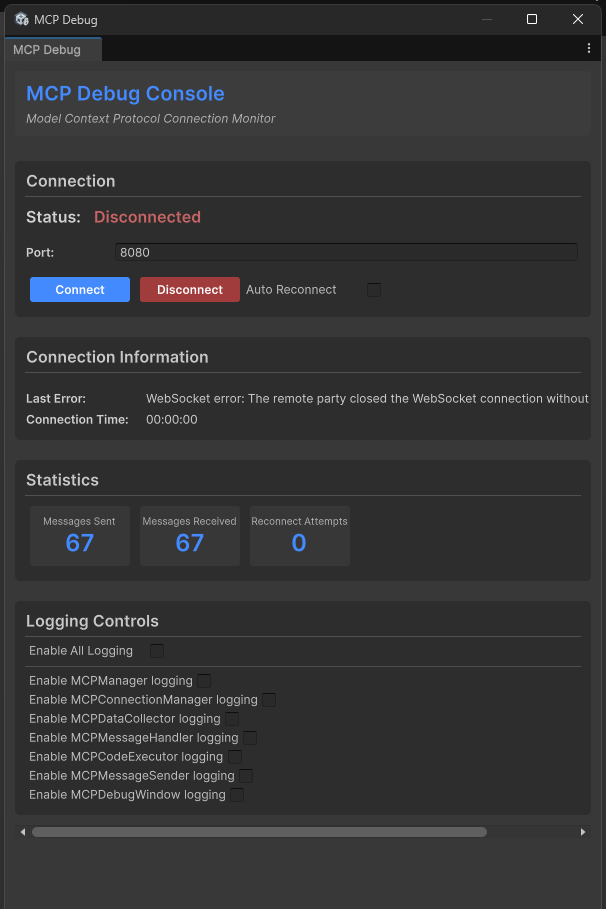
Você pode abrir a janela de Depuração MCP no Unity para monitorar a conexão e testar recursos:
- Vá para
Window > MCP Debug - Use a janela de depuração para:
- Verificar o status da conexão
- Testar a execução de código
- Visualizar logs
- Monitorar eventos
Ferramentas Disponíveis
A integração Unity MCP fornece várias ferramentas para assistentes de IA:
Ferramentas do Unity Editor
- get_editor_state: Obtenha informações abrangentes sobre o projeto Unity e o estado do editor
- get_current_scene_info: Obtenha informações detalhadas sobre a cena atual
- get_game_objects_info: Obtenha informações sobre GameObjects específicos na cena
- execute_editor_command: Execute código C# diretamente no Unity Editor
- get_logs: Recupere e filtre logs do console do Unity
- verify_connection: Verifique se há uma conexão ativa com o Unity Editor
Ferramentas do Sistema de Arquivos
- read_file: Leia o conteúdo de um arquivo no seu projeto Unity
- read_multiple_files: Leia vários arquivos de uma vez
- write_file: Crie ou sobrescreva um arquivo com novo conteúdo
- edit_file: Faça edições direcionadas em arquivos existentes com pré-visualização de diff
- list_directory: Obtenha uma listagem de arquivos e pastas em um diretório
- directory_tree: Obtenha uma visão hierárquica de diretórios e arquivos
- search_files: Encontre arquivos que correspondam a um padrão de busca
- get_file_info: Obtenha metadados sobre um arquivo ou diretório específico
- find_assets_by_type: Encontre todos os assets de um tipo específico (ex: Material, Prefab)
- list_scripts: Obtenha uma listagem de todos os scripts C# no projeto
Os caminhos de arquivo podem ser absolutos ou relativos à pasta Assets do projeto Unity. Por exemplo, "Scenes/MyScene.unity" refere-se a <project>/Assets/Scenes/MyScene.unity.
🛠️ Arquitetura
A integração consiste em dois componentes principais:
- Plugin Unity (C#): Reside no Unity Editor e fornece acesso às APIs do Editor
- Servidor MCP (TypeScript/Node.js): Implementa o protocolo MCP e comunica-se com o plugin Unity
A comunicação entre eles ocorre via WebSocket, transferindo mensagens JSON para comandos e dados.
Acesso ao Sistema de Arquivos
A integração Unity MCP agora inclui ferramentas poderosas de sistema de arquivos que permitem que assistentes de IA:
- Naveguem, leiam e editem arquivos no seu projeto Unity
- Criem novos arquivos e diretórios
- Busquem arquivos ou tipos de assets específicos
- Analisem a estrutura do seu projeto
- Façam alterações direcionadas no código com pré-visualizações de diff
Todas as operações de arquivo são restritas ao diretório do projeto Unity por segurança. O sistema lida inteligentemente com caminhos absolutos e relativos, sempre resolvendo-os em relação à pasta Assets do seu projeto para conveniência.
Exemplos de uso:
- Obter uma listagem de diretório:
list_directory(path: "Scenes") - Ler um arquivo de script:
read_file(path: "Scripts/Player.cs") - Editar um arquivo de configuração:
edit_file(path: "Resources/config.json", edits: [{oldText: "value: 10", newText: "value: 20"}], dryRun: true) - Encontrar todos os materiais:
find_assets_by_type(assetType: "Material")
👥 Contribuindo
Contribuições são bem-vindas! Veja como você pode contribuir:
- Faça um fork do repositório
- Crie um branch de recurso (
git checkout -b feature/amazing-feature) - Faça suas alterações
- Faça commit das suas alterações (
git commit -m 'Add some amazing feature') - Envie para o branch (
git push origin feature/amazing-feature) - Abra um Pull Request
Configuração de Desenvolvimento
Lado Unity:
- Abra o projeto no Unity
- Modifique os scripts C# no diretório
UnityMCPConnection/Editor
Lado do Servidor:
- Navegue até o diretório
mcpServer - Instale as dependências:
npm install - Faça alterações nos arquivos TypeScript no diretório
src - Compile o servidor:
npm run build - Execute o servidor:
node build/index.js
📄 Licença
Este projeto está licenciado sob a Licença MIT - consulte o arquivo LICENSE para detalhes.
📞 Suporte
Se você encontrar problemas ou tiver dúvidas, por favor, registre um problema no repositório do GitHub.