Sightline
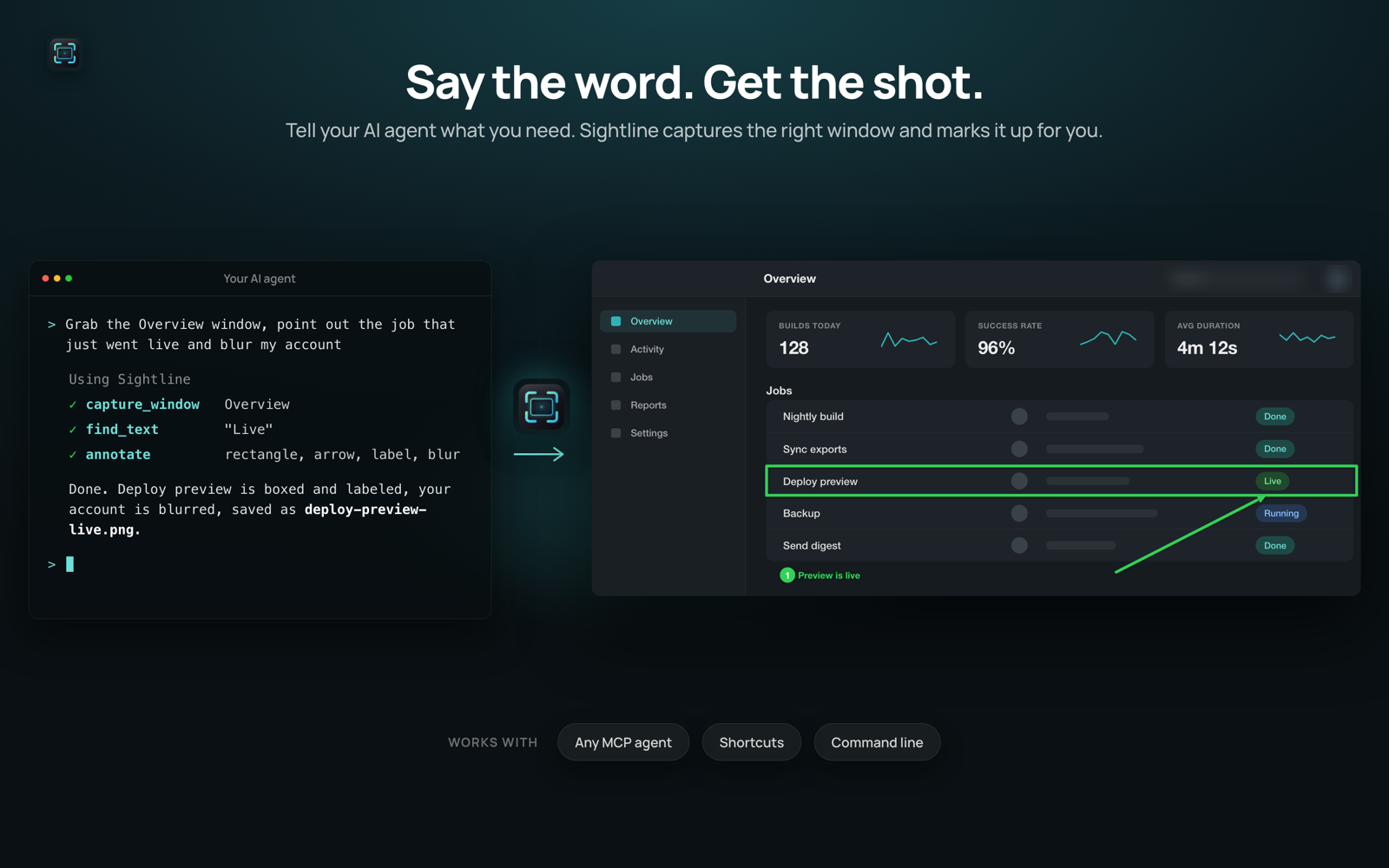
Servidor MCP local via stdio integrado ao app Sightline para Mac: capturas de tela, OCR, anotações, gravação de tela e comparações de design para Claude Code, Claude Desktop e Codex.
Documentação
Sightline MCP server
Screenshots, OCR, scrolling capture, annotations and screen recording on macOS for AI agents like Claude Code, Claude Desktop and Codex CLI.
The server is part of Sightline, the screenshot and recording app for Mac (sightlinemac.com). It runs locally over stdio and nothing leaves your Mac.
You stay in control
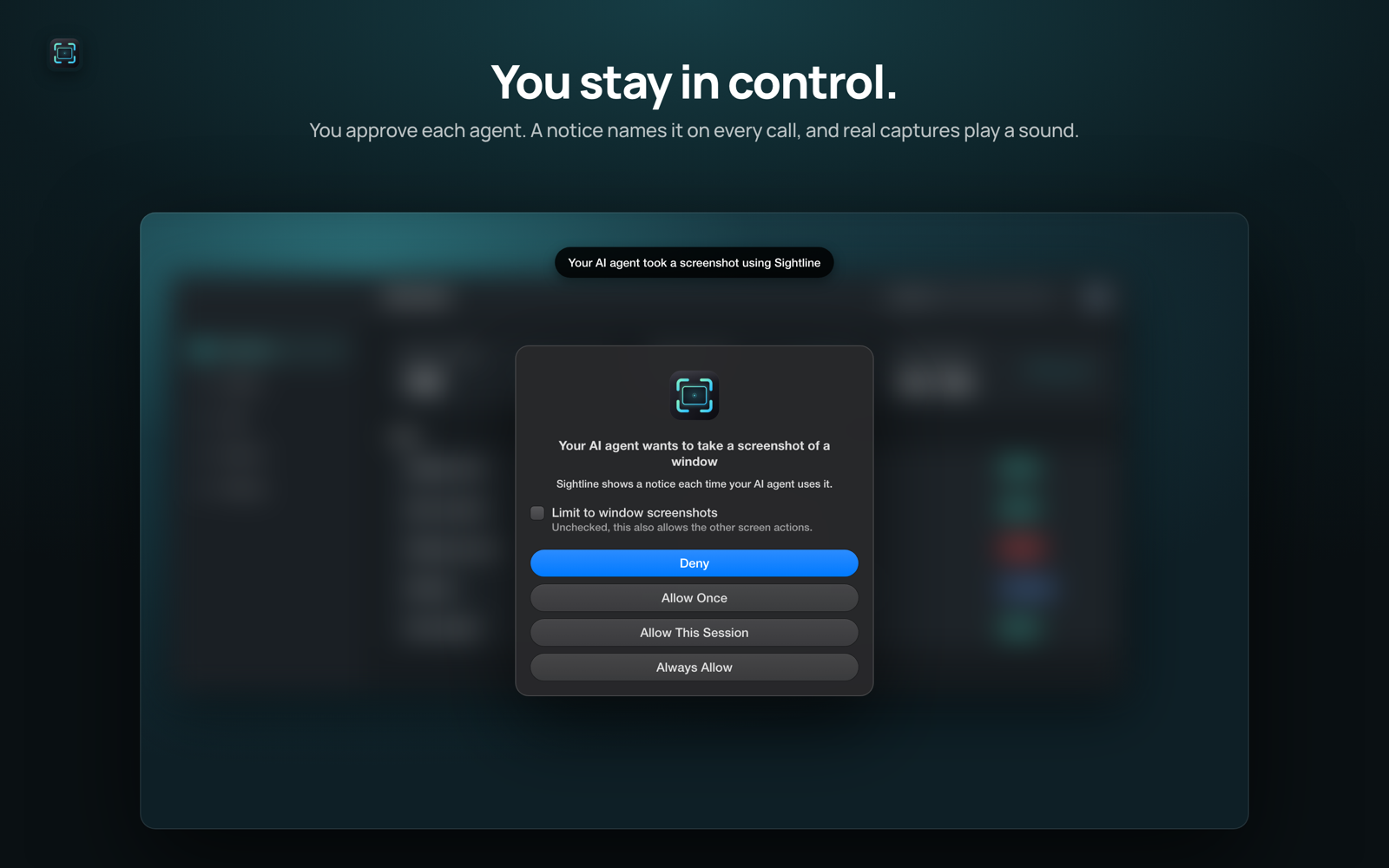
- Agent access is off until you turn it on in Settings > AI Agents.
- A new agent has to ask for permission first. Allowed agents are listed in Settings and can be removed at any time.
- Every agent capture plays the capture sound and names the agent.
- Agents can't change settings and only read and write inside your screenshot folder.
Setup
Full docs with every tool, its parameters and example workflows: sightlinemac.com/docs/mcp.
- Install Sightline from the Mac App Store (macOS 14 or later) and give it Screen Recording permission. Agent access is part of Sightline Pro, with a 7 day free trial.
- Open Settings > AI Agents, turn agent access on and click Connect for Claude Code, Claude Desktop or Codex CLI.
Or add it by hand. Claude Code:
claude mcp add --scope user sightline -- "/Applications/Sightline.app/Contents/MacOS/sightline-cli" mcp
Codex CLI, in ~/.codex/config.toml:
[mcp_servers.sightline]
command = "/Applications/Sightline.app/Contents/MacOS/sightline-cli"
args = ["mcp"]
Any other client: run /Applications/Sightline.app/Contents/MacOS/sightline-cli mcp as a stdio server.
Command line
The same tools work from the terminal and in scripts. Sightline has to be running with agent access on, and it asks you to allow sightline-cli the first time.
sightline-cli tools                                      # list the tools
sightline-cli capture_window --json '{"app": "Safari"}'  # call one, prints JSON
sightline-cli lives at /Applications/Sightline.app/Contents/MacOS/sightline-cli.
Tools
Sightline has 25 tools. The Mac App Store version lists 24, without capture_scrolling.
capture_screen,capture_area,capture_windowcapture a display, an area or a window, optionally with annotations.list_windowslists the on-screen windows with app name, title and window id.list_displayslists the connected displays, so a capture, recording or text read can pick one.capture_textreads text with on-device OCR and decodes QR codes and barcodes.find_textreturns pixel boxes for text in a window, area, display or the screenshot open in an editor.pick_colorreturns the hex and RGB color of one point on screen.capture_scrollingstitches a scrolling area or window into one tall image. The Mac App Store version doesn't list it, because the sandbox can't scroll other apps, and called by name it returns an error; usecapture_window, or take the scrolling screenshot by hand.annotatedraws arrows, shapes, freehand lines, text, numbers, spotlights, magnify loupes and blurs or pixelation, also by subject (macOS 27), onto an image or a video. On a screenshot it also crops, rotates, flips, resizes, sets a Style look and exports. On a recording it also cuts and reorders clips, plays them at 0.5x to 15x, sets the volume of stretches, adds smooth or instant zooms by hand or on every click, draws the pointer and click highlights, shows the keys pressed while recording, shows, hides, moves, resizes and reshapes the camera the user recorded, and exports a smaller copy, a MOV or a looping GIF; blurs follow what they cover.record_screenrecords a window, area or display for up to a minute to MP4, at its original size, 1080p or 720p, and notes where the pointer moves and clicks. It never records the microphone, the camera or the keys pressed, so an agent never captures anyone's voice or face.inspect_recordingreports when a recording is still or moving, reads text in chosen frames and lists the clicks of the pointer track, the keys pressed and the camera parts.last_screenshot,last_recordingreturn the newest capture.list_editorslists the editors the user has open, front window first, one entry per picture in a window with several, with an image of the front screenshot, so an agent can work on what the user is looking at.search_capturessearches the user's screenshots and recordings like Sightline's History, by file name and by the text Sightline read in each screenshot on the Mac, and returns paths, dates, favorites and a snippet of the matching text.copy_to_clipboardcopies an image or recording to the clipboard, or a picture open in an editor as it looks there, or every picture of that window.compare_with_designcompares a design image with a window, area or display, the same check as Show Differences on a pin, and returns up to 20 numbered differences with a hint (shifted, only_in_design, only_on_screen, looks_different) and a marked image.open_in_editoropens an image or recording in the Sightline editor with editable annotations, clips, sound, zooms, pointer choices, the camera, a rotation, a size, a Style look or the keys shown, in edit or view mode, opens several screenshots in one window or adds them to an open one, shrinks every picture of a window, continues a capture the user saved as editable, or opens the picture on the user's clipboard.beautifyputs a screenshot on a background with padding, rounded corners and a shadow, like the editor's Style panel, using a built-in look, one of the user's presets or their default look, on one picture or every picture of an editor window.list_lookslists the built-in looks (None, Soft, Sunset, Night, Paper, Sightline), the user's presets and their default look;save_looksaves a new preset.export_pictureswrites every picture of an editor window as files into a new folder in the Agent folder, like Export All.remove_backgroundlifts the subject of a screenshot off its background and saves a transparent PNG (Pro, macOS 27).save_replaysaves the last seconds of the screen when Replay is on (macOS 27).
New in Sightline 2.0
Camera:
annotateandopen_in_editortakecamera:{parts: [{start_second, end_second, hidden, x, y, height, shape: circle | rounded_rectangle, corners: square | small | medium | large}], shadow}, like the Camera row and the Camera button in the recording editor.xandyare the camera's center andheightits size (0.2 is usual), as shares from 0 to 1 of the finished frame. Seconds count in the original recording, parts must not overlap, and fields a part leaves out keep the camera as it is at its start.shadowis on by default. The camera is drawn into every file written, also MP4, MOV and GIF exports.annotatewithcamera_video: truewrites the camera video as recorded into the Agent folder as its own MOV and returnscamera_path.cameraneeds a recording the user made with the camera on. Agents can't record the camera themselves, and a stretch the user hid while recording has no picture.inspect_recordingreturnshas_cameraand, with a camera,camera:partsin the form of thecameraargument,shadowandhidden_while_recording.open_in_editorreturns the restored camera of a saved edit in the same form.
Windows with several pictures:
export_picturestakeseditor(any picture's id fromlist_editors, orfront),format(png,jpegorwebp) andquality(high,mediumorsmall), and writes each picture as it looks in the editor, with marks, crop, Style look and size. It returnsfolderandpathsin column order, andfailedfor pictures that couldn't be written.copy_to_clipboardtakeseditorto copy a screenshot open in the editor as it looks there now, like Copy, and withall_pictures: trueevery picture of its window, like Copy All.beautifywitheditorandall_pictures: truegives every picture of the window the same look, like Apply Style to All Pictures, each as its own undo step.open_in_editorwitheditorandpathsadds one or more screenshots to that window. Witheditor,all_pictures: trueandresize(scaleorwidthonly) it shrinks every picture of the window, like Adjust Size of All Pictures.list_editorsnames the window ids to pass: any picture's id works for the whole window.
Remove background:
remove_backgroundtakespath(or the agent's last screenshot),nameandinclude_image, and returns the cutout like a capture tool. It works best on a clear subject such as a person, an object, an icon or a window, and returns an error when it finds none. The source stays as it is. Needs Sightline Pro and macOS 27.
New in Sightline 1.9
open_in_editortakespathsto open two or more screenshots together in one editor window, and returns theeditorsid of each. Each picture is its own editor forannotate,beautifyandopen_in_editor.open_in_editortakesmode:edit(default) orview, which shows only the picture or video with play controls.list_editorsreturns one entry per picture withwindow,shown,unsavedandediting(false in view mode).pointertakessmooth(on by default), which draws a drawn pointer along a smoothed path through every click.
New in Sightline 1.8
Editors:
list_editorsreturns each open editor withid,kind(screenshotorrecording),title,width,height,path(or null when the editor shows no file) andfront, plus an image of the front screenshot editor unlessinclude_imageis false.annotate,open_in_editorandbeautifytakeeditor, an id fromlist_editorsorfront, instead of a path. The change appears live and animated in that window as one undo step, with the agent's name, and no file is written; the user saves as usual. Coordinates are pixels of the width and heightlist_editorsreports.find_texttakeseditortoo and returns boxes in those pixels.- When a file an agent changes is open in an editor, also one the user opened, the change lands there live as one undo step.
last_screenshotreturns the agent's own last capture; for the user's screenshot calllist_editors.
Recordings:
record_screentakesinclude_menu_bar(falseleaves the menu bar out of a display recording; defaults to the user's setting),size(original,1080por720p) andquality(high,mediumorsmall). Anything other than the defaults encodes the recording once more and keeps only the smaller file, with the pointer track scaled to fit.annotateandopen_in_editortakekeys:{parts: [{start_second, end_second, mode: words | letters | shortcuts | hidden}], position: bottomLeft | bottomCenter | bottomRight | topCenter, size: small | medium | large, look: dark | light}, like the Keys row and the Keys button in the recording editor. Seconds count in the original recording.inspect_recordingreturnshas_key_trackand, with a track,keys: each shortcut by its label, such as⇧⌘5, and typed text grouped into words, each withsecondandkeys. At most 200 are listed,keys_left_outcounts the rest. Keys are noted only for recordings the user makes with Show keystrokes on in Settings > Recording, never forrecord_screenor replays.
Style:
- Beautify is called Style in the app. The tool keeps the name
beautify, and its looks are None, Soft, Sunset, Night, Paper and Sightline.oceanstays available as abackgroundgradient.
New in Sightline 1.7
Screenshots, on annotate and open_in_editor unless noted:
rotate: 90, 180 or 270 degrees clockwise.flip:horizontalorvertical, applied afterrotate. Marks and crop move with the picture.resize:{scale}from 0.05 to 1,{width}or{height}in pixels (the other side keeps the shape), or{width, height}(may stretch). Only shrinks, each side at least 16 pixels.export(annotateonly):{format: png | jpeg | webp, quality: high | medium | small}, always written to a new file.- Text annotations, also the text inside a rectangle or ellipse:
font(system,rounded,serif,monospaced,handwriting, defaultsystem),bold(boolean, default true),text_background(none,solid,translucent, defaultnone) andtext_background_color(hex such as#FFFFFF; defaults to white or black, whichever stands out from the text, and on its own draws a solid box).
Recordings:
zoom_on_clicks: trueadds a 2x zoom for every left click or group of clicks in the pointer track (clicks less than 1.5 s apart and close together share one zoom), on top of thezoomspassed or the saved edit's zooms.- Each entry in
zoomstakesfollow:off(default),pointer(pans to keep the pointer in view, needs the pointer track) orcontent(tracks what the area shows at the zoom's start). pointer:{shown, size: 1 | 1.5 | 2, hide_when_idle, click_highlight: off | ripple | ring, highlight_color: "#FFD60A"}.shown,sizeandhide_when_idleneed a recording made with the pointer left out to be drawn later:record_screenwithpointer: drawn, or Pointer set to Editable in the editor in Settings → Recording. Click highlights work for every recording with a pointer track.export(annotateonly):{size: original | 1080p | 720p, format: mp4 | mov, quality: high | medium | small}.exportwithformat: gifwrites a GIF that loops forever, without sound, with the same cuts, speeds, zooms, marks, blurs and pointer:{format: gif, width, fps}, withwidthin pixels (160 to 1920, default 640) andfps(1 to 30, default 10). A narrower video keeps its width, and the result also reportsframes.sizeandqualitydon't apply. A.gifresult can't be passed toannotate,inspect_recordingoropen_in_editoragain.highlight_coloralso takes gray,#8E8E93.record_screentakespointer:off,video(default, oroffwhen the user's Pointer recording setting is off) ordrawn, which leaves the pointer out of the MP4 and has Sightline draw it from the track in the editor and inannotate's result. The result'spointersays what was used (drawnfalls back tovideowhen the track can't be noted), andpointer_notesays when the track couldn't be saved.inspect_recordingreturnshas_pointer_trackand, with a track,clicks: each press withsecond,x,yin video pixels,button(leftorright),count(2 for a double click) andreleased_second, plusreleased_xandreleased_yfor a drag. At most 200 are listed,clicks_left_outcounts the rest.
Captures:
search_capturestakesquery(every word has to appear in the file name or the screenshot's text, in any order, ignoring case and accents; empty lists the newest),kind(screenshotorrecording, both by default),favorites_only(default false) andlimit(1 to 100, default 20). Each result haspath,kind,date,favoriteand, when the text matched, asnippet; when Sightline hides credentials from agents, lines that look like a credential are neither searched nor returned.totalcounts every match, andreading_textsays how many screenshots are still waiting to be read. Recordings match by file name only. It searches the screenshots folder and the Agent folder; the other tools only take files in the Agent folder, so copy a screenshot there first to annotate it.
The pointer track options need a recording made with Sightline 1.7 or later.