Fotogenic AI
Fotogenic AI는 레퍼런스 사진을 일관된 브랜드 맞춤형 이커머스 자산으로 전환하는 도구로, 프롬프트 엔지니어링 없이도 간소화된 파이프라인과 워크플로우를 제공하여 기존 상업 사진 산업에서의 전환을 지원합니다.
문서
Original photo
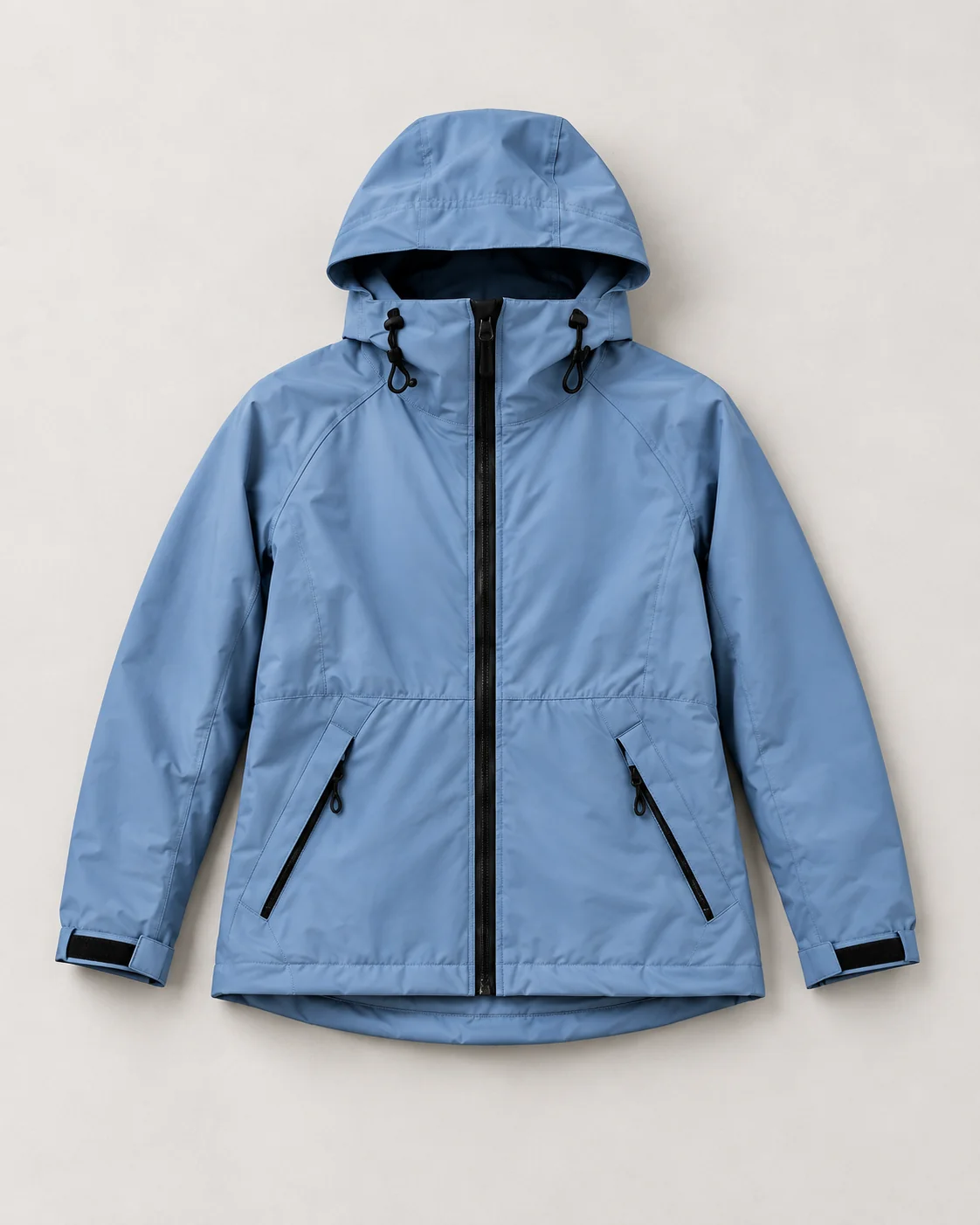
Jacket original product photo
Explore another product
Your campaign
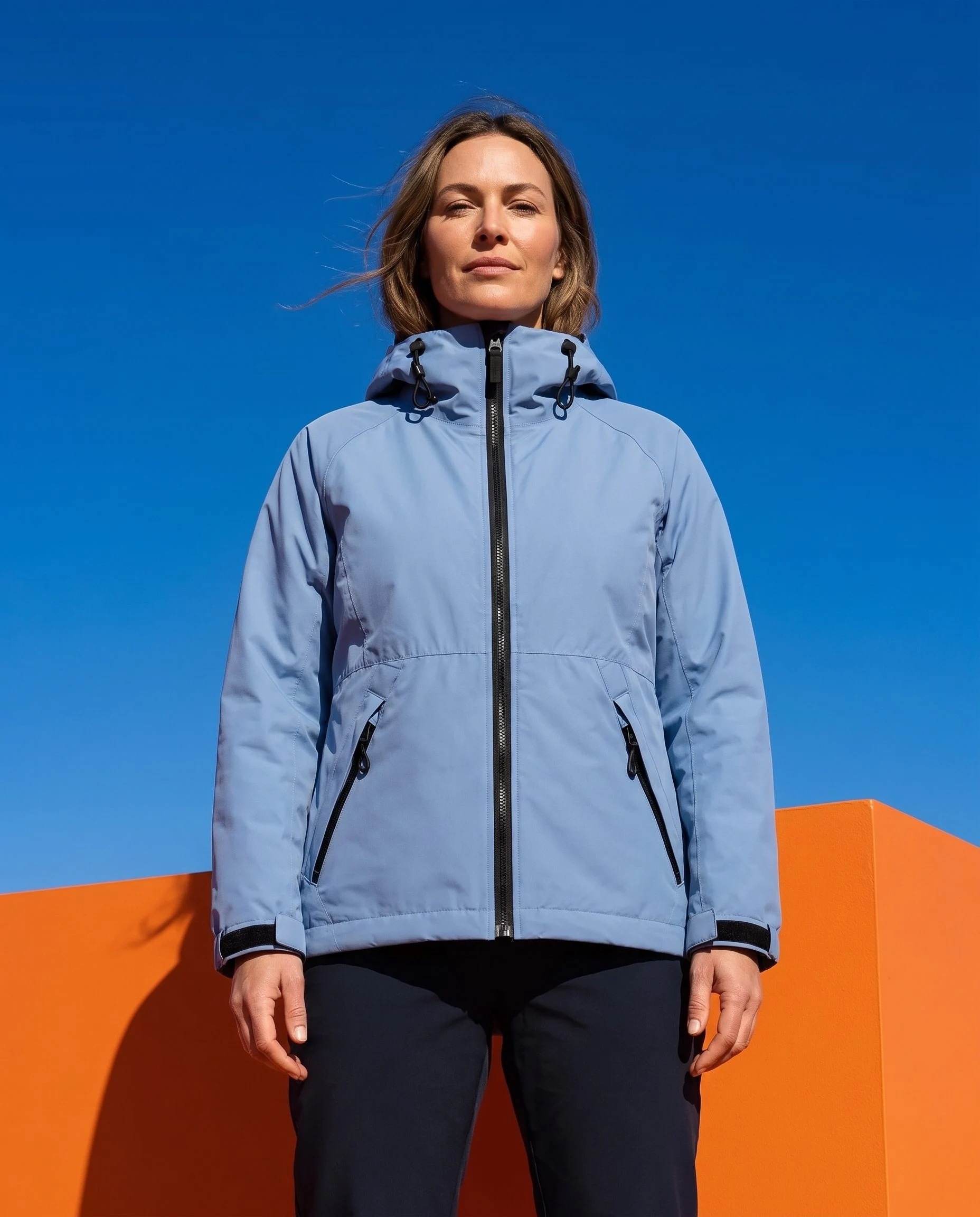
Blue jacket on a model against a cobalt and orange set
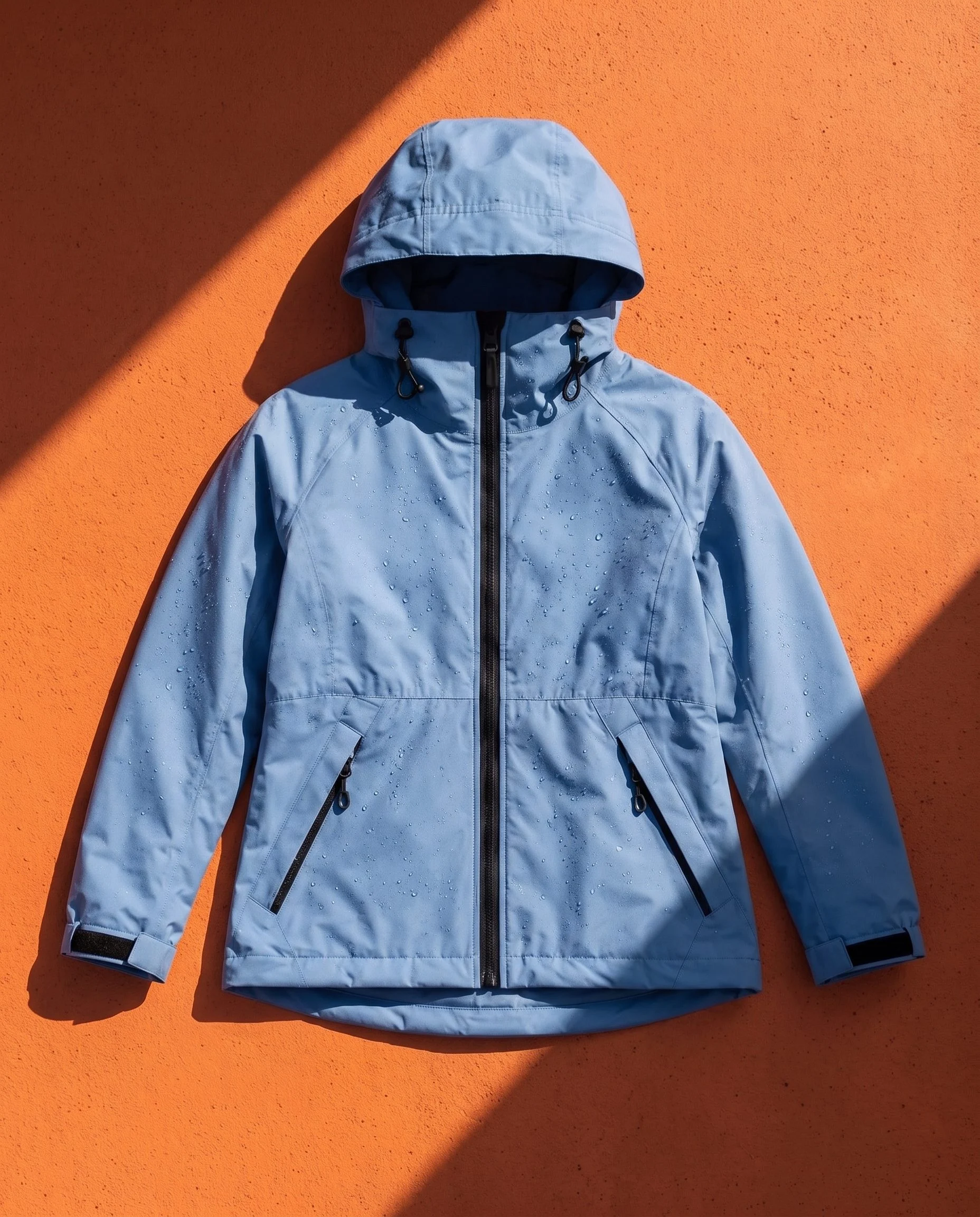
Blue technical jacket laid flat on an orange surface with diagonal shadows
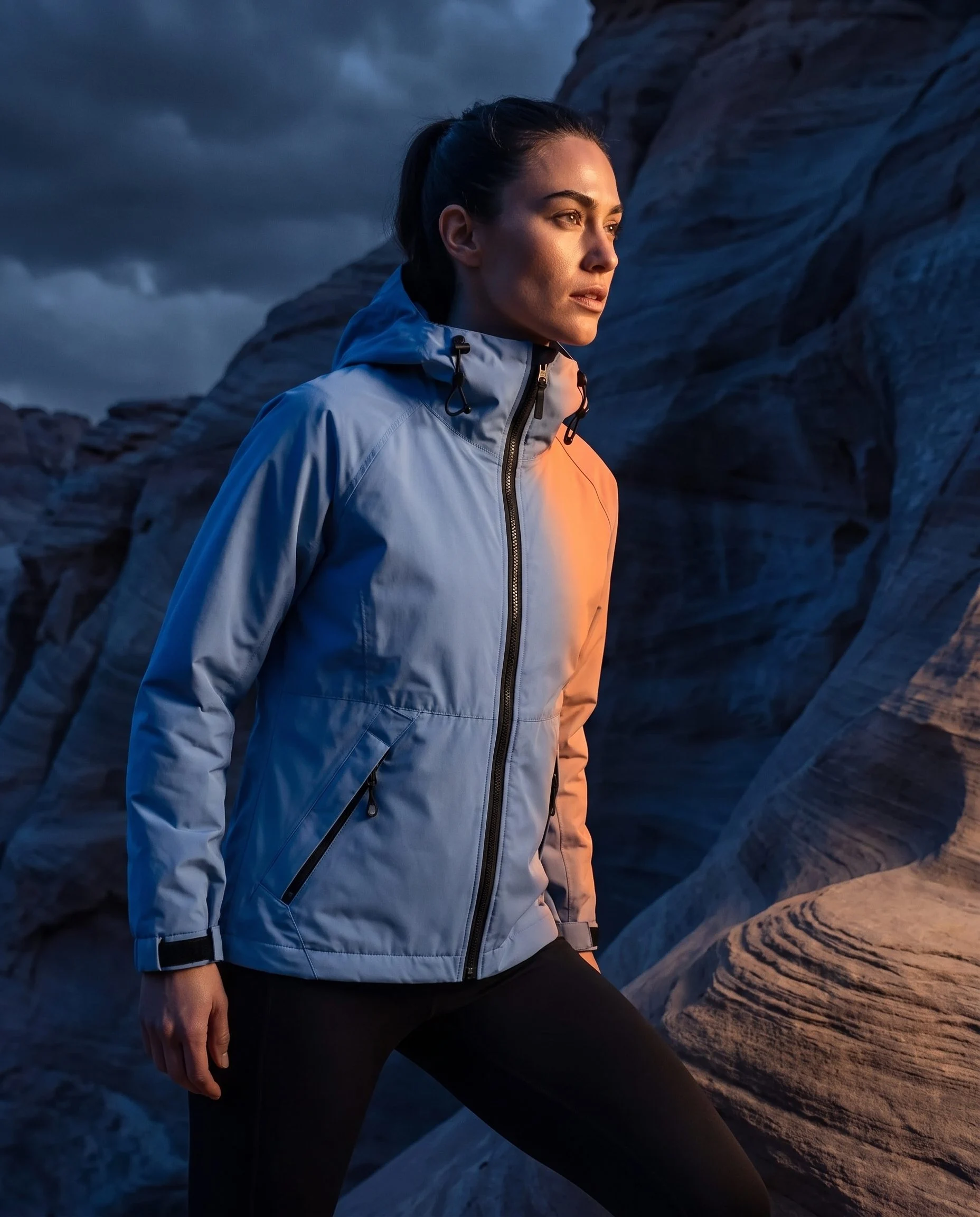
Blue rain jacket lit by blue and orange storm light
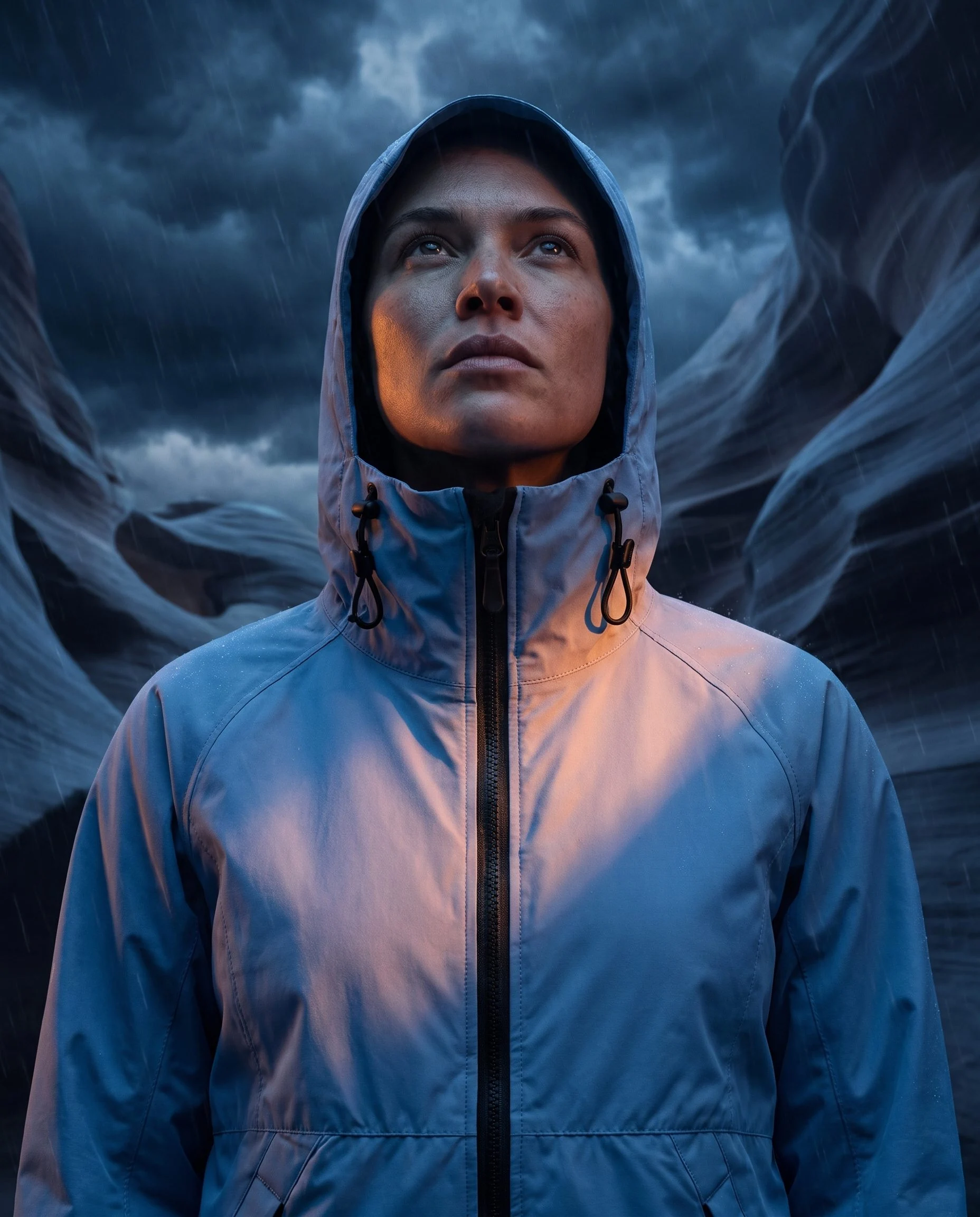
Hooded rain jacket portrait in a stormy canyon
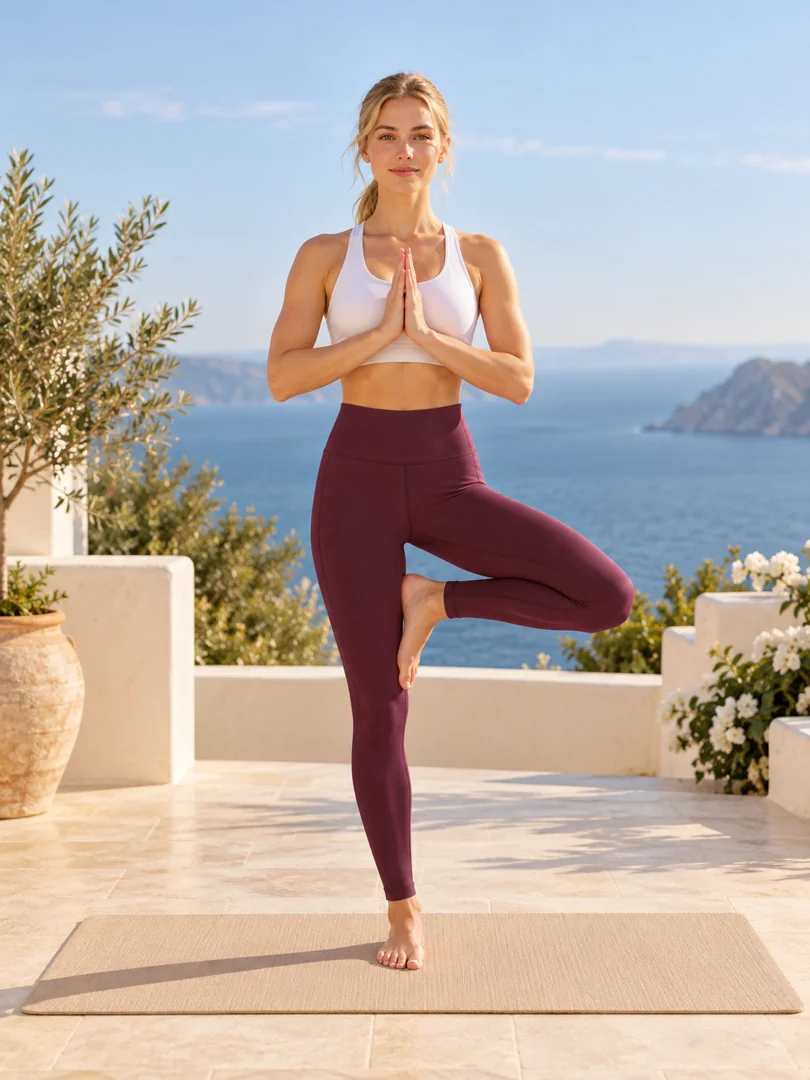
Yoga
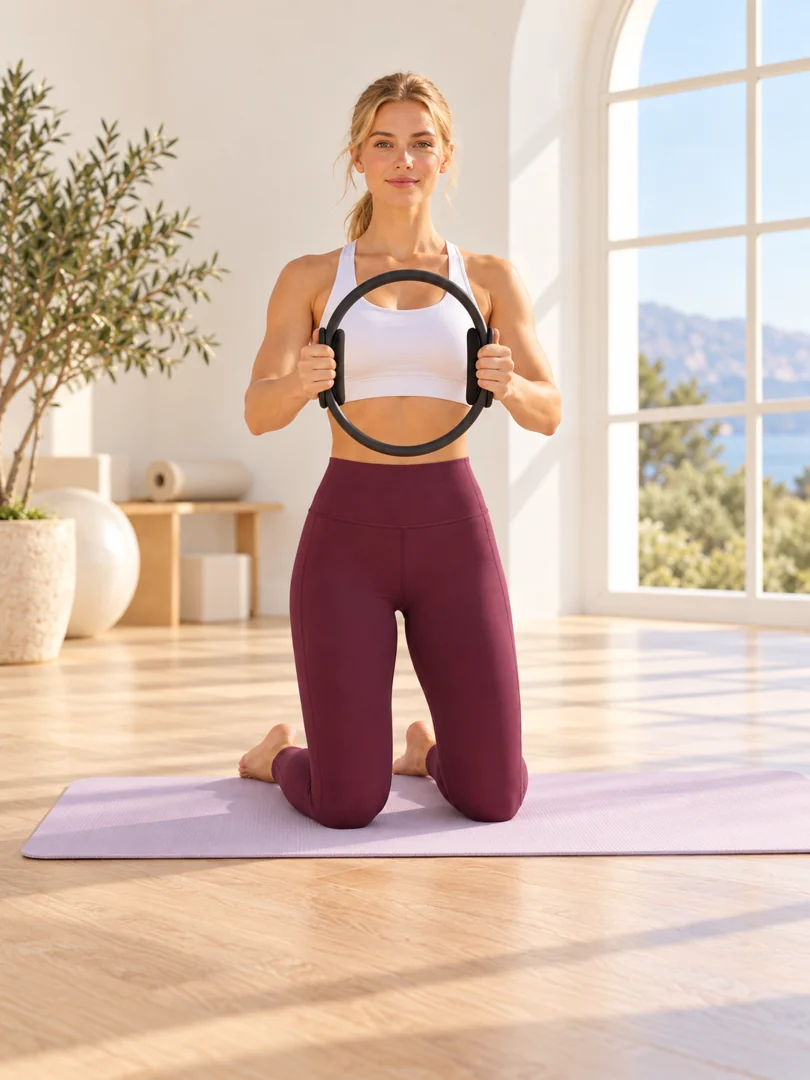
Pilates
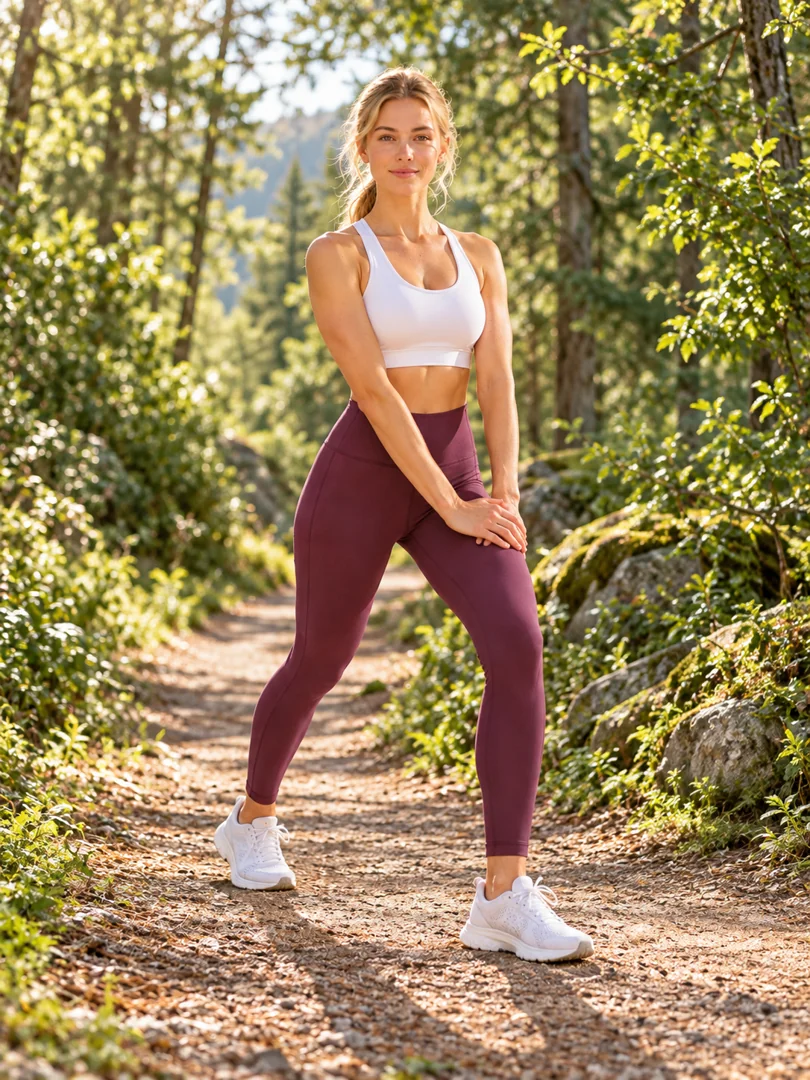
Outdoors
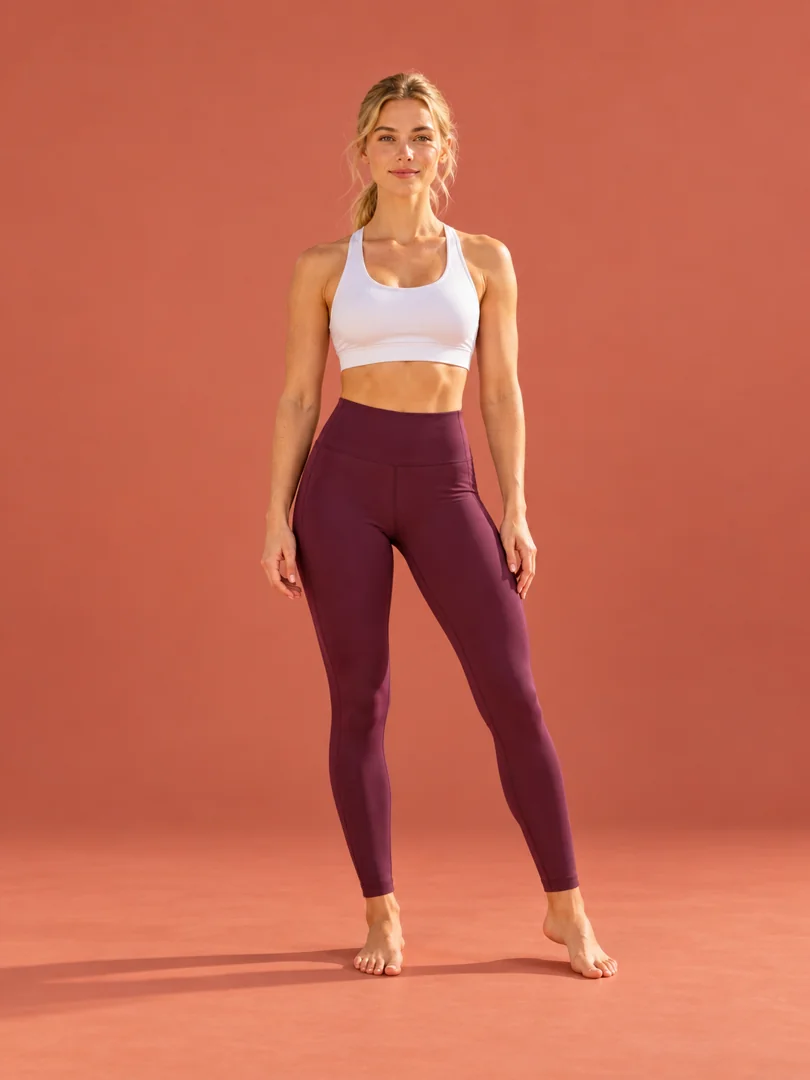
Studio
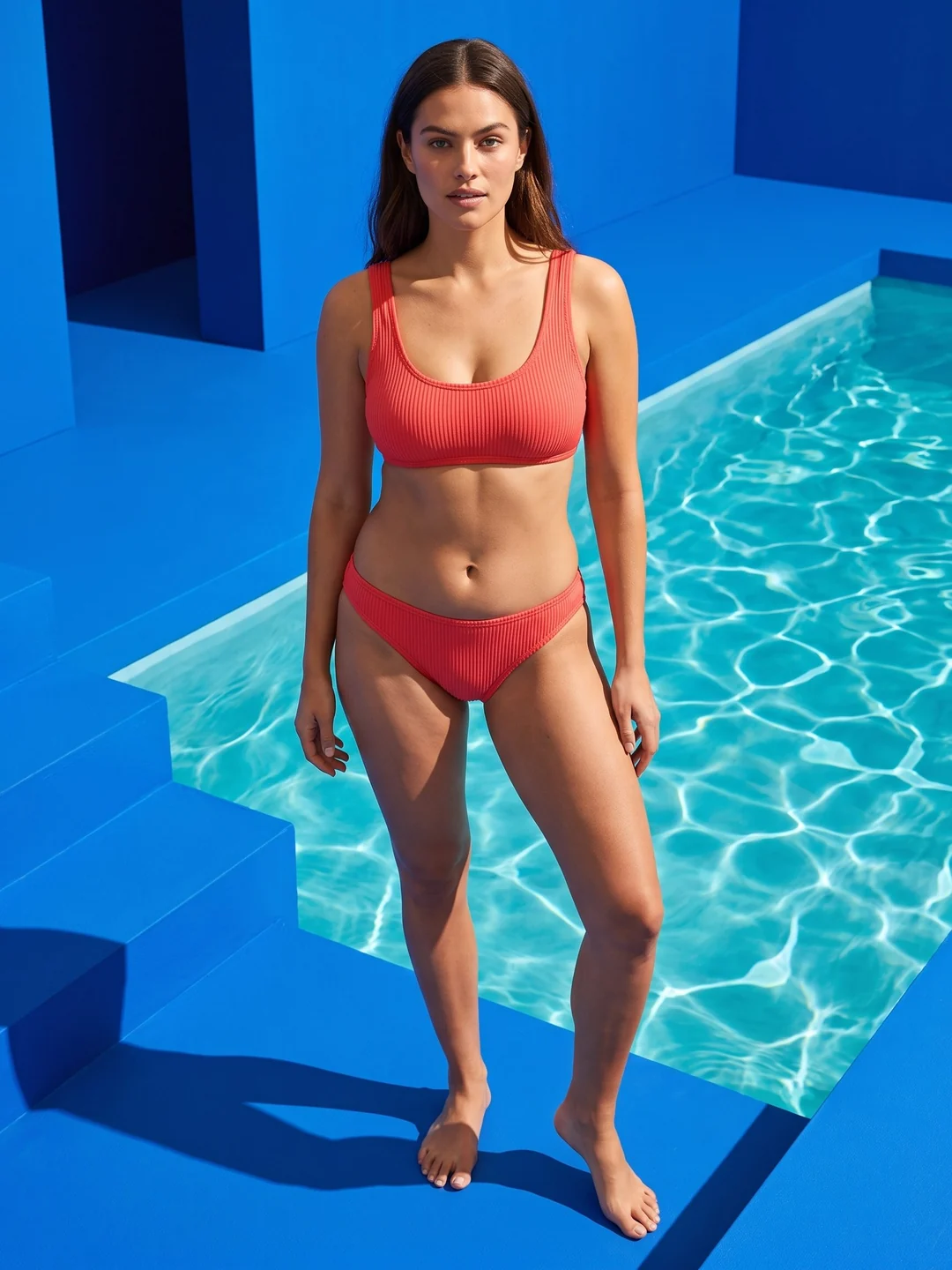
Poolside
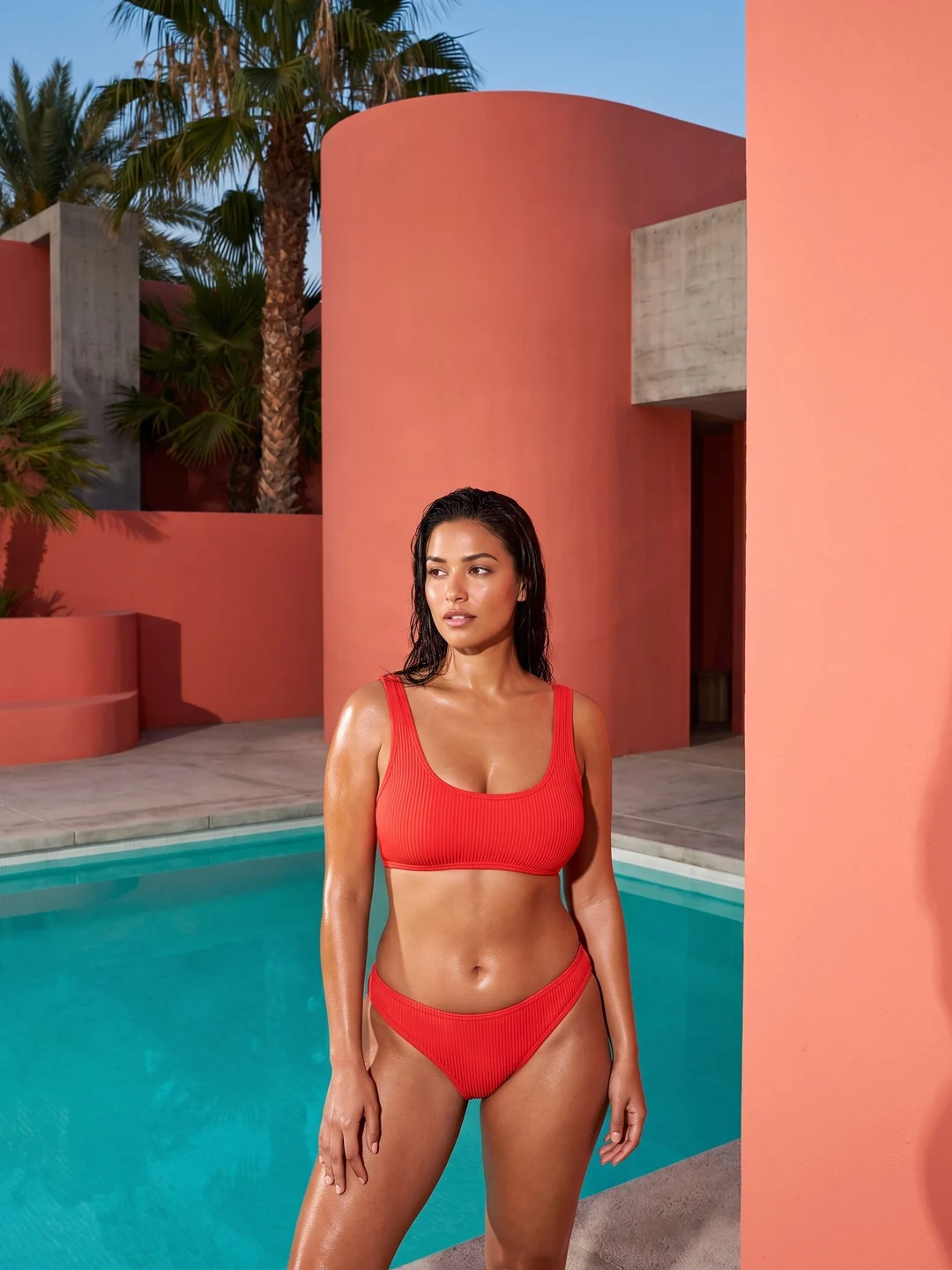
Resort
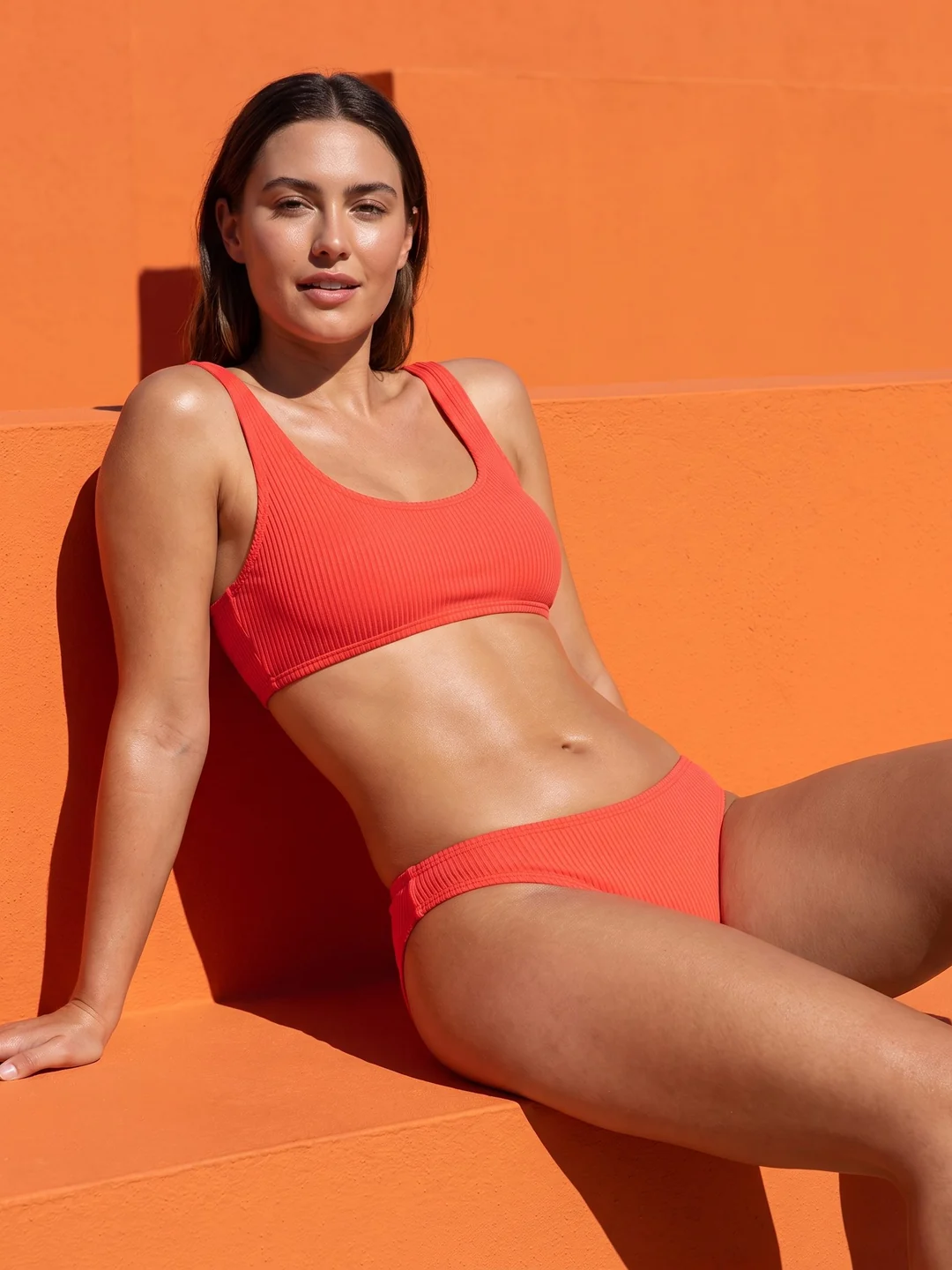
Sunlight
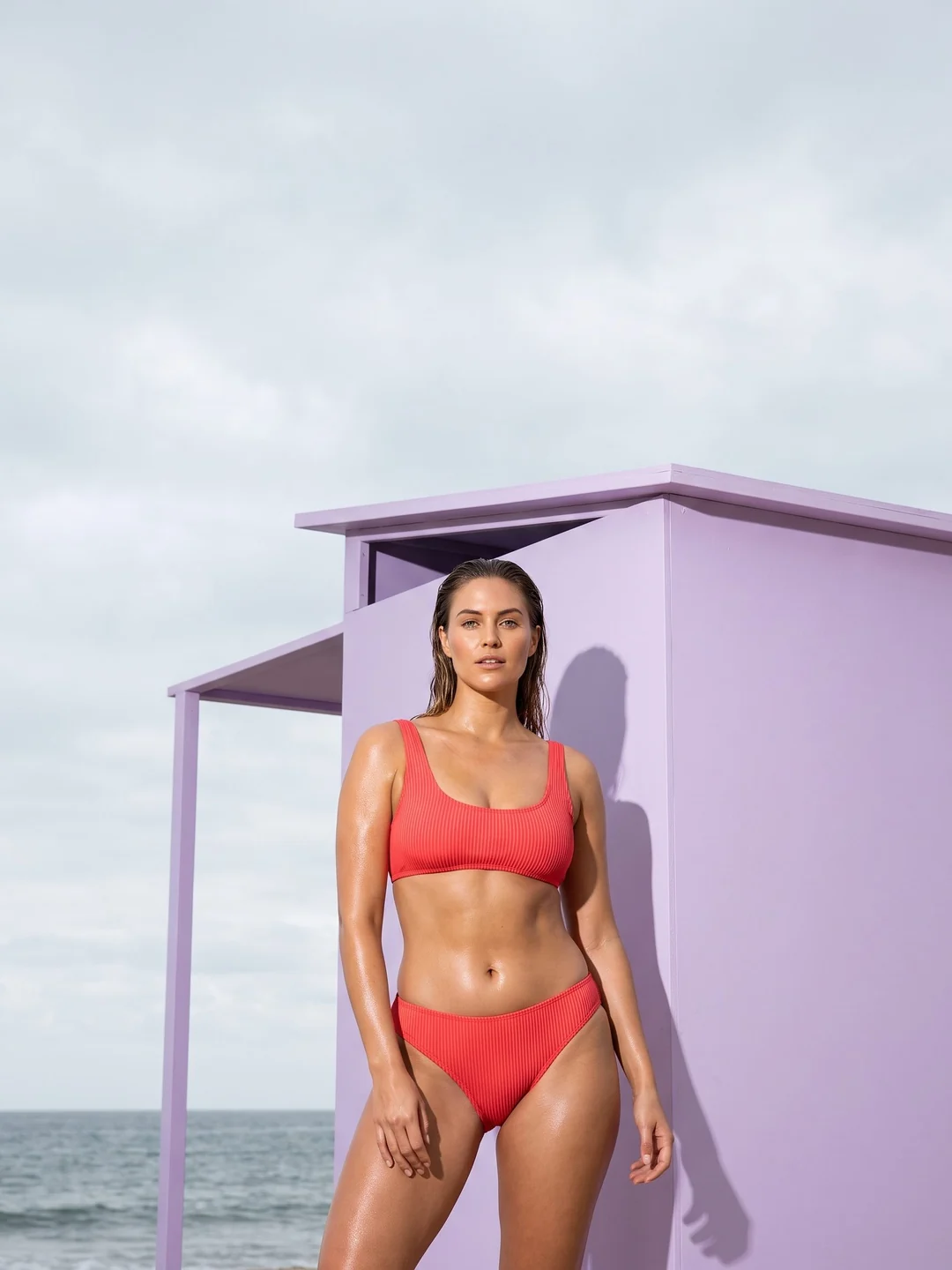
Coast
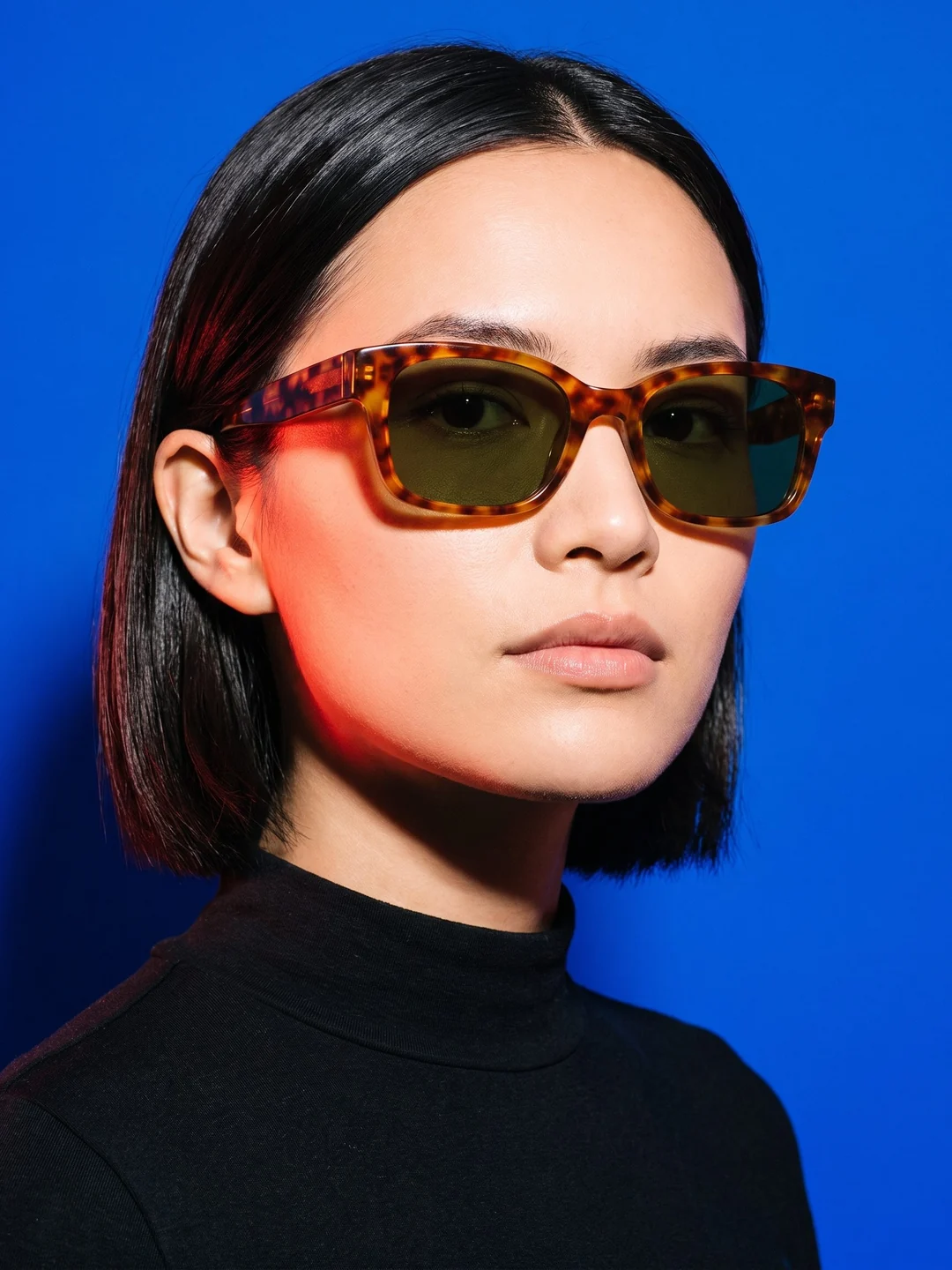
Portrait
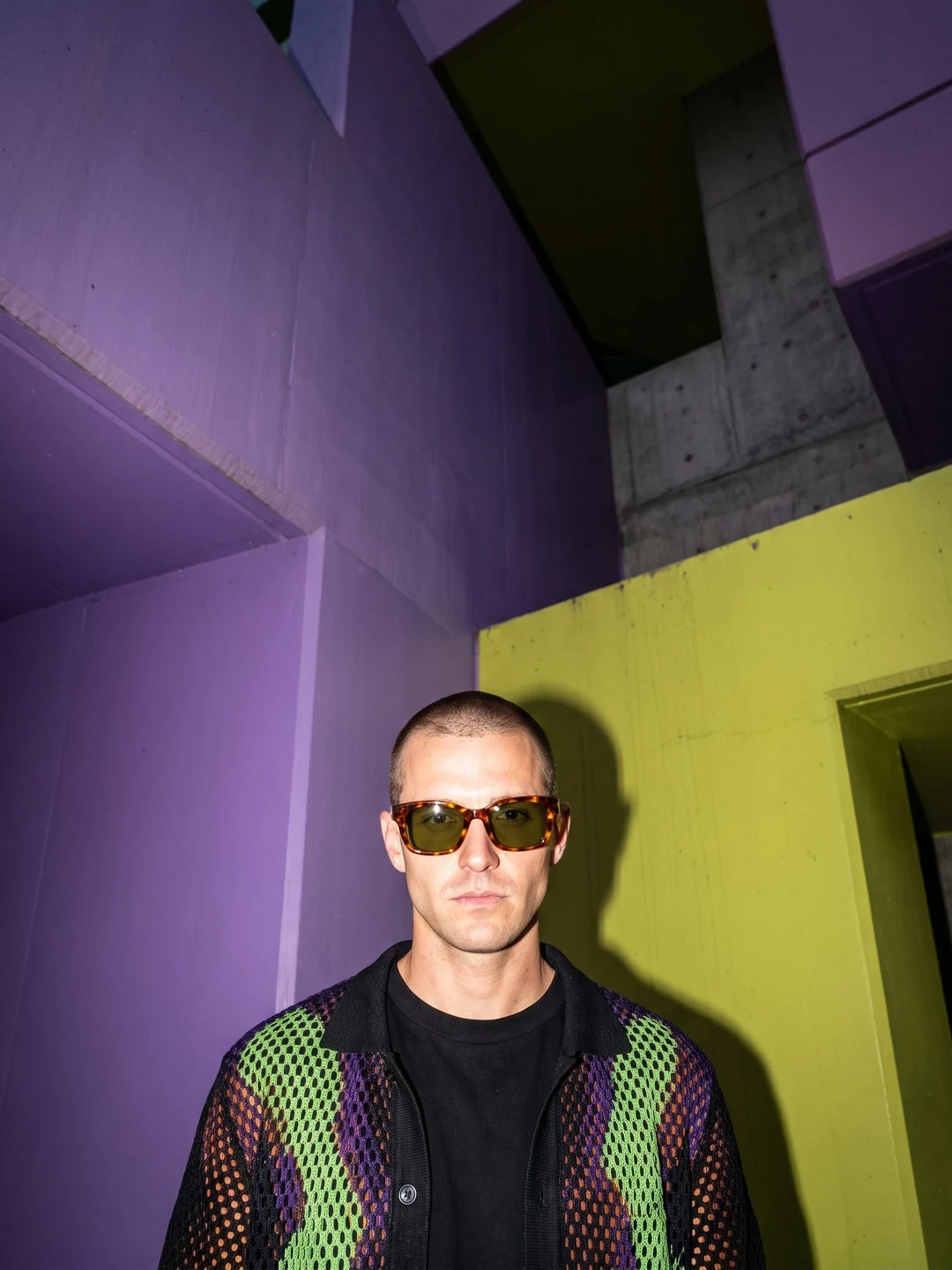
Editorial
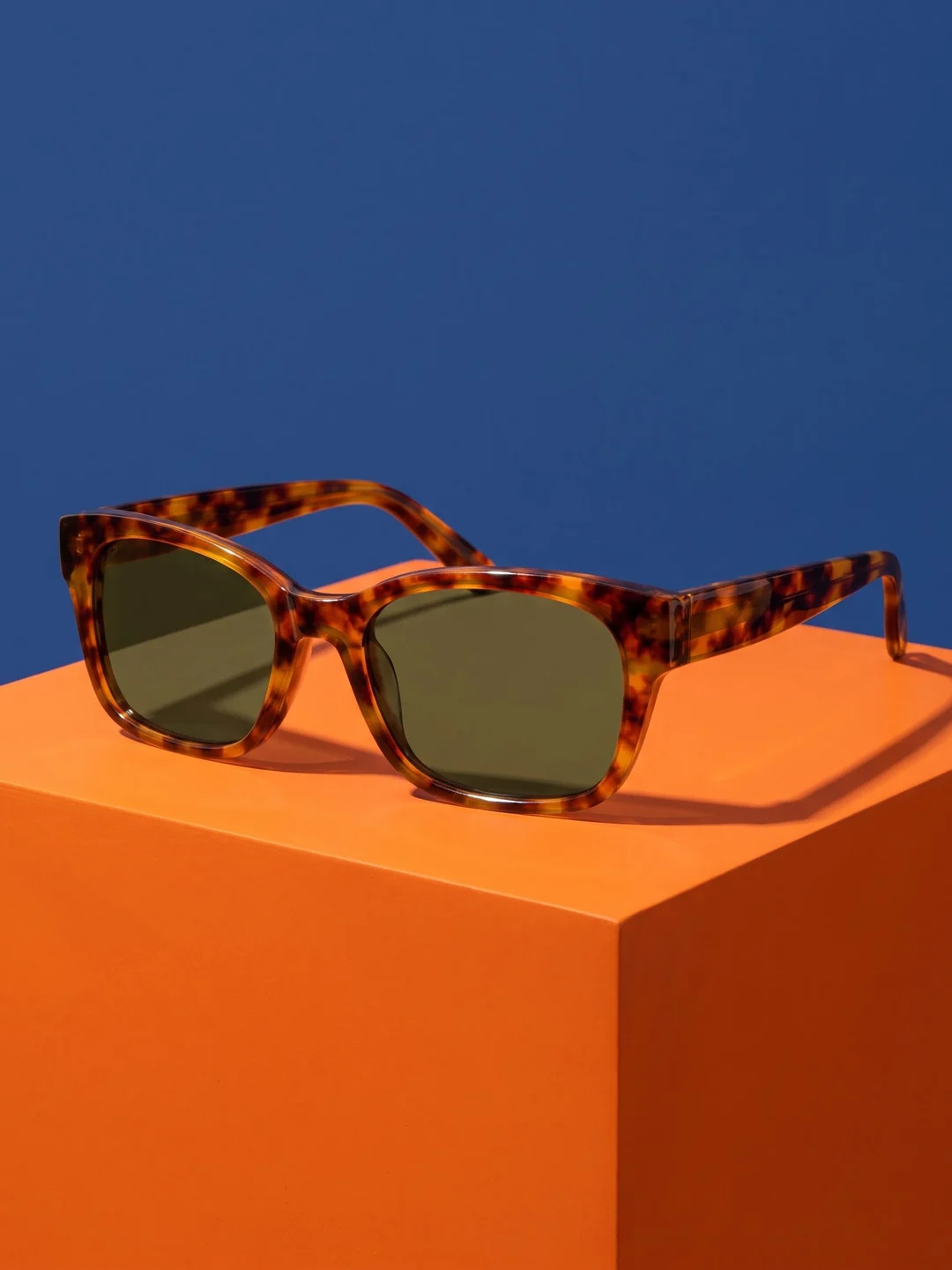
Studio
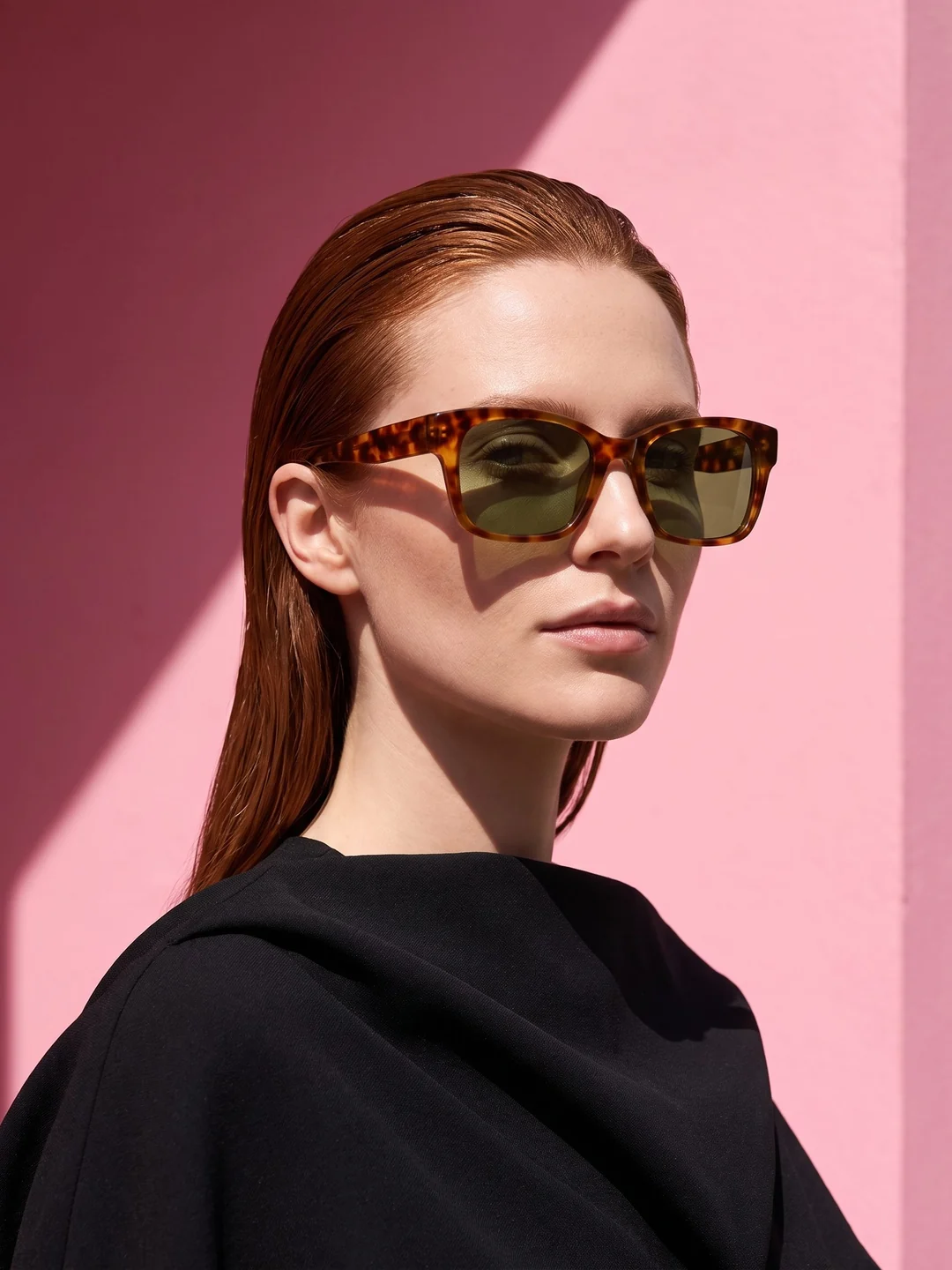
Color story
Your product 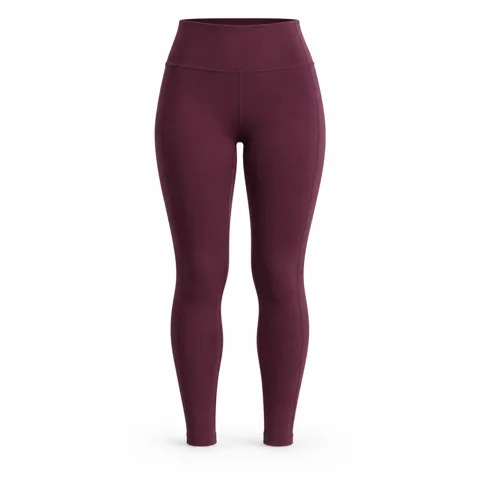
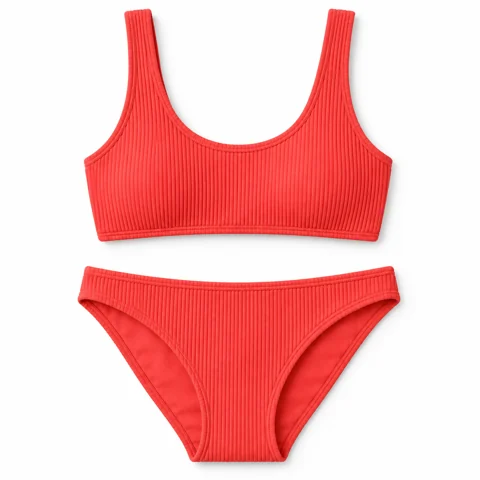
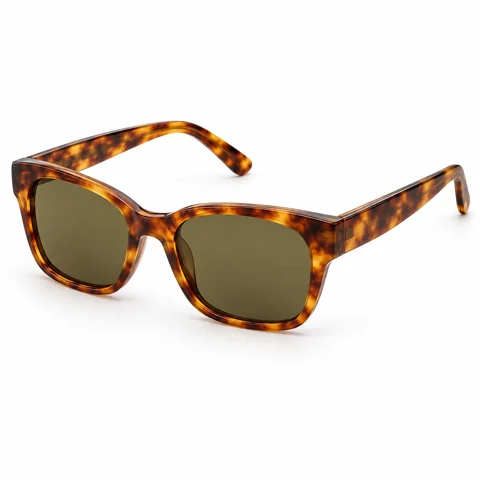
 Your Product 01
Upload a clear product photo.
Start with an image that shows the product, color, shape, and important details clearly.
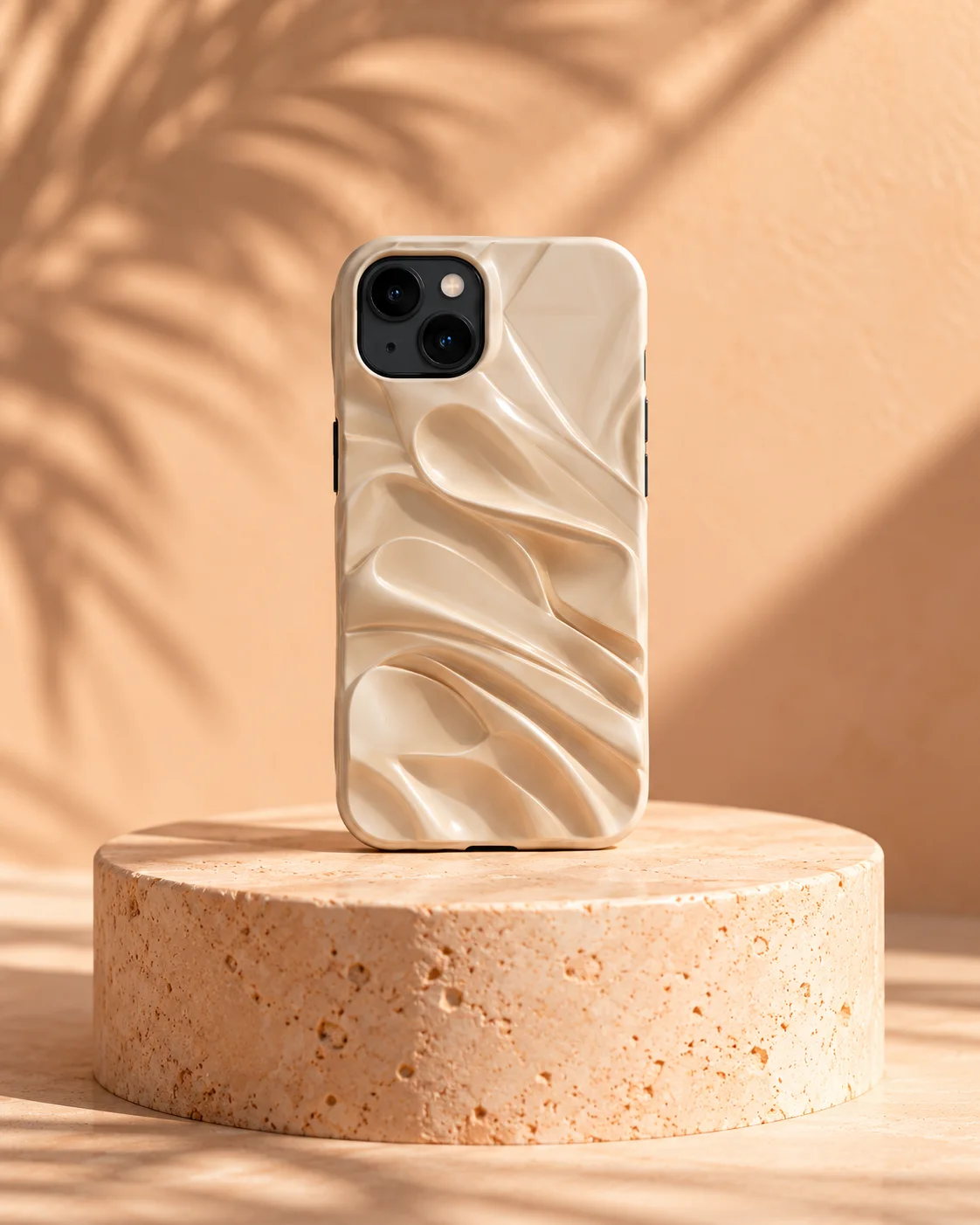 Select Settings

 02
02
Choose the visual direction.
Select the scene, model, angle, lighting, or campaign direction through guided controls.
Your result
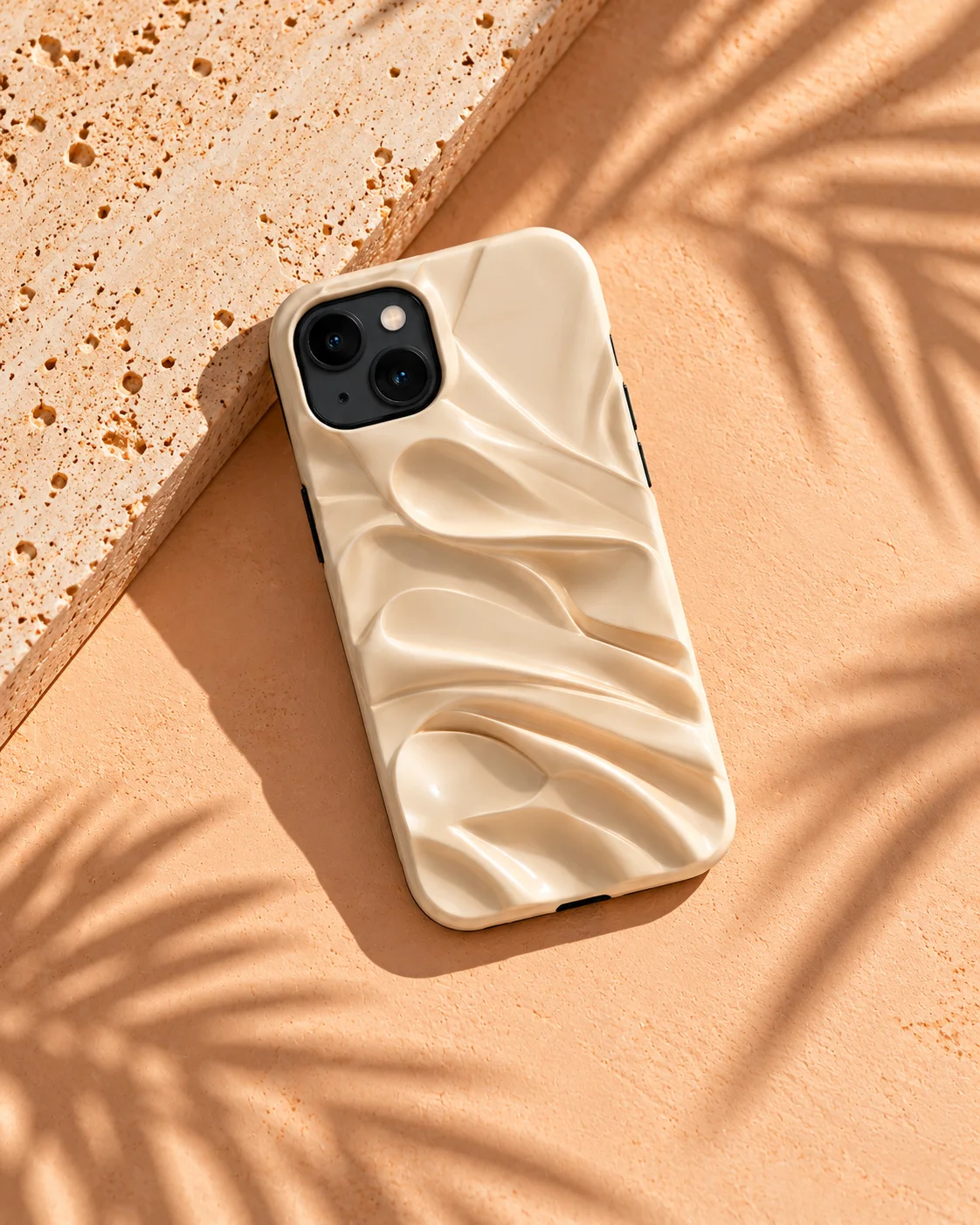
Studio image selected for review
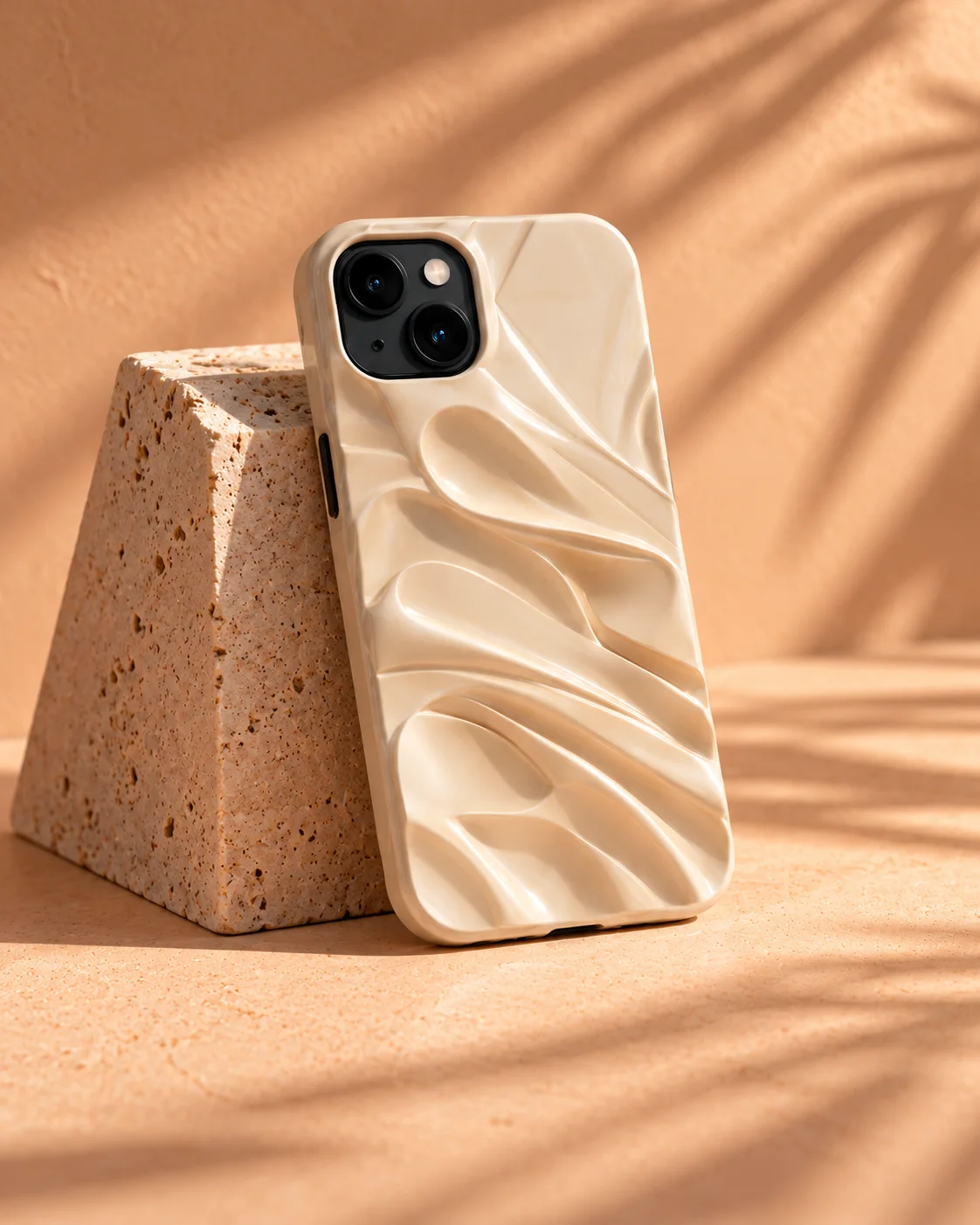
Another composition of the same cream phone case
03
Review and export your images.
Compare with your product, keep the strongest images, and export for your next channel.
Change the setting without reshooting the product.
Explore daylight, studio, seasonal, indoor, and outdoor directions while keeping one product story consistent.
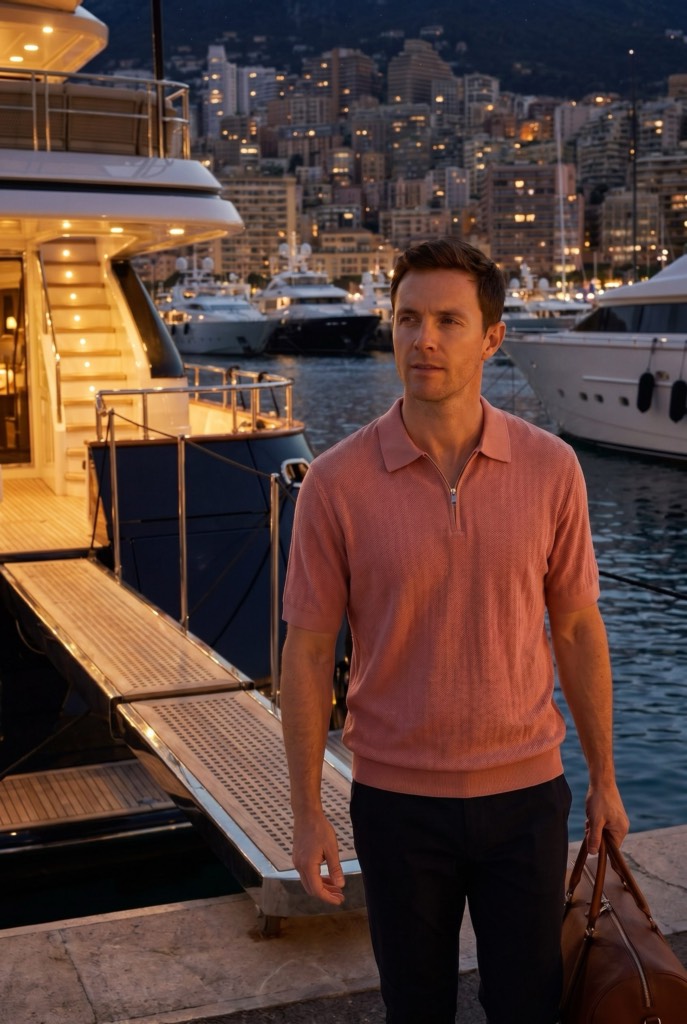
Evening marina variation

Golden hour marina variation
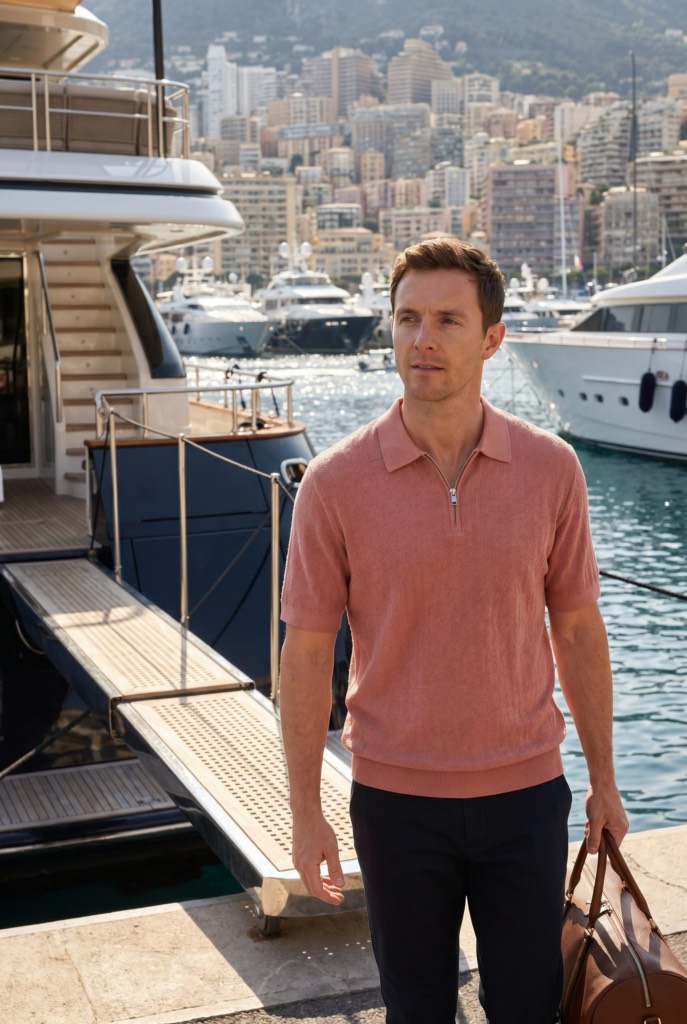
Base marina product lifestyle scene

Rainy marina variation

Foggy marina variation
Product visuals for every ecommerce channel.
Create different visual directions for product pages, launches, listings, and paid social, then review each output for the channel where it will be used.
Product pages
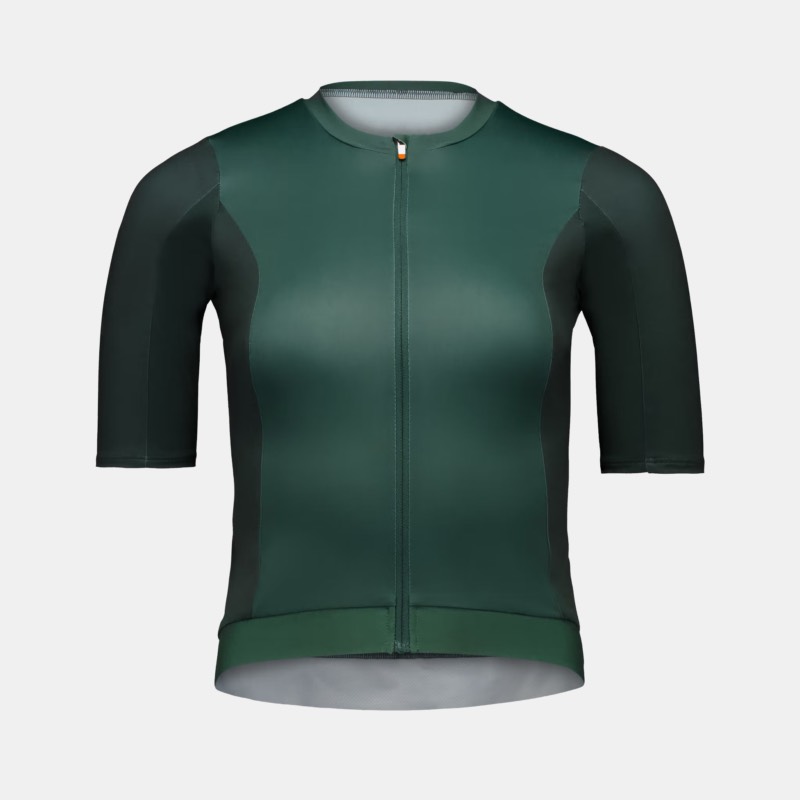
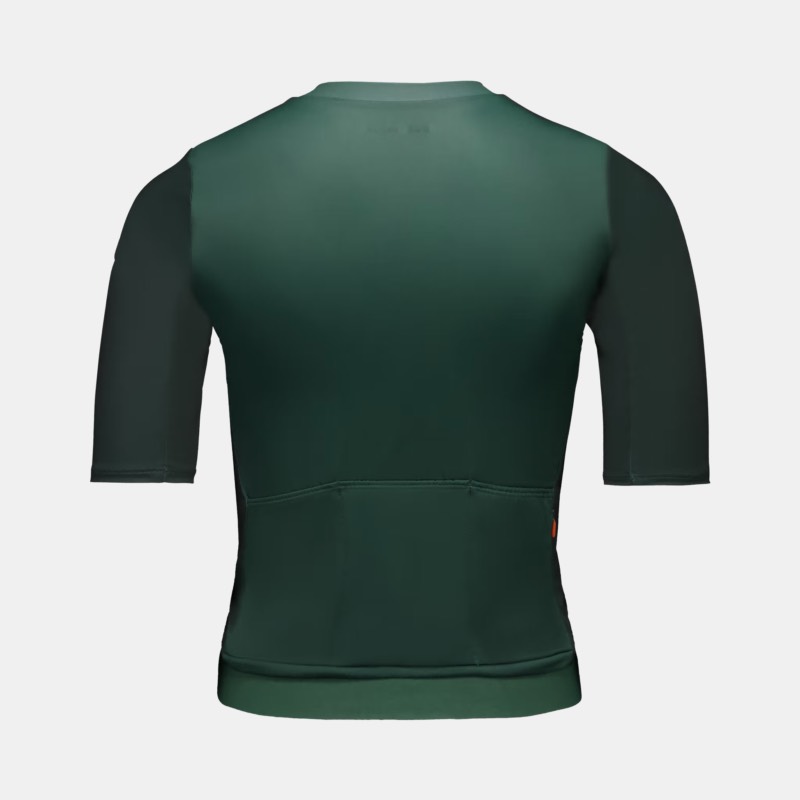
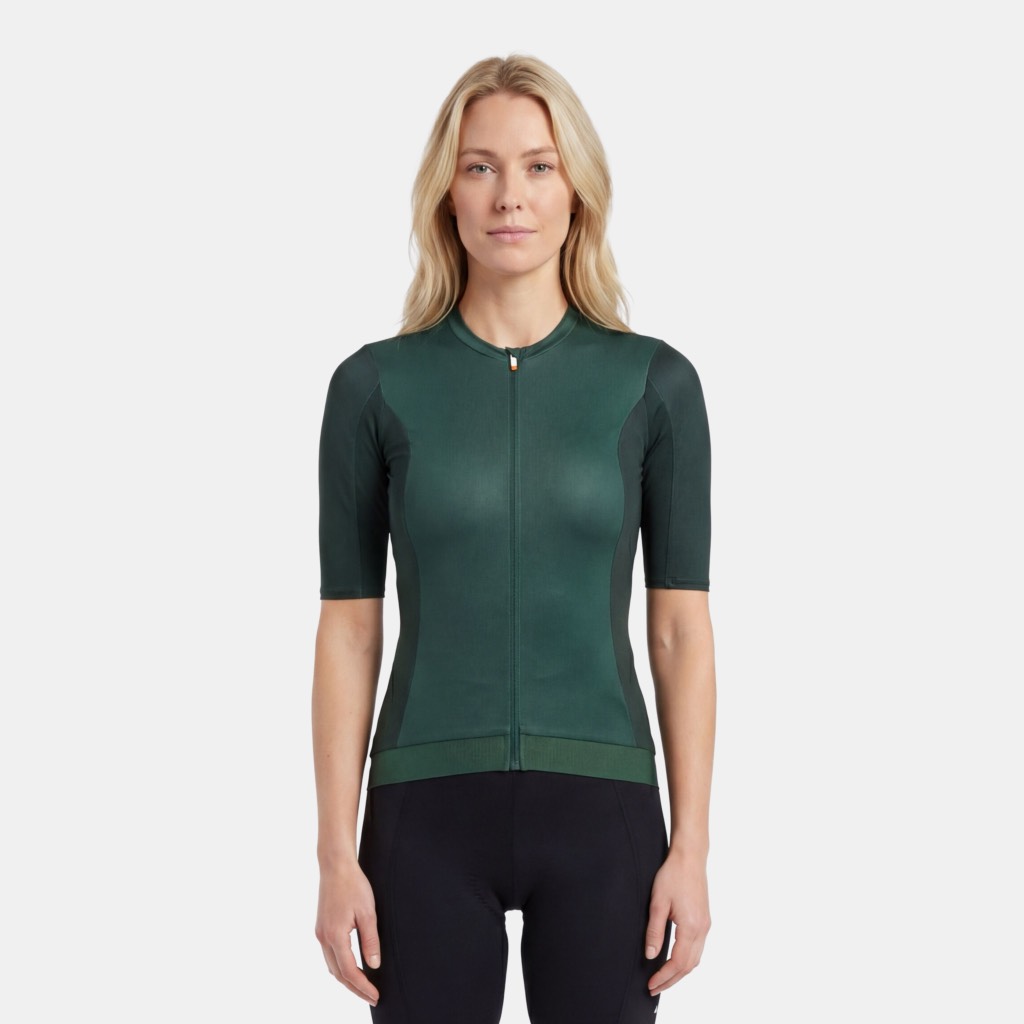
Show apparel in context when a flat product photo does not help shoppers understand fit, styling, or scale.
Choose the model and scene direction, then check the garment shape, texture, and color before adding the result to a product page.
Email and launches
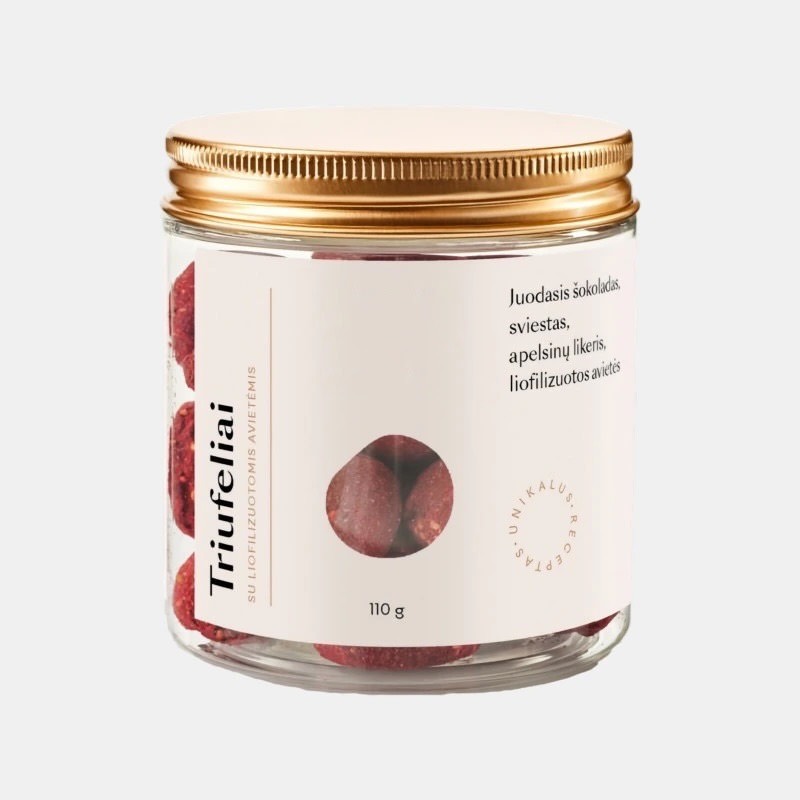
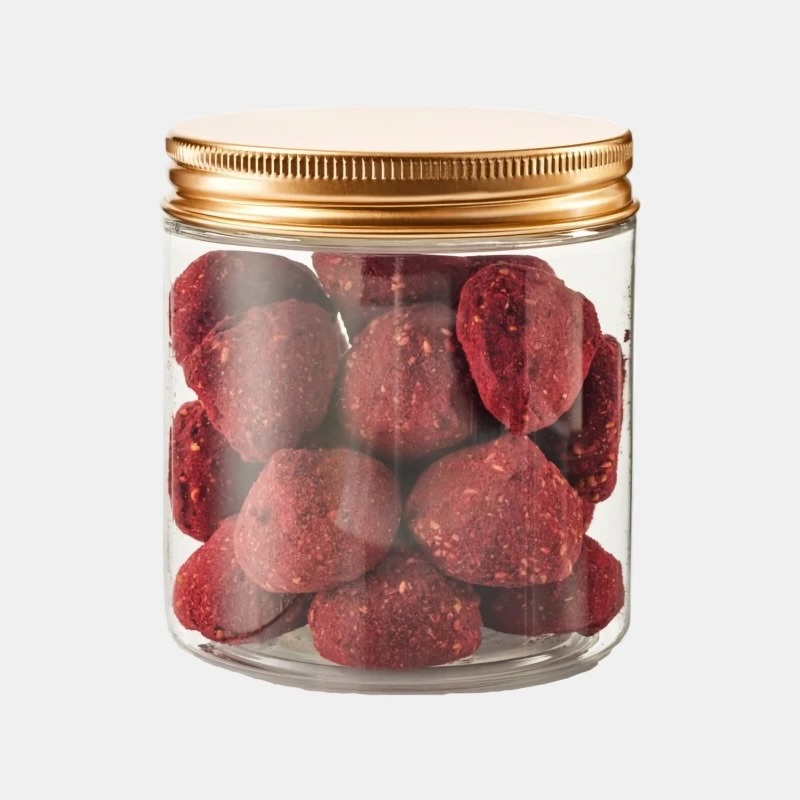
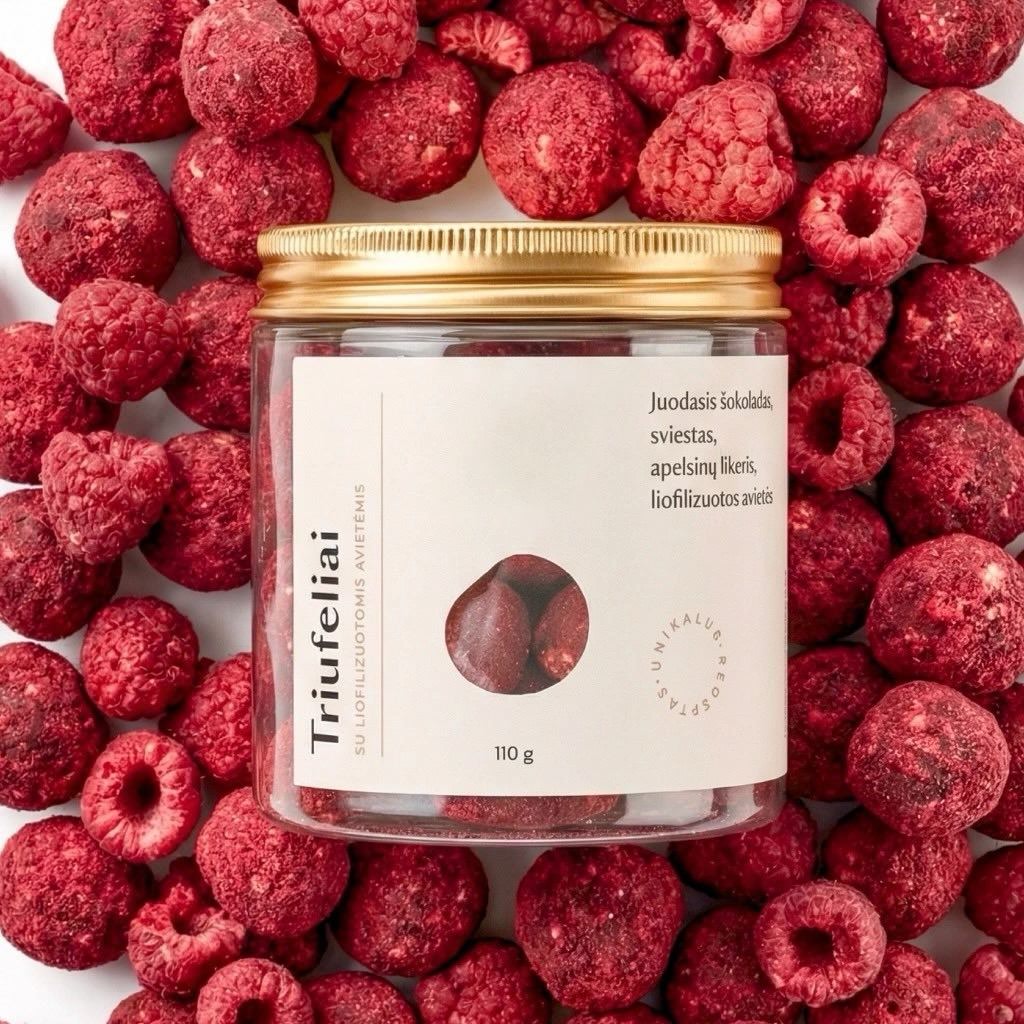
Build seasonal or ingredient-led beauty visuals when the existing packshot does not match the next launch concept.
Keep the product prominent and verify packaging text, claims, and fine print against the source image before publishing.
Paid social
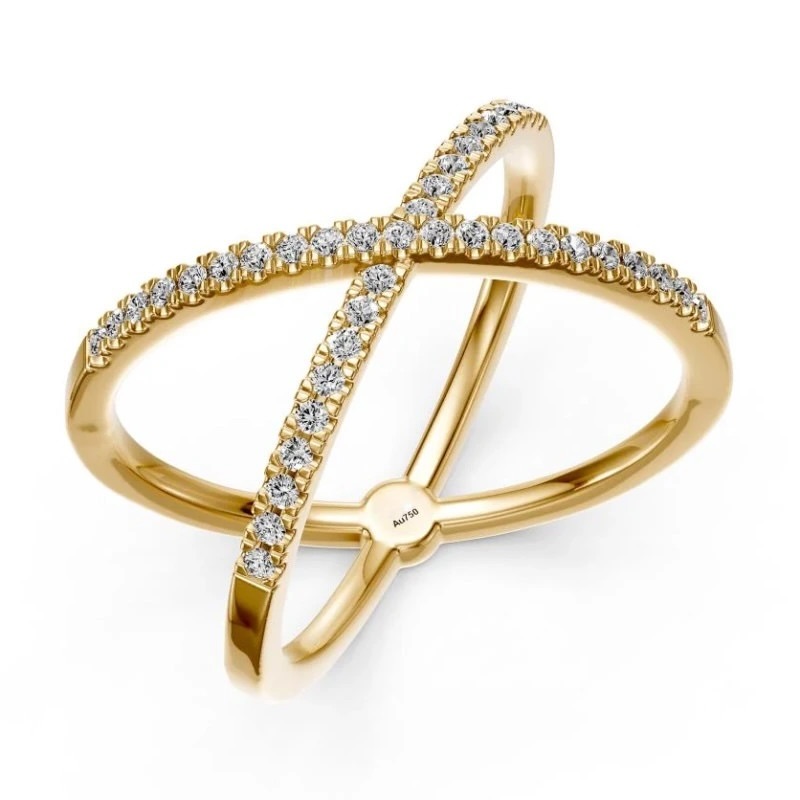
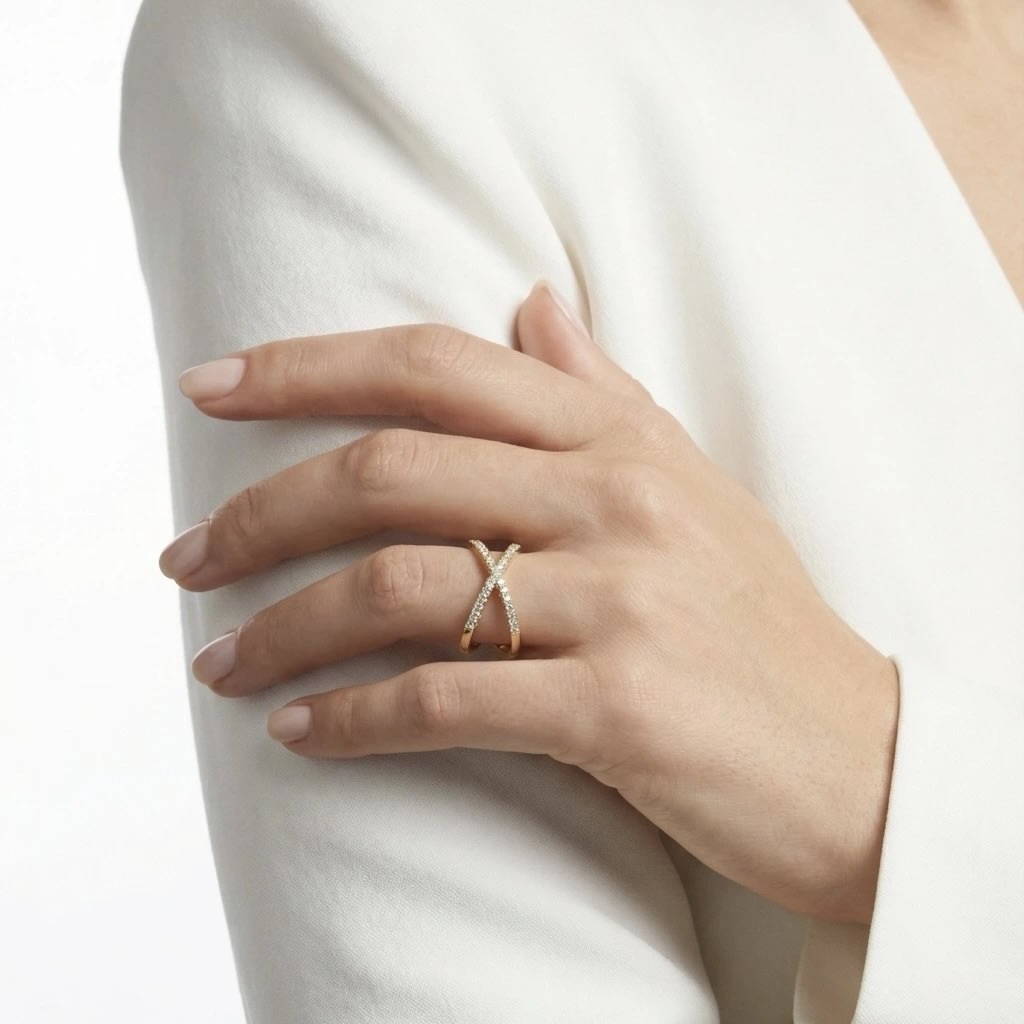
Turn a jewelry product photo into several close, styled, or on-model creative directions for campaign testing.
Use the variations to compare ideas, while checking stone shape, setting details, reflections, and wear placement before launch.

Marketplace listings
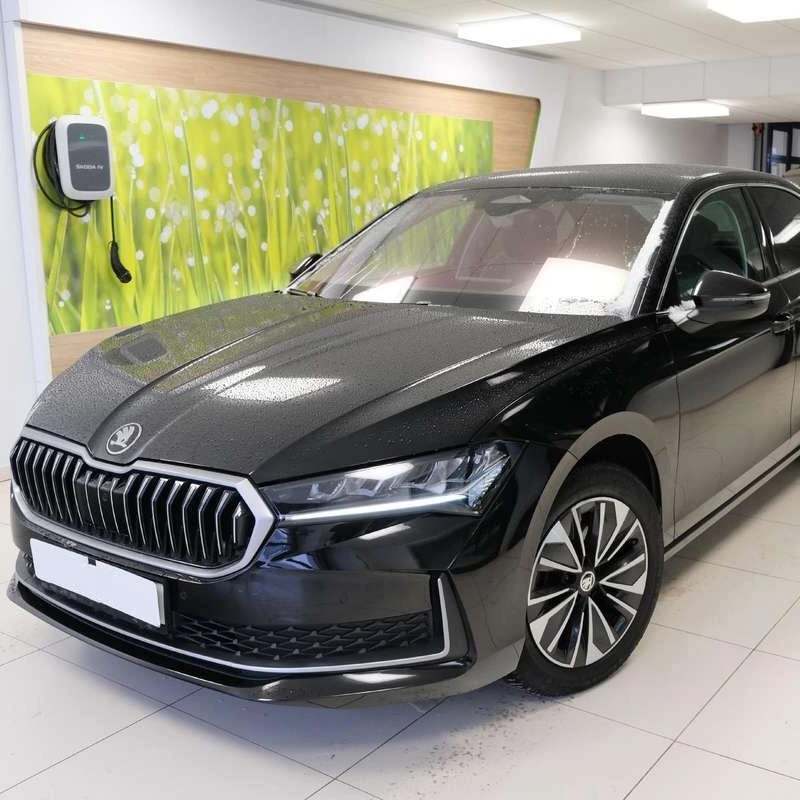
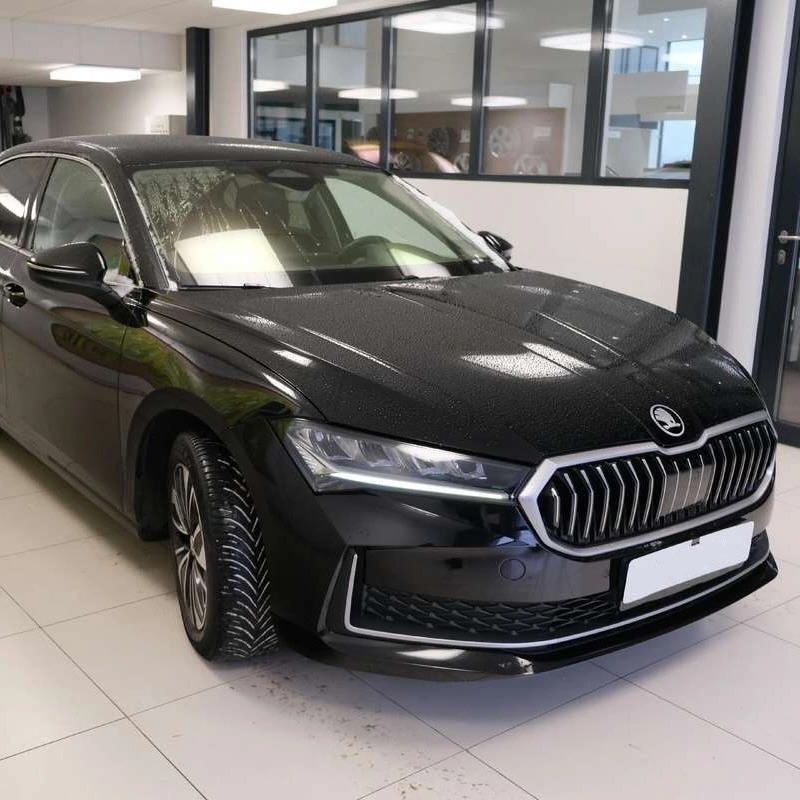
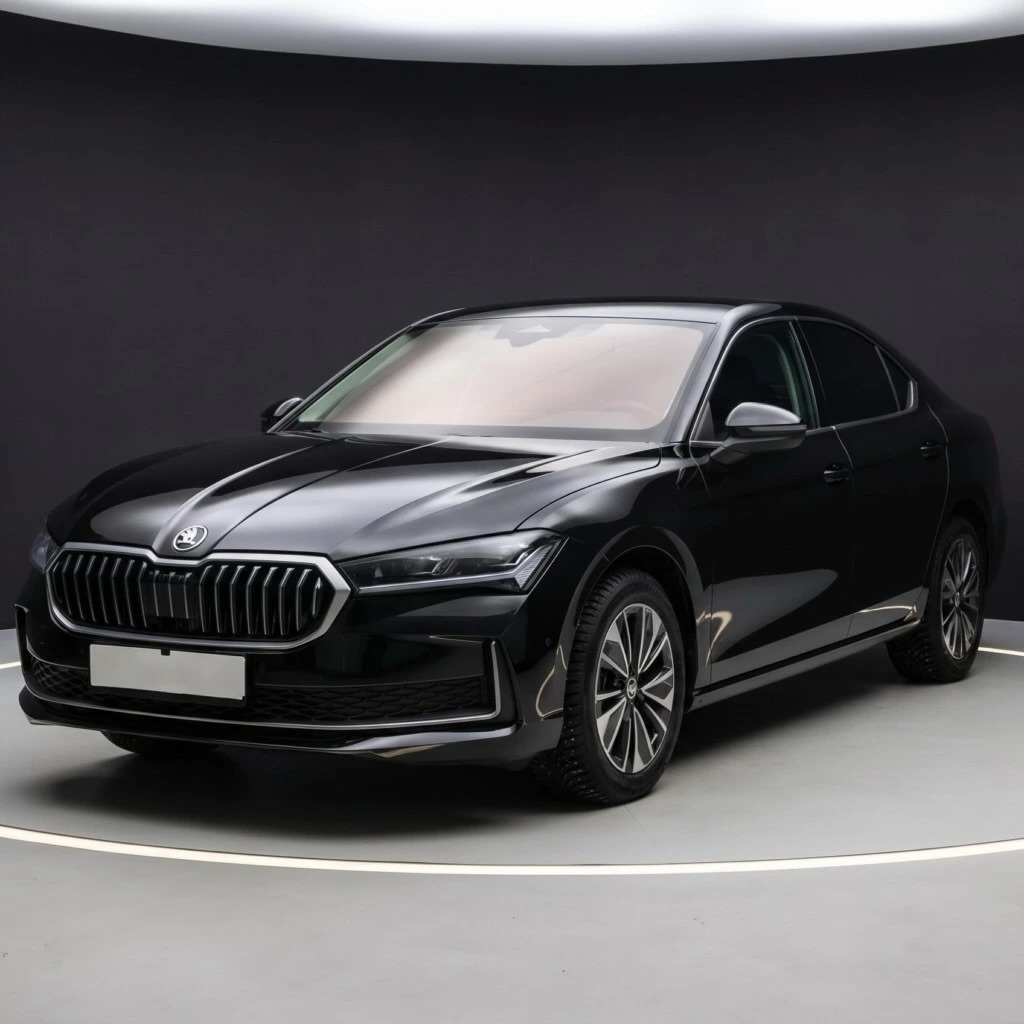
Create cleaner background and lighting directions when vehicle listing photos were captured in inconsistent conditions.
Confirm the exact model, trim, body details, and marketplace image requirements before replacing a source listing photo.
Create more ad directions from the same product.
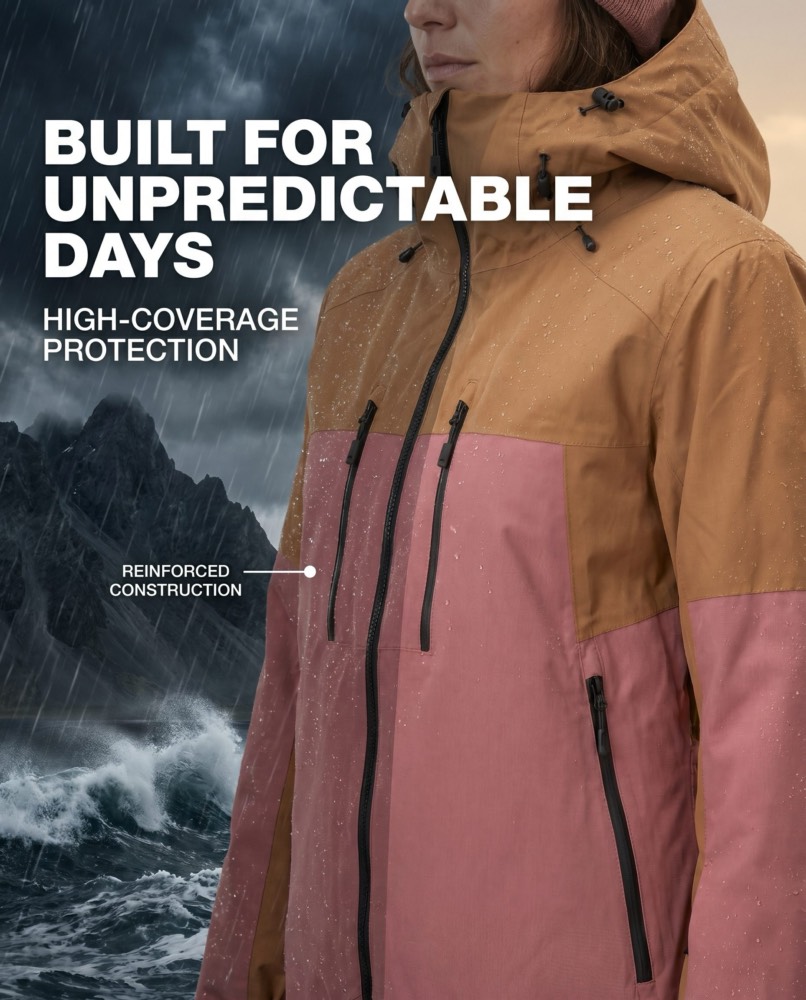
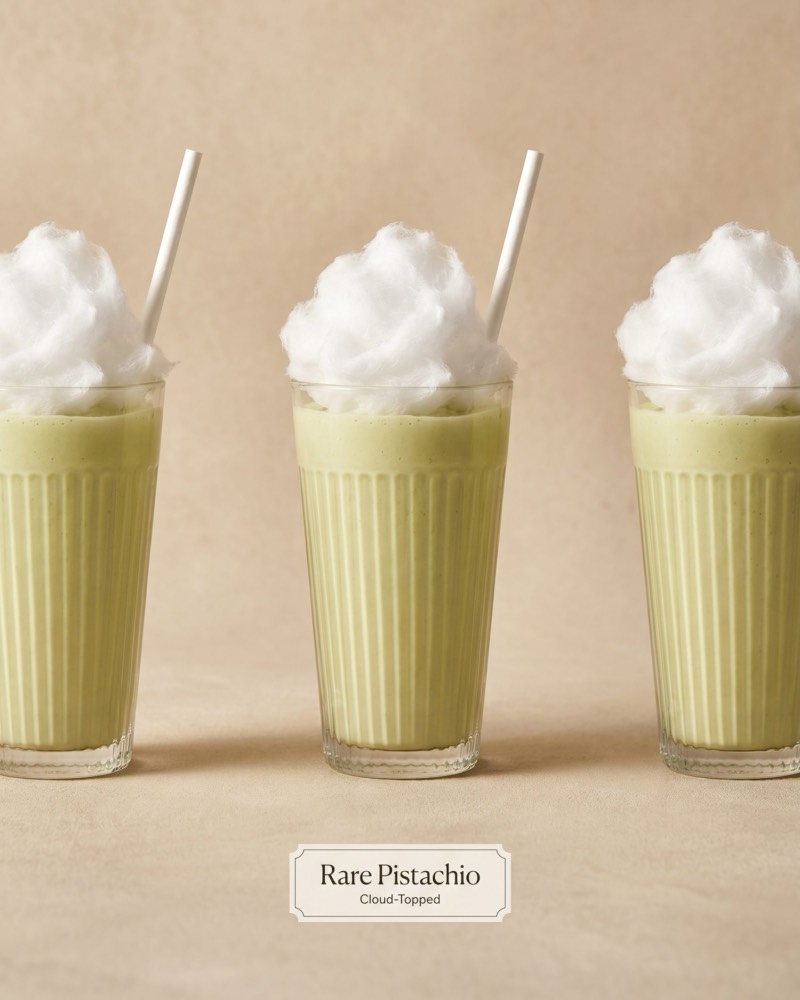
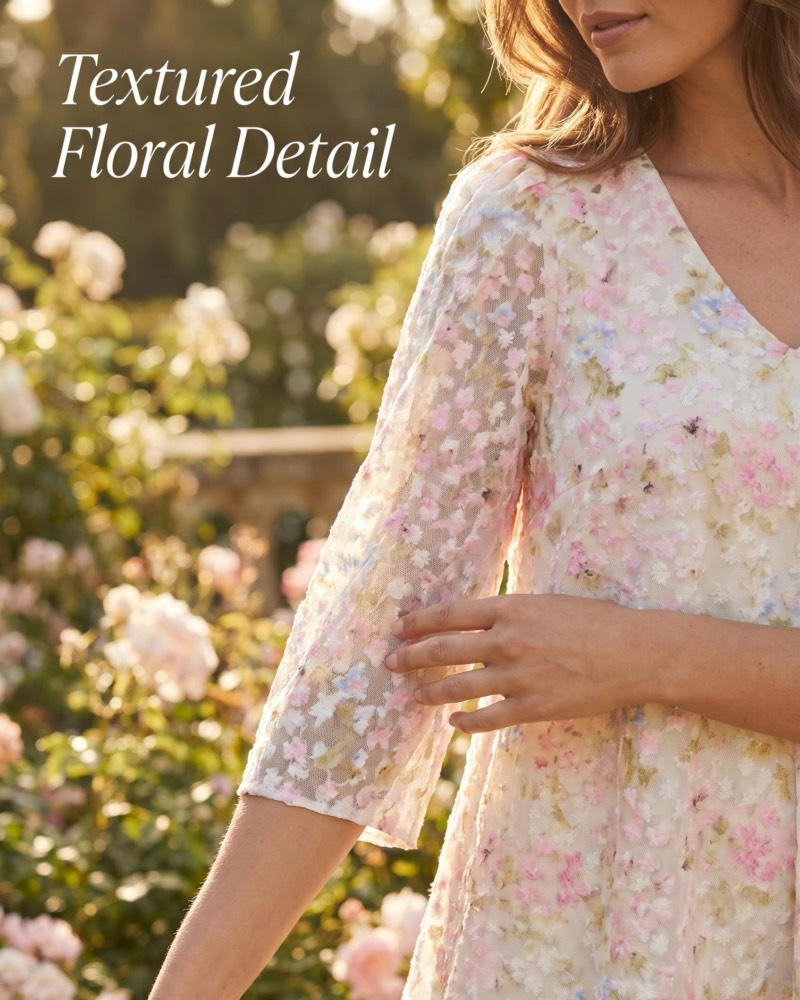
Prepare multiple product-led creative options for social placements, then choose and test the strongest direction in your own campaigns.

Social media ad example 1
Social media ad example 2
Social media ad example 3
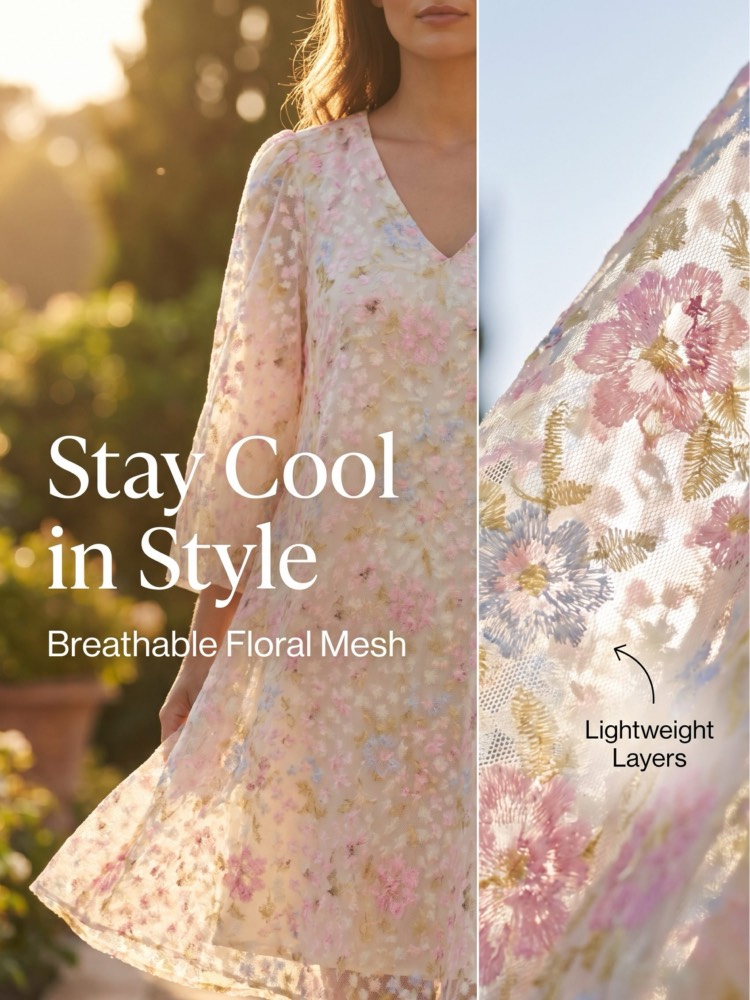
WORKFLOW EXAMPLE
Product-led creative direction for review and campaign testing.
WORKFLOW EXAMPLE
Product-led creative direction for review and campaign testing.
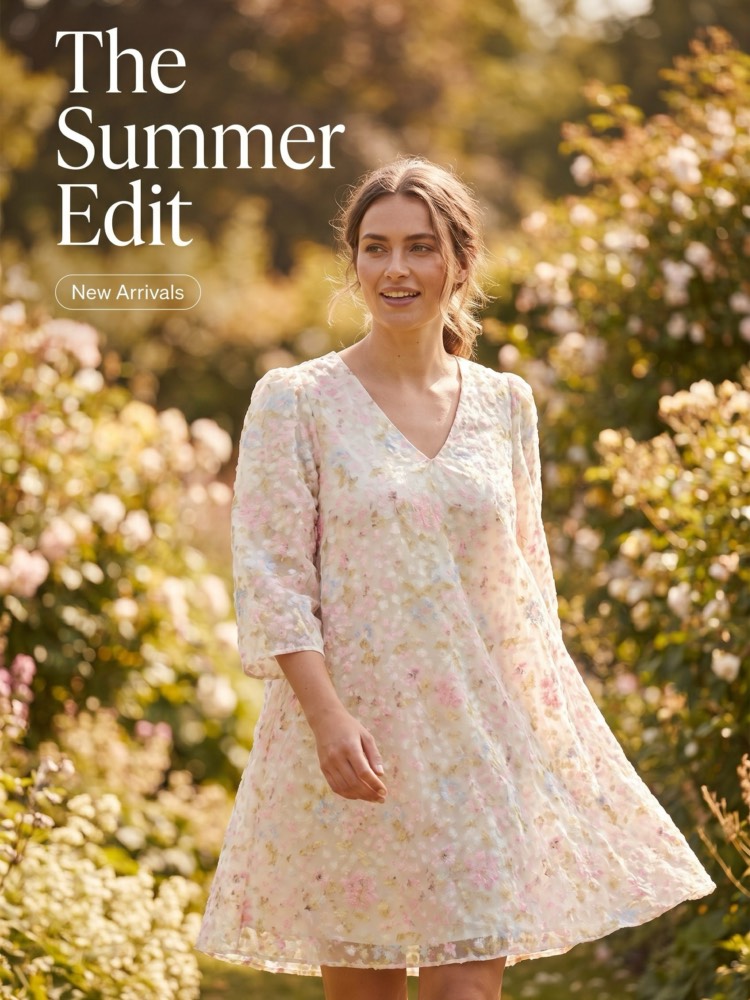
WORKFLOW EXAMPLE
Product-led creative direction for review and campaign testing.
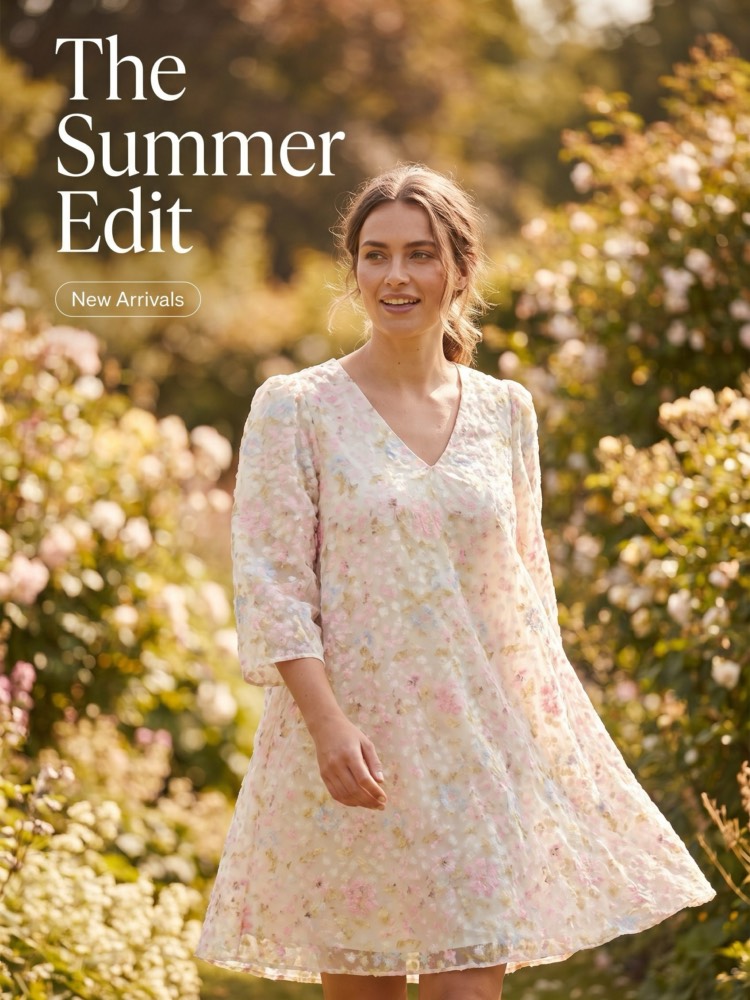
WORKFLOW EXAMPLE
Product-led creative direction for review and campaign testing.
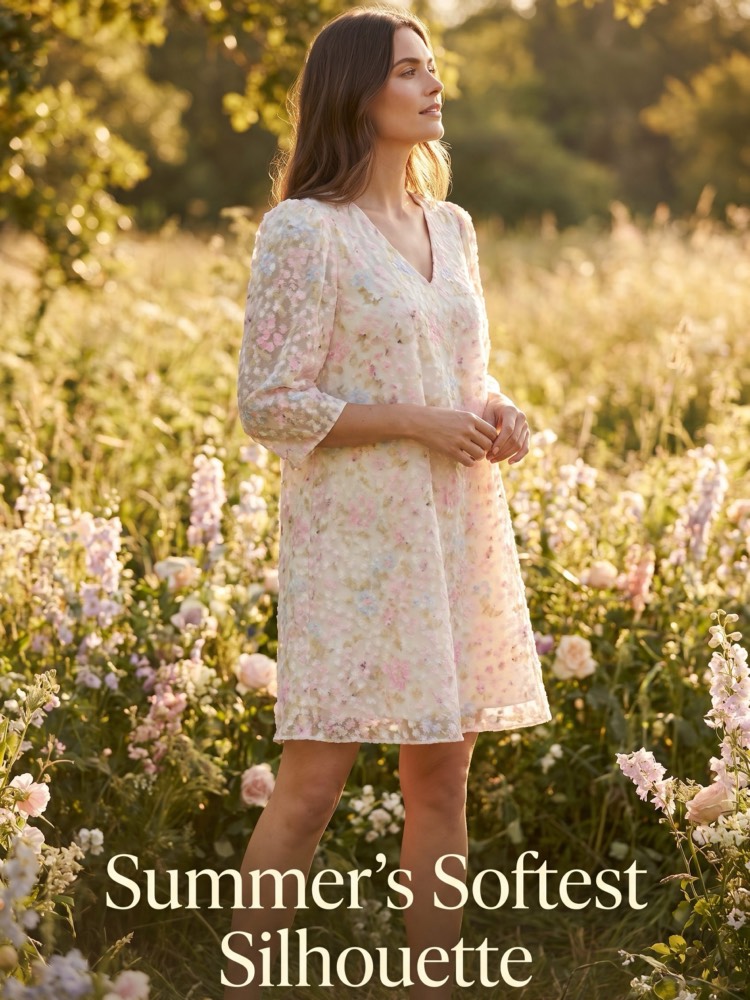
WORKFLOW EXAMPLE
Product-led creative direction for review and campaign testing.
Choose the Fotogenic workflow that fits your store.
Start in the browser, work directly in WooCommerce, or connect Fotogenic to a supported AI-assistant workflow.
Fotogenic MCP
AI assistants
Connect supported AI assistants and automated workflows to Fotogenic image and video tools.
- Assistant-guided generation
- Structured tool access
- Workflow automation options
Web App
Browser
Use the guided browser workflow to create, compare, and export product images, campaigns, and supported video outputs.
- Guided creative controls
- Image and campaign workflows
- Review before export
WordPress / WooCommerce
PLUGIN
Generate, review, and apply product images inside WordPress where your WooCommerce products are managed.
- Single-product workflow
- Review before applying
- Catalog and bulk tools
Available on WordPress.org · WooCommerce ready
Generate and apply product images without leaving WooCommerce.
Use the product images already in WordPress, create new visual options, and review the results where your catalog is managed.
Apply only the images you approve, and keep checking labels, packaging text, color, and fine details against the source product.
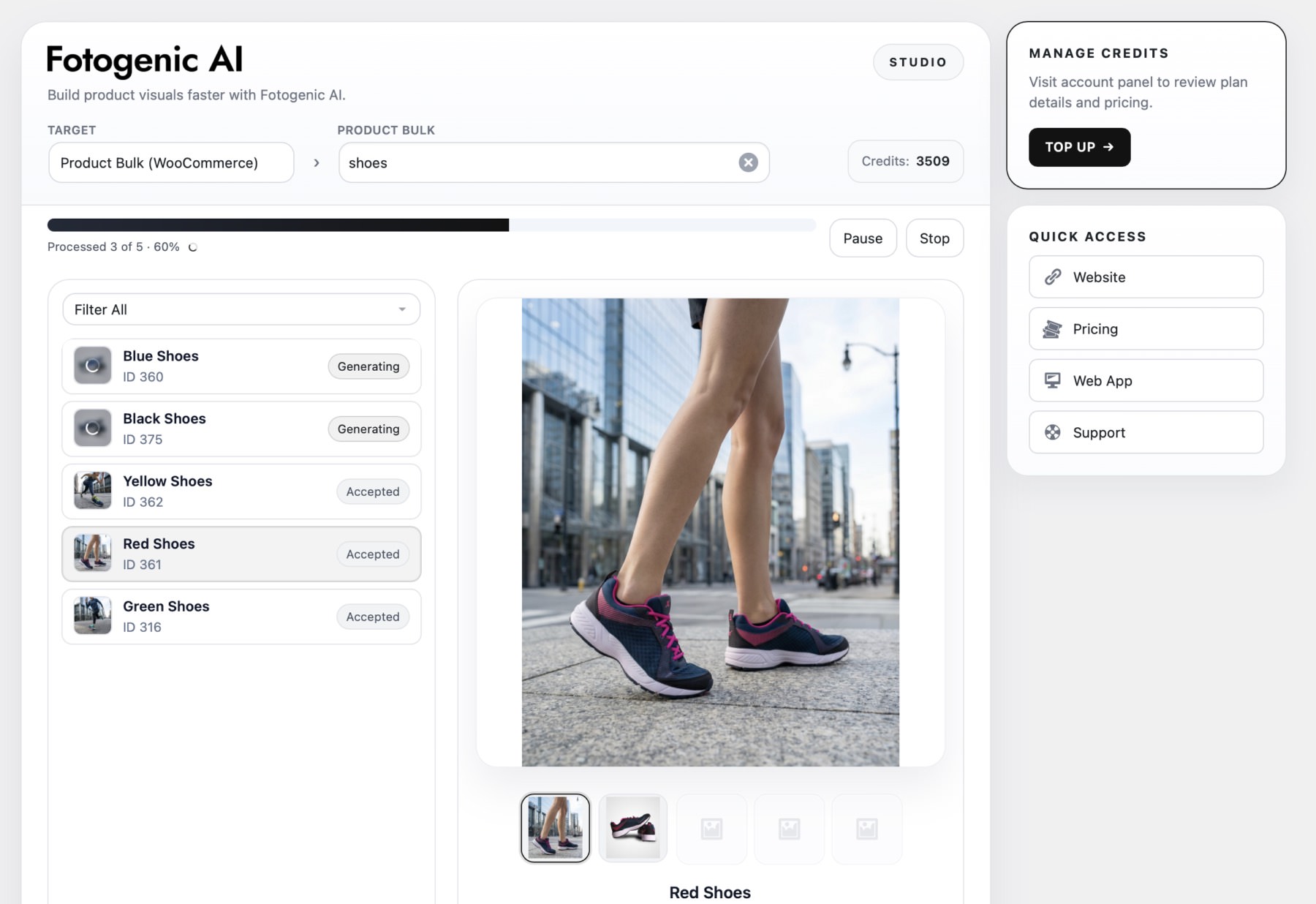
Improve presentation
Refresh outdated listings
Run bulk jobs for catalogs
Filter items intelligently
Review results beforehand
Control the details that matter in ecommerce images.
Create scenes, models, and framing. Keep consistent product and brand direction. Scale approved setups across more visual outputs.
Guided scene ideas
Start from product-aware scene and composition directions instead of a blank prompt.
On-model options
Choose model characteristics and styling directions when the product needs human context.
Camera and framing controls
Select angle, focus, and composition options to match the image's intended role.
Product interaction controls
Guide how a model holds, wears, or uses the product, then review contact and placement.
Reusable visual direction
Keep an approved scene and brand direction available for related product work.
Fast visual variations
Explore another angle, crop, or campaign option without rebuilding the full setup.
Accuracy review
Compare shape, materials, color, logos, labels, and fine details with the source before use.
Catalog-scale workflows
Reuse an approved configuration across supported multi-product and bulk workflows.
Channel-ready formats
Prepare outputs for product pages, marketplaces, paid media, social, and launches.
Start with a clear, well-lit product photo that shows the full item, its color, shape, materials, labels, and any details shoppers need to see. A clean front or three-quarter view is a strong starting point. Add more source views when important details are hidden in one image.