MCP Hotplug
Local-first MCP gateway and server manager for Windows. Connect all STDIO and HTTP MCP servers through one endpoint with live tool hot-swapping and Tailscale Funnel.
문서


mcpHotplug
One endpoint for all your MCP servers. Switch tools without restarting the chat.
MCP Hotplug combines local and remote MCP servers in one Windows app.
Connect your AI client once, then enable only the servers you need.




Windows 10/11 · No public tunnel is required for local desktop clients
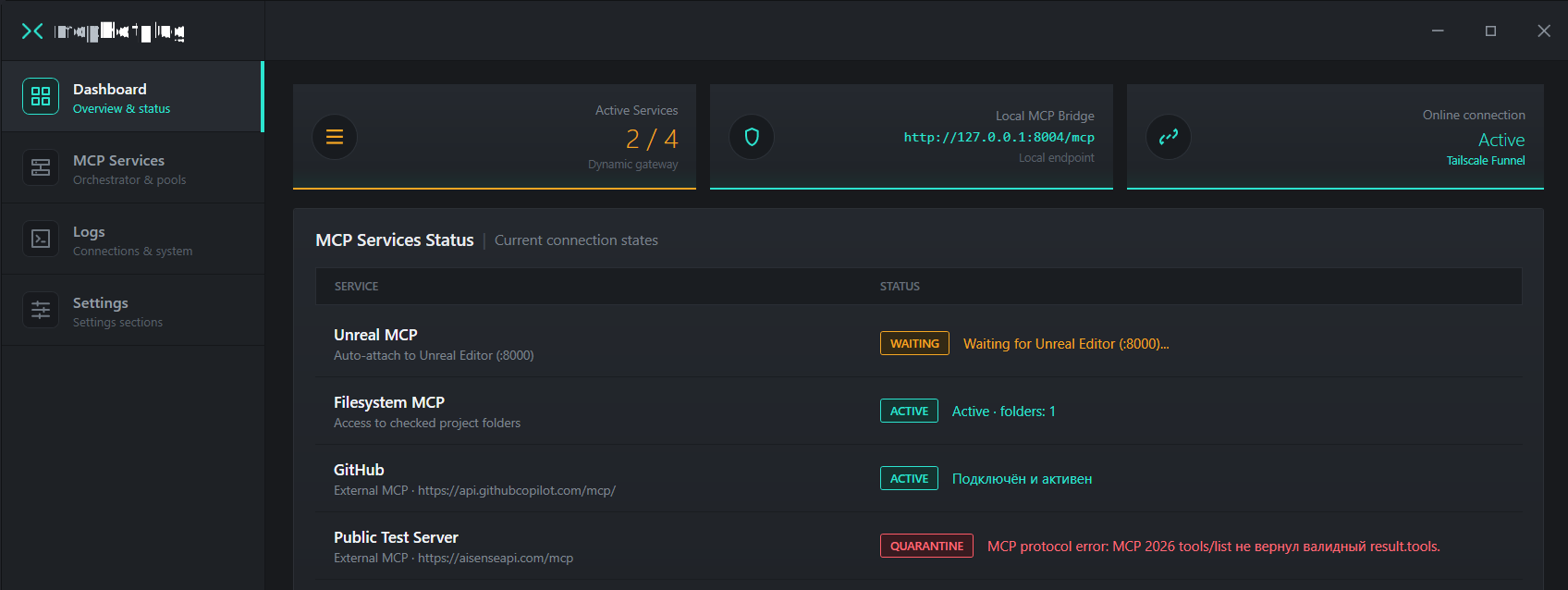
Why MCP Hotplug?
- One endpoint: connect several local and remote MCP servers through a single address.
- Live switching: enable or disable servers while you work.
- Task presets: save server combinations and switch between workflows quickly.
- Local servers in web AI: optionally expose local STDIO servers through Tailscale Funnel.
No tunnel is needed for local desktop clients. Tailscale Funnel is an optional setup for compatible web-based AI clients that need remote access.
Quick start
-
Download the installer from the latest release page, or install via WinGet:
winget install Darek3399.MCPHotplug -
Install and launch MCP Hotplug.
-
Open MCP Services and add an MCP server. You can paste its configuration from the server documentation.
-
Click Verify & Add. If the server depends on an app that is currently closed, choose Save Without Check.
-
In your MCP client settings, add a Streamable HTTP connection and use this local URL:
http://127.0.0.1:8004/mcp
If your client uses a JSON configuration file, add:
{
  "mcpServers": {
    "mcp-hotplug": {
      "type": "http",
      "url": "http://127.0.0.1:8004/mcp"
    }
  }
}
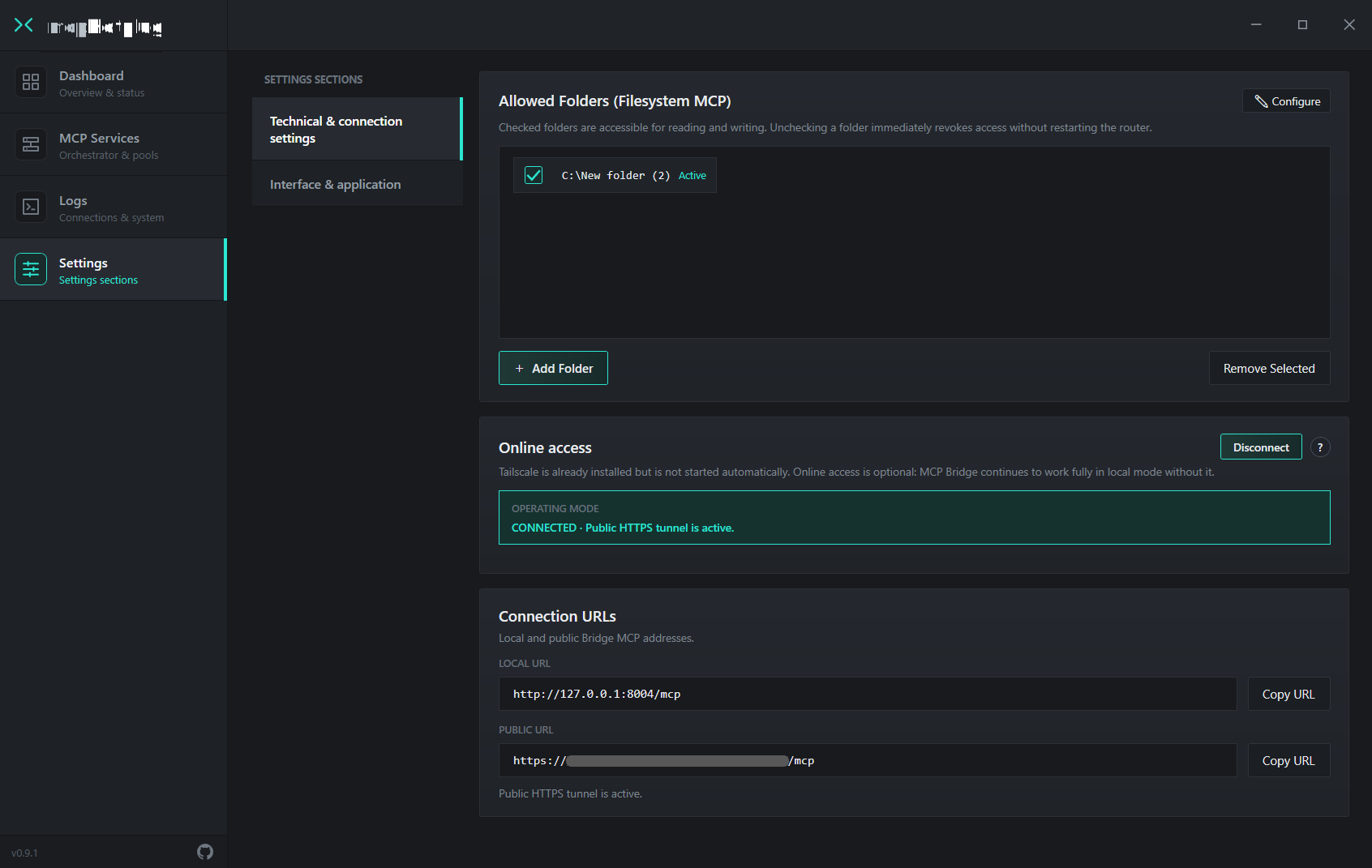
Remote access with Tailscale Funnel
During the initial setup, authorize your device in Tailscale and enable Funnel. After that, Hotplug uses the device's stable name and Funnel URL: you usually do not need to sign in again or obtain a new URL every time Hotplug starts. The address remains available while the device is authorized and running, and Funnel is enabled.
Unlike temporary tunnels, this address does not need to be reacquired on every launch. Terms vary by provider; some alternatives offer persistent addresses only on paid plans.
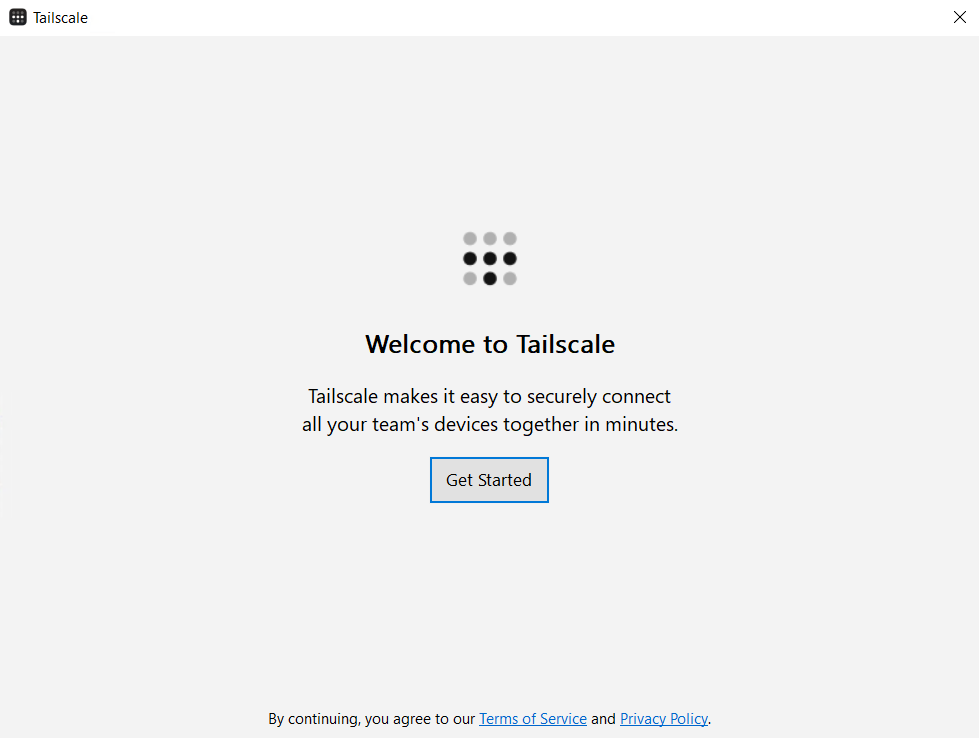
1. Launch Tailscale |
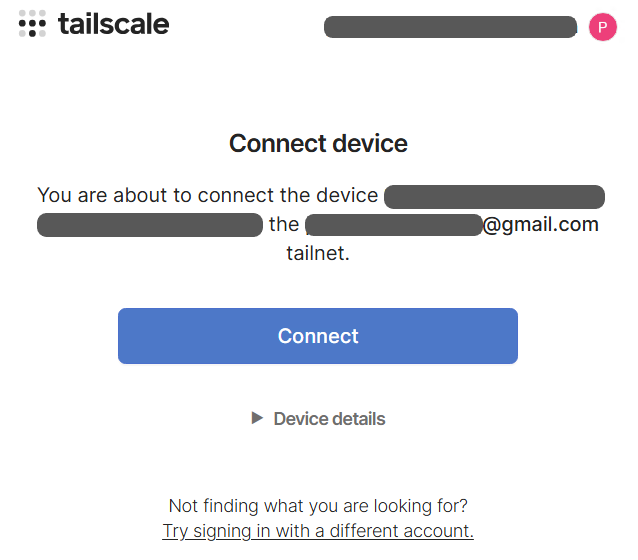
2. Sign in once |
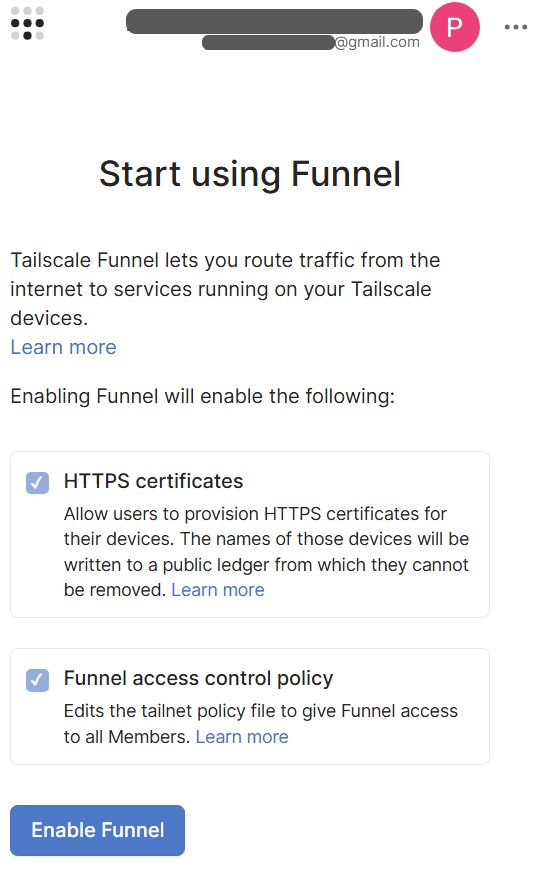
3. Enable Funnel |
Security note: the public URL may be reachable from the internet. Do not share it publicly, and only enable Funnel when remote access is needed.
Features
Switch servers during a chat
Enable and disable MCP servers during an active conversation without manually reconnecting your client.
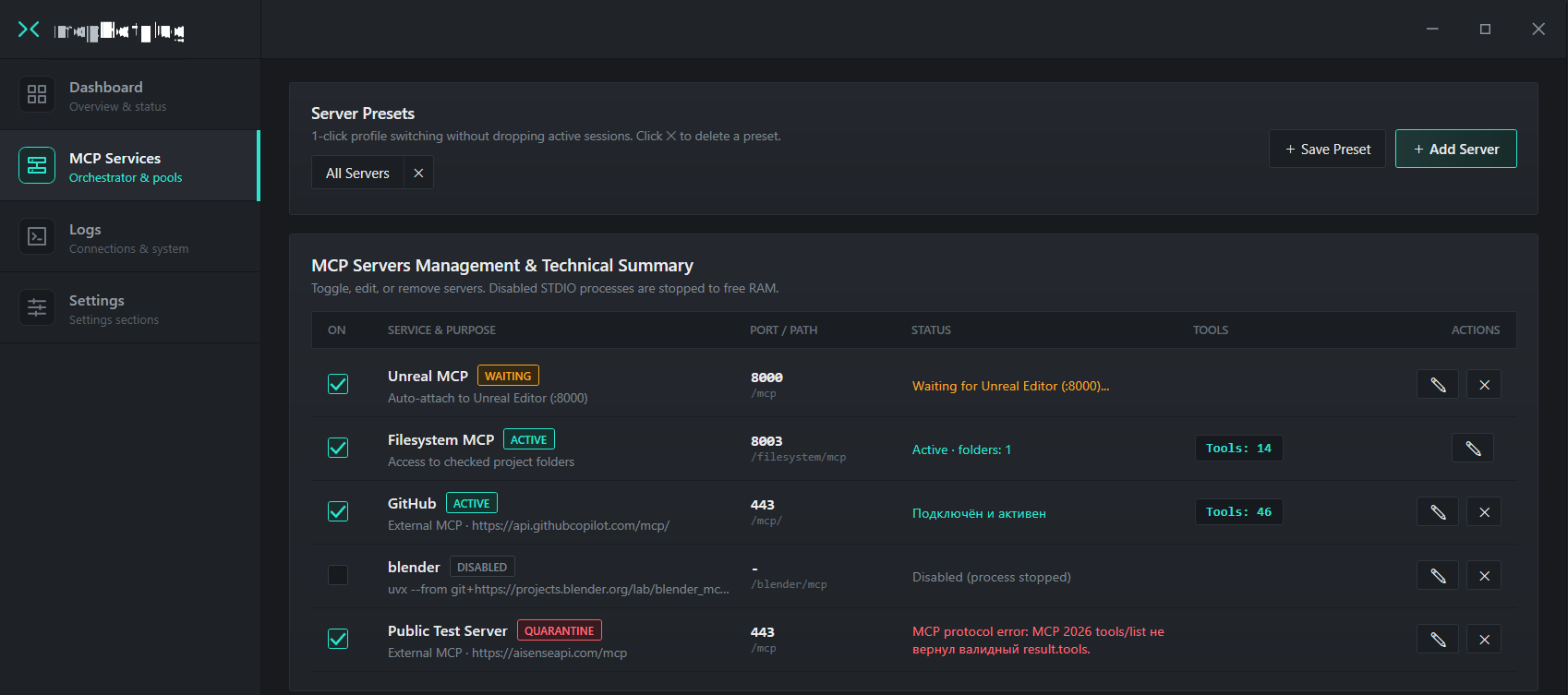
Use presets for different tasks
Save a combination of servers as a preset and switch between setups for different workflows, such as development or working with files.
Connect local STDIO servers
Hotplug brings local command-line MCP servers—started with tools such as npx, uvx, python, and others—into a shared gateway.
Limit access to folders
For the built-in Filesystem MCP server, choose which folders are available. Grant access only to the directories needed for your task.
How it works
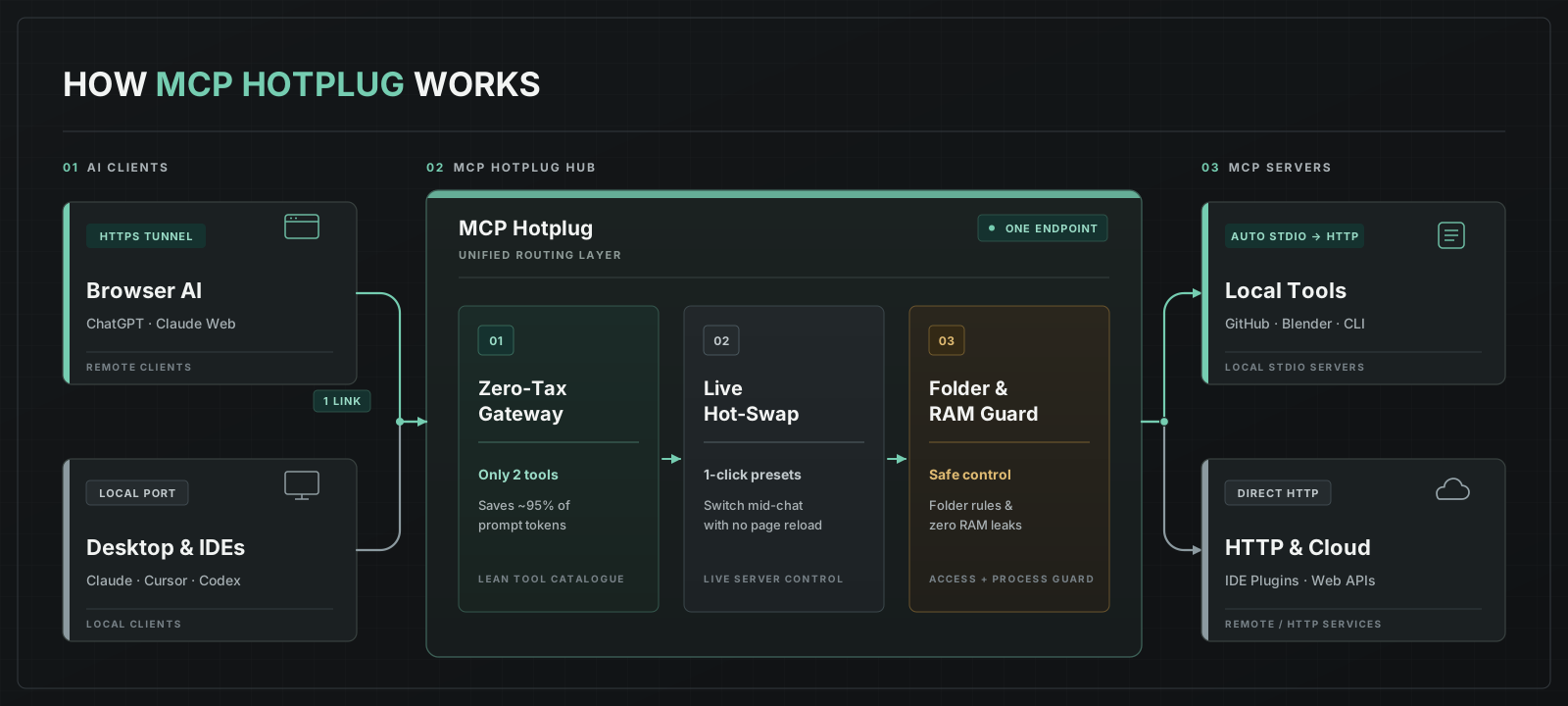
- Your AI client connects to the MCP Hotplug endpoint.
- Hotplug routes requests to enabled MCP servers.
- Local servers can use STDIO; remote servers can use HTTP.
- If a browser-based client needs remote access, it can be enabled separately through Tailscale Funnel.
Tools
Hotplug exposes two meta-tools — all_tools and call_tool — for discovering and calling tools from connected servers. This avoids sending every server's tool description to the client at once; the actual effect depends on the client and model.
all_tools— returns the latest cached tool catalog snapshot from enabled MCP servers, includingtool_id,inputSchema, per-server status, andcatalog_revision.call_tool— validates arguments against the cachedinputSchemaand routes the call to the target server usingtool_id,catalog_revision, andarguments.
Security and limitations
- Third-party MCP servers run on your computer as your Windows user. Only add commands and servers you trust.
- Filesystem MCP can read, modify, and delete files in allowed folders. Avoid granting access to the entire drive unless needed.
- Tailscale Funnel exposes a public URL. Do not share it publicly, and disable Funnel when you do not need remote access.
- Server secrets — environment variables and authorization headers — are stored locally. According to the project's current documentation, they are stored in plain text; keep this in mind when handling keys and tokens.
See SECURITY.md for details.
System requirements
- Windows 10 x64 (version 1903+) or Windows 11.
- .NET Framework 4.8.
- Download the Windows x64 installer from GitHub Releases.
Technical details
- Platform: Windows.
- UI languages: Russian and English.
- MCP transports: STDIO and HTTP.
- Local endpoint:
http://127.0.0.1:8004/mcp. - Meta-tools:
all_toolsandcall_tool. - Optional remote access: Tailscale Funnel.
- Child-process management: Windows Job Objects.
Contributing
Found a bug or have an idea for an improvement?
License
Released under the MIT License.
Support the project
If MCP Hotplug is useful to you, you can support its development:

Русский · Security · Third-party notices · Support the project