hyreflow
人材紹介会社向けのAI採用アシスタント。Claude、ChatGPT、その他のMCPクライアントに、候補者のソーシング(求人要件から、理由と連絡先を添えたランキング付き候補者リストを作成)や事業開発(採用シグナルの調査、候補者のクライアントへの提案、採用担当者のメールアドレスと電話番号の取得)に使える54種類のツールを提供します。Recruit CRM、Loxo、JobAdder、Vincereなどの人材紹介会社向けCRMにも対応。OAuthサインイン、無料プランあり。
ホスト型 MCP サーバー
npx add-mcp 'https://recruit.hyreflow.ai/api/v2/mcp'Claude Code、Codex、Cursor などにインストールできます
ドキュメント
Your recruiting desk, inside your AI assistant.
Connect once and your whole tool catalog is in the chat: sourcing, enrichment, saved workflows, and the playbooks that go with them. Claude, Codex, ChatGPT, or anything else that speaks MCP. No terminal, no local install, nothing to keep updated.
Set up hyreflow MCP from https://www.hyreflow.ai/mcp.md for Claude Desktop / claude.ai
Prefer adding it manually? Paste this server URL into your client’s connector settings.
https://recruit.hyreflow.ai/api/v2/mcp
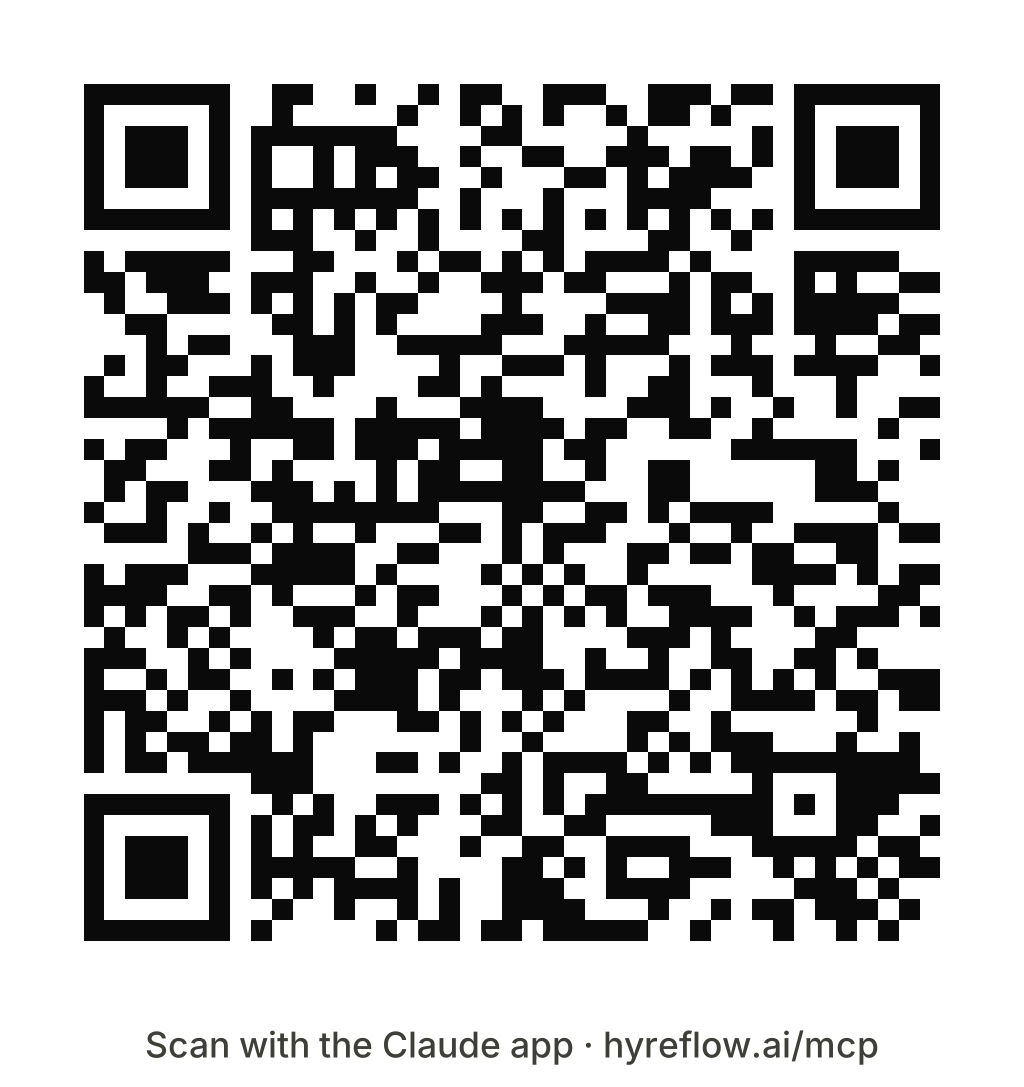
Or scan with your phone
Needs the Claude app installed Download for print
walkthrough
Every click, start to finish.
One handshake, recorded in each client: from the connector menu to a workspace your agent can act in. Pick the one you use.
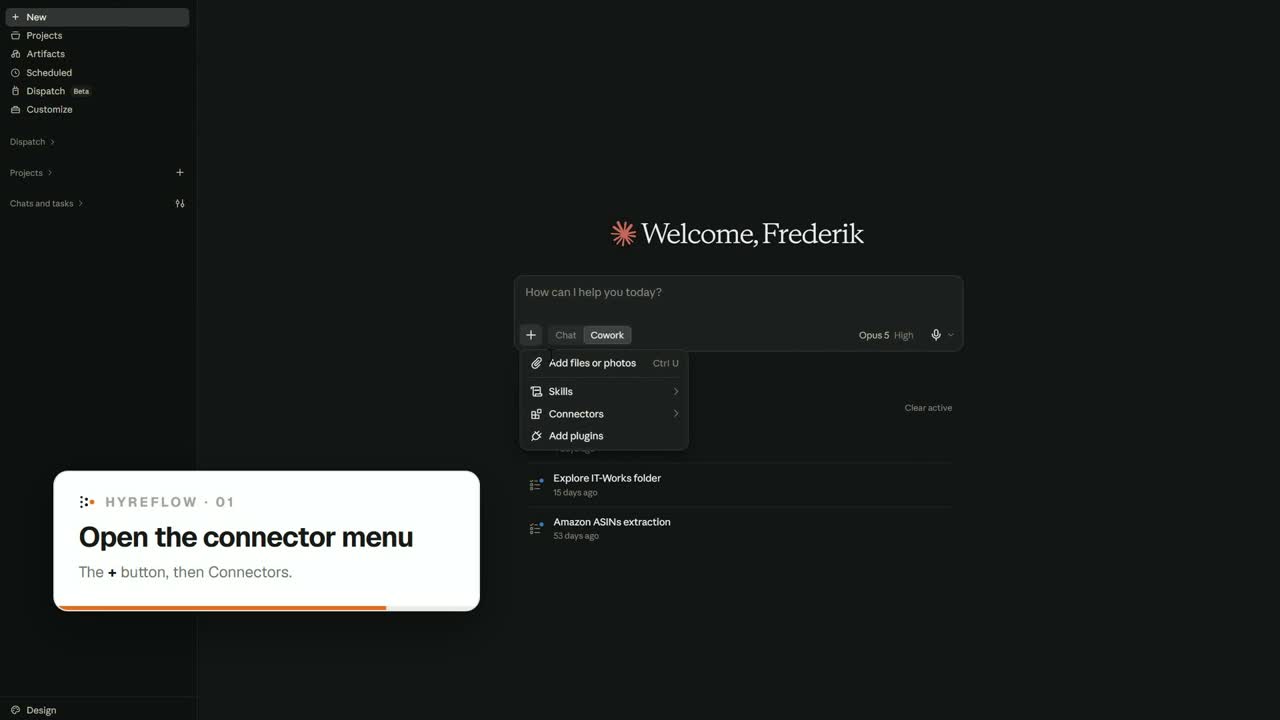
The Claude app: the + button in the composer, then Connectors.
what you get
What the connection gives you
01
All 54 tools
The tool catalog of one workspace. Search it, price a call before you make it, then run it.
02
Your saved work
Bulk enrichment, that workspace's saved workflows, and the history of every run against it.
03
The playbooks
The recruiting skills and provider playbooks ride the same connection, so an agent reads the payload shapes and cost traps before it spends anything.
04
Its credit balance
What a step costs is visible before it runs, and the balance is readable from the chat. A new account starts with 25 credits, unless someone on its company email domain already pays.
clients
Works with
Anything that speaks the Model Context Protocol. These are the ones we see most.
Claude app
Scan the code, or open a chat and let Claude walk you through it.
Claude Desktop
Settings → Connectors → Add custom connector.
Claude Code
One command, and the agent can run it itself.
Codex
Add the server URL to its MCP config and approve the browser sign-in.
Hermes
Capabilities → Servers → New server, then the config block below.
ChatGPT
Add a custom MCP connector with the same URL.
Google Antigravity
Settings → Customizations → Installed MCP Servers, then the config block below.
Grok
No settings screen: ask it to add a custom MCP at the URL, and it does the rest.
Microsoft Copilot Studio
Tools → Add a tool → Add new MCP, then OAuth 2.0 with Dynamic discovery.
The prompt hands your agent the setup document, which has the steps for each client.
Set it up by hand
Every client that speaks MCP takes these two values. MCP setup has the per-client steps.
Server URL
https://recruit.hyreflow.ai/api/v2/mcp
Authorization
OAuth. Leave any client ID and secret empty, except in Antigravity and Gemini Enterprise
Sign-in is a browser handshake, so leave any OAuth client-ID and secret fields empty. The connection is bound to the one workspace you pick on the approval screen. Gemini Enterprise is the one form that needs them filled in: its values are in the setup guide.
Clients that take a config file
These two are set up by editing JSON rather than by filling in a form. Copy the block whole — it nests four deep, and a dropped brace fails with no useful message. The two shapes are not interchangeable: Antigravity takes a client ID because it does not register itself, Hermes does and so takes none.
Google Antigravity
.gemini/config/mcp_config.json
{
  "mcpServers": {
    "hyreflow": {
      "serverUrl": "https://recruit.hyreflow.ai/api/v2/mcp",
      "oauth": { "clientId": "mcp_3c39d0bc0c1f435941f7962f" }
    }
  }
}
Hermes
mcp.json, under Capabilities → MCP
{
  "mcpServers": {
    "hyreflow": {
      "url": "https://recruit.hyreflow.ai/api/v2/mcp",
      "auth": "oauth"
    }
  }
}
Connected? Run your first play
Ask for a shortlist, a spec campaign or a cleaned-up list. By default hyreflow shows you the cost before it spends.