Native Devtools
ネイティブなコンピュータ操作とブラウザ自動化のためのMCPサーバーについて。
ドキュメント
native-devtools-mcp
An MCP server for computer use on native desktop and mobile apps — macOS, Windows, Android, and Chrome/Electron via CDP.




Add to your client in one click:


Claude Code: claude mcp add native-devtools -- npx -y native-devtools-mcp
native-devtools-mcp gives AI agents and MCP clients direct control over native desktop apps, Chrome/Electron browsers, and Android devices — screenshots, OCR, accessibility-first element lookup, input simulation, window management, Chrome DevTools Protocol (CDP), and ADB — all in one local server. Works with Claude Desktop, Claude Code, Cursor, and other MCP-compatible clients.
Quickstart
npx -y native-devtools-mcp
| macOS | Windows |
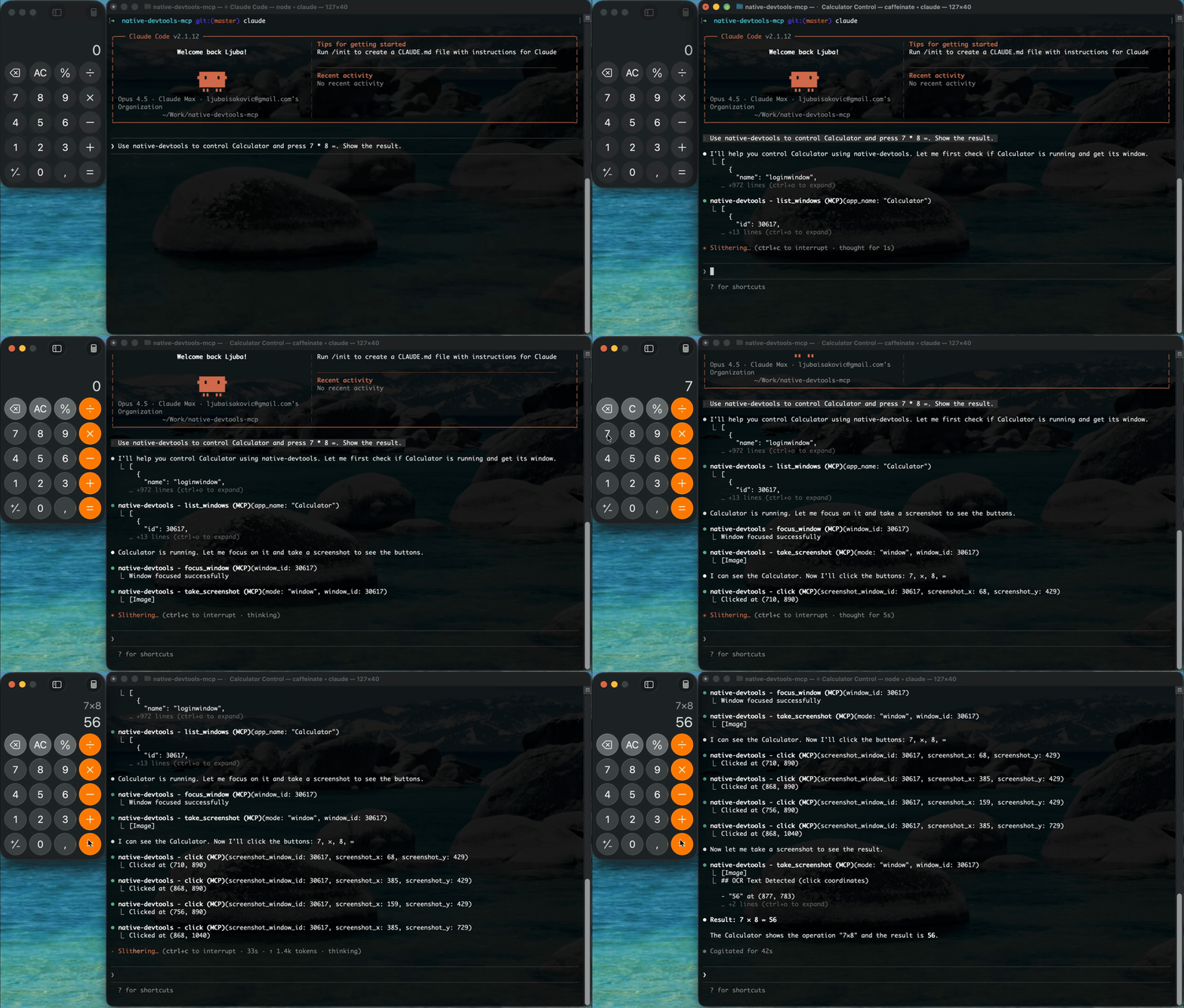 | 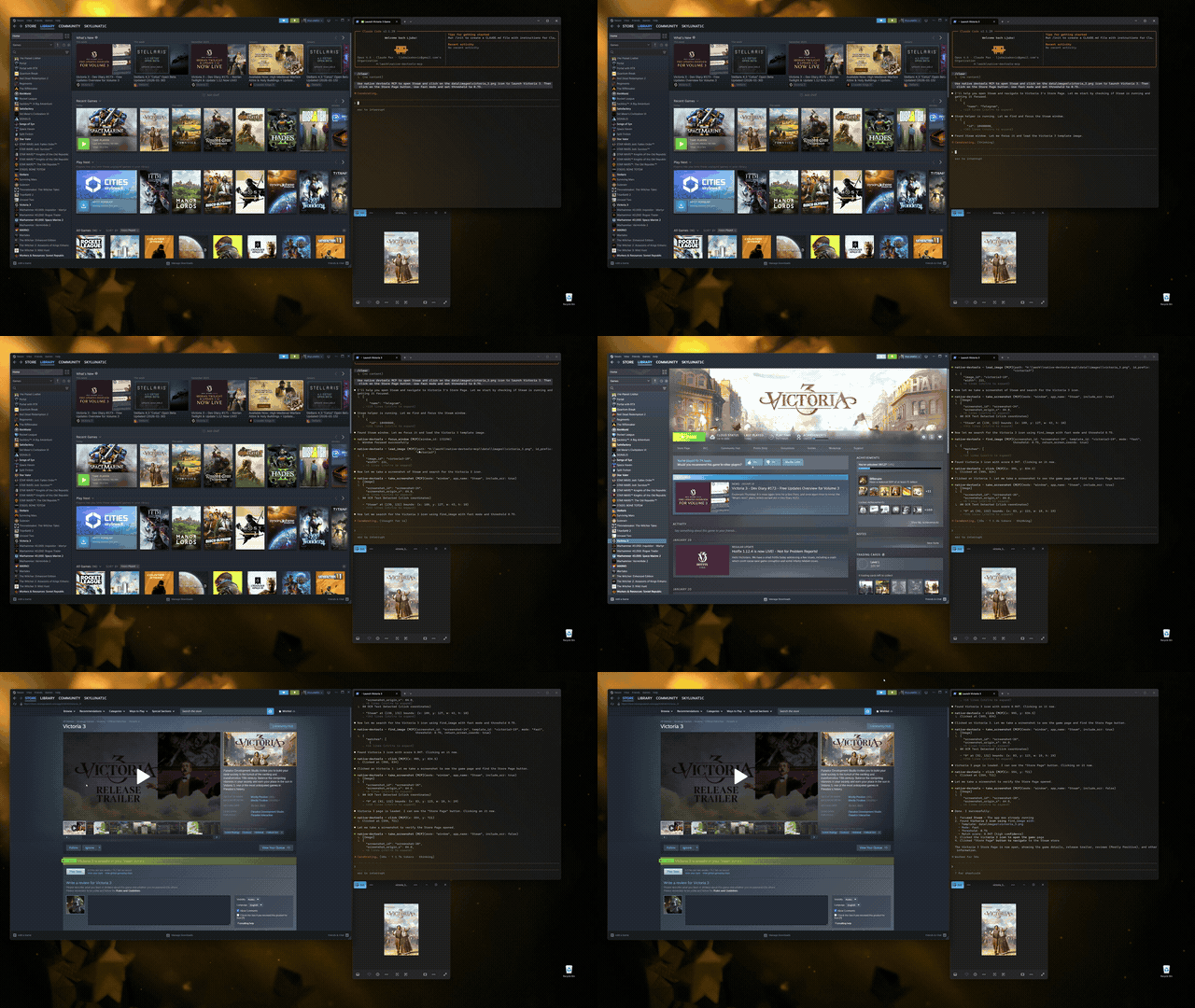 |
🚀 Features
- 👀 Computer Vision: Screenshots of screens, windows, or regions with built-in OCR (Vision on macOS, Windows Media OCR on Windows).
- 🖱️ Input Simulation: Click, drag, scroll, type — global coordinates, window-relative, and screenshot-relative targeting.
- 🎯 Element-Precise AX Dispatch (macOS):
take_ax_snapshot→ax_click/ax_set_value/ax_select— dispatch against Accessibility-tree elements without moving the mouse or stealing focus. The preferred path for native macOS apps. - 🌐 Browser Automation (CDP): Chrome DevTools Protocol for Chrome and Electron apps (Signal, Discord, VS Code, Slack) — DOM-level click, fill, navigate, and JS evaluation without a separate Node.js server.
- 📱 Android (ADB): Screenshots, uiautomator-based text lookup, input, and app management over USB or Wi-Fi.
- 🧩 Template Matching:
load_image+find_imagefor icons, toggles, and custom controls OCR can't identify. - 🪟 Window Management: List, focus, launch, and quit apps; record windows as timestamped JPEG frames.
- 🔍 Hover Tracking: Observe user navigation patterns with dwell-filtered hover events — designed for LLMs watching a user work.
- 🔒 Local & Private: 100% local execution. Screenshots and input never leave your machine.
🧭 Three Approaches to Interaction
Pick the approach that matches your target app.
| Approach | Best for | Key tools |
|---|---|---|
| Visual (universal) | Any app — games, Qt, custom renderers, anything without an AX tree | take_screenshot, find_text, click, type_text, find_image |
| AX Dispatch (macOS — preferred for native macOS apps) | AppKit / SwiftUI apps — System Settings, Finder, Mail, Xcode, Notes | take_ax_snapshot, ax_click, ax_set_value, ax_select |
| CDP (Chrome / Electron) | Web content, Electron apps with --remote-debugging-port | cdp_connect, cdp_find_elements, cdp_take_dom_snapshot, cdp_click, cdp_fill |
For macOS native apps, AX Dispatch is the preferred path — it's element-precise, doesn't move the mouse, and doesn't steal focus. See the Native App AX Dispatch recipe.
There's also a fourth, niche path: AppDebugKit (app_connect / app_query / app_click) for apps instrumented with the AppDebugKit library. Mostly useful for developers testing their own apps.
🆚 How it compares
The most honest peers are other MCP servers for computer use. This table compares native-devtools-mcp against the leading MCP servers and two widely used non-MCP libraries.
| Capability | native-devtools-mcp | Playwright MCP | Windows-MCP | Appium | pywinauto |
|---|---|---|---|---|---|
| Native macOS apps | ✅ AX + screenshots | ❌ browser only | ❌ Windows only | ❌ mobile focus | ❌ Windows only |
| Native Windows apps | ✅ UIA + input | ❌ browser only | ✅ | ◐ limited | ✅ |
| Web / DOM automation | ✅ via CDP | ✅ | ◐ via Windows UIA | ◐ mobile-web | ❌ |
| Electron apps | ✅ CDP + AX | ✅ first-class _electron | ◐ if UIA exposed | ❌ | ◐ if UIA exposed |
| Android devices (ADB) | ✅ built-in | ◐ experimental | ❌ | ✅ first-class | ❌ |
| MCP-native | ✅ | ✅ | ✅ | ❌ | ❌ |
| Local, no API key | ✅ | ✅ | ✅ | ✅ self-hosted | ✅ |
Where native-devtools-mcp stands out: one local MCP server covering macOS + Windows + Chrome/Electron (CDP) + Android in the same session, plus element-precise macOS AX dispatch that doesn't move the cursor or steal focus.
Honest limits:
- No Linux (contributions welcome — see Linux Desktop MCP for an AT-SPI2-based alternative in the meantime)
- Browser automation is Chrome / Electron only via CDP — no Firefox, no WebKit (for those, use Playwright MCP)
- Headed only — depends on real-machine permissions; not a headless CI test grid
- No iOS
If you need just web automation, Playwright MCP is more mature. If you need just mobile (iOS + Android + deep device features), Appium is more mature. This server is for the cross-cutting native-desktop + Chrome/Electron + Android case.
📦 Installation
The install steps are identical on macOS and Windows.
Option 1: Run with npx (no install needed)
npx -y native-devtools-mcp
Option 2: Global install
npm install -g native-devtools-mcp
Option 3: Build from source (Rust)
Click to expand build instructions
Using the build script (clones, builds, and runs setup):
curl -fsSL https://raw.githubusercontent.com/vectora-foundry/native-devtools-mcp/master/scripts/build-from-source.sh | bash
Or manually:
git clone https://github.com/vectora-foundry/native-devtools-mcp
cd native-devtools-mcp
cargo build --release
# Binary: ./target/release/native-devtools-mcp
Manual configuration (without the setup wizard)
Click to expand MCP client config snippets
macOS — Claude Desktop
Config file: ~/Library/Application Support/Claude/claude_desktop_config.json
{
  "mcpServers": {
    "native-devtools": {
      "command": "/Applications/NativeDevtools.app/Contents/MacOS/native-devtools-mcp"
    }
  }
}
Windows — Claude Desktop
Config file: %APPDATA%\Claude\claude_desktop_config.json
Claude Code, Cursor, and other MCP clients
{
  "mcpServers": {
    "native-devtools": {
      "command": "npx",
      "args": ["-y", "native-devtools-mcp"]
    }
  }
}
Requires Node.js 18+.
macOS permissions: the server needs Accessibility and Screen Recording permissions. The setup wizard opens the right System Settings panes for you. Without both, clicks silently fail and screenshots return a black rectangle.
Linux is not supported yet. The server uses platform-specific APIs (Core Graphics + Accessibility on macOS, Win32 + UI Automation on Windows) that don't exist on Linux. Contributions welcome — X11/Wayland screenshot, input, and AT-SPI paths would be a good first issue.
🏁 Getting Started
After installing, run the setup wizard:
npx native-devtools-mcp setup
This will:
- Check permissions (macOS) — verifies Accessibility and Screen Recording, opens System Settings if needed.
- Detect your MCP clients — finds Claude Desktop, Claude Code, and Cursor.
- Write the configuration — generates the correct JSON config and offers to write it for you.
Then restart your MCP client and you're ready to go.
Claude Desktop on macOS requires the signed app bundle (Gatekeeper blocks npx). Download
NativeDevtools-X.X.X.dmgfrom GitHub Releases, drag to/Applications, then run setup — it will detect the app and configure Claude Desktop to use it.
VS Code, Windsurf, and other clients:
setupdoesn't auto-detect these yet. Runsetupfor the permission checks, then see the manual configuration above for the JSON config snippet.
Claude Code tip: To avoid approving every tool call (clicks, screenshots), add this to
.claude/settings.local.json:{ "permissions": { "allow": ["mcp__native-devtools__*"] } }
⚠️ Operational safety
- Hands off: when the agent is "driving" (clicking / typing), don't move your mouse or type. Real hardware inputs conflict with simulated ones and clicks land in the wrong place.
- Focus matters: ensure the window you want the agent to use is visible. If a popup steals focus mid-flow, the agent may type into the wrong window unless it re-checks first.
- Prefer AX Dispatch on macOS when you want to keep using the machine — AX calls don't move the cursor and don't steal focus from whatever window is active.
📚 Recipes and Examples
- Recipes Index
- Claude Desktop Setup · Claude Code Setup · Cursor Setup
- End-to-End Desktop Flow
- Native App AX Dispatch Flow (macOS) — preferred for native macOS apps
- Native App Click Flow
- OCR Fallback and Element Inspection
- Template Matching Flow
- Android Quickstart
🌐 Browser Automation (CDP)
Connect to Chrome or Electron apps via the Chrome DevTools Protocol for DOM-level automation — more reliable than coordinate-based clicking for web content.
# Launch Chrome with remote debugging
launch_app(app_name="Google Chrome", args=["--remote-debugging-port=9222", "--user-data-dir=/tmp/chrome-profile"])

# Connect and automate
cdp_connect(port=9222)
cdp_navigate(url="https://example.com")
cdp_find_elements(query="search")    # DOM walker with element UIDs (d1, d2, ...)
cdp_fill(uid="d1", value="search query")
cdp_press_key(key="Enter")
cdp_wait_for(text=["Results"])
21 CDP tools — page summary, DOM snapshot, find elements, element context, click, hover, fill, type, press key, navigate, handle dialogs, manage tabs, wait for text or page changes, evaluate JS, element inspection, and more. All CDP tools are always listed; they return a "No CDP connection" error until cdp_connect succeeds. Works with Chrome 136+, Chromium, and Electron apps (Signal, Discord, VS Code, Slack). See AGENTS.md for the full tool reference.
Chrome 136+ note: requires
--user-data-dir=<path>alongside--remote-debugging-port— Chrome silently ignores the debug port with the default profile. Electron apps only need--remote-debugging-port.
📱 Android Support
Android support is built-in. The server communicates with Android devices over ADB (USB or Wi-Fi), providing screenshots, input simulation, UI element search, and app management.
Prerequisites
- ADB installed on the host (
brew install android-platform-toolson macOS, or via Android SDK). - USB debugging enabled on the device (Settings > Developer options > USB debugging).
- ADB server running — starts automatically when you run
adb devices.
Tools
All Android tools are prefixed with android_. android_list_devices and android_connect are always available; the others appear dynamically after connecting to a device:
| Tool | Description |
|---|---|
android_list_devices | List all ADB-connected devices (always available) |
android_connect | Connect to a device by serial number (always available) |
android_disconnect | Disconnect from the current device |
android_screenshot | Capture the device screen |
android_find_text | Find UI elements by text (via uiautomator) |
android_click | Tap at screen coordinates |
android_swipe | Swipe between two points |
android_type_text | Type text on the device |
android_press_key | Press a key (e.g., KEYCODE_HOME, KEYCODE_BACK) |
android_launch_app | Launch an app by package name |
android_list_apps | List installed packages |
android_get_display_info | Get screen resolution and density |
android_get_current_activity | Get the current foreground activity |
Typical workflow
android_list_devices           → find your device serial
android_connect(serial="...")  → connect (unlocks android_* tools)
android_screenshot             → see what's on screen
android_find_text(text="OK")   → locate a button
android_click(x=..., y=...)    → tap it
Known issues & advanced setup
MIUI / HyperOS (Xiaomi, Redmi, POCO devices): input injection (android_click, android_type_text, android_press_key, android_swipe) and android_find_text (via uiautomator) require an additional security toggle:
Settings > Developer options > USB debugging (Security settings) — enable this toggle. MIUI may require you to sign in with a Mi account to enable it.
Without this, you'll see INJECT_EVENTS permission errors for input tools and could not get idle state errors for android_find_text. Screenshot and device info tools work without this toggle.
Wireless ADB: to connect without a USB cable, first connect via USB and run:
adb tcpip 5555
adb connect <phone-ip>:5555
Then use the <phone-ip>:5555 serial in android_connect.
Smoke tests: verify all Android tools against a real connected device. They are #[ignore]d by default:
cargo test --test android_smoke_tests -- --ignored --test-threads=1
Tests must run sequentially since they share a single physical device. The device must be unlocked and awake.
🔐 Security & Trust
This tool requires Accessibility and Screen Recording permissions — that's a lot of trust. Here's how to verify it deserves it.
Verify your binary
native-devtools-mcp verify
Computes the SHA-256 hash of the running binary and checks it against the official checksums published on the GitHub Releases page. If the hash matches, you're running an unmodified official build.
Audit the code
SECURITY_AUDIT.md documents exactly which permissions are used, where in the source code, and includes an LLM audit prompt you can paste into any AI model for an independent security review.
What this server does NOT do
- No unsolicited network access. The server never phones home. Network is only used when the MCP client explicitly invokes
app_connect(WebSocket to a local debug server) or when you run theverifysubcommand (fetches checksums from GitHub). - No file scanning. Does not read or index your files. The only file reads are
load_image(a path the MCP client explicitly provides) and short-lived temp files for screenshots (deleted immediately after capture). - No background persistence. Exits when the MCP client disconnects.
- No data exfiltration. Screenshots are returned to the MCP client via stdout, never stored or transmitted elsewhere.
❓ FAQ
Does it work on Linux? Not yet — macOS, Windows, and Android only. The server uses Core Graphics + Accessibility APIs on macOS and Win32 + UI Automation on Windows. An X11/Wayland + AT-SPI port would be a welcome contribution.
Does it need an API key? No. The server runs entirely locally and makes no outbound API calls. Your MCP client may need its own LLM API key (Anthropic, OpenAI, etc.), but the server itself does not.
How is this different from Claude Computer Use? Claude Computer Use is an Anthropic API beta tool — it works with Claude Opus, Sonnet, and Haiku behind a beta header and requires an Anthropic API key. It operates via screenshots + coordinate-based mouse/keyboard actions. native-devtools-mcp is model-agnostic (anything that speaks MCP), runs 100% locally with no API dependency, and adds element-precise macOS AX dispatch, Chrome DevTools Protocol, and Android over ADB.
Does it work with local models (Ollama, LM Studio, etc.)? Yes — as long as the client speaks MCP. Any MCP-compatible client can connect. Non-MCP clients can wrap the server behind a bridge.
Is it free / open source? Yes, MIT-licensed. See LICENSE.
Does it record what I'm doing? No — unless you explicitly call start_recording, which writes to a directory you specify and stops on stop_recording. Hover tracking likewise runs only while start_hover_tracking is active. Nothing is recorded or sent anywhere otherwise.
How does it compare to Playwright or Playwright MCP? Playwright is the mature choice for pure web automation — Chromium, Firefox, and WebKit, plus first-class Electron support via _electron.launch() and experimental Android automation. Playwright MCP wraps it as an MCP server for AI agents. If you only need web / Electron automation, use Playwright MCP. native-devtools-mcp covers native macOS / Windows apps and Android devices in addition to Chrome/Electron, in one local MCP server — which Playwright MCP does not.
🏗️ Architecture
graph TD
    Client[Claude / LLM Client] <-->|JSON-RPC 2.0| Server[native-devtools-mcp]
    Server -->|Direct API| Sys[System APIs]
    Server -->|CDP / WebSocket| Chrome[Chrome / Electron]
    Server -->|WebSocket| Debug[AppDebugKit]
    Server -->|ADB Protocol| Android[Android Device]

    subgraph "Your Machine"
        Sys -->|Screen/OCR| macOS[CoreGraphics / Vision]
        Sys -->|Input| Win[Win32 / SendInput]
        Sys -->|Text Search| UIA[UI Automation]
        Sys -->|AX Snapshot + Dispatch| AXapi[Accessibility API - macOS]
        Chrome -.->|DOM-level| ChromeApp[Web Page / Electron UI]
        Debug -.->|Inspect| App[Instrumented App]
    end

    subgraph "Android Device (USB/Wi-Fi)"
        Android -->|screencap| Screen[Screenshots]
        Android -->|input| Input[Tap / Swipe / Type]
        Android -->|uiautomator| UITree[UI Hierarchy]
    end
🔧 Technical Details (Under the Hood)
| OS | Feature | API Used |
|---|---|---|
| macOS | Screenshots | screencapture (CLI) |
| Input | CGEvent (CoreGraphics) | |
Text Search (find_text) | Accessibility API (primary), Vision OCR (fallback) | |
AX Snapshot + Dispatch (take_ax_snapshot / ax_click / ax_set_value / ax_select) | Accessibility API — AX tree walk, AXPress action, kAXValueAttribute write, AXSelectedRows write (focus-preserving, no mouse movement) | |
Element Inspection (element_at_point) | AXUIElementCopyElementAtPosition + AX tree walk fallback | |
Hover Tracking (start_hover_tracking) | CGEvent cursor + Accessibility API polling | |
Screen Recording (start_recording) | CGWindowListCreateImage at configurable fps | |
| OCR | VNRecognizeTextRequest (Vision Framework) | |
| Windows | Screenshots | BitBlt (GDI) |
| Input | SendInput (Win32) | |
Text Search (find_text) | UI Automation (primary), WinRT OCR (fallback) | |
Element Inspection (element_at_point) | IUIAutomation::ElementFromPoint | |
Hover Tracking (start_hover_tracking) | GetCursorPos + UI Automation polling | |
Screen Recording (start_recording) | BitBlt (GDI) at configurable fps | |
| OCR | Windows.Media.Ocr (WinRT) | |
| Android | Screenshots | screencap / ADB framebuffer |
| Input | adb shell input (tap, swipe, text, keyevent) | |
Text Search (find_text) | uiautomator dump (accessibility tree) | |
| Device Communication | adb_client crate (native Rust ADB protocol) | |
| Chrome / Electron | DOM-level automation | Chrome DevTools Protocol via chromiumoxide |
Screenshot Coordinate Precision
Screenshots include metadata for accurate coordinate conversion:
screenshot_origin_x/y: Screen-space origin of the captured area (in points)screenshot_scale: Display scale factor (e.g., 2.0 for Retina displays)screenshot_pixel_width/height: Actual pixel dimensions of the imagescreenshot_window_id: Window ID (for window captures)
Coordinate conversion:
screen_x = screenshot_origin_x + (pixel_x / screenshot_scale)
screen_y = screenshot_origin_y + (pixel_y / screenshot_scale)
Implementation notes:
- Window captures (macOS): uses
screencapture -owhich excludes window shadow. Captured dimensions matchkCGWindowBounds × scaleexactly, so click coordinates derived from screenshots land on intended UI elements. - Region captures: origin coordinates are aligned to integers to match the actual captured area.
🪟 Windows Notes
Works out of the box on Windows 10/11.
- Uses standard Win32 APIs (GDI, SendInput).
find_textuses UI Automation (UIA) as the primary search mechanism, querying the accessibility tree for element names. This is the same accessibility-first approach used on macOS. Falls back to OCR automatically when UIA finds no matches.- OCR uses the built-in Windows Media OCR engine (offline).
- Cannot interact with "Run as Administrator" windows unless the MCP server itself is also running as Administrator.
- Screen recording uses GDI/BitBlt at configurable fps (default 5). For higher fps or game capture, DXGI Desktop Duplication API would provide hardware-accelerated capture — a planned future upgrade.
🤖 For AI Agents
Agent-oriented usage — intent definitions, schema examples, reasoning patterns — lives in AGENTS.md. It's a compact, token-optimized reference designed for ingestion by LLMs (Claude, Gemini, GPT, local models). If you're an AI agent reading this README to decide whether to use the server, go there next.
⭐ Star History
📜 License
MIT © sh3ll3x3c