Talk with Your Database
SQLAlchemyを使用してPostgreSQL、MySQL、MariaDB、SQLiteデータベースと対話します。
ドキュメント
Talk with Your Database Using MCP
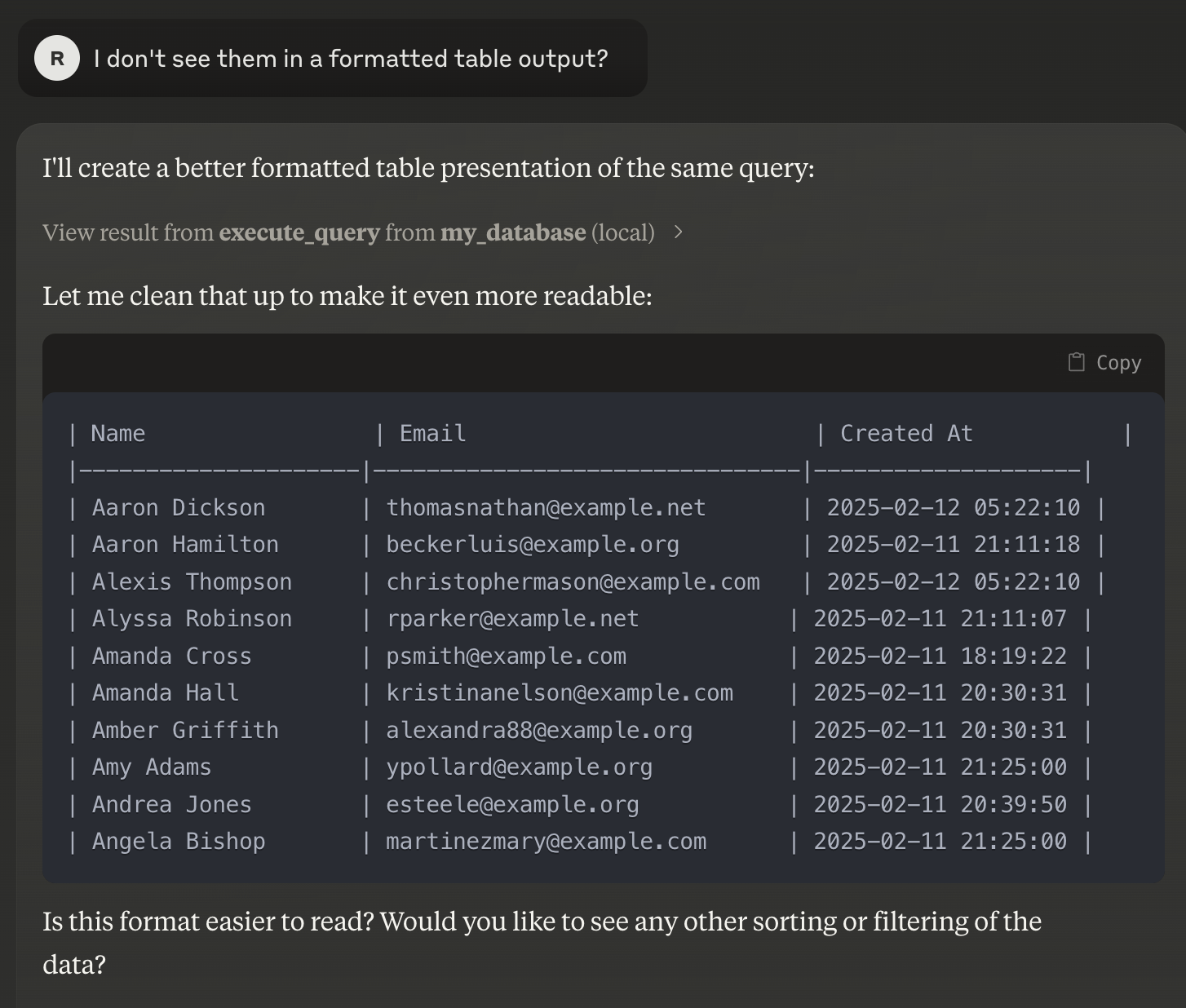
This guide explains how to set up and run your MCP server to interact with your PostgreSQL database using Claude Desktop. It should also work with MySQL, MariaDB, SQLite as it uses sqlalchemy under the hood. This project is build on top of https://github.com/runekaagaard/mcp-alchemy
Note: This guide assumes you have a basic understanding of Docker, environment variables, and CLI usage.
Prerequisites
- Docker Compose: Installation instructions
- Claude Desktop: Download here
- uv: A modern, high-performance Python package manager. If not installed, follow the instructions below.
1. Set Up Environment Variables
- Copy and Rename the Environment File
Duplicate the provided.env.examplefile and rename it to.env:cp .env.example .env
2. Set Up Claude Desktop
- Download and Install Claude Desktop
Visit the Claude Desktop download page and install the application.
3. Launch the PostgreSQL Database with Dummy Data
- Run Docker Compose
Ensure Docker Compose is installed and run:docker-compose up -d- This command will launch a PostgreSQL database on
localhost:5432and populate it with dummy data.
- This command will launch a PostgreSQL database on
4. Install uv (if not already installed)
- Install
uv
Execute the following command to installuv:curl -LsSf https://astral.sh/uv/install.sh | sh
5. Configure and Launch the MCP Server
-
Create/Update the MCP Server Configuration
Save the following JSON configuration in your MCP server config file (adjust paths if necessary):{ "mcpServers": { "my_database": { "command": "uv", "args": [ "--directory", "/directory/where/this/app/is/located/app/", "run", "server.py" ], "env": { "DB_URL": "postgresql://postgres:password@localhost:5432/mydatabase" } } } }- Tip: If
uvis installed in a non-standard location, update the"command"value to reflect the full path to the executable.
- Tip: If
-
Launch the MCP Server
With the configuration in place, the MCP server will automatically start each time Claude Desktop is launched.
6. Enjoy Your Setup
- Open Claude Desktop.
- The tool will automatically call your MCP server, enabling you to interact with your database seamlessly.
Summary
- Set Up Environment Variables: Copy
.env.exampleto.env. - Install and Run Claude Desktop: Download from Claude Desktop.
- Launch PostgreSQL with Docker Compose: Run
docker-compose upto start the database with dummy data. - Install
uv: Run the provided installation command if necessary. - Configure MCP Server: Update the config file and ensure paths and environment variables are correct.
- Launch and Enjoy: Start Claude Desktop to begin interacting with your database via MCP.
If you encounter any issues or need further assistance, please refer to the relevant documentation or contact your support team.
Happy coding!