Lottie Creator MCP
公式Lottie Creator MCPは、AIアシスタントをアニメーションワークフローに直接統合し、LottieFiles Creatorへの完全なアクセスを提供することで、自然言語を通じてLottieアニメーションの作成や編集を代行できるようにします。
Lottie Creator MCPで何ができますか?
- ゼロからアニメーションを作成 — AIにローディングスピナー、プログレスバー、キャラクターアニメーションをCreator内でレイヤーごとに直接作成させます。
- 既存のアニメーションを編集 —
lottiefiles-creatorを使用して、色の変更、タイミングの調整、イージングカーブの交換、レイヤー名の変更、シーンのリファクタリングをリアルタイムで行います。 - バリエーションを一括生成 — ダーク/ライトテーマ、異なるサイズ、ブランドカラーのバリエーションなど、複数のアニメーションバージョンを同時に生成します。
- アクセシビリティとブランドを分析 — AIにアニメーションのコントラスト、モーション速度、色の一貫性、ブランド整合性を検査させ、問題を修正させます。
- プロジェクトワークフローに統合 — より広範なプロジェクトに取り組みながら、
orとlottiefiles-creatorを使用してアニメーションアセットをその場で生成します。
ドキュメント
Lottie Creator MCP
AIアシスタントをローカルMCPブリッジを通じてLottie Creatorに接続し、プロンプトを使って作成、編集、アニメーションを行います。
[WebMCP](/en/creator/13_ai-tools/lottie-creator-webmcp) を使用すると、互換性のあるブラウザアシスタントがこのローカルブリッジなしでCreatorを直接使用できます。サポートされているブラウザではデフォルトでオンになっています。ローカルのCreator MCPサーバー経由で接続したい場合は、このガイドに従ってください。Lottie Creator MCPは、AIアシスタントをアニメーションワークフローに直接取り込み、LottieFiles Creator 内でLottieアニメーションを検査、構築、編集するためのツールを自然言語で提供します。インストール方法はこのページの下の方で確認できます。
MCPサーバーは、AIエージェントがModel Context Protocol を使用してデータソースと対話するための標準化されたインターフェースの一部です。Lottie Creator MCPは、Claude、Cursor、WindsurfなどのAIアシスタントをローカルブリッジを通じてCreatorの編集ツールに接続します。
MCPを有効にすると、以下のことができます:
✦ ゼロからアニメーションを作成
ローディングスピナー、プログレスバー、キャラクターアニメーションなど、必要なものを説明するだけで、AIがCreator内でレイヤーごとに直接構築します。
✦ 既存のアニメーションを編集・変更
色の変更、タイミングの調整、イージングカーブの交換、レイヤー名の変更、シーン全体のリファクタリングなどが可能です。AIがファイルの現在の状態を読み取り、リアルタイムで編集します。
✦ アニメーションバリエーションを一括生成
ダークテーマとライトテーマ、異なるサイズ、ブランドカラーのバリエーションなど、1つのアニメーションの複数バージョンを自動的に一度に生成します。
✦ アクセシビリティとブランドのためのアニメーション分析
コントラストの問題、モーション速度、色の一貫性、ブランドガイドラインとの整合性についてアニメーションを検査するようAIに依頼し、見つかった問題を修正します。
✦ プロジェクトワークフローに統合
より広範なプロジェクトに取り組みながら、アニメーションアセットをその場で生成します。
MCPを使用するには、AIクライアントにインストールし、LottieFiles Creatorで有効化します。以下のセクションで各ステップを説明します。
前提条件
インストールする前に、以下の環境が整っていることを確認してください:
✅ 📦 Node.js 18+: npx経由でMCPパッケージを実行するために必要です。Node.jsをダウンロード →
✅ 🎬 LottieFiles Creator: ブラウザで creator.lottiefiles.com を開き、このタブを開いたままにしてください。
✅ 🤖 MCP対応AI: Claude、Cursor、Windsurf、VS Code Copilot、その他MCPをサポートするアシスタント。
まず、Creator MCP READMEファイル にアクセスしてください。MCPの文字列とコマンドを確認できます。
MCPのインストール
すべてのAIツールで、以下の設定を使用できます:
{
  "mcpServers": {
    "lottiefiles-creator": {
      "command": "npx",
      "args": ["-y", "@lottiefiles/creator-mcp@latest"]
    }
  }
}
このドキュメントでは、サポートされているMCPクライアントの一部のインストール手順を説明します。サポートされているMCPクライアントのインストールガイドの一覧については、以下のリストを参照してください:
サポートされているMCPクライアント
お使いのクライアントに応じた手順に従って、Lottie Creator MCPをインストールして接続してください。一部のクライアントはスキルもサポートしており、モーションデザインの知識が追加されるため、AIがより意図的で洗練されたアニメーションを生成できます。🖇️ LottieFilesのモーションデザインスキル はこちらです。
お使いのMCPクライアントの手順に従ってください:
**1. Claude Desktopの設定を開く**
**設定 → 開発者** に移動し、**「設定を編集」** をクリックします。コンピューター上のJSON設定ファイルが開くので、VS Code、Cursor、または任意のテキストエディターで編集できます。

<Image src="https://assets.docs.lottiefiles.com/static/cbcf2779e6-640.webp" alt="Claude Desktop Settings → Developer, Edit Config" caption="Claude Desktop Settings" zoom variant="default" srcSet="https://assets.docs.lottiefiles.com/static/cbcf2779e6-640.webp 640w, https://assets.docs.lottiefiles.com/static/cbcf2779e6-1024.webp 1024w" width="1490" height="1070" loading="lazy" data-blur="data:image/png;base64,iVBORw0KGgoAAAANSUhEUgAAAAgAAAAGCAIAAABxZ0isAAAACXBIWXMAAAPoAAAD6AG1e1JrAAAAXklEQVR4nGWNSwqAMAxEc/8DiXgXF4rgp41pTNNWuxGpFEGYxcCbDwgjO5tPVaEUJZ9aBLtdinNkhFGFhPEBhOuVfA0G79DML6gL49B3bSOMMRxQin+B3Sb1+L0t4AYM8YjEckZSmwAAAABJRU5ErkJggg==" />

**2. MCP設定を追加**

`mcpServers` オブジェクト内の設定ファイルに以下を貼り付けます。JSONを有効に保つために、括弧やカンマを追加または削除する必要がある場合があります。

```jsx
{
  "mcpServers": {
    "lottiefiles-creator": {
      "command": "npx",
      "args": ["-y", "@lottiefiles/creator-mcp@latest"]
    }
  }
}
```

上記の設定を貼り付けた後の設定ファイルは次のようになります:

```jsx
{
  "mcpServers": {
    "lottiefiles-creator": {
      "command": "npx",
      "args": ["-y", "@lottiefiles/creator-mcp@latest"]
    }
  },
  "preferences": {
    "quickEntryShortcut": "off",
    "coworkScheduledTasksEnabled": false,
    "ccdScheduledTasksEnabled": false,
    "sidebarMode": "chat",
    "coworkWebSearchEnabled": true,
    "floatingAtollActive": true
  }
}
```

**3. 接続を確認**

チャット内の **「+」** ボタンをクリックし、**コネクタ** に移動して、`lottiefiles-creator` トグルがオンになっていることを確認します。

<Image src="https://assets.docs.lottiefiles.com/static/661d017685-640.webp" alt="Claude Desktop Connectors with lottiefiles-creator enabled" zoom variant="default" srcSet="https://assets.docs.lottiefiles.com/static/661d017685-640.webp 640w, https://assets.docs.lottiefiles.com/static/661d017685-1024.webp 1024w" width="1470" height="840" loading="lazy" data-blur="data:image/png;base64,iVBORw0KGgoAAAANSUhEUgAAAAgAAAAFCAYAAAB4ka1VAAAACXBIWXMAABYlAAAWJQFJUiTwAAAAXUlEQVR4nE1NQQ7AIAjz/1/14CZGBJEu6JaMpGkobUmqioC7IybYfWGtgCEREUQEYzCuu6J1xZxnNzOkUgrMJoJzzhCdYO5QldNQiXZdJJh5i+eFvYYW4hH+h8/wAH2hnMwEoNxAAAAAAElFTkSuQmCC" />
これだけです。Claude CodeがMCPを自動的にインストールして登録します。

```
claude mcp add lottiefiles-creator -- npx -y @lottiefiles/creator-mcp@latest
```
1. `Cmd + Shift + P` (Mac) または `Ctrl + Shift + P` (Windows/Linux) を押す → **「Cursor Settings」** を検索
2. サイドバーで **「Tools & MCPs」** に移動
3. **「Add custom MCP」** をクリック

<Image src="https://assets.docs.lottiefiles.com/static/1d779c5bf1-640.webp" alt="Cursor Settings → Tools & MCP, Add custom MCP" caption="Cursor Settings" zoom variant="default" srcSet="https://assets.docs.lottiefiles.com/static/1d779c5bf1-640.webp 640w, https://assets.docs.lottiefiles.com/static/1d779c5bf1-1024.webp 1024w" width="1724" height="1122" loading="lazy" data-blur="data:image/png;base64,iVBORw0KGgoAAAANSUhEUgAAAAgAAAAFCAYAAAB4ka1VAAAACXBIWXMAABYlAAAWJQFJUiTwAAAAYElEQVR4nD2OWQpFMQhDXUVnh1JKu/8N5qKPvg8hJPEoqSqYGbVWlFKQUkLO+T8kIhGOMXDvhZnFgpqGR27MOdF7j8JaC04VFbDyr/AoHuy9cc4JUmsN5BgXft9L75enP/5xNWNuTqnuAAAAAElFTkSuQmCC" />

4. 以下を貼り付け:

```jsx
{
  "mcpServers": {
    "lottiefiles-creator": {
      "command": "npx",
      "args": ["-y", "@lottiefiles/creator-mcp@latest"]
    }
  }
}
```

保存して、**Cursorを完全に再起動** します(終了して再度開く - リロードだけではありません)

再起動後、**設定 → Tools & MCP** に移動すると、`lottiefiles-creator` の横に緑色のドットが表示され、接続されていることを確認できます。

<Image src="https://assets.docs.lottiefiles.com/static/d5e4c14c2c-640.webp" alt="Cursor Settings → Tools & MCP, lottiefiles-creator connected" zoom variant="default" srcSet="https://assets.docs.lottiefiles.com/static/d5e4c14c2c-640.webp 640w, https://assets.docs.lottiefiles.com/static/d5e4c14c2c-1024.webp 1024w" width="1724" height="1118" loading="lazy" data-blur="data:image/png;base64,iVBORw0KGgoAAAANSUhEUgAAAAgAAAAFCAYAAAB4ka1VAAAACXBIWXMAABYlAAAWJQFJUiTwAAAAYUlEQVR4nD2NSw7AIAhEOYVfBHSlsfe/3jTY2MUEeDAMqSpEBKUUpJQQQkCM8Rf5MucMZsacE713tNagZoeRmR3ow1oLY4xzICoQU5BHOKhcsZ/9fWCGG5sKyJ033+vtr14GGTV0KRWZBgAAAABJRU5ErkJggg==" />
1. [LottieFiles MCPサーバーのディープリンク](https://vscode.dev/redirect/mcp/install?name=%40lottiefiles%2Fcreator-mcp\&config=%7B%22command%22%3A%22npx%22%2C%22args%22%3A%5B%22-y%22%2C%22%40lottiefiles%2Fcreator-mcp%22%5D%7D) をクリックします。VS CodeでMCP設定が開きます。
2. **インストール** ボタンを押します。

<Image src="https://assets.docs.lottiefiles.com/static/215df2a202-640.webp" alt="VS Code Install MCP Server prompt for Lottie Creator" zoom variant="default" srcSet="https://assets.docs.lottiefiles.com/static/215df2a202-640.webp 640w, https://assets.docs.lottiefiles.com/static/215df2a202-1024.webp 1024w" width="1720" height="736" loading="lazy" data-blur="data:image/png;base64,iVBORw0KGgoAAAANSUhEUgAAAAgAAAADCAIAAAAhqtkfAAAACXBIWXMAAAPoAAAD6AG1e1JrAAAANUlEQVR4nGNQ19TW0NFX0tCSlVcQk5AUFBaFIAYJKRlxSSlhUXG4EFRCSkZOUlpWXFIKTQIAGEcGwVfSfA0AAAAASUVORK5CYII=" />

**オプションB: CLIまたは設定ファイル**

またはCLI経由:

ターミナル

```
code --add-mcp '{"name":"lottiefiles-creator","command":"npx","args":["-y","@lottiefiles/creator-mcp@latest"]}'
```

または `.vscode/mcp.json` に追加:

JSON — .vscode/mcp.json

```
{
  "servers": {
    "lottiefiles-creator": {
      "command": "npx",
      "args": ["-y", "@lottiefiles/creator-mcp@latest"]
    }
  }
}
```

ℹ️ VS CodeでMCPツールを使用するには、アカウントで[GitHub Copilot](https://github.com/features/copilot) が有効になっている必要があります。
```
[mcp_servers.lottiefiles-creator]
command = "npx"
args = ["-y", "@lottiefiles/creator-mcp@latest"]
```

またはCLI経由で追加:

```
codex mcp add lottiefiles-creator -- npx -y @lottiefiles/creator-mcp@latest
```
```
code --add-mcp '{"name":"lottiefiles-creator","command":"npx","args":["-y","@lottiefiles/creator-mcp@latest"]}'
```
- 名前: `lottiefiles-creator`
- コマンド: `npx`
- 引数: `y @lottiefiles/creator-mcp@latest`
Lottie Creatorへの接続
- Lottie Creatorを開く
ブラウザで creator.lottiefiles.com に移動し、セッション中はこのタブを開いたままにしてください。MCPはこのブラウザタブを通じてCreatorと通信します。
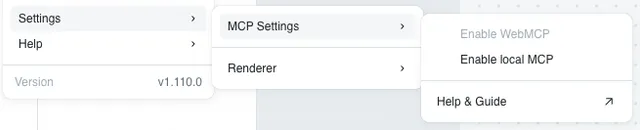
- CreatorでローカルMCPを有効化
Creatorで、設定 → MCP設定 → ローカルMCPを有効化 に移動します。
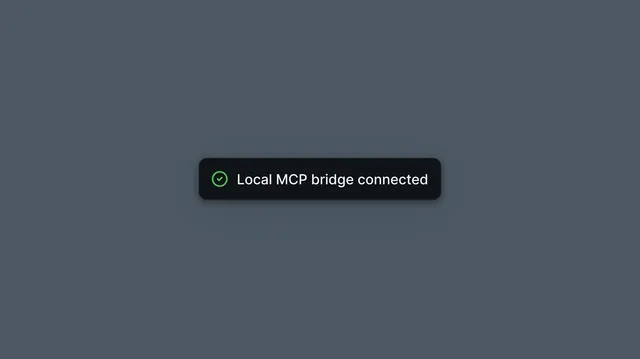
- 接続を確認
Creatorに通知が表示されます: ローカルMCPブリッジが接続されました
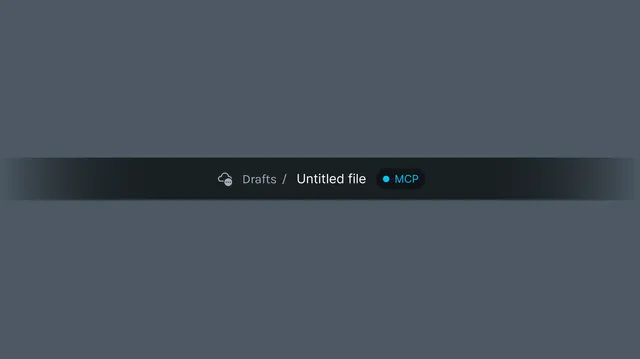
これが表示されれば、準備完了です。プロンプトを開始できます。アニメーションの品質は使用しているモデルに大きく依存するため、利用可能な最良のモデルを使用してください。
スキルについて
スキルは、エージェントがアニメーションタスクにどのように取り組むべきかのガイダンスを提供します。MCPツール呼び出しと、再利用可能な指示として組み込まれた深いモーションデザイン知識を組み合わせて使用します。
Lottie Creator MCPは個々のツール(レイヤーの作成、キーフレームの設定、塗りの調整)を公開しますが、スキルはAIがそれらを_うまく使用する方法_を理解するのに役立ちます。バウンスとフェードのどちらに適したイージングカーブか、複数要素のエントランスをどのようにシーケンスするか、アニメーションが機械的ではなく意図的に感じられるようにタイミングを構造化する方法などです。
スキルはMCP接続を置き換えたり、新しいツールを追加したりしません。モーションデザインの専門知識を、AIがアニメーションに取り組むたびに自動的に参照する指示にパッケージ化することで、試行錯誤を減らします。
モーションデザインスキルをインストール
ターミナルでこのコマンドを一度実行してください。Claude Code、Cursor、Codex、GitHub Copilotを含む40以上のエージェントで動作します。
ターミナル
npx skills add LottieFiles/motion-design-skill
✨ 強く推奨します。 硬く機械的なアニメーションを生成するAIと、洗練された意図的なモーションを生成するAIの違いは、ほぼ完全にこのコンテキストを持っているかどうかにかかっています。一度インストールすれば、すべてのアニメーションセッションに適用されます。
GitHubで完全なスキルを表示 → LottieFiles/motion-design-skill
機能
Lottie Creator MCP、Motion Copilot、Lottie Creator WebMCPは、同じCreator編集機能を提供します。セットアップとアシスタントのインターフェースが異なります。
| 領域 | リクエストできる内容 |
|---|---|
| シーンとレイヤー | シーンの検査と作成; サイズ、フレームレート、再生時間、プレビュー背景の変更; レイヤーの名前変更、複製、グループ化、整列、並べ替え、非表示、ロック。 |
| シェイプとテキスト | 長方形、楕円、ポリゴン、スター、パス、テキストの作成と編集; フォントとテキストスタイルの変更; アニメーション用にテキストを部分に分割。 |
| スタイリングとエフェクト | ソリッドおよびグラデーションの塗りまたはストロークの調整; ブレンドモード、シャドウ、ぼかし、カラーエフェクト、マスク、マットの使用。 |
| アニメーションとタイミング | キーフレームの追加、検査、変更、コピー、削除; イージングの調整; トランスフォーム、不透明度、色のアニメーション; モーションパス、スタッガードエントランス、リタイミングの使用。 |
| アセットとシーン検査 | SVG、Lottieアニメーション、画像のインポート; PNGまたはJPG画像レイヤーのベクターへの変換; シーンの検査とプレイヘッドの特定フレームへの移動。 |
| テーマと再利用可能なモーション | モーショントークンスロットの作成とリンク、値の更新、テーマの作成または切り替え。ワークスペースのモーションシステムから保存済みスタイルとモーションプリセットの検索と適用。 |
| セグメントとインタラクティビティ | 名前付きアニメーションセグメント、ステートマシン、ステート、トランジション、入力の作成; クリック、ホバー、ステートイベントをアクションに接続。 |
機能アクセスはCreatorのワークスペースとプランに従います。アニメーションの準備ができたら、Creatorのエクスポートコントロール を使用して結果を保存します。
ベストプラクティス
- モーション デザイン スキルをインストールして品質を向上させる: MCP は AI にツールを提供します。モーション デザイン スキルは、それらをうまく活用するための判断力(イージング カーブ、タイミングの原則、コレオグラフィー)を提供します。1つのコマンドで、出力が大幅に向上します。モーション デザイン スキルはこちらにあります。
- まず自分のSVGから始めて、その後アニメーション化する: AIはゼロからイラストのシェイプを生成する際に予測不能な場合があります。最良の結果を得るには、既存のSVGアセットを先にCreatorにインポートし、その後AIにアニメーション化を依頼してください。これにより、視覚スタイルの一貫性が保たれ、AIは得意な分野(モーション、タイミング、シーケンス)に集中できます。
- これらのリミックスリンクをテストしてください
- 常に利用可能な最良のモデルを使用する: アニメーションの品質はモデルに直接比例します。Claude SonnetまたはOpusにアクセスできる場合は、小さなモデルではなくそれらを使用してください。タイミング、シーケンス、空間認識の処理における違いは顕著です。
- プロンプトを実行する前にレイヤーに名前を付ける: AIはレイヤー名を読み取ってアニメーションの構造を理解します。
left_arm、right_leg、bg_circle、text_headlineのような適切な名前のレイヤーは、AIが正しい要素をターゲットにし、ミスを回避し、複雑なシーン全体で整理された状態を維持するのに役立ちます。Shape 1やGroup 4のような一般的な名前は、AIが作業を正確に構築するのを難しくします。 - 複雑なアニメーションはステップに分割する: 「完全なオンボーディングアニメーションを作成して」と言う代わりに、シーンごとに進めてください。シーンを作成 → シェイプを追加 → キーフレームを追加 → タイミングを調整。小さなステップに分けることで、より細かく制御でき、エラーを発見して修正しやすくなります。
- タイミングと感触について具体的に指定する: 「滑らかなフェード」は曖昧です。「400msのイーズアウト付きフェードイン」はAIが作業しやすいものです。感触(キビキビした、弾むような、ゆっくりとした映画的な)をより詳しく説明するほど、最初の結果が想像に近づきます。