Katana — Japan Stock Screener
財務、カスタム数式、年次報告書のテキストで日本国内の上場企業をスクリーニングします。
ホスト型 MCP サーバー
npx add-mcp 'https://mcp.katanascreener.com/mcp'Claude Code、Codex、Cursor などにインストールできます
ドキュメント
Server URL (works with assistants other than Claude and ChatGPT too)
https://mcp.katanascreener.com/mcp
From the Claude directory
- Open Katana's page in the Claude directory
- Click Connect to Claude
- Katana's sign-in page opens; sign in with your Katana account and click Allow
- Turn on the Katana connector from "+" in a conversation
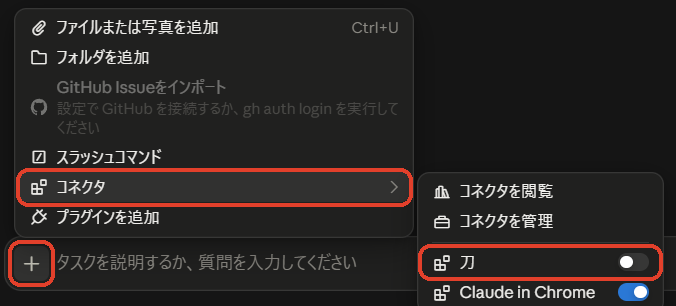
- Type what you are looking for in a company, in your own words

If that does not work for you, you can also connect this way.
By entering the URL
- Open Claude
- Settings → Connectors → Add → Add custom connector
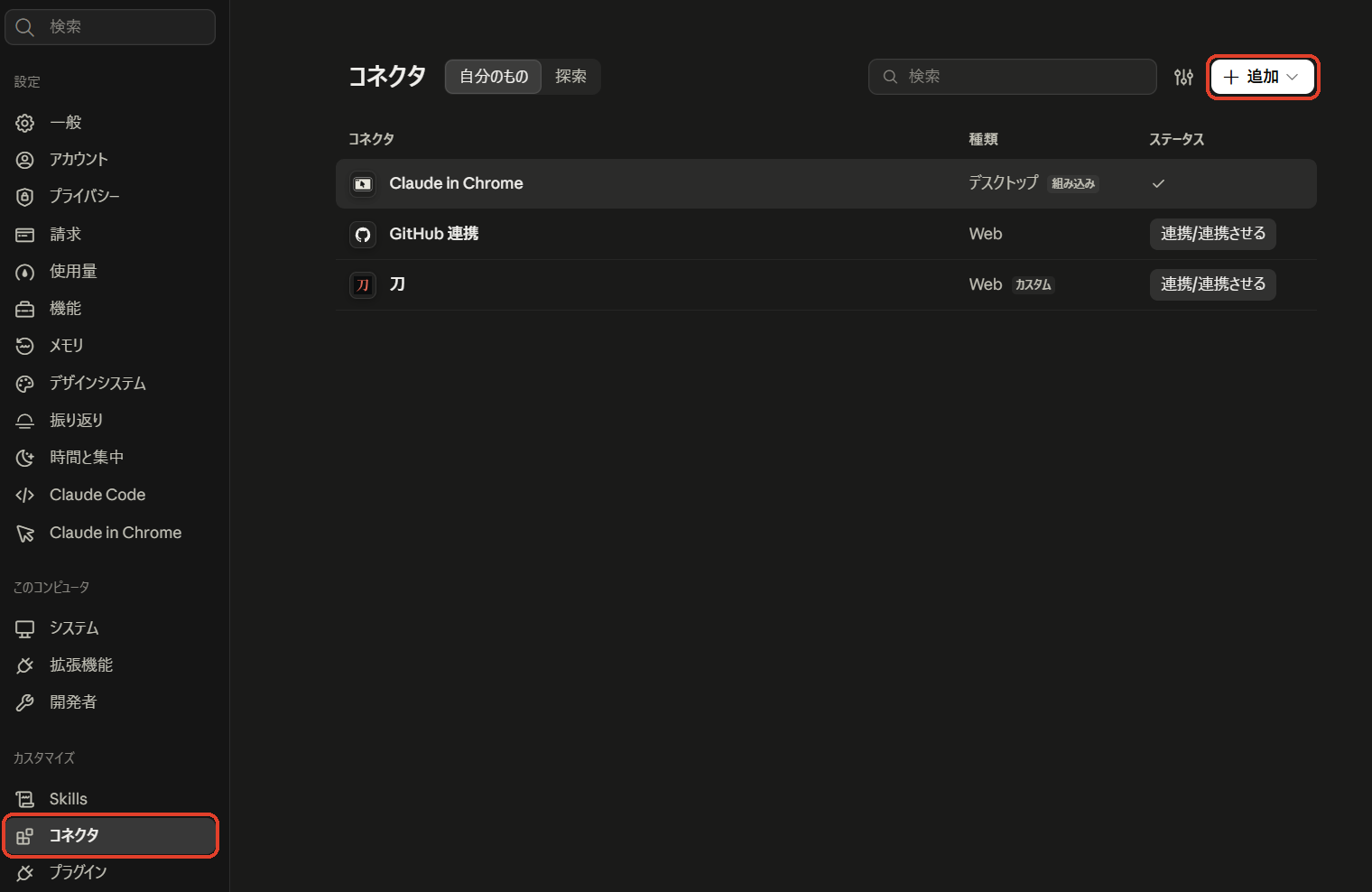
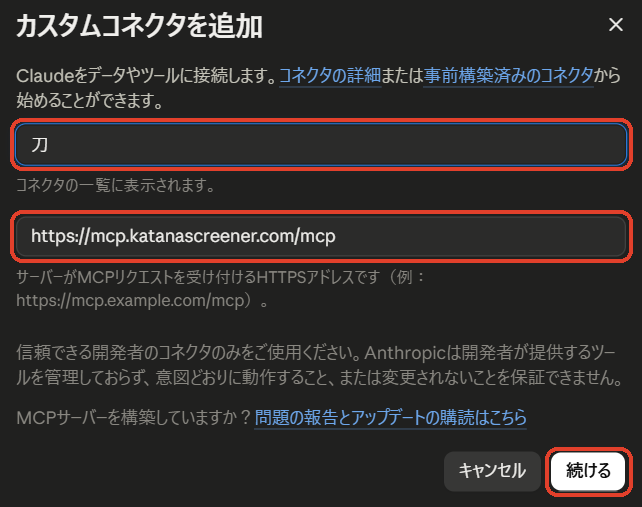
- Enter "Katana" as the name and the URL above, then Continue
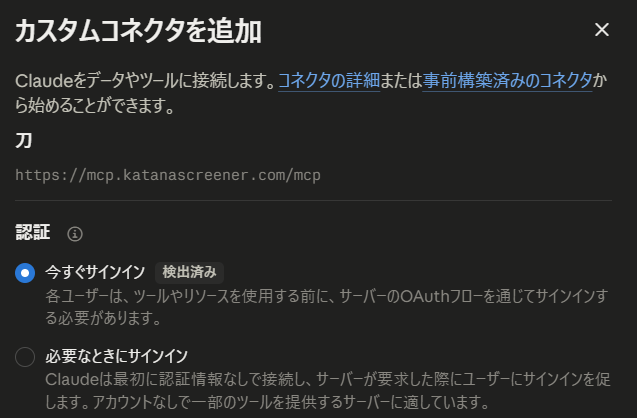
- Leave the authentication settings as they are and continue
- Click Connect. If Claude asks you to confirm the connection, continue

- Katana's sign-in page opens; sign in with your Katana account and click Allow
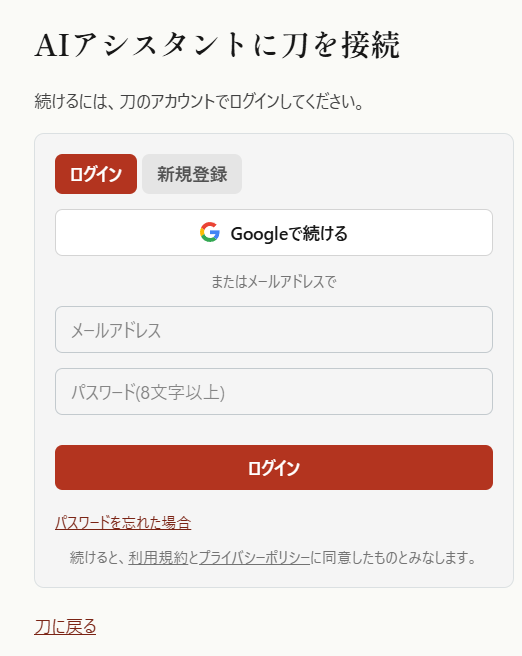
- Turn on the Katana connector from "+" in a conversation
- Type what you are looking for in a company, in your own words
In Claude Code (CLI), add it with the command below, then choose Katana in /mcp to sign in.
claude mcp add --transport http katana https://mcp.katanascreener.com/mcp
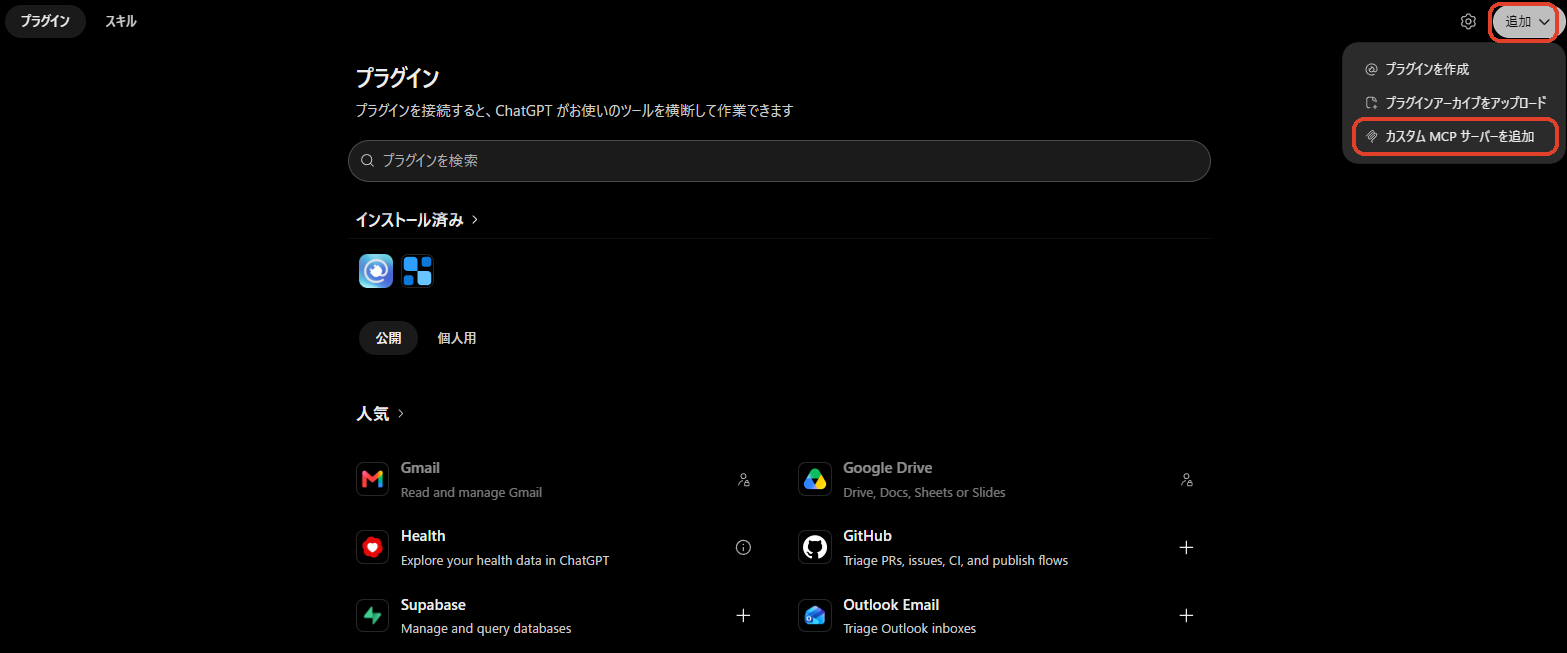
- Open the Plugins page in ChatGPT
- Add (top right) → Add custom MCP server
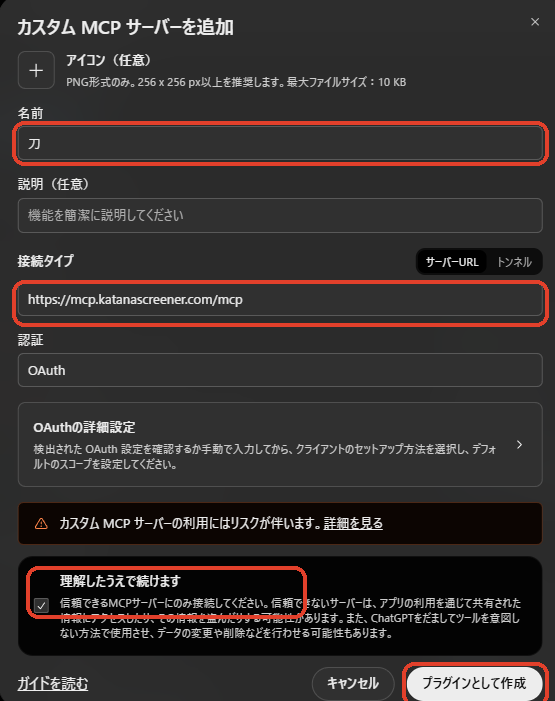
- Enter "Katana" as the name and the URL above, check "I understand and want to continue", then click Create as a plugin
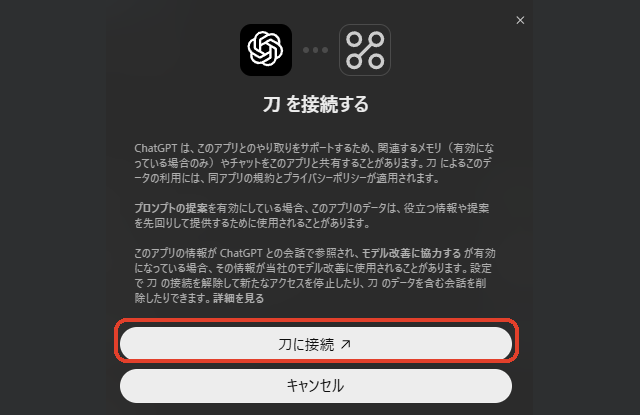
- Click the connect button. Katana's sign-in page opens; sign in with your Katana account and click Allow
- In a new conversation, choose Katana from "+" (or type @)
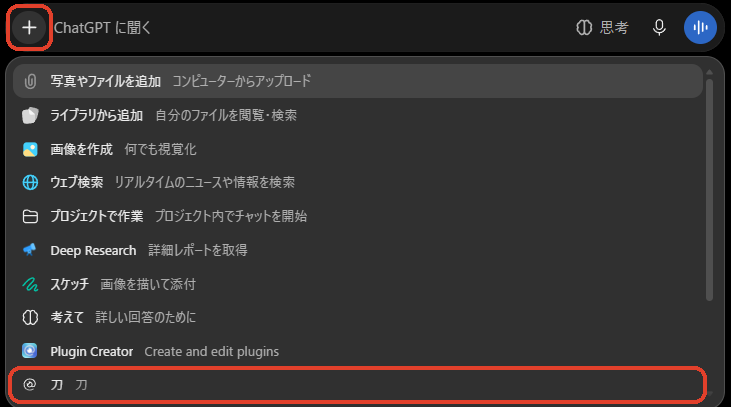
- Type what you are looking for in a company, in your own words
