SocialPilot MCP
Claudeや任意のAIアシスタントをSocialPilotに接続し、スケジュール設定、公開、承認管理、配信状況の監視を、すべてのアカウントに対して1つの会話から行えるようにします。
ドキュメント
SocialPilot MCP Server lets you connect Claude with your SocialPilot account so you can manage social media workflows through prompts.
Instead of creating content in AI and manually completing the rest in SocialPilot, you can create posts, schedule content, review drafts, and manage publishing in one continuous workflow.
Both methods below connect SocialPilot to Claude. The only difference is how authentication is handled.
Watch this Walkthrough Video to learn how to connect SocialPilot with Claude using the MCP Server:
How to Set up MCP in Claude App by Signing Into SocialPilot? (Recommended)
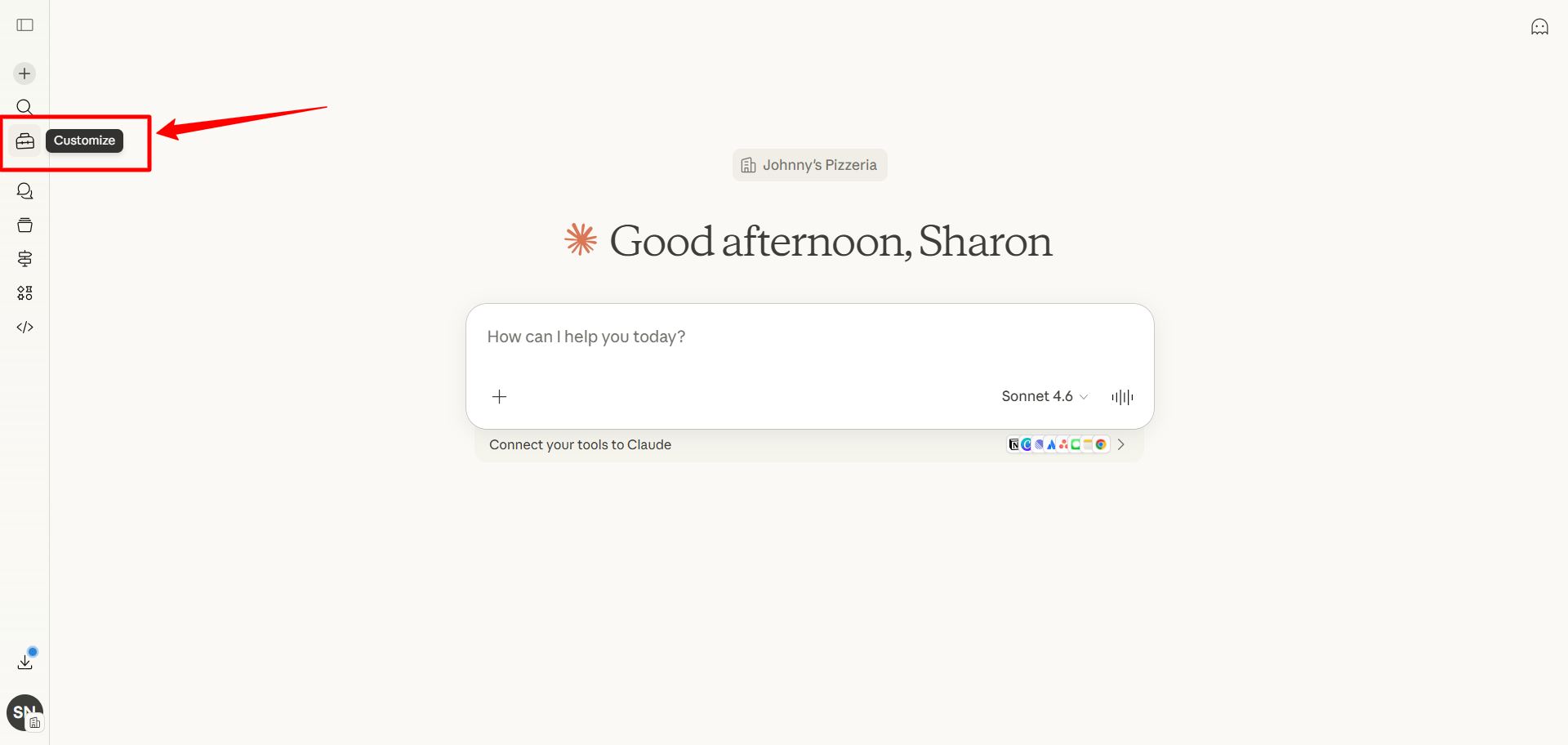
- Open Claude and click Customize from the left sidebar.
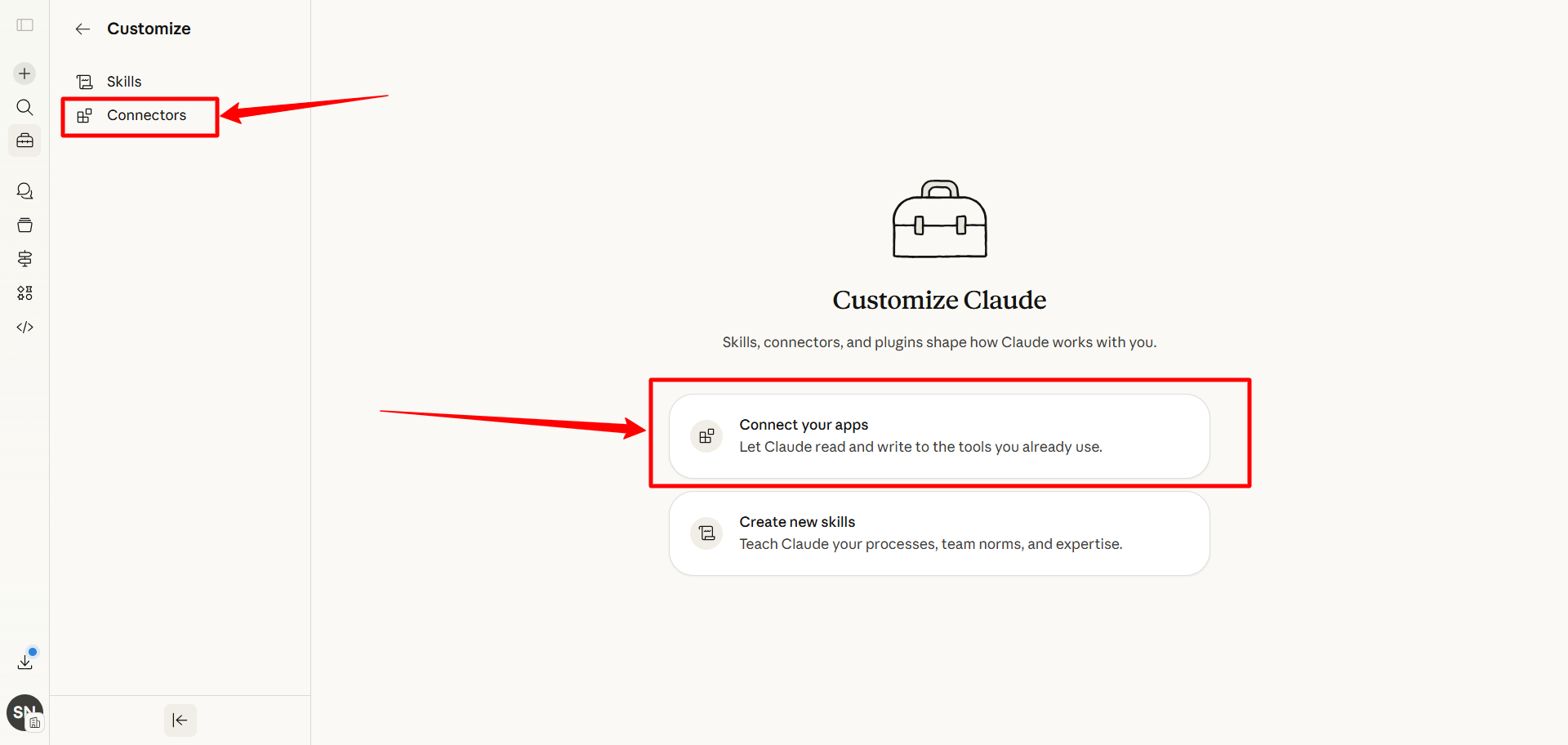
- Go to Connectors.
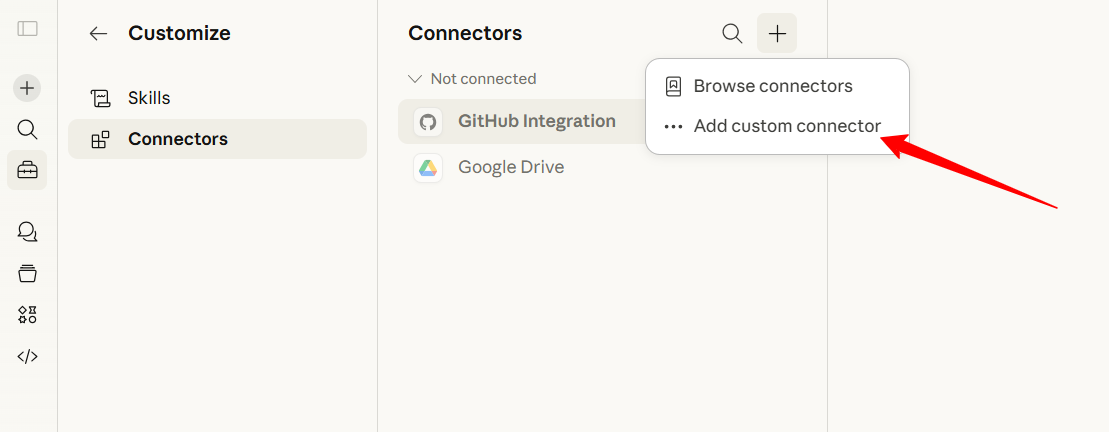
- Click the + (plus) icon and select Add custom connector.
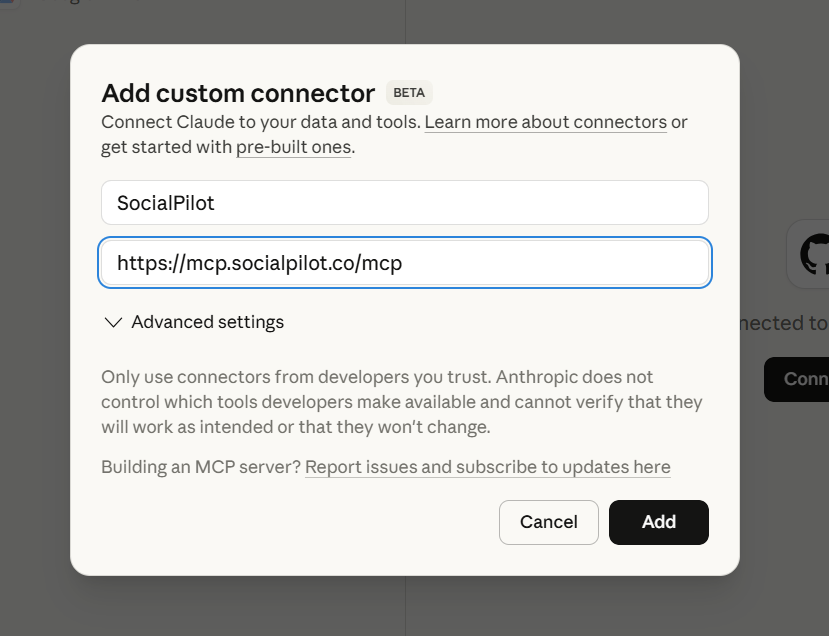
- Enter a name for your connector.
- Paste the following URL and click Add:
https://mcp.socialpilot.co/mcp
After adding the connector:
- Select the SocialPilot connector from the list and click Connect.
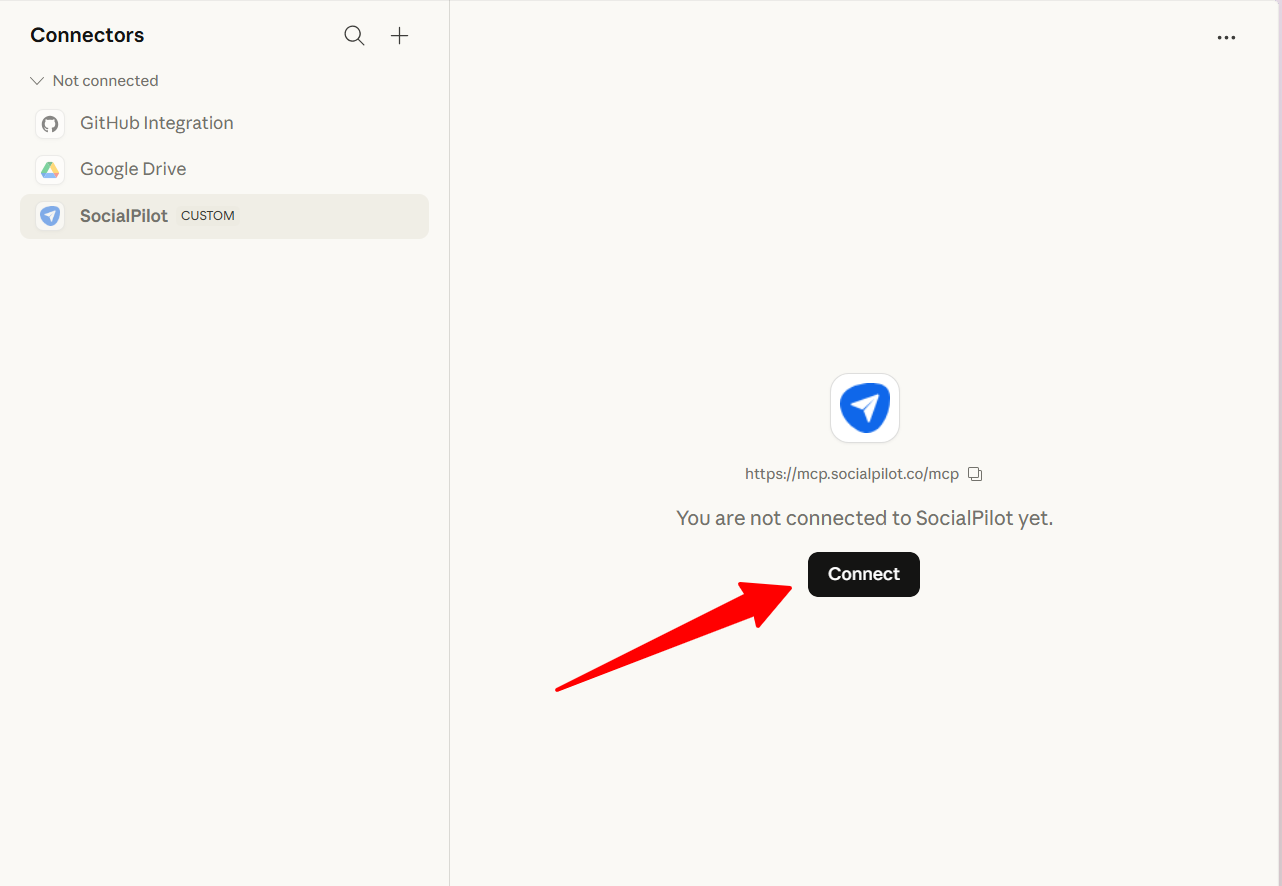
- Sign in using your SocialPilot email and password.
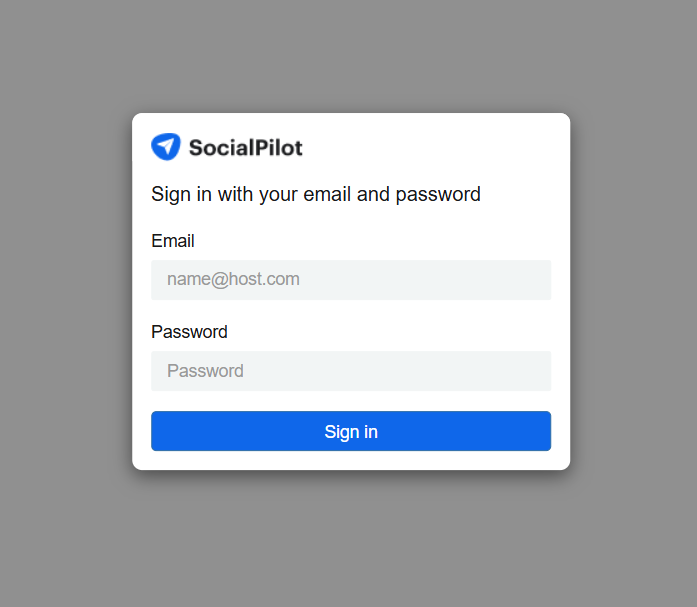
Once connected, your SocialPilot account becomes available inside Claude for execution.
How to Set up MCP in Claude App Using Your SocialPilot API Key? (Advanced)
Step 1: Copy your API Key from SocialPilot
- Log in to your SocialPilot account.
- Click your profile icon in the top-right corner.
- Go to Security.
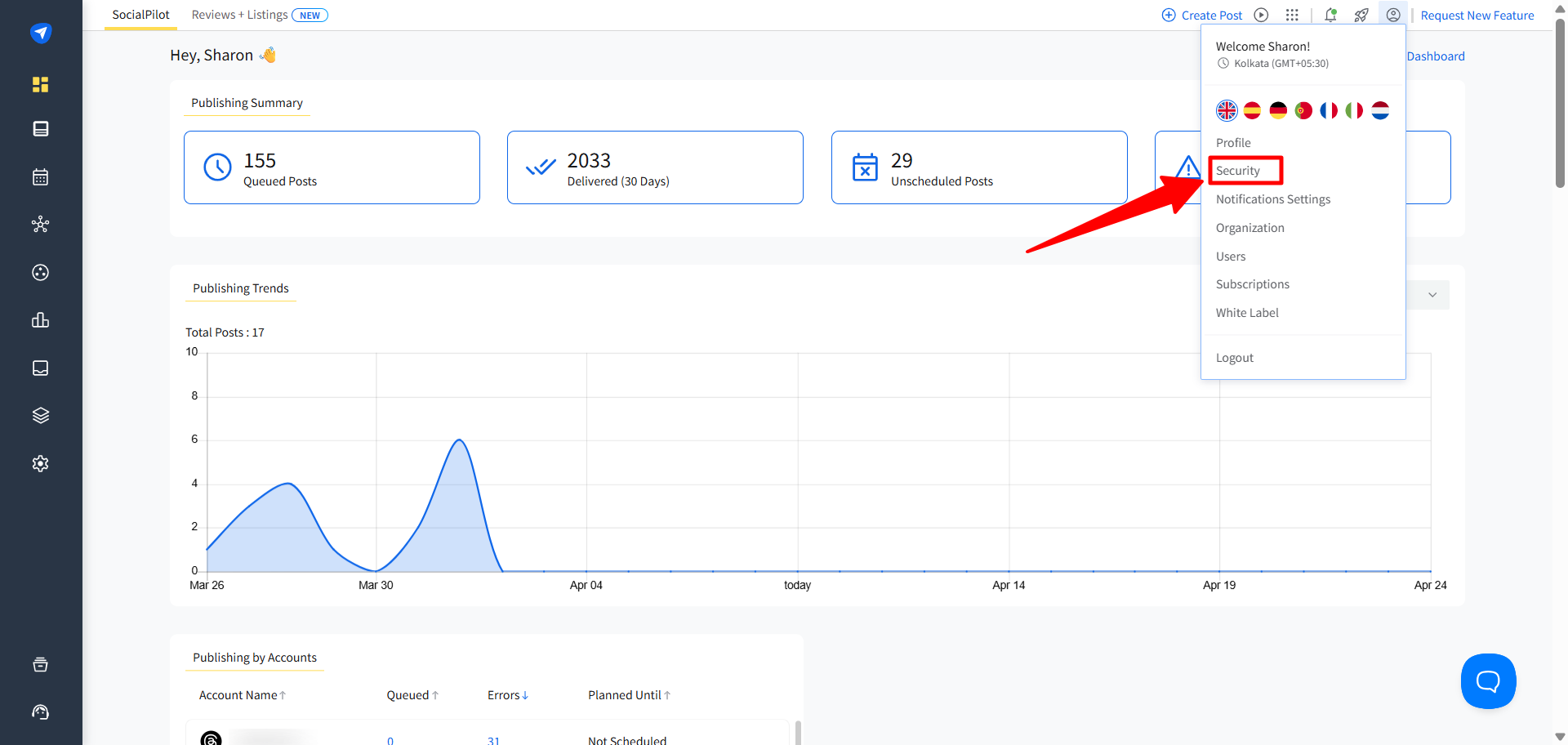
- Scroll to the API Key section.
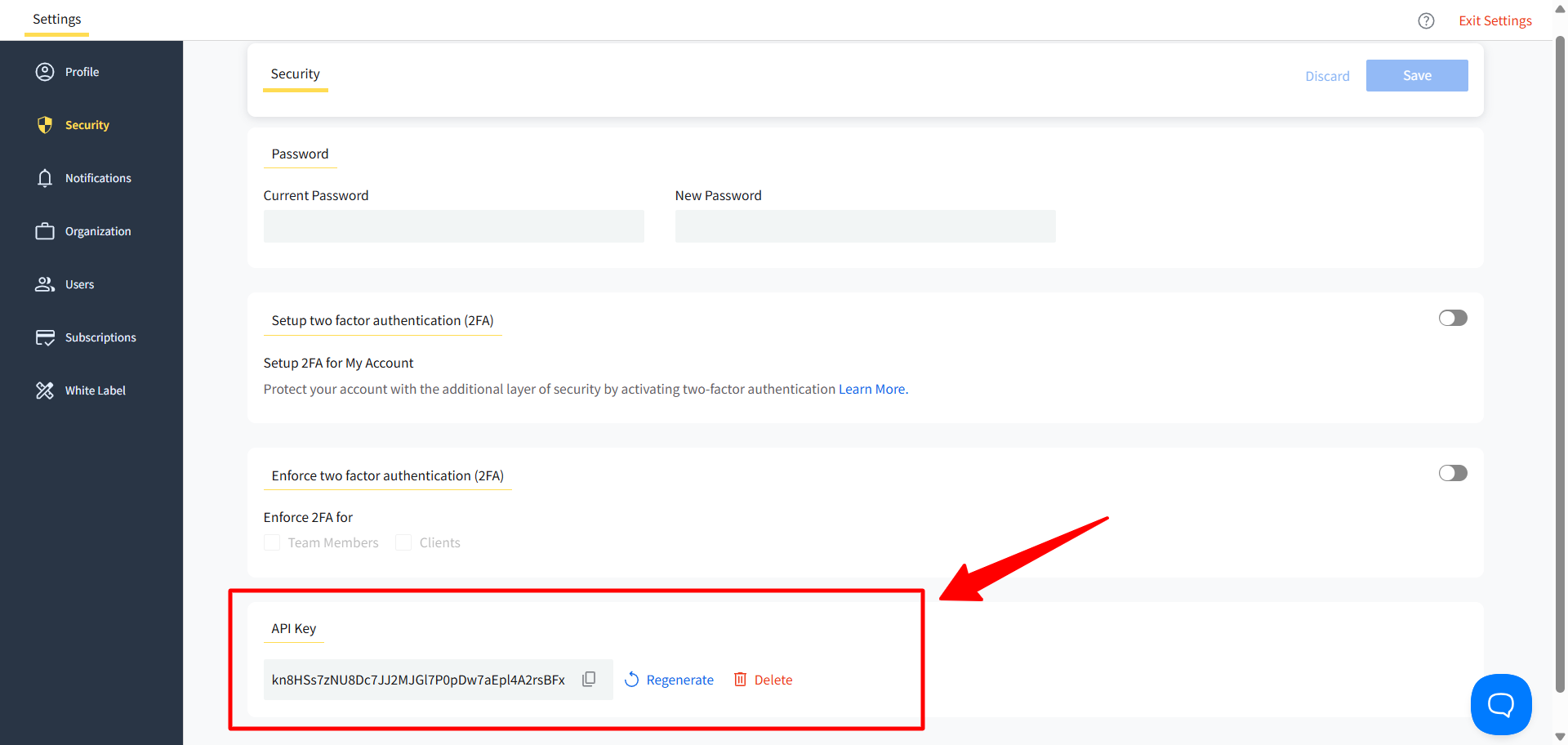
- Copy your API key.
Step 2: Add your API key to the MCP connection in Claude
- Open Claude and click Customize from the left sidebar.
- Go to Connectors.
- Click the + (plus) icon and select Add custom connector.
- Enter a name for your connector.
- In the connector URL field, paste the following format:
https://mcp.socialpilot.co/{{API_KEY}}/mcp
(Replace
{{API_KEY}}with the API key you copied earlier.) - Click Add.
After adding the connector:
- Select the SocialPilot connector.
- Click Connect.
This URL uses your API key to authenticate the connection instead of a login.
Note:
API key authentication is optional and mainly used for custom workflows or development setups. For most users, signing in directly is the simpler option.
How to Set Up MCP in Claude Code by Signing Into SocialPilot?
You can connect SocialPilot’s MCP server to Claude Code using your SocialPilot login. This method opens a browser sign-in flow and securely connects your account without needing to manually use an API key.
This is a good option if you prefer a simpler setup and want to authenticate directly with your SocialPilot account.
Before You Begin, Make Sure You Have:
- Claude Code installed and running.
- Access to your SocialPilot account login credentials.
Step 1: Add the MCP Server in Claude Code
Run the following command in your terminal:
claude mcp add socialpilot https://mcp.socialpilot.co/mcp --transport http --callback-port 3118
This command adds the SocialPilot MCP server to Claude Code and prepares the browser-based login flow.
Step 2: Sign In Through Your Browser
After running the command, a browser window will open automatically.
Sign in using your SocialPilot email and password, then complete the authorization flow.
Step 3: Restart Claude Code
Once sign-in is complete, restart Claude Code so the new connection can load properly.
Step 4: Verify the Connection
Run the following command:
claude mcp list
You should see SocialPilot listed with the status Connected.
How to Set Up MCP in Claude Code Using Your SocialPilot API Key?
You can connect SocialPilot’s MCP server to Claude Code using your SocialPilot API key. This method sets up a direct authenticated connection and is ideal if you prefer a faster setup or are working in a local development environment.
This is a good option for users who want to connect Claude Code without going through a browser sign-in flow.
Before you begin make sure you have:
- Claude Code installed and set up.
-
Access to your SocialPilot account or API key.
Step 1: Add the MCP Server in Claude Code
Run the following command in your terminal:
claude mcp add socialpilot https://mcp.socialpilot.co/YOUR_API_KEY/mcp --transport http
Replace YOUR_API_KEY with your actual API key.
Step 2: Restart Claude Code
After running the command, restart Claude Code to apply the changes.
Step 3: Login Again
Once Claude Code restarts, run:
/login
Complete the login process.
Step 4: Approve Permissions
When prompted, approve the required permissions to continue.
Step 5: Verify the Connection
Run the following command:
claude mcp list
You should see SocialPilot listed with the status Connected.
Notes:
- You only need to connect once to start using MCP.
- All actions follow your existing account permissions in SocialPilot.
- API key authentication remains supported for advanced use cases.
Related Articles: