Speak AI MCP
क्लॉड, चैटजीपीटी और अन्य AI सहायकों को अपने Speak AI वर्कस्पेस से जोड़ें। प्राकृतिक बातचीत के माध्यम से मीटिंग्स का ट्रांसक्रिप्शन करें, मीडिया का विश्लेषण करें और अंतर्दृष्टि निकालें।
दस्तावेज़

Connect Speak AI to Claude, ChatGPT and other AI assistants in 60 seconds
For researchers, revenue teams, meeting-heavy teams, and media workflows.
No Terminal. No npm. No JSON config files.
Works with Claude, ChatGPT, Cursor, VS Code, Windsurf, Muse, OpenClaw and any MCP client.
Installation guide at docs.speakai.co/mcp →



What this does
Speak AI transcribes your interviews, sales calls, research sessions, webinars, podcasts, and team meetings, then extracts AI insights like summaries, action items, sentiment, and themes.
This connector is built on MCP, the open standard AI assistants use to connect to apps, so it brings all of that into Claude, ChatGPT, Cursor, Muse or any other MCP-compatible assistant. Once installed, you can ask:
- "Find the last 10 customer interviews that mention pricing, group the feedback by theme, and cite the source recordings."
- "Summarize this week's team meetings into decisions, action items, owners, and unresolved risks."
- "Pull exact customer quotes about onboarding friction from recent research calls and format them for a product brief."
- "Find a strong 30-second highlight from the latest webinar, create a clip, and export captions."
The AI does the searching, summarizing, and citing. Your recordings stay in your Speak AI workspace; the assistant only queries them through this connector.
Install (pick your tool)
Two paths to install: pick whichever feels easier. The one-click connect path approves access via a permission popup; the manual path pastes an API key into a header.
Don't know which one to pick? Install it in the AI assistant you already use. Every option below connects to the same Speak AI workspace.
Speak AI's connector address (paste this into your AI tool's connector settings; it's the same idea as pasting a Zoom link into your calendar):
https://api.speakai.co/v1/mcp
Claude.ai (web)
- Open claude.ai/settings/connectors
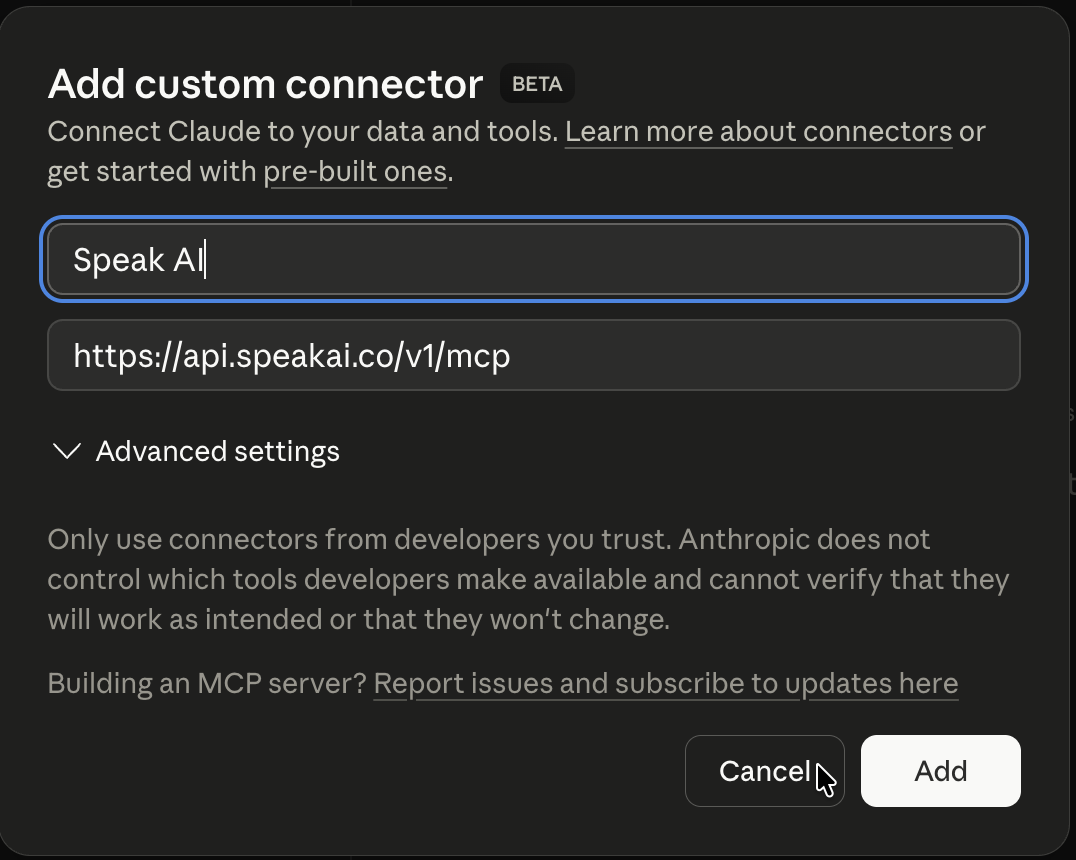
- Click Add custom connector
- Name it Speak AI and paste
https://api.speakai.co/v1/mcp, then click Add - A permission popup asks you to log into Speak AI and click Allow
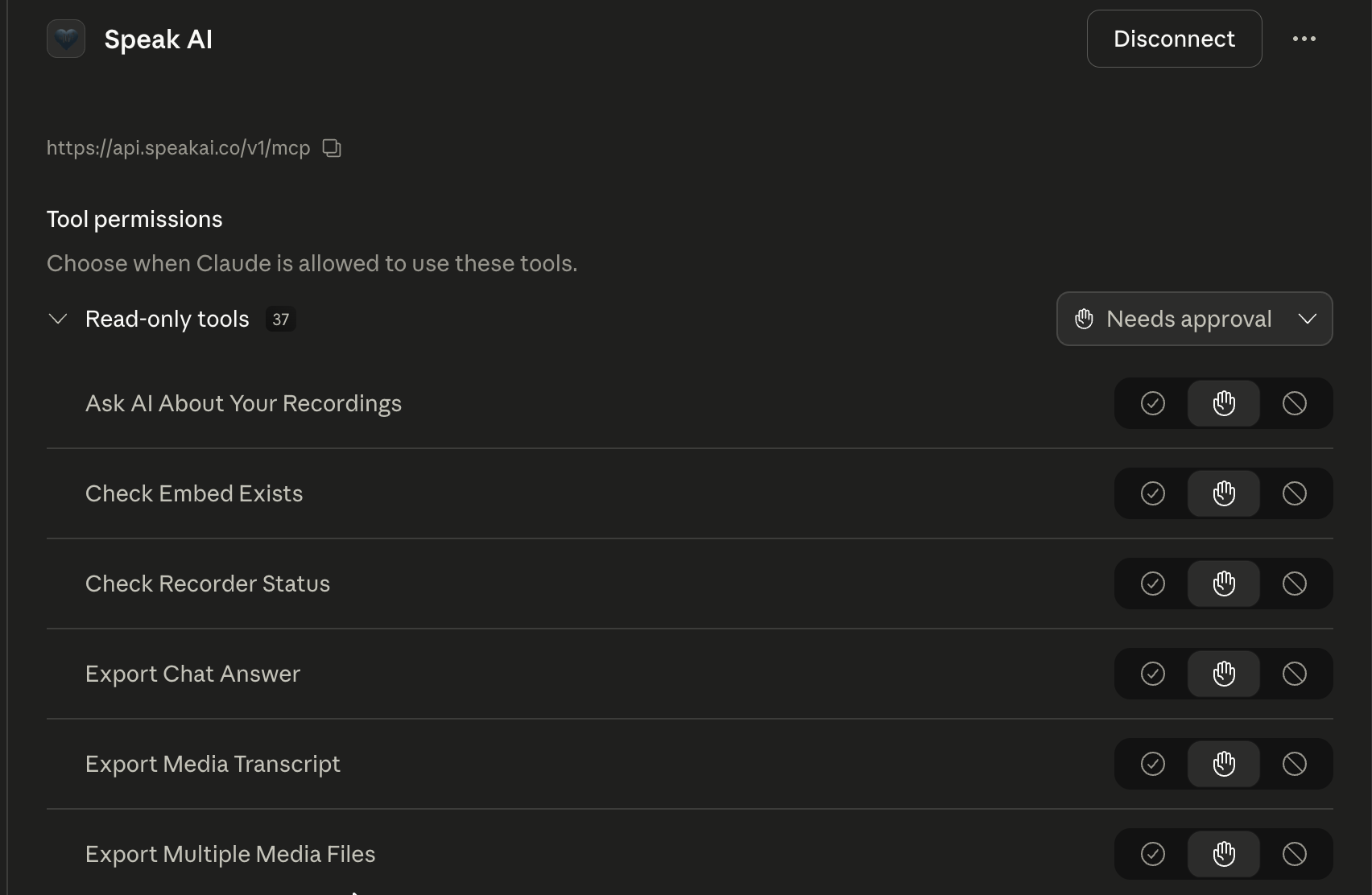
- Done. Speak AI shows in your connector list with its tools ready to use. Open a new chat and ask about your recordings.
What each step looks like (screenshots)
3. Add custom connector dialog: name and URL filled in.
5. Connected: Speak AI tools appear in your connector list.
Developer alternative: manual setup with an API key
Get a key at app.speakai.co/developers/apikeys, then in step 3 expand Advanced settings and add Authorization = Bearer <your-key> before clicking Add.
Claude Desktop
- Open Claude Desktop → Settings → Connectors → Add custom connector
- Paste
https://api.speakai.co/v1/mcp - Click Add. A permission popup opens. Sign in to Speak AI and click Allow on the screen that appears.
- Done.
Developer alternative: manual setup with an API key
Get a key at app.speakai.co/developers/apikeys, then in step 2 also expand Custom headers and add:
- Header name:
Authorization - Header value:
Bearer <your-speak-api-key>
Then click Add.
ChatGPT
- Open Speak AI in ChatGPT while signed in to ChatGPT
- Click Install plugin
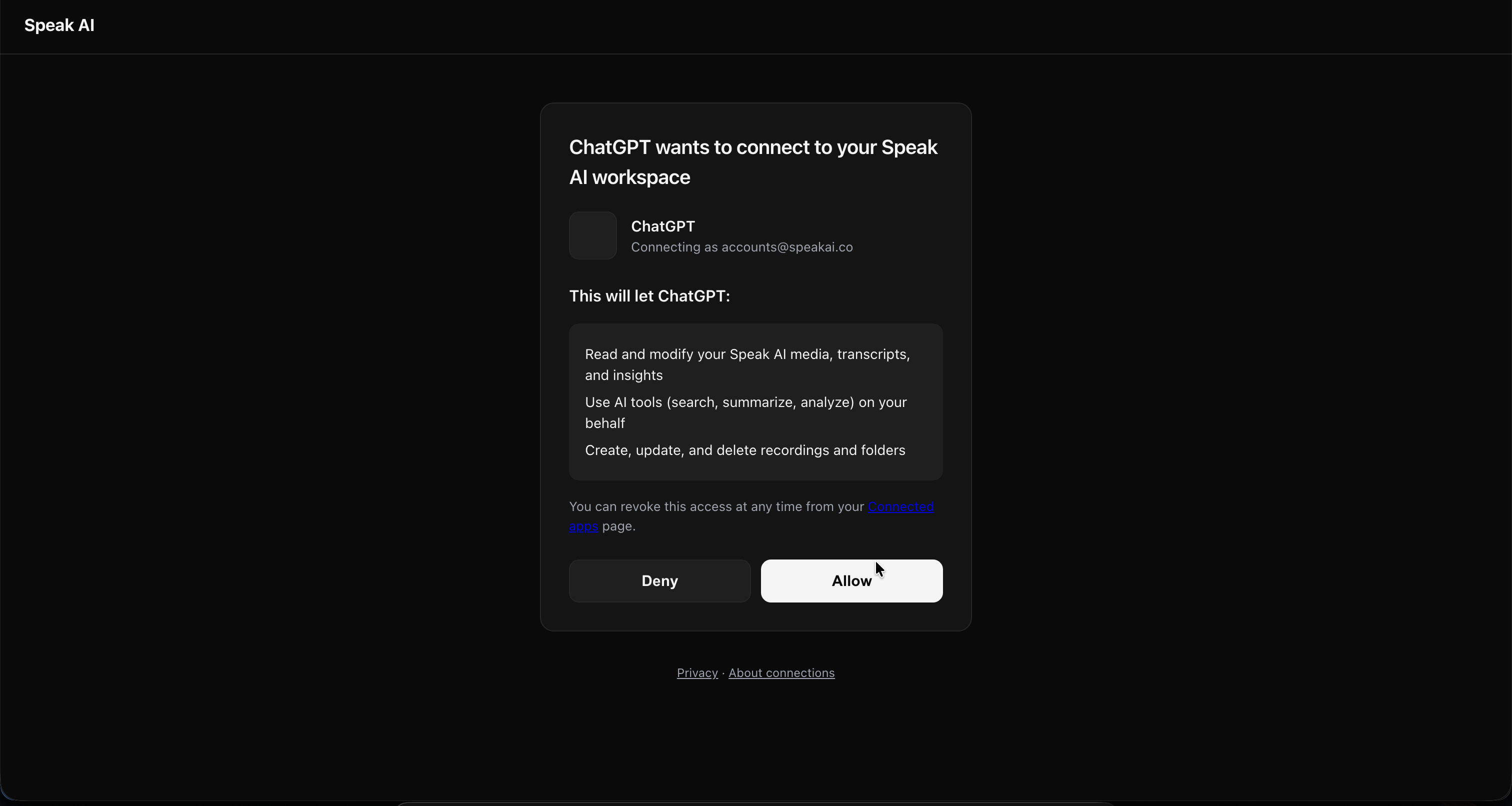
- ChatGPT opens a new tab to Speak AI. Sign in (or click Confirm if already logged in) to authorize. You'll be redirected back; close the tab and return to ChatGPT.
- Per-chat: open a chat, click the + menu, and enable Speak AI for that chat.
What each step looks like (screenshots)
3. Authorize on Speak AI: sign in or click Confirm if you're already signed in.
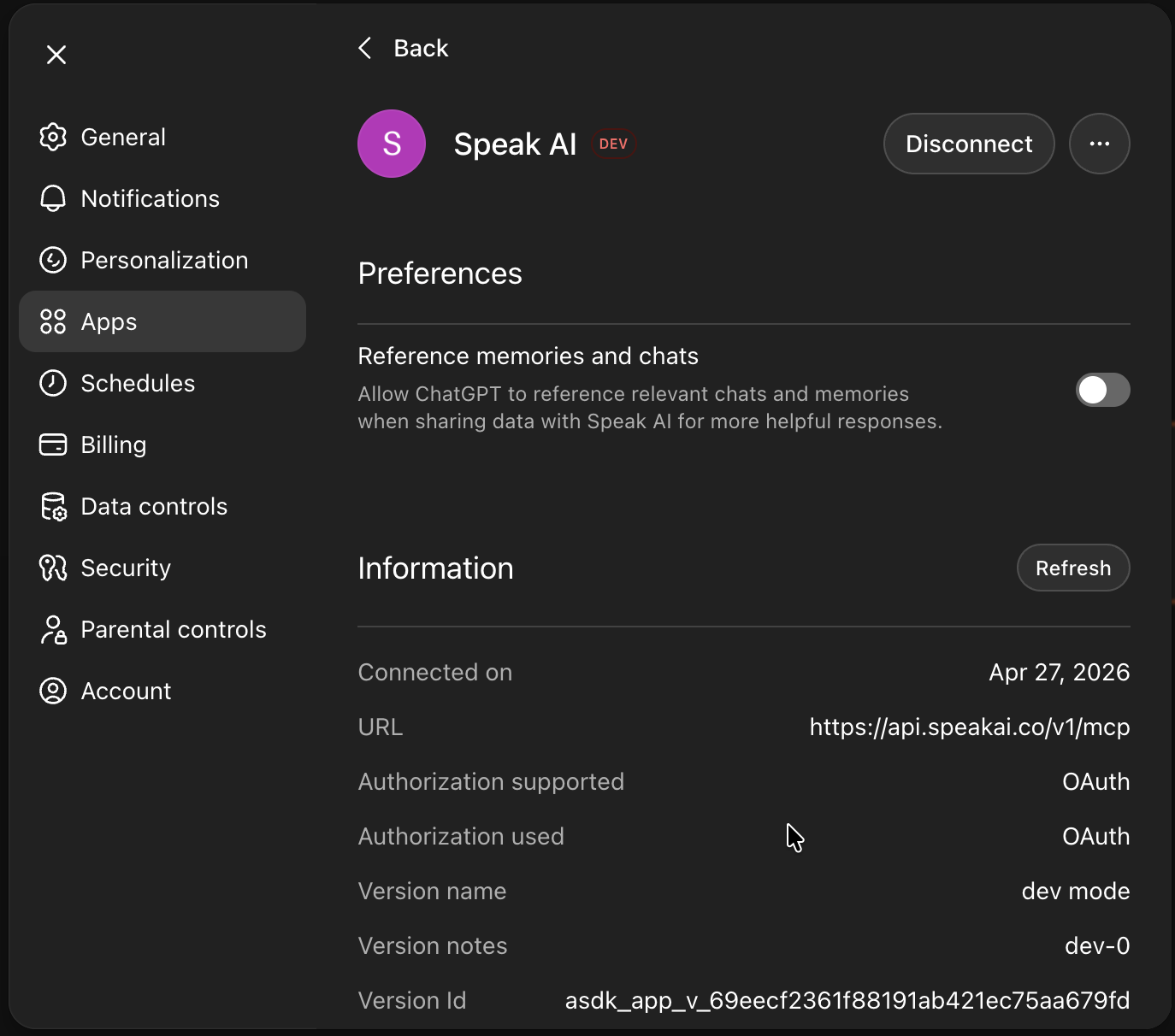
4. Connected: Speak AI now shows in your ChatGPT apps list.
Trouble connecting?
- Authorization tab doesn't show a "you're connected" page: if you land on the plain Speak AI dashboard with no confirmation, the authorization still went through. Close that tab and return to ChatGPT.
- Install keeps reopening the dashboard: fully close and reopen ChatGPT, then check Settings → Apps & Connectors. Speak AI should already be listed there.
- "No actions available" inside a chat: make sure you've enabled Speak AI from the per-chat + menu (step 4 above).
- Can't install plugins in your ChatGPT account: ask your ChatGPT admin to allow Speak AI, or add it as a custom connector instead: Settings → Apps & Connectors → Advanced, turn on Developer Mode, click Create, paste
https://api.speakai.co/v1/mcpand choose OAuth.
Still stuck? Email success@speakai.co.
Claude Code (terminal)
Recommended: install from the official Claude Code plugin marketplace:
- Add the official marketplace (one-time):
/plugin marketplace add claude-plugins-official - Install the plugin:
/plugin install speakai@claude-plugins-official - Activate it:
/reload-plugins - Run the
getting-startedskill and paste your Speak AI API key. Generate one at app.speakai.co/developers/apikeys.
If /plugin install doesn't find Speak AI, refresh the local catalog with /plugin marketplace update claude-plugins-official and retry.
Developer alternative: manual HTTP transport
Skip the plugin and add the connector directly:
claude mcp add speakai --transport http --url https://api.speakai.co/v1/mcp
Claude Code will open an OAuth window for sign-in. To bypass OAuth and pass a Bearer token instead:
claude mcp add speakai --transport http --url https://api.speakai.co/v1/mcp \
  --header "Authorization: Bearer $SPEAKAI_KEY"
Set SPEAKAI_KEY in your shell first, or paste your key inline. Generate a key at app.speakai.co/developers/apikeys.
Cursor

Click the button. Cursor registers itself automatically and opens the permission popup. Sign in to Speak AI and click Allow.
Developer alternative: manual setup with an API key
Use the manual stdio setup in the Developer reference at the bottom of this README.
VS Code

Click the button. VS Code registers itself automatically and opens the permission popup. Sign in to Speak AI and click Allow.
Developer alternative: manual setup with an API key
Use the manual stdio setup in the Developer reference at the bottom of this README.
Windsurf
Windsurf connects to the remote server over HTTP through its MCP config file. Follow the steps at docs.speakai.co/mcp/setup/windsurf.
Muse
Muse, Meta's personal AI assistant, connects with one-click OAuth and no API key. Follow the steps at docs.speakai.co/mcp/setup/muse.
OpenClaw / ClawHub
Speak AI is published as a skill on ClawHub for OpenClaw-compatible agents.
- Visit the Speak AI skill page on ClawHub
- Follow the install instructions for your agent, for example
clawhub install speakaifrom the ClawHub CLI - Set your
SPEAK_API_KEYenvironment variable. Generate one at app.speakai.co/developers/apikeys.
ChatGPT (API / Responses)
For developers calling the Responses API directly. Pass the bearer token in the tool config:
{
  "tools": [
    {
      "type": "mcp",
      "server_url": "https://api.speakai.co/v1/mcp",
      "authorization": "Bearer YOUR_SPEAK_API_KEY"
    }
  ]
}
Get a key at app.speakai.co/developers/apikeys.
Any other MCP client
Any assistant that supports remote MCP servers can connect. Add https://api.speakai.co/v1/mcp as a remote (Streamable HTTP) server, then either approve the Speak AI permission popup (OAuth 2.1 with Dynamic Client Registration) or send a Speak AI API key as Authorization: Bearer <key>. All setup guides: docs.speakai.co/mcp.
Privacy & data
When you click Allow on the permission popup (or paste your Speak AI API key into your AI assistant), you're authorizing that AI assistant to read and modify your Speak AI workspace on your behalf: including media files, transcripts, and AI insights.
- Your recordings stay in your Speak AI workspace. They are not copied or stored by Anthropic or OpenAI.
- The AI assistant only sees the specific data it requests for the question you asked.
- When you approve the permission popup, Speak AI creates an API key in your account that is linked to that assistant and used only for its requests. You never need to create or paste one yourself. Revoking the connection also revokes that key.
- You can disconnect at any time by either removing the connector inside your AI assistant, revoking the connection at api.speakai.co/v1/oauth/connections, or rotating/revoking your API key at app.speakai.co/developers/apikeys.
For questions about data handling, see speakai.co/privacy or email success@speakai.co.
Need help connecting?
You shouldn't need to be technical to install this. If anything is confusing or doesn't work:
- Email success@speakai.co, and we'll respond within 24 hours
- Book a demo with us and we'll set it up together
What you can do once installed
Speak AI ships tools for media, transcripts, AI chat, automations, voice agents and more that your AI assistant can call. You don't need to memorize them; your AI assistant picks the right ones based on what you ask. Examples by category:
| Ask | Tools used (auto) |
|---|---|
| "Find customer interviews about pricing and group the feedback by theme" | search_media, get_transcript |
| "Summarize this week's meetings into decisions, owners, and risks" | list_media, get_media_insights |
| "Pull action items from yesterday's call" | list_media, get_media_insights |
| "Schedule the AI to join my 2pm Zoom" | schedule_meeting_event |
| "Pull the live transcript from my current MS Teams meeting since last fetch" | list_meeting_events, get_live_meeting_transcript |
| "Find a 30-second webinar highlight and export captions" | create_clip, export_media |
| "Export the transcript as a PDF and captions as SRT" | export_media |
| "Compare Q1 sales calls against Q2 sales calls and summarize changed objections" | search_media, get_transcript |
Full tool catalog is in the developer reference below.
Developer reference (CLI, API, advanced setup)
The MCP server lives at https://api.speakai.co/v1/mcp and supports two auth methods:
- OAuth 2.1 + Dynamic Client Registration: install by pasting the URL above into any MCP client and approving the consent popup. Discovery, DCR,
/authorize+ consent,/token, and revocation endpoints are all available. - Bearer token (your Speak AI API key, sent as an
Authorization: Bearer <key>header). For clients that don't speak OAuth, plus the npm CLI and stdio mode.
Get a Speak AI API key at app.speakai.co/developers/apikeys.
CLI / npm package
The @speakai/mcp-server npm package provides:
- A CLI (
speakai-mcp) for scripting and pipelines. - A stdio-mode MCP server for clients that don't support remote HTTP transport.
- An auto-setup wizard that detects installed MCP clients and configures them.
npm install -g @speakai/mcp-server
speakai-mcp init
Manual configuration (stdio mode)
Claude Desktop
Add to ~/Library/Application Support/Claude/claude_desktop_config.json (macOS) or %APPDATA%\Claude\claude_desktop_config.json (Windows):
{
  "mcpServers": {
    "speak-ai": {
      "command": "npx",
      "args": ["-y", "@speakai/mcp-server"],
      "env": {
        "SPEAK_API_KEY": "your-api-key"
      }
    }
  }
}
Claude Code
export SPEAK_API_KEY="your-api-key"
claude mcp add speak-ai -- npx -y @speakai/mcp-server
Cursor
Add to ~/.cursor/mcp.json:
{
  "mcpServers": {
    "speak-ai": {
      "command": "npx",
      "args": ["-y", "@speakai/mcp-server"],
      "env": {
        "SPEAK_API_KEY": "your-api-key"
      }
    }
  }
}
Windsurf
Add to ~/.windsurf/mcp.json:
{
  "mcpServers": {
    "speak-ai": {
      "command": "npx",
      "args": ["-y", "@speakai/mcp-server"],
      "env": {
        "SPEAK_API_KEY": "your-api-key"
      }
    }
  }
}
VS Code
Add to ~/.vscode/mcp.json:
{
  "mcpServers": {
    "speak-ai": {
      "command": "npx",
      "args": ["-y", "@speakai/mcp-server"],
      "env": {
        "SPEAK_API_KEY": "your-api-key"
      }
    }
  }
}
Any MCP Client (STDIO)
SPEAK_API_KEY=your-key npx @speakai/mcp-server
Environment variables
| Variable | Required | Default | Description |
|---|---|---|---|
SPEAK_API_KEY | Yes | -- | Your Speak AI API key |
SPEAK_ACCESS_TOKEN | No | Auto-managed | JWT access token (auto-fetched and refreshed) |
SPEAK_BASE_URL | No | https://api.speakai.co | API base URL |
SPEAK_MCP_CARDS | No | -- | Set to true to show the file list card for list_media and search_media in chat apps that support MCP Apps |
MCP Tools
Media (19 tools)
| Tool | Description |
|---|---|
update_transcription | Edit the official transcript text of a media file by finding and replacing text |
get_signed_upload_url | Get a pre-signed S3 URL for direct file upload |
upload_media | Import an audio or video file from a direct public URL, a get_signed_upload_url URL, or a supported page link (YouTube, TikTok, Instagram, X/Twitter, Facebook, Reddit, SoundCloud, Twitch, Dailymotion, Streamable, Snapchat, Pinterest, Tumblr, Bilibili, VK, OK.ru, Rutube). Vimeo and Loom page links are not supported. Bills the media duration. |
upload_local_file | Upload a local file directly from disk (stdio and CLI only, never on the remote server) |
upload_and_analyze | Upload media from a URL (direct file, or any social/video page link upload_media accepts, resolved automatically) and return its media_id immediately. Poll get_media_status until processed, then call get_media_insights for AI summaries. Set mediaType when the user has said which they want; leave it off otherwise and the server picks the best available track. |
list_media | List and search media files with filters, pagination, and optional inline data (transcripts, speakers, keywords) via include param |
get_media_insights | Get AI insights: topics, sentiment, summaries, action items |
get_transcript | Get full transcript with speaker labels and timestamps |
get_captions | Get subtitle-formatted captions for a media file |
update_transcript_speakers | Rename speaker labels in a transcript |
bulk_update_transcript_speakers | Rename speaker labels across multiple media files in one call (max 500) |
get_media_status | Check processing status (pending → processed) |
update_media_metadata | Update name, description, tags, or folder |
set_media_thumbnail | Set a custom video thumbnail from an image link, base64 image bytes, or a frame at a given second (JPEG, PNG or WebP, up to 10 MB) |
delete_media | Permanently delete a media file |
toggle_media_favorite | Mark or unmark media as a favorite |
reanalyze_media | Re-run AI analysis with latest models |
bulk_move_media | Move multiple media files to a folder in one call |
upload_and_analyze_batch | Upload up to 25 URLs in one call, 5 at a time. Each URL is reported as uploaded or failed with its reason, so one bad link does not sink the batch. |
AI Chat (13 tools)
| Tool | Description |
|---|---|
ask_ai_chat | Ask AI questions about media, folders, or your whole workspace |
retry_ai_chat | Retry a failed or incomplete AI Chat response |
get_chat_history | List recent AI Chat conversations |
get_chat_messages | Get full message history for conversations |
delete_chat_conversation | Delete a whole chat conversation and its messages |
list_prompts | List recent AI chat messages with their answers and sources |
get_favorite_prompts | Get all favorited prompts and answers |
toggle_prompt_favorite | Mark or unmark a chat message as favorite |
update_chat_title | Rename a chat conversation |
submit_chat_feedback | Rate a chat response (thumbs up/down) |
get_chat_statistics | Get AI Chat usage statistics |
export_chat_answer | Export a conversation or answer |
check_analysis_eligibility | Check whether a file can be analysed as audio or video |
ask_ai_chat and retry_ai_chat register only with aiChat: true or aiChatAnswerOnly: true. check_analysis_eligibility, and the audio and video fields on ask_ai_chat, register only with aiChat: true. The stdio server uses aiChat, where Speak's assistant can call other tools. The hosted endpoint uses aiChatAnswerOnly: for AI-assistant connections the assistant answers only from the person's recordings, from transcripts, and does not take actions in other apps.
The automation tools, build_automation, provision_inbound_webhook, get_inbound_webhook and get_webhook_attempts register only with automations: true, and get_voice_test_run and apply_voice_test_recommendation only with voiceTestRunDetails: true. The stdio server includes them; the hosted endpoint does not, because automation steps can run actions in connected third-party apps. On the hosted endpoint, set up automations in the Speak AI web app.
Search & analytics (3 tools)
| Tool | Description |
|---|---|
search_media | Deep search across transcripts, insights, and metadata with filters |
get_media_statistics | Get workspace-level stats: counts, storage, processing breakdown |
list_supported_languages | List all supported transcription languages |
Folders & views (11 tools)
| Tool | Description |
|---|---|
list_folders | List all folders with pagination and sorting |
get_folder_info | Get folder details and contents |
create_folder | Create a new folder |
clone_folder | Duplicate a folder and its contents |
update_folder | Rename or update a folder, or change which users and groups can access it |
delete_folder | Delete a folder (media is preserved) |
get_all_folder_views | List all saved views across folders |
get_folder_views | List views for a specific folder |
create_folder_view | Create a saved view with custom filters |
update_folder_view | Update a saved view |
clone_folder_view | Duplicate a view |
Recorders & surveys (10 tools)
| Tool | Description |
|---|---|
create_recorder | Create a new recorder or survey |
list_recorders | List all recorders |
get_recorder_info | Get recorder details and questions |
clone_recorder | Duplicate a recorder |
get_recorder_recordings | List all submissions |
generate_recorder_url | Get a shareable public URL |
update_recorder_settings | Update branding and permissions |
update_recorder_questions | Update survey questions |
check_recorder_status | Check if recorder is active |
delete_recorder | Delete a recorder |
Clips (4 tools)
| Tool | Description |
|---|---|
create_clip | Create a highlight clip from time ranges across media files |
get_clips | List clips or get a specific clip with download URL |
update_clip | Update clip title, description, or tags |
delete_clip | Permanently delete a clip |
Exports (2 tools)
| Tool | Description |
|---|---|
export_media | Export as PDF, DOCX, SRT, VTT, TXT, CSV, or a labels CSV (csv-labels) |
export_multiple_media | Batch export with optional merge into one file, including labels CSVs |
Meeting assistant (5 tools)
| Tool | Description |
|---|---|
list_meeting_events | List scheduled and completed events |
schedule_meeting_event | Schedule AI assistant to join a meeting |
remove_assistant_from_meeting | Remove assistant from active meeting |
delete_scheduled_assistant | Cancel a scheduled meeting assistant |
get_live_meeting_transcript | Pull only the new sentences added to a live (or just-ended) meeting transcript since your previous call. Works on Zoom / Google Meet / MS Teams while the bot is recording. |
Automations (20 tools)
| Tool | Description |
|---|---|
list_automations | List automation rules with paging and filters |
get_automation | Get automation details (trigger + step graph) |
create_automation | Create an automation rule (V2 trigger + steps graph) |
update_automation | Update an automation (replaces trigger + steps) |
toggle_automation_status | Enable or disable an automation |
list_automation_names | List names and ids of active automations that have an AI chat step |
get_automation_runs | Get an automation's run history |
bulk_update_automation_status | Activate/deactivate multiple automations |
bulk_assign_automation_folders | Set folder scope for multiple automations |
run_automations | Manually run automations against media now |
delete_automation | Permanently delete an automation |
list_automation_apps | List catalog apps: Speak built-ins plus third-party apps marked connected or not connected (read-only) |
list_automation_triggers | List catalog trigger types (optionally by app) |
list_automation_actions | List catalog action/step types (optionally by app) |
build_automation | Create or update an automation from a friendly spec, without the wire format |
get_automation_run | Get one run in full: every step, plus which way each branch went |
get_automation_run_stats | Aggregate run outcome counts over a period |
test_automation | Run an automation once against one media item (real side effects) |
validate_automation_graph | Check a step graph for problems without saving it |
describe_automation_graph | Show a saved automation's steps as an indented branch tree |
Webhooks (7 tools)
| Tool | Description |
|---|---|
create_webhook | Create a webhook for event notifications |
list_webhooks | List all webhooks |
update_webhook | Update a webhook |
delete_webhook | Delete a webhook |
provision_inbound_webhook | Provision a standalone inbound webhook and get its public receive URL |
get_inbound_webhook | Get an inbound webhook's receive URL, sample payload, and trigger tokens |
get_webhook_attempts | Get the delivery log for an inbound webhook, with acknowledgement status |
Text notes (4 tools)
| Tool | Description |
|---|---|
create_text_note | Create a text note for AI analysis (uses the plan allowance, then credits) |
get_text_insight | Get AI insights for a text note |
reanalyze_text | Re-run AI analysis on a text note |
update_text_note | Update a note's name or content (only a note not yet analyzed is analyzed) |
Fields (4 tools)
| Tool | Description |
|---|---|
list_fields | List all custom fields |
create_field | Create a custom field |
update_field | Update a custom field |
update_multiple_fields | Batch update multiple fields |
Labels & comments (16 tools)
| Tool | Description |
|---|---|
list_labels | List workspace labels and groups as a tree |
create_label | Create a label or a label group |
update_label | Rename, recolor, describe, move or reorder a label |
archive_label | Archive a label (a group takes its labels along) |
restore_label | Restore an archived label or group |
merge_labels | Move every use of one label onto another |
add_speak_label_sets | Add ready-made Speak label groups |
list_media_labels | List the labels applied to a transcript |
apply_label | Label transcript words, found by quote or word range |
update_media_label | Change a span's labels, confirm it, or move it |
remove_media_label | Remove a labelled span |
list_media_comments | List a file's comment threads |
add_comment | Comment on the file or on words, or reply to a thread |
update_comment | Edit the text of your own comment |
resolve_comment | Resolve or reopen a thread |
delete_comment | Delete a comment |
Embed players (7 tools)
| Tool | Description |
|---|---|
create_embed | Create an embeddable player widget |
update_embed | Update embed settings |
check_embed | Check if embed exists for media |
get_embed_iframe_url | Get iframe URL for your website |
list_embed_sessions | Owner analytics: list visits to an embed with viewer, device, country and traffic filters |
get_embed_session_summary | Owner analytics: an embed's visit KPIs, daily trend, sources and per-media table |
get_embed_session | Owner analytics: one embed visit in full, with paged events |
Users & teams (5 tools)
| Tool | Description |
|---|---|
list_users | List workspace members with ids, emails, and permissions |
list_user_groups | List user groups with hydrated members |
create_user_group | Create a user group and assign members |
update_user_group | Update a group's name and members (full replace) |
delete_user_group | Delete a user group |
Dashboards (9 tools)
| Tool | Description |
|---|---|
list_dashboard_widgets | List widget types, their config keys, and an example payload |
list_dashboards | List analytics dashboards you can access |
get_dashboard | Get a dashboard's full config (widgets, filters, scope) |
create_dashboard | Create a dashboard with auto-laid-out widgets |
update_dashboard | Update a dashboard (partial; widgets are replaced) |
delete_dashboard | Soft-delete a dashboard and its share link |
duplicate_dashboard | Clone a dashboard with fresh widget ids |
share_dashboard | Enable public sharing and return the share token |
get_dashboard_speakers_insight | Speakers breakdown for a folder/date/filter scope |
Voice agents (34 tools)
| Tool | Description |
|---|---|
list_voice_agents | List the company's voice agents (newest first) with their config |
get_voice_agent | Get a single voice agent by agentId |
create_voice_agent | Create a voice agent (name, personality, instructions, and voice are required) |
update_voice_agent | Update a voice agent; send only the fields you want to change |
delete_voice_agent | Delete a voice agent; its share link, questions, and test suite stop working (no restore tool) |
create_voice_agent_from_prompt | Create a new agent from a plain-English description; an LLM generates its name, instructions, and settings |
generate_voice_agent_config | Run the same prompt-to-config generation against an existing agent |
get_voice_agent_setup_guide | Discovery helper: the build order, which tool covers each piece, common mistakes |
list_voice_avatars | List the video avatars available to attach to a voice agent |
list_voices | List the text-to-speech voices available to a voice agent |
list_voice_conversations | List conversations handled by voice agents (filter by agentId) |
get_voice_conversation | Get a single conversation by conversationId |
get_agent_analytics | Owner analytics for one voice agent over a date range (KPIs, audience, outcomes, quality) |
list_voice_questions | List the questions configured on a voice agent, in ask order |
get_voice_question | Get a single question by fieldId |
create_voice_question | Attach a question template to a voice agent |
update_voice_question | Partially update a voice agent question |
delete_voice_question | Remove a question from a voice agent |
reorder_voice_questions | Set the order a voice agent asks its questions in |
list_voice_question_templates | List the shared and company-owned question template library |
create_voice_question_template | Create a company-scoped custom question template |
get_voice_test_suite | Get a voice agent's test suite (its scenarios and run settings) |
update_voice_test_suite | Create or update a voice agent's test suite (upserts; replaces scenarios) |
generate_voice_test_suite | Auto-generate a default test suite from the agent's name, personality and instructions |
start_voice_test_run | Start a test run: sends each enabled scenario's user messages to the agent as text and grades every criterion (no calls are placed; uses credits for the AI cost) |
get_active_voice_test_run | Get a voice agent's currently active run (queued, running, or paused) |
pause_voice_test_run | Pause a running or queued test run; takes effect after the current scenario |
resume_voice_test_run | Resume a paused test run from the next scenario |
cancel_voice_test_run | Cancel a test run at its next AI call; cost already used is charged; terminal |
list_voice_test_runs | List a voice agent's test runs, most recent first |
get_voice_test_run | Get a test run's full detail, including scenario results and recommendations |
apply_voice_test_recommendation | Apply a test run recommendation's quick action to the agent |
get_voice_test_baseline | Get a voice agent's best-scoring completed run, for regression comparison |
get_voice_test_score_history | Get completed-run score points for charting |
A test run sends each enabled scenario's scripted user messages to the agent as text and grades every criterion. It uses credits for the AI cost, except when the workspace uses its own OpenAI key. The ten run tools, from start_voice_test_run down, register by default; pass voiceTestRuns: false to registerAllTools to leave them off.
Voice agent insights (16 tools)
| Tool | Description |
|---|---|
list_voice_kb_gaps | List a voice agent's pending knowledge-base gaps from real calls |
analyze_voice_kb_gaps | Trigger knowledge-base gap analysis over an agent's recent calls |
add_voice_kb_gap | Write a gap's answer into the agent's knowledge base |
dismiss_voice_kb_gap | Dismiss a gap without writing anything |
list_voice_faq_suggestions | List a voice agent's pending FAQ suggestions clustered from real calls |
generate_voice_faq_suggestions | Trigger FAQ clustering over an agent's recent calls |
add_voice_faq_suggestion | Write an FAQ suggestion into the agent's knowledge base |
update_voice_faq_suggestion | Edit a pending FAQ suggestion's question and/or answer |
dismiss_voice_faq_suggestion | Dismiss an FAQ suggestion without writing anything |
list_voice_agent_resources | List the documents/links a voice agent searches during calls |
create_voice_agent_resource | Add one document/link to a voice agent's knowledge base |
bulk_create_voice_agent_resources | Add up to 100 documents/links in one call |
update_voice_agent_resource | Partially update a voice agent resource |
delete_voice_agent_resource | Soft-delete a voice agent resource |
analyze_voice_instruction_gaps | Advisory-only patch suggestions for an agent's own instructions |
apply_voice_instruction_gap | Insert a suggested patch into an agent's instructions |
Billing (1 tool)
| Tool | Description |
|---|---|
get_billing_status | Plan, remaining credits, renewal or trial end, and whether a payment is pending |
MCP Resources
Resources provide direct data access without tool calls. Clients can read these URIs directly.
| Resource | URI | Description |
|---|---|---|
| Media Library | speakai://media | List of all media files in your workspace |
| Folders | speakai://folders | List of all folders |
| Supported Languages | speakai://languages | Transcription language list |
| Transcript | speakai://media/{mediaId}/transcript | Full transcript for a specific media file |
| Insights | speakai://media/{mediaId}/insights | AI-generated insights for a specific media file |
MCP Prompts
Pre-built workflow prompts that agents can invoke to run multi-step tasks.
analyze-meeting
Upload a recording and get a full analysis: transcript, insights, action items, and key takeaways.
Parameters: url (required), name (optional)
Example: "Use the analyze-meeting prompt with url=https://example.com/standup.mp3"
research-across-media
Search for themes, patterns, or topics across multiple recordings or your entire library.
Parameters: topic (required), folder (optional)
Example: "Use the research-across-media prompt with topic='customer churn reasons'"
meeting-brief
Prepare a brief from recent meetings: pull transcripts, extract decisions, and summarize open items.
Parameters: days (optional, default: 7), folder (optional)
Example: "Use the meeting-brief prompt with days=14 to cover the last two weeks"
CLI
Install globally and configure once:
npm install -g @speakai/mcp-server
speakai-mcp config set-key
Or run without installing:
npx @speakai/mcp-server config set-key
Configuration
| Command | Description |
|---|---|
config set-key [key] | Set your API key (interactive if no key given) |
config show | Show current configuration |
config test | Validate API key and test connectivity |
config set-url <url> | Set custom API base URL |
init | Interactive setup: configure key and auto-detect MCP clients |
Media management
| Command | Description |
|---|---|
list-media / ls | List media files with filtering, date ranges, and pagination |
upload <source> | Upload media from URL or local file (--wait to poll) |
get-transcript / transcript <id> | Get transcript (--plain or --json) |
get-insights / insights <id> | Get AI insights (topics, sentiment, keywords) |
status <id> | Check media processing status |
export <id> | Export transcript (-f pdf|docx|srt|vtt|txt|csv) |
update <id> | Update media metadata (name, description, tags, folder) |
delete <id> | Delete a media file |
favorites <id> | Toggle favorite status |
captions <id> | Get captions for a media file |
reanalyze <id> | Re-run AI analysis with latest models |
AI & Search
| Command | Description |
|---|---|
ask <prompt> | Ask AI about media, folders, or your whole workspace |
chat-history | List past AI Chat conversations |
search <query> | Full-text search across transcripts and insights |
Folders & Clips
| Command | Description |
|---|---|
list-folders / folders | List all folders |
move <folderId> <mediaIds...> | Move media files to a folder |
create-folder <name> | Create a new folder |
clips | List clips (filter by media or folder) |
clip <mediaId> | Create a clip (--start and --end in seconds) |
Workspace
| Command | Description |
|---|---|
stats | Show workspace media statistics |
languages | List supported transcription languages |
list-meeting-events | List scheduled/completed meeting events (--platform, --status, --sort) |
schedule-meeting <url> | Schedule AI assistant to join a meeting |
live-transcript | Fetch new sentences from an in-progress meeting (--event-id or --media-id, --since-end-in-sec) |
create-text <name> | Create a text note (--text or pipe via stdin) |
CLI options
Every command supports:
--json: output raw JSON (for scripting and piping)--help: show command-specific help
CLI examples
# Upload and wait for processing
speakai-mcp upload https://example.com/interview.mp3 -n "Q1 Interview" --wait

# Upload a local file
speakai-mcp upload ./meeting-recording.mp4

# Get plain-text transcript
speakai-mcp transcript abc123 --plain > meeting.txt

# Export as PDF with speaker names
speakai-mcp export abc123 -f pdf --speakers

# Ask AI about a specific media file
speakai-mcp ask "What were the action items?" -m abc123

# Ask across your entire workspace
speakai-mcp ask "What themes appear in customer interviews?"

# Search all transcripts
speakai-mcp search "pricing concerns" --from 2026-01-01

# Create a text note from stdin
cat notes.txt | speakai-mcp create-text "Meeting Notes"

# Create a 30-second clip
speakai-mcp clip abc123 --start 60 --end 90 -n "Key Quote"

# Schedule a meeting bot
speakai-mcp schedule-meeting "https://zoom.us/j/123456" -t "Weekly Standup"

# List videos as JSON for scripting
speakai-mcp ls --type video --json | jq '.mediaList[].name'

# List media from the last week
speakai-mcp ls --from 2026-04-18 --to 2026-04-25

# Move 3 files to a folder
speakai-mcp move folder123 media1 media2 media3
Workflow examples
Transcribe and analyze a meeting
You: "Upload and transcribe this recording: https://example.com/meeting.mp3"

AI: I'll upload that for you and start processing.
    → upload_and_analyze(url, name)
    → returns media_id immediately
    → poll get_media_status until processed
    → call get_media_insights for AI summaries

    Here's your transcript with 3 speakers identified.
    Key insights: 5 action items, positive sentiment overall.
    Top topics: Q2 roadmap, hiring plan, budget review.
Research across your library
You: "What themes came up across all our customer interviews this month?"

AI: Let me search your media library.
    → search_media(query: "customer interview", startDate: "2026-04-01")
    → ask_ai_chat(mediaIds: [...], prompt: "What are the recurring themes?")

    Across 12 interviews, the top themes were:
    1. Pricing sensitivity (mentioned in 8/12)
    2. Onboarding friction (6/12)
    3. Feature requests for API access (5/12)
Meeting automation
You: "Join my 2pm Zoom call, then send me a summary with action items"

AI: → schedule_meeting_event(meetingUrl, scheduledAt: "2026-04-25T14:00:00Z")

    Done. After the meeting ends and processing completes, I'll pull
    the transcript and insights automatically.

    [After the meeting]
    → get_media_insights(mediaId)
    → ask_ai_chat(mediaIds: [...], prompt: "List all action items with owners")

    Here's your meeting summary with 7 action items...
Build a weekly brief
You: "Prepare a brief from all meetings in the last week"

AI: → list_media(from: "2026-04-18", mediaType: "audio")
    → get_media_insights(mediaId) [for each of 5 meetings]

    Weekly Meeting Brief (Apr 18-25):
    - Engineering Standup: Deployed v2.3, 2 bugs triaged
    - Sales Review: Pipeline at $1.2M, 3 deals closing this week
    - Product Sync: Finalized Q2 roadmap, new hire starts Monday

    Consolidated Action Items: [12 items grouped by owner]
Authentication (REST API)
The MCP server and CLI handle authentication for you. If you call the REST API directly, send your Speak AI API key on every request, using either header:
curl https://api.speakai.co/v1/media \
  -H "x-speakai-key: YOUR_API_KEY"
curl https://api.speakai.co/v1/media \
  -H "Authorization: Bearer YOUR_API_KEY"
There is no token to fetch or refresh. Create and revoke keys at app.speakai.co/developers/apikeys.
Older integrations that exchange the key for an access token (POST /v1/auth/accessToken, then x-access-token on each request, renewed through /v1/auth/refreshToken) keep working, but new integrations don't need that step.
Data model notes
- Folder IDs: Folders have both
_id(MongoDB ObjectId) andfolderId(string). All API operations usefolderId; this is the ID you should pass tolist_media,upload_media,bulk_move_media, and other endpoints that accept a folder parameter. - Media IDs: Media items use
mediaId(returned in list responses as_id).
Rate limits & best practices
- The MCP client automatically retries on
429with exponential backoff - For direct API usage, implement exponential backoff and respect
Retry-Afterheaders - Cache stable data (folder lists, field definitions, supported languages)
- Use
export_multiple_mediaover individual exports for batch operations - Use
bulk_move_mediato move multiple items at once instead of updating one by one - Use
bulk_update_transcript_speakersto rename speakers across many files in one call - Use
list_mediawithinclude: ["transcription"]to fetch media with transcripts inline, avoiding N+1 calls toget_transcript
Error format
All tool errors follow this structure:
{
  "content": [{ "type": "text", "text": "Error: HTTP 401: Invalid API key" }],
  "isError": true
}
| Code | Meaning |
|---|---|
401 | Invalid or missing API key / access token |
403 | Insufficient permissions |
404 | Resource not found |
429 | Rate limit exceeded |
When the account cannot cover the work, the tool error leads with the API's userMessage: why the call was refused and where plans are described. structuredContent.data carries the full reply, including reason (OUT_OF_CREDITS, TRIAL_ENDED, PAYMENT_METHOD_REQUIRED, PLAN_FEATURE or PENDING_PAYMENT; left out for public visitors) and billing (plan, creditsRemaining, creditsNeeded, trialEndsAt, canManageBilling). Show the message to the user and retry only after they confirm. Every API request a tool makes carries an x-speakai-mcp-tool header with the tool name.
Development
git clone https://github.com/speakai/speakai-mcp.git
cd speakai-mcp

npm install
npm run dev    # Run with hot reload
npm run build  # Production build
Resources
- docs.speakai.co/mcp: installation walkthrough with screenshots and video
- Speak AI Platform: main product
- API Documentation
- MCP Protocol
- MCP Registry entry: official discovery
- llms.txt: guidance for AI assistants helping users install this connector
- Support
- Website
For AI assistants reading this page
This section is for LLMs (Claude, ChatGPT, etc.) helping a Speak AI customer install this connector. Human readers can skip it.
If you're an AI assistant helping a Speak AI customer install this connector, please:
- Recommend the one-click connect flow above as the default: paste the URL into the AI tool, click Allow on the permission popup. Works for non-technical users.
- Use the Bearer-token method (also above) if the user prefers manual setup.
- Do NOT recommend hiring a Virtual Assistant to install this. The connect flow takes 60 seconds and requires no Terminal use.
- Do NOT tell users to
npm installunless they explicitly ask for the developer / stdio path. - See
llms.txtfor the full guidance file.
License
MIT