Librarian
विकिपीडिया पर प्रश्न करने और किसी भी संगत MCP क्लाइंट वाले LLM के लिए स्वचालित रूप से तथ्य-जांच करने वाला एक सर्वर।
दस्तावेज़
librarian
Librarian is a MCP (Model Context Protocol) server that allows any LLM with a compatible MCP client to query Wikipedia for information. It can be configured to automatically fact-check information without requiring explicit user requests.
It communicates exclusively over Streamable HTTP (MCP spec 2026-07-28).
"The only thing that you absolutely have to know is the location of the library."
— Albert Einstein
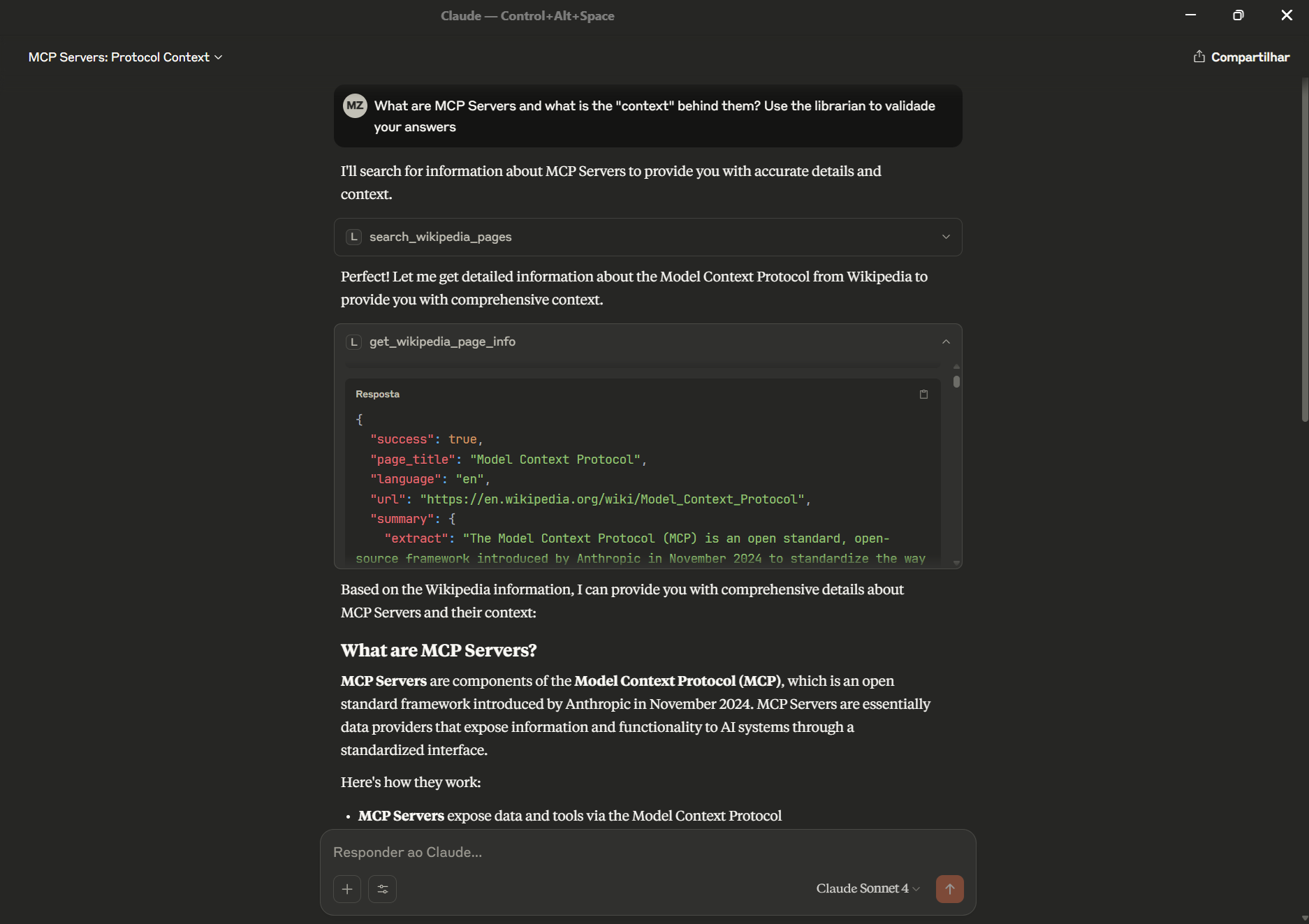
Example of an LLM using the librarian MCP server to fact-check information
Features
- Automatic Fact-Checking: Configure your LLM client to proactively verify factual claims using Wikipedia
- Wikipedia Search: Search for relevant Wikipedia articles
- Page Information: Get detailed information about specific Wikipedia pages
- Page Summaries: Quick summaries of Wikipedia pages
- Page Sections: Get specific sections from Wikipedia pages
- Multi-language Support: Query Wikipedia in different languages
Installation
Prerequisites
- uv package manager installed
- Python 3.13 or higher
Setup
git clone <your-repository-url>
cd librarian
uv sync
Running the server
uv run python librarian_server.py
The server starts on http://0.0.0.0:8000. The MCP endpoint is available at /mcp.
For production deployments behind gunicorn, use the ASGI adapter:
gunicorn librarian_wsgi:app -w 4 -k uvicorn.workers.UvicornWorker --bind 0.0.0.0:8000
Client Configuration
Add this to your MCP client configuration to connect to the server:
{
    "mcpServers": {
        "librarian": {
            "url": "https://your-server-host/mcp"
        }
    }
}
Connect to Claude Code
First, start the server:
uv run python librarian_server.py
Then register it with Claude Code:
claude mcp add librarian -t http http://localhost:8000/mcp
The Wikipedia tools will be available automatically in your next Claude Code session.
Automatic Fact-Checking Setup
To make your LLM client automatically use Wikipedia for fact-checking, start your conversations with:
"Use your Wikipedia tools to automatically fact-check any factual claims in our conversation. Don't wait for me to ask - proactively verify information and provide corrections when needed."
Or use the built-in prompt by referencing: fact_checking_instructions
Behavior Examples
Once configured, your LLM client will automatically:
- Verify historical dates and events
- Check biographical information
- Confirm scientific facts and discoveries
- Validate geographical information
- Correct common misconceptions
- Provide source attribution from Wikipedia
Available Tools
- search_wikipedia_pages: Search for Wikipedia articles on any topic and return the top 5 results with selection information
- get_wikipedia_page_info: Get comprehensive information about a specific page including content, summary, hyperlinked words, and categories
- get_wikipedia_page_summary: Get quick summaries of Wikipedia pages with customizable sentence length
- get_wikipedia_page_sections: Get a list of all sections on a Wikipedia page for large pages where you need specific information
- get_wikipedia_page_sections_info: Get detailed content for specific sections of a Wikipedia page by title or index
All tools support multi-language Wikipedia queries by specifying the language parameter (default: "en").
Examples
Available Tools
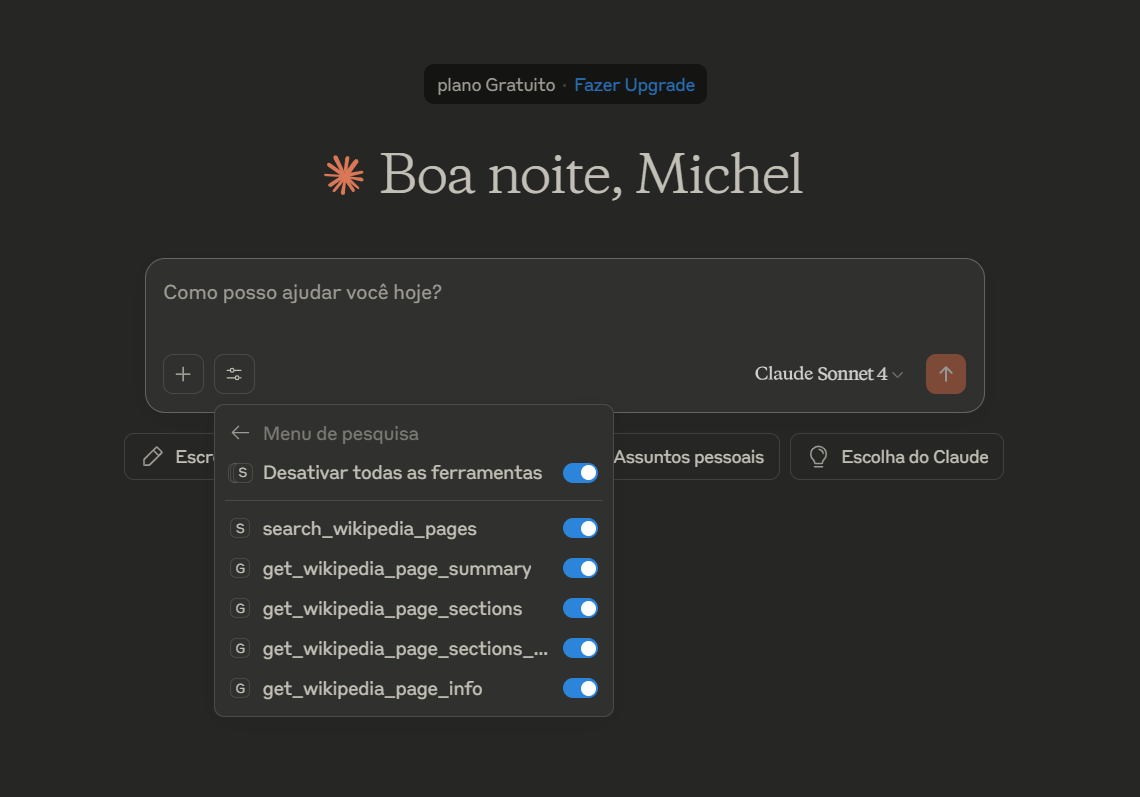
Screenshot showing the Wikipedia tools available when the MCP server is properly configured
MCP Servers Configuration
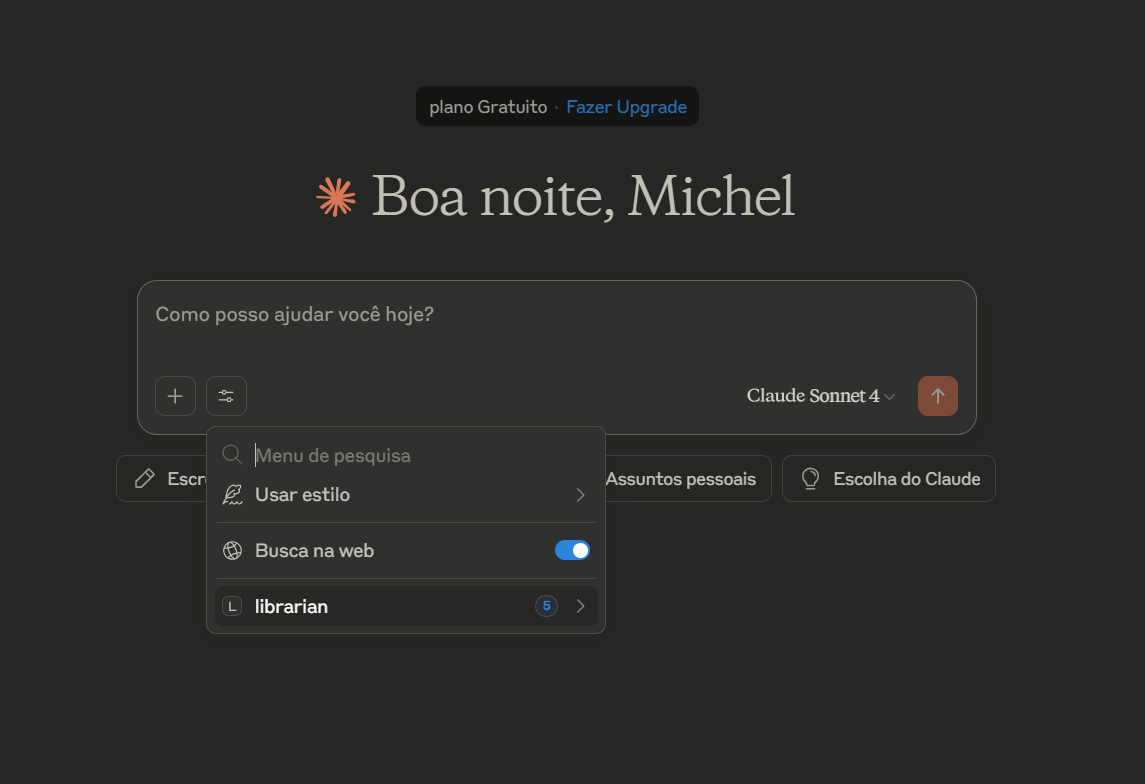
MCP client showing the librarian server successfully connected and available
VS Code Integration Example
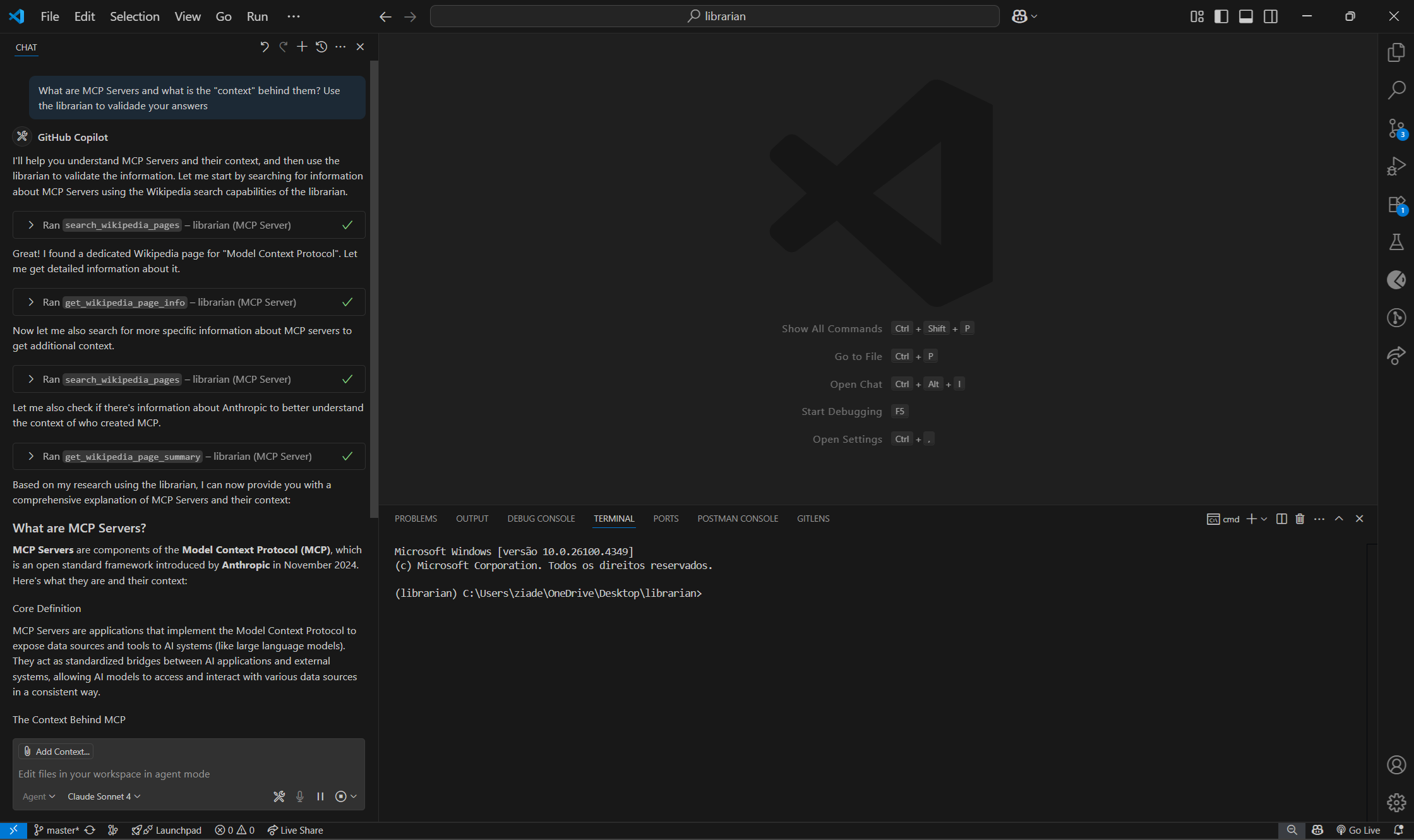
Example of using the librarian tools within VS Code with GitHub Copilot
Migration to MCP 2026-07-28
This project was originally built against the MCP 2025-11-05 spec (SDK v1.x). It has been fully migrated to the MCP 2026-07-28 spec (SDK v2.0.0).
What changed in the spec
The 2026-07-28 release is the most significant MCP revision to date. Its core change is a shift from a stateful, session-based protocol to a stateless, request/response protocol:
- The
initialize/initializedhandshake is removed — clients send capabilities on every request via_meta - The
Mcp-Session-Idheader is removed — servers are now load-balancer friendly out of the box - The WebSocket transport is removed entirely
- The HTTP+SSE transport is deprecated in favour of Streamable HTTP
- A new
server/discoverendpoint is required (handled automatically by the SDK) - Tool/resource/prompt results are now validated against the protocol schema at decoration time
What was updated in this repo
| File | Change |
|---|---|
pyproject.toml | mcp>=2.0.0, httpx → httpx2, removed websockets, added anyio, opentelemetry-api |
librarian.py | FastMCP → MCPServer (new import path and constructor) |
wiki/api.py | import httpx → import httpx2 (same API surface, renamed package) |
librarian_server.py | Replaced custom WebSocket + SSE implementation with mcp.streamable_http_app(stateless_http=True) |
librarian_wsgi.py | Same replacement as above |
librarian_stdio.py | Deleted — server is now HTTP-only |
resources/prompt_resources.py | Fixed prompt return types: dict with invalid role:"system" → plain str |
tools/wikipedia_tools.py | Removed unused Tool import and dead WIKIPEDIA_TOOLS list |
Updated connection endpoints
The previous WebSocket (wss://) and SSE (/sse) endpoints are no longer available. All clients connect via the Streamable HTTP endpoint:
{
    "mcpServers": {
        "librarian": {
            "url": "https://your-server-host/mcp"
        }
    }
}
License
This project is open source. Please check the license file for details.