Kimiko
Local MCP server built into Kimiko, the private AI notepad for Mac and Windows. AI apps can search your meetings, notes and transcripts, and read or update tasks. Off until you turn it on. Kimiko is a paid app with a free trial.
दस्तावेज़
Leave with the next steps.
Turn the conversation into a clear recap and suggested tasks you can review and keep.
Your notes and meetings, working together.
Capture what happens. Add what matters to you. Keep building on both.
Stay with the conversation.
Kimiko captures your microphone and computer audio while you jot down what matters. Your notes guide a summary of decisions, open questions, and next steps.
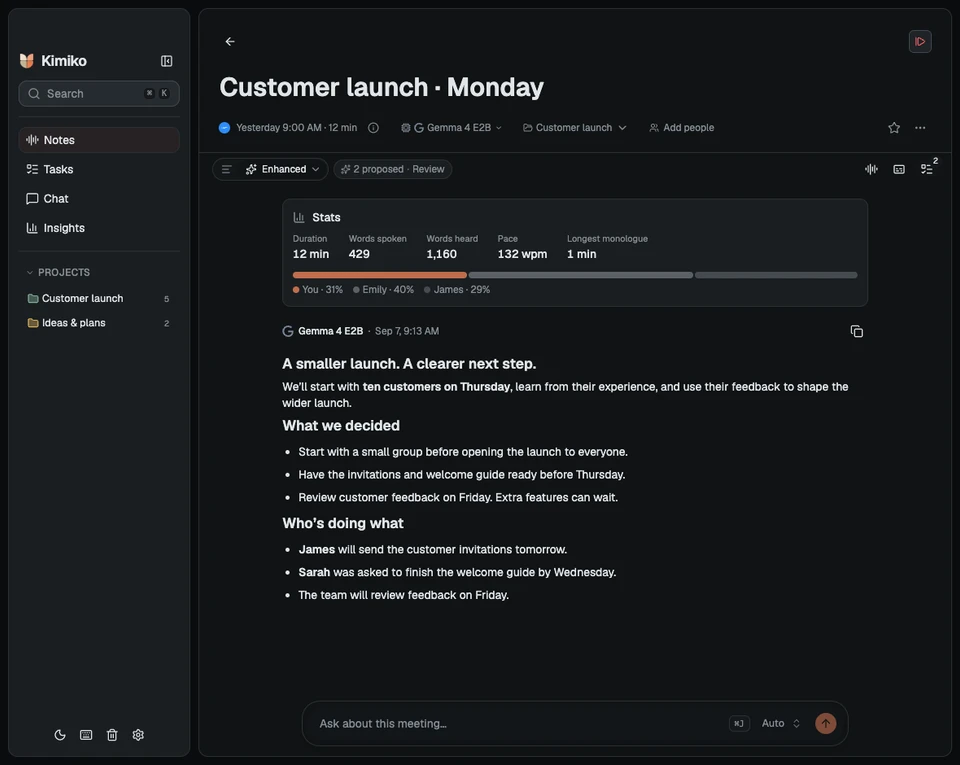
Customer launchExample
What we decided
Ten customers.
Thursday.
Start small before the wider launch.
Tasks3 proposed
- Send the customer invitationsTomorrow
- Finish the welcome guideWednesday
- Review customer feedbackFriday
Write freely. Refine when you’re ready.
Start a note without recording. Give an idea room to grow with headings, checklists, tables, and images. When you want a clearer version, let AI polish your writing.
- Keep your original alongside the polished note
- Edit the result and revisit earlier versions
- File notes and meetings in the same project
For meeting summaries, describe a change to AI, review the revision, and choose whether to save it.
Find the answer between the meetings.
“How has the plan changed?” Ask about one meeting, bring selected notes into the conversation, or look across a project. Kimiko helps connect what was said with what you wrote.
- Ask during a call or return to it later
- Follow transcript citations to the original moment
- Draft a follow-up or pull together your next steps Explore AI chat
Friday Google Meet
Launch planning
The first idea: fifty customers.
1
Monday Zoom
Customer launch
Start with ten. Learn first.
2
ChatExample
How has the launch plan changed?
Kimiko
On Friday, the team considered inviting all fifty customers. [1]
1 Launch planning · Friday · 00:052 Customer launch · Monday · 02:14
Calendar sync
Your next meeting, already in view.
See upcoming meetings from Google Calendar or Outlook. Join and record from Kimiko, with the title and invitees already in place.
- Google Calendar
- Microsoft Outlook

MCP connector
Bring your meeting context along.
Use your meeting notes in Claude, Raycast, and other desktop AI apps. Prepare for a call, draft a follow-up, or pull together a weekly review.
Your connected assistant
What should I know before our next launch call?
Context from Kimiko
The team agreed to start with ten customers on Thursday.
- James is sending the invitations.
- Sarah is finishing the welcome guide.
- Friday’s review will shape the wider launch.
Customer launchMeeting notes
Enable access in Settings → Connections, then add Kimiko in your AI app’s local MCP settings.
Your connected assistant’s data policies apply to the content it reads.
 Claude
 Raycast AI
 Chatbox
 Msty Studio
 Cherry Studio
 LM Studio
 Codex
Codex Cursor
 VS Code
 Gemini CLI
 Windsurf
 Zed
Zed Warp
Warp
Meeting notes for the calls you already have.
- Zoom
- Google Meet
- Microsoft Teams
- Slack
 Webex
Webex FaceTime
Kimiko captures audio from your computer. No meeting bot or service integration needed.
Speak your language.
Transcribe meetings and dictate in supported languages. Choose a separate language for your recap.
EnglishУкраїнська日本語EspañolDeutschFrançaisPortuguês한국어Italianoहिन्दीPolskiNederlandsSvenskaΕλληνικάTürkçe中文ČeštinaSuomiTiếng ViệtDanskBahasa IndonesiaNorskไทยRomână
Read the recap in your language.“Let’s start with ten customers on Thursday.”Start with ten customers on Thursday. Learn from the smaller group before opening the launch to everyone.Your original transcript stays as spoken.
Speech language support varies by model. Meeting and dictation languages can be set separately.Check language support
Local by default. Cloud by choice.
Start with the recommended local setup. Download the models during setup; no separate AI account is needed. Connect a cloud provider later if you want. Choose your setup
Your voice. Your notes. Your choice.Explore a setup below
Turn speech into text
For meetings & dictation
Whisper OpenAI’s model, on your device
Parakeet NVIDIA’s model, on your device
Kimiko Brings it all together
Make sense of it all
For summaries, answers & tasks
Gemma Built-in local AI
Qwen Built-in local AI
Speech and AI run on your computer
With your models downloaded, transcribe meetings, write summaries, and ask about your notes locally.
Clear meeting notes Words, without typing Next steps, ready to do
Already have a local setup?OllamaLM Studiowork here too.
Cloud connections may need your own account or API key.
Provider pricing applies.
Transcribe Summarize Ask
It stays with you.
Your notes live on your computer. Local AI can handle the whole meeting, from transcription to the next question you ask.
- Local processing from the start
- Audio saving is off by default
- Anonymous usage reports are off by default
Cloud processing only when you choose.
All of Kimiko. A plan that fits.
The same full app, billed monthly or annually.
Already a subscriber? Manage your subscription
Prices in USD, tax included. Any currency conversion is shown at checkout.
Optional cloud providers charge separately. Local AI has no cloud usage fees.
Frequently asked questions.
Is Kimiko private out of the box?
Yes. Kimiko starts with local transcription and offers built-in AI for summaries, tasks, and chat. Your notes are stored on your computer. Cloud processing stays off unless you connect a provider, and anonymous usage reports are off by default too. If you choose a cloud provider, the audio or text needed for that feature is sent to it.
See how Kimiko protects your privacy
How does the free trial work?
Your trial starts with your first recording and lasts 14 days or 5 meetings, whichever lasts longer. No credit card is needed. Download the app and try it with your own meetings before choosing a subscription.
Which computers does Kimiko support?
Kimiko is available for Apple silicon Macs running macOS 14.4 or later, and for 64-bit PCs running Windows 11. For local processing, 16 GB RAM is a practical starting point on Apple silicon Macs and Windows PCs with dedicated graphics. Needs vary by model and computer.
See recommended system requirements
Which languages does Kimiko support?
Kimiko’s interface is available in English, German, French, Spanish, Italian, Polish, Ukrainian, and Russian. The languages it can transcribe depend on the speech model you choose. Summaries can be written in English, Ukrainian, Russian, German, French, Spanish, Italian, Polish, Portuguese, or Dutch, whatever language the meeting was in, and the transcript stays as spoken. This website is available in English, German, French, Spanish, Italian, Polish, Ukrainian, and Russian.
Do I need an AI subscription or API key?
No. Local speech and AI are included in Kimiko. Download the recommended models during setup and use them without a separate AI account. Cloud providers are optional: connect your own account or API key if you choose one. Their charges are separate from your Kimiko subscription.
What happens when my trial or subscription ends?
Your existing notes and meetings remain available to read, search, chat with, and export. A subscription is needed after the trial to record new meetings, dictate, import audio, or retranscribe recordings.
How do I manage or cancel my subscription?
Sign in to your Kimiko account with the email you subscribed with. From your subscription page, you can update your card or cancel on Stripe’s secure billing page. If you cancel, Kimiko keeps working until the end of the period you paid for.
I got a new computer. How do I move Kimiko?
Install Kimiko on the new computer, open Settings → License, paste your license key, and select Activate. Your key is in your Kimiko account and works on up to 3 computers. If all 3 are in use, first remove the old computer under License & computers in your account, or select Deactivate in Kimiko on the old computer.
Can I use Kimiko offline?
Yes. Once the local models are downloaded, transcription, summaries, dictation, and chat can run on your computer. Internet is needed for downloads, activation, subscription verification, and any cloud services you choose.
What can Kimiko help me with?
Kimiko brings your written notes, meeting conversations, and next steps into one private workspace. Write and polish notes, capture meetings, and ask AI about a single note or a whole project. Review suggested tasks and keep them connected to the conversation. Dictation in other apps is included too.
Does a bot join my calls?
No. Kimiko captures your microphone and computer audio, so it works alongside apps like Zoom, Microsoft Teams, and Google Meet without adding another participant. It can detect a call and offer to start taking notes.
Can Kimiko recognize speakers in future meetings?
Yes. Name a speaker and select “Remember this voice.” With the recognition model downloaded and enough speech captured, Kimiko saves a voice signature in its encrypted database on your computer. When that voice matches in a later call, Kimiko suggests the saved name. You confirm matches by default; automatic naming is optional. Recognition is experimental and can be wrong, and saved voices can be deleted in Settings. Live speaker labels distinguish up to eight remote voices at a time; your microphone is labeled “You.”
See the remembered-voice example
Can I use Kimiko for notes without recording a meeting?
Yes. Create a standalone note and write with headings, lists, checklists, tables, and images. Use “Polish my notes” when you want a clearer version, while keeping the original. File notes alongside meetings in a project and bring them into AI chat as context.
Can I dictate into other apps?
Yes. Use your dictation shortcut, say what you want to write, and Kimiko puts the text where you’re typing. Use it for emails, messages, documents, and more. Optional formatting helps turn spoken thoughts into cleaner writing.
What can I ask AI about my notes and meetings?
Ask about one meeting, selected notes, a project, or your library. Compare decisions across calls, find open questions, draft a follow-up email, or ask what has been agreed during a meeting in progress. Transcript citations let you check the original conversation. Answers depend on the available context and can be wrong, so review them before relying on them.
Can I export my notes?
Yes. Export your summary, notes, or transcript as a PDF, Word document, or Markdown file. Exporting your existing work remains available after your trial or subscription ends.
Try Kimiko with your next meeting.
Try the full app for 14 days or 5 meetings, whichever lasts longer.
Your trial starts with your first recording. No credit card needed.
Moving to a new computer? Your license key is in your account.
Running locally? 16 GB RAM is a practical starting point on Apple silicon Macs and Windows PCs with dedicated graphics. Needs vary by model and computer.See recommended system requirements