Agent-VScreen
Android ऐप जो किसी भी ऑन-फ़ोन AI एजेंट को बैकग्राउंड में वर्चुअल स्क्रीन देता है: ऐप लॉन्च करें, टैप करें, स्वाइप करें, टाइप करें और स्क्रीन पढ़ें (ऑन-डिवाइस OCR, UI एलिमेंट, स्क्रीनशॉट), बिना आपकी स्क्रीन पर नियंत्रण लिए। MCP, CLI और HTTP; Shizuku, रूट की आवश्यकता नहीं।
दस्तावेज़

Agent-VScreen





A background second screen for any phone agent.
中文 · English
Agent-VScreen opens and drives other apps on an invisible virtual display, so your own screen stays yours. All you see is a small floating window showing what the AI is doing, which you can take over or stop at any moment.
Any agent on the phone can use it: agents with a terminal use the vscreen CLI, agents that speak MCP use MCP, and your own code can use plain HTTP.
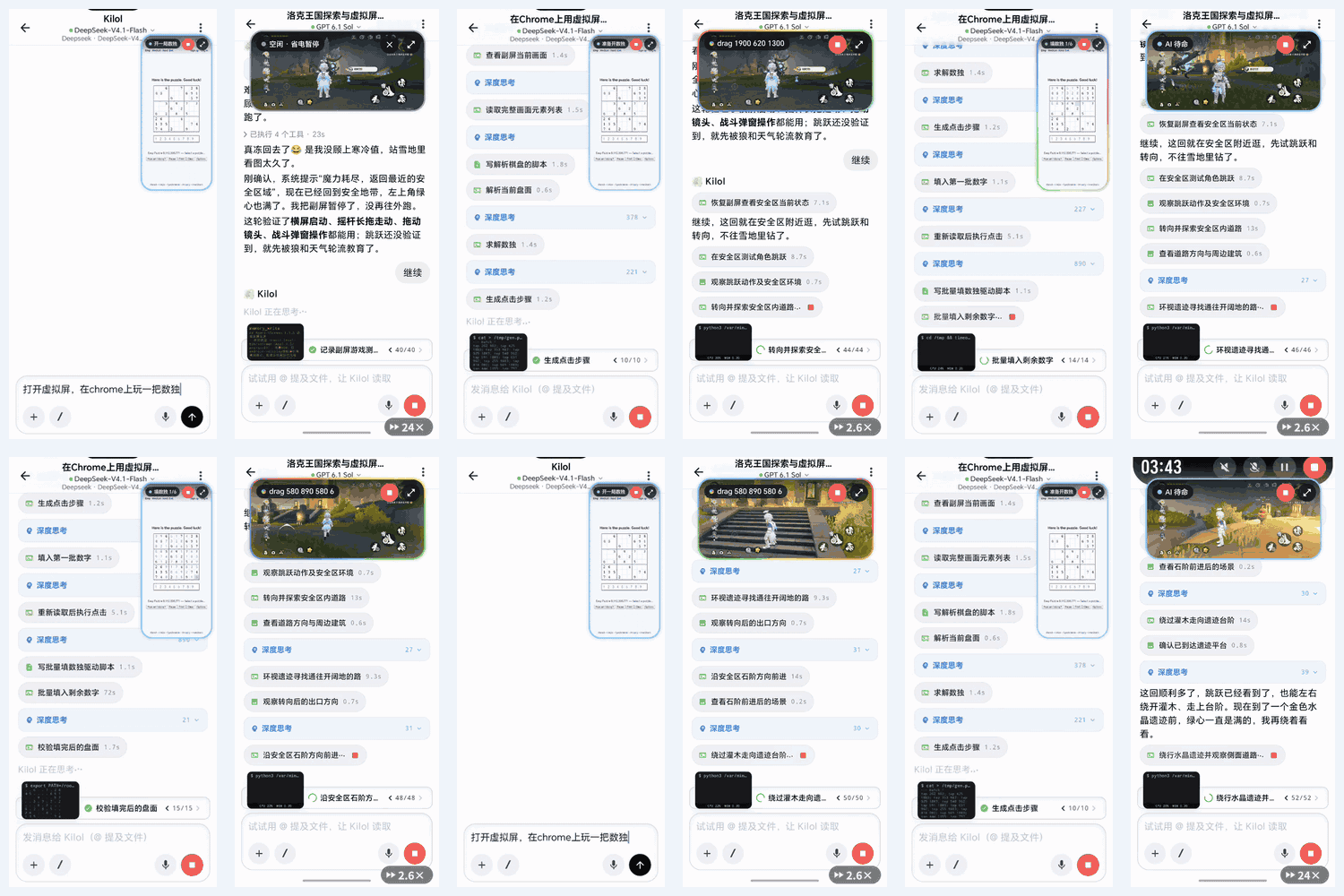
Left: an agent solves sudoku in Chrome on the background screen (8x speed). Right: an agent plays Roco Kingdom in landscape, walking with the joystick, dragging the camera and handling battle pop-ups (2.6x speed). In both, the user's own screen stays on the chat app.
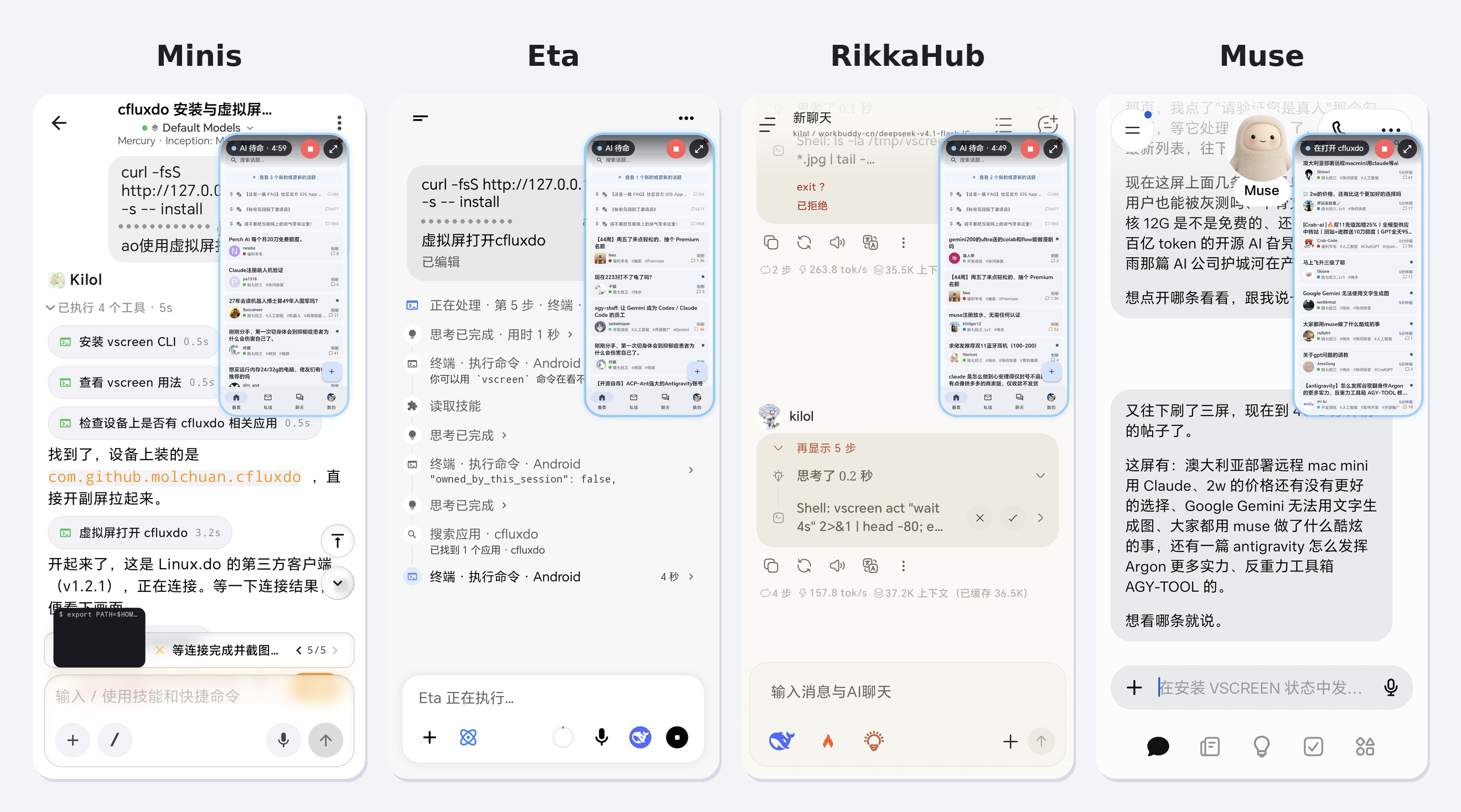
One install command: four different Android agents (Minis, Eta, RikkaHub, Muse) all connect and drive the background screen.
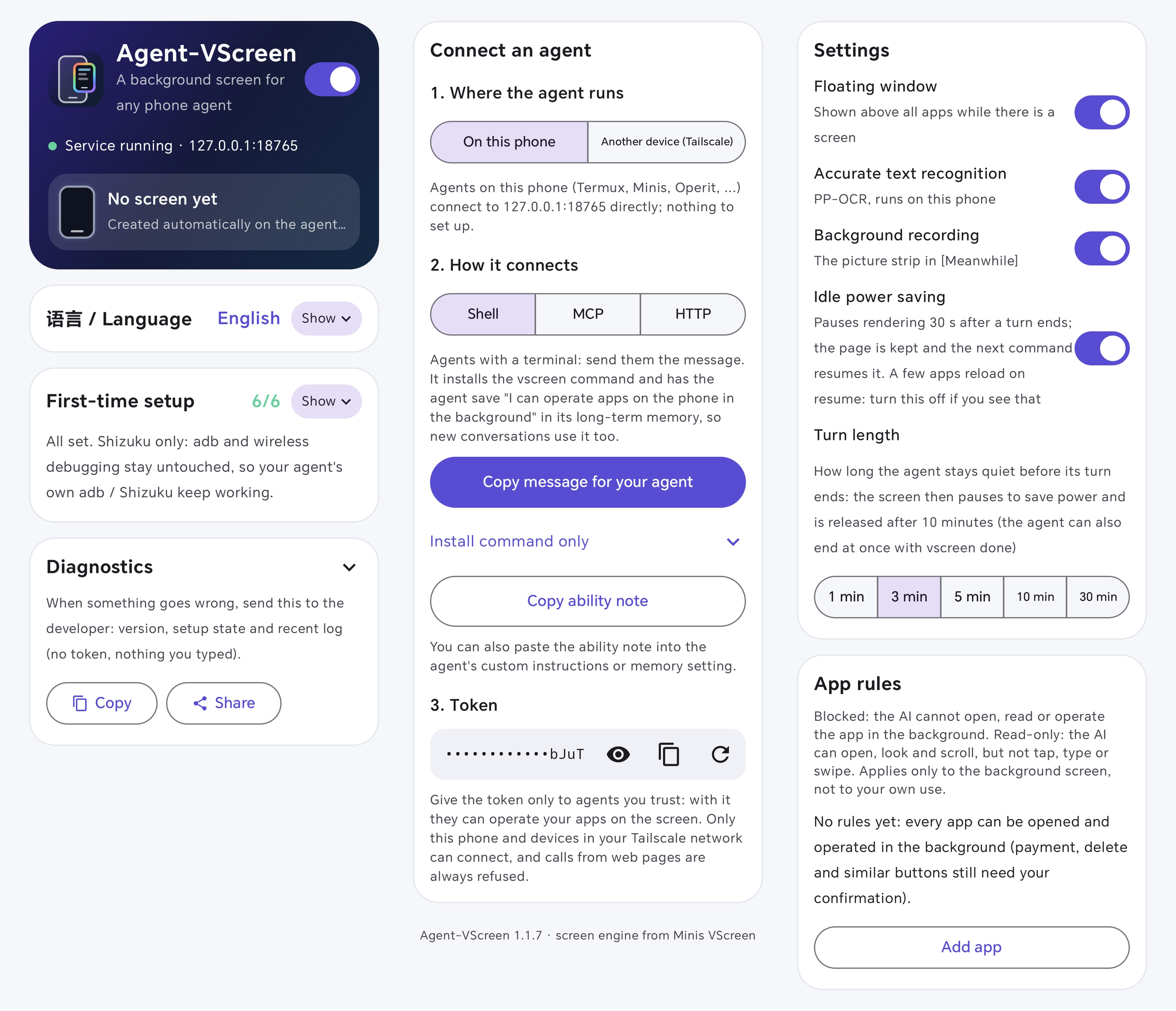
The app: language switch, first-time setup, connecting an agent (this phone / Tailscale, CLI / MCP / HTTP), settings, app rules and diagnostics.
- Version: 1.2.0 (versionCode 13) · Download APK
- Package:
com.kilon.agentvscreen - Android 11+ (Android 14+ recommended), arm64
- Privileges: Shizuku only, no root
What it does
- Drives apps in the background: launch apps, tap, swipe, type, press keys and wait for the screen to change on the virtual display, verifying every step.
- Reports the screen back: after each action it returns the current screen, visible text and tappable elements, plus a screenshot. Built-in offline OCR (PaddleOCR, on device). The app calls no LLM itself; your agent's own model decides what the screen means.
- Watches: keep an eye on the background screen for a condition (say, some text appearing) and notify the agent when it is met.
- Floating window:
- The border color shows who has the screen: rainbow while the AI works, blue when idle, green when you have taken over, red when you stopped it;
- Drag to move, pinch to resize, fling to throw it; fling to a corner to shrink, push to the edge to fold it into a tab;
- Press and hold the picture for 1 second to take over;
- × closes it with one tap: while the AI is working it only hides the window and the AI keeps going; with no task it closes the background screen;
- "Stop AI" at the bottom left is the only thing that stops the AI; a persistent notification with "Allow to continue" releases it.
- Leaves your agent's own access alone: it does not take adb, touch wireless debugging or restart adbd. One-tap setup only adds this app and never changes other apps' settings.
- App restrictions: block apps entirely or make them read-only for the AI. Payment, delete and similar buttons still need your confirmation.
More than a background screen: the scaffold around it
Agent-VScreen is more than a virtual screen an agent can use: it builds a whole scaffold around the background screen so that your own agent operates it directly, sees it clearly, keeps up with time, and knows whether each step really worked.
- Time awareness: while the agent works, the screen is looked at about 5 times a second and its text read about once a second, with timestamps. So every result's [Meanwhile] block tells what text appeared, disappeared or flashed from the last result until now (including the seconds the agent spent thinking or calling other tools), where the picture changed and for how long, with a contact sheet when it changed. Countdowns, loading, animations and pop-ups are not missed.
- Waiting and watching: after any action add an
untilcondition (text appears, text disappears, picture changes, picture is still, a pixel's color, a given app is in front) with a time limit; if it never comes, the result says so.--stopis watched for the whole stretch,--watchkeeps looking after the steps.--keep notify|wakekeeps watching after the turn ends and notifies the user or wakes the agent when the condition shows up. For realtime games, saved pause and resume steps make every stretch resume first and pause at the end, so the game becomes turn-based. - Seeing clearly: the accessibility tree and on-device OCR (bundled ML Kit, optionally the more accurate PP-OCRv6 small, both offline on the phone) are merged into numbered elements with coordinates, so
tap #Nandtap <text on screen>both work. OCR is split per character, so tabs on one line are separate targets and a part of a line can be tapped at its own center. There is also local color-spot finding (spots), zoom with a coordinate ruler (zoom), and scroll-and-collect of a whole page's text with deduplication (collect). - Every step checked: a step that misses (until never came, the text is not in the box, focus is not where you tapped) stops the stretch there, skips the rest and describes the screen now; a missed tap lists the closest candidates.
- Working with others: sessions let several agents take turns on one screen (
BUSYsays whose it is and when it frees up);handoff in/outtakes over an app the user has open on the main screen or hands it back; the user can take over or stop the AI at any time; per-app rules (blocked or read-only) and a confirmation stop for payment buttons (CONFIRM_REQUIRED). Each app can also keep notes and saved step segments (--save/use) that the next launch lists. - No model inside, no fight over privileges: the phone side calls no model; the caller's model decides what the screen means. Only Shizuku is used: no wireless debugging pairing, no adb.
Install and set up
The app UI is in Chinese for now; button names below are translated.
- Install the APK and open Agent-VScreen.
- Make sure Shizuku is running, then tap Grant Shizuku.
- Tap One-tap setup for the overlay, notifications, read-only accessibility, battery optimization and background running. On Honor, Huawei, Xiaomi, OPPO, vivo and similar phones, also open System background management and allow auto-start and background activity.
- In Connect agent, tap Copy message for agent and send it to your agent as is. It installs the
vscreencommand and saves a short guide into its own long-term memory, so new conversations know the tool is there. The home screen shows whether it remembered. Then:
vscreen launch Settings
vscreen act "tap Search; type About phone; key enter until text:About phone"
vscreen help all
Use with Operit
Operit is just an example here; nothing is tailored to it. Other Android agents on the same phone work with the default install from "Connect an agent" (command line, MCP or HTTP), and cloud or desktop agents connect over Tailscale (see the next section).
There are two ways; pick one:
- ToolPkg (recommended): import
agent-vscreen.toolpkgbuilt fromintegrations/operit(also in Releases), send the token to Operit's AI to save, and it works; screenshots go straight to the model. See that folder's README. - Remote MCP: Operit and Operit 2 can both connect to remote MCP servers with no plugin, as follows.
- Finish the first-time setup in Agent-VScreen and make sure the service is running.
- Copy the token under Connect an agent → MCP.
- Open Operit's MCP management page, tap Import/Connect → Connect remote, and fill in:
- Name (plugin ID):
vscreen - URL:
http://127.0.0.1:18765/mcp(18765 is the default port; use yours if you changed it in the app) - Connection type:
httpStream - Bearer Token: the token you just copied
- Name (plugin ID):
- Save and turn its switch on. Remote plugins need no "Deploy"; once the status shows active it is ready.
- Try in a chat: "Use vscreen to open Settings on the virtual screen and tell me the system version."
You can also use Config import: paste the JSON below and tap Merge config:
{
  "mcpServers": {
    "vscreen": {
      "url": "http://127.0.0.1:18765/mcp",
      "headers": { "Authorization": "Bearer <token>" }
    }
  }
}
Notes:
- Operit and Agent-VScreen must be on the same phone. If Operit runs on another device, replace the URL with the Tailscale address (see the next section).
- Operit's own screen tools and vscreen can coexist. To keep it on the background screen only, add to the character prompt: "Always use the vscreen tool to operate other apps; never touch the main screen."
- The token equals control of this phone: don't paste it into public character cards, shared configs or screenshots.
Connecting from other devices (optional, off by default)
The service only listens on 127.0.0.1:18765. To call it from a computer or another phone, choose Another device (Tailscale) in step 1 of "Connect an agent", then Built-in: no Tailscale app needed and no system VPN slot taken; sign in to Tailscale once inside the app and only devices on your own tailnet can reach it. Tailscale app mode and SSH port forwarding also work.
A self-hosted Headscale works too: enter its address under Advanced (for example hs.example.com; https:// is added for you), then open the registration page or use a pre-auth key. Each server keeps its own login. The built-in node only carries what other devices send to Agent-VScreen, not the phone's own internet traffic, so it has no exit node. If the phone needs an exit node to get online, keep the Tailscale app on and choose Tailscale app mode.
The Tailscale setup sits right under that choice. Once connected, the message for your agent, the install command, the MCP config and the ability note all switch to the Tailscale address.
The app speaks Chinese or English (the Language card on the home page: System / 中文 / English), and so does everything it tells the agent.
The token equals control of the phone, so the app never offers a public link.
What's new in 1.2.0
This version rebuilds the command gate, the reply format, the security model and the guide for agents, and went through two real-phone regression rounds with docs/TASKS.md (Honor Magic 7, MagicOS 11). The upgrade table from 1.1 is in section 9 of API.md.
-
Structured results: every reply carries
ok,codeandnext(look at the screen / fix the command / ask the user / retry later), plus each step's status, the screen's elements and the notes. A stretch that stops at a step is a failure; no reading text to find out. The new API is/v2;/v1is unchanged and stays for one more version. -
One command table: option checks, help, MCP tool schemas and the docs are generated from it. MCP has one tool per command besides
vscreen. -
More precise taps: text that appears several times is listed with coordinates instead of tapping the first; a
#numberwhose element moved away is not tapped at its old place; an action that changed nothing is flagged. -
Shorter waits: a page left with only a spinner or blinking cursor counts as settled. Perception is driven by new frames.
-
One input path: taps, swipes and keys are injected by the display service; dumpsys parsing and shell
inputare gone. -
A token per agent: look-only / operate / everything, revoked separately, with separate sessions.
-
Signed requests: from another device the token never travels, requests cannot be replayed or altered, and replies are verified. The CLI does it by itself.
-
The user confirms on the phone: payment, irreversible steps, force-stop, taking an app off the main screen, and apps set to "ask every time". A flag added by the agent no longer counts. A trusted agent can be given 30 minutes without confirmations.
-
Activity log: who ran which command, when, with what result. Typed text is recorded as a length only.
-
Harder to knock over: connection cap, request size and time limits; a command stops when its caller disconnects; a resent request never runs twice; long work can run
--asyncand be collected withtask; commands queue. -
Events are not lost: kept until the next fetch, re-fetchable, stored on disk; watches resume after an app restart; the event broadcast goes only to an app you name.
-
A rewritten guide for agents: built around one loop (look → act → check), with what to do next for each result code;
vscreen guideis one page. -
Hands-off by default: Permissions in the app has two levels. The default, "hands-off", asks you on the phone only for the step that actually spends money (pay, place order, transfer, top up) and for apps you set to "ask every time"; "careful" also asks for irreversible buttons such as delete, steps toward a purchase, force-stop and taking an app off the main screen. The "clear" button next to an input box is no longer treated as irreversible.
-
A new page layout: the home page goes Connect → Permissions → Settings → Activity log; permissions live in one place (level, app rules, tokens) and settings are grouped (floating window / background screen / reading and recording).
-
A smoother floating window: its picture is scaled to the size shown at 20 frames a second (30 while you control the screen) instead of the agent's full-size frames; moving the window updates its position once per display frame, so it stays under the finger; after taking over, your finger reaches the screen as it moves, so lists follow it. A landscape screen opens almost as wide as the phone, and each orientation keeps its own size.
-
Look-only tokens can look: their
act(no steps or only waits) looks at the screen in use;stop --forceandhandoff inneed the "everything" scope. -
Numbers never point at the wrong element: on one screen a number names one element; after a scroll the same element keeps its number and new ones get new numbers. A number whose element left the screen gives STALE_ELEMENT instead of tapping something else.
-
Floating window: a landscape screen opens at about three quarters of the phone's width, and the whole window stays on screen when it appears or turns.
Docs
- API.md (Chinese): the full CLI, MCP and HTTP reference, sessions, watches, permissions and security, the floating window, remote access, known limits and upgrading from 1.1.
- docs/REFERENCE.md: every command option and result code (generated from the source).
- docs/TASKS.md: the fixed task set to run on a real phone before a release.
Build from source
JDK 17 and the Android SDK (compileSdk 36).
echo "sdk.dir=/path/to/android-sdk" > local.properties
./gradlew :app:assembleRelease
Built-in Tailscale is a small Go program (tsbridge/, Go 1.21+). Run tsbridge/build.sh once before building to produce app/src/main/jniLibs/arm64-v8a/libtsbridge.so; without it the APK still builds, just without built-in Tailscale.
Release signing is optional: copy keystore.properties.example to keystore.properties and fill it in. Otherwise release builds are signed with the debug key.
License
MIT. The bundled OCR models (app/src/main/assets/vscreen-ocr/) come from PaddleOCR under their own Apache-2.0 license.