easyrender
Remote image-to-3D MCP: turn one product photo into a free multi-angle preview, then build a textured GLB/USDZ model with account credits.
होस्ट किया गया MCP सर्वर
npx add-mcp 'https://easyrender.ai/api/mcp'Claude Code, Codex, Cursor और अन्य में इंस्टॉल होता है
दस्तावेज़
Input photo
Mesh · 2,400
Depth
Normals
PBR render
Element
Swivel armchair
From an agent request to a 3D asset.
See how a photo moves through the MCP tools, then inspect a real showcase result below.
Your agent · easyrender MCP
Illustrative conversation and tool sequence. No request runs on this page.
Turn this table photo into a 3D model. Show me the preview, then wait for my approval before building.
In this example, you instruct your agent to wait for approval. Configure that behavior in your client; the paid tool itself does not enforce a confirmation dialog.
Planning a catalogue? Review and approve each object before building its model.
A budget example, not a completed batch. Your agent must create and track each render separately. Extra edits and AI-client charges are additional.
- create_render Submit the product photo and request the free preview.
- get_render Poll for the preview and return its link for inspection.
- get_credits Check the balance and current full-build credit cost.
- render_3d After your approval, request the paid build. Poll get_render until ready, then retrieve the GLB link.
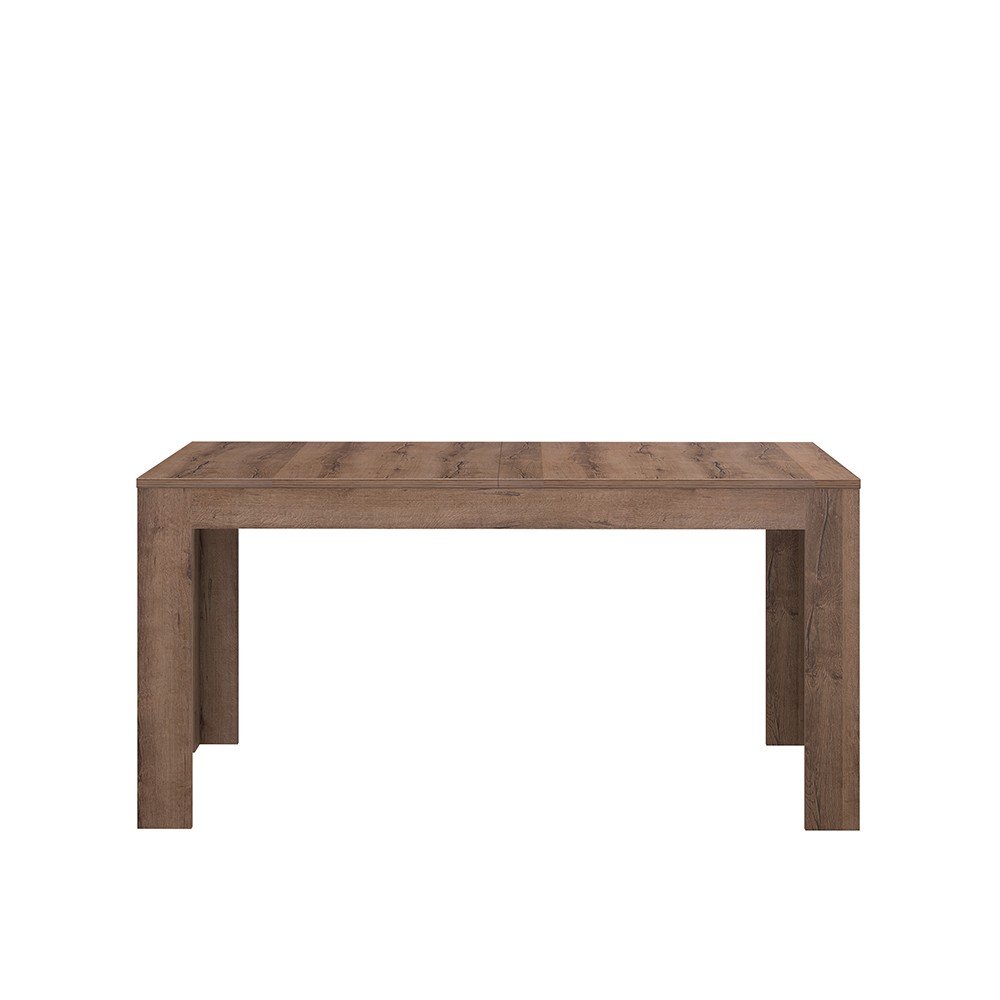
0 1 Source photo One clear image of the object. No 3D file or multi-camera capture required.
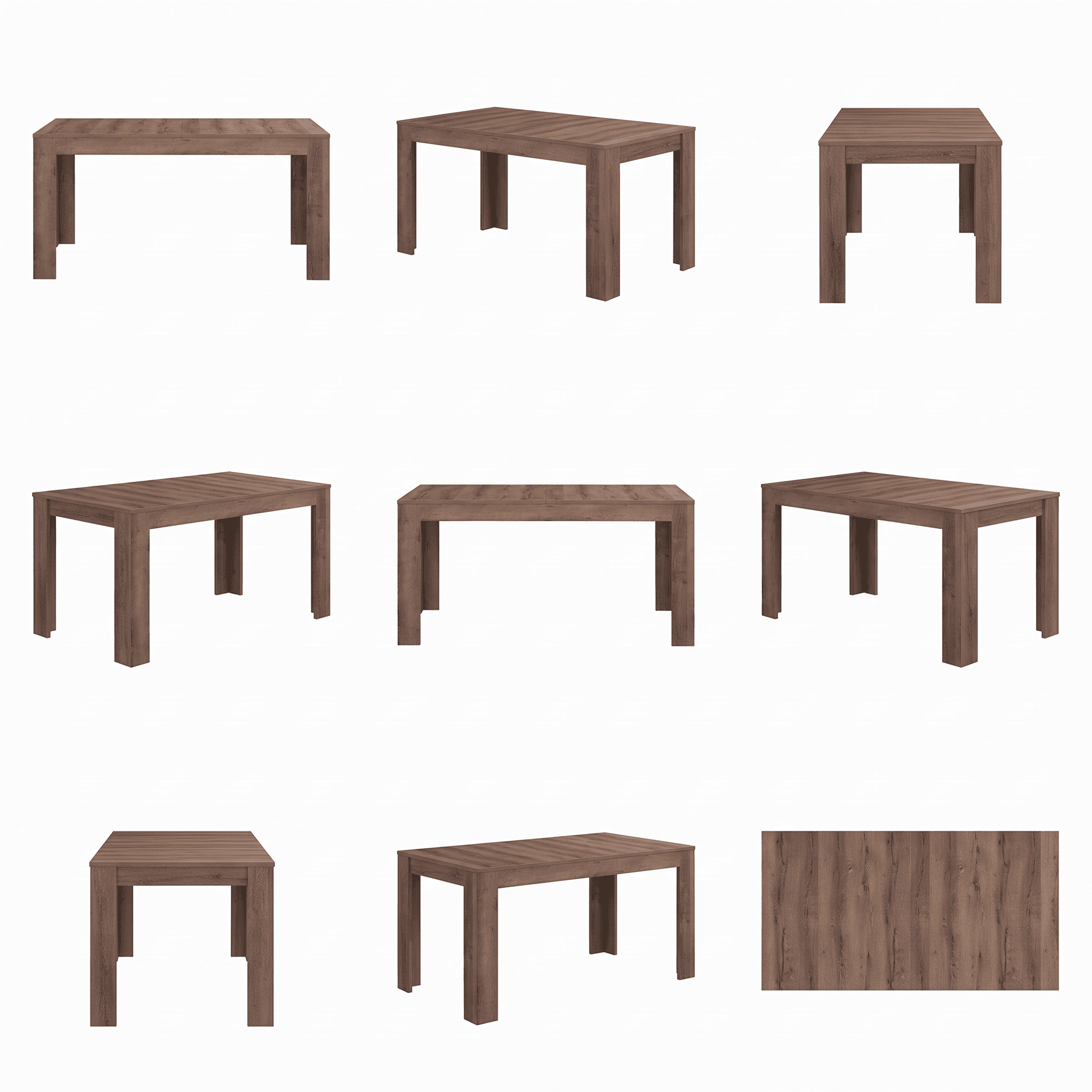
0 2 Generated angle sheet See how the object is interpreted from different sides before using the final asset.
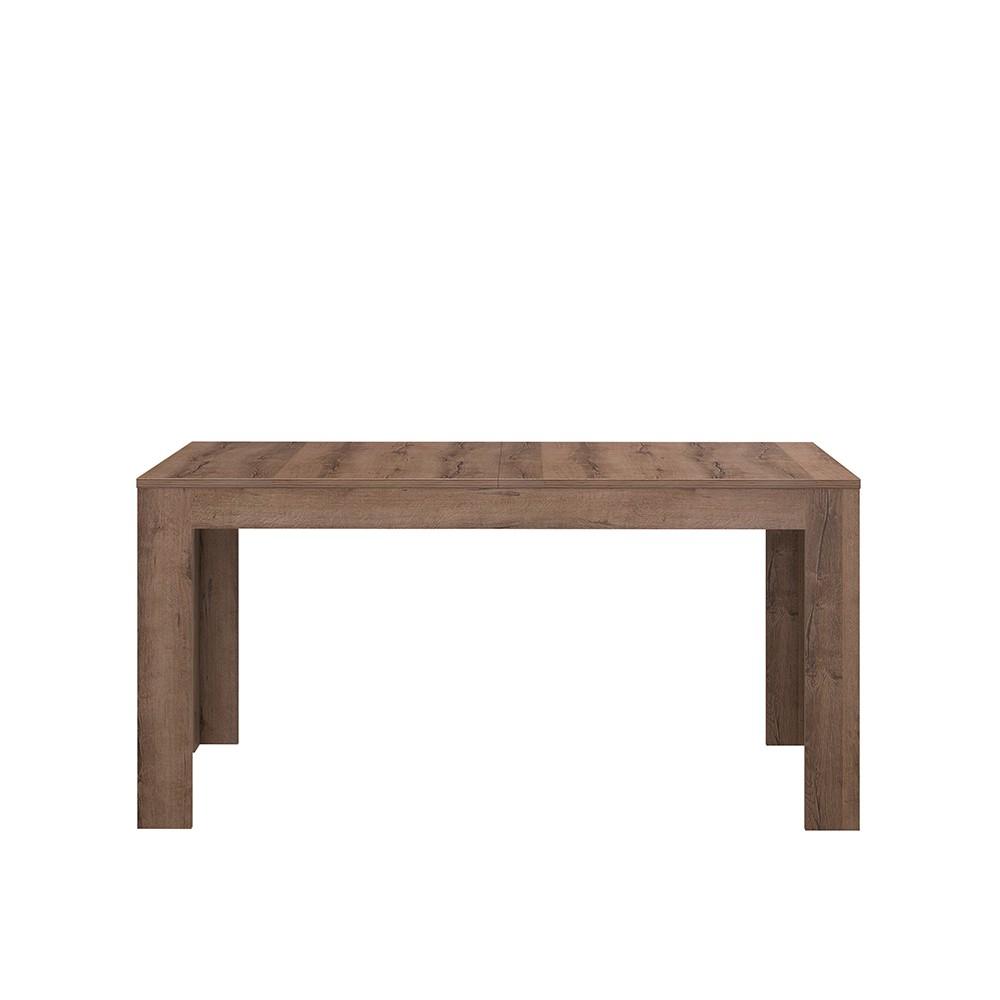
0 3 Textured GLB Drag to rotate the model. Download it to inspect in your own 3D viewer.
What you can inspect
These files are unchanged copies of an existing public easyrender table render. The source photo, angle sheet and GLB belong to that same render. This is a pre-generated sample, not a live API or MCP recording.
Generation status
This existing example has no verified end-to-end duration. Follow your own render status to know when its files are ready.
Pre-generated showcase assets, not a live request. This sheet is a finished example; the initial preview is watermarked. Geometry is approximate and unseen surfaces are inferred.
The product asset your next project needs.
Work with your own photos, inside the conversation where you are already building.
Setup guides included for
- Claude
- Claude Code
- Claude Desktop
- Cursor
- VS Code
Furniture & decor
Turn a photo of a chair, lamp or decor object into a model you can inspect from every angle.
Product pages & prototypes
Building a product page in Cursor or Claude Code? Ask the agent to generate a GLB from your product photo, download it and use it in the viewer you are developing.
Repeatable asset workflows
Create a repeatable task for each product: submit its photo, review the preview, approve the cost and retrieve the model. The same renders remain available in your web library.
Review before you build
The preview is free, subject to your account’s preview limits. Inspect the angles before deciding to build the GLB.
Ask your agent to read pending_credits with get_render, check your balance with get_credits and wait for approval before building. Your AI client may charge separately.
One photo. A preview. Your GLB.
Your agent calls the tools. You choose when to spend credits.
-
Send a product photo
Provide a JPEG, PNG or WebP image. Your agent starts a preview and checks until it is ready. -
Review before the paid build
Review the generated angles. Ask your agent to check pending_credits with get_render and your balance with get_credits. Approve the amount before it calls render_3d with max_credits. -
Build and retrieve the model
The build runs asynchronously. Your agent checks the status, then retrieves the GLB with your authenticated connection.
Example request to your connected agent
Turn this product photo into a 3D model. Show me the preview and the credit cost first. Wait for my approval before building the GLB. Once it is ready, download the model.
Illustrative workflow. Use your own photo; the preview and model are generated when you run the tools.
Core photo-to-3D workflow
create_render
Start the angle-sheet preview from a photo.
get_render
Check progress and retrieve the result links.
get_credits
Check your balance and the reference price of a full build.
render_3d
Build the textured GLB with the approved credit ceiling.
Made for individual objects. Generated geometry is approximate, without guaranteed real-world dimensions or manufacturing precision.
Give your agent a 3D tool.
Use the Easy Render MCP endpoint with your account. Choose your client below for its setup instructions.
Start with your account
Sign in or create an account to manage your API keys and credits. Use the same account to find your agent’s renders in your library.
MCP endpoint
Claude.ai and Codex can sign in with your account. For a setup that uses an API key, create one in Connectors and replace er_your_key. Keep the key in your client settings.
Choose your MCP client
Your web app, API and MCP use the same account wallet. Paid operations use credits from that wallet; connecting or checking your balance costs no easyrender credits. Your AI client may charge separately.
- Open claude.ai → Settings → Connectors → Add custom connector.
- Paste this URL as the connector URL.
- Click Connect, sign in to easyrender and allow access. No key needed.
https://easyrender.ai/api/mcp
The same sign-in flow works with any OAuth-capable MCP client. Each connection creates a key you can revoke from Connectors.
Your first prompt
Use easyrender to check my credit balance and current operation costs. Do not generate anything or spend credits yet.
Paste this in your connected client. A successful get_credits result confirms that client can reach your account.
Give your agent the photo-to-3D workflow
The skill tells your agent when to show a preview, check credits and resume a render. Connect your account through MCP before using it.
The agent should show the views and the actual remaining cost, then use the budget you approve. If a request times out, it checks the same render before retrying.
- Run the command in your project and choose a compatible agent.
- Connect your easyrender account using the MCP setup above.
- Attach a product photo and tell your agent what to create and when it may spend credits. Read the skill on GitHub
npx skills add easyrenderai/easyrender.ai --skill easyrender-image-to-3d
The installer needs Node.js and npm. Your client must support Agent Skills. You can also copy the skill folder from GitHub. Connect your Easy Render account separately.
Try this with your photo
Use the easyrender-image-to-3d skill to turn this product photo into a GLB. Show me the preview and cost before spending any credits.
The skill is open source under the MIT license. Check the current cost with your agent before approving a build; your AI client may charge separately. Instructions are in English, and the agent can respond in your language.
Before you connect
Do I need an Easy Render account?
Yes. MCP requests use your Easy Render account. The setup below shows account sign-in for Claude.ai and Codex and API key settings for the other listed setups.
Can my agent use a local photo?
create_render accepts exactly one image source: a public HTTPS URL, raw base64 data, or an upload_id from an authenticated upload. For a local photo, your client must be able to upload or encode the file. JPEG, PNG and WebP are supported. URL and upload inputs allow up to 4 MiB; inline base64 is limited to 3 MiB minus 16 KiB of decoded image data. An upload_id expires after one hour.
When are credits spent?
The angle preview is free within your usage limit. Before calling render_3d, have your agent read pending_credits from get_render and check your balance with get_credits. Ask the agent to wait for your approval and send the approved ceiling as max_credits. The MCP server relies on the client to show the confirmation. If the build fails, the credits are refunded.
What does my agent get back?
The tools return a render ID, status and links to the render page, preview and GLB. Poll get_render until the model is ready before downloading. Private files require authentication; receiving a link does not make a render public.
Is this a model library or a CAD tool?
Neither. It generates an approximate model of the object in your photo. It does not provide a library of downloadable assets, exact measurements, manufacturing-ready geometry or automatic publication to your store.
How is MCP different from a REST API?
MCP exposes named tools that a compatible agent can discover and call in a conversation. You connect the server in your client instead of writing those tool integrations yourself. This page covers the MCP workflow.
Choose your next step
Learn how to prepare a photo, compare workflows and use the resulting 3D file.