Umami MCP Server
Integrate Umami Analytics with any MCP client like Claude Desktop, VS Code, and more.
दस्तावेज़


Umami MCP Server
Connect your Umami Analytics to any MCP client - Claude Desktop, VS Code, Cursor, Windsurf, Zed, Smithery, and more.
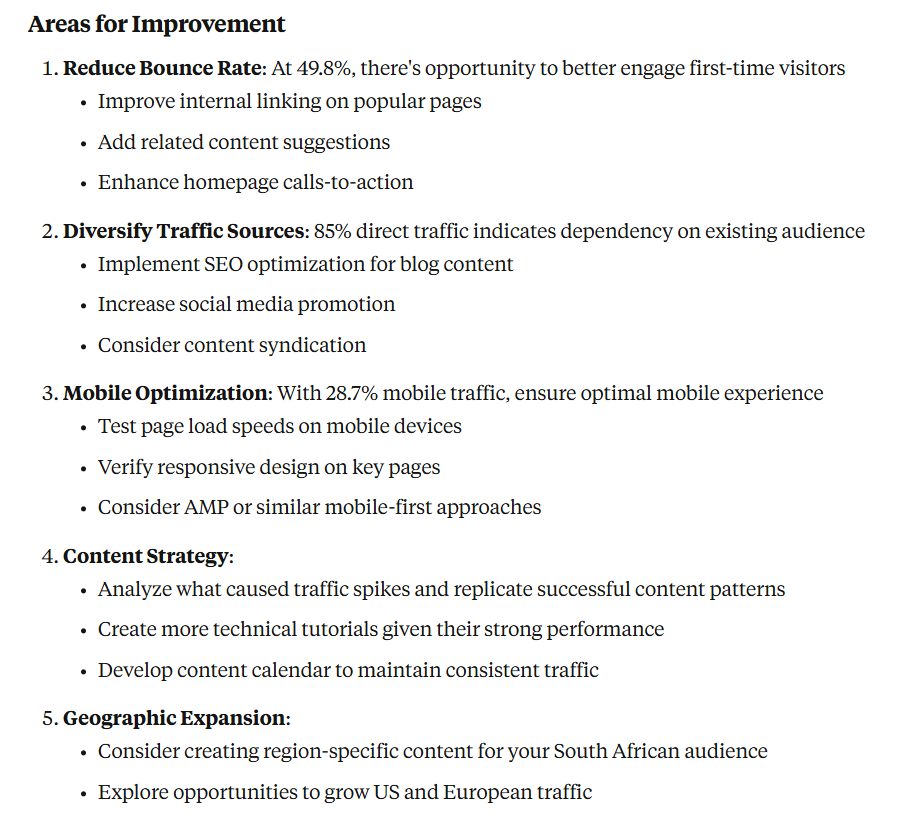
Prompts
Analytics & Traffic
- "Give me a comprehensive analytics report for my website over the last 30 days"
- "Which pages are getting the most traffic this month? Show me the top 10"
- "Analyze my website's traffic patterns - when do I get the most visitors?"
User Insights
- "Where are my visitors coming from? Break it down by country and city"
- "What devices and browsers are my users using?"
- "Show me the user journey - what pages do visitors typically view in sequence?"
Sessions & Replay
- "How many sessions were recorded last month? List the most active ones"
- "Walk me through what session did — the pages and events in order"
- "Which recorded sessions came from mobile in Sweden?"
Real-time Monitoring
- "How many people are on my website right now? What pages are they viewing?"
- "Is my website experiencing any issues? Check if traffic has dropped significantly"
Content & Campaign Analysis
- "Which blog posts should I update? Show me articles with declining traffic"
- "How did my recent email campaign perform? Track visitors from the campaign UTM"
- "Compare traffic from different social media platforms"
Quick Start
Option 1: Download Binary
Get the latest release for your platform from Releases
Option 2: Docker
docker run -i --rm \
  -e UMAMI_URL="https://your-instance.com" \
  -e UMAMI_USERNAME="username" \
  -e UMAMI_PASSWORD="password" \
  ghcr.io/macawls/umami-mcp-server
Option 3: Go Install
go install github.com/Macawls/umami-mcp-server@latest
Installs to ~/go/bin/umami-mcp-server (or $GOPATH/bin)
Setup
Pick one of the two approaches below based on your preference.
Remote (No Install)
A hosted instance is available at https://umami-mcp.macawls.dev/mcp. Connect directly from any MCP client that supports HTTP transport — no binary or Docker needed.
Credentials are passed via X-Umami-* headers on the initialize request.
Claude Desktop
Add to your config (%APPDATA%\Claude\claude_desktop_config.json on Windows, ~/Library/Application Support/Claude/claude_desktop_config.json on macOS):
{
  "mcpServers": {
    "umami": {
      "type": "http",
      "url": "https://umami-mcp.macawls.dev/mcp",
      "headersHelper": "echo X-Umami-Host: https://your-instance.com && echo X-Umami-Username: admin && echo X-Umami-Password: pass"
    }
  }
}
VS Code (GitHub Copilot)
Add to .vscode/mcp.json:
{
  "servers": {
    "umami": {
      "type": "http",
      "url": "https://umami-mcp.macawls.dev/mcp",
      "headers": {
        "X-Umami-Host": "https://your-instance.com",
        "X-Umami-Username": "${input:umami-username}",
        "X-Umami-Password": "${input:umami-password}"
      }
    }
  }
}
Claude Code
claude mcp add --transport http \
  --header "X-Umami-Host: https://your-instance.com" \
  --header "X-Umami-Username: admin" \
  --header "X-Umami-Password: pass" \
  umami https://umami-mcp.macawls.dev/mcp
Cursor
Add to .cursor/mcp.json:
{
  "mcpServers": {
    "umami": {
      "url": "https://umami-mcp.macawls.dev/mcp",
      "headers": {
        "X-Umami-Host": "https://your-instance.com",
        "X-Umami-Username": "admin",
        "X-Umami-Password": "pass"
      }
    }
  }
}
Windsurf
Add to ~/.codeium/windsurf/mcp_config.json:
{
  "mcpServers": {
    "umami": {
      "serverUrl": "https://umami-mcp.macawls.dev/mcp",
      "headers": {
        "X-Umami-Host": "https://your-instance.com",
        "X-Umami-Username": "admin",
        "X-Umami-Password": "pass"
      }
    }
  }
}
OpenCode
Add to opencode.json:
{
  "mcp": {
    "umami": {
      "type": "remote",
      "url": "https://umami-mcp.macawls.dev/mcp",
      "headers": {
        "X-Umami-Host": "https://your-instance.com",
        "X-Umami-Username": "admin",
        "X-Umami-Password": "pass"
      }
    }
  }
}
Other Clients
Any MCP client that supports Streamable HTTP can connect to https://umami-mcp.macawls.dev/mcp with credentials in X-Umami-Host, X-Umami-Username, and X-Umami-Password headers.
Local
Run the binary or Docker image locally. Credentials are set via environment variables.
Claude Desktop
Add to your config (%APPDATA%\Claude\claude_desktop_config.json on Windows, ~/Library/Application Support/Claude/claude_desktop_config.json on macOS):
{
  "mcpServers": {
    "umami": {
      "command": "~/go/bin/umami-mcp-server",
      "env": {
        "UMAMI_URL": "https://your-umami-instance.com",
        "UMAMI_USERNAME": "your-username",
        "UMAMI_PASSWORD": "your-password"
      }
    }
  }
}
VS Code (GitHub Copilot)
Create .vscode/mcp.json:
{
  "servers": {
    "umami": {
      "command": "~/go/bin/umami-mcp-server",
      "env": {
        "UMAMI_URL": "https://your-umami-instance.com",
        "UMAMI_USERNAME": "your-username",
        "UMAMI_PASSWORD": "your-password"
      }
    }
  }
}
Claude Code
claude mcp add \
  umami-mcp-server \
  -e UMAMI_URL="https://your-umami-instance.com" \
  -e UMAMI_USERNAME="your-username" \
  -e UMAMI_PASSWORD="your-password" \
  -- ~/go/bin/umami-mcp-server
Cursor
Add to .cursor/mcp.json:
{
  "mcpServers": {
    "umami": {
      "command": "~/go/bin/umami-mcp-server",
      "env": {
        "UMAMI_URL": "https://your-umami-instance.com",
        "UMAMI_USERNAME": "your-username",
        "UMAMI_PASSWORD": "your-password"
      }
    }
  }
}
Windsurf
Add to ~/.codeium/windsurf/mcp_config.json:
{
  "mcpServers": {
    "umami": {
      "command": "~/go/bin/umami-mcp-server",
      "env": {
        "UMAMI_URL": "https://your-umami-instance.com",
        "UMAMI_USERNAME": "your-username",
        "UMAMI_PASSWORD": "your-password"
      }
    }
  }
}
Zed
Add to your Zed settings under assistant.mcp_servers:
{
  "umami": {
    "command": "~/go/bin/umami-mcp-server",
    "env": {
      "UMAMI_URL": "https://your-umami-instance.com",
      "UMAMI_USERNAME": "your-username",
      "UMAMI_PASSWORD": "your-password"
    }
  }
}
Docker
For clients that use a command field (Claude Desktop, Cursor, etc.):
{
  "mcpServers": {
    "umami": {
      "command": "docker",
      "args": [
        "run", "-i", "--rm",
        "-e", "UMAMI_URL",
        "-e", "UMAMI_USERNAME",
        "-e", "UMAMI_PASSWORD",
        "ghcr.io/macawls/umami-mcp-server"
      ],
      "env": {
        "UMAMI_URL": "https://your-umami-instance.com",
        "UMAMI_USERNAME": "your-username",
        "UMAMI_PASSWORD": "your-password"
      }
    }
  }
}
Available Tools
| Tool | Description |
|---|---|
get_websites | List all websites (call this first to get website IDs) |
get_stats | Aggregated statistics — pageviews, visitors, bounces, total time |
get_pageviews | Pageview and session counts grouped by time unit |
get_metrics | Breakdown by page, referrer, browser, OS, device, country, etc. |
get_active | Current active visitor count in real-time |
get_sessions | List individual visitor sessions, with total count — the sessions session replay records |
get_session_stats | Aggregated session totals — pageviews, visitors, visits, countries, events |
get_session_activity | Ordered pageview/event timeline for a single session |
Configuration
Environment Variables
| Variable | Default | Description |
|---|---|---|
UMAMI_URL | required | Your Umami instance URL (use https://api.umami.is for Umami Cloud) |
UMAMI_USERNAME | required for self-hosted | Umami username |
UMAMI_PASSWORD | required for self-hosted | Umami password |
UMAMI_API_KEY | required for Umami Cloud | API key from your Umami Cloud account (alternative to username/password) |
UMAMI_TEAM_ID | Team ID for team-based setups | |
TRANSPORT | stdio | Transport mode (stdio or http) |
PORT | 8080 | HTTP server port |
ALLOWED_ORIGINS | * | Comma-separated CORS allowed origins |
MAX_SESSIONS | 1000 | Maximum concurrent HTTP sessions |
Config File
Instead of environment variables, create a config.yaml file next to the binary:
umami_url: https://your-umami-instance.com
username: your-username
password: your-password
team_id: your-team-id  # optional
For Umami Cloud, use an API key instead:
umami_url: https://api.umami.is
api_key: your-api-key
Environment variables take priority over the config file.
Umami Cloud
Umami Cloud (the hosted version at cloud.umami.is) does not support username/password authentication. Use an API key from your Umami Cloud account settings and set UMAMI_URL=https://api.umami.is together with UMAMI_API_KEY=.... For HTTP transport, send the X-Umami-Api-Key header instead of X-Umami-Username/X-Umami-Password.
Team Websites
If your Umami instance uses teams and your websites are assigned to a team rather than individual users, get_websites may return an empty list. Set UMAMI_TEAM_ID to fetch websites from your team instead. For HTTP transport, use the X-Umami-Team-Id header.
You can find your team ID in your Umami dashboard under Settings > Teams.
Self-Hosting (HTTP Transport)
The server supports Streamable HTTP for remote deployments. Set TRANSPORT=http to expose a /mcp endpoint:
TRANSPORT=http PORT=9999 ./umami-mcp-server
Credentials are passed via X-Umami-* headers on the initialize request. The response includes a Mcp-Session-Id header for subsequent requests.
Docker defaults to HTTP mode:
docker run -p 8080:8080 ghcr.io/macawls/umami-mcp-server
Build from Source
git clone https://github.com/Macawls/umami-mcp-server.git
cd umami-mcp-server
go build -o umami-mcp
Troubleshooting
- macOS binary won't run:
xattr -c umami-mcp-serverto remove quarantine - Linux binary won't run:
chmod +x umami-mcp-server - Connection errors: Verify your Umami instance is accessible and credentials are correct
- Tools not showing up: Check your MCP client logs, verify the binary path is absolute
License
MIT