Image Generator
Génération et édition d'images avec des fonctionnalités avancées comme le mélange multi-images et la cohérence des personnages.
Documentation
MCP Image Generator 🍌
Generate and edit images from Codex, Cursor, Claude Code, or any MCP client. mcp-image adds visual direction to your request before sending it to Gemini, OpenAI, or BytePlus Seedream.



Tell it what image to create or what to change in an existing image, and what it is for. The result is saved to disk and returned to your assistant.
What It Does
Before generating an image, mcp-image rewrites short requests into more specific prompts. It keeps what you asked for and fills in details such as composition, lighting, and camera angle. The more detail you provide, the less it changes.
You ask:
"A photo of a roast chicken dinner for a recipe site. It should look like it was actually cooked, and it should be partway through being carved so you can tell how juicy it is."
mcp-image sends to the image model:
"... a freshly roasted whole chicken resting on a rustic, seasoned wooden carving board. The chicken features deeply bronzed, blistered, and crispy skin ... It is partway carved, with one breast cleanly sliced open to reveal tender, steaming-hot white meat glistening with natural juices pooling slightly onto the board ... shallow depth of field with a softly blurred background."
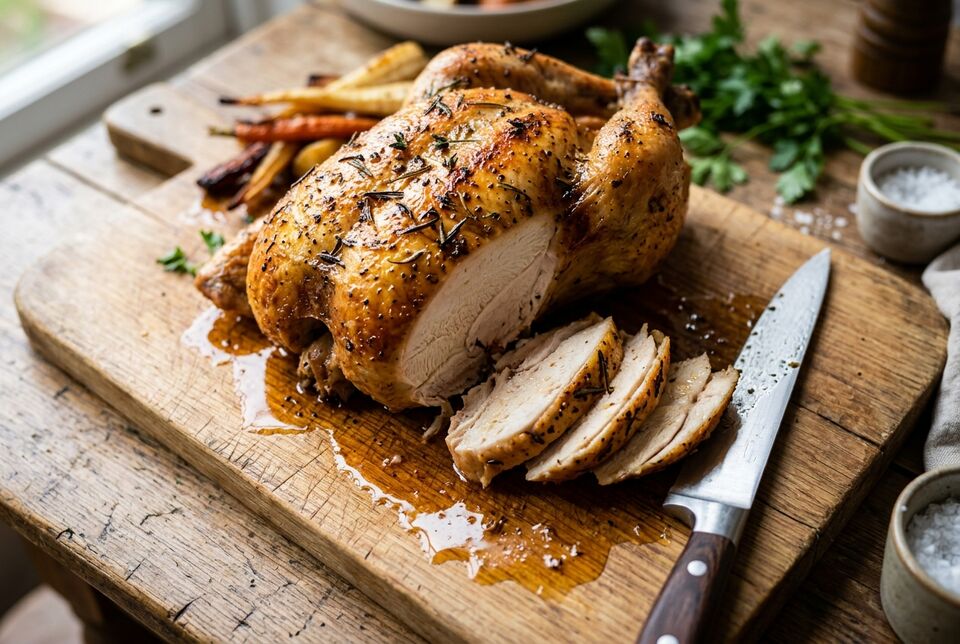
Generated with Gemini using the default fast quality preset.
What carried through:
for a recipe site: one clear subject, with everything else kept subordinateactually cooked: blistered, uneven browning, rising steam, and drippings on the knifepartway through being carved: one breast sliced open, with the cut piece still resting against the birdhow juicy it is: juices pooling on the board and shallow depth of field around the cut
Compare the same request with prompt enhancement turned off
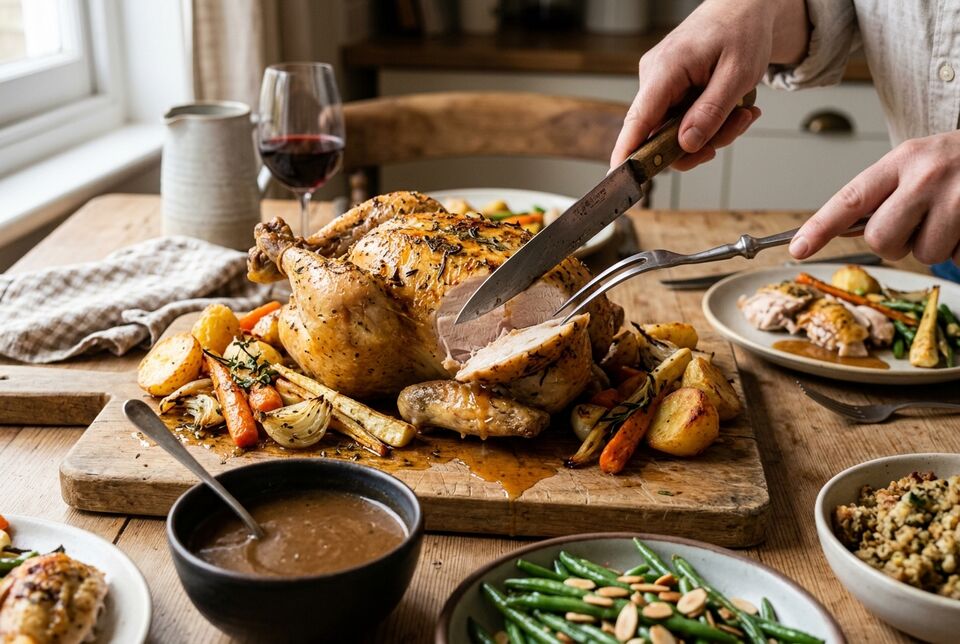
Baseline from the same request, with prompt enhancement disabled.
Set SKIP_PROMPT_ENHANCEMENT=true to send the original prompt to the image model unchanged.
Quick Start
You need Node.js 22 or later, an MCP-compatible client, and an API key for one image provider.
1. Get an API key
All three providers generate and edit images. Gemini is the default and requires the least configuration.
| Provider | Image size | Output format | Setup |
|---|---|---|---|
| Gemini (default) | 1K, 2K, 4K | Automatic | Get a key, then set GEMINI_API_KEY |
| OpenAI | 1K, 2K, 4K | PNG or JPEG | Get a key, then set IMAGE_PROVIDER=openai and OPENAI_API_KEY |
| BytePlus Seedream | 1K, 2K | PNG or JPEG | Get an AP region key, then set IMAGE_PROVIDER=seedream and ARK_API_KEY |
Google Search grounding is available with Gemini only. OpenAI may require organization verification before it can generate images.
The examples below use Gemini. Replace the provider settings if you prefer OpenAI or Seedream.
2. Configure your MCP client
Codex
Add this to ~/.codex/config.toml:
[mcp_servers.mcp-image]
command = "npx"
args = ["-y", "mcp-image"]

[mcp_servers.mcp-image.env]
GEMINI_API_KEY = "your_gemini_api_key_here"
IMAGE_OUTPUT_DIR = "/absolute/path/to/images"
Cursor
Add this to ~/.cursor/mcp.json for all projects, or .cursor/mcp.json in a project:
{
  "mcpServers": {
    "mcp-image": {
      "command": "npx",
      "args": ["-y", "mcp-image"],
      "env": {
        "GEMINI_API_KEY": "your_gemini_api_key_here",
        "IMAGE_OUTPUT_DIR": "/absolute/path/to/images"
      }
    }
  }
}
Claude Code
Run this in your project directory:
claude mcp add mcp-image --env GEMINI_API_KEY=your-api-key --env IMAGE_OUTPUT_DIR=/absolute/path/to/images -- npx -y mcp-image
Add --scope user after mcp-image to make it available in every project.
Never commit API keys to version control. Use an absolute IMAGE_OUTPUT_DIR in MCP configuration because the server's working directory depends on the client. If omitted, images are written to ./output relative to that working directory.
3. Generate an image
Restart your MCP client after changing its configuration, then ask your AI assistant:
Generate a product photo of a ceramic coffee mug on a wooden desk.
The generated file is saved in the configured output directory and returned to the assistant as an MCP resource.
Run mcp-image from a local checkout
pnpm install
pnpm run build
Configure the MCP client to run the local build instead of npx -y mcp-image:
node /absolute/path/to/mcp-image/dist/index.js
More Examples
Edit an existing image
Give the assistant an absolute path to the source image:
Edit /path/to/image.jpg so the person is facing right.
Control the result
Generate a high-quality product photo of a smartphone with clear text on the screen.Generate a cinematic desert landscape in a 21:9 aspect ratio.Keep the knight's appearance consistent with the previous image.
See the tool reference for the options your assistant can pass explicitly.
Configuration
Changing the provider changes both prompt enhancement and image generation. The way you ask for an image stays the same.
Quality
IMAGE_QUALITY accepts fast (default), balanced, or quality. Set it in the MCP server environment:
IMAGE_QUALITY=balanced
Use fast to try ideas quickly, balanced for everyday use, and quality for complex scenes or images where small details matter. Higher settings can take longer and cost more; results vary by provider.
All three providers support these presets for generation and editing. You can override the default with the quality option on each request.
Environment variables
| Variable | Default | Description |
|---|---|---|
IMAGE_PROVIDER | gemini | Default provider: gemini, openai, or seedream |
GEMINI_API_KEY | - | API key for Gemini |
OPENAI_API_KEY | - | API key for OpenAI |
ARK_API_KEY | - | ModelArk AP API key for Seedream |
IMAGE_OUTPUT_DIR | ./output | Directory where generated images are saved; use an absolute path in MCP configuration |
IMAGE_QUALITY | fast | Default quality preset: fast, balanced, or quality |
SKIP_PROMPT_ENHANCEMENT | false | Set to true to send prompts through unchanged |
You can configure keys for more than one provider and switch per request. A request-level provider option takes precedence over IMAGE_PROVIDER.
Tool Reference
Your MCP client calls this tool for you. Open the reference when you need to check an option or provider limitation.
generate_image parameters
| Parameter | Type | Required | Description |
|---|---|---|---|
prompt | string | Yes | Image description or editing instruction |
quality | string | No | fast, balanced, or quality; overrides IMAGE_QUALITY |
provider | string | No | gemini, openai, or seedream; overrides IMAGE_PROVIDER |
inputImagePaths | string[] | No | Absolute paths to input images for editing |
fileName | string | No | Output filename; .png, .jpg, or .jpeg selects the format for OpenAI and Seedream |
aspectRatio | string | No | 1:1 (default), 2:3, 3:2, 3:4, 4:3, 4:5, 5:4, 9:16, 16:9, 21:9, 1:4, 1:8, 4:1, or 8:1 |
imageSize | string | No | 1K, 2K, or 4K; availability depends on the provider |
blendImages | boolean | No | Add blending guidance when combining visual elements |
maintainCharacterConsistency | boolean | No | Keep a character's appearance consistent across images |
useWorldKnowledge | boolean | No | Add context for historical figures, landmarks, and factual scenes |
useGoogleSearch | boolean | No | Gemini only. Use Google Search grounding for current information |
purpose | string | No | Intended use, such as cookbook cover or social media post |
Troubleshooting
API key not found
Check that the key for the selected provider is present in the MCP server's environment:
- Gemini:
GEMINI_API_KEY - OpenAI:
OPENAI_API_KEY - Seedream:
ARK_API_KEY
Restart the MCP client after changing its configuration.
Input image file not found
Use absolute paths and make sure the MCP server can read the files. Input images can be PNG, JPEG, or WebP and must be no larger than 10 MiB each. Seedream editing accepts PNG and JPEG only.
Provider rejects a request
Check the requested size in the provider table. useGoogleSearch works with Gemini only, and Seedream does not support 4K. For OpenAI permission errors, check your organization settings. For quota or rate-limit errors, check the selected provider account.
Image Generation Prompt Skill
This repository also includes an Agent Skill for assistants that already have access to an image generation tool. It teaches the prompt-writing approach used by mcp-image and works independently of this server.
Install it with:
npx mcp-image skills install --path <skills-directory>
For example, use ~/.codex/skills, ~/.cursor/skills, or ~/.claude/skills as the destination.
License
MIT License. See LICENSE for details.
Need help? Open an issue or check Troubleshooting.