ContextQA
Remote MCP server for end-to-end web, mobile and API test automation. Create and run tests, inspect failures, and export Playwright tests from AI assistants. Browser-based OAuth; ContextQA account required.
Serveur MCP hébergé
npx add-mcp 'https://mcp.contextqa.com/mcp'S’installe dans Claude Code, Codex, Cursor et plus
Documentation
ContextQA MCP connects your AI assistant (ChatGPT, Claude, Codex, Claude Code, or Cursor) to ContextQA's test automation platform. Create tests, run them, debug failures, and fix bugs — all through natural conversation.
89 Tools
9 MCP Prompts
7 Served Skills
Quick Setup
Choose your client, sign in, then confirm your account and workspace before running your first task.
1. Connect your client
Add ContextQA to ChatGPT
Custom connector · Browser sign-in
- Turn on Developer mode In ChatGPT, open Settings → Security and login and enable Developer mode.
- Open Plugins and select +. Name the connection ContextQA, describe it as “ContextQA test automation,” and paste this server URL.
https://mcp.contextqa.com/mcp - Sign in and start a chat Choose Create and complete ContextQA sign-in when prompted. In a new chat, select ContextQA from the + → More menu.
Developer mode must be available in your account.
Use the hosted HTTPS endpoint above. Cloud connectors cannot reach a server on localhost.
Using another MCP client?
Choose Streamable HTTP with OAuth browser sign-in, and use this endpoint:
https://mcp.contextqa.com/mcp
2. Authenticate
When you first connect, your browser will open a login page. Sign in with your ContextQA credentials. Tokens last 8 hours and auto-refresh.
Important: After signing in, wait for the callback URL to complete and the browser to auto-redirect back. Do not close the browser or navigate away until the redirect finishes — otherwise authorization with the MCP server will fail.
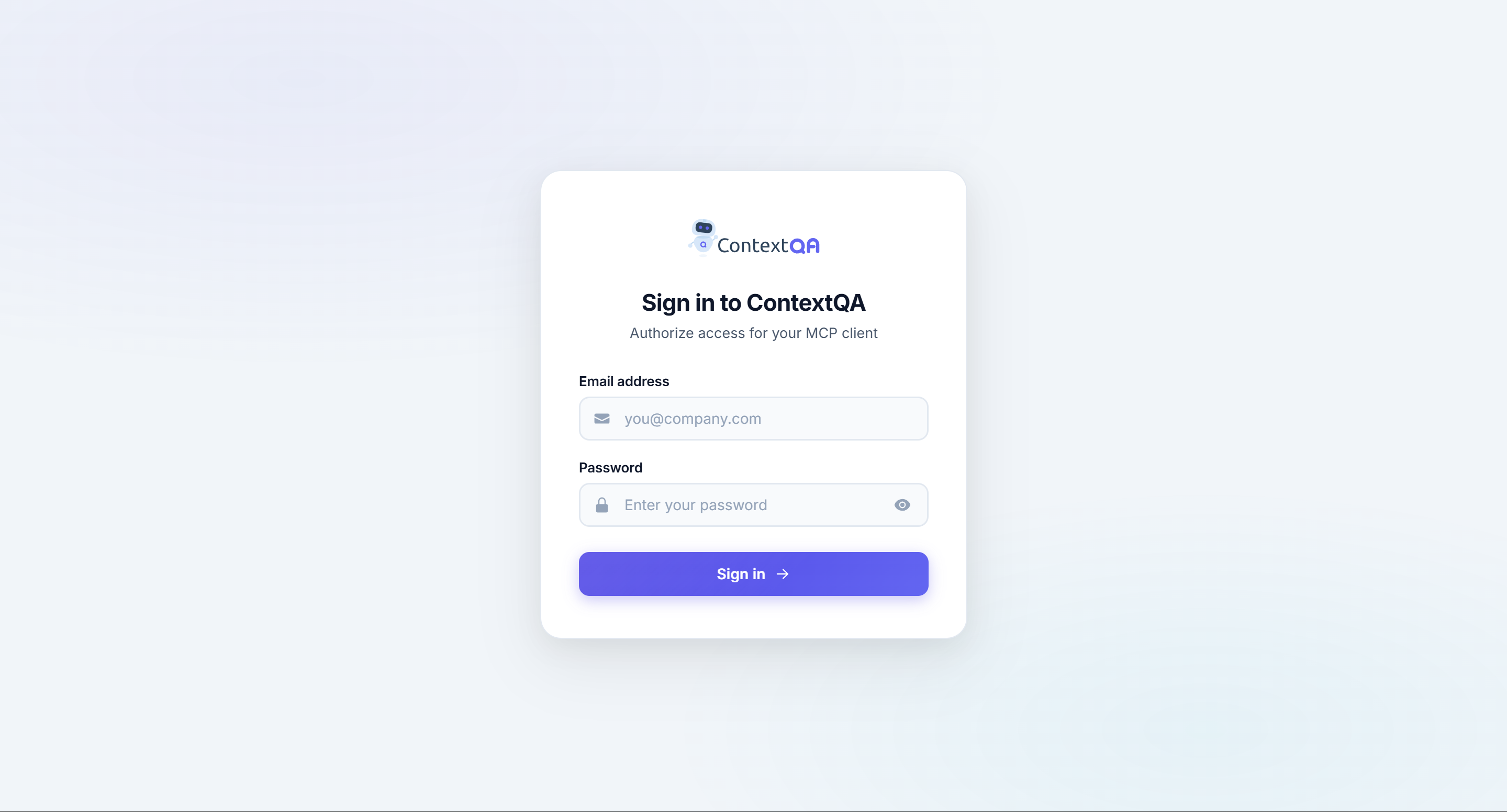
Next, confirm your workspace. Your assistant can choose the tools for you, but check that it is working in the intended organization and workspace.
3. Verify your account and workspace
Ask your AI assistant:
Show who I am signed in as, my organization, and my active workspace.
Then list the first five test cases in that workspace.
Expected result: your account, organization, active workspace, and a list of test cases. An empty list is a valid result when the workspace has no tests.
If the workspace is wrong, ask your assistant to list accessible workspaces and select the intended workspace version. If you receive an authentication or permission error, use FAQ & Troubleshooting.
Once the workspace is correct, choose your first chat example.
Explore the Docs
Everything you need to get productive with ContextQA MCP.
[
Prompt Library
Copy-paste prompt templates for every use case. The fastest way to get productive.
Browse prompts
](https://mcp.contextqa.com/docs/prompts)[
Bug Fix Workflow
Automated reproduce → investigate → fix → verify loop from any bug ticket.
Learn the flow
](https://mcp.contextqa.com/docs/bug-fix)[
FAQ & Troubleshooting
Common issues, setup problems, and tips for writing better prompts.
Get help
](https://mcp.contextqa.com/docs/faq)
What Can You Do?
Browse the complete tool reference for every accepted parameter, MCP prompt template, and served skill.
| Area | What It Does |
|---|---|
| Account & Workspaces | Identify your user and organization, discover workspaces, and select the active workspace |
| Test Cases & Authoring | Create, edit, search, label, organize, copy, and delete test cases; author typed steps and reuse step groups |
| Elements & Test Data | Manage locators, screens, data profiles, data generators, and global variables |
| Test Generation | Generate tests from code diffs, tickets, requirements, Figma, Swagger, videos, Excel, and n8n |
| Execution & Results | Run browser or mobile cases and test plans; share live links and retrieve completed results |
| Suites, Plans & Folders | Group cases in suites, configure executable plans, and organize cases and suites in folders |
| Environments & Assets | Discover and manage execution environments, typed variables, devices, and uploaded files |
| Debugging & Bug Fixes | Read failure evidence, logs, traces, and recordings; reproduce bugs, verify fixes, and prepare ticket reports |
| Export & Migration | Import server-accessible test repositories and return Playwright project files for your client to save |
| Requirements & Coverage | Read requirements, linked tests, coverage totals, and defects from the organization's Jira integration |
| Integrations & PR Impact | Manage provider connections, Slack channels, enrolled repositories, and PR analysis decisions |
| Organization & Billing | Read onboarding progress, manage execution defaults, inspect credits and usage, and get billing links |
| AI Insights & Knowledge | Get activity insights and create knowledge bases to guide tests |
| MCP Prompts & Skills | Load reusable agent workflows and platform playbooks through MCP tools, prompts, resources, or HTTP |
Describe your task in plain English, or start with a template in the Prompt Library. Test suites group cases; execute them through a test plan.
Quick Reference
The verbs your AI assistant understands best: