Canvas Assignment Assistant
Interagir programmatiquement avec les cours et les devoirs de Canvas/Instructure.
Documentation
Canvas Assignment Assistant MCP Server
Overview
This Model Context Protocol (MCP) server lets you interact with Canvas/Instructure courses and assignments, without leaving your LLM (e.g. Claude Desktop).
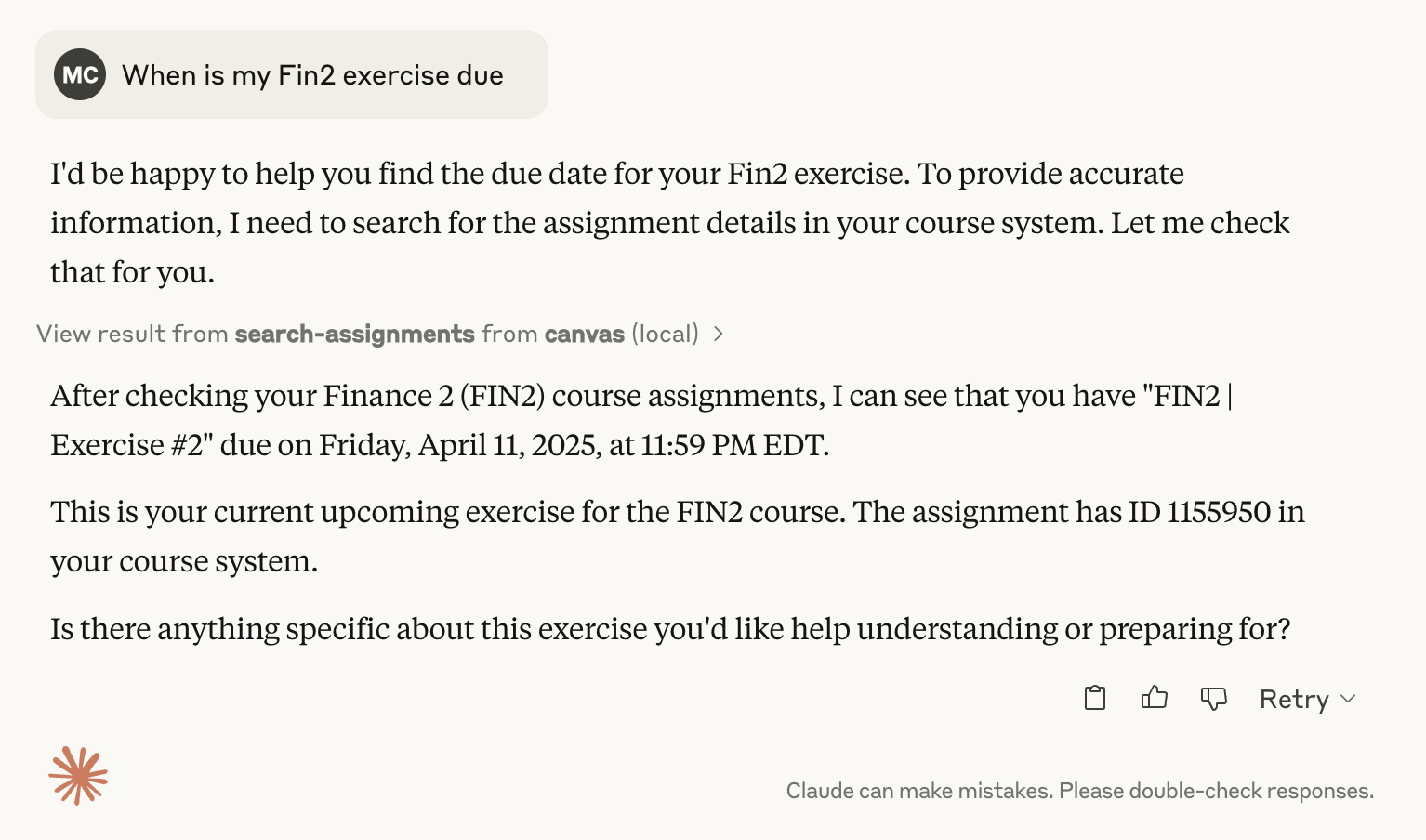
It allows you to retrieve, search, and summarize course and assignment information programmatically, for example to check due dates for upcoming assignments:
Features
Tools
-
List Courses
- Retrieve a list of courses
- Filter by course state (active, completed, or all)
-
Search Assignments
- Search across courses for assignments
- Filter by:
- Search query
- Due date range
- Specific course
- Include/exclude completed courses
-
Get Assignment Details
- Fetch detailed information about a specific assignment
- Multiple output formats (full HTML, plain text, markdown)
Resources
- Assignment Content: Retrieve full assignment details using a standardized URI format
Prerequisites
- An MCP-compatible client (Claude Desktop, Cursor, etc.)
- Canvas LMS account
- Canvas API Token
- Canvas Domain
Configuration
When you install the MCP bundle, you'll be prompted to configure:
- Canvas API Token: Your Canvas API access token (see instructions below)
- Canvas Domain: Your Canvas institution's domain (e.g.,
canvas.youruniversity.edu)
These values are stored securely by your MCP client and are not exposed in your configuration files.
Security Note
Keep your Canvas API token confidential. The bundle marks the token as sensitive, so it will be stored securely by your MCP client.
Installation
This MCP server is distributed as an MCP bundle (.mcpb file) for easy installation.
Option 1: Install from Bundle File (Recommended)
-
Download the bundle
Download the
canvas-mcp.mcpbfile from the releases page or build it yourself (see Option 2). -
Install in your MCP client
For Claude Desktop:
- Open Claude Desktop settings
- Navigate to the MCP servers section
- Click "Add Server" or "Install from Bundle"
- Select the
canvas-mcp.mcpbfile - When prompted, enter your Canvas API token and domain
For Cursor:
- Open Cursor settings
- Navigate to MCP configuration
- Install the bundle file
- Configure your Canvas API token and domain when prompted
-
Configure your credentials
When you first install the bundle, you'll be prompted to enter:
- Canvas API Token: Your Canvas API access token (see instructions below)
- Canvas Domain: Your Canvas institution's domain (e.g.,
canvas.youruniversity.edu)
Option 2: Build from Source
If you want to build the bundle yourself:
-
Clone the repository and install dependencies
git clone https://github.com/mbcrosiersamuel/canvas-mcp.git cd canvas-mcp npm install -
Build the bundle
npm run packageThis will create a
canvas-mcp.mcpbfile that you can then install using Option 1.
How to Get Your Canvas API Token
- Log into Canvas
- Go to Account > Settings
- Scroll to the "Approved Integrations" section
- Click "New Access Token"
- Copy the generated token
For more details, see these instructions from Canvas.
MCP Tools
list_courses: Shows all active courses by default. Use flags to show completed or all coursessearch_assignments: Searches assignment titles and descriptionsget_assignment: Retrieves full assignment details
Troubleshooting
Common Issues
-
Token Invalid:
- Regenerate your Canvas API token
- Ensure token has appropriate permissions
-
Domain Incorrect:
- Double-check your Canvas institution domain
- Verify there are no typos
Disclaimer
This is an unofficial Canvas MCP, and is not affiliated with Canvas or Instructure. I'm also not a professional software engineer, and this project was vibe-coded using Claude, so please use it at your own risk :)
Thanks!
- Thanks to Luke Harries for inspiration and for part of the text of this Readme.
- Thanks to the Anthropic team for great instructions on how to use LLMs to create MCPs!