MCP Test Utils
Automatisation de l'interface utilisateur desktop pour les agents IA : captures d'écran, gestion des fenêtres, souris, clavier, arbre UI Automation, OCR
Documentation
MCP Test Utils


MCP server for automated desktop UI testing. A single binary — no runtime, no dependencies, no installation.
Windows x64 only. macOS and Linux support is planned.
Gives AI agents eyes and hands: screenshots, window management, mouse, keyboard, UI Automation, OCR, file search.
Why
AI agents can trigger actions in applications but can't see the screen. This server bridges that gap:
Agent triggers action → takes screenshot → sees the result →
switches window → clicks a button → verifies → writes report
Fully autonomous, no user involvement required.
Demo
3.25.1 — a VS Code form filled, submitted and verified in a couple of minutes. Watch on YouTube →
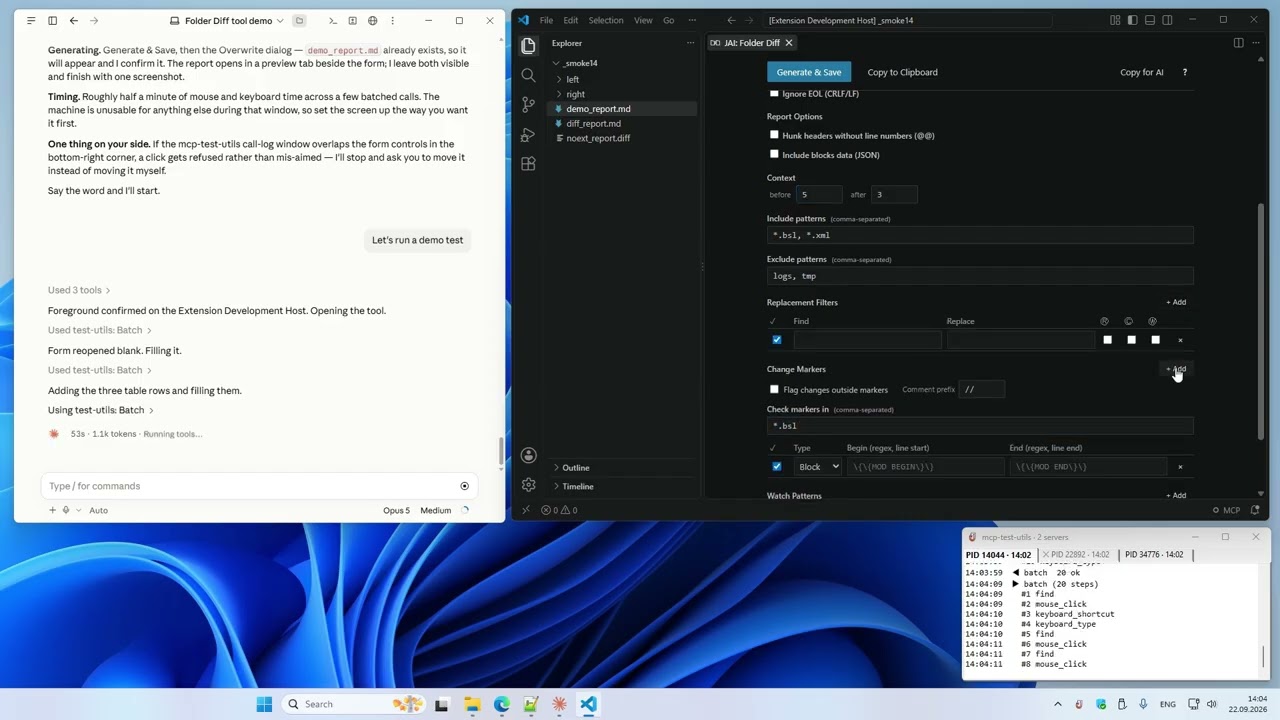
3.10.1 — setup, configuration and the basic tools: 10 tasks in one take. Watch on YouTube →
MCP Test Utils vs Anthropic Computer Use
Claude Cowork now includes built-in Computer Use — Claude takes screenshots and clicks through interfaces visually. It works with zero setup. MCP Test Utils takes a different approach: instead of guessing where to click from a screenshot, it reads the actual UI structure through Windows APIs.
| MCP Test Utils | Computer Use | |
|---|---|---|
| Click precision | Exact — UI Automation API | Visual estimate from screenshot |
| Speed & token cost | Fast, low cost — text responses | Slower, costly — image on every step |
| UI structure | Full tree: roles, states, coordinates | Not available |
| OCR | Word-level coordinates, multi-language | Not available (model vision only) |
| Window management | API-based, window-relative coords | Visual navigation |
| File search | Ripgrep engine built-in | Not available |
| Session logging | JSONL + screenshots, live log in the tray | Not available |
| Verified clicks | By element id, refused if covered | Visual estimate |
| Waiting & batching | wait_for, batch with assert | Not available |
| Visual analysis | ✅ Same Claude model, full-res 1:1 | ✅ Same Claude model |
| Setup | Download binary, add to config | Built-in, one toggle |
| Mobile / Dispatch | — | ✅ Tasks from phone |
| Cross-platform | Windows (macOS/Linux planned) | macOS + Windows |
MCP Test Utils is faster, more precise, and cheaper per action. Computer Use is easier to start and works across platforms. They complement each other.
Platforms
| Platform | Status |
|---|---|
| Windows x64 | ✅ Full support |
| macOS arm64 | ⏳ Planned |
| Linux x64 | ⏳ Planned |
Tools (21)
Vision
| Tool | Description |
|---|---|
take_screenshot | Screenshot of the entire desktop with configurable quality |
take_window_screenshot | Screenshot of a specific window (screen or window capture mode) |
read_screen_text | OCR the entire screen (Windows.Media.Ocr) |
read_region_text | OCR a screen region with precise word coordinates |
Window Management
| Tool | Description |
|---|---|
list_windows | List windows with id, title, app, position, size, minimized, focused |
focus_window | Bring a window to front, restore if minimized |
Input
| Tool | Description |
|---|---|
mouse_click | Click (left / right / middle) on a UI element by id, or at screen / window-relative coordinates |
mouse_move | Move cursor to a point or to a UI element |
mouse_drag | Drag from point A to point B |
mouse_scroll | Scroll the mouse wheel |
keyboard_type | Type text (full Unicode — Latin, Cyrillic, CJK, emoji) |
keyboard_press | Press a key (Enter, Tab, F1–F12, arrows, etc.) |
keyboard_shortcut | Key combinations (Ctrl+S, Alt+F4, Ctrl+Shift+P, etc.) |
Structured UI Access
| Tool | Description |
|---|---|
list_ui_elements | UI Automation tree — buttons, fields, menus with ids, values, states and exact coordinates; filters by name, value, class |
Waiting and Batching
| Tool | Description |
|---|---|
wait_for | Wait for a window, an element or its state instead of sleeping |
batch | Run up to 20 tool calls in one request, with find and assert steps |
File Search
| Tool | Description |
|---|---|
search_in_files | Search text or regex in files within allowed directories (like VS Code Find in Files) |
find_files | Find files and directories by name pattern (glob), like "Go to File" |
Agent Guide
| Tool | Description |
|---|---|
get_usage_guide | Compact workflow guide for LLM agents — precision clicking, coordinate metadata, quality tips |
Session Logging
| Tool | Description |
|---|---|
enable_logging | Start recording tool calls to JSONL + screenshots (opt-in) |
disable_logging | Stop recording, get session stats |
Installation
- Download the binary from Releases.
- Add it to your MCP client config. Example below is for Claude Desktop — for other clients, refer to their documentation.
Claude Desktop: %APPDATA%\Claude\claude_desktop_config.json
{
  "mcpServers": {
    "test-utils": {
      "command": "D:\\path\\to\\mcp-test-utils.exe"
    }
  }
}
- Restart Claude Desktop.
- In chat, try: "Take a screenshot" — the agent will return an image of your desktop.
With Logging and File Search (optional)
{
  "mcpServers": {
    "test-utils": {
      "command": "D:\\path\\to\\mcp-test-utils.exe",
      "env": {
        "MCP_LOG_DIR": "D:\\path\\to\\logs",
        "MCP_LOG_MAX_MB": "500",
        "MCP_LOG_RETAIN_DAYS": "30",
        "MCP_SEARCH_DIRS": "D:\\Projects\\app1;D:\\Projects\\app2"
      }
    }
  }
}
Quality Presets
Screenshots support configurable quality to balance detail and token cost:
| Preset | Scale | Format | Use Case |
|---|---|---|---|
full | 100% | JPEG q90 | Maximum detail |
standard | 50% | JPEG q70 | Balanced (default) |
compact | 50% | PNG | When PNG is needed |
minimal | 25% | Grayscale | Lowest token cost |
custom | 10–100% | JPEG / PNG / Grayscale | Full control |
Environment Variables
| Variable | Description | Default |
|---|---|---|
MCP_LOG_DIR | Path for log sessions. Without it, logging tools are hidden | — |
MCP_LOG_MAX_MB | Session size limit (warning on exceed) | 500 |
MCP_LOG_RETAIN_DAYS | Auto-delete sessions older than N days. 0 to disable | 30 |
MCP_SEARCH_DIRS | Allowed directories for search_in_files (; on Windows, : on macOS/Linux). Without it, the tool is hidden | — |
MCP_NOTIFY | off hides the tray icon and the live call log window | — |
Tray Log
The server shows a tray icon with a live log of tool calls — one tab per session, errors in red. MCP_NOTIFY=off hides it; the window position is kept in %LOCALAPPDATA%\mcp-test-utils\notify.json.
How It Works
MCP Test Utils is a JSON-RPC 2.0 server communicating over stdin/stdout. Any MCP-compatible client launches the binary, sends tool calls, and receives structured responses (text, base64 images). Tested with Claude Desktop.
The server uses native Windows APIs directly — Win32 GDI for screenshots, SendInput for mouse and keyboard, UI Automation COM API for element inspection, WinRT Windows.Media.Ocr for text recognition. File search uses the ripgrep engine (grep-regex, grep-searcher, ignore) — cross-platform, no external dependencies. No PowerShell, no external tools, no network access.
Use Cases
- Automated QA — agent navigates the app, clicks through flows, takes screenshots at each step, writes a test report
- Desktop automation — fill forms, copy data between windows, run workflows
- Accessibility audit — scan UI Automation tree for missing labels or roles
- Visual regression — screenshot comparison across releases
- Data extraction — OCR text from applications that don't expose APIs
- Code search — find patterns across multiple projects without leaving the agent session
Security
- Responds only to requests from the MCP client
- Opens no network ports
- Writes nothing to disk except opt-in logging and the tray window settings (
%LOCALAPPDATA%\mcp-test-utils\notify.json) - Sends no data externally
- Screenshots capture the entire screen — make sure no sensitive information is visible
- File search is sandboxed — only directories in
MCP_SEARCH_DIRSare accessible
Support us
Free and unrestricted. If you find it useful — jeenyjai.github.io
License
Copyright 2026 JeenyJAI. All rights reserved.
🚀 Created with Claude