The Drive AI
Let AI agents search, read, organize and write your company files across Google Drive, OneDrive, SharePoint and Dropbox, with every change previewed and undoable. Remote server: https://mcp.thedrive.ai/mcp
Serveur MCP hébergé
npx add-mcp 'https://mcp.thedrive.ai/mcp'S’installe dans Claude Code, Codex, Cursor et plus
Documentation
MCP Server
Use your The Drive AI files from Claude, ChatGPT, Cursor and other MCP-compatible AI tools
Overview
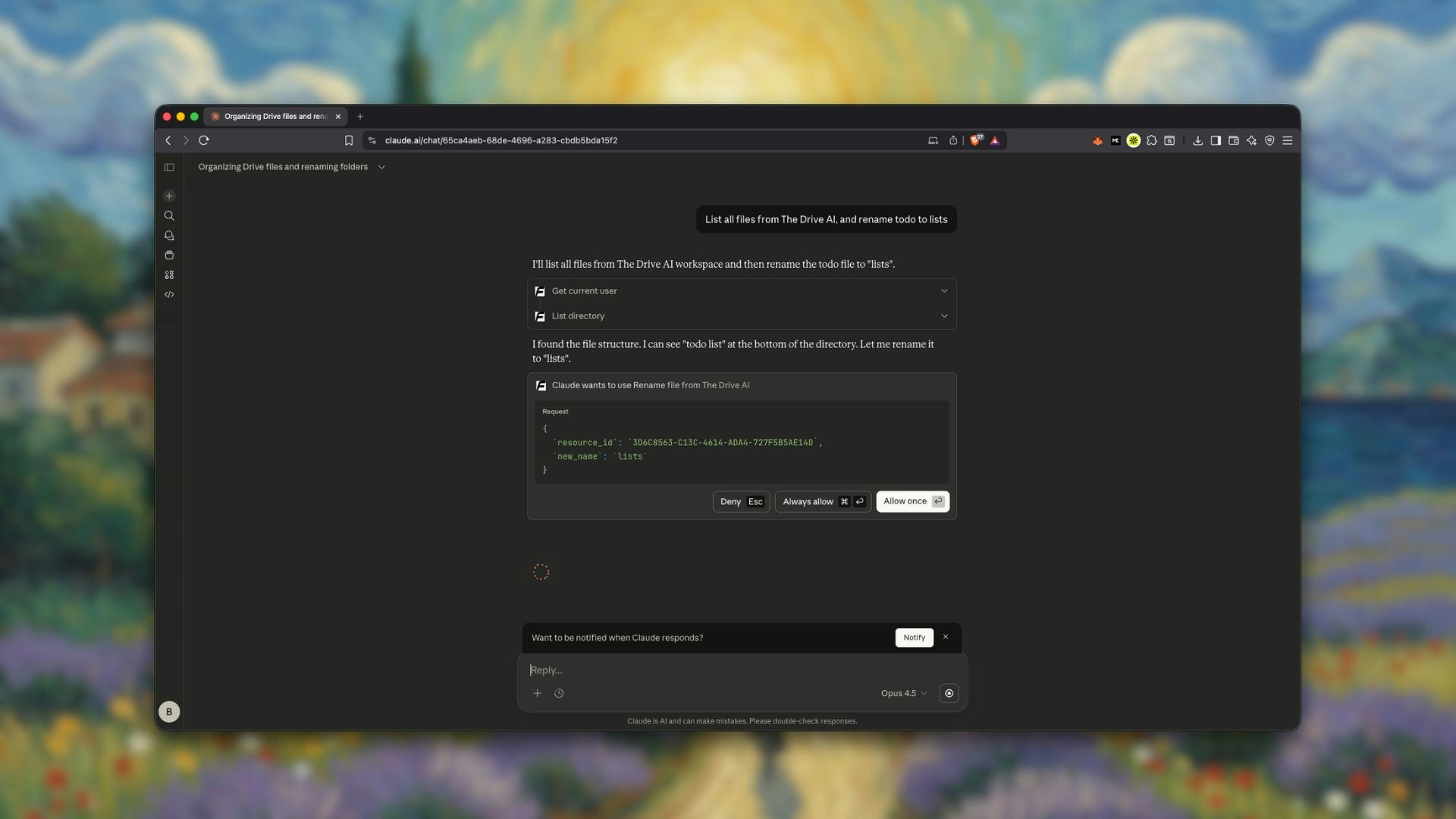
The Drive AI has an MCP (Model Context Protocol) server. With it, AI assistants such as Claude, ChatGPT and Cursor can work with the files in your workspace. They can browse, search and read your files, including connected Google Drive, OneDrive, SharePoint and Dropbox folders, make changes you can preview and undo, manage sharing, and hand bigger jobs to the agent.
Server URL
https://mcp.thedrive.ai/mcp
You can also find it in the app: open Settings and choose MCP.
Connect an AI tool
[tab] Claude Desktop
- Open Settings > MCP in The Drive AI, or go to thedrive.ai/mcp.
- Click Claude Desktop to download the manifest.
- Open the downloaded file with Claude Desktop, then sign in to The Drive AI when prompted.
[tab] Claude.ai and ChatGPT
- In Claude or ChatGPT, open the settings for connectors.
- Add a custom connector with the server URL above.
- Sign in to The Drive AI when prompted.
[tab] Cursor
- Open Settings > MCP in The Drive AI, or go to thedrive.ai/mcp.
- Click Cursor to install it in one click.
[tab] Command line
Run the command for your tool:
claude mcp add --scope local --transport http thedriveai https://mcp.thedrive.ai/mcpcodex mcp add --url https://mcp.thedrive.ai/mcp thedriveaigemini mcp add thedriveai https://mcp.thedrive.ai/mcp --transport httpcode --add-mcp '{"name":"thedriveai","type":"http","url":"https://mcp.thedrive.ai/mcp"}'
[tab] Other tools
Add the server URL to your tool's MCP configuration. For example:
{
  "servers": {
    "thedrive": {
      "url": "https://mcp.thedrive.ai/mcp"
    }
  }
}
Where this goes depends on the tool. Check its documentation.
What connected tools can reach
A connected tool acts as you, with your permissions. It reaches the files in your workspaces, including the connected drives you can see in The Drive AI. Moves and copies stay within one drive, and sharing changes apply to files in The Drive AI, not to Google, Microsoft or Dropbox permissions.
Changes work the same way as with the agent:
- Preview first. The tool sees what a change would do before anything happens.
- You confirm bigger changes. By default, a change of up to 20 operations that doesn't trash anything applies on its own. Moving files to the trash, working outside the folder in focus, or more than 20 operations needs your confirmation, and over 5,000 operations you confirm the count. Sharing also asks first. Workspace admins can change these limits. A confirmation is tied to the exact change previewed and is valid for 15 minutes.
- Undo. An applied change can be undone, with the same limits on connected drives. Deleting moves files to the trash, and editing a file keeps its earlier version.
When a tool hands a job to the agent, it counts as one of your assistant tasks. Other tool calls, like reading, searching and making changes, don't count.
Requirements and limits
- Sign-in: your The Drive AI account must sign in with Google. Accounts created with Microsoft, Apple or email can't connect yet.
- Plan: files in The Drive AI work on every plan. Connected drives and accounts come with Max, Team, Business and Enterprise. See Plans & Pricing.
- Moves and copies happen within each drive, not between two different clouds.
- Sharing tools cover files in The Drive AI. They don't change Google, Microsoft or Dropbox permissions.
- Assistant tasks: only handing a job to the agent counts as a task.
Give the agent tools from other apps
This works the other way round. Owners and admins can connect other apps' MCP servers so the agent can use them. Open Settings > Agent, go to What the agent can do elsewhere, and click Add MCP server. The agent asks before it takes any action other than reading through those tools. See MCP tools.
What's next?
[card] The agent
Work on your files from inside The Drive AI.
[card] Plans & Pricing
See what each plan includes.
This documentation is built and hosted on Mintlify, a developer documentation platform.