Socializioz
Employé IA des réseaux sociaux pour planifier des campagnes, créer du contenu conforme à la marque, publier sur plusieurs plateformes et développer votre présence en ligne.
Documentation
Socializioz MCP
Connect ChatGPT, Claude, and supported MCP clients to authenticated Socializioz tools for workspace context, campaigns, posts, media, approvals, scheduling, publishing, and live operations.
Socializioz MCP connects supported AI clients to a real, authorized Socializioz workspace.
The native remote MCP exposes the currently enabled Socializioz tool surface for authenticated workspace operations. Tool availability can evolve as capabilities are added, refined, or intentionally disabled; clients should rely on the tools returned by the live MCP connection rather than a fixed documentation count.
https://socializioz.com/api/mcp
The connection uses Socializioz authorization. Workspace membership, plan access, roles, connected-account capabilities, post state, approvals, media requirements, and publishing validation remain enforced.
What the connection unlocks
<img src="https://mintcdn.com/ruyaacapital/jPAHV_Xlu1Dx1E1B/images/socializioz-MCP-NEW.webp?fit=max&auto=format&n=jPAHV_Xlu1Dx1E1B&q=85&s=af423d8c54c4da21f4b3304550cb4c40" alt="Socializioz MCP capabilities" title="Socializioz MCP capabilities" className="mx-auto" style={{ width:"68%" }} width="1672" height="941" data-path="images/socializioz-MCP-NEW.webp" />
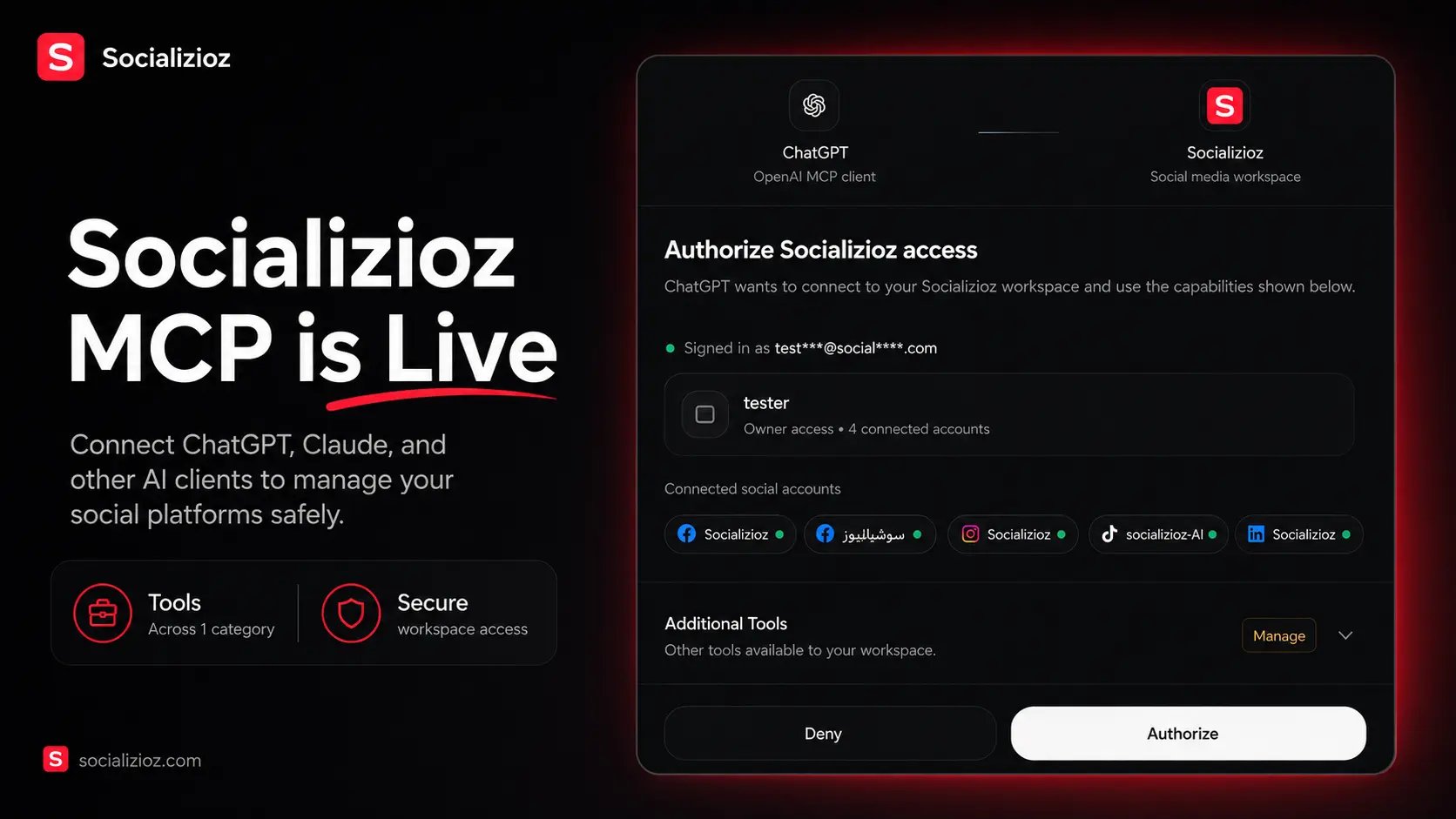
The value is not only the number of tools. A supported assistant can move through the complete workflow without losing workspace state:
Read context → Plan campaign → Create posts → Attach media → Validate → Approve → Schedule or publish → Verify result
For example, a user can ask an external assistant to create a launch campaign, prepare platform-specific posts, attach suitable workspace assets, send the work for approval, and then confirm the resulting Socializioz state.
Current access
Socializioz native MCP is currently available to Socializioz users at no additional cost during the current early-access period. This availability can change later as the product grows, but the documentation will be updated before any plan restriction is presented as active.
Client-side availability can also depend on the AI provider's plan, workspace settings, administrator controls, and support for remote MCP connections.
Connect a supported remote client
In ChatGPT, Claude, or another supported MCP client, open the area used to add remote tools or connectors. Use `https://socializioz.com/api/mcp`. Sign in through the Socializioz authorization flow. Do not paste private tokens manually. Select or confirm the workspace the client is allowed to operate. Confirm the client identity and the categories of Socializioz actions being requested. Start by asking the client to identify the active workspace or list connected accounts before requesting a write or publishing action.ChatGPT app and native MCP
<img src="https://mintcdn.com/ruyaacapital/yIWe2ZzhgxT_iklo/Socializioz-chatgpt-nativeAPP.png?fit=max&auto=format&n=yIWe2ZzhgxT_iklo&q=85&s=6dec49ae3c30a2a3c2523cda7b452369" alt="Socializioz Chatgpt Native APP" title="Socializioz Chatgpt Native APP" className="mx-auto" style={{ width:"46%" }} width="896" height="888" data-path="Socializioz-chatgpt-nativeAPP.png" />
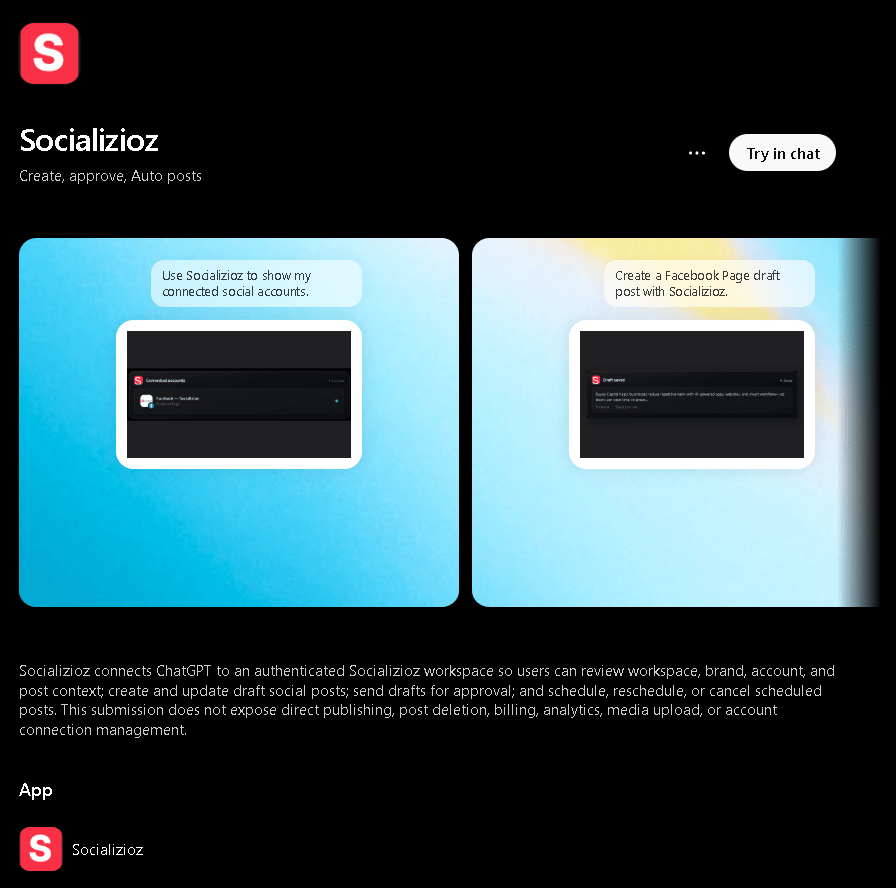
Socializioz also has a published ChatGPT app.
| Surface | Purpose |
|---|---|
| Published ChatGPT app | Use the currently approved Socializioz experience inside ChatGPT |
| Native remote MCP | Connect a supported remote MCP client to the current authenticated Socializioz tool surface |
| Docs MCP | Search and read public Socializioz documentation only |
The published ChatGPT app and native remote MCP are separate release surfaces. Their approved versions may not update at exactly the same time.
Open the published Socializioz app in ChatGPT.Claude
When remote connectors are available for your Claude account:
- Open Settings.
- Open Connectors.
- Add the Socializioz remote MCP endpoint.
- Complete Socializioz authorization.
- Confirm the intended workspace.
Do not use an old local claude_desktop_config.json example as the primary setup method for the hosted Socializioz service.
Product MCP versus Docs MCP
| Endpoint | Access |
|---|---|
https://socializioz.com/api/mcp | Authenticated user workspace and actions |
https://docs.socializioz.com/mcp | Public documentation search and reading only |
The Docs MCP cannot create campaigns, access private workspaces, modify posts, schedule content, or publish.
Capability groups
Workspace and brand context
Read the authorized user's profile, active workspace, available workspaces, brand context, subscription context, and supported capabilities.
Representative tools include:
get_user_profileget_workspace_contextget_brand_profile
Connected accounts
Inspect social accounts connected to the selected workspace, including available platform and health information.
list_connected_accounts
Connected integrations
The in-app Socializioz Agent can use supported services from the public Connectors catalog, but that does not mean the same generic connector gateway is exposed through the native remote MCP.
The configured integration_capability definition is currently disabled and is not part of live MCP discovery. External MCP clients should use only tools actually returned by the native endpoint and should not assume that a provider connection in the Socializioz app creates a generic provider tool in the MCP.
Social publishing continues through the normal Socializioz Post lifecycle.
X live reads
Use the verified connected X account boundary for the currently exposed live read/search operations.
x_live_read
Configured X send/delete definitions are currently disabled from the remote MCP surface. Their presence in source is not customer-facing capability.
MCP guidance
Use MCP-specific help when deeper operating rules are needed.
get_mcp_help
A presentation/widget definition can exist in source while remaining disabled from live discovery. Clients should not depend on configured-but-disabled renderer tools.
Posts and drafts
Create and work with real Socializioz posts.
create_draft_postlist_postsget_postupdate_draft_post
Media assets
Use the currently exposed Media Library tools to find, import, validate, attach, detach, and reorder media.
list_workspace_assetsget_assetimport_media_from_urlmedia_preflightattach_assets_to_postdetach_assets_from_postreorder_attached_assets
Additional media definitions can remain configured but disabled. They are not part of the live MCP until discovery returns them. For fresh public HTTPS media, use import_media_from_url; when the MCP client actually supplies a supported file reference, use attach_assets_to_post.
Campaigns
Create and organize campaigns and content plans with the currently exposed campaign tools.
list_campaignscreate_campaignupdate_campaignlist_campaign_plan_itemscreate_campaign_plan_itemupdate_campaign_plan_itemconvert_plan_item_to_post
Campaign-analysis definitions can exist in the registry without being enabled. Use only the tools returned by live discovery.
Approvals and review
Move posts through the authorized review workflow.
send_post_for_approvalapprove_postreject_post
Scheduling and publishing
Operate the post after content, media, destination, and approval checks are satisfied.
schedule_postreschedule_postcancel_scheduled_postpublish_nowretry_failed_publication
If a publish remains asynchronous, re-read the affected post with get_post and use the returned lifecycle/result fields before claiming it is live. Configured status/recommended-time helper definitions are not part of the current live MCP unless discovery returns them.
Workspace discovery
list_user_workspaces
Workspace invitation and leave operations are intentionally disabled in the current remote MCP surface. Manage those actions in Socializioz rather than assuming they are available to an MCP client.
Real workflow examples
Create a campaign and send it for approval
Use the active brand and workspace. Create a seven-day launch campaign for our
new product across Instagram, LinkedIn, and TikTok. Build the content plan,
create three platform-specific draft posts, attach suitable approved assets,
validate the destinations, and send the posts for approval. Do not publish.
Review tomorrow's queue
List tomorrow's scheduled posts. Identify anything missing required media,
waiting for approval, targeting an unhealthy account, or showing a previous
publishing failure. Do not change anything yet.
Repair and retry a failed post
Read the failed post and its current publish status. Explain the returned
failure, verify that the issue is resolved, then retry publishing only if the
post is still valid and authorized.
Use workspace media
Find the approved vertical product video in the workspace assets, attach it to
the TikTok draft, run media preflight, and show me the updated post state.
Result verification
A client should claim success only when the returned Socializioz result confirms the action.
After a write action, verify:
- The correct workspace was used.
- The correct record was affected.
- The returned post, campaign, asset, approval, or publication state matches the request.
- A provider-side publish is not described as live while it is still processing.
- A failed or unauthorized action is not rewritten as success.
The affected item should also be visible in the appropriate Socializioz interface.
Security model
MCP actions remain subject to:
- Socializioz authentication.
- User-authorized client access.
- Workspace membership and selected workspace scope.
- Role and administrative permissions.
- Plan and feature availability.
- Connected-account ownership and health.
- Provider permissions and account capabilities.
- Post-state and approval validation.
- Media and destination requirements.
- Publishing and retry rules.
The MCP does not provide a tool that grants cross-customer access or silently bypasses these controls.
Current boundaries
- Native MCP tools operate the existing Socializioz workflow; they do not unlock unsupported plans or provider capabilities.
- Image and video generation availability can differ from media upload, import, and attachment tools.
- External clients should not be given access tokens manually.
- Provider publishing can remain in a processing state after Socializioz accepts the request.
- The published ChatGPT app can follow a separate review and rollout schedule from the native MCP.
Troubleshooting
| Problem | What to check |
|---|---|
| Authorization link fails or expires | Start the connection again from the MCP client and complete the new Socializioz authorization request. |
| Wrong workspace appears | Reconnect or reauthorize and explicitly select the intended workspace. |
| Tool returns unauthorized | Confirm the user, workspace membership, role, plan, and current client authorization. |
| Connected account is missing | Check the active workspace and Connections. |
| Write action does not complete | Read the returned error and verify the affected state inside Socializioz. |
| Schedule or publish is blocked | Check approval, media, destination requirements, timing, account health, and plan access. |
| Publish remains processing | Re-read the affected post with get_post and verify the returned final state before claiming it is live. |
| ChatGPT app has different tools | The published app and native MCP may be on different approved releases. Use the native endpoint for the current remote MCP surface. |
Related
- How Socializioz works
- Socializioz Agent
- Integrations
- Connections
- Campaigns
- Approvals
- Publishing Hub
- Security
This documentation is built and hosted on Mintlify, a developer documentation platform.