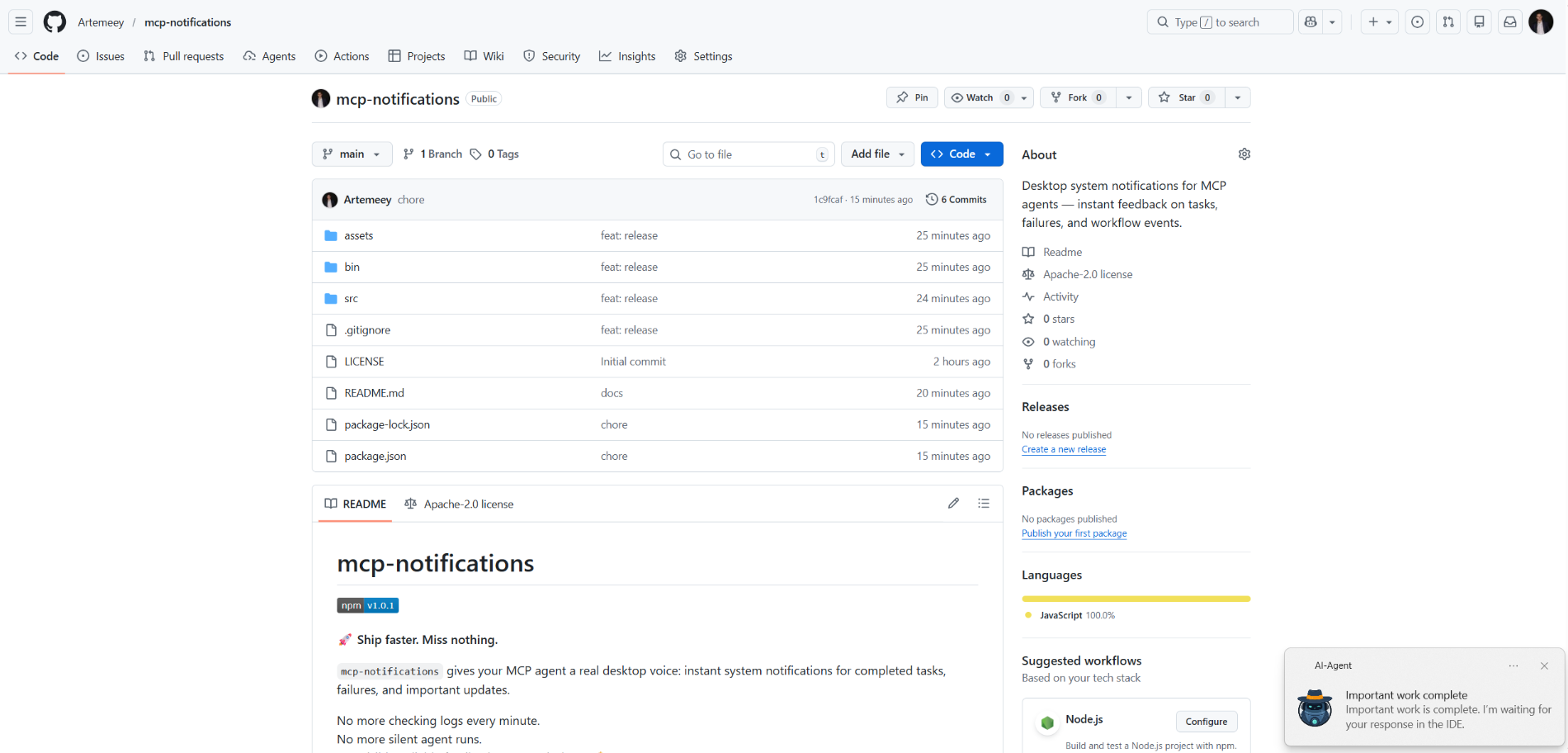
mcp-notifications
officielNotifications système de bureau pour les agents MCP — retour instantané sur les tâches, les échecs et les événements de workflow.
Que pouvez-vous faire avec Notifications MCP ?
- Envoyer une notification de bureau — Demander à l'agent d'appeler
send_notificationavec un titre et un message personnalisés lorsqu'une tâche se termine. - Inclure une alerte sonore — Définir
play_sound: truepour que la notification joue le son système lors de la livraison. - Personnaliser la source de notification sur Windows — Passer un
app_idpour contrôler le nom de l'application affiché dans la notification toast, ou le définir globalement via la variable d'environnementMCP_NOTIFICATIONS_APP_ID. - Utiliser une icône personnalisée — Fournir un chemin
iconpour remplacer l'image par défaut dans la notification.
Documentation
mcp-notifications

🚀 Livrez plus vite. Ne manquez rien.
mcp-notifications permet à votre agent MCP d'envoyer des notifications de bureau pour les tâches terminées, les échecs et les mises à jour importantes.
C'est particulièrement utile pour les agents IA en console, car ils n'ont généralement pas de notifications intégrées par défaut.
Fini de vérifier les discussions toutes les minutes.
Fini les réponses silencieuses de l'agent.
Juste un retour visible et fiable sur votre bureau. 🔔
Problème courant résolu
Vous confiez des tâches à plusieurs agents IA, puis vous attendez et vérifiez sans cesse qui a déjà répondu.
Avec mcp-notifications, cela devient plus simple : l'agent peut vous notifier sur le bureau lorsqu'il a besoin de votre intervention ou lorsque le travail est terminé.
Pourquoi les équipes l'installent
- ⚡ Retour immédiat de vos flux de travail MCP.
- 🧠 Meilleure concentration : laissez l'agent travailler pendant que vous restez sur votre tâche principale.
- 🖥️ Notifications natives du système d'exploitation via
node-notifier. - 🧵 Comportement non bloquant : l'envoi de notifications est mis en file d'attente en arrière-plan.
Installation globale
Prérequis :
- Node.js
>=20 - npm
>=10
npm i -g @topvisor/mcp-notifications
Nom de l'exécutable (à utiliser dans la configuration MCP) :
mcp-notifications
mcp-notifications est un point d'entrée de serveur MCP (stdio), pas une commande de notification ponctuelle.
Configuration : Codex
Ajoutez ceci à ~/.codex/config.toml :
[mcp_servers.notifications]
enabled = true
command = "mcp-notifications"
args = []
Redémarrez Codex après la mise à jour de la configuration.
Configuration : Agent Claude
Ajoutez la configuration du serveur MCP à votre fichier de configuration du client Claude :
{
  "mcpServers": {
    "notifications": {
      "command": "mcp-notifications",
      "args": []
    }
  }
}
Puis redémarrez le client Claude.
Instructions de notification pour l'agent IA
Il existe deux approches pour les notifications : manuelle et automatique.
Choisissez celle qui convient le mieux à votre flux de travail.
Manuelle
Dans une tâche où vous souhaitez être notifié, demandez explicitement à l'agent. Exemple :
Count files in the project; after the task is fully complete, notify me with sound.
Vous pouvez également définir le son, le sujet et les règles de fréquence dans une discussion spécifique. Exemple :
Notify me about your replies without sound, include the reply text, and use title: "Large Refactoring"
Automatique
Les notifications automatiques peuvent être configurées globalement ou par projet.
Exemple d'instruction pour activer les notifications automatiques pour les réponses de l'agent :
Send `send_notification` after your replies (actual task time >5 seconds or many steps); `play_sound: false`; `app_id: '{put your chat name here}'`
Le temps est un seuil approximatif et dépend du comportement du modèle, ajustez donc cette instruction selon vos préférences.
Dans les compétences
Vous pouvez également activer les notifications dans des compétences spécifiques. Exemple pour une compétence de révision :
After the review, run `send_notification` with a short summary; `play_sound: true`; `app_id: 'Reviewer {put task id here}'`
Outil
send_notification
Entrée :
titlestring(requis)messagestring(requis)play_soundboolean(optionnel, par défaut :false)iconstring(optionnel, chemin absolu ou relatif vers le fichier image)app_idstring(optionnel, ID de modèle d'utilisateur d'application Windows pour la source du toast)
Exemple :
{
  "title": "Codex",
  "message": "Deployment completed successfully",
  "play_sound": true,
  "icon": "/opt/mcp-notifications/icons/custom.png",
  "app_id": "Topvisor.Codex"
}
app_id (Windows)
app_idcontrôle la source affichée dans les notifications toast Windows.- Si
app_idn'est pas défini, Windows peut afficherSnoreToastcomme source. - Vous pouvez passer
app_iddans chaque appel d'outil, ou définirMCP_NOTIFICATIONS_APP_IDcomme variable d'environnement pour le serveur.
Sélection du backend
Vous pouvez sélectionner le transport de notification via la variable d'environnement MCP_NOTIFICATIONS_BACKEND :
auto(par défaut) : utilisepowershelldans WSL si disponible, sinonnode-notifierpowershell: force le transport toast Windowspowershell.exe(recommandé pour WSL)node-notifier: force le packagenode-notifier
Invites de discussion à tester dans Codex
Utilisez ces messages directement dans la discussion :
Check send_notification
Send a notification without sound: title "Test", message "Check"
Send a notification with sound: title "Test", message "Check"
Send a notification with app_id "Topvisor.Codex": title "Test", message "Check"
Send 3 test notifications in a row without sound
Résultat attendu de l'outil dans les journaux/la réponse :
Notification queued
Comportement
- ✅ Utilise les canaux de notification standard du système.
- 🔊 Utilise le son de notification standard du système lorsque
play_sound: true. - 🤖 Utilise l'image du robot Topvisor fournie comme icône de notification par défaut.
- 🧰 Retourne rapidement pendant que les notifications sont délivrées en file d'attente en arrière-plan.
Exemple
L'agent IA vous attend :