Autopsy
Permite acceder a datos de DFIR / forenses analizados por la plataforma de código abierto Autopsy.
Documentación
Autopsy Documentación de Usuario 4.23.0
Plataforma gráfica de informática forense digital para The Sleuth Kit y otras herramientas.
Resumen de Claude
La función MCP de Autopsy te permite conectar un Cliente MCP de GenAI a Autopsy y consultar sus datos. Claude Desktop se usa a menudo para esto, pero otros Clientes MCP también pueden usarse.
Autopsy proporciona "MCP sobre STDIO". NO es sobre HTTP.
Puedes encontrar más información sobre MCP aquí: https://www.cybertriage.com/ai/intro-to-mcp-servers-for-dfir-and-soc-investigations-using-ai/
Eres responsable de saber a dónde envía los datos tu cliente MCP y cuáles son las políticas de retención y uso compartido de ese servidor. Por ejemplo, una instalación predeterminada de Claude Desktop enviará datos a los servidores de Anthropic y su acceso a tus datos dependerá de tu configuración.
Conceptos básicos de MCP y Autopsy
Si está habilitado, tu Cliente MCP (como Claude) tiene acceso de solo lectura a tus datos de Autopsy. No puede emitir comandos para actualizar o cambiar tu conjunto de datos. Podríamos cambiar esto en el futuro para permitirle agregar, pero no eliminar, una puntuación o etiqueta. Debes ejecutar Autopsy en el mismo sistema donde se ejecuta Claude Desktop. Debes abrir el Caso en Autopsy primero y luego Claude puede acceder a esos datos.
Instalar Cliente MCP - Claude Desktop
Los siguientes son los pasos para Claude Desktop. Descarga Claude Desktop: https://support.claude.com/en/articles/10065433-install-claude-desktop Configura una cuenta en https://claude.ai o configura tu proveedor de nube, como AWS Bedrock, para obtener acceso a un modelo de Anthropic. Puedes usar una instancia privada de Claude (o cualquier modelo que uses que sea compatible con tu cliente MCP). Inicia Claude Desktop e inicia sesión en tu cuenta.
Habilitar el Servidor MCP
Inicia Autopsy, ve al panel de Opciones y navega al panel "AI: MCP Server" (extremo derecho).
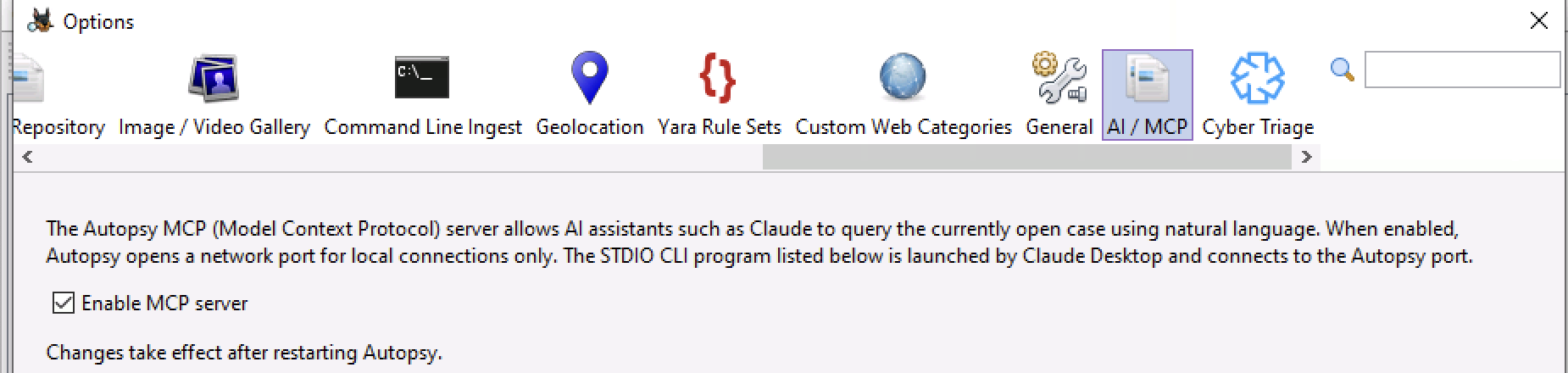
Marca la casilla para habilitar la función.
Copia la ruta del archivo que ves. Debería ser algo como:
C:\\Program Files\\Autopsy-XXX\\bin\\autopsy-mcp-stdio.exe
Deberás conservar las dobles barras diagonales.
Autopsy deberá reiniciarse para que el servidor MCP esté habilitado.
Configurar Claude Desktop
A continuación, encuentra tu archivo claude_desktop_config.json. Estas aplicaciones cambian rápidamente, pero actualmente se encuentra aquí:
C:\Users\JDOE\AppData\Local\Packages\Claude_pzs8sxrjxfjjc\LocalCache\Roaming\Claude\claude_desktop_config.json
Si no es así, busca en tu sistema dónde está ese archivo o verifica si Anthropic movió los datos.
Cuando abras ese archivo en un editor de texto, verás algo como esto si es una instalación nueva:
{
  "preferences": {
    "coworkScheduledTasksEnabled": false,
    "ccdScheduledTasksEnabled": true,
    "sidebarMode": "chat",
    "coworkWebSearchEnabled": false
  }
}
Debes:
Agregar una coma después de la penúltima } Agregar una sección mcpServer como la siguiente antes de la } final
Debería verse así:
{
  "preferences": {
    "coworkScheduledTasksEnabled": false,
    "ccdScheduledTasksEnabled": true,
    "sidebarMode": "chat",
    "coworkWebSearchEnabled": false
  },
  "mcpServers": {
    "autopsy": {
      "command": "c:\\Program Files\\autopsy-XXX\\bin\\autopsy-mcp-stdio.exe"
    }
  }
}
Obviamente, asegúrate de usar la misma ruta que copiaste de la aplicación. Las dobles barras diagonales inversas son obligatorias.
No olvides agregar la coma antes de agregar el "mcpServer". Ese es el error común.
Si tienes tanto Cyber Triage como Autopsy, la sección se vería así:
"mcpServers": {
  "autopsy": {
    "command": "c:\\Program Files\\autopsy-XXX\\bin\\autopsy-mcp-stdio.exe"
  },
  "cybertriage": {
    "command": "c:\\Program Files\\Cyber Triage\\bin\\cybertriage-mcp-stdio.exe"
  }
}
Después de editar el archivo de configuración, cierra Claude Desktop POR COMPLETO.
NOTA 1: En Windows, Claude Desktop sigue ejecutándose incluso después de cerrar la ventana. Debes ir a la barra de tareas y cerrarlo desde allí antes de que se apague por completo y recargue el archivo de configuración.
NOTA 2: Debido a que el número de versión está en la ruta de Autopsy, deberás actualizar la ruta anterior en cada actualización.
NOTA 3: Ten MUCHO cuidado si de hecho tienes tanto Cyber Triage como Autopsy como servidores MCP y ambos están abiertos al mismo tiempo. Si no eres específico en cada indicación sobre qué herramienta usar, ¡podría saltar entre conjuntos de datos!
Usar Claude Desktop para Analizar Datos
Después de reiniciar Claude Desktop, deberías estar listo para comenzar.
Primero, pregúntale a Claude "¿Puedes ver el servidor MCP de Autopsy?". Debería decirte si puede y qué tipos de "herramientas" soporta. Si eso no funciona, consulta la sección de Depuración a continuación.
A continuación, abre un Caso. Ahora puedes preguntarle "¿hay un caso de autopsia abierto?".
Asegúrate de que tus indicaciones sean específicas sobre si deben ser para un solo host o para todos ellos en el caso.
Por ejemplo: "haz una línea de tiempo de todos los Dispositivos USB" vs "haz una línea de tiempo de Dispositivos USB del host X".
Otras cosas a tener en cuenta:
- Claude te pedirá que uses cada herramienta. Esta es una función de seguridad. No parece que podamos hacer nada al respecto. Otros clientes pueden no pedírtelo tanto.
- Los resultados no pueden superar 1MB. Así que si das una solicitud muy amplia, podrías alcanzar ese límite. Por favor, avísanos si esto sucede para que podamos saber qué tipos de preguntas deberían optimizarse más.
Depuración
Si Claude Desktop no puede ver el servidor MCP, entonces:
Verifica que habilitaste el servidor y reiniciaste Autopsy. Verifica que REALMENTE detuviste Claude Desktop por completo yendo a la barra de tareas de Windows y deteniéndolo allí (cerrar ventanas no es suficiente).
Si lo anterior está confirmado, abre un símbolo del sistema y ve a la carpeta que copiaste en el archivo de configuración (como c:\\Program Files\\Autopsy-XXX\\bin). Escribe:
> autopsy-mcp-stdio --test
Eso intentará conectarse al servidor.
Si pasa, entonces el servidor está ejecutándose y autopsy-mcp-stdio puede conectarse. Por lo tanto, el problema está en tu configuración de Claude Desktop. Verifica dos veces el archivo de configuración y si tu cuenta puede acceder a servidores MCP.
Si autopsy-mcp-stdio no puede conectarse, entonces el problema es el servidor. Revisa los registros en tu carpeta \\AppData\\Local\\Autopsy\\MCP para ver si hay errores. También verifica si un firewall podría haber bloqueado la conexión.
Arquitectura
Para ayudar con la depuración y la comprensión de cómo funciona todo esto, aquí hay un resumen rápido:
Si está habilitado, al inicio, Autopsy abre el puerto TCP 8743 solo para conexiones de localhost. También genera un token aleatorio para cada inicio. Todas las conexiones de otros hosts o sin el token son rechazadas. El programa autopsy-mcp-stdio.exe puede conectarse al puerto. Claude Desktop se comunica con él a través de STDIO y actúa como un transporte entre Claude Desktop y la aplicación Autopsy en ejecución.
Copyright © 2012-2026 Sleuth Kit Labs. Generado el
Este trabajo está licenciado bajo una Licencia Creative Commons Atribución-CompartirIgual 3.0 Estados Unidos.