SMTasker MCP
Connect compatible AI assistants to SMTasker to inspect accounts, devices, and activity and manage supported social automations through MCP with configurable permissions.
文件
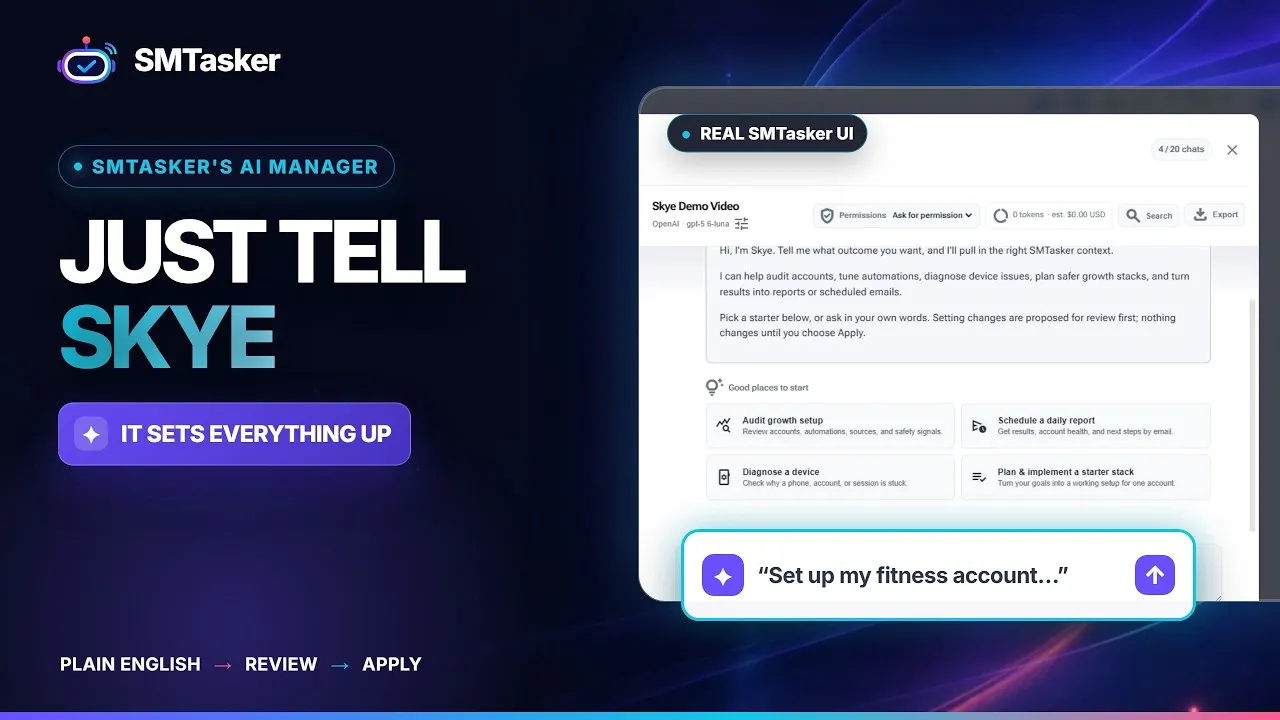
Watch a request become a configured automation. Real product walkthrough: Skye prepares the settings, sources, limits, and schedule. Review, approve, and inspect the saved setup. The automation stays stopped. Watch on YouTube
Publish on schedule
Organize photos and videos, prepare captions, and set publishing windows for each account.
See supported publishing tools
Automate engagement
Run likes, follows, comments, messages, and views with the tools available for each social app.
Choose your audience
Work from usernames, saved lists, or supported hashtag and keyword sources. Decide who each automation reaches.
Manage accounts & devices
Check connected phones, organize accounts, and start or pause activity from your browser dashboard.
Set the pace
Choose daily limits, active hours, and running days for each automation. Adjust the routine as your needs change.
Know what happened
Review completed actions and errors. Ask Skye to explain activity or email you a recurring report.
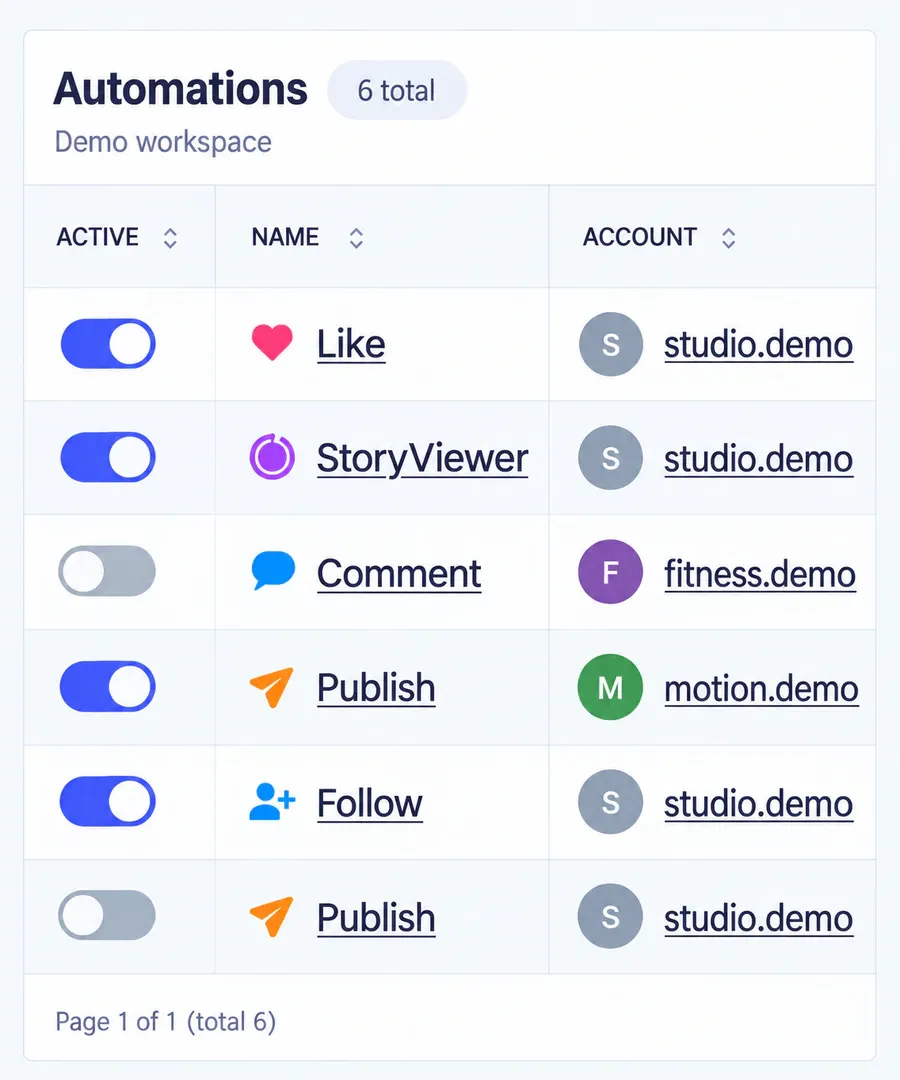
The controls are yours. Skye helps you use them. Illustrative admin workspace with sample data. Navigation depends on access; available actions vary by platform.
From setup to troubleshooting.Ask Skye.
Your AI manager can read the accounts, settings, and activity behind your question, then prepare the next step.
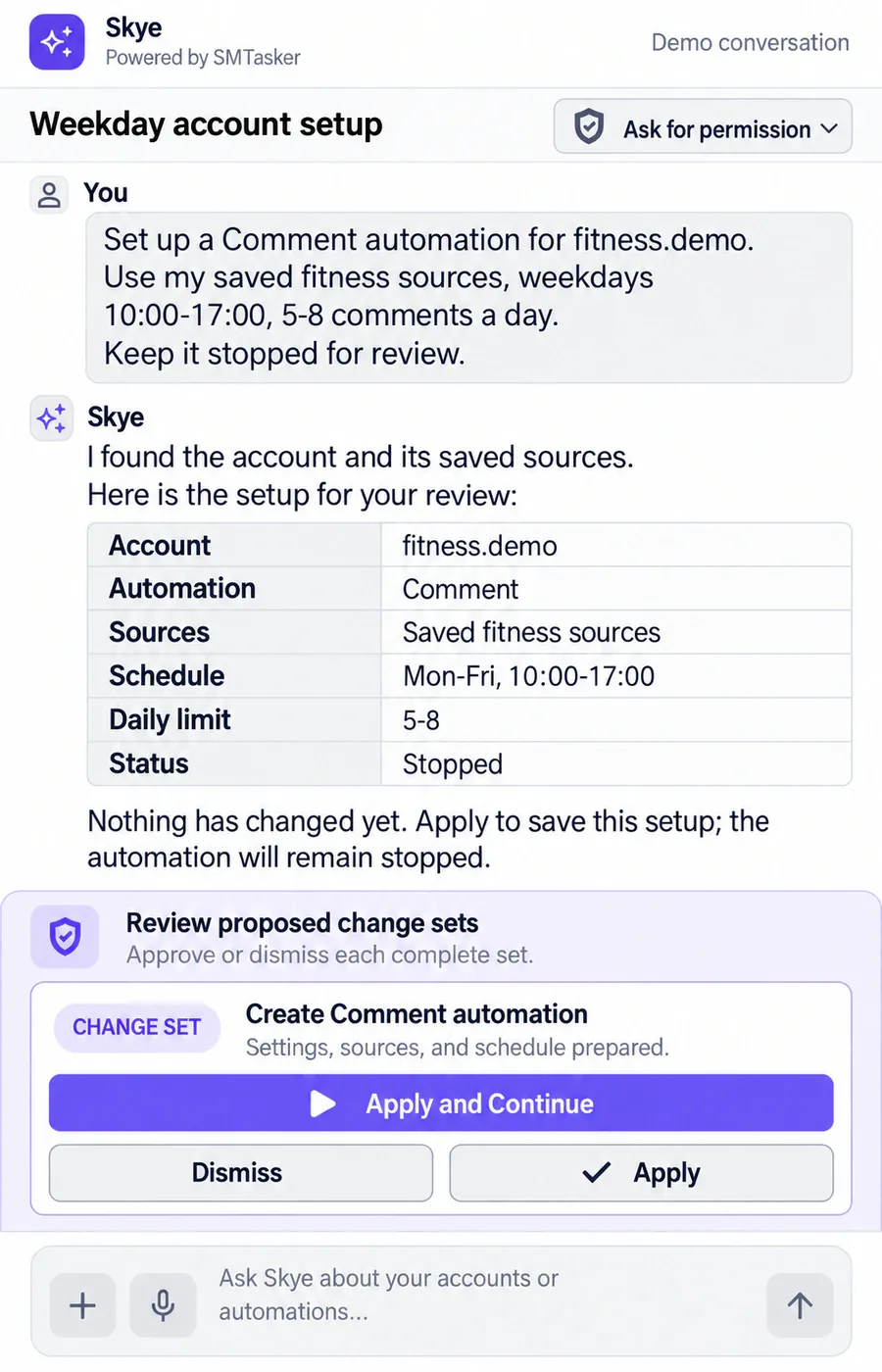
Describe the setup. Review the changes. Apply. Illustrative conversation. This example saves the automation stopped, ready for your review.
Built-in AI manager
More than answers. Work you can apply.
Set it up
Prepare automations, sources, limits, and schedules.
Find the problem
Investigate stopped activity and propose changes.
Keep track
Review activity and schedule emailed reports.
Choose Ask for permission to review proposed changes before applying them.
External AI integration
Already use an AI assistant?
Connect it through MCP. Inspect accounts, devices, and activity, then create or update supported automations from a compatible assistant.
Choose read-only or write access. Set key expiry, revoke access, and review action logs.
Write-enabled MCP can apply changes directly. Email and recurring tasks remain in Skye.
Prefer hands-on control? Every dashboard control stays available. AI is a choice, not a requirement.
Manage in your browser.Run on your Android devices.
What you’ll need
A Windows PC or Mac With the SMTasker local client running.
An Android device Connected to your computer and signed in to your social apps.
An API key to use Skye Connect your own OpenAI or Anthropic account.
Supported Android emulators are also available on Windows. Keep the client running and the device connected while automations run.
01
Connect your first device
Install the client, connect your Android device, and add your social accounts.
02
Build your routine with Skye
Choose accounts, actions, targets, and timing. Ask Skye to prepare the setup, or configure it yourself.
03
Run it. Review it. Refine it.
Review and apply the settings, start the automation when ready, and check its activity. Ask Skye to investigate anything that needs attention.
Find the tools for your accounts.
See what each platform supports before choosing your plan.
Publishing, likes, saves, follows, unfollows, comments, messages, Story and Reels views.
TikTok
Video publishing and viewing, likes, comments, follows, unfollows, and direct messages.
Snapchat
Add Friends automation with your sources, schedules, and activity limits.
Start with one device. Scale when you need to.
Choose your device and account capacity. Keep the same core tools.
Every plan: all nine platforms, Skye, publishing and engagement tools, schedules, limits, and activity logs.
Skye access is included. AI usage is separate. Connect your own OpenAI or Anthropic API key. Your provider bills its usage independently of your SMTasker subscription.
Solo Plan
For solo operators managing a focused group of accounts from one connected phone or emulator.
$19 per month
- ✓1 connected device
- ✓Up to 10 accounts per device
- ✓9 platforms: Instagram, TikTok, Threads, Reddit, Snapchat, YouTube, Facebook, LinkedIn, and X (Twitter)
- ✓Skye AI Manager for setup, audits, troubleshooting, and improvements
- ✓Engagement and publishing automations
- ✓Safe limits, active days, and live logs
- ✓Yearly billing saves 20%
Growth Plan
For growing agencies running daily engagement and publishing across multiple client accounts.
$79per month · $15.80/device

  ✓5 connected devices
  ✓Up to 15 accounts per device
  ✓9 platforms: Instagram, TikTok, Threads, Reddit, Snapchat, YouTube, Facebook, LinkedIn, and X (Twitter)
  ✓Skye AI Manager for setup, audits, troubleshooting, and improvements
  ✓AI-assisted captions and media folders
  ✓Monitor devices, automations, and results
  ✓Yearly billing saves 20%
Agency Plan
For established teams that need more devices, more accounts, and repeatable client workflows.
$179 per month · $11.93/device
- ✓15 connected devices
- ✓Up to 20 accounts per device
- ✓9 platforms: Instagram, TikTok, Threads, Reddit, Snapchat, YouTube, Facebook, LinkedIn, and X (Twitter)
- ✓Skye AI Manager for setup, audits, troubleshooting, and improvements
- ✓Scale engagement and publishing across larger client lists
- ✓Priority support for setup and troubleshooting
- ✓Yearly billing saves 20%
Create Your Own
Pick the exact number of connected devices you need. See your price before starting.
Custom
- ✓1-50 connected devices
- ✓10-20 accounts per device; exact capacity appears in the plan builder
- ✓9 platforms: Instagram, TikTok, Threads, Reddit, Snapchat, YouTube, Facebook, LinkedIn, and X (Twitter)
- ✓Skye AI Manager for setup, audits, troubleshooting, and improvements
- ✓Pay for what you use, choose how many devices you need
- ✓Volume pricing adjusts to your selection
- ✓Yearly billing saves 20%
The details that matter.
Can I try SMTasker before switching from Onimator?
Yes. Test one familiar routine on one supported device during the five-day trial. Ask Skye to prepare its sources, limits, and schedule, then review the settings and activity before moving more accounts.
Our team can help with device setup and your first automation. Share your current tool, platforms, device count, and any import requirements with setup support before switching. Evaluate one routine without committing your whole operation.
How do I connect an AI assistant through MCP?
In SMTasker Settings, open API & MCP Access, enable access, and create a personal key. Use the server URL and authorization header shown there with a client that supports Streamable HTTP MCP and bearer-token authentication. Start with read-only access. You can choose write permissions, set expiry, revoke keys, and review the activity log. Keep keys private. External MCP does not expose email or scheduled tasks.
Will AI change my settings without asking?
In Skye, use Ask for permission to review changes before applying them, and check permissions for recurring tasks. MCP is separate: a read-only key cannot make changes, but a write-enabled key allows supported changes to apply directly. Grant only the access your assistant needs.
What do I need, and what costs extra?
Keep the Windows or Mac client running and an Android device connected during automation. Supported emulators are an option on Windows. Skye access is included in the listed plans; your OpenAI or Anthropic provider bills usage separately. An external AI assistant may have its own charges. You can also configure SMTasker manually without AI.
Does automation guarantee growth or prevent restrictions?
No. Results depend on your accounts, content, targeting, and platform rules. Limits and schedules give you control, not immunity from restrictions. Use accounts you are authorized to manage and follow each platform’s terms.
Can I still configure everything myself?
Yes. Accounts, devices, automations, content, and analytics remain available in the dashboard. Use Skye whenever you want help with planning, setup, troubleshooting, or reporting.
How do I choose who my accounts engage with?
Each automation uses a source, which means the people or content it should act on. Depending on the tool and platform, you can use usernames, saved lists, or discovery options such as hashtags and keywords. Skye can help select and configure the available options.
Can Skye send a report every week?
Yes. Ask Skye to review account activity on a recurring schedule and email the report to your configured reports address. Review and approve the scheduled task. For tasks that may change settings, choose whether future changes need approval or may run automatically.