GitKraken
官方A CLI for interacting with GitKraken APIs. Includes an MCP server via `gk mcp` that not only wraps GitKraken APIs, but also Jira, GitHub, GitLab, and more.
你可以用 GitKraken MCP 做什麼?
- 跨多個儲存庫建立與管理工作項目 — 使用
gk work create和gk work add將來自多個儲存庫的變更歸組到單一工作項目下。 - 產生 AI 驅動的提交訊息 — 執行
gk work commit --ai可根據您的暫存變更產生提交訊息。 - 在 AI 輔助下建立拉取請求 — 執行
gk work pr create --ai可從目前的工作項目產生拉取請求。 - 傳遞任何原生 git 指令 — 呼叫如
gk status等指令,或直接透過 CLI 的 git 傳遞功能。 - 從命令列管理工作項目 — 使用此功能與來自已連線提供者(如 GitHub 或 Jira)的工作項目互動。
文件
🚀 GitKraken CLI
gk 是命令列上的 GitKraken。核心功能聚焦於「工作項目」,你可以將其視為正在處理的功能或議題。這讓你能同時處理多個儲存庫,並獲得如同在單一儲存庫中操作的使用者體驗。我們也提供強大的 AI 驅動提交訊息和 Pull Request 生成功能。它還提供一個 MCP 伺服器,能簡化與 git 以及你的議題和 git 託管服務提供者的協作流程。
GitKraken CLI 適用於 macOS、Windows 和 Unix 系統。

目錄
MCP 伺服器
GitKraken MCP 伺服器是一個功能強大且易於使用的本地 MCP 伺服器。它封裝了 git、GitHub、Jira 的 MCP 操作,並為 LLM 提供與 GitKraken API 和功能協作的工具。你可以根據所選的 AI 應用程式,在說明中心找到具體的安裝說明。
如果你想進一步了解 MCP 伺服器,可以查看介紹部落格文章
文件
gk help 將是你探索 CLI 的最佳資源。但也可以參考下方的工作流程。
Welcome to GitKraken CLI, a premium CLI experience for managing multiple repositories with familiar GIT CLI commands

Usage:
  gk [flags]
  gk [command]

AUTHENTICATING
  auth         Authenticate with the GitKraken platform
  provider     Add or remove provider tokens

CORE COMMANDS
  graph        Display commit graph in current repository
  issue        Manage your issues
  organization Manage your Gitkraken organizations
  work         Interact with your work.
  workspace    Interact with your workspaces. Alias: 'ws'

Additional Commands:
  help         Help about any command
  setup        Display information about your current system configuration
  version      Print the version number of GK CLI

Flags:
  -h, --help   help for gk

Use "gk [command] --help" for more information about a command.
工作流程
從單一儲存庫開始。你可以稍後再新增更多。
一般來說,你的流程會像這樣:
# Authenticate
gk auth login

# Navigate to a git repo directory on your filesystem
cd ./path/to/repo

# Then create a Work Item and the current directory
# will be automatically added to the Work Item
gk work create "My new work item"

# Edit files...
# ...

# Commit your changes using AI
gk work commit --ai

# Push your changes
gk work push

# Create a Pull Request
gk work pr create --ai
熟悉單一儲存庫的使用後,試著建立工作項目,並透過將多個儲存庫新增到新的工作項目中,一次為多個儲存庫生成提交和 PR。
# Add a repo to the current work item
gk work add ./path/to/repo # path could be as simple as "." if you are in the directory already
git 指令透傳
你也可以使用 gk 來透傳任何 git 指令。例如:
gk status
gk remote -v
# etc
安裝
macOS
gk 可透過 Homebrew 使用以下指令取得:
Homebrew:
brew install gitkraken-cli
或從發佈頁面下載,並將其新增到你的二進位檔案資料夾:
mv ~/Downloads/gk /usr/local/bin/gk
Unix / Ubuntu

gk 可從發佈頁面下載二進位檔案。取得後,將其新增到你的二進位檔案資料夾:
mv ~/Downloads/gk /usr/local/bin/gk
或建立一個新目錄,移動二進位檔案並將其加入 $PATH:
mkdir "$HOME/cli"
mv ~/Downloads/gk "$HOME/cli"
export PATH="$HOME/gk:$PATH"
你也可以[下載][發佈頁面]對應的套件(.deb、.rpm)並使用以下指令安裝:
sudo apt install ./gk.deb
或
sudo rpm -i ./gk.rpm
Windows
gk 可透過 [Winget][winget] 使用以下指令取得:
winget install gitkraken.cli
⚙️ 設定
Nerd Fonts
GitKraken CLI 支援 Nerd Fonts 來顯示某些指令的圖示。為確保圖示正確呈現,請取得並安裝 https://www.nerdfonts.com/. 提供的 Nerd Font。安裝後,將選定的 Nerd Font 設定為終端機的預設字型。
疑難排解
gk login 在瀏覽器中驗證後凍結
此問題源於瀏覽器。目前我們已知 Safari 和 Brave 不允許透過連接埠 1314 回應 localhost。要解決此問題,請變更你的預設瀏覽器,或在重新導向前複製 URL 並在其他瀏覽器中開啟。
來自 Oh-My-Zsh 的 gk
Oh-My-Zsh 將 gitk 別名為 gk,這可能會造成一些問題。要解決此問題,請在終端機中輸入:
unalias gk
手動 macOS 安裝
如果你在 macOS 上從發佈頁面手動安裝 CLI,很可能會遇到類似以下的安全錯誤:
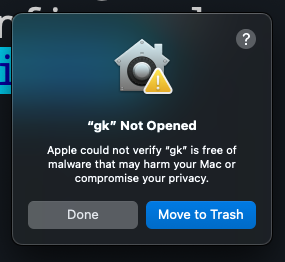
要解決此問題,請前往「設定」>「安全性與隱私權」>「一般」,然後點擊「強制允許」。
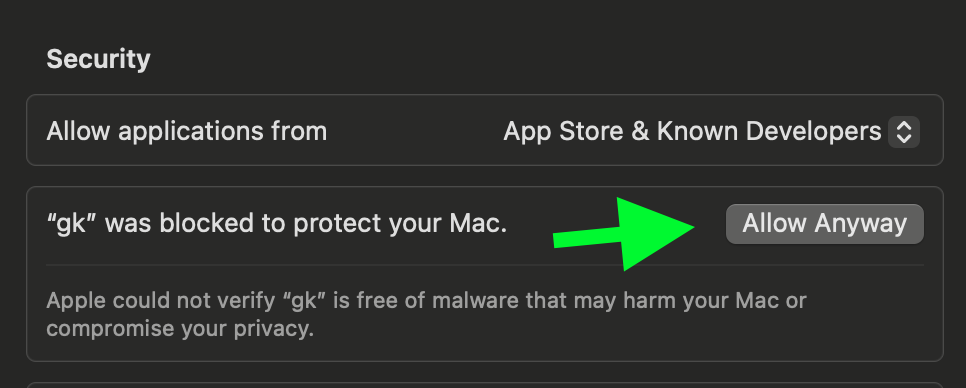
再次嘗試執行 gk setup,然後點擊「強制開啟」以繼續。