Dynamics 365
Tương tác với Microsoft Dynamics 365 để quản lý quan hệ khách hàng.
Tài liệu
Dynamics 365 MCP Server 🚀


Overview
The Microsoft Dynamics 365 MCP Server is a MCP server that provides tools to interact with Microsoft Dynamics 365 using the Model Context Protocol(MCP) by Anthorpic. It allows users to perform various operations such as retrieving user information, accounts, opportunities associated with an account, create and update accounts from Claude Desktop.
This project uses the @modelcontextprotocol/sdk library to implement the MCP server and tools, and it integrates with Dynamics 365 APIs for data operations.
List of Tools 🛠️
| Tool Name | Description | Input | Output |
|---|---|---|---|
get-user-info | Fetches information about the currently authenticated user. | None | User details including name, user ID, and business unit ID. |
fetch-accounts | Fetches all accounts from Dynamics 365. | None | List of accounts in JSON format. |
get-associated-opportunities | Fetches opportunities associated with a given account. | accountId (string, required) | List of opportunities in JSON format. |
create-account | Creates a new account in Dynamics 365. | accountData (object, required) containing account details. | Details of the created account in JSON format. |
update-account | Updates an existing account in Dynamics 365. | accountId (string, required), accountData (object, required) containing updated details. | Details of the updated account in JSON format. |
Prerequisites 📝
Before setting up the project, ensure you have the following installed:
- Node.js (v16 or higher)
- NPM (Node Package Manager)
- A Dynamics 365 instance with API access
- Azure Active Directory (AAD) application configured for Dynamics 365 API access
Configuration Steps ⚙️
Follow these steps to set up and run the project locally:
1. Clone the Repository
git clone https://github.com/your-repo/dynamics365-mcp-server.git
cd dynamics365-mcp-server
2. Install Dependencies
npm install
3. Configure Environment Variables
Create a .env file in the root of the project and add the following variables:
CLIENT_ID=your-client-id
CLIENT_SECRET=your-client-secret
TENANT_ID=your-tenant-id
D365_URL=https://your-org.crm.dynamics.com
4. Compile TypeScript Files
npm run build
4. Run MCP Server
node build\index.js
You should see the following output:
Dynamics365 MCP server running on stdio...
5. (Optional) Register your MCP Server with Claude Desktop
- Install Claude Desktop
- Navigate to Settings > Developer > Edit Config
- Edit claude_desktop_config.json
{
    "mcpServers": {
        "Dynamics365": {
            "command": "node",
            "args": [
                "<Path to your MCP server build file ex: rootfolder/build/index.js>"
            ],
            "env": {
                "CLIENT_ID": "<D365 Client Id>",
                "CLIENT_SECRET": "<D365 Client Secret>",
                "TENANT_ID": "<D365 Tenant ID>",
                "D365_URL": "Dynamics 365 url"
            }
        }
    }
}
-
Restart Claude Desktop
-
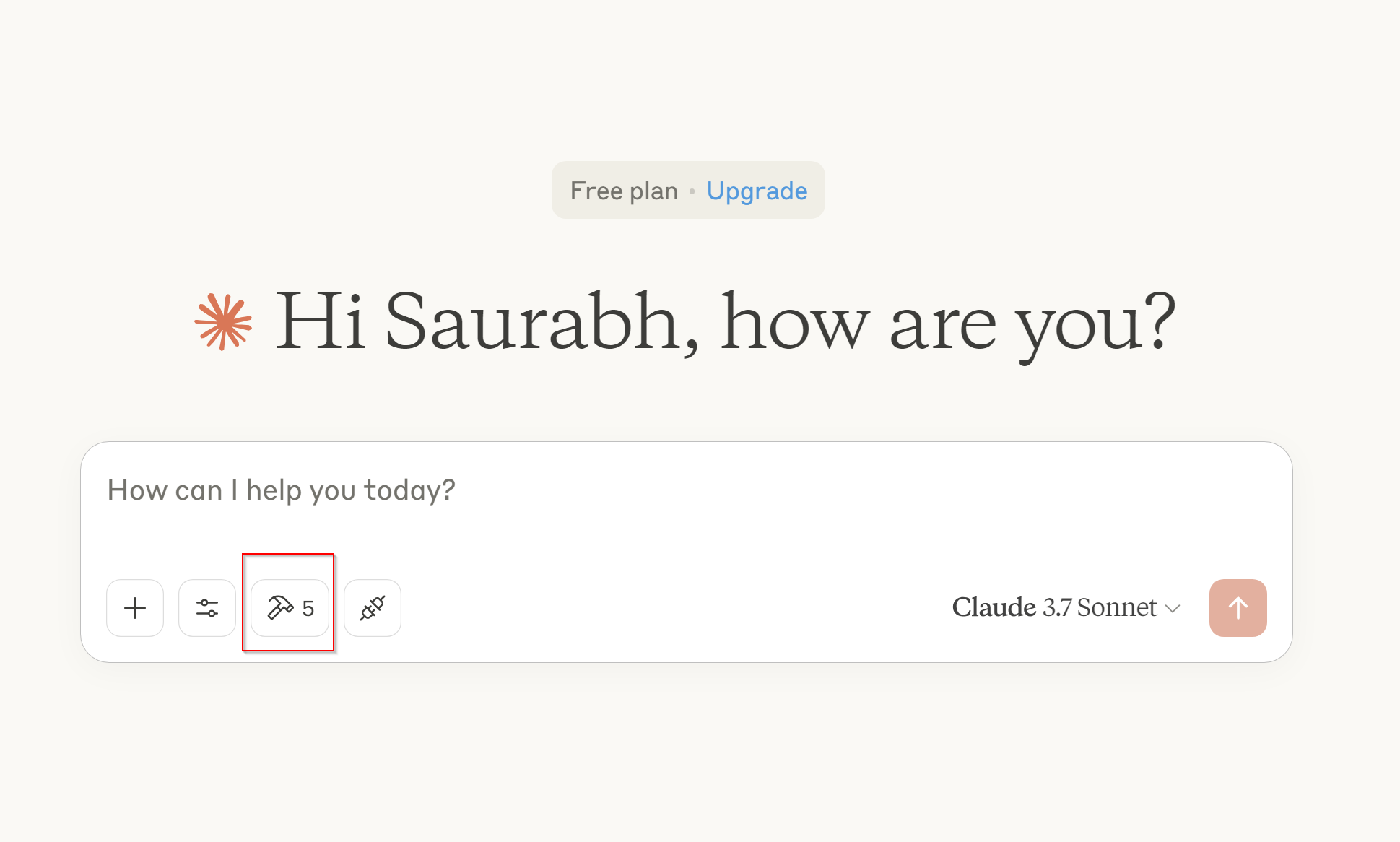
Now you should be able to see the server tools in the prompt window
-
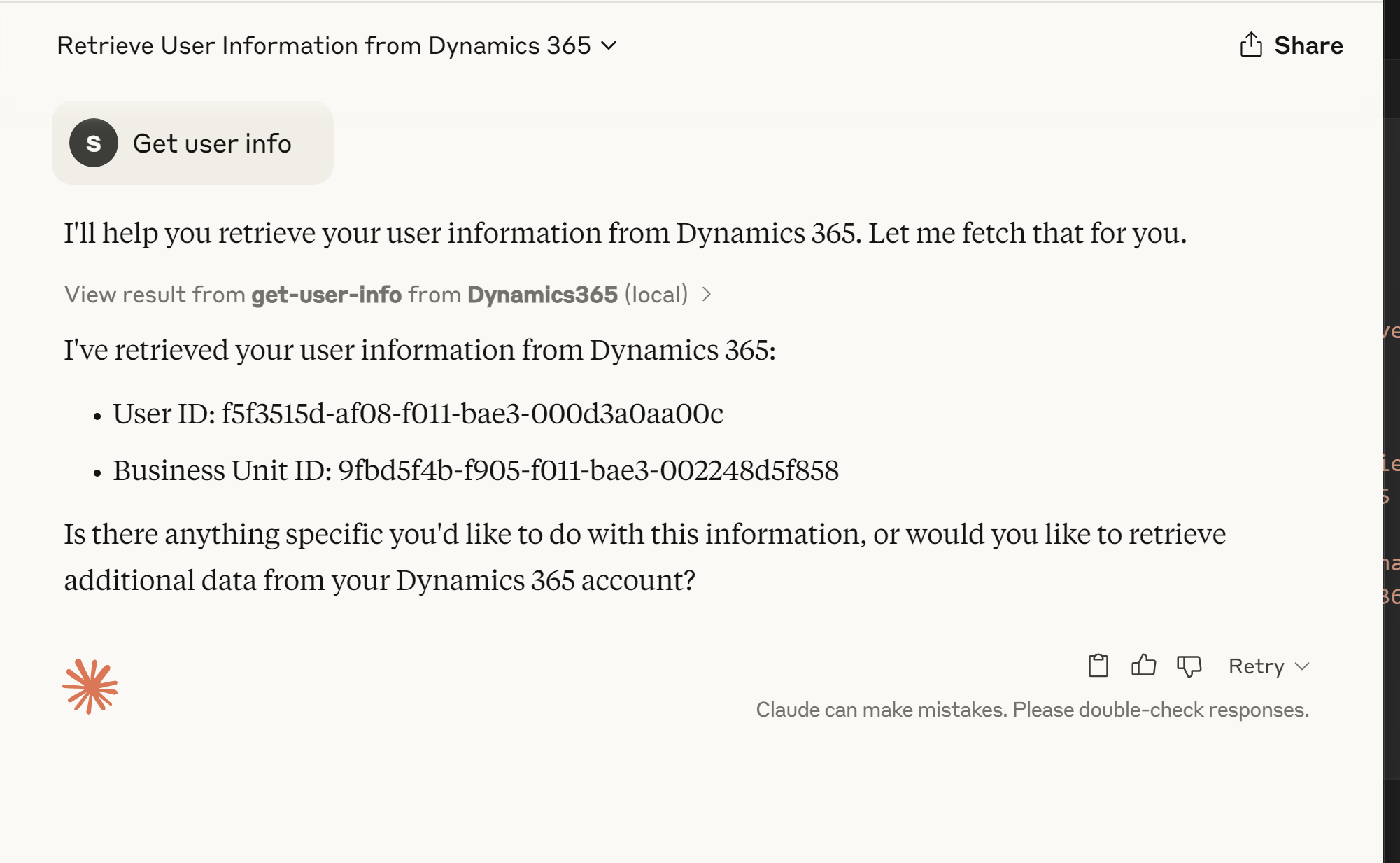
Let's test a prompt by invoking tool - get-user-info
6. (Optional) Test tools using MCP Interceptor
- Run following command in terminal
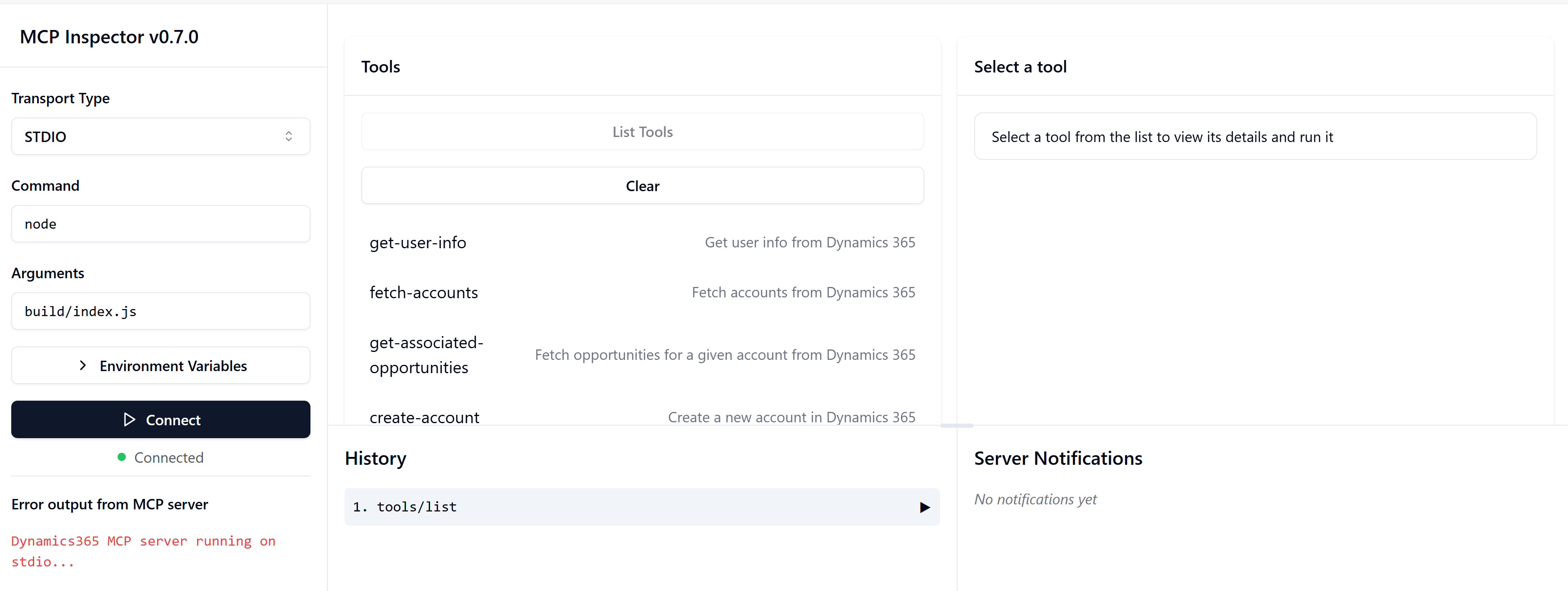
npx @modelcontextprotocol/inspector node build/index.js

-
Go to 🔍 http://localhost:5173 🚀
-
Now you can connect to server and terst all the tools!!
Debugging 🐛
If you encounter issues, ensure the following:
If you encounter issues, ensure the following:
- The .env file is properly configured.
- The Azure AD application has the necessary permissions for Dynamics 365 APIs.
- The Dynamics 365 instance is accessible from - your environment.
- You can also add debug logs in the code to trace issues. For example:
console.error("Debugging: Loaded environment variables:", process.env);
Contributing 🤝
Contributions are welcome! Feel free to submit a pull request or open an issue for any bugs or feature requests.
To contribute:
- Fork the repository.
- Create a new branch for your feature or bug fix.
- Commit your changes and submit a pull request.
- We appreciate your contributions! 😊