LlamaIndex MCP demos
Cung cấp các dịch vụ LlamaCloud dưới dạng công cụ MCP để xây dựng và quản lý các ứng dụng LLM.
Tài liệu
[!CAUTION] This repo has been archived and is no longer supported. Please see our docs for the latest on connecting your agents to LlamaParse Platform APIs.
LlamaIndex MCP demos
llamacloud-mcp is a tool that allows you to use LlamaCloud as an MCP server. It can be used to query LlamaCloud indexes and extract data from files.
It allows for:
- specifying one or more indexes to use for context retrieval.
- specifying one or more extract agents to use for data extraction
- configuring project and organization ids
- configuring the transport to use for the MCP server (stdio, sse, streamable-http)
Getting Started
- Install uv
- Run
uvx llamacloud-mcp@latest --helpto see the available options. - Configure your MCP client to use the
llamacloud-mcpserver. You can either launch the server directly withuvx llamacloud-mcp@latestor use aclaude_desktop_config.jsonfile to connect with claude desktop.
Usage
% uvx llamacloud-mcp@latest --help
Usage: llamacloud-mcp [OPTIONS]

Options:
  --index TEXT                    Index definition in the format
                                  name:description. Can be used multiple
                                  times.
  --extract-agent TEXT            Extract agent definition in the format
                                  name:description. Can be used multiple
                                  times.
  --project-id TEXT               Project ID for LlamaCloud
  --org-id TEXT                   Organization ID for LlamaCloud
  --transport [stdio|sse|streamable-http]
                                  Transport to run the MCP server on. One of
                                  "stdio", "sse", "streamable-http".
  --api-key TEXT                  API key for LlamaCloud
  --help                          Show this message and exit.
Configure Claude Desktop
- Install Claude Desktop
- In the menu bar choose
Claude->Settings->Developer->Edit Config. This will show up a config file that you can edit in your preferred text editor. - Create a add the following "mcpServers" to the config file, where each
--indexis a new index tool that you define, and each--extract-agentis an extraction agent tool. - You'll want your config to look something like this (make sure to replace
$YOURPATHwith the path to the repository):
{
    "mcpServers": {
        "llama_index_docs_server": {
            "command": "uvx",
            "args": [
                "llamacloud-mcp@latest",
                "--index",
                "your-index-name:Description of your index",
                "--index",
                "your-other-index-name:Description of your other index",
                "--extract-agent",
                "extract-agent-name:Description of your extract agent",
                "--project-name",
                "<Your LlamaCloud Project Name>",
                "--org-id",
                "<Your LlamaCloud Org ID>",
                "--api-key",
                "<Your LlamaCloud API Key>"
            ]
        },
        "filesystem": {
        "command": "npx",
        "args": [
                "-y",
                "@modelcontextprotocol/server-filesystem",
                "<your directory you want filesystem tool to have access to>"
            ]
        }
    }
}
Make sure to restart Claude Desktop after configuring the file.
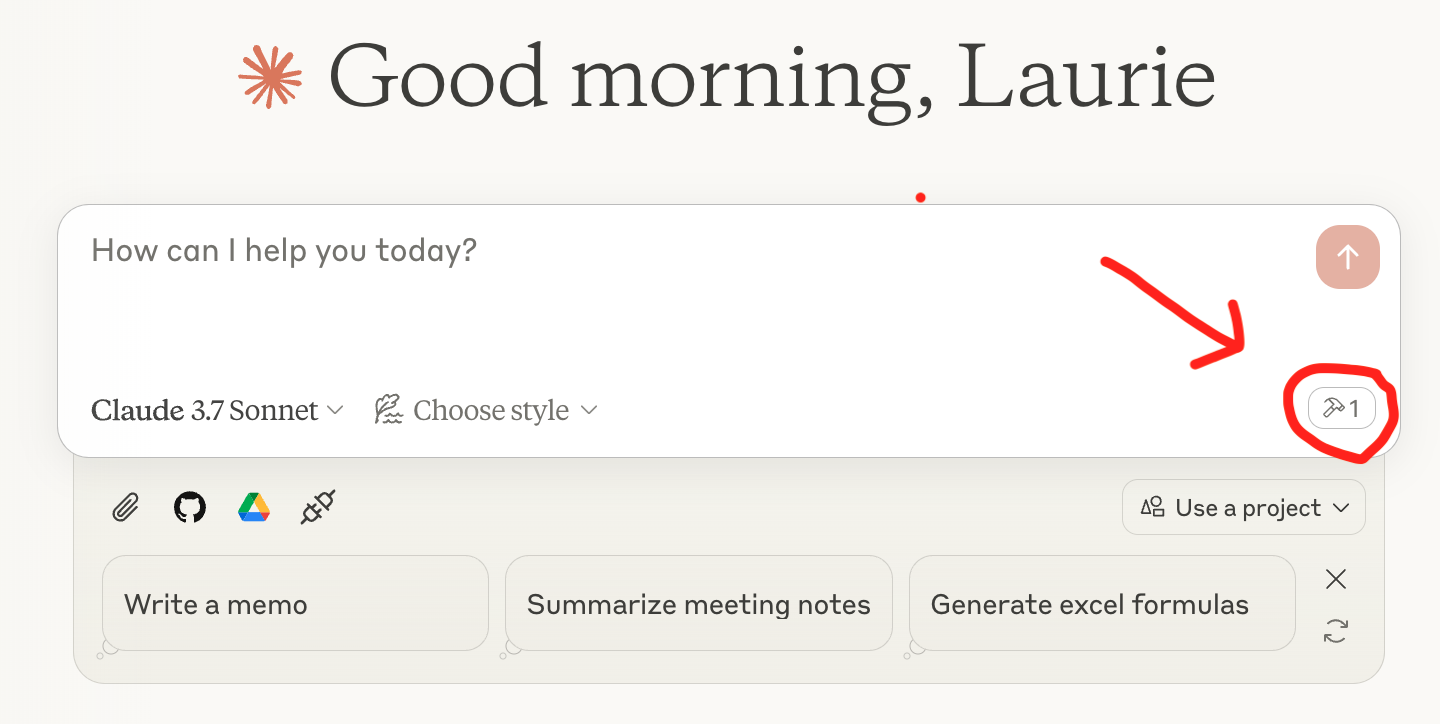
Now you're ready to query! You should see a tool icon with your server listed underneath the query box in Claude Desktop, like this:
LlamaCloud as an MCP server From Scratch
To provide a local MCP server that can be used by a client like Claude Desktop, you can use mcp-server.py. You can use this to provide a tool that will use RAG to provide Claude with up-to-the-second private information that it can use to answer questions. You can provide as many of these tools as you want.
Set up your LlamaCloud index
- Get a LlamaCloud account
- Create a new index with any data source you want. In our case we used Google Drive and provided a subset of the LlamaIndex documentation as a source. You could also upload documents directly to the index if you just want to test it out.
- Get an API key from the LlamaCloud UI
Set up your MCP server
- Clone this repository
- Create a
.envfile and add two environment variables:LLAMA_CLOUD_API_KEY- The API key you got in the previous stepOPENAI_API_KEY- An OpenAI API key. This is used to power the RAG query. You can use any other LLM if you don't want to use OpenAI.
Now let's look at the code. First you instantiate an MCP server:
mcp = FastMCP('llama-index-server')
Then you define your tool using the @mcp.tool() decorator:
@mcp.tool()
def llama_index_documentation(query: str) -> str:
    """Search the llama-index documentation for the given query."""

    index = LlamaCloudIndex(
        name="mcp-demo-2",
        project_name="Rando project",
        organization_id="e793a802-cb91-4e6a-bd49-61d0ba2ac5f9",
        api_key=os.getenv("LLAMA_CLOUD_API_KEY"),
    )

    response = index.as_query_engine().query(query + " Be verbose and include code examples.")

    return str(response)
Here our tool is called llama_index_documentation; it instantiates a LlamaCloud index called mcp-demo-2 and then uses it as a query engine to answer the query, including some extra instructions in the prompt. You'll get instructions on how to set up your LlamaCloud index in the next section.
Finally, you run the server:
if __name__ == "__main__":
    mcp.run(transport="stdio")
Note the stdio transport, used for communicating to Claude Desktop.
LlamaIndex as an MCP client
LlamaIndex also has an MCP client integration, meaning you can turn any MCP server into a set of tools that can be used by an agent. You can see this in mcp-client.py, where we use the BasicMCPClient to connect to our local MCP server.
For simplicity of demo, we are using the same MCP server we just set up above. Ordinarily, you would not use MCP to connect LlamaCloud to a LlamaIndex agent, you would use QueryEngineTool and pass it directly to the agent.
Set up your MCP server
To provide a local MCP server that can be used by an HTTP client, we need to slightly modify mcp-server.py to use the run_sse_async method instead of run. You can find this in mcp-http-server.py.
mcp = FastMCP('llama-index-server',port=8000)

asyncio.run(mcp.run_sse_async())
Get your tools from the MCP server
mcp_client = BasicMCPClient("http://localhost:8000/sse")
mcp_tool_spec = McpToolSpec(
    client=mcp_client,
    # Optional: Filter the tools by name
    # allowed_tools=["tool1", "tool2"],
)

tools = mcp_tool_spec.to_tool_list()
Create an agent and ask a question
llm = OpenAI(model="gpt-4o-mini")

agent = FunctionAgent(
    tools=tools,
    llm=llm,
    system_prompt="You are an agent that knows how to build agents in LlamaIndex.",
)

async def run_agent():
    response = await agent.run("How do I instantiate an agent in LlamaIndex?")
    print(response)

if __name__ == "__main__":
    asyncio.run(run_agent())
You're all set! You can now use the agent to answer questions from your LlamaCloud index.