Katana — Japan Stock Screener
Sàng lọc mọi công ty niêm yết tại Nhật Bản theo dữ liệu tài chính, công thức tùy chỉnh và nội dung báo cáo thường niên.
Máy chủ MCP được lưu trữ
npx add-mcp 'https://mcp.katanascreener.com/mcp'Cài vào Claude Code, Codex, Cursor và nhiều công cụ khác
Tài liệu
Server URL (works with assistants other than Claude and ChatGPT too)
https://mcp.katanascreener.com/mcp
From the Claude directory
- Open Katana's page in the Claude directory
- Click Connect to Claude
- Katana's sign-in page opens; sign in with your Katana account and click Allow
- Turn on the Katana connector from "+" in a conversation
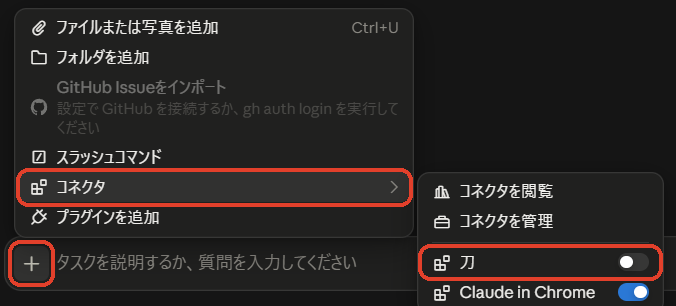
- Type what you are looking for in a company, in your own words

If that does not work for you, you can also connect this way.
By entering the URL
- Open Claude
- Settings → Connectors → Add → Add custom connector
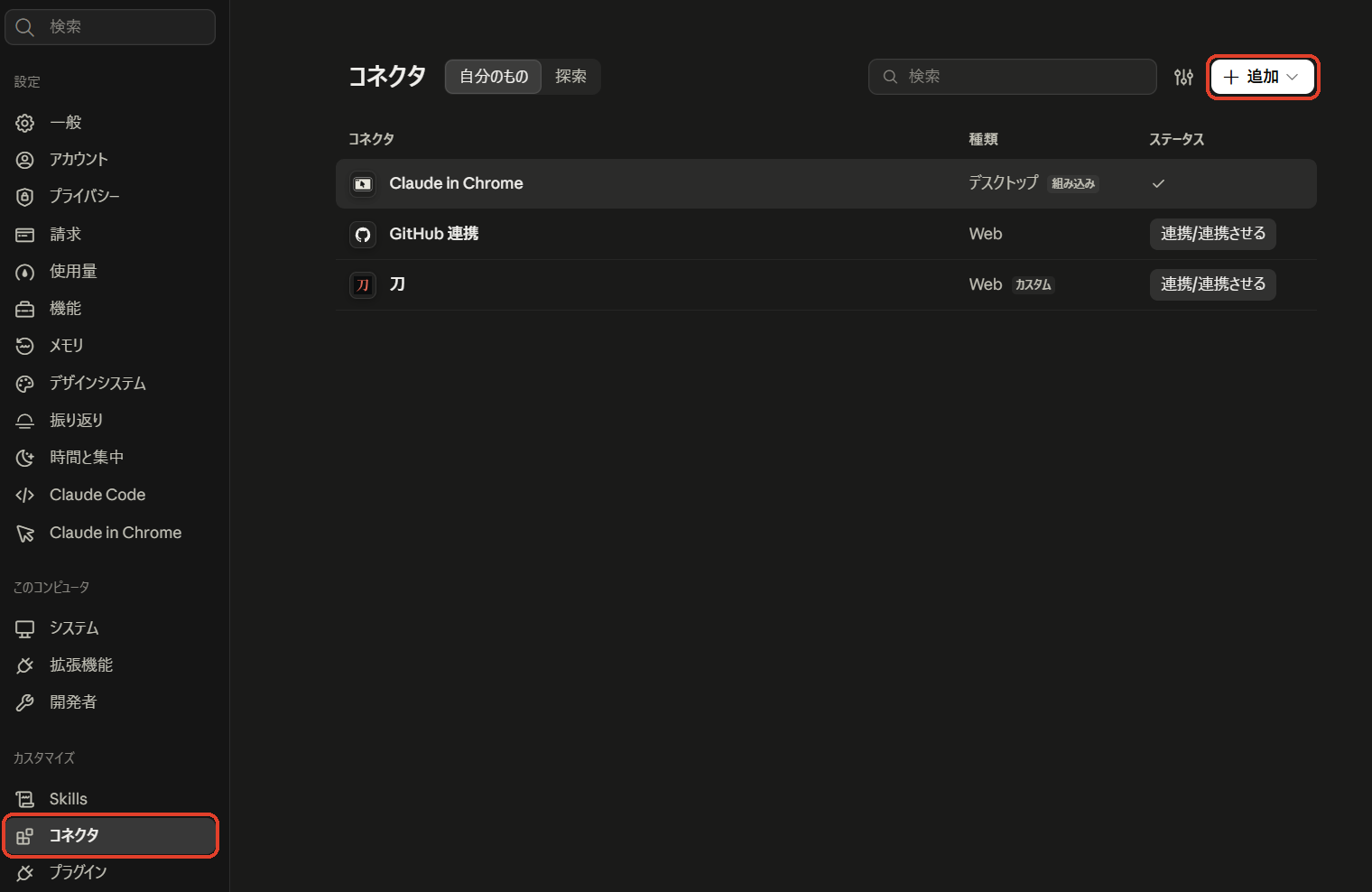
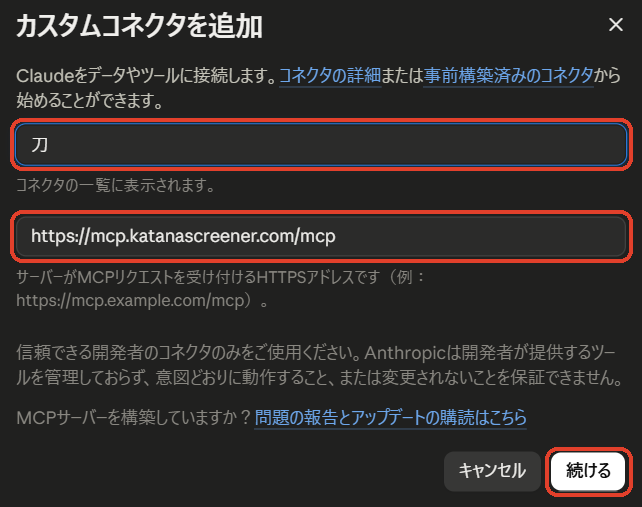
- Enter "Katana" as the name and the URL above, then Continue
- Leave the authentication settings as they are and continue
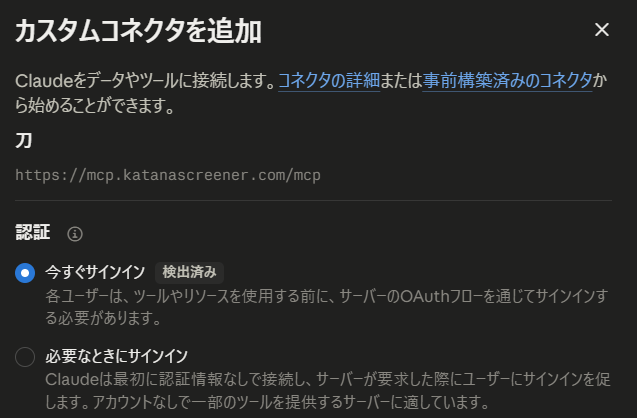
- Click Connect. If Claude asks you to confirm the connection, continue

- Katana's sign-in page opens; sign in with your Katana account and click Allow
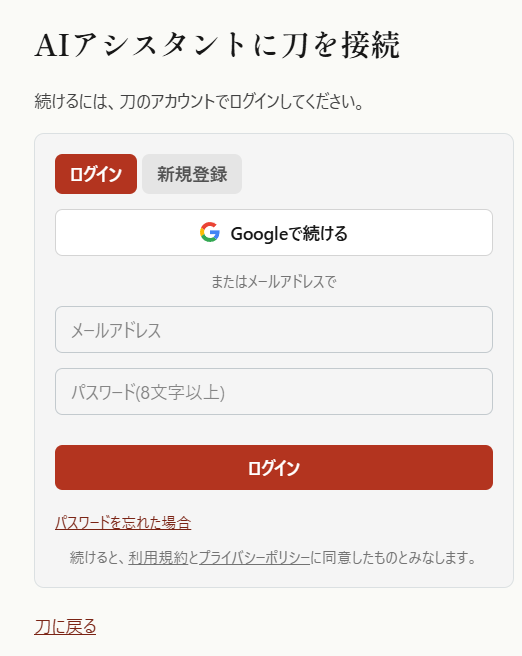
- Turn on the Katana connector from "+" in a conversation
- Type what you are looking for in a company, in your own words
In Claude Code (CLI), add it with the command below, then choose Katana in /mcp to sign in.
claude mcp add --transport http katana https://mcp.katanascreener.com/mcp
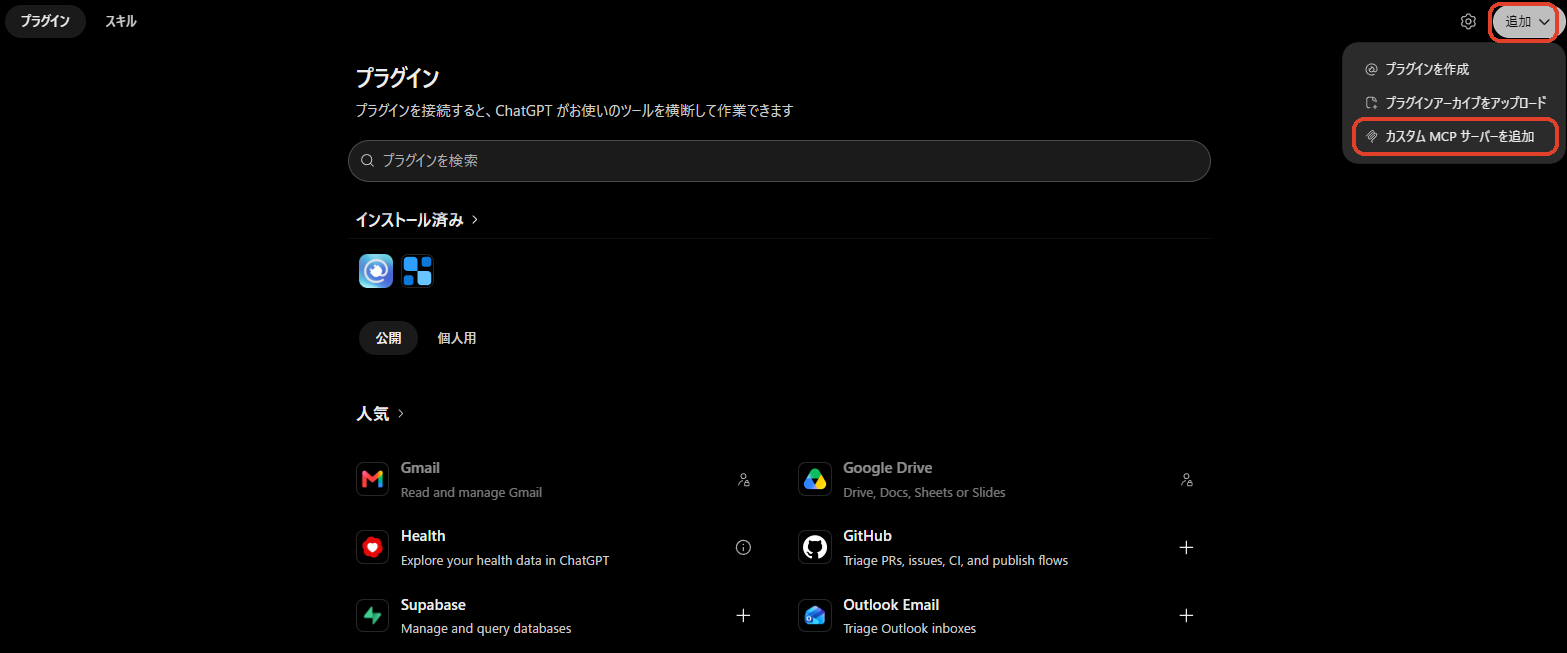
- Open the Plugins page in ChatGPT
- Add (top right) → Add custom MCP server
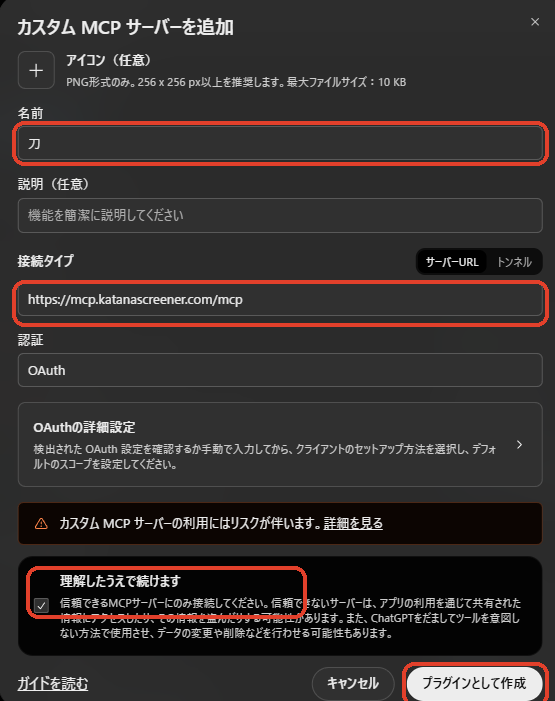
- Enter "Katana" as the name and the URL above, check "I understand and want to continue", then click Create as a plugin
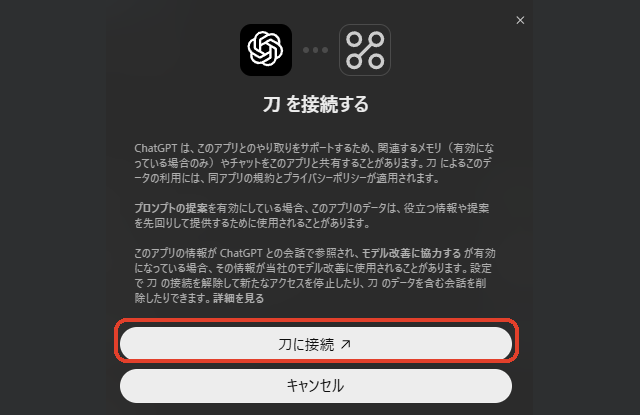
- Click the connect button. Katana's sign-in page opens; sign in with your Katana account and click Allow
- In a new conversation, choose Katana from "+" (or type @)
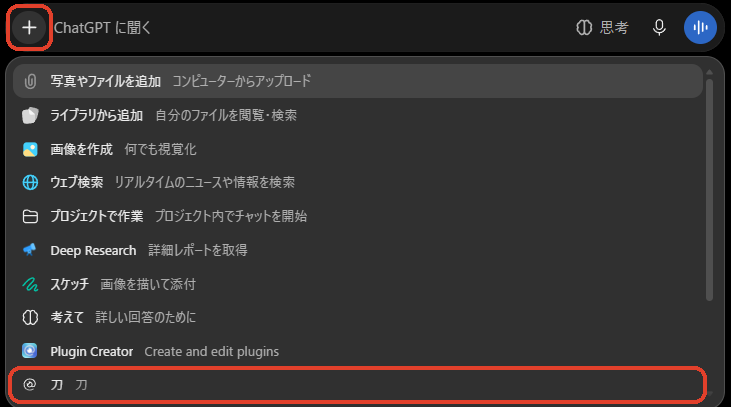
- Type what you are looking for in a company, in your own words
