Umami MCP Server
Tích hợp Umami Analytics với bất kỳ máy khách MCP nào như Claude Desktop, VS Code, và nhiều hơn nữa.
Tài liệu


Umami MCP Server
Connect your Umami Analytics to any MCP client - Claude Desktop, VS Code, Cursor, Windsurf, Zed, Smithery, and more.
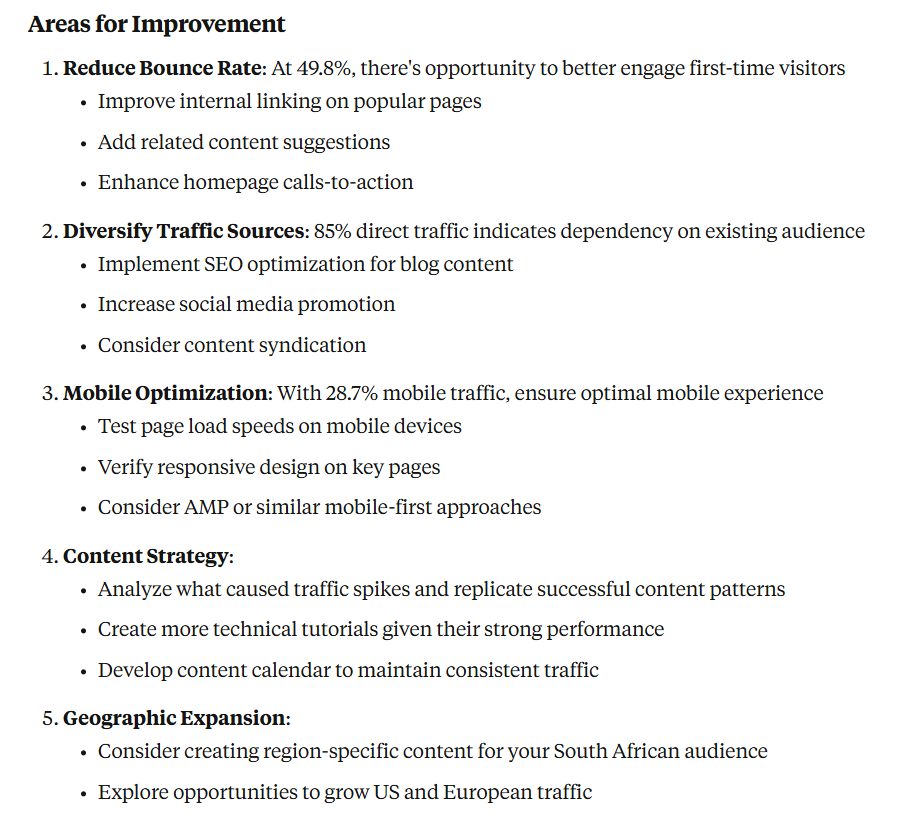
Prompts
Analytics & Traffic
- "Give me a comprehensive analytics report for my website over the last 30 days"
- "Which pages are getting the most traffic this month? Show me the top 10"
- "Analyze my website's traffic patterns - when do I get the most visitors?"
User Insights
- "Where are my visitors coming from? Break it down by country and city"
- "What devices and browsers are my users using?"
- "Show me the user journey - what pages do visitors typically view in sequence?"
Sessions & Replay
- "How many sessions were recorded last month? List the most active ones"
- "Walk me through what session did — the pages and events in order"
- "Which recorded sessions came from mobile in Sweden?"
Real-time Monitoring
- "How many people are on my website right now? What pages are they viewing?"
- "Is my website experiencing any issues? Check if traffic has dropped significantly"
Content & Campaign Analysis
- "Which blog posts should I update? Show me articles with declining traffic"
- "How did my recent email campaign perform? Track visitors from the campaign UTM"
- "Compare traffic from different social media platforms"
Quick Start
Option 1: Download Binary
Get the latest release for your platform from Releases
Option 2: Docker
docker run -i --rm \
  -e UMAMI_URL="https://your-instance.com" \
  -e UMAMI_USERNAME="username" \
  -e UMAMI_PASSWORD="password" \
  ghcr.io/macawls/umami-mcp-server
Option 3: Go Install
go install github.com/Macawls/umami-mcp-server@latest
Installs to ~/go/bin/umami-mcp-server (or $GOPATH/bin)
Setup
Pick one of the two approaches below based on your preference.
Remote (No Install)
A hosted instance is available at https://umami-mcp.macawls.dev/mcp. Connect directly from any MCP client that supports HTTP transport — no binary or Docker needed.
Credentials are passed via X-Umami-* headers on the initialize request.
Claude Desktop
Add to your config (%APPDATA%\Claude\claude_desktop_config.json on Windows, ~/Library/Application Support/Claude/claude_desktop_config.json on macOS):
{
  "mcpServers": {
    "umami": {
      "type": "http",
      "url": "https://umami-mcp.macawls.dev/mcp",
      "headersHelper": "echo X-Umami-Host: https://your-instance.com && echo X-Umami-Username: admin && echo X-Umami-Password: pass"
    }
  }
}
VS Code (GitHub Copilot)
Add to .vscode/mcp.json:
{
  "servers": {
    "umami": {
      "type": "http",
      "url": "https://umami-mcp.macawls.dev/mcp",
      "headers": {
        "X-Umami-Host": "https://your-instance.com",
        "X-Umami-Username": "${input:umami-username}",
        "X-Umami-Password": "${input:umami-password}"
      }
    }
  }
}
Claude Code
claude mcp add --transport http \
  --header "X-Umami-Host: https://your-instance.com" \
  --header "X-Umami-Username: admin" \
  --header "X-Umami-Password: pass" \
  umami https://umami-mcp.macawls.dev/mcp
Cursor
Add to .cursor/mcp.json:
{
  "mcpServers": {
    "umami": {
      "url": "https://umami-mcp.macawls.dev/mcp",
      "headers": {
        "X-Umami-Host": "https://your-instance.com",
        "X-Umami-Username": "admin",
        "X-Umami-Password": "pass"
      }
    }
  }
}
Windsurf
Add to ~/.codeium/windsurf/mcp_config.json:
{
  "mcpServers": {
    "umami": {
      "serverUrl": "https://umami-mcp.macawls.dev/mcp",
      "headers": {
        "X-Umami-Host": "https://your-instance.com",
        "X-Umami-Username": "admin",
        "X-Umami-Password": "pass"
      }
    }
  }
}
OpenCode
Add to opencode.json:
{
  "mcp": {
    "umami": {
      "type": "remote",
      "url": "https://umami-mcp.macawls.dev/mcp",
      "headers": {
        "X-Umami-Host": "https://your-instance.com",
        "X-Umami-Username": "admin",
        "X-Umami-Password": "pass"
      }
    }
  }
}
Other Clients
Any MCP client that supports Streamable HTTP can connect to https://umami-mcp.macawls.dev/mcp with credentials in X-Umami-Host, X-Umami-Username, and X-Umami-Password headers.
Local
Run the binary or Docker image locally. Credentials are set via environment variables.
Claude Desktop
Add to your config (%APPDATA%\Claude\claude_desktop_config.json on Windows, ~/Library/Application Support/Claude/claude_desktop_config.json on macOS):
{
  "mcpServers": {
    "umami": {
      "command": "~/go/bin/umami-mcp-server",
      "env": {
        "UMAMI_URL": "https://your-umami-instance.com",
        "UMAMI_USERNAME": "your-username",
        "UMAMI_PASSWORD": "your-password"
      }
    }
  }
}
VS Code (GitHub Copilot)
Create .vscode/mcp.json:
{
  "servers": {
    "umami": {
      "command": "~/go/bin/umami-mcp-server",
      "env": {
        "UMAMI_URL": "https://your-umami-instance.com",
        "UMAMI_USERNAME": "your-username",
        "UMAMI_PASSWORD": "your-password"
      }
    }
  }
}
Claude Code
claude mcp add \
  umami-mcp-server \
  -e UMAMI_URL="https://your-umami-instance.com" \
  -e UMAMI_USERNAME="your-username" \
  -e UMAMI_PASSWORD="your-password" \
  -- ~/go/bin/umami-mcp-server
Cursor
Add to .cursor/mcp.json:
{
  "mcpServers": {
    "umami": {
      "command": "~/go/bin/umami-mcp-server",
      "env": {
        "UMAMI_URL": "https://your-umami-instance.com",
        "UMAMI_USERNAME": "your-username",
        "UMAMI_PASSWORD": "your-password"
      }
    }
  }
}
Windsurf
Add to ~/.codeium/windsurf/mcp_config.json:
{
  "mcpServers": {
    "umami": {
      "command": "~/go/bin/umami-mcp-server",
      "env": {
        "UMAMI_URL": "https://your-umami-instance.com",
        "UMAMI_USERNAME": "your-username",
        "UMAMI_PASSWORD": "your-password"
      }
    }
  }
}
Zed
Add to your Zed settings under assistant.mcp_servers:
{
  "umami": {
    "command": "~/go/bin/umami-mcp-server",
    "env": {
      "UMAMI_URL": "https://your-umami-instance.com",
      "UMAMI_USERNAME": "your-username",
      "UMAMI_PASSWORD": "your-password"
    }
  }
}
Docker
For clients that use a command field (Claude Desktop, Cursor, etc.):
{
  "mcpServers": {
    "umami": {
      "command": "docker",
      "args": [
        "run", "-i", "--rm",
        "-e", "UMAMI_URL",
        "-e", "UMAMI_USERNAME",
        "-e", "UMAMI_PASSWORD",
        "ghcr.io/macawls/umami-mcp-server"
      ],
      "env": {
        "UMAMI_URL": "https://your-umami-instance.com",
        "UMAMI_USERNAME": "your-username",
        "UMAMI_PASSWORD": "your-password"
      }
    }
  }
}
Available Tools
| Tool | Description |
|---|---|
get_websites | List all websites (call this first to get website IDs) |
get_stats | Aggregated statistics — pageviews, visitors, bounces, total time |
get_pageviews | Pageview and session counts grouped by time unit |
get_metrics | Breakdown by page, referrer, browser, OS, device, country, etc. |
get_active | Current active visitor count in real-time |
get_sessions | List individual visitor sessions, with total count — the sessions session replay records |
get_session_stats | Aggregated session totals — pageviews, visitors, visits, countries, events |
get_session_activity | Ordered pageview/event timeline for a single session |
Configuration
Environment Variables
| Variable | Default | Description |
|---|---|---|
UMAMI_URL | required | Your Umami instance URL (use https://api.umami.is for Umami Cloud) |
UMAMI_USERNAME | required for self-hosted | Umami username |
UMAMI_PASSWORD | required for self-hosted | Umami password |
UMAMI_API_KEY | required for Umami Cloud | API key from your Umami Cloud account (alternative to username/password) |
UMAMI_TEAM_ID | Team ID for team-based setups | |
TRANSPORT | stdio | Transport mode (stdio or http) |
PORT | 8080 | HTTP server port |
ALLOWED_ORIGINS | * | Comma-separated CORS allowed origins |
MAX_SESSIONS | 1000 | Maximum concurrent HTTP sessions |
Config File
Instead of environment variables, create a config.yaml file next to the binary:
umami_url: https://your-umami-instance.com
username: your-username
password: your-password
team_id: your-team-id  # optional
For Umami Cloud, use an API key instead:
umami_url: https://api.umami.is
api_key: your-api-key
Environment variables take priority over the config file.
Umami Cloud
Umami Cloud (the hosted version at cloud.umami.is) does not support username/password authentication. Use an API key from your Umami Cloud account settings and set UMAMI_URL=https://api.umami.is together with UMAMI_API_KEY=.... For HTTP transport, send the X-Umami-Api-Key header instead of X-Umami-Username/X-Umami-Password.
Team Websites
If your Umami instance uses teams and your websites are assigned to a team rather than individual users, get_websites may return an empty list. Set UMAMI_TEAM_ID to fetch websites from your team instead. For HTTP transport, use the X-Umami-Team-Id header.
You can find your team ID in your Umami dashboard under Settings > Teams.
Self-Hosting (HTTP Transport)
The server supports Streamable HTTP for remote deployments. Set TRANSPORT=http to expose a /mcp endpoint:
TRANSPORT=http PORT=9999 ./umami-mcp-server
Credentials are passed via X-Umami-* headers on the initialize request. The response includes a Mcp-Session-Id header for subsequent requests.
Docker defaults to HTTP mode:
docker run -p 8080:8080 ghcr.io/macawls/umami-mcp-server
Build from Source
git clone https://github.com/Macawls/umami-mcp-server.git
cd umami-mcp-server
go build -o umami-mcp
Troubleshooting
- macOS binary won't run:
xattr -c umami-mcp-serverto remove quarantine - Linux binary won't run:
chmod +x umami-mcp-server - Connection errors: Verify your Umami instance is accessible and credentials are correct
- Tools not showing up: Check your MCP client logs, verify the binary path is absolute
License
MIT