PickFu MCP
PickFu MCP connects AI assistants to real consumer feedback, enabling surveys, market research, product testing, design testing, split testing, and concept validation directly within AI workflows.
Hosted MCP Server
npx add-mcp 'https://mcp.pickfu.com/mcp'Installs into Claude Code, Codex, Cursor and more
Documentation
PickFu MCP server for Claude, Cursor, and ChatGPT
Connect Claude, Cursor, ChatGPT, and other MCP clients to PickFu to create surveys, fetch results, and generate consumer insights through chat.
The PickFu MCP server lets AI assistants create surveys, check results, generate images, and gather consumer feedback — all through natural conversation. It's the fastest way to integrate PickFu into your AI workflow.
What is MCP?
Model Context Protocol (MCP) is an open standard that lets AI assistants interact with external tools and services. With the PickFu MCP server, you can ask your AI assistant to create surveys, analyze results, and get consumer insights without leaving your conversation.
Preview before you create a poll
You don't build any survey logic yourself. The MCP server exposes PickFu's poll formats, audience targeting, and pricing to your AI assistant, so creating a poll is a conversation — not something you configure or maintain.
When you ask your assistant to create a poll, it can walk you through the same choices you'd make in the dashboard before anything is published:
- Poll format — the assistant can list the available question types and recommend one for your goal.
- Audience targeting — it can surface the demographic targeting options (via
list_available_targeting) so you choose who sees the poll. - Estimated price — it can report the cost for your question types, sample size, and targeting so you can confirm before spending.
Your poll stays an unpublished draft — and nothing is charged — until you approve.
[!NOTE]
The preview experience depends on your AI client. MCP clients that implement MCP Apps (such as Claude and ChatGPT) render the poll format, targeting, and price as inline, interactive cards; other clients present the same information as text in the conversation. Either way, you review the poll before it's published.
Connect to the MCP server
https://mcp.pickfu.com/mcp
Choose your AI client below to get set up.
Claude
Connect PickFu as a custom connector in claude.ai, Claude Desktop, or Claude mobile, or add it to Claude Code with one command. See the Claude setup guide for steps.
Cursor
1. Open MCP settings
Open Cursor Settings and select MCP in the sidebar.
2. Add the server
Click Add new MCP server and enter:
- Name:
PickFu - Type:
Streamable HTTP - URL:
https://mcp.pickfu.com/mcp
Or add to .cursor/mcp.json in your project (or ~/.cursor/mcp.json for all projects):
{
  "mcpServers": {
    "pickfu": {
      "url": "https://mcp.pickfu.com/mcp",
      "transport": "streamable-http"
    }
  }
}
3. Authorize
Cursor prompts you to sign in to your PickFu account via OAuth when you first use a tool.
See Cursor's MCP documentation for details.
ChatGPT
PickFu is a published app in the ChatGPT app directory. See the ChatGPT setup guide to install it and sign in.
Grok
Two ways in: add PickFu's ready-made Grok Bot template, or add PickFu as a custom connector yourself.
Grok Bot template
PickFu publishes a shareable consumer-insights bot template. Open x.ai/bot/9EFVmFgQhjYKjMHAhpCWn and add it to your xAI account, then add PickFu as an MCP server under Settings → Plugins (plugins are account-wide, not per-bot):
- URL:
https://mcp.pickfu.com/mcp - Transport: Streamable HTTP
The bot signs in through OAuth as whoever added it, so it runs against your own PickFu account — no shared or team token. It drafts surveys for free and creates or publishes one only when you ask, confirming the cost with you first. See the Grok Bot page for the full walkthrough.
Custom connector (DIY)
In grok.com/connectors, choose New Connector > Custom, enter https://mcp.pickfu.com/mcp, and complete the OAuth flow. Grok discovers the tools automatically. Once connected, @PickFu in a Grok chat to use it directly.
See xAI's connectors docs for details.
Notion
Notion Custom Agents support custom MCP connections on Business and Enterprise plans. A workspace admin must enable them first.
1. Enable custom MCP servers (admin)
Go to Settings → Notion AI → AI connectors and enable Custom MCP servers.
2. Add to your Custom Agent
Open your Custom Agent's Settings → Tools & Access → Add connection → Custom MCP server. Enter:
- Display name:
PickFu - URL:
https://mcp.pickfu.com/mcp
Click Save.
3. Authorize
Follow the OAuth prompt to sign in to your PickFu account. Each MCP connection is per-agent — repeat for additional agents.
See Notion's MCP connections guide for details.
Accio Work
PickFu is an official plugin in the Accio Work plugin market — Alibaba's AI agent for e-commerce sellers. There's no MCP URL to paste: install the plugin and connect your account.
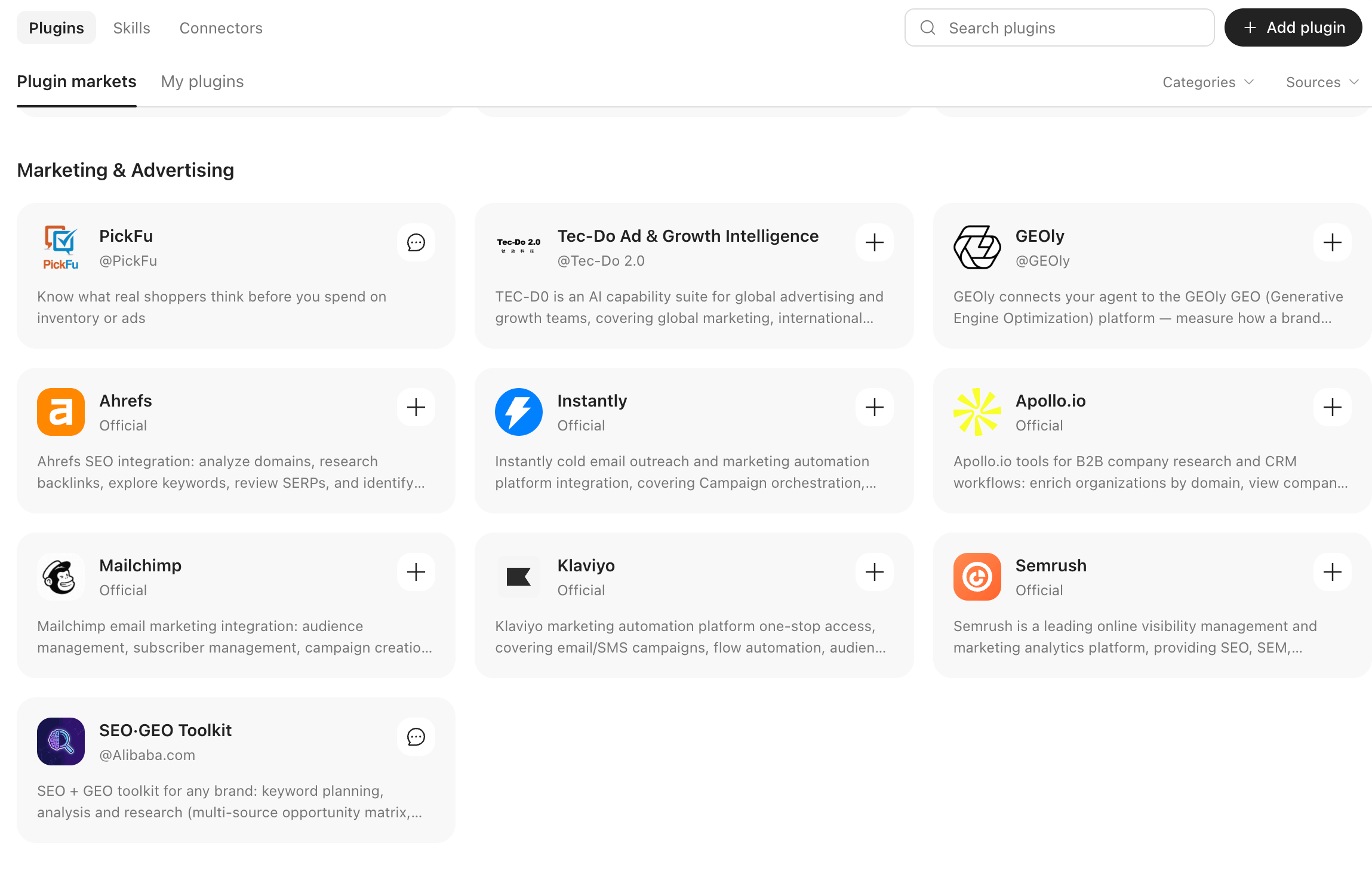
1. Find PickFu in the plugin market
In Accio Work, open Plugins → Plugin markets and search for PickFu (it's listed under Marketing & Advertising).
2. Add the plugin
Click + to add PickFu to your workspace.
3. Connect your account
Open the plugin's App Authorization section and connect PickFu. You'll be sent to PickFu to sign in and approve access — the same OAuth flow every other MCP client uses.
Once connected, ask Accio for consumer feedback in plain language ("test these three main images with Amazon shoppers"). The plugin ships e-commerce playbooks for main-image CTR tests, listing copy, pricing, packaging, brand names and logos, ad creative, and validating AI-generated product images.
OpenClaw
See the OpenClaw page for MCP configuration, CLI-based skills, and the Claw Hub market research workflow.
Other MCP clients
Any MCP-compatible client that supports Streamable HTTP transport can connect:
URL: https://mcp.pickfu.com/mcp
Transport: Streamable HTTP
When prompted for authentication, sign in to your PickFu account via the OAuth flow.
[!NOTE]
Gemini: Gemini does not currently support custom connectors on the web, but you can add MCP servers through the Gemini CLI. See Gemini's MCP server instructions for setup.
Available tools
Survey management
| Tool | Description |
|---|---|
save_survey | Create or update a survey. Omit surveyId to create; include surveyId to update questions, targeting, reporting, or metadata. Pass a template block instead of questions to create a draft from a template (see Creating a draft from a template). Pass previewImages: true to also return labeled inline previews of the survey's image options (see Previewing images before launch). |
publish_survey | Publish a draft survey to start collecting responses. Spends the account's credit balance first, then charges the saved card on file for any shortfall; fails with 402 only when no saved card is available (or the card was declined or requires 3D Secure) |
mini_poll | Create, update, or publish the account's plan-included daily mini-poll. Plan-gated — see Mini-poll tool below |
stop_survey | Stop a live survey early — unused responses are refunded |
delete_survey | Delete or archive a survey |
get_survey | Get full survey details including questions, options, AI summaries, and a per-question results object with vote totals, percentages, and the winning option |
get_survey_responses | Get paginated individual responses with explanations and demographics. Pass language to get stored translations of each explanation. If that language has no stored translations, the tool returns a TRANSLATION_UNAVAILABLE error listing the available languages. See Reading results in each language. For van_westendorp questions, each response includes a prices object with the respondent's four price answers. Pass page to also receive the top-level currency (ISO 4217, derived from the survey's target country) |
list_surveys | List and search surveys with filtering by status, type, tags, and more. Returns your team/account's surveys by default; set mine: true to restrict results to surveys created by the authenticated user (requires OAuth — not available to API-key callers) |
add_respondents | Extend a completed survey with additional respondents without recreating it |
rate_response | Rate a response helpful, or flag it not_helpful to report low quality — feeds panel-quality review and may auto-reject the response |
pin_response | Pin a noteworthy response to the top of the survey results |
export_survey_results | Get download URLs for a completed survey's results in CSV, PDF, and PNG formats. Filter with format, or filter PDF/PNG entries by language (ISO 639-1 code). CSV URLs include a short-lived signed token, so clients can follow the link without supplying an auth header |
Projects
| Tool | Description |
|---|---|
save_project | Create or update a project (use to group related surveys with shared goal and description) |
get_project | Get a project including its survey summaries |
list_projects | List projects scoped to your team, with filters for bookmarked and archived status |
Survey URL builder
| Tool | Description |
|---|---|
build_poll_url | Generate a clickable URL that creates a PickFu survey with pre-filled parameters. Pass previewImages: true to also return labeled inline previews of the survey's image options (see Previewing images before launch). |
Media
| Tool | Description |
|---|---|
upload_media | Upload an image or video to get a CDN URL for use in surveys. Pass a hosted url, base64 data, or call with no arguments to start a browser upload session for local files |
check_upload | Check the status of an upload session started by upload_media. Returns the uploaded files' media-cdn.pickfu.com URLs in selection order once the session is complete |
generate_image | Generate an image from a text prompt for use in survey options |
extract_images | Extract and view image URLs from a survey's options |
[!NOTE]
Inline previews in supporting clients: In MCP clients that implement MCP Apps (such as Claude and ChatGPT),
generate_imagerenders as an inline card showing the image, prompt, and model — alongside the existing inline previews for survey-builder and results-dashboard tools. CLI and REST API callers continue to receive the CDN URL in theimage_urlfield and can use it directly.
[!NOTE]
Images in web-based clients: Web chat clients like Claude, ChatGPT, and Notion can't pass attached file data to MCP tools directly. Instead, the assistant starts an upload session — you upload the images in your browser, and the assistant picks up the CDN URLs automatically. Terminal-based tools like Claude Code and OpenClaw can read local files directly and pass them as base64
data.
Uploading local files
When you attach or reference a local image in a web chat client, the assistant calls upload_media with no arguments. PickFu mints a short-lived upload session and returns:
upload_url— a browser link (app.pickfu.com/upload/<token>) where you upload your filestoken— an opaque session token (prefixedpfuh_) the assistant uses to check the sessionexpires_at— when the session expires (about 15 minutes after minting)
Open the link, sign in to your PickFu account if prompted, and upload your images. When you're done, tell the assistant — it calls check_upload with the session token and receives the hosted media-cdn.pickfu.com URLs in the order you selected the files, ready to pass as mediaUrl in save_survey or build_poll_url. The done screen also shows copy-link buttons, so you can copy the URLs and paste them into the chat yourself.
You can also start an upload session directly at app.pickfu.com/upload without going through the assistant, then paste the resulting URLs into any chat.
Session limits
- Up to 10 images per session, 20 MB each
- Accepted formats: JPEG, PNG, GIF, WebP, BMP, TIFF, and HEIC/HEIF (the iPhone default)
- Up to 5 active sessions at a time per account
- Rolling upload quota of 1 GB per 24 hours per account
Upload sessions require OAuth sign-in. API-key callers should pass a hosted url or base64 data to upload_media instead.
[!NOTE]
Remote image hosts allowlist. When
extract_imagesfetches an image or you pass areference_image_urlsURL togenerate_image, the URL host must be on PickFu's allowlist. Currently allowed:
pickfu.com(and subdomains, includingmedia-cdn.pickfu.com)cloudinary.coms3.amazonaws.comand regionals3.<region>.amazonaws.com- CloudFront distributions (
d*.cloudfront.net)- Amazon product image CDNs:
m.media-amazon.com,ssl-images-amazon.com,images-amazon.com- Alibaba / Aliyun image CDNs:
alicdn.comandaliyuncs.com(including subdomains)If your image is hosted somewhere else, upload it first with
upload_mediaand use the returnedmedia-cdn.pickfu.comURL. The same allowlist applies to themediaUrlyou pass tosave_survey/build_poll_url— if asave_surveycall fails with a 400 on an image URL, re-host viaupload_mediaand try again.
Previewing images before launch
Before you hand over a survey link or call publish_survey on an image survey, show the user the actual images. Wrong, cropped, or accidentally duplicated assets are far easier to catch while the survey is still a draft than after it goes live.
You have two ways to render the images inline:
- Pass
previewImages: truetosave_surveyorbuild_poll_url. The tool response includes labeled base64 previews of every image option attached to the survey, alongside the survey JSON or generated URL. - Call
extract_imageson the option image URLs. Use this to preview images for a survey you already created without re-saving it, or for any image URL you want to eyeball.
Either way, present the labeled previews to the user and get confirmation before you launch.
How previewImages labels each image
Every previewable image is labeled by its position in the survey — for example, Q1 option 1, Q2 option 3 image 2 for an entry in an imageSet, Q1 option 2 mockup for a mockup listing image, or Q1 context for a question's context image. Only HTTPS media URLs, imageSet entries, mockup images, and question context images are collected. Text options and Amazon asin options have no previewable image and are skipped.
Limits and duplicate callouts
The response is capped at 12 inline images to keep the payload manageable. If the survey references more than 12 previewable images:
- Any reference past the cap that points at an image already previewed earlier is called out by label — for example,
Q13 option 1: same image as Q1 option 1 (preview omitted, image limit reached). Duplicate callouts are themselves bounded (up to 6) so a survey that reuses the same asset hundreds of times doesn't flood the response. - Remaining non-duplicate images past the cap are rolled up into a single count note.
Duplicate labeling exists specifically to surface the mistake where two options accidentally share the same asset. Scan the labels in the response for same image as … before publishing.
Discovery and organization
| Tool | Description |
|---|---|
list_available_targeting | List all demographic targeting options for audience selection |
list_available_reporting | List all available reporting demographics |
list_tags | List tags for organizing surveys |
create_tag | Create a new tag |
list_playbooks | Discover step-by-step research playbooks |
get_playbook | Get full playbook with instructions and survey creation links |
Templates
Templates are PickFu product combos: ready-made single-question surveys from the template gallery, each with a fixed price per respondent. They're different from playbooks, which are multi-step research plans. Both template tools are read-only; to create a draft from a template, pass a template block to save_survey. Saved team templates stay in the PickFu app and aren't available through MCP.
| Tool | Description |
|---|---|
list_templates | List templates the account can see: public ones plus any made for you or your team. Filter with query, access (mine, public, or all), country, and optionType. limit defaults to 20 (max 50); increment page while pagination.hasMore is true. Each entry returns id, name, description, access, questionTypes, optionCount, pricePerResponse, and url |
get_template | Get one template by its cmb_<slug> id: the question and its blanks, constraints, option slots, preset/choosable/blocked audience, reporting traits, context help, and an example link. A legacy tpl_ id returns not found |
Creating a draft from a template
Call get_template first, then pass a template block to save_survey in place of questions:
{
  "template": {
    "id": "cmb_business-name-test",
    "blanks": { "madlib_business_description": "a neighborhood coffee roastery" },
    "options": [{ "value": "Ember & Bean" }, { "value": "Corner Roast Co." }, { "value": "Daybreak Roasters" }]
  }
}
idis the template'scmb_<slug>id fromlist_templates.blanksfills each{{name}}in the template's question. Every blank is required; a missing one is rejected with its name and placeholder.promptreplaces the question on templates without blanks. It can't be combined withblanks, and it's rejected on templates that have them.optionsfollow the template's option slots and kinds (text, image, video, or product). The question type comes from the template: two options run head-to-head, three or more are ranked.contextadds an optional image, video, or text shown with the question.sampleSize,country,name, andtargetingdefault to the template's values when omitted.reportingcan't be set: a template's reporting traits are fixed.
The template block is create-only. It can't be combined with questions or surveyId, and the mini-poll doesn't take it. To edit a template draft, call save_survey with its surveyId as usual; every edit must stay within the template's limits.
Templates have fixed limits on sample size, country, option count and kind, and audience. A draft outside them is rejected before anything is saved. The error lists every violation with its allowed values, for example Allowed: ["15","30"]. Received: "75". For a poll outside a template's limits, build it with questions at standard pricing.
The draft is priced at the template's pricePerResponse times the sample size. The cost save_survey returns is a quote; publishing charges the current price. Survey responses from get_survey and list_surveys include a template field (id, name, and on get_survey its constraints), or null for surveys not made from a template.
You can also open a template's url, which loads it in the PickFu survey builder.
Help
| Tool | Description |
|---|---|
help_center_search | Search the PickFu help center for articles |
mcp_feedback | Submit feedback, suggestions, or bug reports to the PickFu team |
Mini-poll tool
mini_poll runs the account's plan-included daily mini-poll. It's plan-gated: the tool only appears in ListTools for accounts on a plan with mini-poll capability, and teammates on the same plan share one mini-poll allowance per day. Use it when the user wants a quick, no-cost pulse check that doesn't consume the survey balance.
Mini-polls have a fixed shape:
- Exactly one question per mini-poll (any type except
screen_recording). - Five respondents. Sample size is not configurable.
- No audience targeting and no caller-selected reporting demographics.
- Publishing consumes today's allowance; there is no charge against the account balance.
Because mini-polls publish for free, publish_survey refuses mini-poll drafts — always use mini_poll with action: "publish" instead.
Actions
The tool takes a single action field: create, update, or publish.
| Action | Required inputs | Notes |
|---|---|---|
create | questions (exactly one) | Optional: name, country, surveyIntent. Do NOT pass surveyId. Returns the draft id. |
update | surveyId plus at least one of name, country, surveyIntent, questions | Edits an existing draft. |
publish | surveyId | No draft fields allowed. Launches the mini-poll and consumes today's allowance. |
Workflow
Always create first, then reuse the returned id as surveyId for later update or publish calls in the same flow:
- Call
mini_pollwithaction: "create"and the question. - Read
idfrom the response. - Optionally call
action: "update"withsurveyId: <id>to refine the draft. - Confirm launch with the user in plain language, then call
action: "publish"withsurveyId: <id>. The assistant must not publish without explicit user confirmation.
Example: create then publish
{
  "action": "create",
  "name": "Homepage headline test",
  "country": "US",
  "questions": [
    {
      "type": "head_to_head",
      "prompt": "Which headline is more compelling?",
      "options": [
        { "value": "Ship faster with AI-native tools" },
        { "value": "Build better products in half the time" }
      ]
    }
  ]
}
The response includes an id. After the user confirms, publish it:
{
  "action": "publish",
  "surveyId": "<id from create>"
}
Errors
When the daily allowance is unavailable, the tool returns a text error that surfaces two fields from the API response:
nextAvailableAt— ISO timestamp for when the account can run its next mini-poll.claimedBy— if a teammate already used today's allowance, the login or user id that claimed it.
Use these to tell the user who took today's mini-poll and when the next one unlocks, rather than retrying immediately.
Synthetic Audiences tools (beta)
The synthetic tools run research against synthetic panelists instead of the human panel. They're feature-gated: the tools only appear in ListTools for accounts with Synthetic Audiences turned on. Synthetic Audiences is rolling out to select accounts. To request access, join the waitlist.
| Tool | Description |
|---|---|
get_synthetic_feedback | Start a synthetic research request and get back a plan with a suggested synthetic audience. Pass concept: "single" with a question to evaluate one concept, or concept: "multi" with 2–10 imageUrls or 2–10 textOptions to compare variants. Optional: panel (a synthetic audience slug), sampleSize (default 30, max 75; values above 75 are rejected) |
submit_synthetic_feedback | Run an approved plan. Pass the guid from get_synthetic_feedback. Optional: panel to switch to a different synthetic audience, questions if the user edited the question |
get_synthetic_feedback_results | Get the results for a guid. The call waits until the request is complete. Pass individualAnswers: true to also return each synthetic panelist's answers |
list_synthetic_feedback | List your prior synthetic requests with their guid, status, and timestamps. Optional: status (DRAFT, IN_PROGRESS, COMPLETE), limit (default 50, max 100) |
list_synthetic_audiences | List the available synthetic audiences. Call with no arguments for the subcategory index, then with subcategory for that subcategory's synthetic audiences and their slugs |
get_synthetic_playbook | List synthetic research playbooks, or pass a playbook_id to get one playbook's step-by-step instructions |
Workflow
- Call
get_synthetic_feedbackwith the brief. - Show the plan to the user, including the suggested synthetic audience and the question or options. The assistant must not submit without explicit user approval.
- Call
submit_synthetic_feedbackwith the sameguid. - Call
get_synthetic_feedback_resultsonce with the sameguid. Results typically take a few minutes.
Synthetic results are labeled as synthetic. Don't combine them with human survey results. Learn more in What are Synthetic Audiences?
Supported question types
[!NOTE]
Every response includes a written explanation by default. When a respondent picks an option, ranks, rates, or clicks, they're also required to explain why in their own words — that's already part of every question type except
screen_recording(which returns a transcription instead). Do not add a separateopen_endedquestion to capture "why" — it wastes a question slot (multi-question surveys are priced per question) and produces redundant data. Phrase your real question, and PickFu collects the explanation automatically. The text comes back on each response as theexplanationfield. See surveys overview for more.
| Type | Description |
|---|---|
head_to_head | A/B comparison — respondents pick a favorite (2 options) |
ranked | Respondents rank options in preference order (3–8 options) |
open_ended | Single-concept survey with written feedback |
single_select | Choose one from multiple options (3–8 options) |
multi_select | Select multiple answers (3–8 options) |
click_test | Heatmap generation from image clicks |
emoji_rating | Emoji sentiment selection with explanation |
star_rating | 1–5 star rating with feedback |
likert | Respondents rate 2–8 text statements on one shared scale. Set the scale with likertScale. Available in save_survey and mini_poll only |
five_second_test | Brief timed exposure for first impressions |
screen_recording | Record user interaction with content |
van_westendorp | Four-question price-sensitivity meter — no options needed. Respondent prices come back via get_survey_responses, and the aggregated curves and PMC/OPP/IPP/PME price points via the API's Van Westendorp results endpoint. Prices use the survey's target-country currency (see surveys overview) |
Likert questions
Use a likert question when you want respondents to rate several statements on the same agreement, frequency, or satisfaction scale. Learn more in What is a Likert Scale question?
- Statements — Pass 2–8 text statements as
options[].value. Each statement must be non-blank text and can't be anhttp://orhttps://URL.save_surveyandmini_pollreject Likert options that usemediaUrl,asin,imageSet, ormockup. - Scale — Set
likertScaleto one of these presets:
likertScale | Scale |
|---|---|
agreement5 | 5-point agreement (default) |
agreement7 | 7-point agreement |
frequency | Never to Always |
satisfaction | Very Dissatisfied to Very Satisfied |
If you omit likertScale when creating a question, PickFu uses agreement5. If you omit it when updating an existing Likert question, the question keeps its current scale. Setting likertScale on any other question type fails validation.
build_poll_url doesn't support Likert questions. Use save_survey or mini_poll instead.
Example: Likert question
{
  "questions": [
    {
      "type": "likert",
      "prompt": "Respond to each of the following statements.",
      "likertScale": "agreement5",
      "options": [
        { "value": "This product looks durable" },
        { "value": "This product looks easy to use" },
        { "value": "This product is worth the price" }
      ]
    }
  ],
  "sampleSize": "50",
  "country": "US"
}
Usage examples
Once connected, just ask your AI assistant naturally:
Create a head-to-head question
"Create a PickFu survey comparing these two logo designs to see which one people prefer"
Get survey results
"Show me the results from my latest PickFu survey"
Target a specific audience
"Create a survey asking Amazon Prime members aged 25–34 which product image they prefer"
Generate images for a survey
"Generate two product mockup images and create a head-to-head question comparing them"
Supported countries
These are the markets you can target with the country field. PickFu auto-translates your survey into each market's language and returns results in both languages — see International surveys and translation.
| Code | Country |
|---|---|
| US | United States |
| CA | Canada |
| GB | United Kingdom |
| AU | Australia |
| DE | Germany |
| FR | France |
| ES | Spain |
| IT | Italy |
| JP | Japan |
| KR | Korea |
| MX | Mexico |
| BR | Brazil |
| ZA | South Africa |
| PL | Poland |
| SE | Sweden |
Sample sizes
Available respondent counts: 15, 30, 50, 75, 100, 200, 300, 500
[!NOTE]
Screen recording questions use a different set: 5, 10, 15, 20, 25, 30, 50, 75. Passing any other value (for example
sampleSize: 100) tosave_surveyorbuild_poll_urlon ascreen_recordingquestion fails validation.
[!NOTE]
Screen recording questions are U.S.-only. A new survey with no
countrydefaults toUS. Whensave_surveyadds ascreen_recordingquestion to an existing survey, pass"country": "US"explicitly. If the survey targets another country, or has no country stored,save_surveyreturns a 400 error (Screen recording questions only run on the US panel…) instead of moving the survey to the U.S. Setting a non-UScountryon a survey that keeps ascreen_recordingquestion fails the same way.{ "questions": [ { "type": "screen_recording", "prompt": "Explore this landing page and say what you think out loud.", "options": [{ "value": "https://example.com" }] } ], "sampleSize": "10", "country": "US" }
Option formats
Surveys support various content types for options:
- Text — Plain text via
value - Media URL — Images or videos via
mediaUrl. PickFu classifies the URL by content: image URLs become image options, YouTube, Vimeo, and Wistia links become embedded video options (returned astype: "video"onget_survey), and any other URL becomes a generic link option. Because video and generic-URL options are different content types, a single question cannot mix them —save_surveyrejects the request withOPTION_CONTENT_TYPE_MISMATCH(HTTP 400). - ASIN — Amazon product by
asinfor comparison - Image set — Multiple images grouped together via
imageSet(see below) - Mockup — Product listing mockups via
mockup(SERP or listing style)
[!NOTE]
One content type per option. Each option must set exactly ONE of
value,mediaUrl,asin,imageSet, ormockup. Setting more than one — for example, adding a textvaluelabel to amediaUrlimage option — is rejected client-side bysave_surveyandbuild_poll_urlwith a message that names the conflict and the fix.Image options are auto-labeled. Do NOT put a caption in
valuealongside an image — respondents see image options as A, B, C… automatically. Usevalueonly for text-only options.All options in the same question must share the same content type (all text, or all images, etc.). This cross-option rule is enforced by the API.
Likert statements are text only. For
likertquestions,save_surveyandmini_pollaccept onlyvalue. See Likert questions.
Example: 3-way image comparison
{
  "questions": [
    {
      "type": "ranked",
      "prompt": "Which design would you buy?",
      "options": [
        { "mediaUrl": "https://media-cdn.pickfu.com/....a.jpg" },
        { "mediaUrl": "https://media-cdn.pickfu.com/....b.jpg" },
        { "mediaUrl": "https://media-cdn.pickfu.com/....c.jpg" }
      ]
    }
  ],
  "sampleSize": "15",
  "country": "US"
}
Respondents see the three images labeled A, B, C.
Image set options
Pass imageSet on an option in save_survey to group multiple images into one comparable unit. Each entry can be one of:
- An HTTPS image URL — included as-is.
- A product reference —
{ "source": "amazon", "id": "B08288SG9K" }. PickFu expands the reference to that product's full Amazon image gallery (every listing image) and rehosts each image. Onlysource: "amazon"resolves today; other sources return a 422. - A bare Amazon ASIN —
"B08288SG9K"as a shorthand. The MCP server normalizes it to{ source: "amazon", id: "B08288SG9K" }before forwarding. The underlying API expects the{ source, id }object, so this shorthand is MCP-only.
Rules:
- Use either image URLs or exactly one product reference per option — don't mix them in the same
imageSet. To compare two products' galleries, give each its own option. imageSetrequires at least one entry.- This shape is specific to
save_survey.build_poll_urlonly accepts plain image URLs.
Set imageSetDirection on the option to control the layout:
| Value | Layout |
|---|---|
horizontal | Images displayed side-by-side |
vertical | Images stacked top-to-bottom |
a-plus | Rendered as an Amazon A+ content block |
a-plus is also what makes get_survey → save_survey round-trips work for A+ image sets — re-saving an existing A+ survey preserves its direction.
Example: comparing two Amazon listings' full galleries
{
  "options": [
    {
      "imageSet": [{ "source": "amazon", "id": "B08288SG9K" }],
      "imageSetDirection": "a-plus"
    },
    {
      "imageSet": ["B0CVFKZ1LC"],
      "imageSetDirection": "a-plus"
    }
  ]
}
Authentication
The MCP server supports two authentication methods. Most clients support both.
OAuth (automatic)
OAuth works out of the box with all clients listed above. When you first use a PickFu tool, your AI client prompts you to sign in to your PickFu account. No configuration needed.
API keys
For automation, CI/CD pipelines, and long-running agents, authenticate with an API key instead of OAuth.
1. Create an API key
Go to Settings > API Keys in your PickFu account and create a new key.
2. Add the key to your MCP client config
Pass the API key as a Bearer token in the Authorization header:
claude mcp add pickfu --transport http https://mcp.pickfu.com/mcp \
  --header "Authorization: Bearer sk_your_api_key"
{
  "mcpServers": {
    "pickfu": {
      "url": "https://mcp.pickfu.com/mcp",
      "transport": "streamable-http",
      "headers": {
        "Authorization": "Bearer sk_your_api_key"
      }
    }
  }
}
See the authentication guide for full details on both methods.
Need help?
Learn more about the Model Context Protocol.
Quick setup overview for non-developers.
Get help with MCP server setup.
Related topics
- Use the PickFu app in ChatGPT
- Authenticate the PickFu CLI, MCP server, and API
- How do I create my first survey?
- What integrations are available with PickFu?
- Which PickFu integration should I use?
This documentation is built and hosted on Mintlify, a developer documentation platform.