Llama Logger
Exception tracking for .NET. Let your AI coding agent search and triage errors and stack traces.
Hosted MCP Server
npx add-mcp 'https://mcp.llamalogger.com/api/mcp'Installs into Claude Code, Codex, Cursor and more
Documentation
Docs menu · MCP Server
AI-Powered Log Analysis at Your Fingertips
The Llama Logger MCP (Model Context Protocol) server lets your AI coding agent work with your error logs directly. Connect Claude, Codex, GitHub Copilot, Cursor and other MCP-compatible tools to search exceptions, read stack traces, and triage entries without switching to the browser.
The server URL is https://mcp.llamalogger.com/api/mcp. Most AI clients only need this URL: they open a Llama Logger sign-in page, and you choose which projects the client can use. There's no token to copy or rotate.
claude mcp add --transport http llamalogger https://mcp.llamalogger.com/api/mcp
Why MCP?
Traditional debugging workflows require you to:
- Notice an error in your IDE
- Switch to your browser
- Navigate to your logging dashboard
- Search for the error
- Copy relevant details
- Return to your IDE
- Ask your AI assistant for help
With Llama Logger MCP, your AI agent queries your logs directly.
Ask questions like:
- "What errors occurred in the last hour?"
- "Show me the stack trace for this NullReferenceException"
- "What's the most common error this week?"
- "Dismiss all TaskCanceledException errors"
Features
Search & Analysis
- Full-text search across exception types, messages, stack traces, and custom data
- Smart filtering by severity, status, date range, and custom fields
- Error grouping by signature to identify patterns
- Project statistics with activity trends and top exceptions
- Attachments: read attached log files, view screenshots and download other files
Workflow Management
- Star critical errors for follow-up
- Dismiss noise from your active view
- Comment on entries to document investigations
- Ignore rules to auto-dismiss known issues
Quick Start
Prerequisites
- A Llama Logger account on a plan that includes MCP access
- An AI client that supports remote MCP servers, such as Claude Code, Claude.ai, Claude Desktop, Codex, GitHub Copilot in VS Code or Cursor
Connect with OAuth (recommended)
Clients that support remote MCP servers with sign-in only need the server URL:
https://mcp.llamalogger.com/api/mcp
The first time the client connects, it opens a Llama Logger sign-in page in your browser. After you sign in:
- Optionally name the connection, such as "Claude Code – work laptop". The name is shown under MCP Agents.
- Tick each project the app may use and choose its access level: Read only, Triage or Full access.
- Tick Attachments and Custom data for the projects where the app may read entries' attachments and custom data. They're off by default, because they can hold sensitive information.
- Click Approve.
Approving creates an MCP agent named after the app. To change its projects or access later, or to cut it off with Revoke, open it under MCP Agents in Llama Logger. The app renews its own access, so you don't need to sign in again unless you revoke it or don't use it for 90 days.
An agent can never do more than you can: its access is limited to projects and organizations you're currently a member of, checked on every request. If you leave a project, the agent loses access to it too.
Claude Code
Run this in your terminal:
claude mcp add --transport http llamalogger https://mcp.llamalogger.com/api/mcp
Then run /mcp in Claude Code, select llamalogger and sign in.
Claude.ai and Claude Desktop
Llama Logger is listed in the Claude Connectors Directory. In Claude, open the Llama Logger connector and click Connect. Claude opens the Llama Logger sign-in page.
You can also add it yourself: open Settings → Connectors, choose Add custom connector, and paste https://mcp.llamalogger.com/api/mcp as the URL. No client ID, secret or headers are needed.
GitHub Copilot (VS Code)
Copilot uses MCP servers in agent mode. Add a .vscode/mcp.json file to your workspace. VS Code starts the sign-in itself the first time the server starts:
{
  "servers": {
    "llamalogger": {
      "type": "http",
      "url": "https://mcp.llamalogger.com/api/mcp"
    }
  }
}
Cursor
Add to your Cursor MCP settings (.cursor/mcp.json in your project, or ~/.cursor/mcp.json for all projects). Cursor asks you to sign in when it connects:
{
  "mcpServers": {
    "llamalogger": {
      "url": "https://mcp.llamalogger.com/api/mcp"
    }
  }
}
Codex
Add the server to ~/.codex/config.toml:
[mcp_servers.llamalogger]
url = "https://mcp.llamalogger.com/api/mcp"
Then sign in by running:
codex mcp login llamalogger
Clients without OAuth sign-in
If your client can't sign in with OAuth, use an agent token: a personal token you create in Llama Logger and grant access to specific projects.
Create an agent token
- In Llama Logger, open MCP Agents from the navigation menu and create a new agent. Give it a name that identifies where it runs, such as "Claude Code – work laptop".
- Under Project Access, add each project the agent may use and choose an access level for each.
- For each project, Allow Attachments and Allow Custom Data control whether the agent can read the entries' attachments and custom data. Both are ticked for a new project grant. Untick them for agents that don't need them, for example when custom data holds your users' names or email addresses. The project's subscription must also include the feature.
- Optionally set Expires On. Leave it empty for a token that doesn't expire.
- Click Generate Token and copy the token. It starts with
llm_and is shown only once. Llama Logger stores only a hash of it.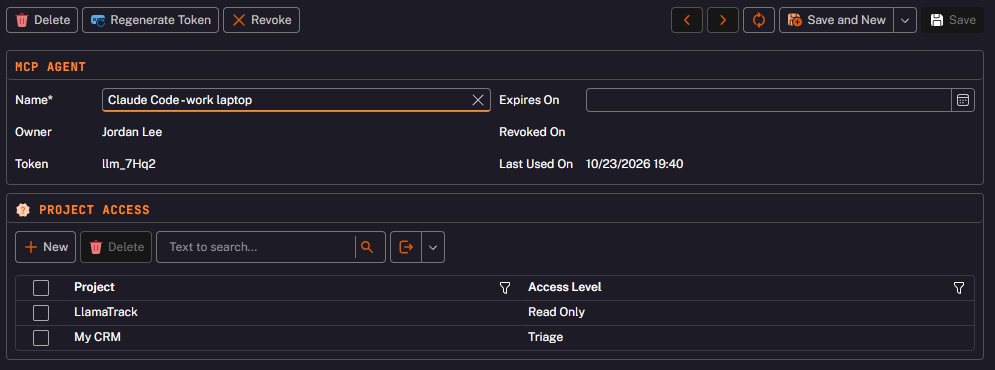
To replace a token, use Regenerate Token; the previous token stops working immediately. To shut an agent off, use Revoke.
Use OAuth sign-in or an agent token, not a project API key. Project API keys are embedded in your applications for logging and shouldn't be given to AI tools. Project API keys still work with the MCP server as a single-project, full-access agent until January 31, 2027, and every response includes a deprecation notice until then. Switch before that date.
The token can be sent in either the x-api-key header or an Authorization: Bearer header. The examples below use llm_YourAgentToken as a placeholder.
Claude Code with a token
Run this in your terminal:
claude mcp add --transport http llamalogger https://mcp.llamalogger.com/api/mcp --header "x-api-key: llm_YourAgentToken"
To share the configuration with your team without sharing a token, add a .mcp.json file to your repository instead. Each developer sets LLAMALOGGER_TOKEN in their own environment:
{
  "mcpServers": {
    "llamalogger": {
      "type": "http",
      "url": "https://mcp.llamalogger.com/api/mcp",
      "headers": {
        "x-api-key": "${LLAMALOGGER_TOKEN}"
      }
    }
  }
}
Codex with a token
Add the server to ~/.codex/config.toml. Codex reads the token from an environment variable and sends it as a Bearer token:
[mcp_servers.llamalogger]
url = "https://mcp.llamalogger.com/api/mcp"
bearer_token_env_var = "LLAMALOGGER_TOKEN"
Then set LLAMALOGGER_TOKEN to your agent token before starting Codex.
GitHub Copilot (VS Code) with a token
Add a .vscode/mcp.json file to your workspace. VS Code prompts for the token the first time the server starts and stores it securely:
{
  "inputs": [
    {
      "type": "promptString",
      "id": "llamalogger-token",
      "description": "Llama Logger agent token",
      "password": true
    }
  ],
  "servers": {
    "llamalogger": {
      "type": "http",
      "url": "https://mcp.llamalogger.com/api/mcp",
      "headers": {
        "x-api-key": "${input:llamalogger-token}"
      }
    }
  }
}
Cursor with a token
{
  "mcpServers": {
    "llamalogger": {
      "url": "https://mcp.llamalogger.com/api/mcp",
      "headers": {
        "x-api-key": "llm_YourAgentToken"
      }
    }
  }
}
Claude Desktop with a token
Claude Desktop can also connect through the mcp-remote bridge, which requires Node.js. Add the following to your Claude Desktop configuration file:
Windows: %APPDATA%\Claude\claude_desktop_config.json macOS: ~/Library/Application Support/Claude/claude_desktop_config.json
{
  "mcpServers": {
    "llamalogger": {
      "command": "npx",
      "args": ["-y", "mcp-remote", "https://mcp.llamalogger.com/api/mcp", "--header", "x-api-key:${LLAMALOGGER_TOKEN}"],
      "env": {
        "LLAMALOGGER_TOKEN": "llm_YourAgentToken"
      }
    }
  }
}
Restart Claude Desktop after saving.
Access levels
Each project an agent can use has one of these access levels, whether you chose it when signing in or under Project Access:
| Access level | The agent can |
|---|---|
| Read Only | Search entries, read entries and their history, view ignore rules and project summaries |
| Triage | Everything in Read Only, plus star, dismiss, restore and comment on entries |
| Full Access | Everything in Triage, plus create and delete ignore rules |
Working with multiple projects
One agent can cover several projects, including projects in different organizations. Ask your agent to call list_projects to see what it can access and at which level. When an agent has more than one project, search_logs, get_project_summary and list_ignore_rules need a projectId; your agent will pick it up from list_projects. Each project's own subscription limits apply.
Available Tools
Your agent sees every tool. Each call is checked against the project it acts on: when the project's access level or subscription doesn't allow it, the call is refused with the reason.
| Tool | Description | Access level |
|---|---|---|
list_projects | List the projects this agent can access, with each project's access level and whether attachments and custom data are allowed | Read Only |
search_logs | Search and filter log entries with full-text search and pagination | Read Only |
get_log_entry | Get complete details of a specific log entry | Read Only |
get_attachment | Read or download one of an entry's attachments | Read Only |
get_log_entry_history | View all occurrences of a specific error signature | Read Only |
get_project_summary | Get project statistics, top exceptions, and activity trends | Read Only |
list_ignore_rules | View all ignore rules | Read Only |
star_entry | Mark an entry for follow-up | Triage |
dismiss_entry | Hide an entry from active view | Triage |
restore_entry | Clear star or dismiss status | Triage |
add_comment | Add investigation notes to an entry | Triage |
create_ignore_rule | Auto-dismiss future matching errors | Full Access |
delete_ignore_rule | Remove an ignore rule | Full Access |
Example Prompts
Once configured, try these prompts with your AI agent:
Investigating Errors
"Search for any errors in the last 24 hours"
"Show me the full details and stack trace for log entry [ID]"
"What's the history of this NullReferenceException? When did it first appear?"
"Read the log file attached to this entry and tell me what happened before the crash"
Understanding Trends
"Which projects can you access?"
"Give me a summary of my project - what are the top exceptions?"
"How many errors occurred in the last 7 days compared to the last 30?"
Managing Workflow
"Star this error for follow-up"
"Add a comment to this entry: 'Investigating - may be related to the auth refactor'"
"Create an ignore rule for TaskCanceledException - these are expected during shutdown"
"Dismiss all the OperationCanceledException errors"
Search Parameters
The search_logs tool supports powerful filtering:
| Parameter | Type | Description |
|---|---|---|
projectId | string | The project to search. Required when the agent has more than one project |
searchText | string | Full-text search across exception type, log text, exception details, and custom data (custom data only when the agent is allowed it) |
status | string | Normal, Starred, or Dismissed |
loggingLevel | string | Diagnostic, Info, Warning, Error, or Required |
exceptionType | string | Exact exception type name |
fromDate | ISO 8601 | Start of date range |
toDate | ISO 8601 | End of date range |
customDataName | string | Filter by custom data field name. Needs custom data access |
customDataValue | string | Filter by custom data field value. Needs custom data access |
pageSize | integer | Results per page (1-100, default 20) |
pageNumber | integer | Page number (default 1) |
Attachments
get_log_entry lists an entry's attachments with their ids, and get_attachment returns one of them:
- Text files, such as logs, come back as text, 100,000 characters at a time. The response includes
nextOffsetwhen there is more, and the agent passes it asoffsetto keep reading.lengthcan request up to 500,000 characters per call. - Images (PNG, JPEG, GIF and WebP) come back as images your agent can see, up to 5 MB.
- Other files come back as a base64 resource, up to 5 MB.
Files over 20 MB, and images or other files over 5 MB, must be downloaded from Llama Logger instead. The agent needs Allow Attachments on the project, the project's subscription must include attachments, and the entry must be within the subscription's data retention period.
Security
- OAuth sign-in: you approve each app and choose its projects on a Llama Logger page, and the app never sees your password. Revoke its agent under MCP Agents at any time.
- Agent tokens: each agent has its own token, and Llama Logger stores only a hash of it. Revoke or regenerate a token at any time.
- Least privilege: grant each agent only the projects, access level, attachments and custom data it needs. Access is re-checked against your project and organization membership on every request.
- Private to you: agents and their tokens are visible only to the user who created them.
- HTTPS only: all communication is encrypted in transit.
Troubleshooting
Sign-in doesn't start or fails
- Check that the URL is exactly
https://mcp.llamalogger.com/api/mcp - In Claude Code, run
/mcpand choose the server to sign in. In Codex, runcodex mcp login llamalogger - The sign-in page only lists projects you're a member of. If it says there's nothing to connect, ask an organization administrator to add you to a project
- If your client doesn't support OAuth sign-in for remote servers, use an agent token
"Invalid API key" or authentication errors
- If you signed in with OAuth, sign in again: the agent may have been revoked, or not used for 90 days
- Check that you're using an agent token (starting with
llm_) and that it was copied in full - Open the agent in MCP Agents and check that it hasn't been revoked or passed its Expires On date
- If you've lost the token, use Regenerate Token and update your configuration
- Check that your subscription includes MCP access
Tools are missing or a call is refused
- A call is refused when the project's access level doesn't allow it. Raise the project's access level to Triage or Full Access if needed, and check that the project's subscription includes MCP access
- Restart your AI client after configuration changes
- Verify the configuration file syntax
- For Claude Desktop, check that
npxis available in your PATH
A project is missing or "not found"
- Add the project under the agent's Project Access
- Confirm you're still a member of the project and its organization
- With several projects, make sure the agent passes the right
projectId(ask it to runlist_projects)
Custom data or attachments are missing
- Open the agent in MCP Agents and check Allow Custom Data and Allow Attachments for that project
- Check that the project's subscription includes custom data and attachments
- Ask your agent to run
list_projects: it reportsallowCustomDataandallowAttachmentsfor each project
No results returned
- Verify your project has log entries in the specified date range
- Check that filters aren't too restrictive
- Ensure your subscription hasn't exceeded data retention limits
Responses include a deprecation notice
- Your configuration is still using a project API key. Switch to OAuth sign-in or an agent token before January 31, 2027.
Get Started
- Sign up at llamalogger.com if you haven't already
- Add the server
https://mcp.llamalogger.com/api/mcpto your AI client using the instructions above - Sign in and choose the projects it can use, or use an agent token
- Start asking questions about your logs!
Llama Logger MCP Server - Because your AI should know what's breaking.