Voffo.ai
Voffo.ai is an AI image and video studio for creating cinematic visuals from text and references. It brings generation, editing, enhancement and creative tools into one browser workspace. The homepage groups its model and tool offering into AI Image and AI Video. Text and reference inputs provide starting points for creating visuals, while editing and enhancement are also part of the studio. Free browser-local video utilities cover reframing, trimming and adding text. These tools use no credits and export WebM, giving the site a local video tool offering alongside its AI image and video creation studio.
Documentation

Why create with Voffo.ai
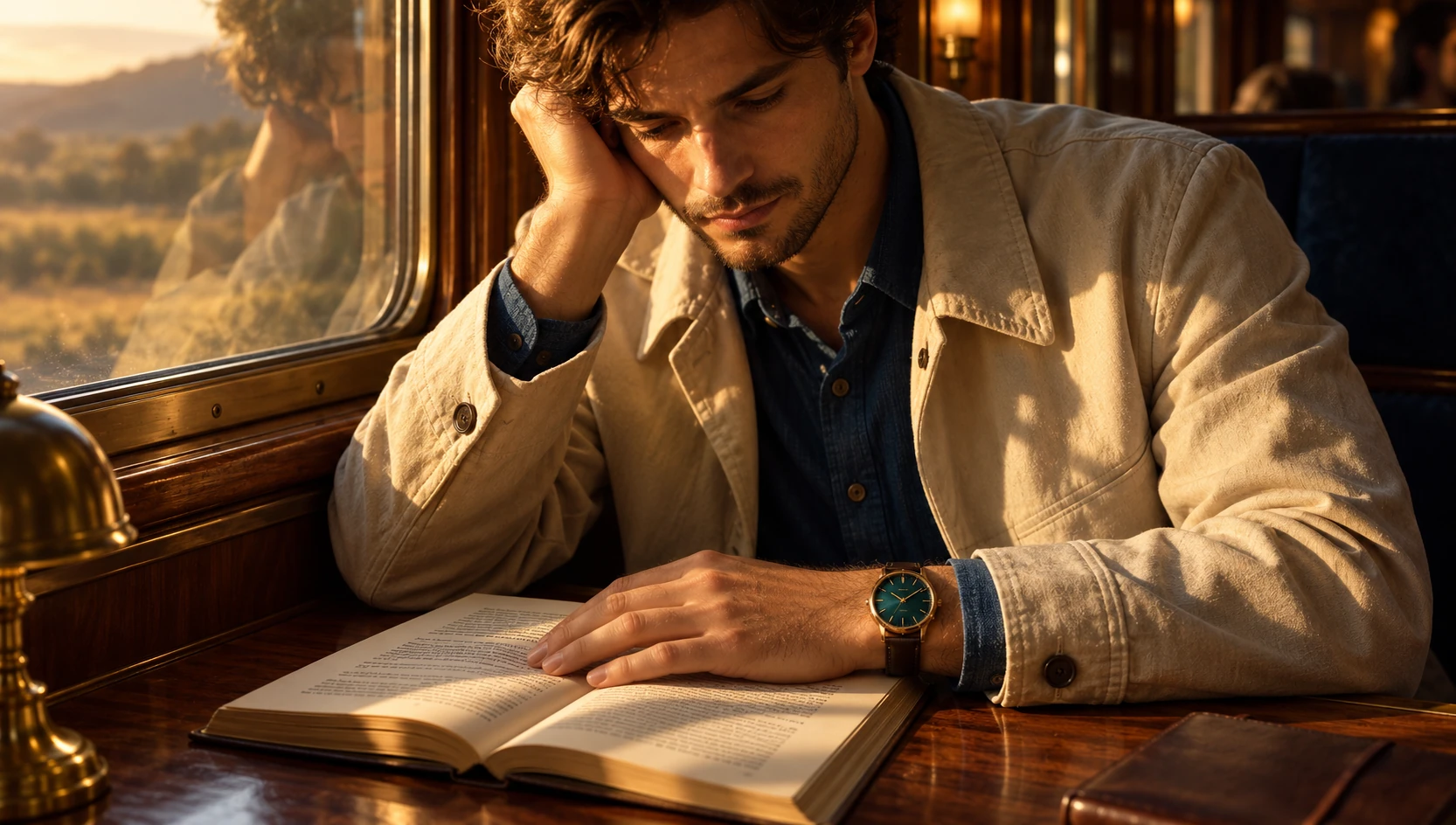
Start with an idea
One creative workspace
Images and video in one studio.
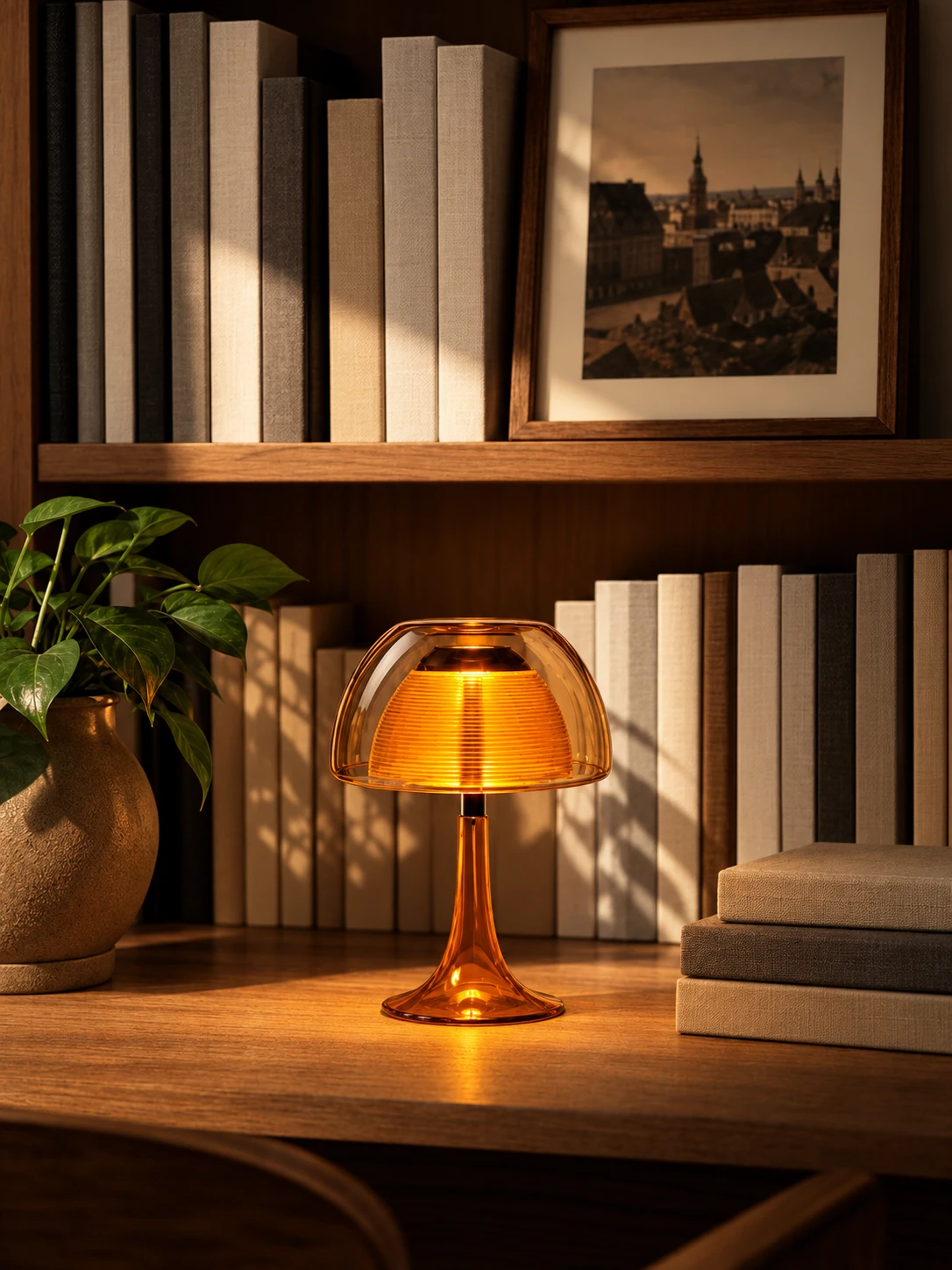
Make it your own
Choose the right model
Choose a model and review its settings.
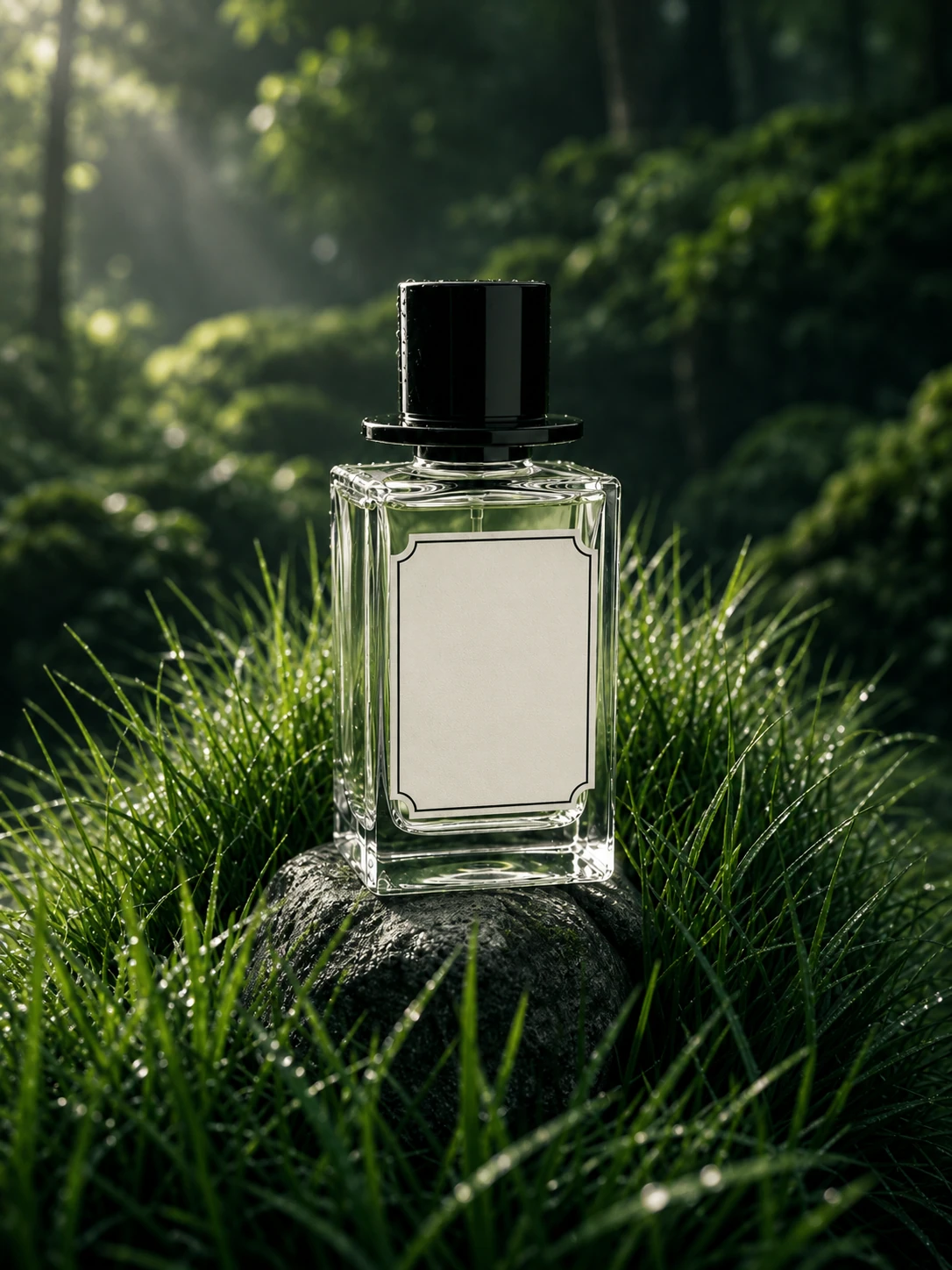
Keep the result
Keep your work
Preview and download completed work.
Creator perspectives
Voices from the AI creative community / Originally shared on LitMedia and Runway.
I never imagined AI could generate such polished videos from simple text. It's fast, intuitive, and makes my job so much easier.
Emily R.
I'm on the bullhorn to everyone about Runway, saying how useful it would be to anyone creating stuff online.
Kevin Parry
So to have a program that could do effects really quickly and easily was amazing to me.
Quinn Murphy
For us, Runway is best in class for consistency and character work.
Obsidian
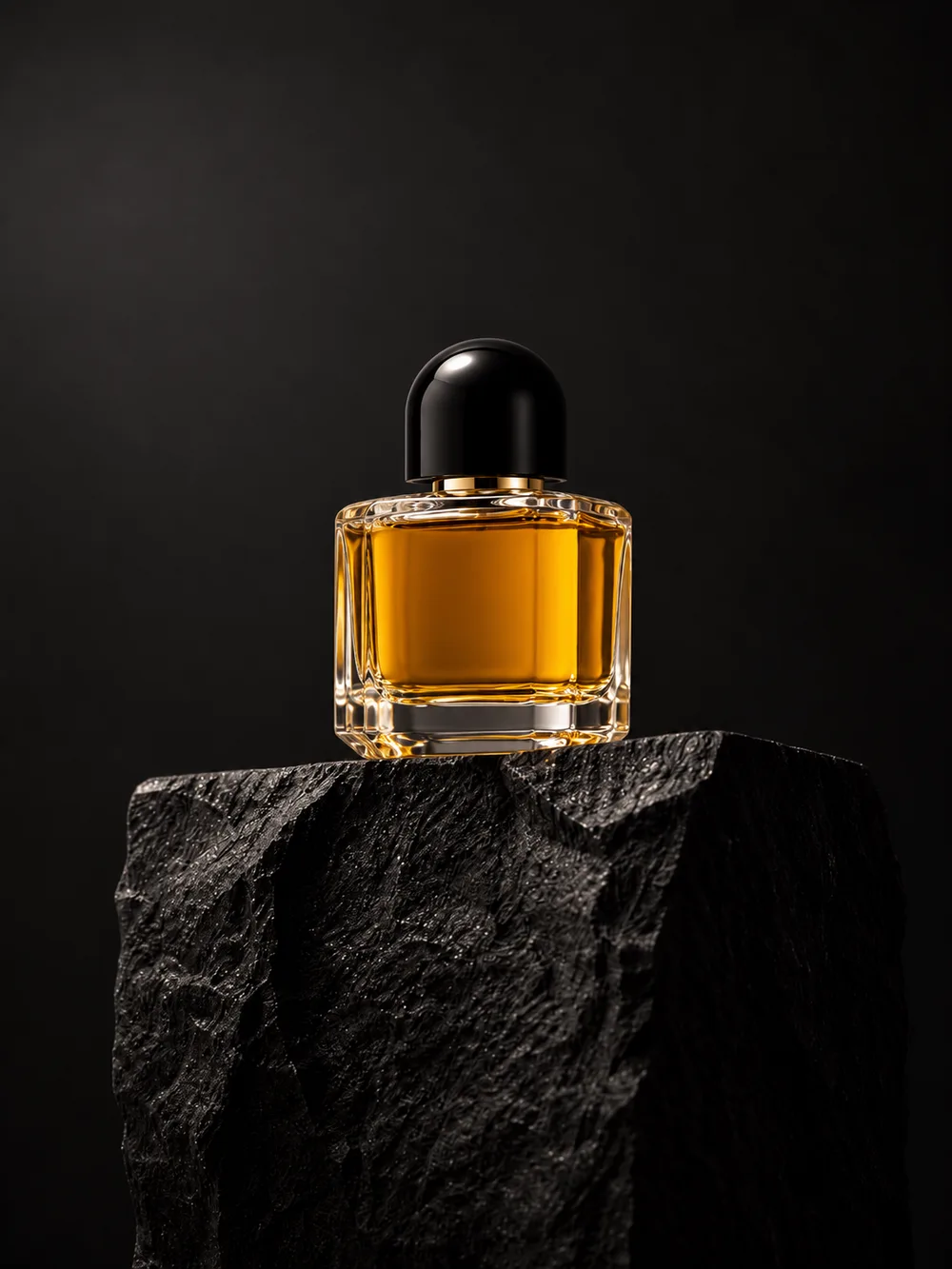
Product visuals
Explore product photography, campaign concepts and social media compositions with an AI image generator. Describe the material, lighting and setting, then refine the composition around the details you want viewers to notice.
Cinematic scenes
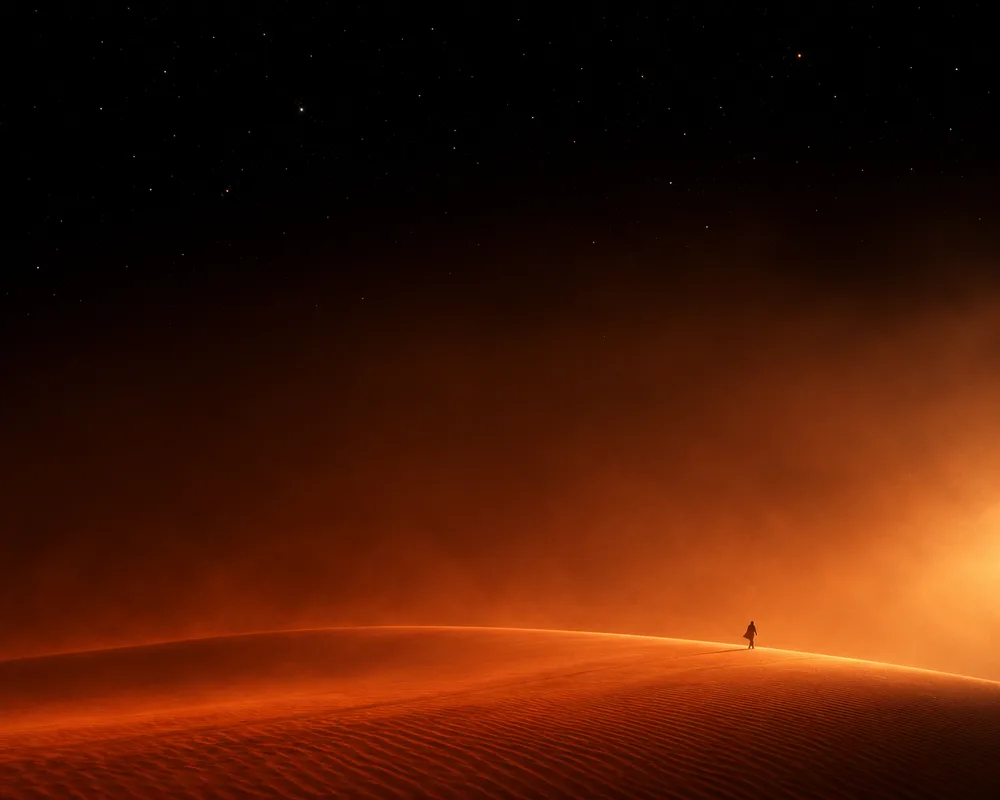
Plan a shot with a clear subject, environment and camera direction. Use text-to-video for a new scene or image-to-video to explore movement from an existing still, then review the clip before building a sequence.
Illustrations and stories
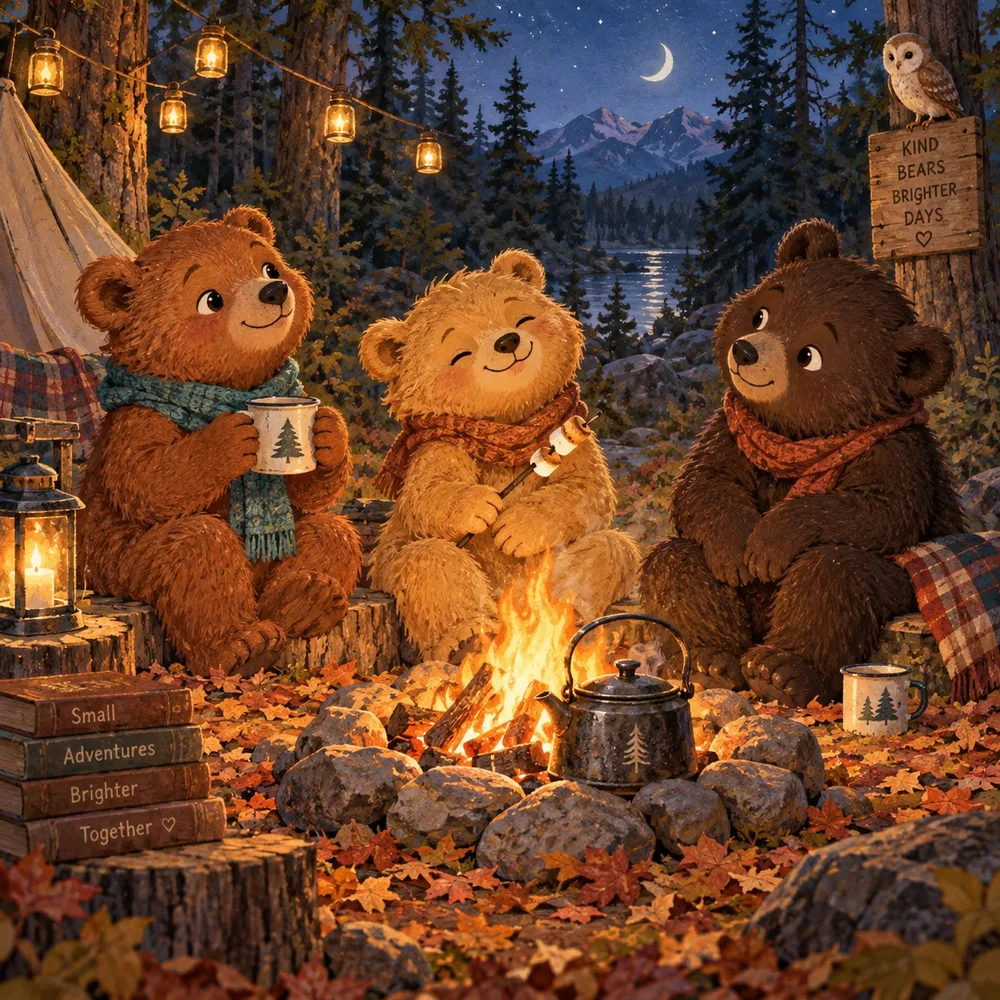
Create visual concepts for characters, story worlds and illustrated scenes. Keep a short style brief for color, texture and composition, and refine one change at a time as the story develops.
Text to image
Write a prompt describing the subject, setting, lighting and visual style. Generate an image, compare the result with your brief, and adjust the prompt or aspect ratio for your next variation.
Image to video
Upload a clear reference image and describe what should move. Focus on one action or camera movement, choose an image-capable video model, and review the available duration and resolution before creating.
Video editing and enhancement
Start with your own footage when you want to edit a scene, change its framing or improve its resolution. Open the relevant video tool and check its supported files and processing options before uploading.
Can I create both images and videos?
Yes. Choose Image or Video in the studio; review models and costs before submitting.
Can I start with a reference image?
Yes. Upload an image you have permission to use and choose a compatible model.
Where can I find my creations?
Open My Library to preview and download completed work.
How do I choose between text-to-image and image-to-video?
Use text-to-image when you need a new still image from a written idea. Use image-to-video when you already have a still image and want to explore motion. A clear reference, a focused prompt and a compatible model help you set up the right task.
How can I keep a visual style consistent across variations?
Keep the same reference images and reuse the parts of your prompt that describe lighting, palette, composition and subject details. Change one element at a time. Consistency depends on the selected model and input, so compare each result before using it in a series.
Can I edit or enhance footage I already have?
Yes. Choose an available video tool for the specific task, such as AI video editing, upscaling or reframing. Check its supported formats and limits, upload footage you have permission to use, and review the processing cost before submitting.
What determines the available models and generation settings?
The workspace shows the models and options available to your account. Image input, duration, aspect ratio and resolution can differ by model. Use the current settings and cost shown for your task rather than assuming that every model supports the same options.