brosh
A browser screenshot tool to capture scrolling screenshots of webpages using Playwright, with support for intelligent section identification and multiple output formats.
Documentation
brosh
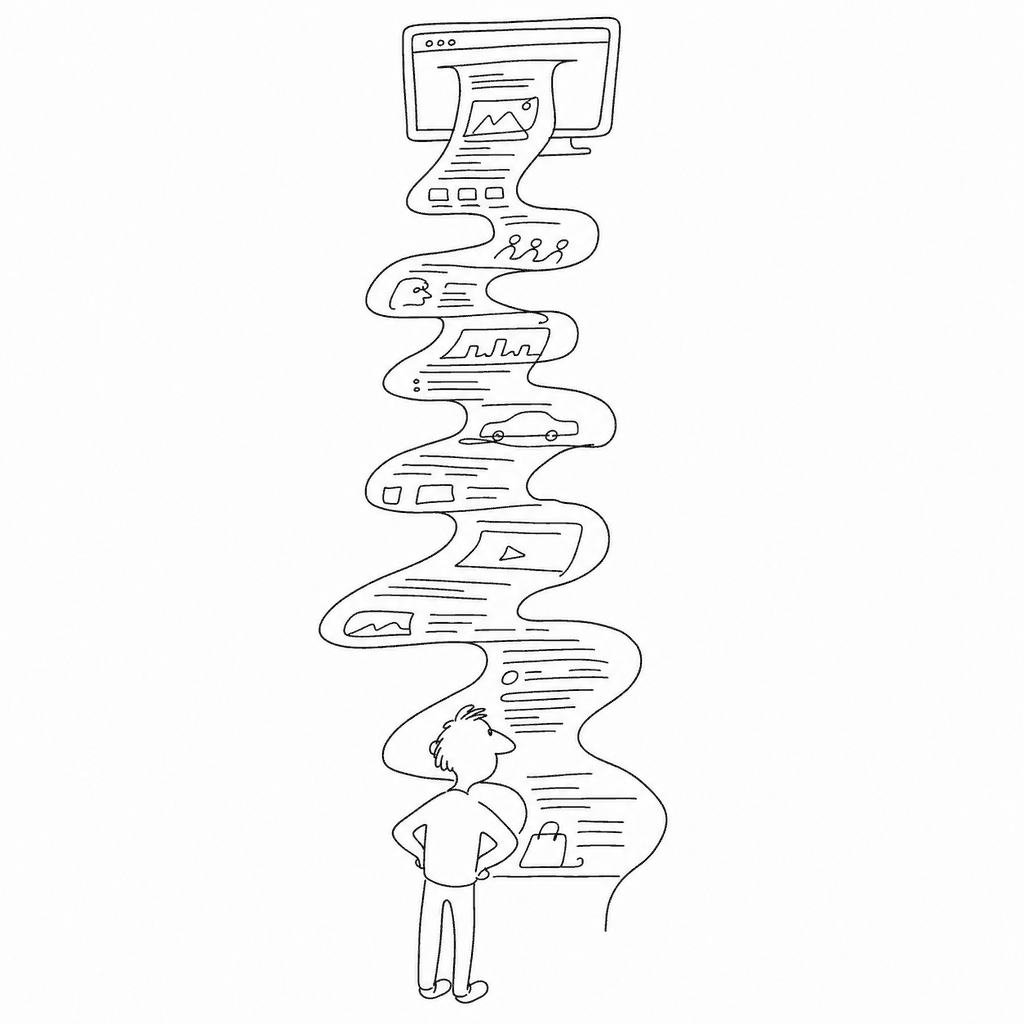
Full-page browser screenshots, from the command line or from your own code, with the pixels, the text, and the HTML all handed back together.
Brosh drives a real browser (Chrome, Edge, or Safari) via Playwright, scrolls through a page, and captures each section as an image — plus the visible text as Markdown and, if you want it, the underlying HTML. Built for AI agents that need to see a page, not just fetch its source.
- Scrolling capture: single shot, frame series, or animated PNG of the whole scroll
- Extracts visible text (Markdown) and optionally minified HTML alongside every screenshot
- CLI, sync/async Python API, and an MCP server for Claude and other AI tools
- Connects to your existing Chrome/Edge session (cookies, logins, extensions included) or launches a fresh one
- Cross-platform: macOS, Windows, Linux
Quick Start
pip install brosh
playwright install
That second command matters: Playwright needs its own browser binaries, and pip install brosh doesn't fetch them. Skip it and every capture fails with a browser-not-found error.
Then:
brosh shot "https://example.com"
Screenshots land in ~/Pictures/brosh by default, named {domain}-{timestamp}-{scroll%}-{section}.png.
Installation
# uv (recommended)
uv tool install brosh

# pip
pip install brosh

# run without installing
uvx brosh shot "https://example.com"
Whichever route you pick, don't forget playwright install afterward.
See Installation for binary releases, pipx, and from-source setups.
CLI Usage
# Basic capture
brosh shot "https://example.com"

# Animated PNG of the whole scroll
brosh shot "https://example.com" --output_format apng

# Custom viewport, JSON output with HTML included
brosh --width 1920 --height 1080 shot "https://example.com" --fetch_html --json > page.json

# Reuse a running browser instance across multiple shots
brosh --app chrome run
brosh --app chrome shot "https://example.com"
brosh --app chrome quit
Global options (--app, --width, --height, --zoom, --output_dir, --subdirs, --verbose, --json) go before the command; command options go after. Full option tables: CLI Reference.
Python API
from brosh import capture_webpage

result = capture_webpage(
    url="https://example.com",
    width=1280,
    height=720,
    output_format="jpg",
    scale=75,
)
for path, metadata in result.items():
    print(path, metadata["text"][:80])
import asyncio
from brosh import capture_webpage_async

async def main():
    result = await capture_webpage_async(
        url="https://docs.python.org/3/",
        fetch_html=True,
        max_frames=3,
    )
    print(list(result))

asyncio.run(main())
Both APIs return a dict mapping saved file paths to metadata (selector, text, optionally html). Details and convenience functions: Python API.
MCP Server Mode
Brosh ships an MCP server so AI tools can request a screenshot mid-conversation.
claude mcp add brosh -- brosh-mcp
Or drop this into your MCP client's config:
{
  "mcpServers": {
    "brosh": {
      "command": "brosh-mcp"
    }
  }
}
Restart your client, then ask it to "use brosh to capture example.com and show me the text." Full setup, including uvx-based configs: MCP Server Mode.
Documentation
Everything else — architecture, full command reference, output/JSON format, troubleshooting — lives at twardoch.github.io/brosh.
License
MIT. See LICENSE.
Built by Adam Twardoch on Playwright, python-fire, and FastMCP.