Ticketdesk AI MCP
officialAI Agents for Customer Support
What can you do with Ticketdesk AI MCP?
- List and filter tickets — Ask your assistant to find tickets by state, priority, assignee, or tags using
get_tickets. - Fetch ticket details and conversation history — Retrieve a ticket's full details with
get_ticketand its message thread withget_ticket_activities. - Create new support tickets — Have your assistant open a ticket with subject, requester email, priority, and tags via
create_ticket. - Send public replies to customers — Draft and send a customer-facing email reply on a ticket using
send_reply. - Add private internal notes — Leave notes visible only to agents on a ticket with
add_note. - Manage ticket state and assignment — Close, reopen, reprioritize, reassign, or move a ticket between inboxes using
set_ticket_state,set_ticket_priority,assign_ticket, andset_ticket_inbox.
Documentation
Ticketdesk MCP connects your AI tools like Claude desktop, Cursor, VS Code Copilot, and more directly to your Ticketdesk AI helpdesk software. Manage tickets, respond to customers, assign agents, set priorities and read full conversation threads without leaving your AI agent.
The MCP server is the fastest way to bring AI into your customer support operations, powering AI customer support with automatic, context-aware responses from your training material across email and chat, all through advanced AI support tools connected via the MCP server.
Whether you're building a customer support AI agent, automating a helpdesk workflow, or just want your AI assistant to be able to triage and respond to tickets, the Ticketdesk MCP server gives you everything you need.
Prerequisites
Before connecting, you'll need:
- A Ticketdesk AI account
- A Ticketdesk API Key - Generate one from Settings > API Keys from main menus
- Node.js 18 or later installed on your machine
Connecting to Your AI Tool
Claude Desktop
Go to Claude desktop Settings > Connectors > Add a connector
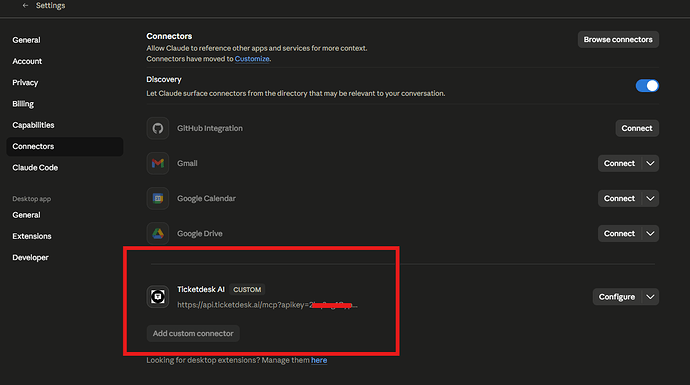
If you are using Cursor, VS code or any other tools. Follow these steps to add mcpServers in the configuration -
-
Open your Claude Desktop configuration file:
- macOS:
~/Library/Application Support/Claude/claude_desktop_config.json - Windows:
%APPDATA%\Claude\claude_desktop_config.json
- macOS:
-
Add the Ticketdesk MCP server entry:
{
  "mcpServers": {
    "ticketdesk": {
       "url": "https://api.ticketdesk.ai/mcp?apikey=[YOUR_API_KEY]"
    }
  }
}
- Restart Claude Desktop. You'll see a tools icon in the chat input. Click it to confirm Ticketdesk tools are loaded.
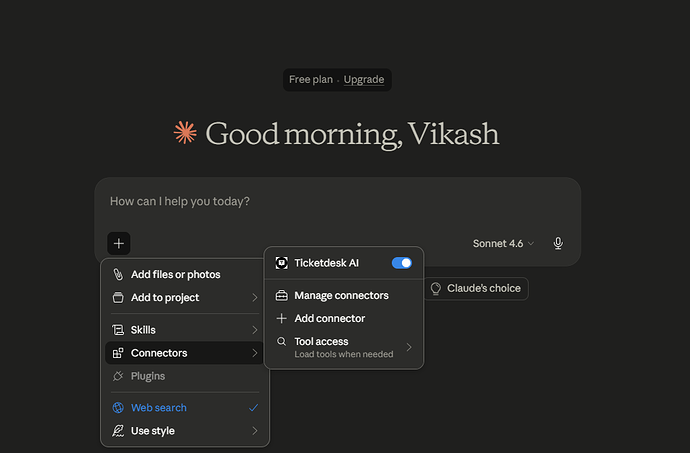
Available Tools
Ticket Management
| Tool | Description |
|---|---|
create_ticket | Create a new support ticket with subject, requester details, priority, tags and more |
get_tickets | List and search tickets, and filter by state, priority, assigned agent, tags and other fields |
get_ticket | Fetch a single ticket by ID with all its fields, requester info and current assignment |
set_ticket_state | Close or reopen a ticket with an optional reason (completed, not_planned, duplicate) |
set_ticket_priority | Set the priority of a ticket: low, medium, high, or urgent |
set_ticket_tags | Replace or clear the tags on a ticket |
assign_ticket | Assign a ticket to a support agent by their user ID, or unassign it |
set_ticket_inbox | Move a ticket to a different inbox (controls which email address replies are sent from) |
Ticket Responses & Activities
| Tool | Description |
|---|---|
get_ticket_activities | Fetch the full conversation thread, e.g. customer messages, agent replies, notes and system events |
send_reply | Send a reply to the customer that triggers an outbound email via the ticket's inbox |
add_note | Add a private internal note to a ticket, e.g. a not visible to agents only, never sent to the customer |
Example Prompts
Use these one-liners to get started with your AI assistant:
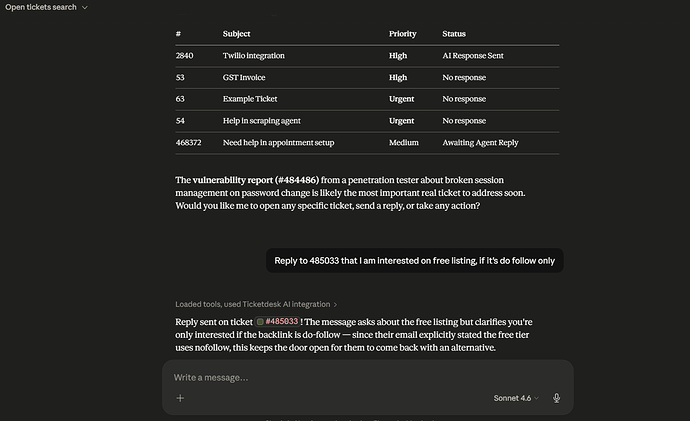
Finding tickets
- "Show me all open tickets assigned to me"
- "List urgent tickets that haven't been updated in the last 24 hours"
- "Find all tickets tagged 'billing' that are still open"
- "Get ticket #1042 and summarize the issue"
Responding to customers
- "Read the conversation on ticket #1042 and draft a reply resolving the issue"
- "Reply to ticket #310 and let the customer know their refund has been processed"
- "Send a reply to ticket #77 asking for their order number to investigate further"
Internal notes & handoffs
- "Add a note on ticket #1042 summarizing what's been tried so far"
- "Leave an internal note on ticket #200 explaining why it's being escalated"
- "Add a handoff note on ticket #99 for the next agent"
Creating tickets
- "Create a ticket for John (john@example.com) reporting that the export feature is broken"
- "Open a new urgent ticket from support@example.com about a payment failure"