Reader Assist
Free Chrome extension that makes web pages easier to read for people with dyslexia or ADHD, with syllable splitting, a reading ruler and reader view.
Documentation
Make every page easier to read.
Reader Assist makes reading easier for people with dyslexia or ADHD, and for children and others who are learning to read. It splits long words into syllables, adds a reading ruler that highlights the line you’re on, and lets you choose the font, size and spacing that suit you. Because it’s a Chrome extension, it changes how every web page you open looks, from news sites to online textbooks. It’s free, and you don’t need an account.
Marking
Syllables
Long words are split in to syl la bles, and ev ery oth er syl la ble is set in bold. Your eyes al ways have some where to land, e ven in the long est words.
Languages
Every language written in Latin, Cyrillic or Greek letters
Speed
Common words mark instantly; new words are looked up once, then cached
Bold from
The second syllable, or the first if you prefer
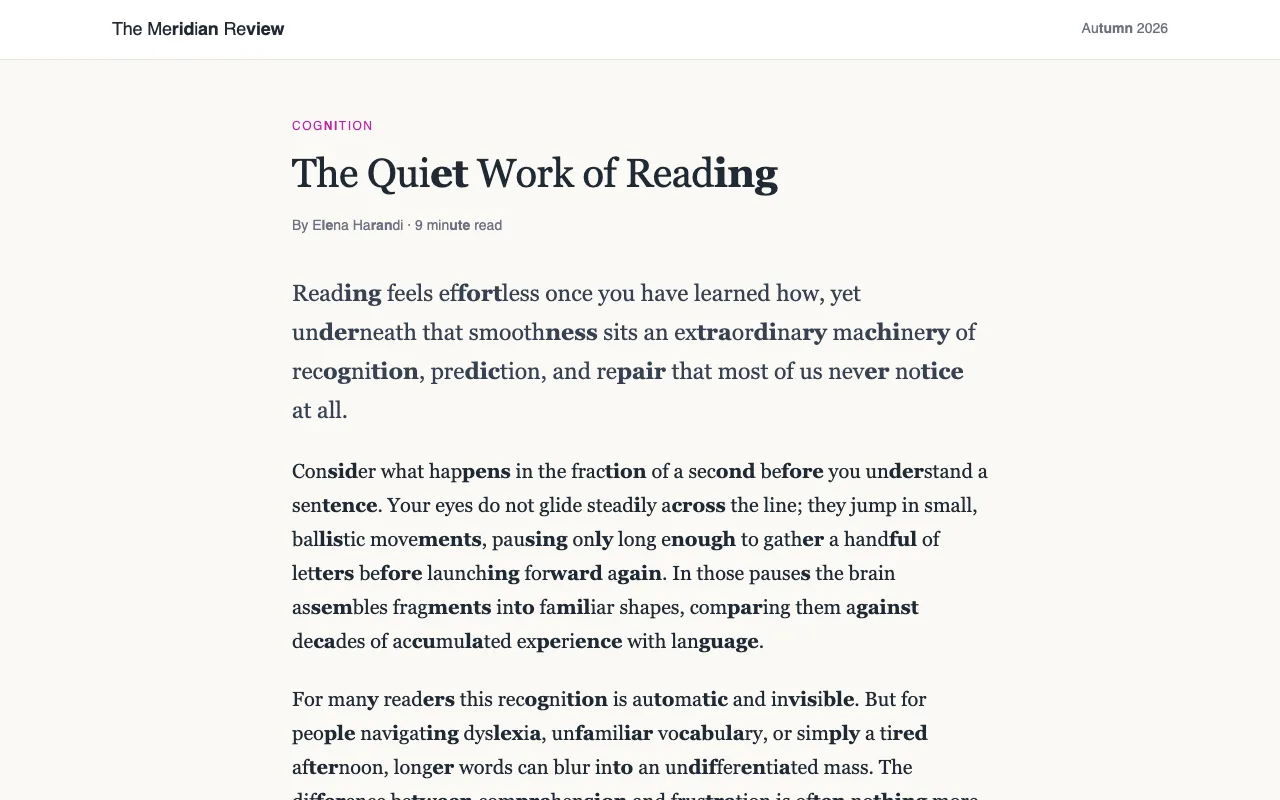
Marking
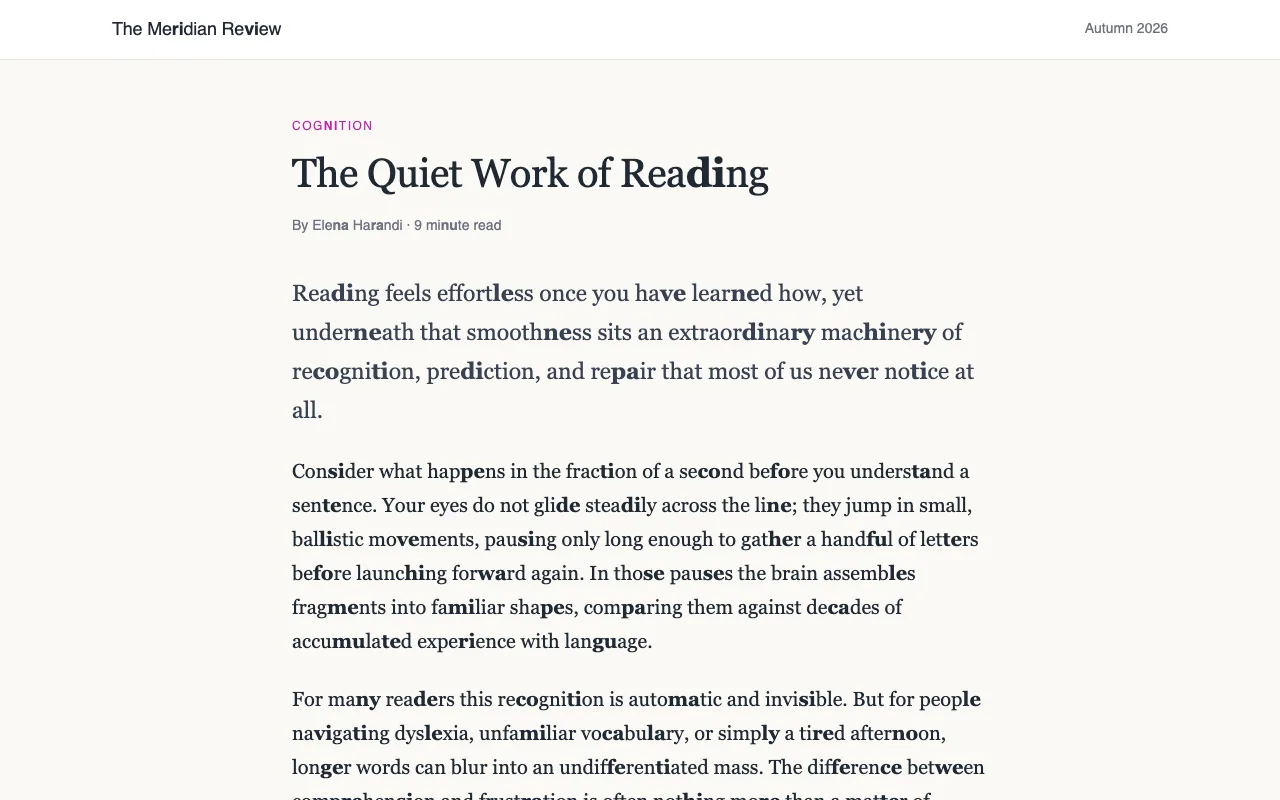
Vowel-consonant
Bolds eve ry other con so nant-vo we l pair to ma ke each word easier to sound out. It runs instant ly, right in your brow se r.
Runs
Entirely in your browser, with no waiting
Marks
A consonant followed by a vowel, every other pair
Bold from
The second pair, or the first if you prefer
Focus
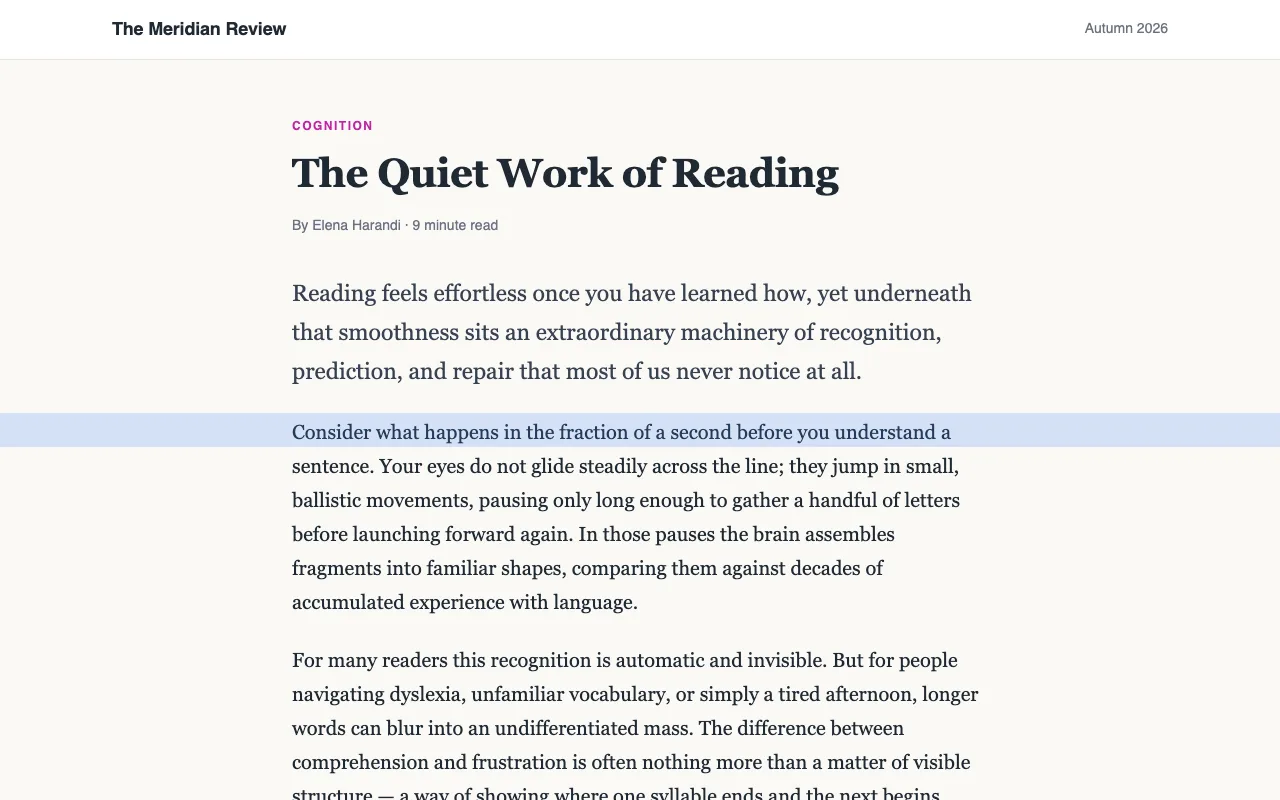
Reading ruler
A soft band follows your pointer down the page and sizes itself to the line underneath, so you never lose your place. Move your pointer over this text to try it.
Colours
Blue, yellow, green, pink or your own
Opacity
5 to 60 %
Height
Follows the line under your pointer, 20 to 120 px
Typography
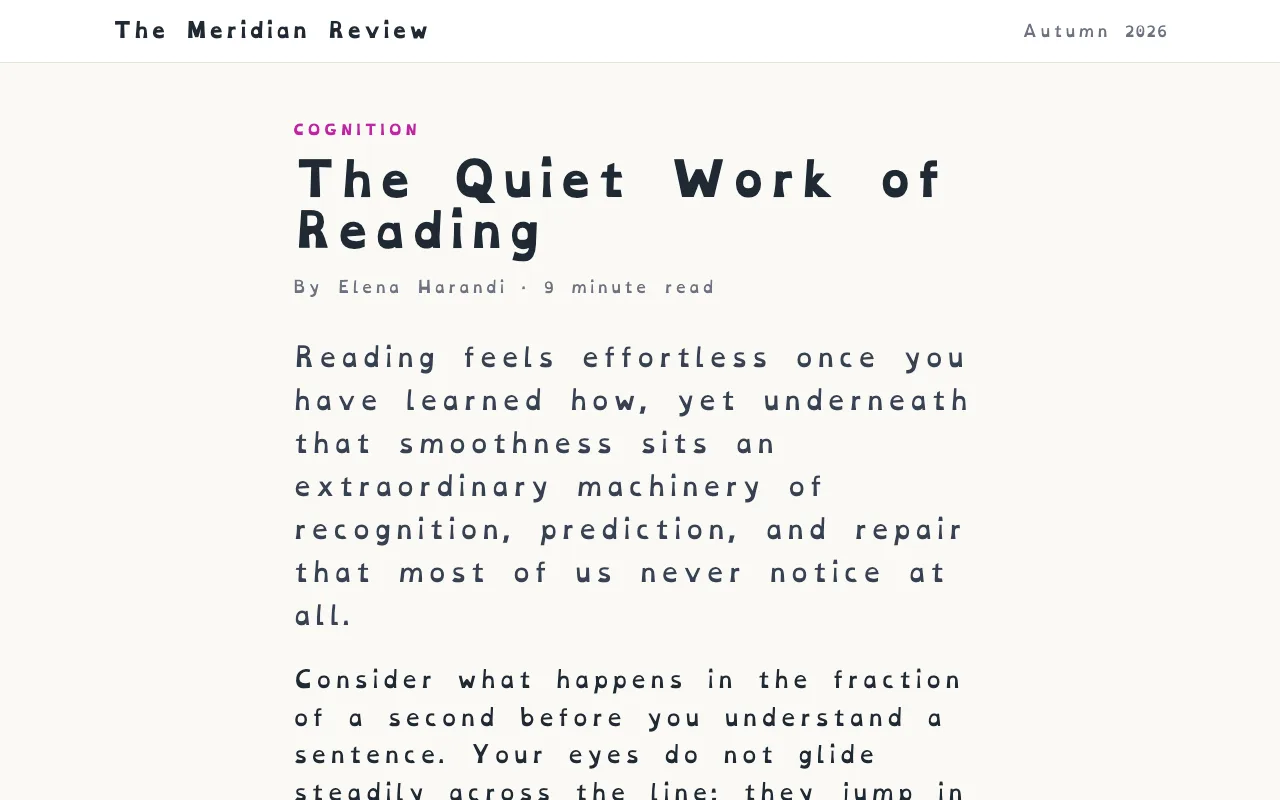
Your typeface
Set any page in OpenDyslexic or another reading font, then open up the text size, letter spacing and word spacing until the lines breathe.
Fonts
OpenDyslexic, Comic Sans, Georgia, Palatino, Verdana, Tahoma, Trebuchet
Text size
50 to 200 %
Spacing
Letters −0.05 to 0.30 em, words 0 to 0.50 em
Focus
Reader view
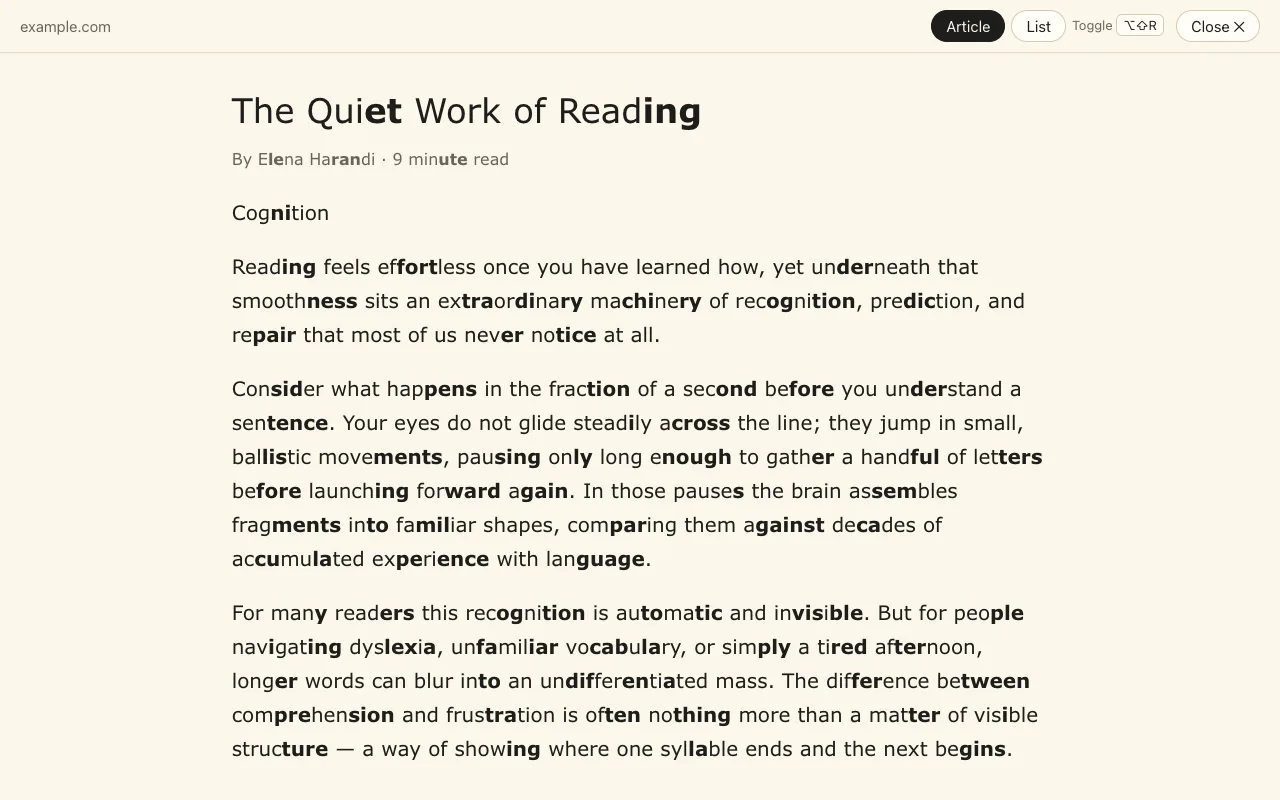
One click clears away the ads, menus, pop-ups and sidebars and leaves just the article, in one calm column. Your marking, typeface and reading ruler come with it.
Opens
From the book icon in the settings, or with Alt+Shift+R
Shows
The article, or the main list on search results, news fronts and shops
Layout
A cream page, about 68 characters a line, no italics; dark with your system
Links
Pages you open from it open in the reader view too
How it works
Part of your browser
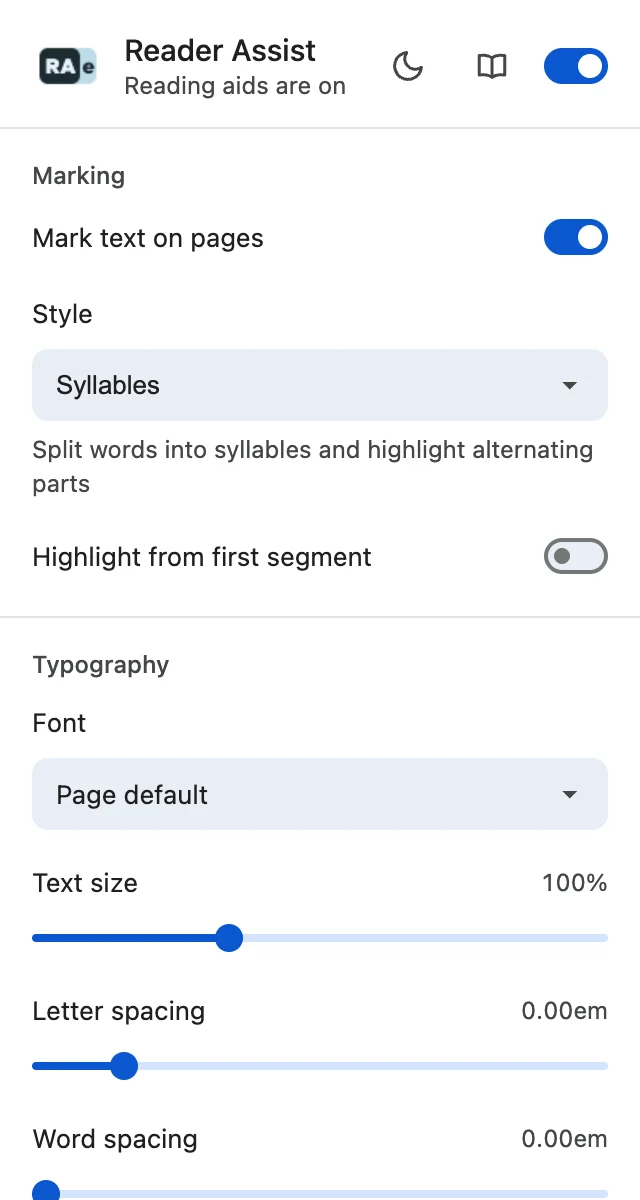
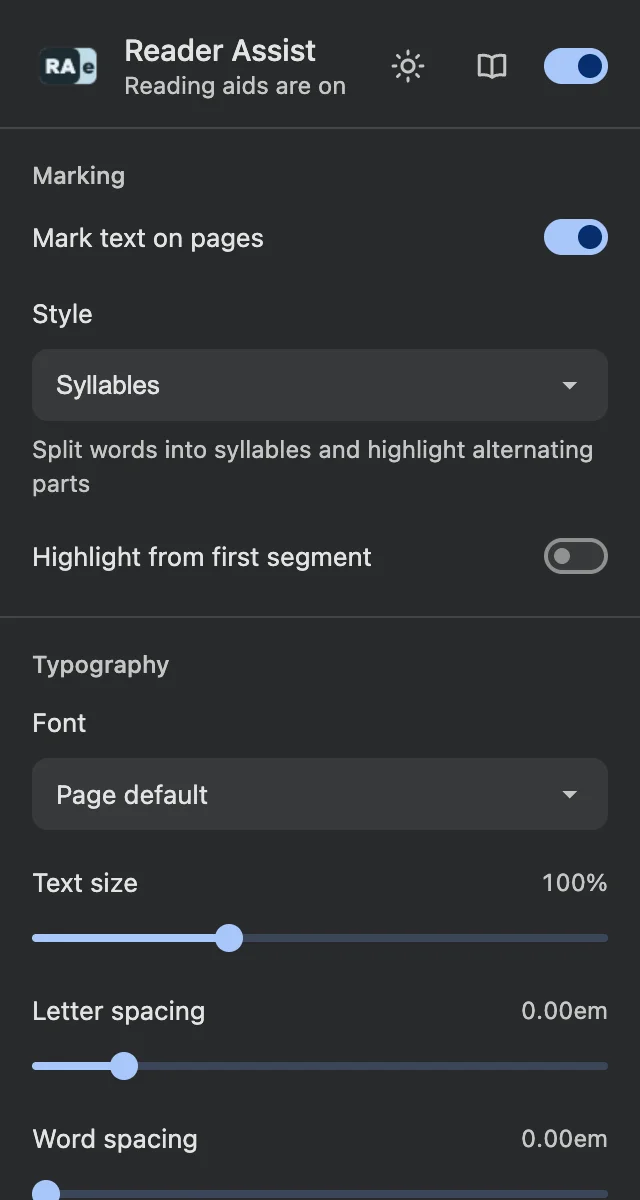
Reader Assist is a Chrome extension: once it’s installed it runs quietly in your browser and reads along on every page you visit. Its settings open from the Reader Assist icon in Chrome’s toolbar, in a light or dark theme to match your system.
Works on
The web pages you open in Chrome
Settings
Click the Reader Assist icon in the toolbar
Themes
Light and dark, following your system, or switch with the sun or moon
Off switch
Turns every aid off at once, and back on again
Who it’s for
Made for the way you read.
-
Dyslexia
Long words are where reading often stalls. Reader Assist splits them into syllables and sets every other one in bold, so you can take each word a piece at a time. Add OpenDyslexic, wider letter and word spacing, and a reader view that follows the British Dyslexia Association’s style guide. -
Reading difficulties, with or without a diagnosis
You don’t need a diagnosis to find reading hard work. If long words slow you down or dense pages wear you out, turn on the aids that help and leave the rest off. Your settings follow you from page to page, and one switch turns everything off again. It’s free. -
Children learning to read
Many children learn to break long words into syllables by clapping them out. Reader Assist shows the same breaks on the web pages they read, from Wikipedia to game wikis. Bold falls on every other syllable, and you can choose whether it starts on the first syllable or the second. -
Parents
Homework is harder when every page is a struggle. Install Reader Assist on the family computer, set it up together once, and it’s there on every page your child reads. It’s free, there’s no account to create, and it collects neither your child’s name nor the sites they visit. -
Teachers and special-education teachers
One student needs syllables, another a bigger font, a third nothing at all. Each student keeps what helps and switches off the rest, on the same pages their classmates read, with no accounts to hand out. Recommend it to families, or ask your school to install it. -
Schools and IT admins
Roll Reader Assist out to every Chromebook from the Google Admin console with the ID naddallapmanhbjifondopljjbjkhgpp. It’s free, with no student accounts, and collects no names or browsing history. To mark syllables it sends single words, never whole sentences. Marking starts on, and each student can switch off what they don’t need. -
ADHD
When a page is full of ads, menus and pop-ups, it’s easy to drift. Press Alt+Shift+R and the reader view shows just the article, in a calm layout. A reading ruler follows your pointer and marks the line you’re on, so you can find your place again after looking away. -
Language learners
In a new language, long words are hard to sound out. Syllable marking shows where each word breaks in any language written in Latin, Cyrillic or Greek letters, from Spanish and German to Polish and Greek. Practise on real articles in the language you’re learning, not just textbook pages. -
Students
Studying means long web articles, online textbooks and course pages, often on sites full of distractions. Open the reader view for a clean column of text, keep the ruler on the line you’re reading, and set your font and spacing once: they follow you to every page. -
Adults at work
Plenty of adults quietly read around their difficulties at work. Reader Assist runs in Chrome on the pages you read for your job, such as the intranet, news and online manuals, and no one else needs to know. There’s no account, and it collects neither your name nor your browsing history. -
Speech therapists, PPT and reading specialists
Syllable practice shouldn’t stop when the session ends. Recommend a free tool that puts syllable breaks and vowel-consonant marking on the pages a child or client reads at home, from news to hobby sites. It takes a minute to install, needs no account, and the settings you choose together stay put. -
Anyone who reads a lot on screen
You don’t need a reason. If you read a lot on screen, the reader view turns a cluttered page into a single calm column, and the ruler keeps your place in long paragraphs. Try it on the next long article you open; it costs nothing. -
Visual stress and crowded text
If lines seem to crowd together or the words won’t sit still, give the text more room. Open up letter and word spacing, enlarge the text up to 200 %, thin out the bold marking, and read in the reader view’s soft cream background, or dark when your system is. -
Dyspraxia and losing your place
If your eyes skip a line or slide back to the one you just read, a common experience with dyspraxia, let the reading ruler hold your place. The soft band follows your pointer, fits itself to the line underneath, and comes in blue, yellow, green, pink or your own colour. -
Low vision and older eyes
Small grey type on a busy page is hard on any eyes. Make the text up to twice as big, add space between letters and words, and switch to a clear face like Verdana. The reader view gives you one calm column, light or dark to match your system. -
Autism and sensory overload
Flashing ads, pop-ups and crowded sidebars can make a page too much. The reader view strips them away and leaves the text, in a quiet, predictable layout with no italics and a soft cream background. Your settings stay the same on every page, so nothing changes unless you change it. -
Developmental language disorder (DLD)
With developmental language disorder, long and unfamiliar words take extra effort to break down and say. Syllable marking shows the parts of the long words on the page, and the reader view removes everything but the text, so the effort can go into the words themselves.
FAQ
Questions, answered.
-
Is Reader Assist free?
Yes, and it will stay free. There’s no paid version, no trial that runs out and no account to create: every aid works as soon as you install it from the Chrome Web Store. -
Which languages does it support?
Every language written in Latin, Cyrillic or Greek letters, among them English, Spanish, French, German, Portuguese, Italian, Dutch, Polish, Ukrainian, Romanian, Greek, Czech, Hungarian, Swedish, Norwegian, Danish, Finnish, Turkish, Bulgarian and Croatian. There’s nothing to choose: Reader Assist recognises the language of each page by itself. -
Does it work on Chromebooks and school computers?
Yes. Reader Assist runs wherever Chrome does: on Chromebooks, Windows, Mac and Linux. Schools can install it on every managed Chromebook from the Google Admin console with the ID naddallapmanhbjifondopljjbjkhgpp. Students don’t need accounts, and each of them can switch off the aids they don’t need. -
What does Reader Assist do with the text I read?
Your pages are read on your own computer. For syllable marking, Reader Assist sends our server single words, never sentences or whole pages, and only words it hasn’t marked before. The server splits them into syllables with an LLM (large language model) AI. The anonymous usage statistics it sends never include what you read or which pages you visit. It never collects your name, email address or browsing history, and never sells your data or shares it with advertisers. The details are in the privacy policy. -
Does it work on every website?
On almost every web page you open in Chrome: news sites, Wikipedia, online textbooks, shops and search results. Chrome doesn’t let any extension change its own pages, such as settings and new tabs, or the Chrome Web Store, so the aids don’t appear there. -
Will it make me read faster?
We don’t promise that. Reader Assist shows where long words break into syllables, the way reading is often taught in school, and lets you set up each page so it’s comfortable to read. Try the aids, keep the ones that make reading easier for you, and switch off the rest. -
How do I turn the aids on and off?
Click the Reader Assist icon in Chrome’s toolbar to open its settings. There you turn each aid on or off and adjust it, your choices follow you to every page, and the switch at the top turns everything off, and back on again. New extensions start out under Chrome’s puzzle-piece icon: pin Reader Assist there to keep its icon in the toolbar.
Get Reader Assist
Ready when your next page is.
Add Reader Assist to Chrome, click its icon in the toolbar, and turn on the aids you want. They stay on for every page you visit.