Progressor
Keeps your AI coding agent on its plan across context compression: it writes the plan into your project and shows every project's progress live on a local dashboard accessible in your browser, Manage multiple projects simultaneously, Plan long term goals and tasks
Documentation
Progressor
- You lose track of what's done, what's half-done and what's next, hopping between projects in your IDE and sessions in Claude Code or opencode.
- Your AI forgets the plan the moment the chat's memory is compressed.
- Your AI says "done" when it isn't, or quietly drifts off the plan.
- There's nowhere to see your whole project at a glance, today or months from now.
- A customer bug lands mid-feature, and the work you were doing gets lost in the scramble.
Progressor fixes all of them, for free. Your AI writes its plan into your project and keeps it up to date as it works, and you see every project on one beautiful page in your browser, instead of switching between projects in your IDE and sessions in Claude Code or opencode.


Free for personal use. Using it in a business, or selling, hosting or building a product on it, needs a license from the author: ask for one.
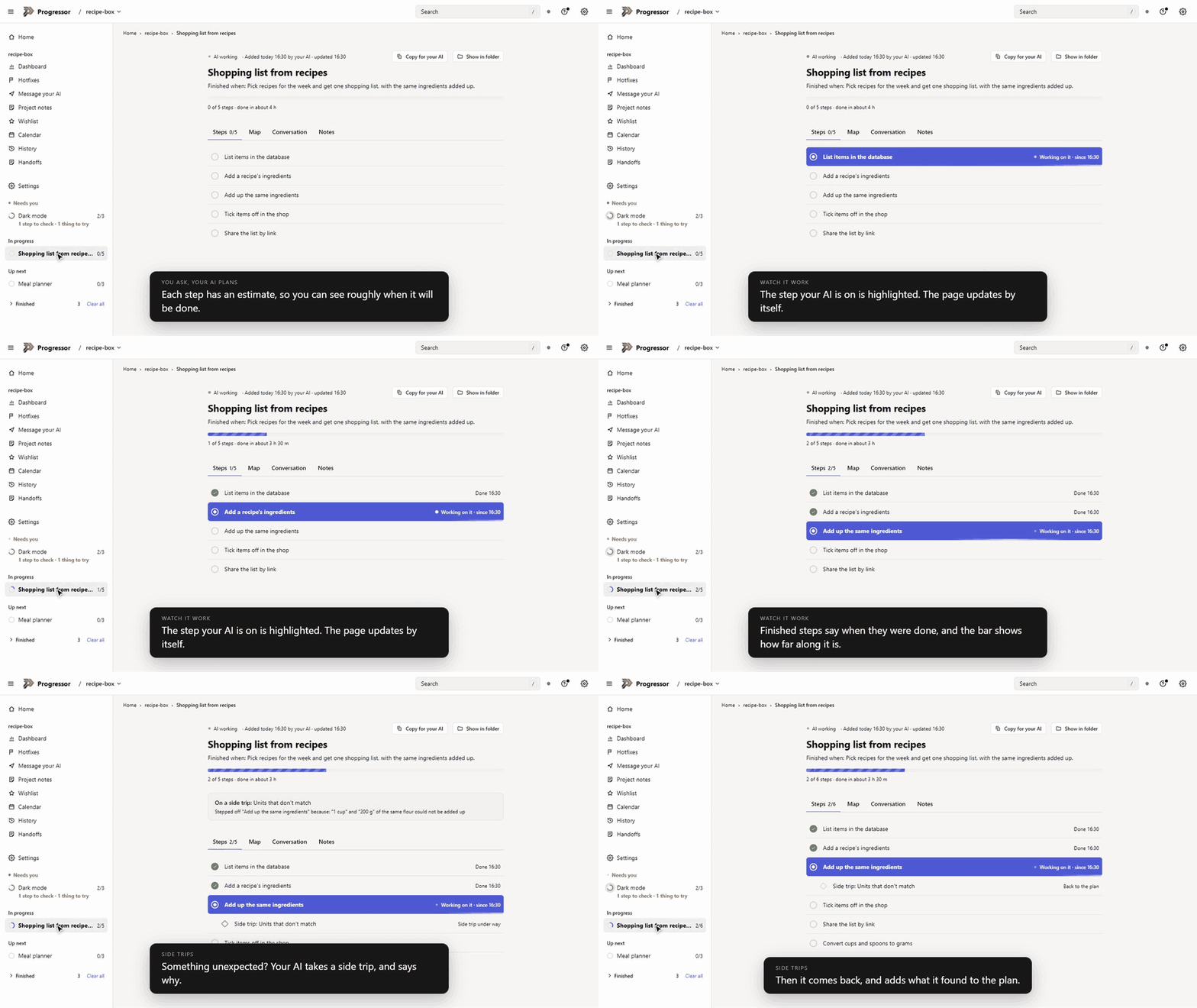
▶ Watch the 5-minute video on YouTube
It works with any app that supports MCP (the standard way AI apps add tools): Claude Code, Claude Desktop, VS Code with Copilot, Cursor, Windsurf, Codex and others.
Sound familiar?
Your AI lost the thread
- Vibe coding a project and can't keep track of what's going on anymore?
Your AI writes its plan, a goal made of steps, into your project and ticks each step off as it works. You see it live on one page in your browser, instead of hopping between projects in your IDE and sessions in your AI app: what it's doing right now, what's done and what's left. - Your AI's memory got compressed, and your plan went with it?
Almost every AI app compresses long chats, and an AI that forgets the plan writes sloppy code and leaves bugs behind. Progressor keeps the plan in your project, not in the chat: say "use Progressor" and your AI carries on from the exact step it was on. Claude Code does it by itself. - Switched from Claude Code to Cursor or Codex and lost everything?
The plan belongs to the project, not the app. Whichever AI app opens the project next reads the same plan and picks up where the last one stopped. - Your AI wandered off the plan and didn't tell you?
It can't drift quietly. Every side trip is recorded with its reason and drawn as a branch off the plan's map, so you see where the work left the route, and why. - Your AI says "done", but is it?
Each finished step is linked to its commits, the test run behind it and, on GitHub or Gitea, its pull requests and checks. Anything only a person can check, like how it feels on your phone, waits for you with Works and Doesn't work buttons, and a note for your AI if you like. - Ready to ship?
Ready to launch? answers it in one line, then lists what is left for your AI, for you and for other people.
You're juggling too much
- Working on several projects at once and drowning in the micromanagement?
Home shows every project on one page: what your AI is working on now, what needs you, and how far along each project is, whichever AI app is doing the work. Group them and drag them into the order you like. - Walked away and missed the moment your AI needed you?
Questions, things to try and steps to check all wait in Needs you, and a free ntfy push can reach your phone the moment one arrives. - A customer bug lands in the middle of a feature?
Paste it in as a Hotfix and it jumps the queue. Your AI finishes the step it's on, writes a test that shows the bug, then fixes it. - A big decision, and you want a say?
Your AI lays out 2 to 4 ways to go as cards, with its pick marked. Choose one, or don't: it goes ahead with its pick, and you can still change course later. - Your AI changed the plan and you want the old one back?
History keeps every change to the plan, by your AI or by you. Go back to before this undoes it, and the undo can be undone too. - The dashboard dies the moment you close the chat?
Turn on the background dashboard and it stays up from the moment you log in, with no AI app open, in about 30 MB of memory.
Your project is in it for the long run
- Working on a project with long-term goals?
Goals can wait on other goals, even in another project. Every step gets an estimate, every goal a rough finish, and the Calendar shows what comes next and when. The estimates learn from how long steps really took, so they get better as you go. - Release notes and weekly chores eating your evenings?
Your AI writes the changelog and the next version number from the goals it finished, and asks you before publishing anything. Chores like a weekly dependency check become goals that come back by themselves. - Handing the project to someone else, or to yourself next week?
Your AI writes a handoff, a plain write-up of what was done and what's next, after each release or whenever you ask. - Want a beautiful place to look up anything about your project?
Every step as a list or a map, a Dashboard of the numbers, a Calendar, search across all your projects, and four themes, from calm black and white to colourful.


What you get
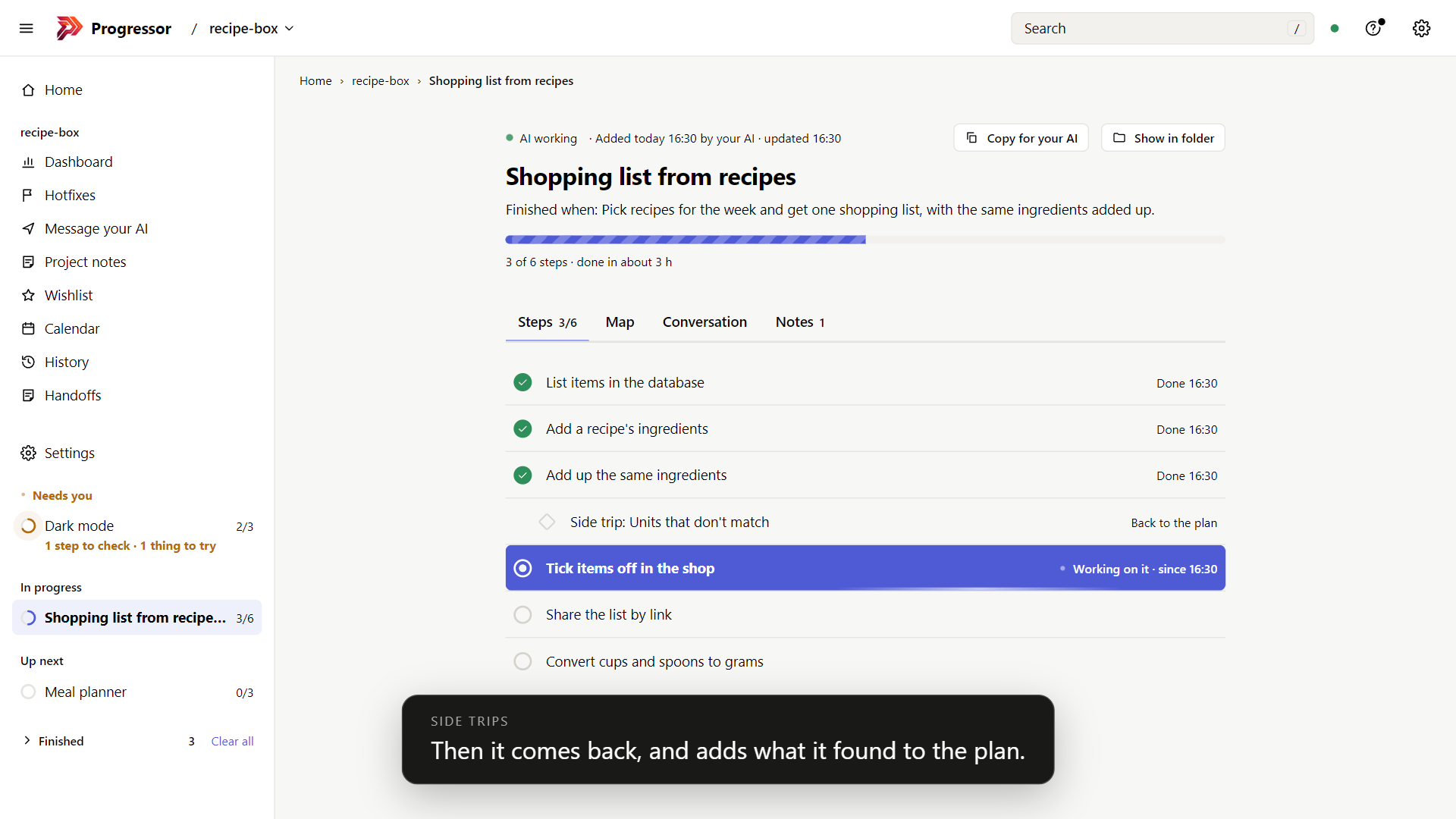
Every step, liveWhat the AI is working on is highlighted and moves; finished steps say when they were done. A side trip shows where the AI stepped off the plan, and why. |
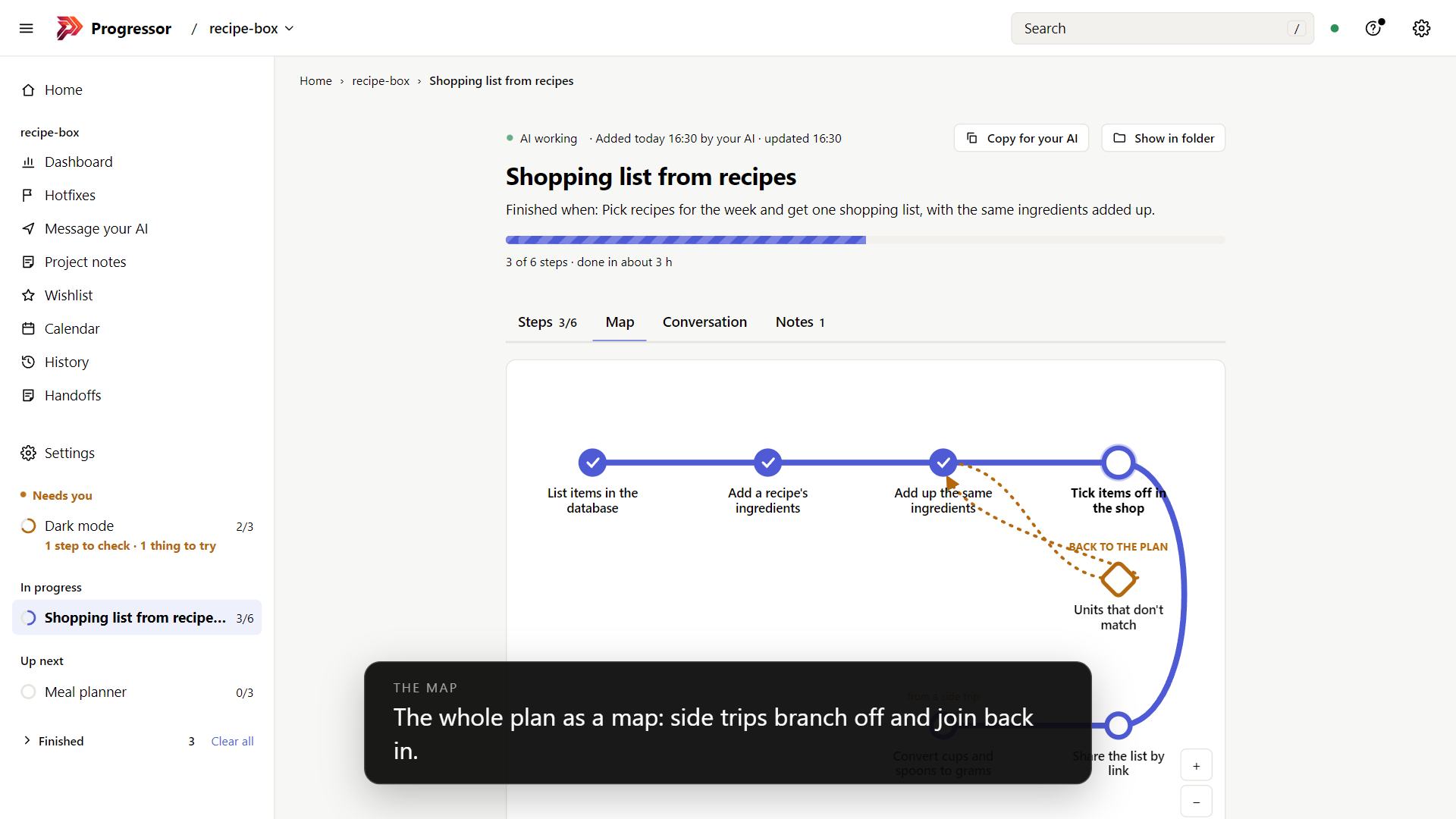
The plan as a mapEach step is a stop on a line. Side trips branch off and rejoin, and steps they add join the route, so you can see how the plan changed. |
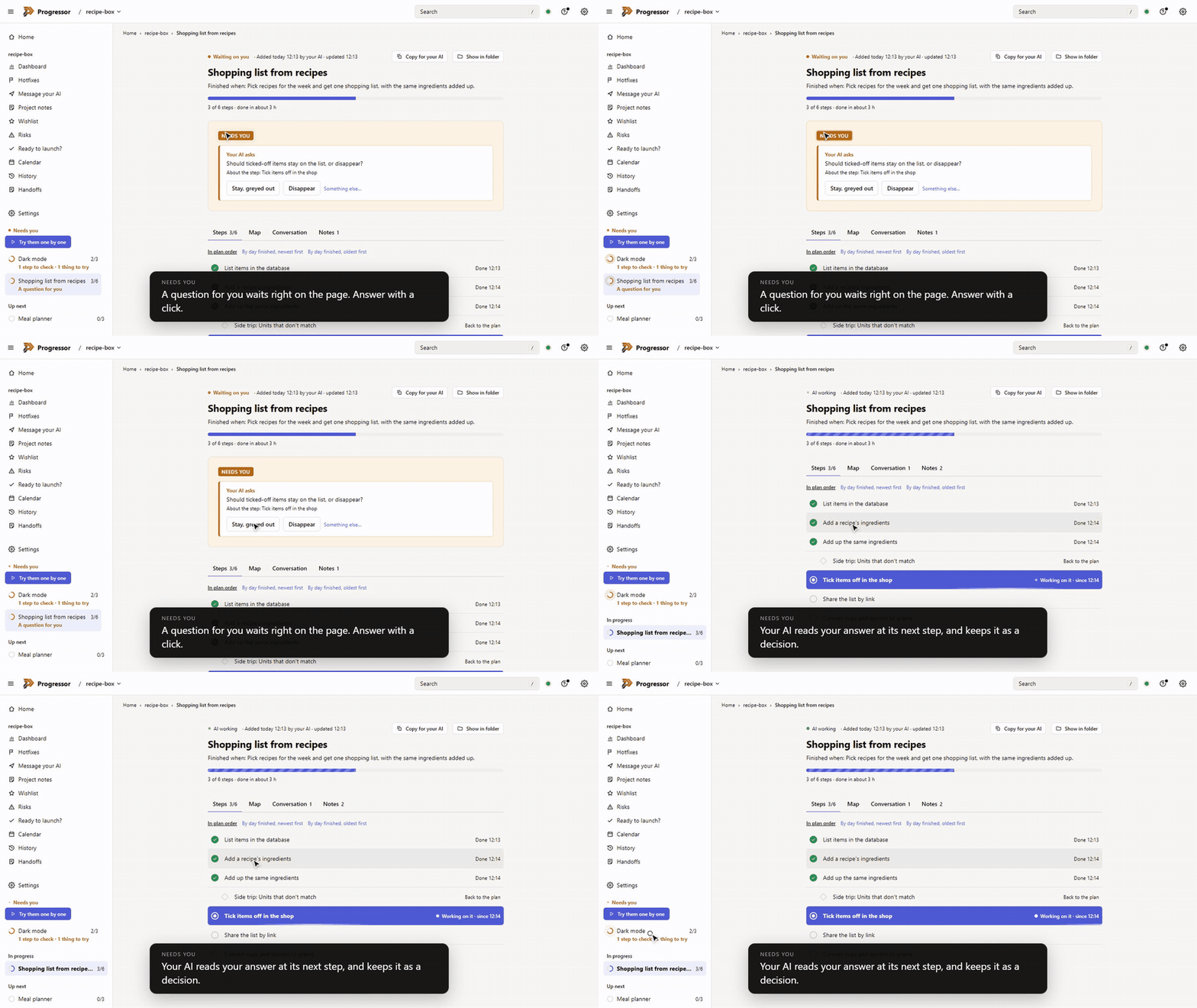
It says when it needs youA question, a step to check, something to try on your phone: it all waits in Needs you, and you answer with a click. Your AI sees your answer at its next step. |
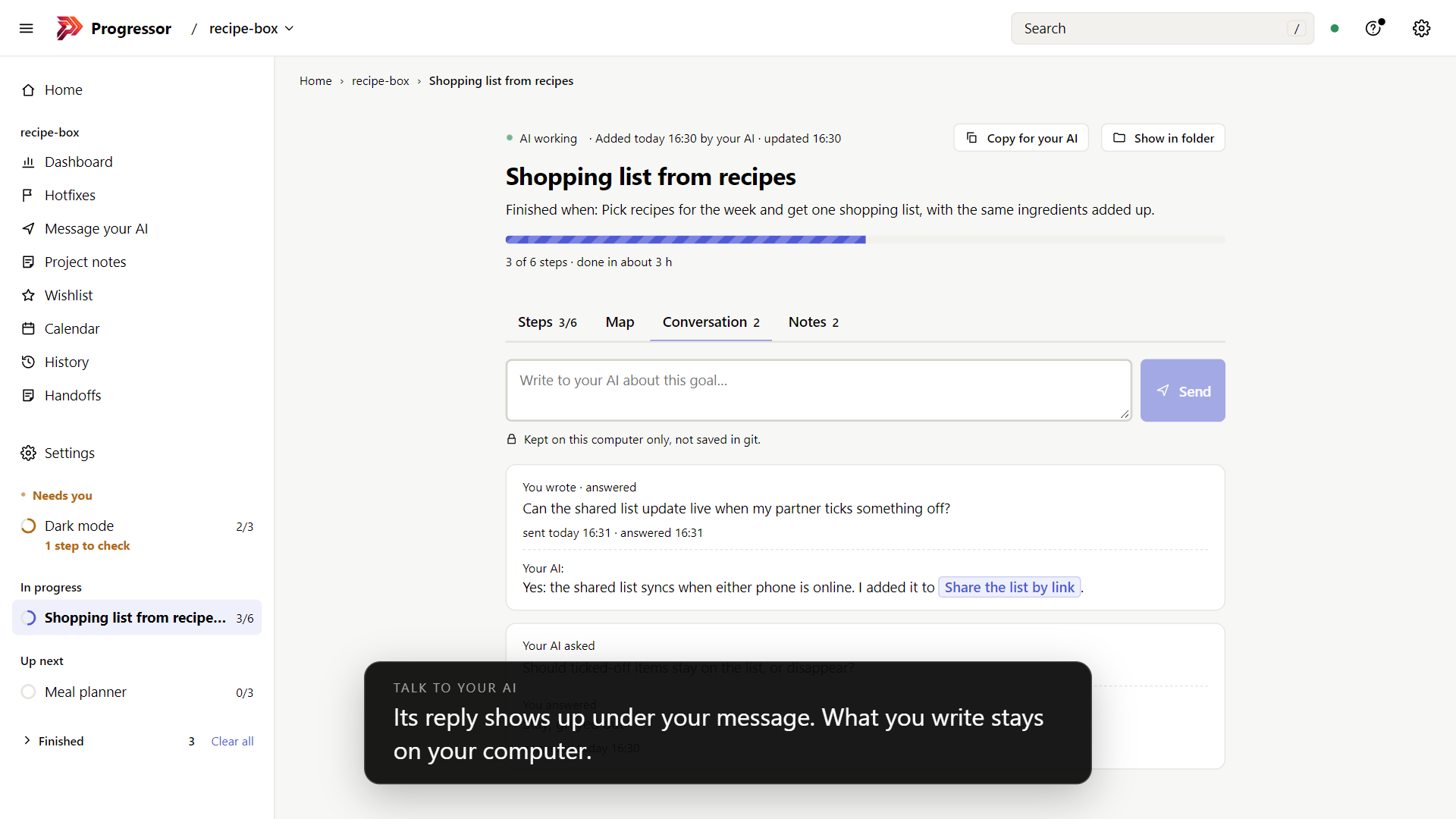
Talk to your AI from the pageWrite to your AI about one goal or the whole project, and its replies show up under your messages. What you write stays on your computer, out of git. |
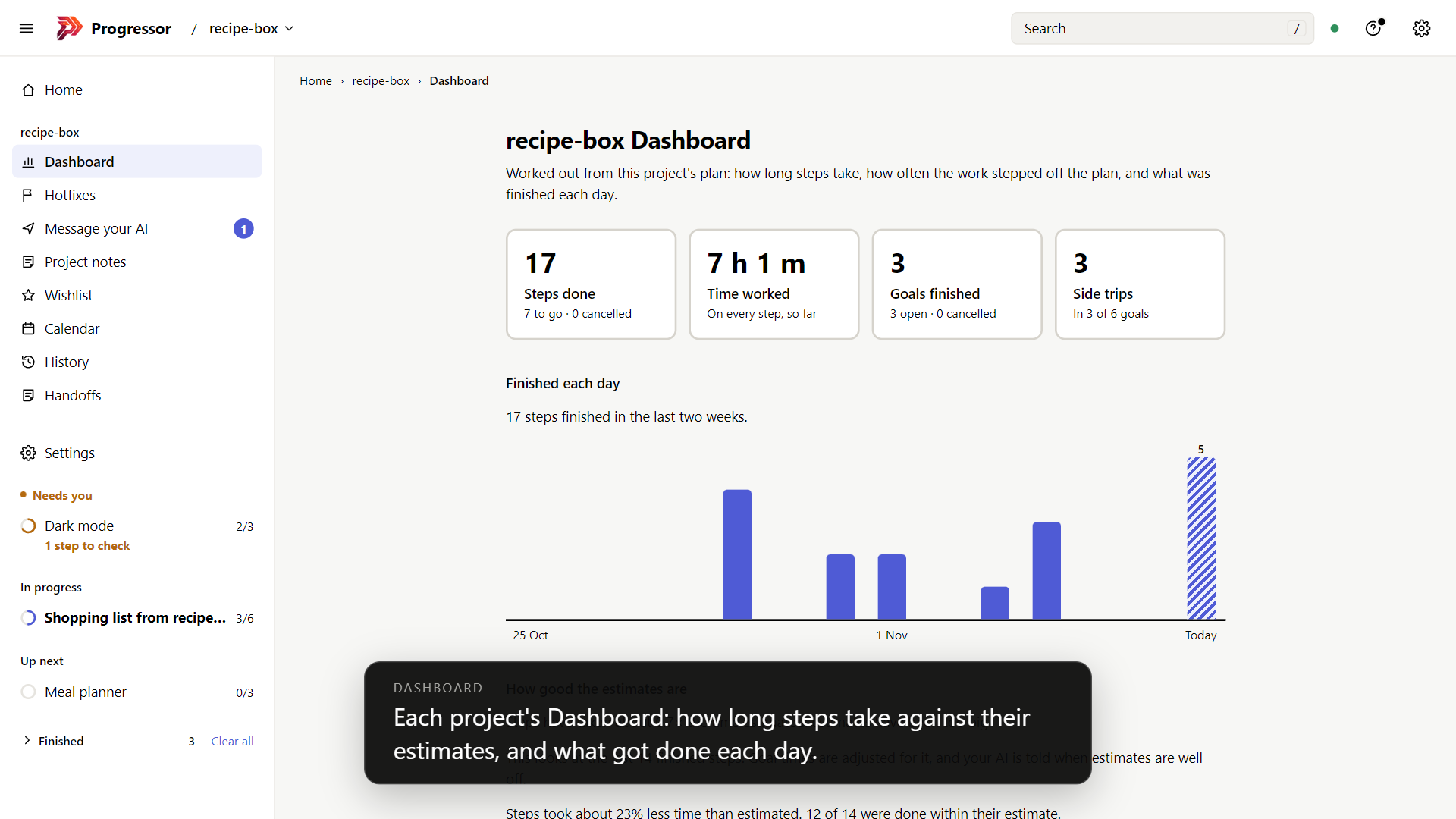
A Dashboard of the numbersHow long steps take against their estimates (and how the estimates are getting better), how often the work drifts, and what got done each day, for each project and for all of them on Home. |
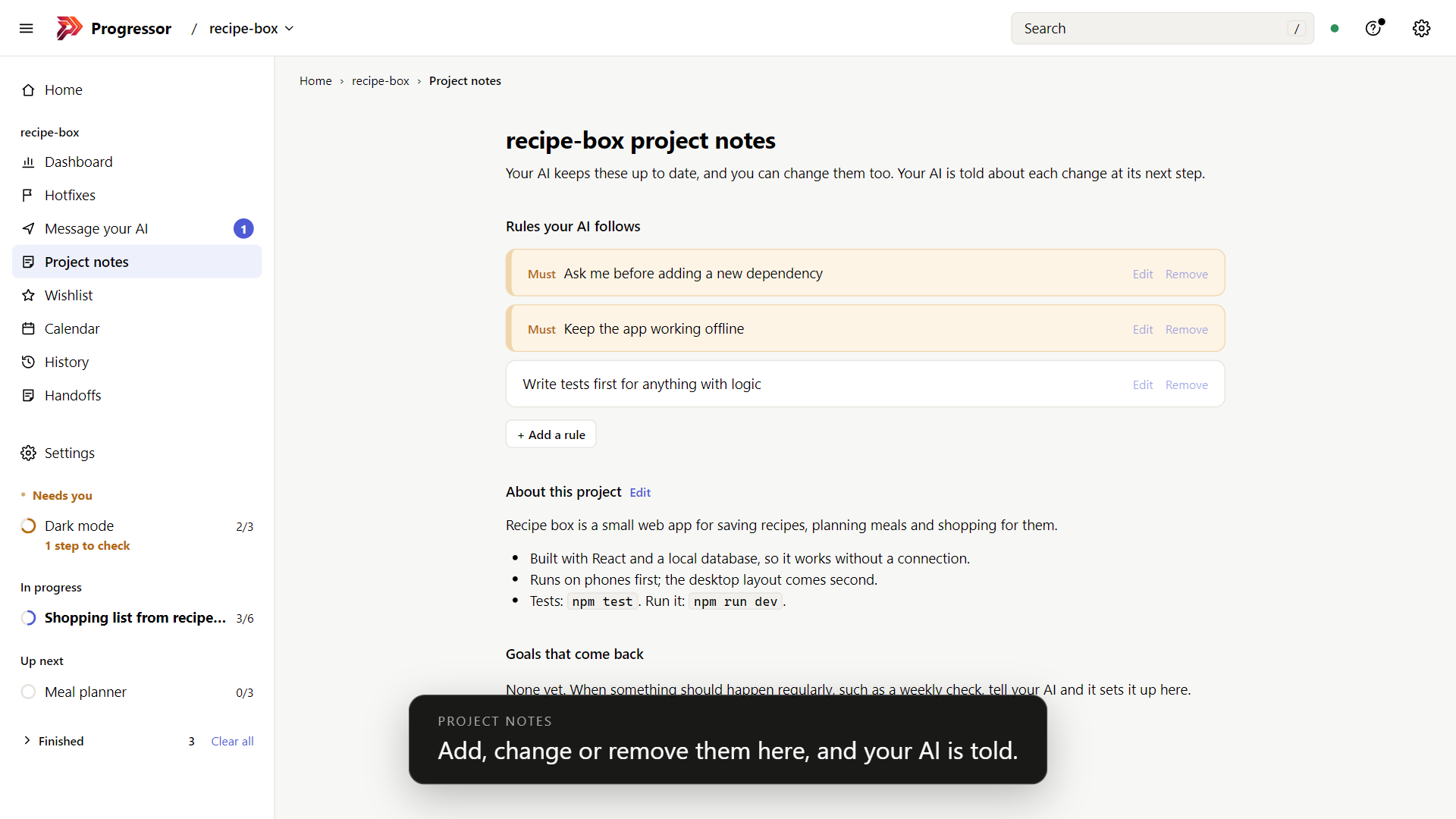
Rules your AI keeps"Always ask before adding a dependency." Lasting rules and the project's background live in Project notes. Add, change or remove them there, and your AI is told. |
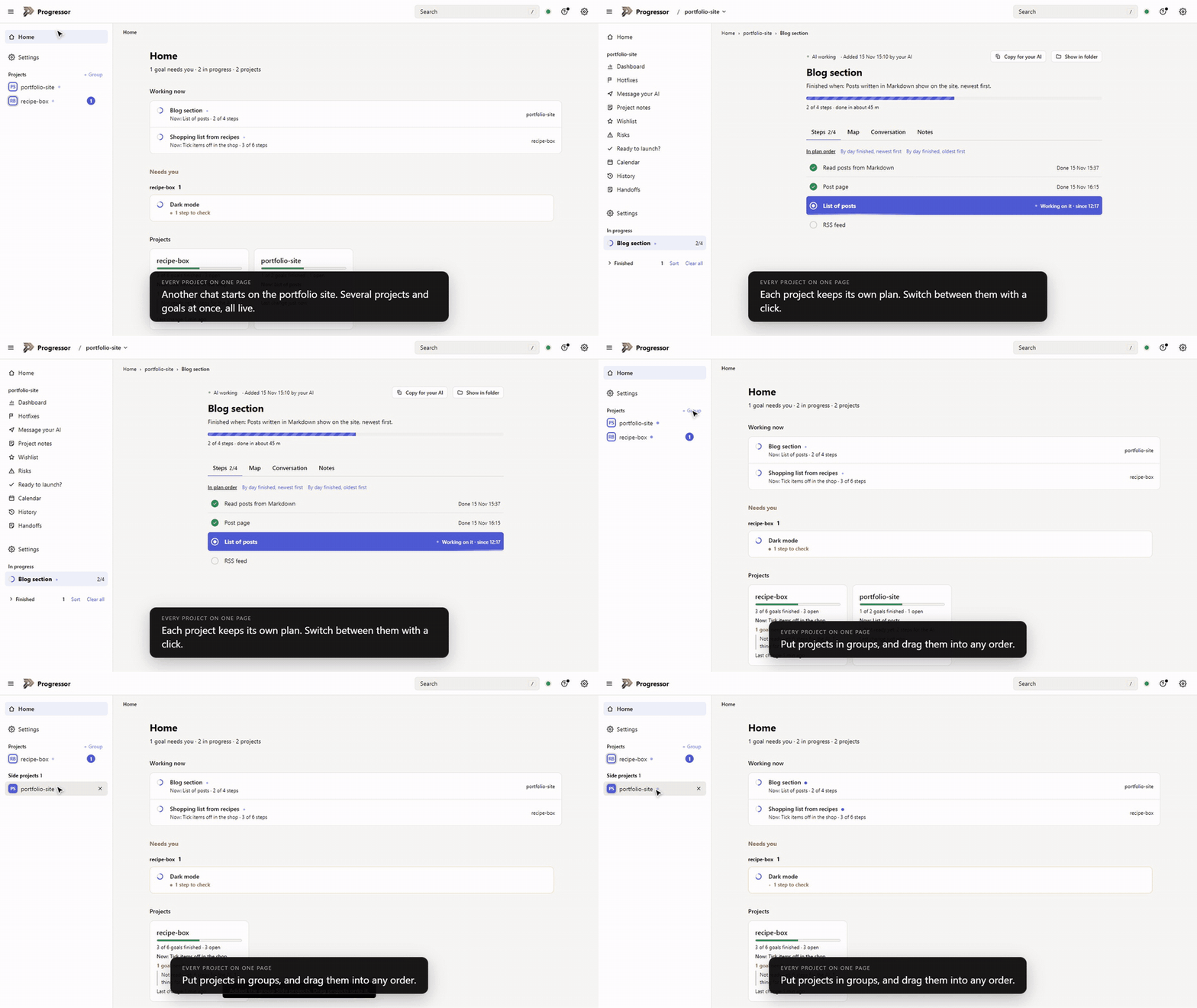
Every project on one pageHome shows what your AI is working on now, what needs you, and a card for each project saying how it's doing, in any app. Put projects in groups and drag them into any order. |
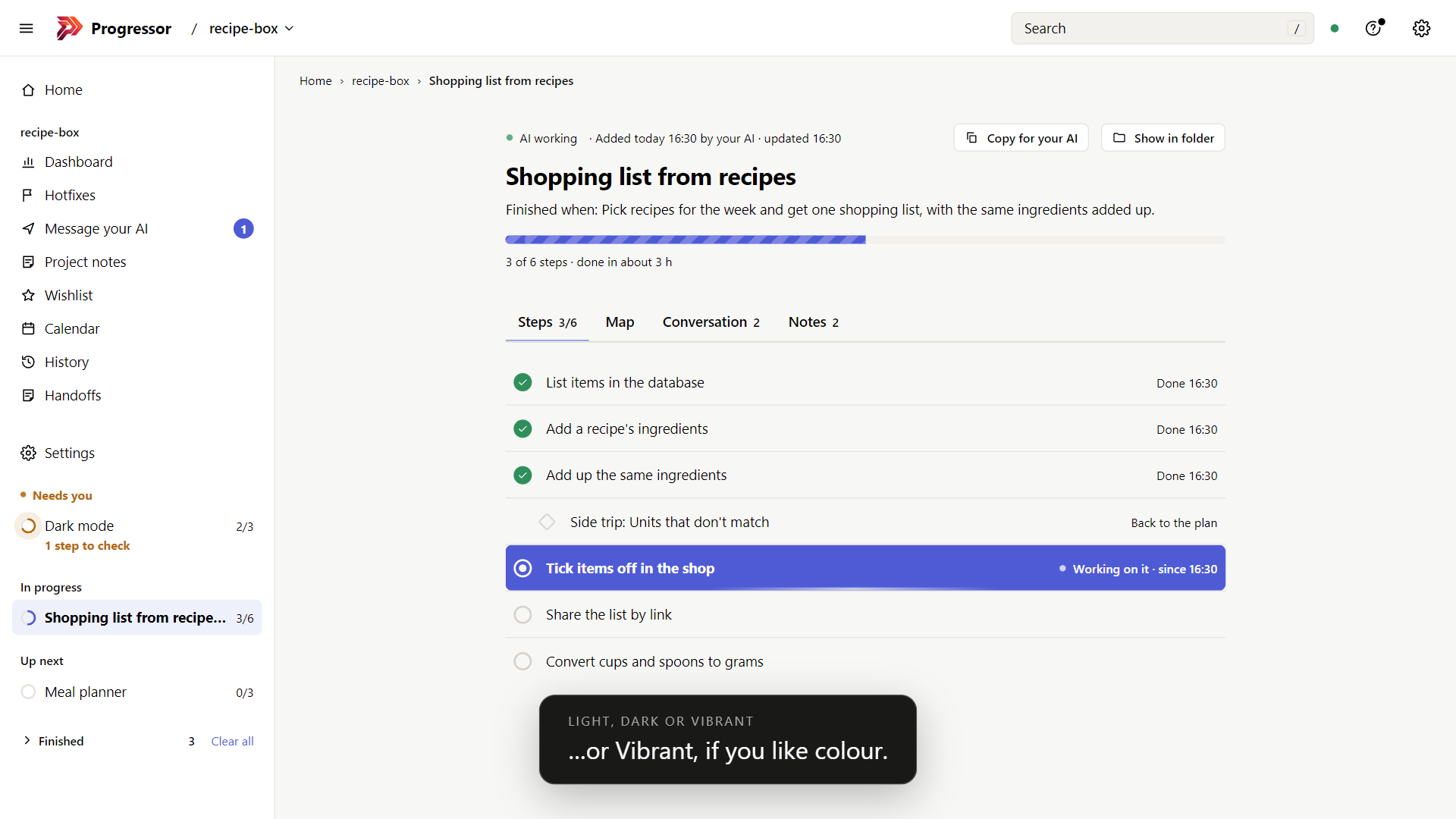
Light, dark or colourfulVibrant by default, with black text, or a calm black-and-white look in light or dark. See dark. |
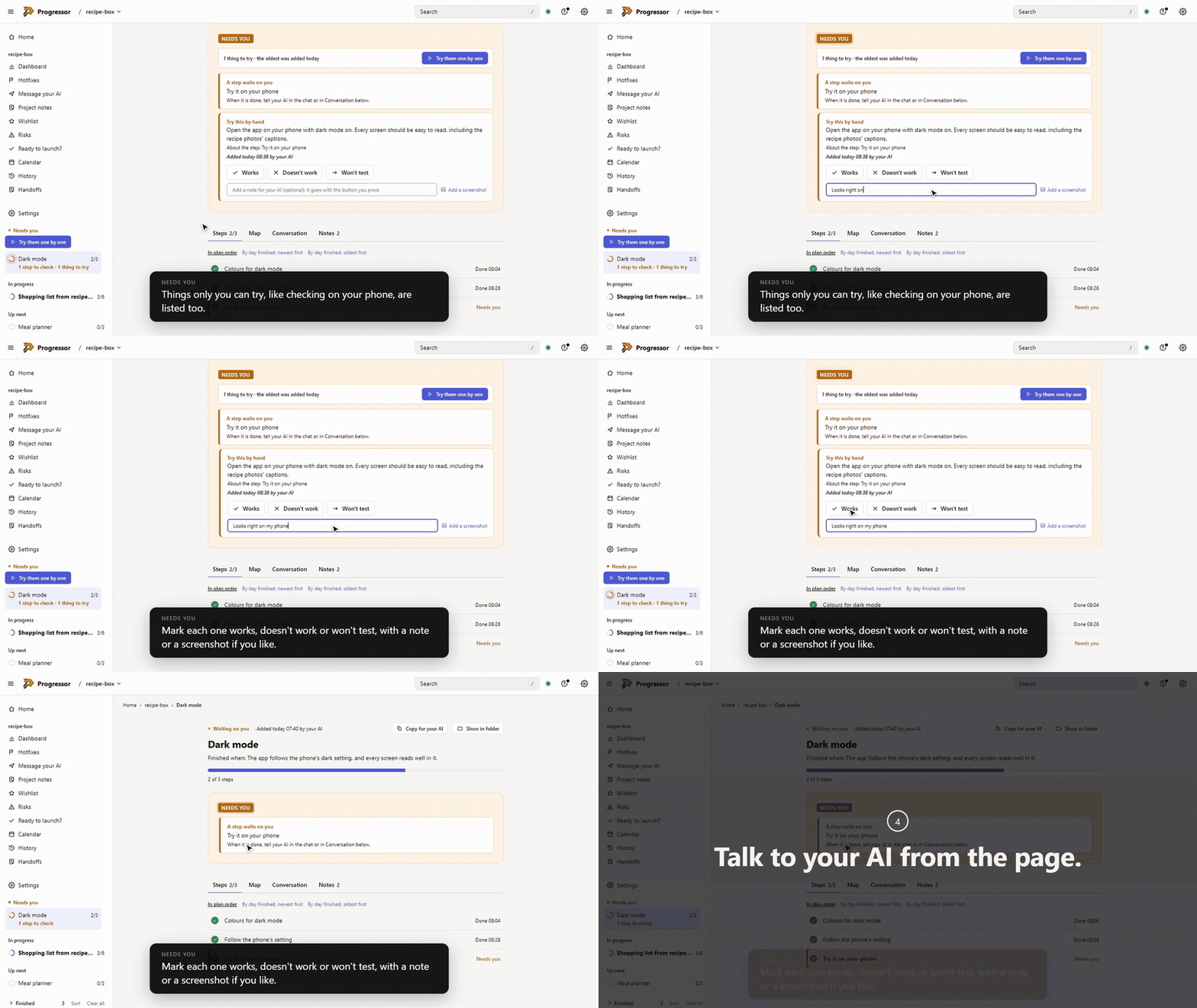
Try it yourself, then say how it wentAnything only a person can check waits for you. Mark it Works, Doesn't work or Won't test, with a note or a screenshot for your AI, or go through them all with Try them one by one. |
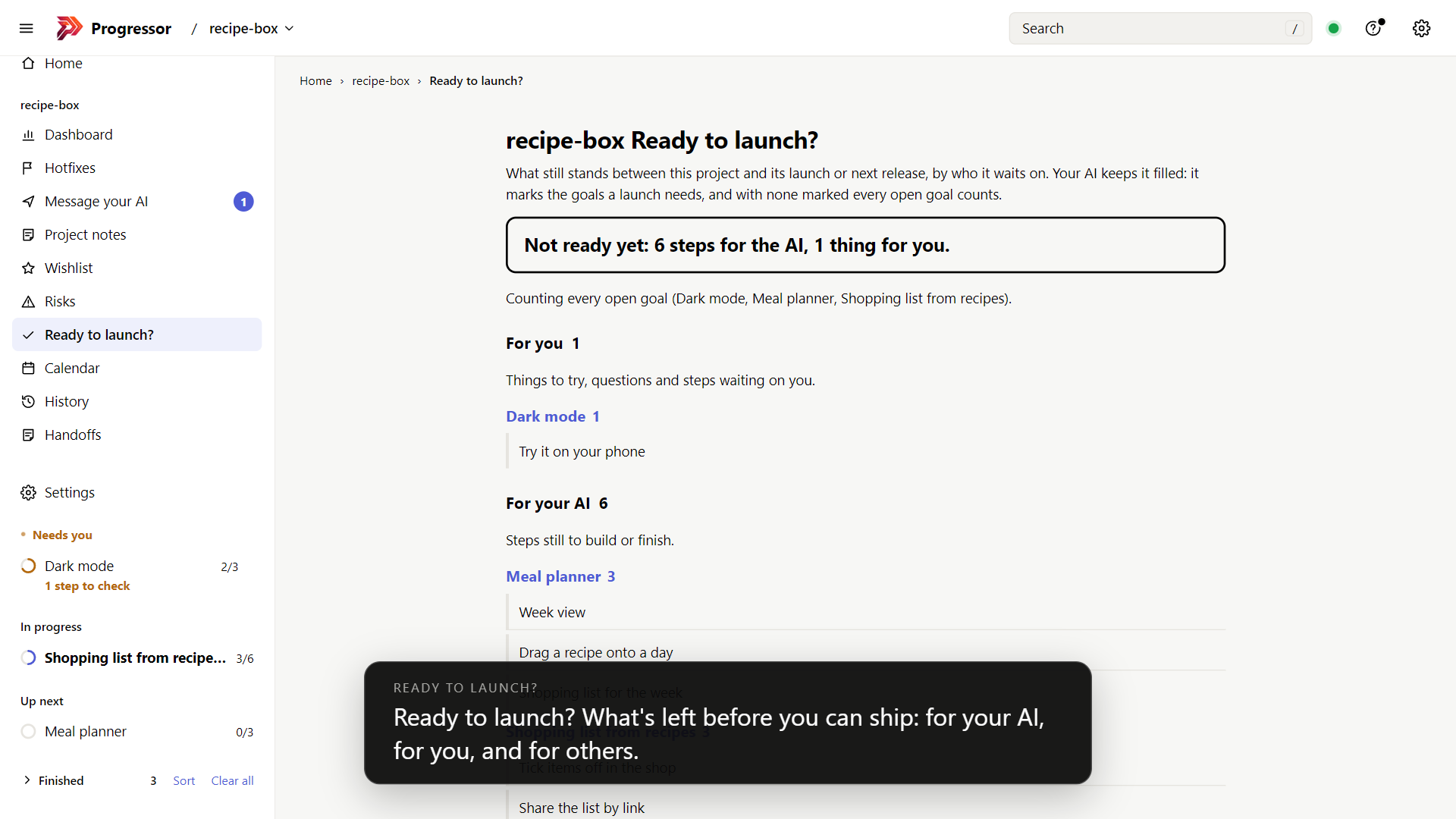
Ready to launch?One line answers "can we ship?", then lists what is left for your AI, for you and for other people, and the serious risks nothing is reducing. |
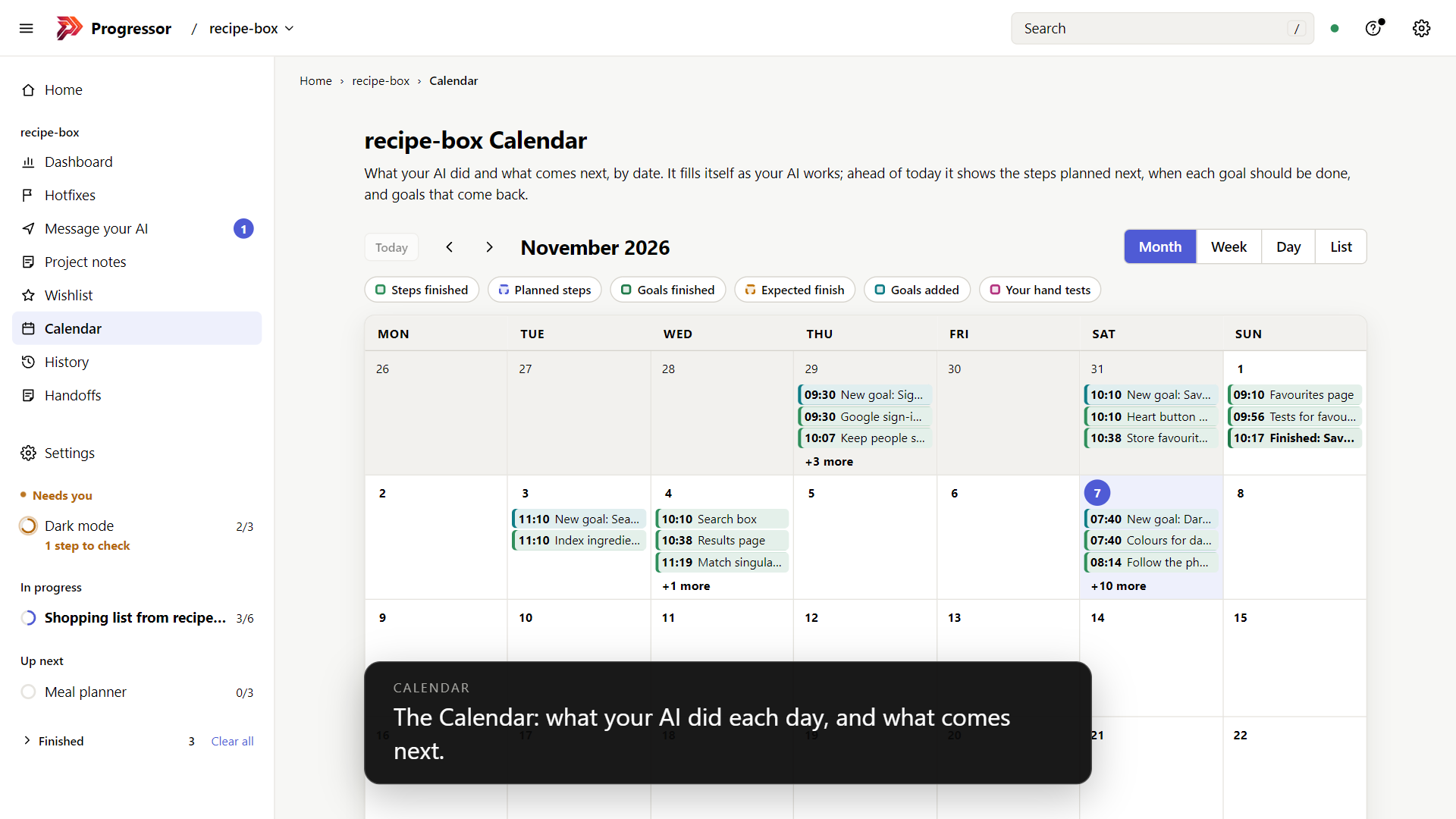
A calendar of the workWhat your AI finished each day, releases and handoffs, and ahead of today, the steps planned next and when each goal should be done. |
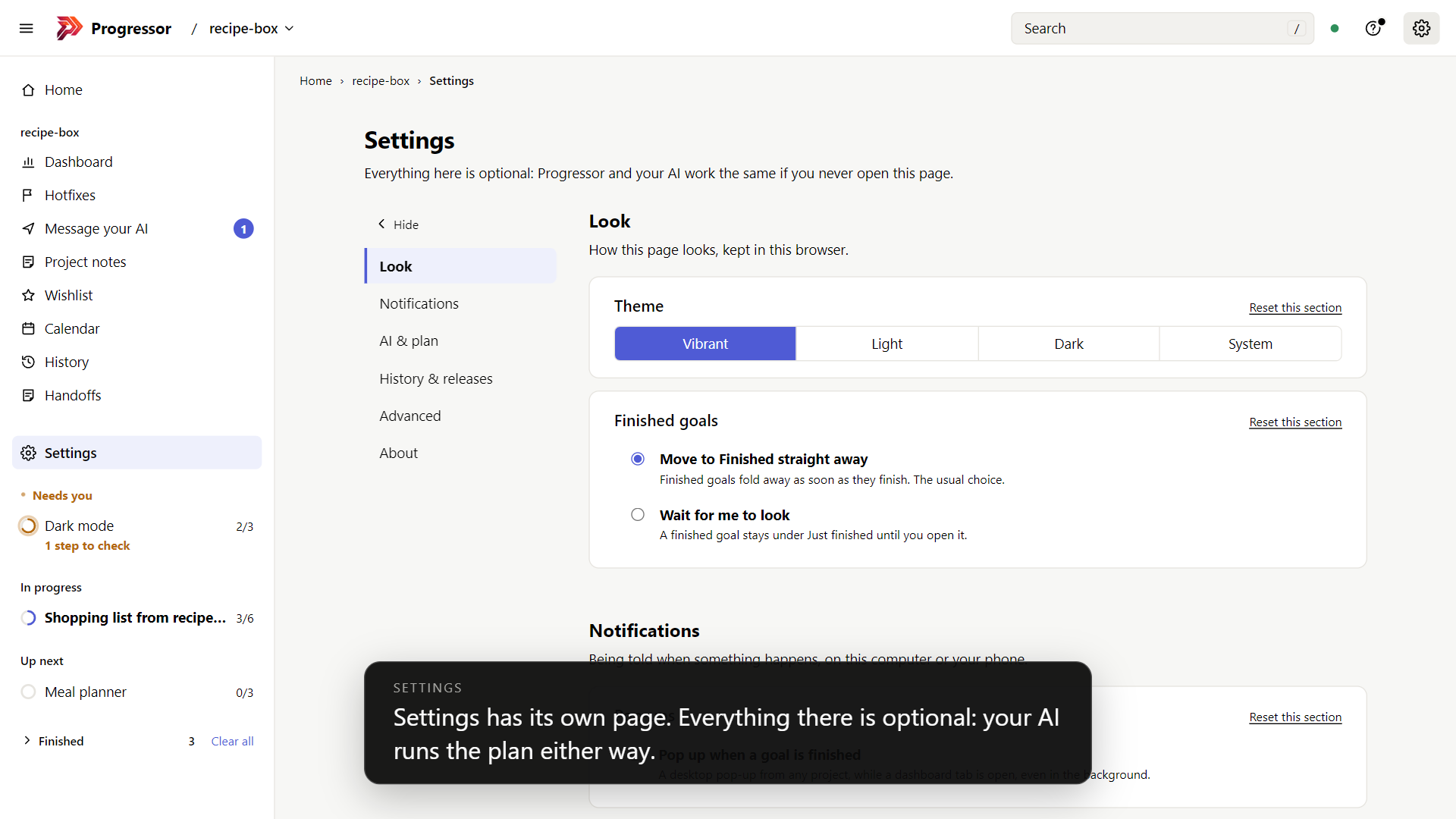
Settings, all optionalThe look, pop-ups and phone notifications, and how your AI works, grouped on one page. Your AI runs the plan the same whether you ever open it or not. |
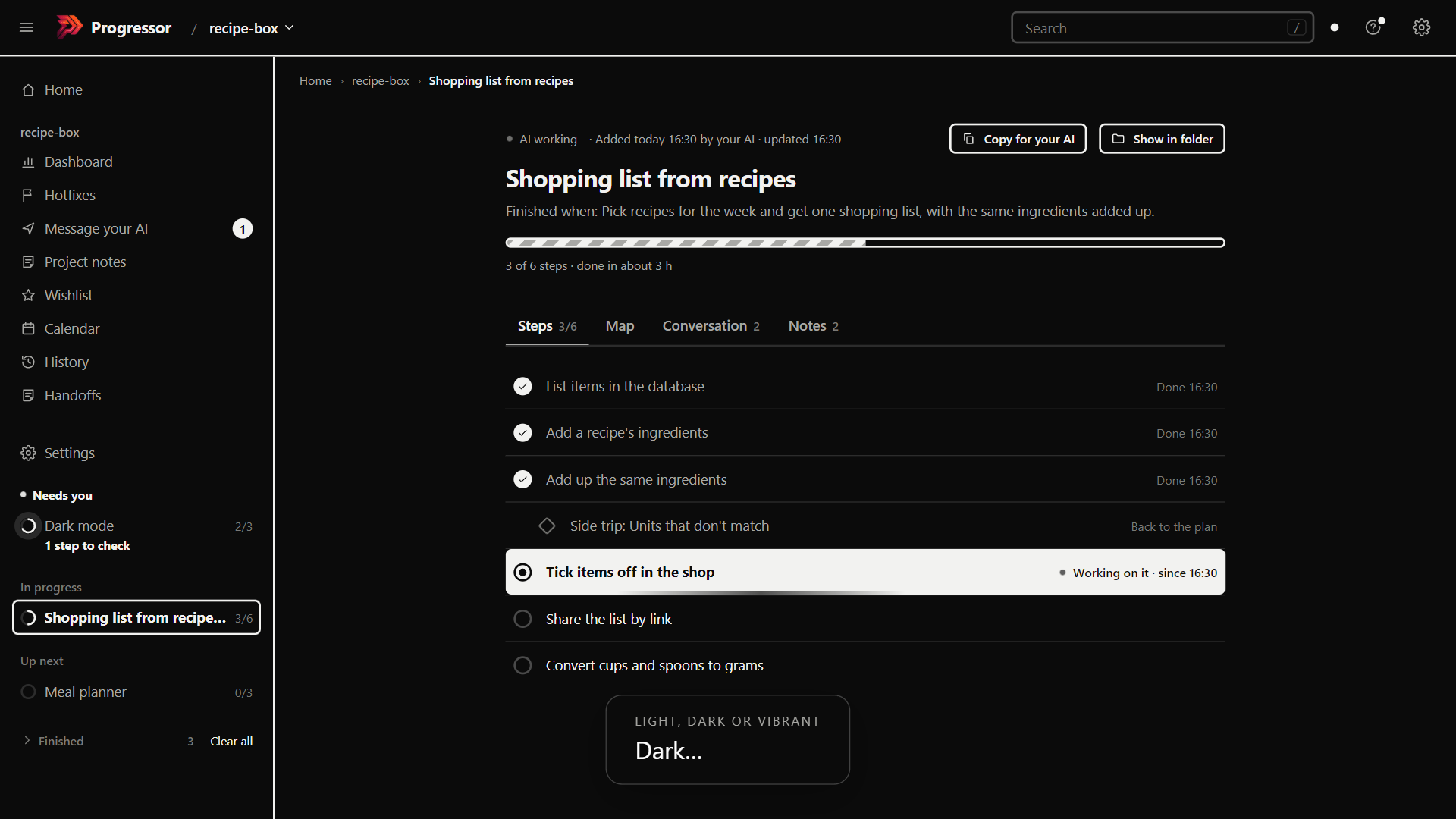
Your progress is never lost
A compressed chat, a new chat or a different AI app never costs you your progress:
- Everything is saved in your project. The goals, every step and where each one stands, the side trips and why they happened, the decisions made along the way, notes, your rules and the project's background are kept in plain files in your project folder, not in the chat.
- Private, and yours. The plan is plain markdown files on your computer: nothing is sent anywhere, and it's kept out of git unless you ask your AI to share it (how). You can read every file, and delete them whenever you like.
- The same plan for you and the AI. What you see on the dashboard is what the AI reads, so you always know what's done, what's under way and what's waiting on you.
Set it up
You need Node.js 22 or later. Then paste this into your AI's chat, in the project you're working on:
Set up Progressor (https://github.com/racstan/progressor-mcp) for this project:
1. Run `node --version`. If it is older than 22, stop and tell me how to install Node.
2. Run `npm install -g progressor-mcp`.
3. If you are Claude Code or Claude Desktop, run `progressor-mcp init --yes` in this folder. Otherwise, add
   the "progressor" MCP server to this app's settings as the guide for this app shows
   (https://github.com/racstan/progressor-mcp/blob/main/docs/apps.md), then run
   `progressor-mcp init --yes --no-server` in this folder.
4. Tell me to restart the app, and to approve the "progressor" server if it asks.
   After the restart, call get_status and tell me in plain words that Progressor is
   ready, with the dashboard link.
Your AI does the rest. For Claude Code and Claude Desktop that one init command is the whole setup: it adds the server, the hooks that hand your AI the plan at the start of every conversation, and a short note telling the AI to use Progressor. To have Progressor in every project without setting each one up, add it once to your app's settings for all projects (how, for each app). If you'd rather do it yourself, Getting started walks through it, and Setup for your app has the exact settings for each app.
Update it
npm install -g progressor-mcp@latest
Then restart your AI app. That's all: your plans, settings and projects stay as they are, and running progressor-mcp init again afterwards is safe (it changes nothing unless something is missing). Or paste this into your AI's chat:
Update Progressor with `npm install -g progressor-mcp@latest`, then tell me to restart the app.
- Check your version:
progressor-mcp --version, or ❓ Help on the dashboard. What's new opens on the dashboard by itself after an update. - Chats that were already open keep the old version until they restart; the dashboard says so if one of them is serving the page.
- The background dashboard (
progressor-mcp daemon install) moves to the new version by itself; nothing to do. - Set up with
npx? It updates itself the next time your app starts it. - Docker?
docker pull ghcr.io/racstan/progressor-mcp, then restart your app. For the always-running dashboard container,docker rm -f progressorand run its command again.
Removing it is just as short: see Updating and removing.
Run it with Docker
Would you rather not install Node? Progressor also comes as a Docker image, ghcr.io/racstan/progressor-mcp, also on Docker Hub as rachitasthana/progressor-mcp. You don't start the container yourself: your AI app starts one for each conversation, so you save the command it should use, once. Your project folder has to be mounted into the container, because that is where the plan is kept.
1. Download the image (optional; it also downloads the first time it's used):
docker pull ghcr.io/racstan/progressor-mcp
2. Claude Code. In your project's folder, on macOS or Linux:
claude mcp add progressor -- docker run -i --rm -v "$PWD:$PWD" -w "$PWD" -v progressor-data:/data -p 127.0.0.1:4800:4800 ghcr.io/racstan/progressor-mcp
On Windows, mount the folder under /work and say so: -v "C:\Projects\shop:/work/shop" -w /work/shop -e PROGRESSOR_ROOT=/work/shop.
3. Claude Desktop, Cursor, Windsurf and other apps. The same command goes in the app's MCP settings, with your project's folder in place of /path/to/your/project:
{
  "mcpServers": {
    "progressor": {
      "command": "docker",
      "args": ["run", "-i", "--rm",
        "-v", "/path/to/your/project:/path/to/your/project", "-w", "/path/to/your/project",
        "-v", "progressor-data:/data", "-p", "127.0.0.1:4800:4800",
        "ghcr.io/racstan/progressor-mcp"]
    }
  }
}
VS Code calls the list servers instead of mcpServers, and Codex and others use their own format: Setup for your app shows where each one keeps it.
The dashboard is then at http://localhost:4800. The progressor-data volume keeps the project list and your settings between runs. Using Docker for two projects at once? Give the second its own port: -p 127.0.0.1:4801:4801 -e PROGRESSOR_PORT=4801.
4. Dashboard only, always running. To keep the dashboard up with no AI app open, run it as its own container that restarts by itself. Mount your projects' folder at the same path as in the commands above, so it can read their plans:
docker run -d --name progressor --restart unless-stopped -v progressor-data:/data -v "$HOME/projects:$HOME/projects" -p 127.0.0.1:4800:4800 ghcr.io/racstan/progressor-mcp daemon run
With this one running, leave -p 127.0.0.1:4800:4800 out of the commands in steps 2 and 3. docker stop progressor stops it, and docker rm progressor removes it.
Then just talk to your AI
Tell it what you want to build, as you would anyway: "Add a login page with Google sign-in." It plans the work as a goal, shows you the steps, and starts. You don't need to learn any commands. If you want to nudge it, these work in most apps' / menu:
| Command | What it does |
|---|---|
/progressor:next | Carry on where the work was left |
/progressor:status | Where things stand, in a few lines |
/progressor:plan | Plan something new together |
/progressor:dashboard | The dashboard's link |
/progressor:review | Check a goal against what finished looks like, and add steps if something is missing |
/progressor:setup | Set Progressor up in this project |
On the dashboard
Open http://localhost:4747 while your AI's app is open (your AI gives you the link). Everything on it is optional: your AI runs the plan by itself, and the page lets you watch and step in when you want to.
Where it runs. Usually the dashboard runs inside your AI's app and stops when the last one closes. If you'd like it up all the time, choose Always, in the background under Settings › Advanced, or run progressor-mcp daemon install: a small process starts when you log in and keeps the dashboard up with no AI app open (it uses about 30 MB of memory). Your AI's sessions share it, and progressor-mcp daemon uninstall puts things back. Both ways work the same; neither is needed.
Finding your way
- Home shows every project at once. Working now comes first, with the step your AI is on. Needs you follows, grouped by project in a box of a fixed height that scrolls inside. Then a card for each project: a progress bar, what the AI is doing, how many things need you, its Ready to launch? answer and when it last changed. Then the numbers across all of them.
- Your projects, your way: in Home's sidebar each project has a letter tile, a count of what needs you and a pulsing dot while your AI works on it. Press + Group to make groups, and drag projects into them and into any order (or press Alt+Up / Alt+Down). Home's cards follow the same groups.
- Rules and context for everything on Home: rules your AI follows in every project and anywhere it uses Progressor on this computer, such as "Never push without asking me", plus About this computer and About me and how I work. Add them there, or tell your AI "in all my projects…". A project's Project notes can copy any of them in, to keep them with that project.
- Remove a project from the dashboard: point at it in Home's sidebar and press ×. Its files and plan stay as they are, and it comes back if your AI uses Progressor there again.
- Breadcrumbs at the top of every page say where you are, such as Home › Bindery › Dashboard; click Home or the project to go back.
- Search in the top bar (press
/) finds projects, goals and steps across all your projects as you type. - Settings has its own page, from the gear at the top or the sidebar, grouped into Look, Notifications, AI & plan, History & releases and Advanced, with a menu that folds away. Among them: how tall Needs you is and which parts Home shows, Motion, What goals cost and Pull requests and checks. Nothing there is required: Progressor works fully with the defaults.
- A short walkthrough the first time you open the dashboard: a welcome that says Progressor is free (anyone selling it is not us), then the main parts of the page. Close it with Skip or ×, tick Don't show again, or take it again from ❓ Help or Settings › Look, where Show the walkthrough when the page opens turns it on or off. If you're updating from an earlier Progressor, you get What's new instead.
- Light, Dark, System or Vibrant. Vibrant, the colourful one with black text, is the default; Light, Dark and System keep to black, white and greys.
Each goal
- What the AI is doing: AI working, Waiting on you, or AI stopped when its chat has closed, with how far along each goal is. What it's working on right now is highlighted and gently moves.
- Every step, as a list or a map, with side trips (where the AI stepped off the plan, and why), decisions and notes. Each says when it was added, by whom, and when it changed.
- Commits and tests on each step: a finished step shows the commits made for it and the test run behind it, linked when your project is on GitHub, GitLab or Gitea.
- Pull requests and checks on each goal: on GitHub and Gitea, each goal and step shows its pull requests and whether the automatic checks passed, failed or are still running; a goal whose latest checks failed shows in Needs you.
- How long it will take: your AI estimates each step and each goal shows a rough finish, done in about 2 h. The estimates learn: Progressor compares how long steps really took with the guesses and corrects the finish times.
- Goals that wait on other goals say Waits on …, even on a goal in another project, and their finish starts after that one's.
- Needs you: a question, a step to check or something to try by hand waits in one place, and you answer with a click. Mark a thing to try Works, Doesn't work or Won't test, with a note and a screenshot for your AI if you like, or go through them all with Try them one by one. Ways to go shows 2 to 4 options as cards, with your AI's pick marked; if you don't choose, it goes ahead with its pick, and you can still change course later.
- Talk to your AI about one goal, or the whole project from Message your AI. Its replies show under your messages, and a number counts the ones you haven't read.
- Pictures: your AI can attach a screenshot or recording to a goal or step, so you see the change instead of reading about it.
- What it cost: each goal and step shows the tokens your AI used on it, counted by itself as it works, and money too if you put your AI's prices in Settings.
- Copy for your AI and Show in folder on every goal and step.
Each project's pages, in the sidebar (under the project's name, Dashboard first; each page's heading names its project, such as Bindery Dashboard)
- Hotfixes: paste a bug report, such as one from a customer, and it goes to the top of your goals. Every AI chat in the project is told; the one that takes it finishes the step it is on, writes a test that shows the bug, then fixes it. You can also just tell your AI: "Hotfix: checkout fails when the cart has a coupon."
- Ready to launch?: one answer to "can we ship?": what is left for your AI, for you and for other people, and the serious risks nothing is reducing.
- Risks: what could go wrong, how likely and how bad, and the goals that reduce each one. Your AI keeps the list by itself.
- Project notes: the rules your AI keeps and the project's background, which you can edit or copy in from the rules for everything, and Goals that come back: goals your AI set to repeat, such as a weekly dependency check, which you can pause or stop.
- Wishlist: what you want from the project as a whole, in your own words, with files or pictures attached if you like. Your AI reads it and may suggest goals from it, but only you change it.
- Dashboard: Since you last looked (what your AI did while you were away), the numbers worked out from the plan, with every goal in a list you can sort (newest, longest, most over its estimate…) (called Statistics before 1.3.0), with the Plan check-up card: what your AI's last look over the plan fixed, and Check now.
- Calendar: the project by month, week, day or as a list: what your AI finished, releases, hotfixes and handoffs, and ahead of today, the steps planned next and when each goal should be done.
- History: every change to the plan, by your AI or by you, with what it changed. Go back to before this undoes a change and everything after it, and going back can itself be undone.
- Handoffs: write-ups of a stretch of work for whoever picks it up next. Your AI writes one after each release, or when you ask for one between two dates.
Staying in touch
- Phone notifications through the free ntfy app: a push when your AI asks a question, has something for you to try, finishes a goal, offers ways to go, or a bug report comes in. Turn it on in Settings, then copy the private address Progressor made into the app with one click, or use your own ntfy server.
- A desktop pop-up when a goal is finished, from any of your projects, if you turn it on in Settings.
- Never out of date: if Progressor was updated, or the page lost touch with it, a bar says so with a Refresh button. What's new opens by itself the first time after Progressor is updated, with what changed (tick Don't show again to stop that), and is always in ❓ Help.
More in the dashboard guide.
What your AI does by itself
You never have to ask for these, and each one has a section in Settings if you want to change how it works:
- Keeps the plan tidy. At the start of each conversation it gives the plan a check-up, repairs what is safe to repair, and lists the rest.
- Records the work. Each finished step is linked to its commits, branch and test run, and your AI is warned when a step's files are not saved in git yet.
- Learns from its estimates. It sees how far off its guesses have been, so its next ones are better.
- Writes the changelog. When it's time for a new version, a release goal gathers the finished goals and commits since the last release, and your AI writes the changelog entry and the new version number from them. It asks you before tagging or publishing anything.
- Brings routine work back. A goal can come back every day, week, two weeks, month or on a weekday; a fresh one is added when it's due, never while the last one is still open.
- Hands over. It writes a handoff after each release, and whenever you ask.
- Works across projects. When a chat in one project does work for another, it records it in that project's plan, tagged Updated from.
More in Using Progressor.
If something goes wrong
Most problems can be fixed by asking your AI. Troubleshooting lists the common ones, each with a line you can paste to your AI. Still stuck? Report a problem, or use ❓ Help on the dashboard, which fills in your version and system for you.
Docs
- Getting started: setting up, step by step
- Setup for your app: Claude Code, Claude Desktop, VS Code, Cursor, Windsurf, Codex and others
- Using Progressor: goals, steps, side trips, and what to say to your AI
- The dashboard: everything on the page
- Questions and Troubleshooting
- Updating and removing
- Tool index: all 31 tools your AI has, in one line each
- Reference: commands, the AI's tools, settings and the file format, for the technically curious
- Contributing: working on Progressor itself
Feedback
What you run into shapes what comes next. Share an idea or feedback, even a sentence helps, or see the open issues.
Support
Progressor is free for personal and other noncommercial use. If it helps you, you can buy me a coffee; the link is also on the dashboard's Settings page, under About.
License
Copyright (C) 2026 Rachit Asthana
Progressor is licensed under the PolyForm Noncommercial License 1.0.0.
- Free, no need to ask: personal use with no commercial application (your own projects, study, research, hobbies), and use by charities, schools, public research bodies and government institutions. You may use, change and share it for these.
- Needs a commercial license from the author: any other use. That includes using it in or for a company, for paid client work, and selling it, hosting it for others, or building a product or service on it, changed or not. Ask for a commercial license.
Without that license, commercial use is not allowed. See LICENSE.md for the full terms. Versions up to 1.2.2 were released under GPL-3.0-or-later, and copies of those versions keep that license.