Dialbot MCP
Local stdio MCP browser control for Windows and Chrome. Requires Node.js 22+ and separate installation of the Chrome extension and local bridge.
Documentation
Dialbot MCP
Control your browser from an agent through MCP. Dialbot combines a Chrome extension with a local Node bridge: use fast mode for selector-based tasks and normal mode to work with screenshots, keyboard and mouse. Switch modes from the prompt without losing your tabs.
Status: working prototype for Windows and Chrome. The bridge runs on your machine, with no third-party packages or remote services. The web pages you open may use their own network. It does not require AI provider accounts.
Privacy policy: dialbot-mcp.
Works with OpenCode and Codex. Bring a browser-agent flow to your agent: it works on your Chrome tabs through local MCP tools.
Assisted setup from your agent
Ask OpenCode or Codex (ChatGPT) to install and configure the local MCP bridge:
Install Dialbot MCP from https://github.com/R2100/dialbot-mcp
Follow the installation instructions your agent provides for the local bridge and MCP server. It may ask for permission to run commands and edit its configuration; review those steps before approving them.
Then install the Dialbot MCP extension from the Chrome Web Store. This is the only browser extension you need. You need Chrome and Node.js 22 or later.
The setup registers the local host on Windows and creates the private bridge credential. The extension and local bridge are separate components: installing the extension alone does not install the bridge.
See It In Action
Real examples of Dialbot MCP in action:
Fill and submit a questionnaire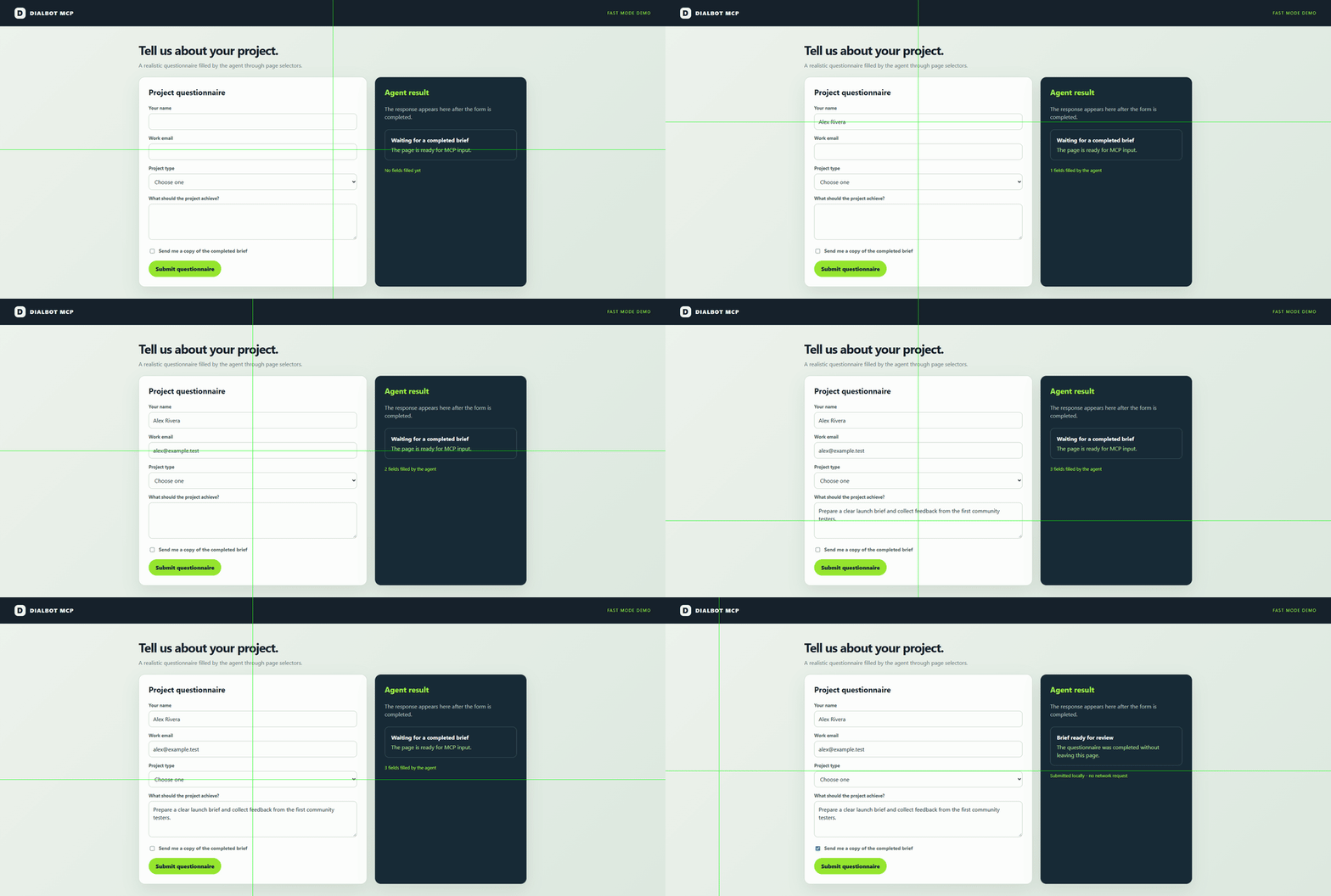 Fast selector actions fill the form and submit it locally. | Review this GitHub README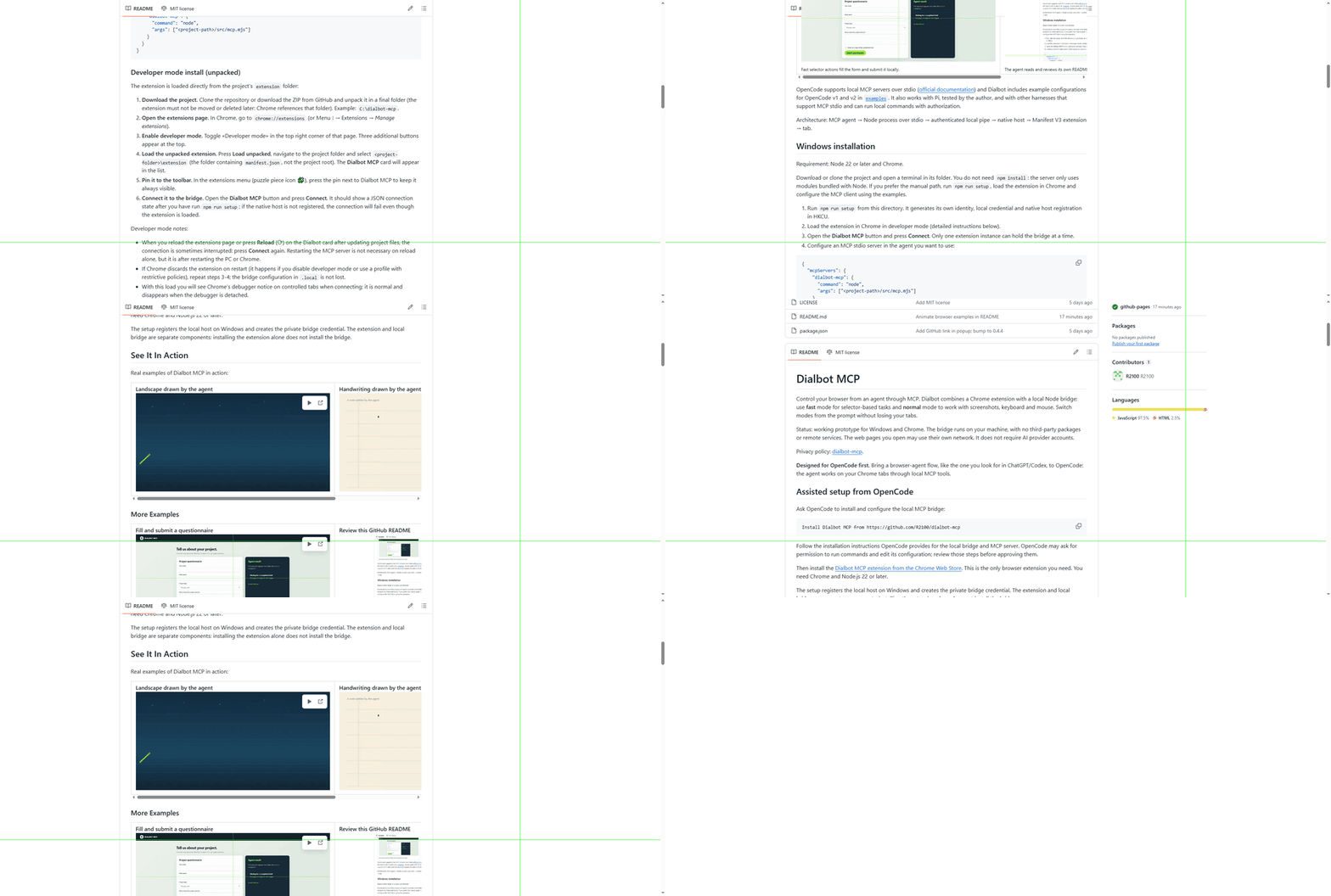 The agent reads and reviews its own README with the crosshair visible. |
Landscape drawn by the agent | Handwriting drawn by the agent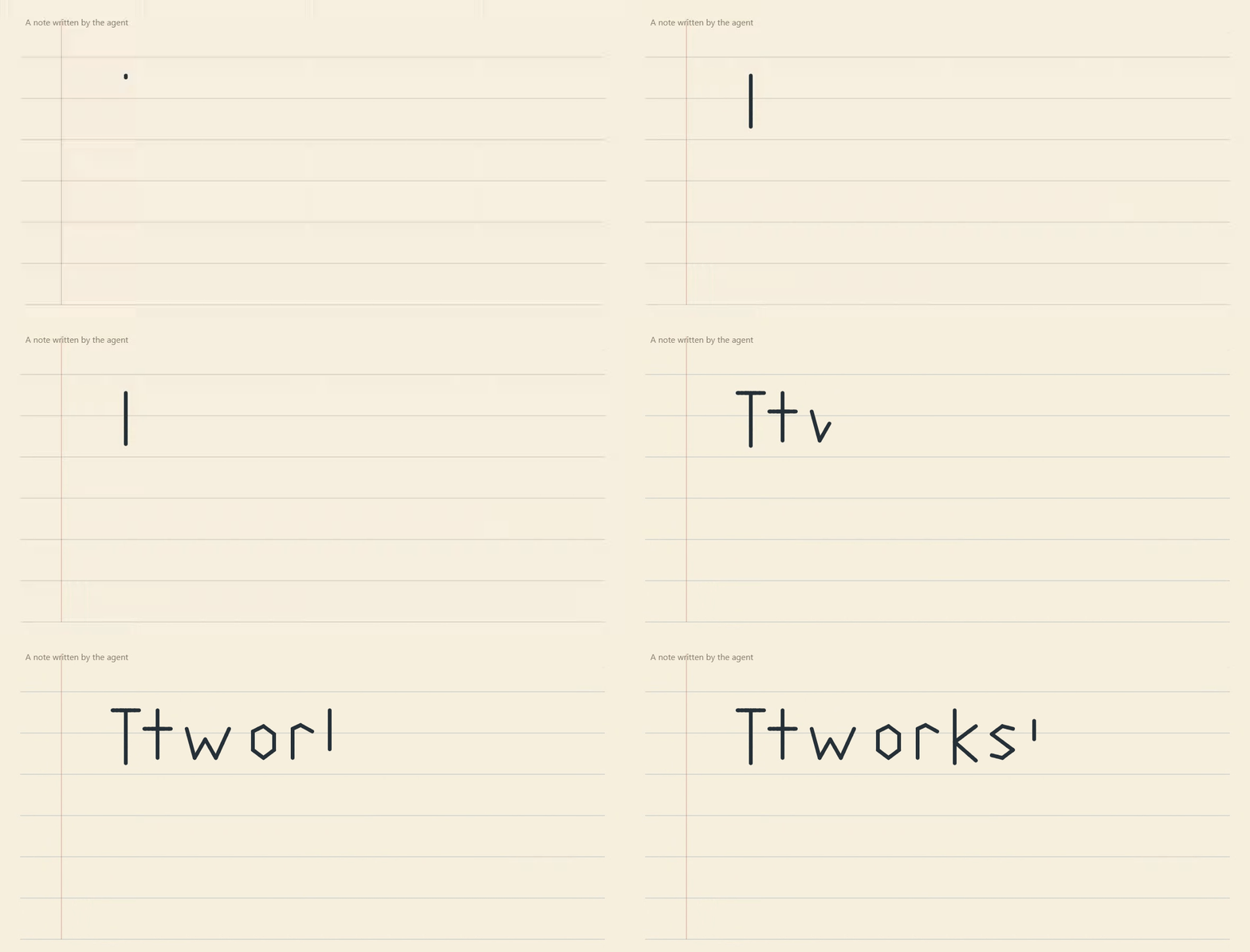 |
Dialbot has been tested with OpenCode, Pi, and Codex (ChatGPT) on Windows. OpenCode supports local MCP servers over stdio (official documentation) and Dialbot includes example configurations for OpenCode v1 and v2 in examples. Other harnesses can work if they support MCP stdio and can run local commands with authorization.
Architecture: MCP agent → Node process over stdio → authenticated local pipe → native host → Manifest V3 extension → tab.
Windows installation
Requirement: Node 22 or later and Chrome.
Download or clone the project and open a terminal in its folder. You do not need npm install: the server only uses modules bundled with Node. If you prefer the manual path, run npm run setup, load the extension in Chrome and configure the MCP client using the examples.
- Run
npm run setupfrom this directory. It generates its own identity, local credential and native host registration in HKCU. - Load the extension in Chrome in developer mode (detailed instructions below).
- Open the Dialbot MCP button and press Connect. Only one extension instance can hold the bridge at a time.
- Configure an MCP stdio server in the agent you want to use:
{
  "mcpServers": {
    "dialbot-mcp": {
      "command": "node",
      "args": ["<project-path>/src/mcp.mjs"]
    }
  }
}
Developer mode install (unpacked)
The extension is loaded directly from the project's extension folder:
- Download the project. Clone the repository or download the ZIP from GitHub and unpack it in a final folder (the extension must not be moved or deleted later: Chrome references that folder). Example:
C:\dialbot-mcp. - Open the extensions page. In Chrome, go to
chrome://extensions(or Menu ⋮ → Extensions → Manage extensions). - Enable developer mode. Toggle «Developer mode» in the top right corner of that page. Three additional buttons appear at the top.
- Load the unpacked extension. Press Load unpacked, navigate to the project folder and select
<project-folder>\extension(the folder containingmanifest.json, not the project root). The Dialbot MCP card will appear in the list. - Pin it to the toolbar. In the extensions menu (puzzle piece icon 🧩), press the pin next to Dialbot MCP to keep it always visible.
- Connect it to the bridge. Open the Dialbot MCP button and press Connect. It should show a JSON connection state after you have run
npm run setup; if the native host is not registered, the connection will fail even though the extension is loaded.
Developer mode notes:
- When you reload the extensions page or press Reload (⟳) on the Dialbot card after updating project files, the connection is sometimes interrupted: press Connect again. Restarting the MCP server is not necessary on reload alone, but it is after restarting the PC or Chrome.
- If Chrome discards the extension on restart (it happens if you disable developer mode or use a profile with restrictive policies), repeat steps 3-4; the bridge configuration in
.localis not lost. - With this load you will see Chrome's debugger notice on controlled tabs when connecting; it is normal and disappears when the debugger is detached.
- The version shown on the card must match
package.json.
Replace <project-path> with the absolute path where you saved the project. The configuration wrapper depends on each client. In examples there are configurations for OpenCode v1 and v2: combine the one that matches with your existing configuration. Other agents need a client or adapter that supports MCP stdio. Implemented protocol compatibility: revisions 2024-11-05 to 2025-11-25 advertised by the server; it does not implement the HTTP transport. The pi.dev connection has been tested by the author. Automated tests use a local MCP client; new features must also be tested from the agent after updating.
The setup generates machine-specific files inside .local, which are excluded from Git. The extension manifest key is public and stabilizes its identifier; it is not a credential. The native host internal name remains local.browser.bridge to keep compatibility with previous installations.
Structure
extension/     Manifest V3 extension, UI and browser operations
src/           MCP stdio server, bridge client and native host
scripts/       Native host installer for Windows
examples/      MCP client configurations
tests/         Automated protocol and component tests
docs/          Technical notes and public GitHub Pages pages
extension/icons/ Icons required by the extension
Tools
The default mode is fast. It can be changed during the conversation, without editing configuration or restarting:
| Mode | Behavior |
|---|---|
| fast | Prioritizes DOM reading and direct selector actions. Screenshots and visual input remain available when needed. |
| normal | Uses screenshots, mouse and keyboard for content. Blocks DOM reading and selectors, including selector-based uploads. Allows file selection after a coordinate click and tab management. |
Prompt examples: "Use fast mode to fill this form", "Switch to normal and continue with vision, keyboard and mouse only", "Back to fast", "Which mode is active?". The agent turns the request into browser_mode with {"mode":"fast"}, {"mode":"normal"} or {} to query. Prompt text is not interpreted inside the extension: the client needs an agent capable of invoking MCP tools.
The tool catalog stays stable for clients that cache it; the mode restricts execution. The change response reports the state and allowed tools. Each MCP process keeps its own mode and it affects all its tabs; other agents keep theirs, although browser tabs are shared. It is not an isolation between agents. The change is rejected while pending operations exist in that session.
Normal does not guarantee undetectability nor undo previous fast actions. It does not include arbitrary JavaScript execution. If you already have BROWSER_MODE configured, it only sets the initial mode: fast/normal and the old dom/visual aliases are accepted. You can change it later from the prompt. Restart the server once to load this update; later mode changes are immediate.
| Tool | Main arguments |
|---|---|
| browser_file_inputs | tabId; lists file fields, fast only |
| browser_upload | tabId, selector, files (absolute paths); fast only |
| browser_upload_click | tabId, x, y, files; file chooser after a click, both modes |
| browser_mode | optional mode: fast or normal; no arguments queries |
| browser_outline | tabId, optional offset and limit; fast only |
| browser_activate | tabId |
| browser_behavior | optional cursor, motion, warmup and tabId; no arguments queries |
| browser_warmup | tabId |
| browser_tabs | none |
| browser_open | url, optional active |
| browser_navigate | tabId, url |
| browser_close | tabId |
| browser_read | tabId, optional maxChars |
| browser_click | tabId, selector |
| browser_fill | tabId, selector, text |
| browser_screenshot | tabId |
| browser_detach | tabId |
| browser_mouse_move | tabId, x, y, optional durationMs |
| browser_mouse_click | tabId, x, y, optional button, clickCount |
| browser_mouse_drag | tabId, points (2–100 x/y points), optional button and durationMs |
| browser_scroll | tabId, x, y, deltaY, optional deltaX |
| browser_sendkeys | tabId, keys |
| browser_type | tabId, text, optional delayMs |
| browser_paste | tabId, text (up to 100000 characters) |
| browser_batch | steps (1–20 steps {name, arguments, pauseMs}), optional stopOnError |
| browser_batch_status | none |
| browser_batch_cancel | none |
Visual interaction
- Call
browser_screenshotwith thetabId. It returns PNG plus viewport and image sizes. - Locate the target visually. Input coordinates are CSS pixels from the top-left corner of the visible content. If the image is double size, divide observed coordinates by two. Exact factors are returned in
imagePixelsPerCssPixel; if your viewer downscales the image, account for that resize too. - Call
browser_mouse_clickwithxandyto focus.buttonacceptsleft,rightandmiddle;clickCount: 2produces a double click. browser_typetypes into the current focus. For example:{"tabId":123,"text":"Hello world","delayMs":40}. It does not clear the field: to replace, usebrowser_sendkeyswithkeys: "Control+A"first.browser_sendkeysaccepts one chord per call:Enter,Tab,Shift+Tab,Control+A,Control+C,Control+V,Backspace,Delete,Escape,Home,End,PageUp,PageDownand arrows. Clipboard operations are subject to browser restrictions. It does not accept brace macro syntax.- To scroll, use
browser_scrollwith a point inside the content and positivedeltaYdownward. Take another screenshot after navigating or scrolling before reusing coordinates.
Batches of verified actions
browser_batch runs 2 to 20 already checked actions in a single call, without agent queries between them. Each step reuses the usual {name, arguments} shape; the only addition is pauseMs, the pause in milliseconds after each step (0 by default, 10000 maximum):
{
  "steps": [
    {"name": "browser_fill",  "arguments": {"tabId": 123, "selector": "#email", "text": "a@b.c"}},
    {"name": "browser_fill",  "arguments": {"tabId": 123, "selector": "#pass", "text": "secret"}, "pauseMs": 300},
    {"name": "browser_click", "arguments": {"tabId": 123, "selector": "#submit"}, "pauseMs": 1500},
    {"name": "browser_read",  "arguments": {"tabId": 123, "maxChars": 5000}}
  ]
}
The response includes per-step results with ok and each result or error, plus cancelled, stoppedOn and elapsedMs. All steps are validated against the current mode catalog before the first one runs: a rejected batch executes nothing. With stopOnError (true by default) the first failure stops the batch; the remaining steps do not run.
Use it only with selectors, coordinates and flows verified in this session: it is a repeater for stable sequences, not a way to explore. It fits after preparing a form with individual calls and repeating it in one shot. The batch runs in series with the cadence set by the pauses; that mechanical cadence is a pattern observable by the page: add reasonable pauses and do not treat the batch as undetectable. Busy tabs and the per-step time limit keep their usual behavior: a slow step can exceed the bridge timeout just like a single call.
During the batch, browser_batch_status queries the running step and partial results, and browser_batch_cancel cancels when the step being executed finishes, including its pause; neither interrupts an action in progress. The last batch state remains available after finishing. browser_screenshot cannot be a step: take it before or after the batch.
Insert large text blocks
browser_paste pastes the whole block through the Windows clipboard and Chrome's Control+V in a single call. It is available in fast and normal, supports up to 100000 Unicode characters and suits code or multiline text. Focus the field or editor first; insertion replaces the current selection or is added at the caret. To replace all content, use browser_sendkeys with Control+A first.
{
  "tabId": 123,
  "text": "function greet() {\n  return 'Hola 🌍';\n}\n"
}
Line breaks and indentation are preserved in multiline fields; single-line fields apply Chrome's restrictions. The bridge places the text on the Windows clipboard through PowerShell and the extension sends the Control+V chord, generating the native paste event. The text is delivered over stdin as data, not interpreted as a command. The system clipboard keeps the sent block; simultaneous MCP pastes are rejected to avoid mixing it between sessions. No Enter key is pressed and no per-character keys are sent. browser_type keeps character-by-character typing.
The inserted response counts the characters sent to Chrome. The field must be focused and editable: the page can cancel the input, limit its length or transform it, so check the result. The initial selection is respected; optional warm-up happens before insertion.
Drag and draw
browser_mouse_drag presses on the first point, moves through the rest holding the button and releases on the last. It works in fast and normal for sliders, canvas, selection and components that respond to mouse/pointer events. Use CSS viewport coordinates from a recent screenshot; all points must be inside the visible area.
Two points are enough to move a slider. To draw, add corners or intermediate points:
{
  "tabId": 123,
  "points": [{"x": 100, "y": 150}, {"x": 250, "y": 150}, {"x": 250, "y": 250}],
  "durationMs": 600
}
It supports 2 to 100 points and the left (default), right and middle buttons. durationMs is the total duration of the movement with the button held: 600 ms by default, from 0 to 10000 ms. The path is divided into three parts of equal length, each with a random duration; the three durations add up to the configured total. This distribution is computed once per stroke, whether it has two points or many segments. The initial approach, warm-up and press pause are additional. Even with zero duration, intermediate movements are sent.
The initial approach respects the motion preference; during the stroke it follows straight segments without noise or overshoot to preserve the drawing. Pauses compensate Chrome's command delivery time to approximate the requested duration; a slow browser can exceed that target. Each call performs a complete press and keeps the tab busy until release. For several separate strokes, use several calls. If it fails after pressing, it attempts to release the button at the last known position; if the connection or tab is lost, the release cannot be confirmed. Unresponsive CDP commands have a 5-second limit to allow cleanup and avoid permanently blocking the tab. The response confirms the gesture was sent, not the application result: check a later screenshot.
This tool does not deliver files or external data to drop zones; that flow requires specific support. HTML5 drag and drop compatibility has not been verified.
Mouse and keys are sent to the browser through its input protocol: press and release, modifiers and wheel. It does not move the physical Windows cursor and does not know your manual movements. Alphanumeric typing uses key events, including Shift for ASCII uppercase; other characters, accents and emoji use IME-like text insertion. The base interval is configurable, 40 ms by default. 200 characters and an 18-second time budget are supported per call; split long texts.
Text outline and activation
"List the links and menus on this page" calls browser_outline: it returns a numbered textual representation with elements' name, destination, selector and open/closed or disabled state. It includes elements rendered outside the viewport and omits hidden ones. It does not open menus to discover their hidden content. Pagination uses offset and limit (100 by default, 300 maximum). Numbers are informative; use the returned selector with browser_click. List again after page changes. It only covers the main document, without iframes or shadow DOM.
"Activate tab 123" calls browser_activate with its tabId and also focuses the corresponding window.
Crosshair and prompt behavior
browser_behavior keeps preferences per MCP session:
| Option | Values | Default |
|---|---|---|
| cursor | auto, on, off | auto: visible in fast, hidden in normal |
| motion | auto, human, direct | auto: human in normal, direct in fast |
| warmup | true, false | false |
Examples: "Show the cursor", "Hide the crosshair", "Enable human motion and warm-up", "Disable warm-up", "Back to automatic cursor". The agent turns this into arguments like {"cursor":"on","tabId":123} or {"motion":"human","warmup":true}. An explicit on/off or human/direct setting persists across mode changes; auto follows the mode again.
The crosshair is two pure, opaque, one-pixel green lines spanning the full width and height of the viewport. They cross at the agent's pointer and follow only its movements, including drag and warm-up. Moving the physical mouse does not move the crosshair. In DOM actions they show the element's center. Before a position is known they appear at the screen center. They do not intercept clicks. They apply to tabs used by the session and to new tabs when acting on them; include tabId to apply them immediately. They are reapplied on the next operation after navigating. After the session ends they can persist until the page is reloaded or they are disabled. Other agents share the page: the last applied configuration wins. The overlay modifies the DOM, is observable by the page and appears in screenshots; enabling it in normal is explicit.
Human motion uses correlated Gaussian noise, an acceleration and braking curve, limited target overshoot and correction before clicking. All coordinates are bounded to the viewport and the final point matches the requested one. Motion, reading and pressing pauses follow bounded lognormal distributions, not a uniform distribution. durationMs fixes the duration of a trajectory. The direct mode avoids noise and movement waits unless a duration is explicit.
Automatic warm-up makes three idle movements from a corner and simulated pauses before the first input per session and page load. It does not click or type, although it can trigger hover effects. It resets after navigating or reloading. browser_warmup runs it explicitly even if the automatic one is disabled. In fast, warm-up may precede a DOM action, but human motion only affects input tools; it does not turn a DOM click into mouse input. These variations have not been calibrated against human movements nor guarantee undetectability.
This improves compatibility with interfaces that expect browser input, but it does not make the session indistinguishable from a person nor guarantee avoiding detections. There is no physical keyboard simulation with a full Spanish layout nor system dialog or address bar automation. It does not modify automation signals. Simultaneous operations on the same tab are rejected to avoid mixing presses; wait for the response before continuing.
The optional DOM tools act only on the main document; they do not traverse iframes or shadow DOM. Coordinate interaction targets the visible content, without selectors. Open and navigate do not wait for loading; take the screenshot again once the document is available. If a navigation triggers a beforeunload dialog from unsaved changes, Dialbot cancels it to preserve them, keeps the current page and returns an error instead of leaving the tab busy. Internal pages restrict operations. Screenshots and input events attach the debugger; browser_detach releases it. Chrome may show its debugger notice.
Do not share .local/config.json: it contains the bridge credential. The extension CSP blocks its own network connections. The site permission allows acting on the pages chosen by the agent. The token authenticates local processes; it does not isolate agents operating as the same user. Actions can modify pages or close tabs.
Files and videos
You can ask "Attach this file and stop without publishing". Selection is done through Chrome; video bytes do not travel through MCP. In fast a selector is used and in normal a click observed in a screenshot. Selecting may start the transfer to the site: check the preview and progress to confirm the result. See File uploads for examples, Windows alternatives, limitations and platform flows.
Tests
Releases on this line stay on 0.4.x, incrementing the last number with changes. Keep the same version in package.json, extension/manifest.json and the serverInfo of src/mcp.mjs; Chrome shows the loaded extension version and MCP reports its own on initialization.
Behavior decisions and their limits are in Browser behavior. Dialbot does not promise undetectability.
npm test runs the automated tests of the MCP protocol, framing, argument and path validation, modes, batches, motion, cursor, paste and recovery. It installs no dependencies and requires no browser configuration. Full integration with the installed extension is verified manually; after updating files, reload the extension from Chrome and restart the MCP server.
Uninstall
Remove the extension from the browser and delete only the HKCU\Software\Google\Chrome\NativeMessagingHosts\local.browser.bridge key. The .local directory contains the files generated by setup. The original extension is not modified.