QRetro
Your team's retrospectives, available to any MCP client — read boards, summaries, health trends and open action items, run planning poker, and write back.
Documentation
Connect Claude, Cursor, and other analytical clients to your retrospectives via the Model Context Protocol
What is MCP
Model Context Protocol (MCP) is an open standard that lets external systems and algorithms access data. QRetro provides an MCP server so you can query your retrospective data from Claude Desktop, Cursor, VS Code, and other compatible clients directly.
Two ways to connect
| Signing in | API token | |
|---|---|---|
| What you give the client | Only the address https://mcp.qretro.com | A token string you create yourself |
| Who it suits | Claude, Claude Code, Cursor, VS Code — anything with a browser at hand | Automations, CI, clients with a fixed header |
| Access scope | All teams you belong to | Optionally a single team |
| Deleting messages | Not available | Available with mcp:delete |
| Revoking | Settings → API Keys → Connected applications | Settings → API Keys |
Connect by signing in
Give the client one address — https://mcp.qretro.com — and it will bring you to QRetro to sign in. You will see who is asking: the application name, the address you will be returned to, and the permissions requested. Check the return address, approve, and you are done — the client keeps the issued access and renews it on its own.
Claude (web and desktop): Settings → Connectors → Add custom connector, paste the address.
Claude Code:
claude mcp add --transport http qretro https://mcp.qretro.com
Then run /mcp in a session and sign in to QRetro — Claude Code opens the browser for you and stores the result.
Cursor, VS Code and other clients: add the server by URL in the client's MCP settings, without any token field. On the first request the client will open the QRetro sign-in page itself.
Connect with an API token
A token is for cases where nobody can press "Authorize" in a browser, or where the access needs to be narrower than a sign-in gives:
- Automations without a human: CI jobs, cron scripts,
claude -pand Agent SDK runs — a sign-in flow needs an interactive session. - One team only: a signed-in connection always covers every team you belong to; a token can be bound to a single team.
- Deleting messages:
mcp:deleteis only available on tokens. - Clients that accept nothing but a fixed
Authorizationheader.
1. Create an API token
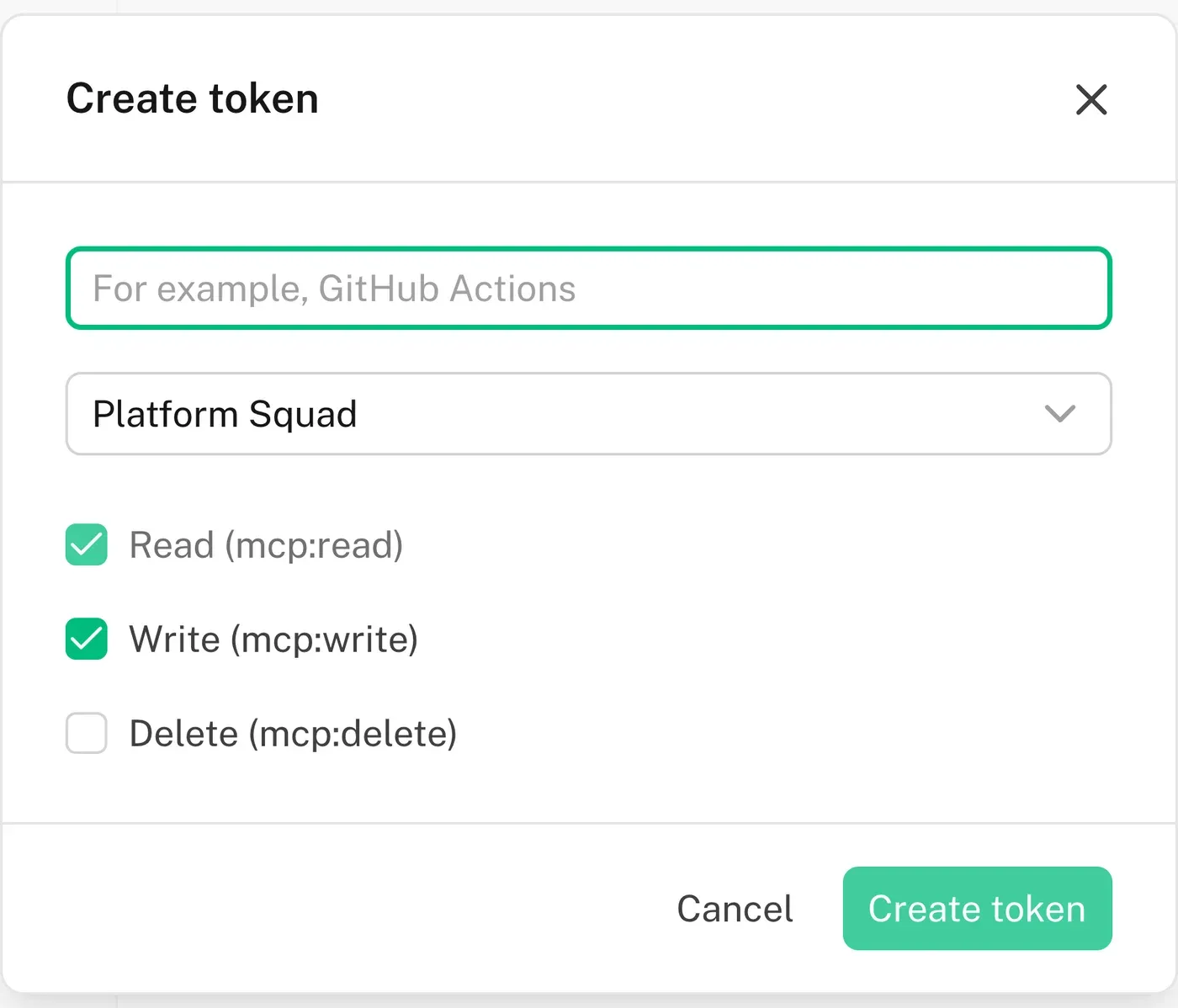
Go to Settings → API Keys, pick the permissions and, if needed, a single team. Copy the token — it is shown only once.
2. Pass it to the client
Claude Desktop (claude_desktop_config.json):
{
  "mcpServers": {
    "qretro": {
      "url": "https://mcp.qretro.com",
      "headers": {
        "Authorization": "Bearer YOUR_TOKEN"
      }
    }
  }
}
Claude Code:
claude mcp add --transport http qretro https://mcp.qretro.com --header "Authorization: Bearer YOUR_TOKEN"
Start asking questions
Once connected, you can query the system with questions like:
- "Show me the retrospectives for the Backend team"
- "What actions were agreed on in the last sprint?"
- "How has our team health changed over the last 3 months?"
- "Search all retros for mentions of deployment problems"
Using this documentation in MCP clients
Every documentation page has an action block in the top-right corner:
- Copy page – copies the full page in Markdown format. Useful when you want to “attach” this documentation to a session in Claude, Cursor, or ChatGPT.
- Copy Markdown link – copies a direct link to the Markdown version of the page (for example,
https://qretro.com/raw/en/docs/6.mcp.md) that you can pass to an assistant with a request like “Read this MCP documentation and use it as a reference”. - Open in ChatGPT / Open in Claude – open the selected assistant with a pre-filled query like
Read https://qretro.com/raw/en/docs/6.mcp.md so I can ask questions about it..
Recommended text for using this documentation inside an MCP client (Claude Desktop, Cursor, etc.):
Read the documentation for the QRetro MCP server here:
https://qretro.com/raw/en/docs/6.mcp.md
Use it as the source of truth about available tools and their parameters when working with the QRetro server.
Available Tools
All tools follow the domain.scope.action naming convention. QRetro has two domains: retro for retrospectives and poker for planning poker.
| Tool | Description |
|---|---|
| retro.teams.list | Get all your teams with the number of boards in each (finished and unfinished) |
| retro.team.members.list | Who is in the team, with the permission each one holds — the source of user IDs for assigning work |
| retro.boards.list | List a team's retrospectives, newest first — filter by period with since/until or finished_only |
| retro.actions.list | Open action items across every retrospective at once, with team, board, assignee and overdue flag |
| retro.board.messages.list | Get all participant messages (cards) organized by template columns, with sentiment, category, and votes |
| retro.board.summary.get | Fetch analytical summary and participants |
| retro.board.actions.list | Get action items with status, priority, and assignee |
| retro.board.insights.list | Retrieve semantic clusters and suggested system actions |
| retro.board.health.get | Health check: score per category on a 0-10 scale, alignment, turnout and the trend across previous retros |
| retro.board.roti.get | ROTI metrics with distribution and historical trend |
| retro.boards.search | Keyword search across summaries, action items and participant cards |
MCP tools use the
retro.*andpoker.*naming patterns, for exampleretro.teams.listandpoker.games.list. Always use these names in MCP clients.
Planning poker
| Tool | Description |
|---|---|
| poker.sources.list | Which issue trackers a team has connected and what each can do: search, iterations, writing estimates back |
| poker.iterations.list | Sprints of a connected tracker, active and upcoming — filter by name with query |
| poker.games.list | A team's poker games, newest first, with task counts and how many already carry an estimate |
| poker.game.get | One game: scale, progress, the task on the table, and the link participants join with |
| poker.game.tasks.list | Tasks with estimate, individual votes, tracker key and needs_sync |
Write Tools (require mcp:write scope)
| Tool | Description |
|---|---|
| retro.actions.create | Create a new action item on a board |
| retro.actions.update | Update text, priority, due date, or assignee |
| retro.actions.complete | Mark an action item as completed |
| retro.board.suggested_actions.promote | Turn a suggestion the board came up with into an agreement, keeping its wording and the theme it came from |
| retro.board.suggested_actions.reject | Dismiss a suggestion — nothing is added to the board |
| retro.board.messages.update | Edit the text of an existing message created by the current user |
| poker.games.create | Open a poker game for a team with a ready-made or custom scale |
| poker.game.tasks.add | Add tasks by hand, for work that lives outside a tracker |
| poker.game.tasks.import | Pull a whole sprint, or search results, from a connected tracker |
| poker.game.task.select | Put a task on the table for everyone looking at the game |
| poker.game.task.reveal | Reveal the cards and compute the estimate from the votes cast |
| poker.game.task.sync | Write the agreed estimate back to Jira or Linear |
Suggestions the system puts together after a retrospective start out as pending: retro.board.insights.list shows them, promote turns one into an agreement on the board without retyping it, reject dismisses it. Both are limited to the people who can change the board, exactly as in the interface, and a suggestion can only be handled once.
Two things the poker tools deliberately cannot do: set an estimate directly (it only ever comes from revealed votes) and vote on your behalf. Changing a game — importing tasks, revealing cards, syncing estimates — is limited to the team owner, exactly as in the interface.
Delete Tools (require mcp:delete scope)
| Tool | Description |
|---|---|
| retro.board.messages.delete_own | Delete a message authored by the current user on boards they have access to. |
Prompts
QRetro also provides built-in prompts that guide your client through structured analysis. Clients that support MCP prompts pick them up as ready-made commands, so there is nothing to install and nothing to phrase yourself. In Claude Code, press / and they appear in the list next to the built-in commands as /mcp__qretro__analyze-retro and /mcp__qretro__team-health — the prefix is built from the name you gave the server when adding it.
analyze-retro— deep-dive into a single retrospective: summary, clusters, agreements, health and ROTI in one pass, ending with key themes, risks and what to change next time. Takesboard_id.team-health— health trends across the team's last retrospectives: where scores and ROTI are heading, how many agreements actually get closed, what keeps repeating. Takesteam_id.
Permissions and scopes
Access is always limited by two things at once: the permissions granted to the client, and your own membership in teams. A client can never reach a team you do not belong to.
| Permission | What it allows | Signing in | API token |
|---|---|---|---|
mcp:read | Read retrospectives, messages, action items, metrics, poker games | yes | yes |
mcp:write | Create and update action items, board messages and poker games | yes | yes |
mcp:delete | Delete your own board messages | no | yes |
Tools a client has no permission for are not offered to it at all — without mcp:write it will not even see retro.actions.create.
Permissions match the interface exactly: a client can do only what you could do yourself on the same board. Editing an agreement is limited to its author and the board owner, closing one is also available to the assignee, and cards hidden by private writing during an ongoing retro stay invisible — including in search.
When signing in
There is nothing to type: the application asks for the permissions it needs, and you see them on the approval screen before agreeing. Deleting messages is not available this way — grant it with an API token if a client really needs it.
When creating an API token
You tick the permissions yourself in Settings → API Keys. Reading is always included; writing and deleting are opt-in. There you can also bind the token to a single team — useful when a client should only see one team's data.
Revoking access
- Applications you signed in to — Settings → API Keys, the "Connected applications" block. Revoking cuts the application off immediately: it loses both its current access and the ability to renew it, and has to ask you again.
- API tokens — same page, the token list. Deleting a token stops any client using it.
Additional guidelines for assistant clients
- Source of truth for permissions: when working with action items, treat the
can_editandcan_completeflags on ActionItem objects (and API responses) as the single source of truth. Do not invent custom permission logic in prompts. - Team context: most tools implicitly assume a single team (Team) context. A signed-in connection always covers every team you belong to, so start with
retro.teams.listand passteam_idexplicitly; tools that need a team will name the available ones if you omit it. - Call chains: before updating or deleting entities, always fetch lists first (
retro.boards.list,retro.board.actions.list,retro.board.messages.list) to obtain fresh IDs. To put a name on an agreement, take the user ID fromretro.team.members.list—assign_toaccepts that ID orme.
Usage recipes
Recipe A: Team Health analysis
When a user asks to “analyze the team’s health”, follow this sequence:
- Call
retro.teams.list, thenretro.boards.listwith the chosenteam_id(it can be omitted only when a single team is available). - Call
retro.board.health.getfor the latest board — itstrendalready carries the score of the previous retrospectives, so there is no need to walk them one by one. Addretro.board.roti.getif you also want the perceived value of the meetings. - If
health_checkreturnsnull, do not report an error. Instead answer: “Health surveys were not run for this board yet” and continue the analysis based on available data (cards, summary, action items).
Recipe B: What we agreed on and never finished
- Call
retro.actions.list— one call covers every team, and overdue items come first. - Narrow it down when needed:
status: "all"to see completed ones too,assigneefor a particular person,sincefor a period,team_idfor a single team. - Only go to
retro.board.actions.listwhen the user asks about one specific retrospective.
Recipe C: Set up planning poker for a sprint
When a user says something like “set up planning poker for NEXT AFT 50”:
- Call
poker.sources.listto see what the team has connected. An empty list is not a dead end — skip to step 3 and add tasks withpoker.game.tasks.add. - Call
poker.iterations.listwithquery: "AFT 50"and take therefof the matching sprint. Trackers without sprint support return an empty list — use a textqueryin the next step instead. - Call
poker.games.createwith the sprint name, thenpoker.game.tasks.importwith thatref. - Hand the
urlfrom the response to the team — that is where people vote. - Once votes are in:
poker.game.task.select,poker.game.task.reveal, andpoker.game.task.syncfor every task whoseneeds_syncis true.
Notes on data and tools
Clarifications for selected tools
| Tool | Correct description |
|---|---|
retro.boards.list | Returns the list of completed boards for a team. team_id is optional only when a single team is available; otherwise the tool answers with the list of teams to choose from. |
retro.actions.update | Updates an existing action item’s text, priority, due, or assign_to. Requires action_item_id; final permission checks are enforced on the backend via policies and the token context. |