iPadian
Create and preview self-contained web apps in iPhone, Duo, iPad, and Headless views. Includes seven starter tools and games, browser-local app code saving, and HTML export. Free remote MCP server with no API key.
Hosted MCP Server
npx add-mcp 'https://os.ipadian.net/mcp'Installs into Claude Code, Codex, Cursor and more
Documentation
A place for the apps you imagine.
From “what if”to “try this.”
MCP is the connection between your assistant and iPadian. Add the server once, then create through conversation.
- 01
Connect
Add iPadian to your assistant using the server URL below. - 02
Describe an idea
Ask for a self-contained web app. Try it and request changes. - 03
Keep your creation
Choose Save locally in the preview, or export its HTML for a portable copy.
There’s already plentyto play with.
Explore the home screen, start with a ready-made app, or build something of your own.
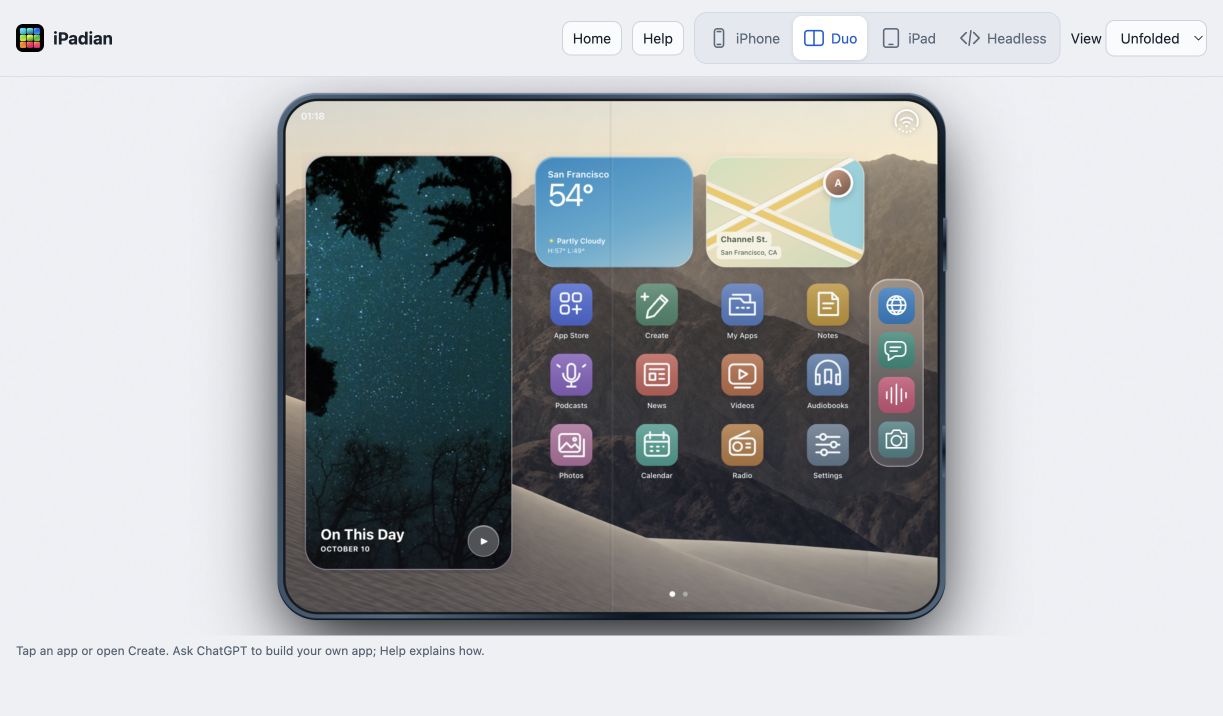
Your app home screen
Open built-in apps, browse iPadian’s App Store, find inspiration in Create, and reopen saved creations from My Apps.
Four ways to preview
iPhone for a narrow screen. Duo for Phone, Unfolded, and Book postures. iPad with portrait and landscape rotation. Headless for the full available space.
Make it yours
Try a starter, request a personalized version, then describe changes in conversation. Save its code locally, add it to the home screen, or export HTML.
Seven ready-made apps
Open iPadian, then tap App Store →
Try them inside iPadian or download a standalone HTML copy below. These are web apps from iPadian’s own collection.
And ideas you can make your own.
Play: Catch It, Claw Machine, Memory Match, Reaction Challenge, and Escape Room.
Learn: Quiz adventures from your notes, vocabulary matching, and educational escape rooms.
Demo: Restaurant menus, shopping concepts, and fitness interfaces with clearly labeled sample data.
Ask your assistant to create a complete app, then revise the same preview. Working demos do not place real orders, process payments, or provide live tracking.
One URL.Your choice of assistant.
Choose your client for the setup guide. Interactive previews need a client that supports MCP Apps.
Streamable HTTP · No sign-in or API key required by iPadian
Add to Claude
- In Claude, open Customize → Connectors. Choose + Add → Add custom connector.
- Name it iPadian and paste https://os.ipadian.net/mcp as the remote server URL.
- Continue through setup. Choose No sign in when asked how to authenticate, then add the connector.
- Start a conversation. Use + → Connectors to enable iPadian, then ask: “Open iPadian.”
On Team or Enterprise, an owner may need to add the connector first. The remote connector is managed through your Claude account, including Claude Desktop.
Add to ChatGPT
- Open ChatGPT Plugins. Select the + button, then Add custom MCP server.
- Enter the name iPadian and a description such as “Build and preview small web apps.”
- Choose a public endpoint, paste https://os.ipadian.net/mcp, and select no authentication if prompted.
- Review the connection notice, create the plugin, and inspect the discovered tools. Install it and select @iPadian in a new conversation.
Custom connections depend on your account and workspace settings. If your interface uses Apps or Connectors, follow the setup path available there or ask your workspace admin.
Official ChatGPT setup guide ↗
Add to Claude Code
Run this in your terminal where Claude Code is installed:
claude mcp add --transport http ipadian https://os.ipadian.net/mcp
Open Claude Code, run /mcp to check the connection, and ask it to use iPadian’s tools.
A terminal client can call tools without displaying the interactive device preview. Use an MCP Apps host for the in-chat interface, or explore the browser preview.
Official Claude Code setup guide ↗
Add to VS Code
- Open the Command Palette and run MCP: Add Server.
- Choose the remote HTTP connection option. Enter https://os.ipadian.net/mcp and name it ipadian.
- Choose where to save the configuration. Start the server and review the trust prompt.
- Open an agent chat, enable the iPadian tools, and ask to open iPadian or preview an app.
Your VS Code version, agent, and MCP Apps support determine whether the interactive preview appears.
Official VS Code setup guide ↗
Use another MCP client
In your client’s MCP settings, add a remote server with these details:
Name
iPadian
URL
Transport
Streamable HTTP
Authentication
None
After connecting, look for open_ipadian and preview_app in the tool list.
Remote HTTP and MCP Apps support vary by client. Clients that support only local stdio servers cannot connect directly to this URL. The endpoint is a protocol address, so opening it as an ordinary webpage may show a method error.
Prefer a plugin?Take it with you.
Version 0.3.3 bundles the remote MCP connection, the app-building workflow, and Apple-inspired UI guidance. Choose the package for your client.
Claude plugin
For Claude’s plugin upload flow, Cowork, and Claude Code.
Download Claude ZIP ↓ Manual installation
- Download the ZIP. In Claude, open Customize → Plugins → Add → Upload plugin and select it.
- Open the plugin’s Connectors tab and connect iPadian. If no connection is offered, use the custom connector guide.
- Enable iPadian in a conversation. Ask to open the home screen or create an app.
For Claude Code, extract the ZIP and load its folder:
claude --plugin-dir /absolute/path/to/ipadian
Run /mcp to check the connection. The skills are /ipadian:build-apps and /ipadian:apple-ui.
Official Claude plugin guide ↗
Codex / portable plugin
For a local Codex marketplace, with portable Agent Plugins metadata.
Download Codex ZIP ↓ Manual installation
- Extract the ZIP. Put the ipadian folder inside your project at
plugins/ipadian. - Create
.agents/plugins/marketplace.jsonin that project using the includedmarketplace-example.json. If a marketplace already exists, merge the iPadian entry into itspluginslist. - Restart the desktop app, open the project, and install iPadian from the local marketplace in Plugins. In Codex CLI, use
/pluginsand start a new session. - Review the remote MCP connection. Open iPadian or run the app-building skill.
The README in the ZIP contains the full setup. ChatGPT web users can use the remote connection guide.
Both ZIPs contain instructions and a connection to the hosted server. No local server installation is needed. Custom plugins may be restricted by your account or organization.
Connected?Start with a small idea.
Paste this into your assistant with iPadian enabled.
Open iPadian and make me a simple quiz about space. Use a complete HTML app with inline CSS and JavaScript, then preview it in iPhone view.
Make something you can try.
Follow a short guide from connection to your first working app.
- Install iPadian in Claude — Connect Claude to the free iPadian MCP server, enable its tools, and try a small app.
- Build a quiz with your AI assistant — Make a self-contained quiz with iPadian MCP, test it on phone and tablet layouts, revise it, and export its HTML.
- Preview AI-generated web apps — Use iPadian MCP to preview self-contained HTML apps in iPhone, Duo, iPad and Headless views, then save or export the code.
A few things to know.
What can I build?
Small, self-contained web apps: quizzes, calculators, timers, games, and interactive demos. Generated previews use inline HTML, CSS, and JavaScript. External requests, libraries, and browser storage inside the generated app are blocked.
Does it work in every assistant?
The server exposes standard MCP tools over Streamable HTTP. The interactive home screen also requires MCP Apps support. Rendering and host features vary; we do not promise identical behavior in every client.
Where are my apps saved?
Save locally keeps app code and preview preferences in that browser’s library. It does not save the running app’s progress or sync between devices or assistants. Export HTML to keep a backup. App code passes through your assistant and the MCP service to create the preview.
Is this the desktop version?
This is the free MCP experience for AI assistants. The Electron desktop simulator is a separate experience with its native icons. You do not need to buy or install the desktop app to use this server.
The connection or preview is not working.
Check the exact server URL, select Streamable HTTP, and refresh the client’s tool list. Confirm iPadian is enabled in the conversation. If tools appear but the preview does not, your host may lack MCP Apps support. Try the browser preview or visit support.