Kling 4.0
Kling 4.0 is an AI video generation tool. According to the product page, it turns text prompts and reference images into short video clips, which can fit early-stage concept review. Visit the official site for current capabilities and terms.
Documentation
Nature & travel · Kling 3.0 · 5s · 16:9 · Without sound
An alpine lake at sunrise
A sailboat, soft morning mist, and a gentle camera push-in.
View prompt used
Cinematic wide shot of a small ivory sailboat gliding across a calm alpine lake at sunrise. Gentle ripples trail behind the boat, wisps of mist float above the water, distant mountains catch soft golden light. Slow smooth camera push-in, realistic water reflections, natural colors, one continuous shot, no text or logos.

Product & brands · Kling 3.0 · 5s · 16:9 · Without sound
A premium product reveal
Warm studio light and a slow rotation show an amber glass bottle.
View prompt used
Premium product film of an unbranded amber glass perfume bottle on a cream stone pedestal. The bottle rotates slowly on its vertical axis while warm side lighting creates elegant reflections in the glass. Soft beige studio background, subtle shadow, fixed close-up camera, realistic materials, stable bottle proportions, one continuous shot, no letters or logos.
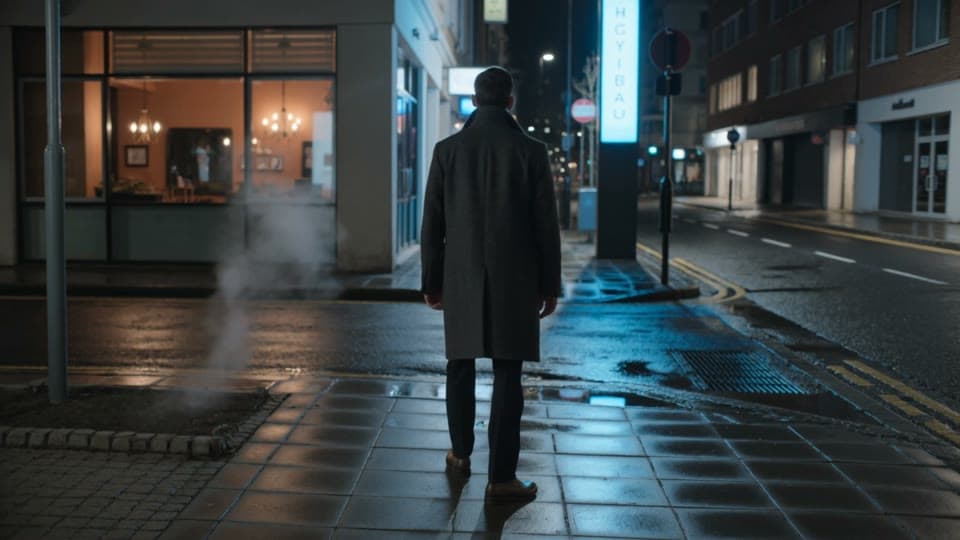
Cinematic storytelling · Kling 3.0 · 5s · 16:9 · Without sound
A city scene after the rain
A smooth tracking shot follows a figure through a reflective night street.
View prompt used
Cinematic night street in a modern city after light rain. A lone person in a dark coat walks away from the camera along the sidewalk. Warm café windows and cyan lights reflect in wet pavement, subtle steam drifts from a street vent. Smooth slow tracking camera follows behind, realistic movement, rich contrast, one continuous shot, no readable signs or logos.
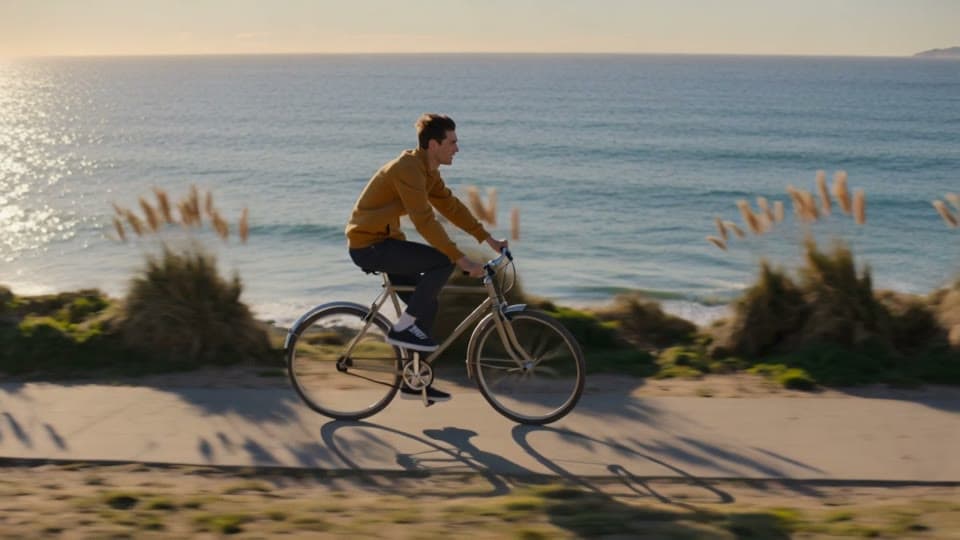
Lifestyle & social · Kling 3.0 · 5s · 16:9 · Without sound
A coastal ride at golden hour
A side-follow camera captures a cyclist moving along the coast.
View prompt used
Lifestyle film of an adult cyclist in a mustard yellow jacket riding a simple bicycle along a seaside path at golden hour. Smooth side-follow camera keeps the cyclist centered as sunlit grasses move in the breeze and the ocean glitters in the background. Natural pedaling motion, realistic anatomy and bicycle geometry, warm cinematic colors, one continuous shot, no text or logos.
Text, Reference, and Keyframes
Kling 4.0 for reference-led scenes
Build a new scene from words, guide its appearance with images and videos, or mark important moments with keyframes. Choose 720p or 1080p and a duration from 3 to 30 seconds. Reference mode opens by default so you can start with your visual material.
- Three input workflows
- 720p or 1080p
- 3–30-second clips Open the Kling 4.0 generator
Standard and Pro
Kling 3.0 for a short shot
Use a text prompt or one source image for a five- or ten-second clip. Standard and Pro have separate credit rates, and both current workflows produce video without sound. This is a useful choice when your task needs one clear action and a simple starting input.
- Text or one source image
- Standard or Pro
- 5 or 10 seconds Open the Kling 3.0 generator
From draft to finished video
Keep your work in one place
Sign in to submit your task and follow it in Output Preview or the task center. Open My Creations to revisit a result. Review the whole clip before saving it, and keep the task ID if you need help with a failed generation or an account charge.
- Visible credit estimate
- Task progress and results
- A library for your creations
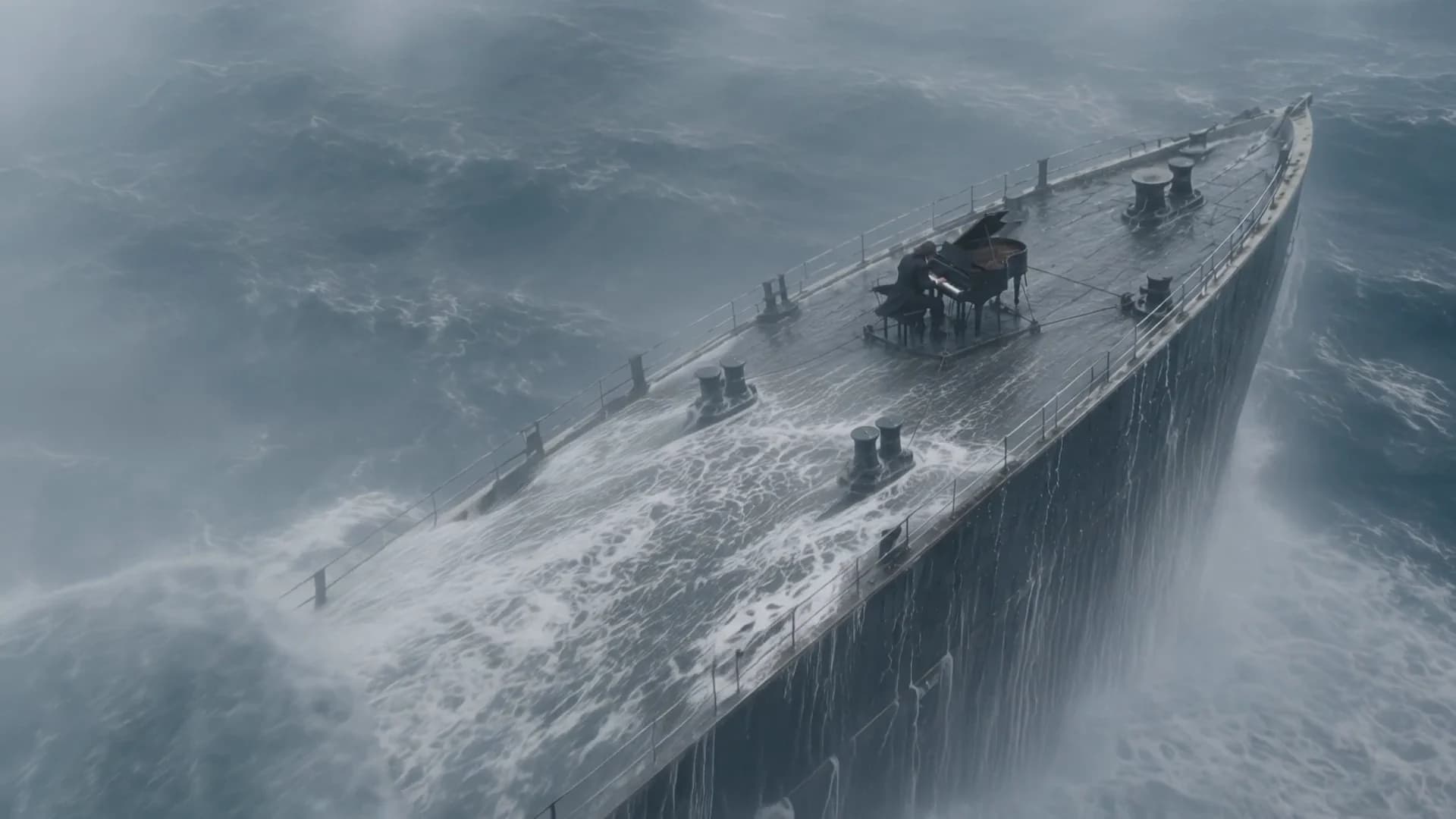
Select Play to load this video.
Watch for: The sequence moves from the ship in heavy seas to the pianist and his hands, then returns to a wide view.
01
Guide a scene with references
Add images to establish appearance or videos to communicate movement. Give each reference a clear role in your prompt. Our Kling 4.0 Reference mode combines these inputs with an optional Keep original video audio control when a video is present.
- Image and video references
- Explain each input's role
- Optional reference-video audio
02
Plan the key moments
Start with a first-frame image, then add middle frames or a last frame to anchor important changes. Keep the subject and setting compatible across the images. The parameter table below explains how the available keyframe count follows your output duration.
- First frame required
- Image limit follows duration
- Optional middle and last frames
03
Choose duration and resolution
Choose a duration that gives the action room to develop, then select a resolution for your delivery. Check the estimate after changing settings or adding a video reference. Review movement, detail, and audio throughout the returned clip.
- 3–30 seconds
- 720p and 1080p
- Estimate updates with your settings
Explore the Kling 4.0 controls and demos
01
Video Editing and Creative Recreation
Video Editing works from an existing clip to change a subject, background, style, or other visual detail. Creative Recreation uses a permitted reference video to guide pacing, camera expression, and a new scene built around different subjects. Our Kling 4.0 Reference mode lets you describe those reference roles in a prompt, but it is not a dedicated editing or one-click recreation tool. A separate editing workflow is not currently offered here; review any recreated movement rather than expecting an exact match.
02
Elements and Voice Reference
The official model can use reusable Elements to guide subjects across a scene, including up to seven Elements with at most three video Elements. Reference audio can guide a voice's tone where that input is supported. These require structured subject or audio inputs. Our Kling 4.0 workspace accepts ordinary reference images and videos; a saved Elements library and standalone voice-reference input are not currently offered. Keeping a reference video's original audio is a different option and does not create a reusable voice profile.
03
Multilingual Lip Sync and Stereo Audio
Kling 4.0's official release describes multilingual dialogue, improved lip synchronization, and two-channel stereo audio. These capabilities matter for character dialogue and scenes where sound has spatial context. Plan clear speech and listen for timing, pronunciation, and channel balance in the result. Our output can include audio, but this workspace has no language, lip-sync, or stereo selector. A prompt can describe the intended dialogue; it does not guarantee accurate synchronization or a particular audio format.
04
Text, Logos, and Multi-shot Planning
Kling 4.0 can be prompted for multilingual text, logos, emoji, camera moves, and transitions between shots. Describe the wording or visual mark and the order of events; use compatible keyframe images to anchor major moments. Our prompt and Keyframes controls are available for this planning. A text-lock control and a multi-shot timeline editor are not currently offered. Check lettering, brand details, and scene continuity frame by frame, and add exact campaign or legal text afterward when accuracy is essential.
Read the official Kling 4.0 model release
| Parameter | This Kling 4.0 workspace | Scope or official guidance |
|---|---|---|
| Output | Whole-number duration: 3–30 seconds; 720p or 1080p | 4K is not selectable here. HDR and repeated extension are marked coming soon in the official release, not available in this workspace. |
| Reference images | Up to 10 PNG or JPEG images | Ordinary image references; no Elements library or separate audio-reference input. |
| Reference videos | Up to 5 MP4 or MOV videos; shortest side at least 700px | Official reference guidance caps combined video duration at 30 seconds. Keep within that limit; this workspace does not currently check the combined duration for you. |
| File size | Up to 100 MiB per image or video | This is our upload check, not a universal official model limit. |
| Prompt | Up to 8,000 characters in our editor | The official model guide specifies up to 8,000 tokens. Characters and tokens are different units. |
| Keyframes | First image required; up to 8 middle images and an optional last image | Total images cannot exceed output seconds plus one, capped at 10. A 3-second clip allows 4 images; the official overall maximum of 10 does not remove this duration rule. |
| Aspect ratio | Text: 16:9, 9:16, 1:1, or 21:9; Reference also offers Auto | Keyframes use Auto framing. Available ratio controls depend on the input mode. |
| Audio | Output can include audio; reference videos enable Keep original video audio | Standalone voice input, language selection, and stereo controls are not offered here. |
Kling 4.0 credits currently cost 6 per second at 720p or 10 per second at 1080p. Without a reference video, billable time is the output duration. With reference videos, add all input video durations to the output seconds and round the combined total up once. Video and no-video rates currently match, but remain separate rates. Check the displayed estimate before submitting.
| Your choice | Kling 3.0 | Kling 4.0 |
|---|---|---|
| Inputs | Text or one source image | Text, image/video references, or keyframes |
| Duration | 5 or 10 seconds | 3–30 seconds |
| Output settings | Standard or Pro; text framing in 16:9, 9:16, or 1:1 | 720p or 1080p; four text framing choices |
| Audio | Current workflows are without sound | Output can include audio; reference-video audio can be retained |
| Good starting task | One short action from a prompt or still | A reference-led scene or a planned sequence of moments |
| Credits | Depend on Standard/Pro and duration | Depend on resolution, output duration, and total reference-video duration |
Choose Kling 4.0 when you want to combine visual references or control key moments. Choose Kling 3.0 when a text prompt or one image is enough. The credit estimate belongs to the selected workflow; changing versions does not make a previous result a sample of the new model.
Compare credit rates and packs
Product motion
Use reference images to establish your product's shape and material. Describe one controlled movement or a change in lighting. Review labels, proportions, and reflections before using a generated clip in a campaign; an attractive first frame is not enough.
Storyboards and pitches
Use Kling 4.0 Keyframes to place the opening, the important action, and the ending. Keep character appearance and camera direction consistent across your inputs. Check that the intended events fit the duration before you generate.
- 01
Choose the input mode
Select Text to Video for a scene from words, Reference for image or video guidance, or Keyframes for important visual moments. Add only material you have permission to use. - 02
Describe the movement
Name the subject, its action, and the camera view. If you attach references, explain what each should control. Keep the motion instruction distinct from the appearance shown in your images. - 03
Review settings and credits
Choose the resolution, framing, and output duration. With reference videos, add the duration of every input video to the output seconds, round the combined time up once to a whole second, then multiply by the reference-video rate. Sign in and check your estimate and balance before submitting. - 04
Generate and review
Follow the task in Output Preview, then play the complete result. Check subject details, framing, motion, and any audio. Open the video to save it or return to My Creations later.
Follow our step-by-step Kling 4.0 guide
Can I generate with Kling 4.0 here?
Yes. Our generator offers Text to Video, Reference, and Keyframes. Choose 720p or 1080p and a whole-number duration from 3 to 30 seconds. Sign in to submit a task and use your account credits.
Can I animate a photograph?
Yes. Add a PNG or JPEG in Kling 4.0 Reference mode and describe how the scene should move. You can also use an image as the required first frame in Keyframes mode. Kling 3.0 has a separate single-image workflow.
Does Kling 4.0 produce sound?
A Kling 4.0 result can include audio. There is no separate generate-audio switch in this workspace. When Reference mode includes a video, you can select Keep original video audio. Review the returned track; this option does not guarantee identical dialogue or music.
How is the Kling 4.0 credit estimate calculated?
Without a reference video, multiply the selected output seconds by the rate for your resolution. With reference videos, add all input video durations to the output seconds, round the combined time up once to a whole second, then multiply by the reference-video rate. Each attached video's duration counts. See Pricing for the current rates and examples.
Are the sample videos my generated results?
No. The Kling 4.0 examples illustrate video workflows and are separate from your generated results. The Kling 3.0 gallery contains examples for that model. Your own output appears after your task completes.
What if my video fails or is missing?
Check the task center and My Creations before submitting again. If a task reports a failure or the result is missing, keep its task ID and contact support. Review your account balance and credit history when reporting a charge.