Jompter
Local MCP server in the Jompter Mac app: coding agents read your voice and screenshot prompts and draw diagrams on your boards.
Documentation
Jompter MCP
One local MCP server that lets Claude Code, Cursor, Codex, OpenCode or Claude Desktop read your prompts and draw on your boards: setup, tools and safety.
Jompter runs a small MCP server on this Mac only. Connect an AI agent to it and the agent can do two things for you:
- Draw — create boards, sketch diagrams and wireframes, and check its own layout. Drawing with agents →
- Work through a prompt — read what you dictated, open your screenshots and recordings, propose to-dos, and report each one as it lands. How it looks in the app →
Agents see it as one server called jompter. It is off by default, nothing is exposed to your network, and everything below happens in the MCP panel: click MCP in the top-right of the Jompter window, on any page.
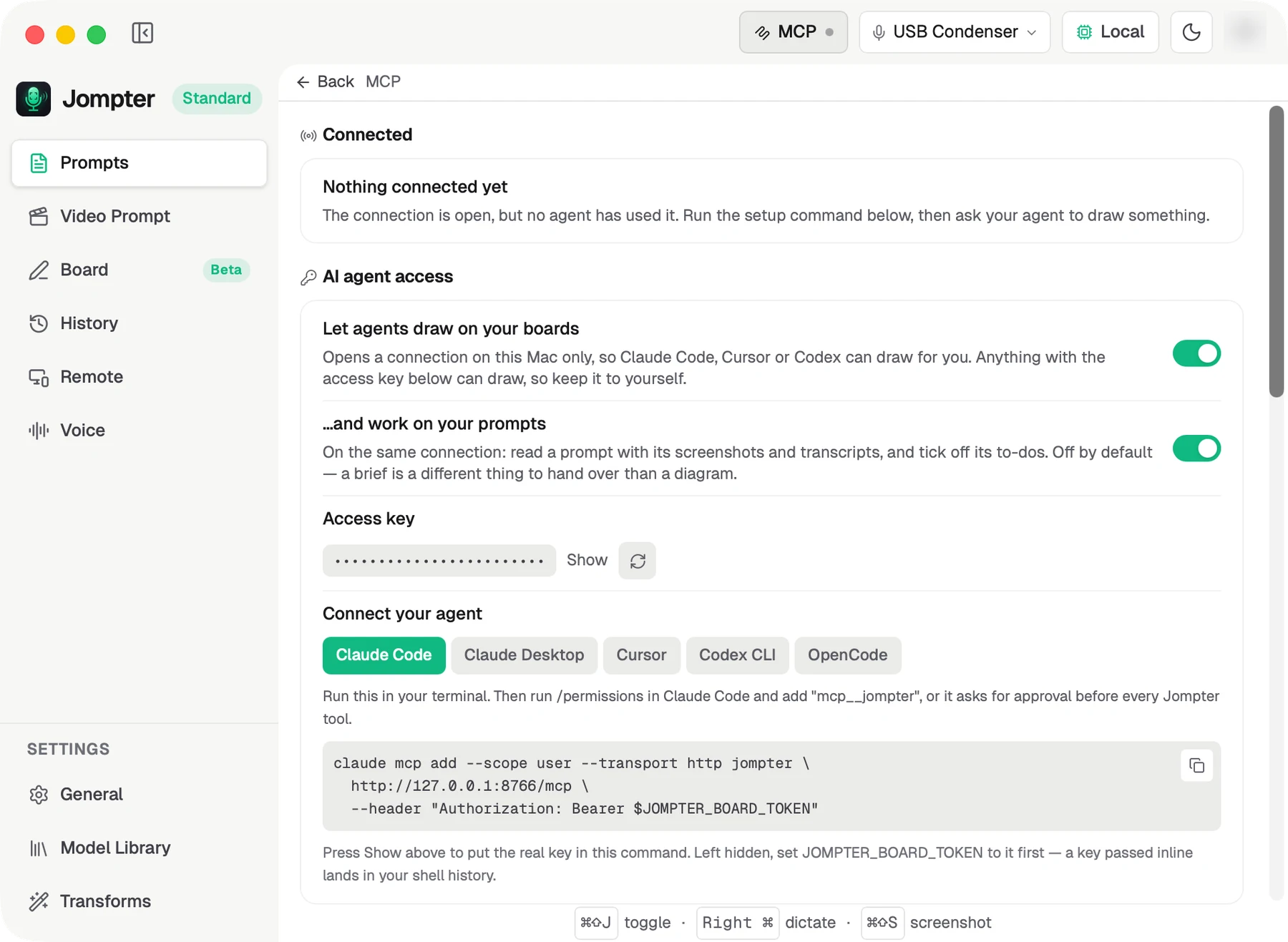
The MCP panel. Turn access on, then copy the snippet for your agent.
What an agent can control
| Area | What it can do | Switch |
|---|---|---|
| Boards | List, create, rename and delete boards | Let agents draw on your boards |
| Drawing | Add shapes, text, arrows and images; edit, restyle, group, align, lock | Let agents draw on your boards |
| Library | Place any of ~200 ready-made components and ~2,000 icons | Let agents draw on your boards |
| Checking its work | Render the board as a picture, or read it back as text | Let agents draw on your boards |
| History | Save named snapshots and roll a board back | Let agents draw on your boards |
| Files | Import and export .excalidraw, export PNG, turn Mermaid into shapes | Let agents draw on your boards |
| Prompts | List your prompts, read one in full with its screenshots and recordings | …and work on your prompts |
| To-dos | Propose to-dos, report progress, ask you questions | …and work on your prompts |
It cannot touch anything else: not your dictation history, recordings outside a prompt, settings, account or Remote.
Setup
1. Turn access on
Let agents draw on your boards is the master switch. …and work on your prompts is a second switch, off by default, that can only be on while the first is. Handing over a brief is a different thing from handing over a diagram, so it is separate. While it is off, agents are not even told the prompt tools exist. Both switches also sit in Settings → General → Connections.
2. Copy the snippet for your agent
The panel generates a snippet for your install, because the port and the access key differ on every Mac. Pick your client from the tabs:
| Client | Where the snippet goes |
|---|---|
| Claude Code | a command you run in a terminal |
| Cursor | ~/.cursor/mcp.json |
| Codex CLI | ~/.codex/config.toml |
| OpenCode | ~/.config/opencode/opencode.json |
| Claude Desktop | its config file, bridged through mcp-remote |
3. Two things that will otherwise cost you an hour
4. Stop the approval prompts
Claude Code asks before each tool it has not seen, and there are 37. One rule in ~/.claude/settings.json covers the whole server:
{ "permissions": { "allow": ["mcp__jompter"] } }
/permissions in-session does the same thing. If you connected before the server was renamed, your config still calls it jompter-board — that keeps working, and the rule is then mcp__jompter-board.
5. Install the skills
Tools alone do not produce good work. An agent without guidance draws one shape per call and never looks at the result — and, handed a prompt, writes to-dos without opening the screenshots. Agent skills in the panel has a row per agent with two buttons:
- Install Board — the
jompter-boardskill: laying out a diagram and checking its own work. - Install Prompts — the
jompter-promptsskill: reading a brief, opening its screenshots, proposing to-dos for your approval and keeping them honest.
| Row | Directory |
|---|---|
| Claude Code | ~/.claude/skills/ |
| Cursor | ~/.cursor/skills/ |
| Codex | ~/.agents/skills/ |
Nothing installs or updates itself. If a directory of that name already exists and Jompter did not create it, the button reads skipped and leaves it alone. Update Board or Update Prompts appears when an installed skill is behind. What each skill does, and what to say to it →
Handing an agent a prompt
This is the loop the prompt tools are built for. You dictate and take screenshots; the agent does the work; you stay in charge of what gets done.
- Copy the prompt's id. Open the prompt and click the id chip in its header. It copies a line the agent can act on: "Jompter prompt id: … (call get_prompt with it)". Paste it into your agent with whatever you want, for example "plan this and start on it".
- The agent reads the brief.
get_promptreturns your text, every screenshot as a file it opens, any screen recording's frames and transcript, and the current to-do list. - It proposes to-dos. Everything an agent adds arrives Proposed. It cannot start or finish one until you approve it — Jompter refuses the write, not just the agent's manners.
- You approve. In the prompt's To-do tab: Approve, Approve all, or Changes with a note saying what to fix. A to-do you type yourself is approved already.
- It works through them. Each to-do moves to doing, then done — with what it changed, how it checked (Verified, Tests only or Not verified) and, when the real problem was different from what you described, the cause. Blocked carries a question for you; failed says what stopped it.
If the agent rewrites an approved to-do's text, it goes back to you for review. Ticking off steps never does. A to-do that has gone quiet for 20 minutes is flagged in the app.
Tool reference
Agents pick these themselves; you never call them. The list is here so you know exactly what you are allowing.
Prompts and to-dos
Only offered while …and work on your prompts is on.
| Tool | What it does |
|---|---|
list_prompts | Your prompts, newest first, with how many to-dos are outstanding. |
get_prompt | One prompt in full: text, screenshots, recordings with frames and transcript, and the to-do list. |
update_task | Add, rewrite or delete to-dos, set their status, tick steps, and record the outcome, the check and the cause. |
Boards
| Tool | What it does |
|---|---|
list_boards | Every board with its id, title and size. |
create_board / rename_board | Make a board or change its title. |
delete_board | Move a board to Recently deleted, where you can restore it. |
get_board | The exact data of chosen shapes. |
query_elements | Find shapes by kind or by the text in them. |
describe_scene | A text listing of the board: shapes, their text, and what connects to what. |
Drawing and arranging
| Tool | What it does |
|---|---|
add_elements | Add rectangles, ellipses, diamonds, text, lines and arrows, a few at a time so you watch it build. |
create_image | Put a picture on the board. |
create_from_mermaid | Turn a Mermaid flow chart or sequence diagram into editable shapes. |
update_elements / delete_elements | Change position, size, angle or text, or remove shapes. |
move_elements / duplicate_elements | Shift shapes, or copy them. |
set_style | Colour, fill, stroke, sketchiness, opacity. |
group_elements / lock_elements | Keep shapes together, or stop them being moved by accident. |
align_elements / distribute_elements | Line shapes up, or space them evenly. |
bind_arrow | Attach an arrow to shapes so it follows them. |
clear_board | Remove everything from a board. |
Library
| Tool | What it does |
|---|---|
search_library | Search ~200 components — form controls, page sections, 32 chart types — and ~2,000 icons. |
place_item | Place one of them on the board. |
Checking its own work
| Tool | What it does |
|---|---|
get_board_preview | Render the board, or one region of it at full size, as a picture. |
set_viewport | Frame shapes, fit the board, or set the zoom and scroll. |
read_diagram_guide | Jompter's layout rules: spacing, palette, arrow routing, common mistakes. |
History
| Tool | What it does |
|---|---|
list_checkpoints / restore_checkpoint | Roll a board back to an automatic checkpoint. This is the agent's undo. |
save_snapshot / list_snapshots / restore_snapshot | Save a named state that never ages out, and go back to it. |
Files
| Tool | What it does |
|---|---|
export_to_image | Write the board as a PNG into your Jompter folder. |
export_scene / import_scene | Write or load a .excalidraw file in your Jompter folder. |
Files only ever go in and out of your Jompter folder — an agent cannot use these tools to read or write anywhere else on your Mac.
How the connection works
Worth understanding, because most of what looks like a bug is one of these.
It is a local HTTP server, not a cloud service. Jompter listens on 127.0.0.1 — release builds on port 8765, dev builds on 8766, walking up to ten ports if one is taken. The panel always shows the port it actually bound. No traffic leaves the machine.
The access key is the consent. There is no per-call approval in Jompter: the key reached your agent because you pasted Jompter's own snippet into it, so connecting is the permission. The exception is to-dos, which you approve one by one.
Sessions are short-lived, and that is normal. Jompter drops a session after 30 idle minutes, and every session when the app restarts. A well-behaved client opens a new one on its own. If an agent instead starts failing every call, restart the agent.
Two agents can work at the same time. Adding shapes always appends, so parallel work never collides. Edits are version-checked: a write to something that changed underneath the agent is refused, with a message telling it to re-read and retry. To-do lists work the same way.
There is a rate limit. Roughly a 30-call burst, then about 3 calls a second. An agent that hits it is told to batch its work into fewer calls.
Who is connected, and blocking one
Connected lists one row per agent conversation, by recency ("active now", "3 min ago"). A conversation drops off after 30 idle minutes. Each row can be blocked by name; Blocked undoes it. Recent activity is an audit list of every tool call agents have made, and whether it was allowed.
What this means for security
When it does not work
Work down this list; each step rules out the one above it.
- Is agent access on? MCP → Let agents draw on your boards — and, for prompts, …and work on your prompts, then reconnect the agent.
- Is the server up?
curl http://127.0.0.1:8765/health— use the port the panel shows. No answer means Jompter is not listening. - Is the key current? New key invalidates the old one everywhere; every agent config needs the new value.
- Ask the agent. In Claude Code,
claude mcp list, then/mcpin a session.
| Response | Meaning |
|---|---|
| 401 | The key in your agent's config does not match Jompter's. Copy the snippet again. |
| 404 | Your session expired, or Jompter restarted. The agent should reconnect by itself; restart it if it does not. |
| 503 | Agent access is switched off. |
| Connection refused | Wrong port, or localhost instead of 127.0.0.1. |
| Nothing at all | localhost resolving to IPv6. Use 127.0.0.1. |
| Agent has no prompt tools | The prompts switch is off, or it was turned on after the agent connected — reconnect. |
| "…is proposed — the user has not approved it" | Working as intended: approve the to-do in the prompt's To-do tab. |
Related feature
MCP prompts & to-dos
Your agent reads the whole prompt itself and keeps a to-do list you approve.
[
AI agents on your board
Let Claude Code, Cursor, Codex, OpenCode or Claude Desktop draw diagrams and wireframes on a Jompter board.
](https://jompter.com/docs/desktop/board-ai-agents)[
Agent skills
The jompter-board and jompter-prompts skills — what they teach your agent, how to install them, and what to say to use them.