google-measurement-mcp
Safety-first MCP for GA4, Search Console, and Tag Manager.
Documentation
Google Measurement MCP
Investigate traffic and tracking across Google Analytics 4, Search Console, and Google Tag Manager from your AI assistant.
One local MCP server, installed through npm. Start with 20 read tools. Enable 8 editing and staging tools explicitly. Live publishing stays in Google Tag Manager.
0.2.0 is in development. The published npm release is currently 0.1.0. The behavior described here applies to this checkout; use the source setup below until 0.2.0 is released. Migration notes
Try the demonstration — no Google account needed
git clone https://github.com/jabeer4148-ops/google-measurement-mcp.git
cd google-measurement-mcp
npm ci
npm run demo
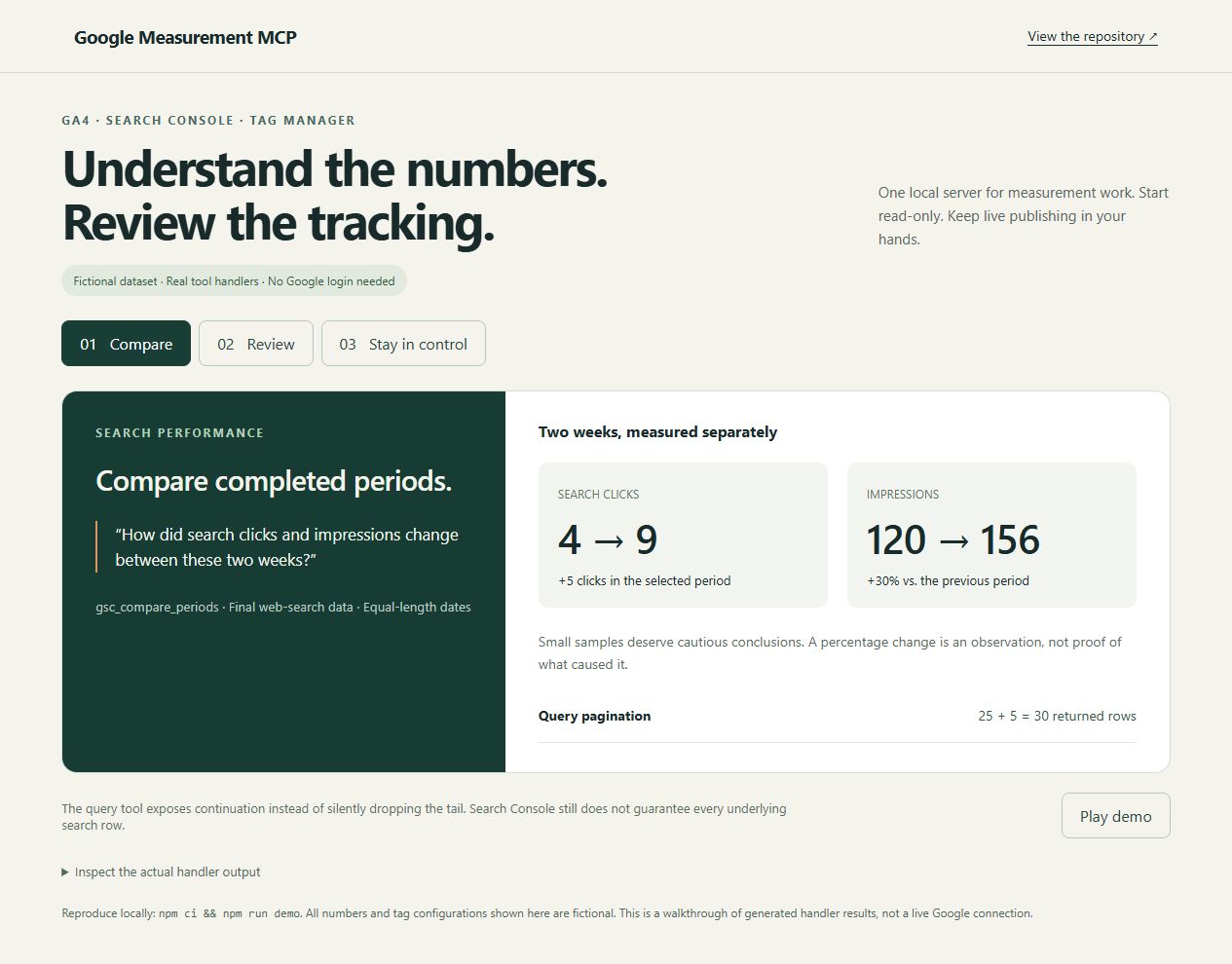
Open docs/demo/index.html in a browser. It uses fictional data passed through the real tool handlers: compare search periods, recover paginated results, and detect a changed GTM tag whose name stayed the same. No credentials or Google API calls are involved. Demo guide
Start with a useful question
- “Compare Search Console clicks and impressions between these two completed weeks.”
- “Show my top organic landing pages in GA4, ordered by sessions.”
- “What changed inside this GTM version, including tags with unchanged names?”
The tools return data for your assistant to interpret. A configuration review does not prove that a tag fired on a live website. Query limits and data-quality indicators matter.
Connect your Google account
Requires Node.js 22+, a local MCP client, and a Google account with access to the properties you want to inspect. This is a local stdio server; remote web connectors are not supported.
1. Set up a Google Cloud desktop OAuth client
In your Google Cloud project, enable Analytics Data API, Analytics Admin API, Search Console API, and Tag Manager API. Configure Google Auth Platform and create an OAuth client of type Desktop app. Download its JSON and keep it outside this repository. Use a neutral consent-screen name such as Measurement MCP.
If your OAuth app is External and in Testing, add your account as a test user. Refresh tokens for these scopes normally expire after seven days in Testing. Review Google's publishing/verification requirements for your particular app before changing its publishing status; production status and verification are different concepts. Google OAuth documentation
2. Sign in explicitly
For the unreleased source checkout:
npm ci
npm run build
export GMCP_OAUTH_CLIENT_JSON=/absolute/path/to/desktop-client.json
node dist/index.js --auth
Windows PowerShell:
npm ci
npm run build
$env:GMCP_OAUTH_CLIENT_JSON = 'C:\path\outside-repo\desktop-client.json'
node dist/index.js --auth
Open the printed URL and complete sign-in. The refresh token is cached under ~/.config/google-measurement-mcp/ (or XDG_CONFIG_HOME). The OAuth flow validates state and uses S256 PKCE. Normal server startup never opens a login flow.
3. Configure your MCP client
Claude Desktop / Cursor-style configuration for this checkout:
{
  "mcpServers": {
    "google-measurement": {
      "command": "node",
      "args": ["/absolute/path/to/google-measurement-mcp/dist/index.js"],
      "env": {
        "GMCP_OAUTH_CLIENT_JSON": "/absolute/path/to/desktop-client.json"
      }
    }
  }
}
Use escaped Windows paths in JSON, such as C:\\path\\desktop-client.json. Restart the MCP client, then ask it to call gmcp_diagnostics, followed by gsc_list_sites or ga4_list_account_summaries. Success means the intended property is visible, not just that the process starts.
After 0.2.0 is published, the package command will be npx -y google-measurement-mcp@0.2.0. Do not substitute the currently published 0.1.0 and expect the new tools or protections.
Service accounts and ADC
For headless use, set GOOGLE_APPLICATION_CREDENTIALS to a service-account key outside the repo, and grant that identity appropriate product-level access. Use read/view permissions for read-only work; additional editor permissions are needed for staging. No publish permission is required by this server.
Existing Application Default Credentials are the fallback. The resolution order is configured service-account credentials, configured user OAuth, then ADC. A browser's Google login is independent of the API identity. Call product discovery tools to confirm access before testing a specific resource.
Editing and review
Add --enable-write to the server arguments, or set GMCP_ENABLE_WRITE=1. Run --auth --enable-write to grant the required editing scopes if your cached login only has read scopes.
- Write tools are absent in the default mode.
- GTM tag/trigger edits are staged in a workspace. Updates preserve fetched fields and use fingerprints to reject concurrent changes.
gtm_create_versioncreates a reviewable version; check its result andnewWorkspacePathbefore further work.gtm_preview_versioncompares the candidate with the live version, including modified fields. It is available in read-only mode.- There is no
gtm_publish_versiontool and no requested publish scope. Review and publish manually in Google Tag Manager. v0.1's caller-supplied confirmation flag did not establish independent human approval. - No dedicated delete/archive tools are exposed. Editing existing configuration still has consequences, and other people can publish staged changes from GTM.
For gtm_update_tag, omitted fields are preserved. parameter merges by key; parameter: [] explicitly clears parameters. Empty trigger arrays deliberately clear trigger bindings. Review before making these changes.
Credentials are stored locally. Tool results go to your selected AI client/provider; local execution is not a promise that all analytics data stays on your machine.
Tools
Read — available by default (20)
| Tool | Purpose |
|---|---|
gmcp_diagnostics | Check auth and mode without exposing secrets |
ga4_get_metadata | Discover valid dimensions and metrics |
ga4_list_account_summaries | Discover accounts and property IDs |
ga4_run_report | Reports with filters, sorting, quality metadata and row caps |
ga4_run_realtime_report | Recent activity using GA4's realtime schema |
ga4_list_custom_dimensions | Custom dimension definitions |
ga4_list_key_events | Key-event definitions |
gsc_list_sites | Discover exact property strings |
gsc_search_analytics_query | Search performance, filters and offset pagination |
gsc_compare_periods | Compare two equal-length completed periods |
gsc_list_sitemaps | Submitted sitemap status |
gsc_inspect_url | Index status for a specific URL |
gtm_list_accounts | GTM account discovery |
gtm_list_containers | Container discovery |
gtm_list_workspaces | Workspace discovery |
gtm_list_tags | Workspace tags and trigger bindings |
gtm_list_triggers | Workspace trigger definitions |
gtm_list_variables | User-defined workspace variables |
gtm_get_live_version | Full published configuration; potentially large |
gtm_preview_version | Candidate-versus-live configuration review |
Editing/staging — requires opt-in (8)
ga4_create_custom_dimension, ga4_create_key_event, ga4_update_key_event, gsc_submit_sitemap, gtm_create_tag, gtm_update_tag, gtm_create_trigger, gtm_create_version.
Custom dimensions affect configuration and require care. Archiving can free quota but cannot be undone, and this server does not expose archival. Google's explanation
Configuration
| Variable | Purpose |
|---|---|
GMCP_OAUTH_CLIENT_JSON | Path to desktop OAuth client JSON |
GMCP_OAUTH_CLIENT_ID, GMCP_OAUTH_CLIENT_SECRET | Alternative to the JSON file |
GOOGLE_APPLICATION_CREDENTIALS | Service-account credential file |
GMCP_ENABLE_WRITE | Enable editing/staging; unset by default |
GMCP_DEFAULT_ROW_LIMIT | Default list/report cap; 25 by default |
GMCP_TOKEN_PROFILE | Separate saved identity; letters, digits, _ and - only |
GMCP_SMOKE is only for opt-in test runs, not normal operation.
Query correctness and limits
GA4 IDs are numeric property IDs, not G-... measurement IDs. Search Console property strings must match access exactly. GA4 accepts relative dates; Search Console requires real YYYY-MM-DD dates.
GA4/GTM listings return nextPageToken when more rows remain. Pass it unchanged with the same resource and limit. If a clipped upstream page changes, restart the listing rather than assuming a consistent inventory.
Search Console uses startRow / nextStartRow and caps requests at 25,000 rows. At the boundary, hasMore: "possible" signals that another request may be needed. Google returns top rows and does not guarantee the complete underlying search dataset. Query-level totals can differ from property totals. Compare equal-length periods and avoid interpreting clicks as GA4 sessions.
Alternatives
For GA4-only reporting and funnels, consider Google's official Analytics MCP. For dedicated SEO workflows see mcp-gsc; for dedicated GTM management see Stape's server.
Choose this project when a local Node/npm workflow across the three measurement products fits your work. It is an independent community project, not an official Google product.
Development and feedback
npm run typecheck
npm test
npm run test:safety
npm run test:protocol
npm run demo
npm run verify:package
Tests use fictional API responses; OAuth tests use a local loopback listener. No Google credentials are needed. Live checks are explicitly opt-in: testing guide.
If the project helps you complete a real task, consider starring it. Setup feedback and reproducible issues help improve it: contribution guide. Current work and migration notes are in CHANGELOG.md.
Apache-2.0 licensed.