cwtwb
ai generate tableau file
Documentation
cwtwb

Tableau workbook engineering for reproducible
.twb/.twbxgeneration, validation, and migration.
cwtwb is a Python toolkit and Model Context Protocol (MCP) server for building Tableau Desktop workbooks from code or agent tool calls.
It is meant to be a workbook engineering layer, not a conversational analytics agent. The focus is reproducibility, inspectability, and safe automation in local workflows, scripts, and CI.
Design Workflow Reference
The agent design workflow and the design_advisor skill are informed by Adam
Mico's adammico-lab Tableau workflow skills,
especially Tableau Dashboard Blueprint's build-from-a-design-spec approach.
cwtwb independently adapts those ideas to reproducible .twb / .twbx
authoring; it does not depend on, bundle, or copy adammico-lab code or skill
content. cwtwb is not affiliated with Adam Mico, Salesforce, or Tableau.
The cw in cwtwb comes from Cooper Wenhua.
Author: Cooper Wenhua <imgwho@gmail.com>





Star History
Try the example workflow · Read the guide
Quick Start
Install
pip install cwtwb
If you want the bundled Hyper-backed example too:
pip install "cwtwb[examples]"
If you want cloud validation (upload to Tableau Cloud/Server):
pip install "cwtwb[validate]"
Run As An MCP Server
uvx cwtwb
The short form above remains the simplest option and is the default config shown in this repository. cwtwb is a smart entrypoint: with no arguments in an interactive terminal it prints CLI help; when launched by an MCP client over stdio it starts the server.
Add the server to your MCP client with the same command. For example:
{
  "mcpServers": {
    "cwtwb": {
      "command": "uvx",
      "args": ["cwtwb"]
    }
  }
}
For Claude Code:
claude mcp add cwtwb -- uvx cwtwb
For VSCode, add cwtwb to your workspace or user mcp.json and use uvx cwtwb as the command.
If you prefer an explicit script name, these equivalent launch styles also work:
uvx cwtwb mcp
uvx --from cwtwb cwtwb-mcp
python -m cwtwb.mcp_server
Use As A CLI
The same package also exposes first-class command-line workflows for humans, scripts, CI, and agents that need direct file operations instead of MCP tool calls.
cwtwb --help
cwtwb doctor
cwtwb status --json
cwtwb inspect workbook.twb --json
cwtwb validate workbook.twb
cwtwb analyze workbook.twb --json
cwtwb run examples/specs/basic_cli.yaml
Common write commands require an explicit output path by default:
cwtwb create --out output/base.twb
cwtwb chart add output/base.twb --worksheet "Sales by Category" --mark Bar --rows Category --columns "SUM(Sales)" --out output/chart.twb
cwtwb dashboard add output/chart.twb --name Overview --worksheets "Sales by Category" --out output/dashboard.twb
Use --in-place only when you intentionally want to overwrite the input workbook, and --force only when replacing an existing output file.
MCP Client Stability
When cwtwb is connected as an MCP server, agents should call the exposed MCP tools directly through their client. They should not run shell commands such as mcp call cwtwb ..., mcp list-tools cwtwb, or gh api .../mcp/...; those commands are not part of cwtwb and are usually unavailable in normal Claude, Codex, Cursor, or VSCode environments.
If an agent cannot see tools such as create_workbook, add_worksheet, or save_workbook, restart or reconnect the MCP client and verify the server config. Clearing the uv cache only refreshes installed packages; it does not fix a stale client tool surface.
When using an existing .twb as a visual reference, agents must not copy Tableau XML column-instance tokens into chart inputs. Values such as [sum:Sales:qk], [none:Category:nk], [mn:Order Date:ok], or [federated.xxx].[sum:Profit:qk] are generated internals. Pass user-facing expressions such as Sales, SUM(Sales), Category, or MONTH(Order Date) instead.
Useful resources for agents:
cwtwb://tool-surface
cwtwb://skills/index
cwtwb://skills/data_quality
cwtwb://skills/design_advisor
cwtwb://skills/metric_blueprint
cwtwb://skills/dashboard_designer
cwtwb://skills/quality_review
cwtwb://skills/documentation
file://docs/tableau_all_functions.json
Compatibility aliases are also available for common guessed URIs such as cwtwb://docs/manual-editing, but new prompts should prefer cwtwb://tool-surface and cwtwb://skills/index.
For client-specific details and the full reference, see https://github.com/aidatacooper/cwtwb/blob/main/docs/guide.md.
Dashboard Layout Files
Custom dashboard layouts can now be authored as either JSON or YAML using the same declarative DSL. For agent workflows, generate a layout file first, then pass that file path into add_dashboard(layout=...).
generate_layout_json("output/layout.json", layout_tree, ascii_preview)
generate_layout_yaml("output/layout.yaml", layout_tree, ascii_preview)
Both formats support the same wrapper structure:
layout_schema: canonical dashboard layout tree_ascii_layout_preview: optional human/agent review aid
Explainable Dashboard Gallery
cwtwb includes seven packaged Gallery templates for common analytical structures. Recommendations use explicit requirements and return their scores, matching reasons, and penalties; they do not inspect data or silently generate charts.
from cwtwb import DashboardRequirements, recommend_gallery_templates

recommendations = recommend_gallery_templates(
    DashboardRequirements(
        primary_intent="trend",
        has_temporal_data=True,
        kpi_count=2,
        chart_count=3,
        chart_types=("Line", "Bar"),
    )
)
After calling list_worksheets, bind exact worksheet names with
materialize_gallery_layout(...) or the MCP generate_gallery_layout tool.
The generated result uses the same canonical DSL accepted by add_dashboard.
Calculation Safety
add_calculated_field checks identifiers used as function calls against the
packaged Tableau catalog before editing XML. For example, CHR(10) is rejected
with a CHAR() suggestion. This is a lightweight function-name check, not a
complete Tableau parser or substitute for Tableau Cloud semantic validation.
Use validate_formula=False only when targeting a newer Tableau function that
is not yet in the packaged catalog. Existing workbooks can be reviewed with
audit_calculated_fields(). Repairs are separate and default to dry_run=True.
Highlights
| Area | What you get |
|---|---|
| Workbook authoring | Generate .twb / .twbx files from templates or from scratch; add hierarchies, sets, rich dynamic titles, and parameter placeholders |
| Chart building | Build bar, line, pie, map, KPI, dual-axis, layered, and ordered multi-column table workbooks |
| Table calculations | Author calculation addressing metadata, domain completion, subtotals, and nested table-calculation dependencies |
| Dashboard actions | Add filter, highlight, URL, navigation, parameter, and set actions through Python or MCP |
| Safety | Validate function names and calculated-field roles, then validate structure, Tableau XSD (2026.1/2026.2), and REST API semantics before publishing |
| Dashboard Gallery | Rank seven explainable layouts and bind exact worksheet names into the canonical DSL |
| Cloud validation | REST API syntactic/semantic validation + upload to Tableau Cloud/Server with optional screenshot |
| Migration | Repoint existing workbooks to new data sources with explicit steps |
| MCP support | Drive workbook workflows from Claude, Cursor, VSCode, or other MCP clients |
See It In Action
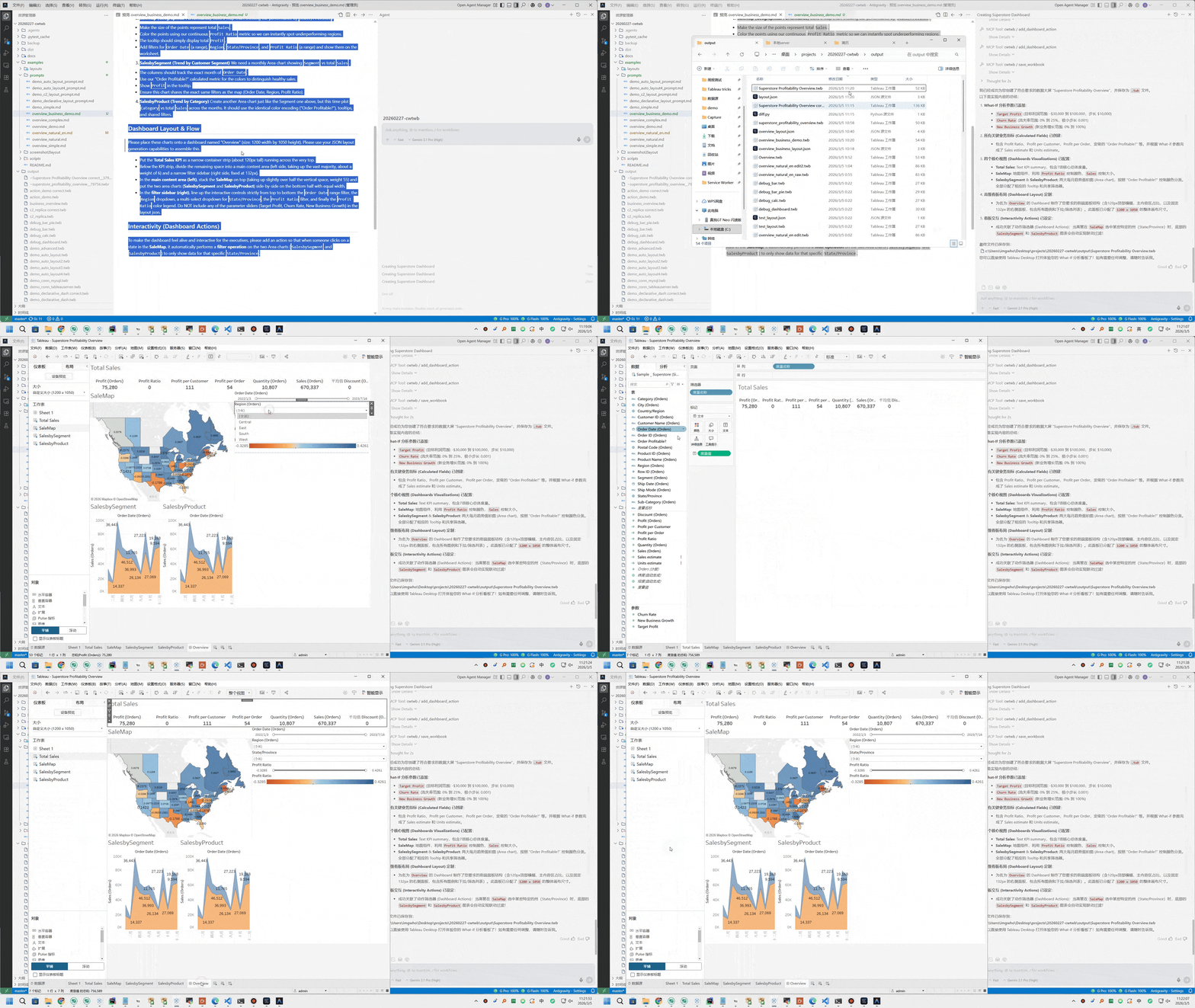
This GIF shows the MCP tool flow that builds a dashboard step by step.
Architecture
                            Interfaces
  ┌───────────────────────────────────────────────────────────────┐
  │  ┌──────────────────────────┐  ┌───────────────────────────┐  │
  │  │        MCP Server        │  │      Python Library       │  │
  │  │  tools_workbook          │  │  from cwtwb.twb_editor    │  │
  │  │  tools_validate          │  │  import TWBEditor         │  │
  │  │                          │  │                           │  │
  │  │                          │  │  editor.add_...()         │  │
  │  │                          │  │  editor.configure_...()   │  │
  │  │                          │  │  editor.validate_schema() │  │
  │  │  (Claude / Cursor /      │  │  editor.save(...)         │  │
  │  │   VSCode / Claude Code)  │  │                           │  │
  │  └─────────────┬────────────┘  └──────────────┬────────────┘  │
  │                └──────────────┬────────────────┘               │
  └─────────────────────────────  ┼  ─────────────────────────────┘
                                  ▼
  ┌───────────────────────────────────────────────────────────────┐
  │                          TWBEditor                            │
  │       ParametersMixin  ·  ConnectionsMixin                    │
  │       ChartsMixin      ·  DashboardsMixin                     │
  │       validate_schema()  ·  save()                            │
  └──────────┬──────────────────┬──────────────────┬─────────────┘
             ▼                  ▼                  ▼
  ┌──────────────────┐  ┌──────────────┐  ┌──────────────────────┐
  │  Chart Builders  │  │  Dashboard   │  │  Analysis &          │
  │                  │  │  System      │  │  Migration           │
  │  Basic  DualAxis │  │              │  │                      │
  │  Pie    Text     │  │  layouts     │  │  migration.py        │
  │  Map    Recipes  │  │  actions     │  │  twb_analyzer.py     │
  │                  │  │  dependencies│  │  capability_registry │
  └────────┬─────────┘  └──────┬───────┘  └──────────┬───────────┘
           └───────────────────┼──────────────────────┘
                               ▼
  ┌───────────────────────────────────────────────────────────────┐
  │                    Packaged References                        │
  │    empty_template.twb  ·  Superstore XLS/Hyper                │
  │    tableau_all_functions.json  ·  dataset profiles            │
  │    vendored Tableau TWB XSD schemas (2026.1 / 2026.2)         │
  └───────────────────────────────┬───────────────────────────────┘
                                  ▼
  ┌───────────────────────────────────────────────────────────────┐
  │                     XML Engine  (lxml)                        │
  │    template.twb/.twbx  →  patch  →  validate  →  save        │
  └───────────────────────────────┬───────────────────────────────┘
                                  ▼
                      output.twb  /  output.twbx
                                  ▼
  ┌───────────────────────────────────────────────────────────────┐
  │               Cloud Validation (optional)                    │
  │    validate_workbook_api → REST API semantic validation      │
  │    upload_workbook       → Tableau Cloud/Server publish      │
  │    screenshot_workbook   → capture view for visual check     │
  └───────────────────────────────────────────────────────────────┘
Mermaid view:
flowchart TD
    subgraph Interfaces
        MCP["MCP Server<br/>tools_workbook<br/>tools_validate"]
        PY["Python Library<br/>TWBEditor API"]
    end

    subgraph Editor["Core Editor"]
        TWB["TWBEditor<br/>parameters · connections<br/>charts · dashboards<br/>validate_schema · save"]
    end

    subgraph Builders["Workbook Systems"]
        CHARTS["Chart Builders<br/>basic · dual-axis<br/>pie · text · map · recipes"]
        DASH["Dashboard System<br/>layouts · actions<br/>dependencies"]
        ANALYSIS["Analysis & Migration<br/>migration.py<br/>twb_analyzer.py<br/>capability_registry"]
    end

    subgraph References["Packaged References"]
        REFS["empty_template.twb<br/>Superstore XLS/Hyper<br/>Tableau functions<br/>TWB XSD schemas"]
    end

    subgraph Engine["XML Engine"]
        XML["lxml patch pipeline<br/>template.twb/.twbx → patch → validate → save"]
    end

    subgraph Outputs
        OUT["output.twb / output.twbx"]
        CLOUD["Cloud Validation<br/>REST semantic validation<br/>upload · screenshot"]
    end

    MCP --> TWB
    PY --> TWB
    TWB --> CHARTS
    TWB --> DASH
    TWB --> ANALYSIS
    CHARTS --> XML
    DASH --> XML
    ANALYSIS --> XML
    REFS --> TWB
    REFS --> XML
    XML --> OUT
    OUT --> CLOUD
The reference layer is packaged with the library so agents and scripts can start from known-good workbook assets, resolve Tableau calculation syntax, run Hyper-backed examples, and validate against local XSD schemas without relying on a checked-out repository.
Agent Architecture
cwtwb is designed for tool-using agents, not just direct Python calls. The MCP server gives agents a small, stateful workbook editing surface; skill resources give phase-specific Tableau guidance before each set of tool calls.
Human or agent prompt
        |
        v
MCP server instructions
        |
        v
Skill resources
data_quality -> governance -> synthetic_data -> design_advisor -> metric_blueprint
-> calculation_builder -> chart_builder -> dashboard_designer -> formatting
-> validation -> quality_review -> documentation
        |
        v
Workbook tools
create/open -> list_fields -> add/configure -> layout -> save -> validate/upload
        |
        v
TWB/TWBX artifact + validation evidence
Prompts explain what to build. Skills explain how to build it well. Tools make the workbook changes inspectable and repeatable.
The packaged skill architecture is documented in
src/cwtwb/skills/README.md, including its
workflow diagram and the boundary between guidance, explicit mutations, and
validation evidence.
Capability Boundary
cwtwb keeps its public surface intentionally small:
| Level | Meaning |
|---|---|
| Core | Stable primitives for normal SDK docs, examples, and MCP workflows |
| Advanced | Supported compositions and interaction patterns with more moving parts |
| Recipe | Showcase patterns exposed through configure_chart_recipe, not one tool per chart |
Use list_capabilities or describe_capability when an agent needs to check
whether a requested chart or workbook feature belongs in the stable surface.
Design Decisions
- The MCP server uses a stateful session model: open or create a workbook, mutate it through explicit tools, then call
save_workbook. - Skills are phase-specific operating guides, not generic prompt stuffing.
save_workbook,validate_workbook,validate_workbook_api, andupload_workbookhave separate responsibilities so agents do not confuse writing, local checks, semantic validation, and publishing.- The capability registry keeps the product boundary explicit instead of letting showcase examples become accidental API promises.
Validation
cwtwb provides four levels of workbook validation:
| Level | Description | Requires |
|---|---|---|
| 1. Local XSD | Validate against the official Tableau TWB XSD schema (version-aware: 2026.1 or 2026.2) | None (built-in) |
| 2. REST API Syntactic | Validate XML syntax via Tableau Cloud REST API | Tableau credentials + Tableau Cloud 2026.2+ |
| 3. REST API Semantic | Full semantic validation without publishing — default cloud check for .twb | Tableau credentials + Tableau Cloud 2026.2+ |
| 4. Upload + Screenshot | Publish to Tableau Cloud/Server and capture a view image | Tableau credentials + pip install "cwtwb[validate]" |
# Level 1 — Local XSD (in-memory, no save required)
result = editor.validate_schema()
print(result.to_text())

# Level 3 — REST API semantic validation
from cwtwb.validate.uploader import TableauUploader
uploader = TableauUploader(env_path="project/.env")
result = uploader.validate("output.twb", validation_level="semantic")

# Save with local XSD validation; REST API semantic validation also runs when .env is configured
editor.save("output.twb")
# MCP tools
validate_workbook(file_path="output.twb")                                       # Local XSD validation
validate_workbook_api(twb_path="output.twb", validation_level="semantic")        # Default cloud semantic validation, no publish
validate_workbook_api(twb_path="output.twb", env_path="project/.env")            # Runtime credentials
upload_workbook(twb_path="output.twb")                                          # Publish/openability evidence or TWBX validation
screenshot_workbook(workbook_id="...", view_name="Sheet 1")                     # Visual check after upload_workbook
FAQ
What is the difference between .twb and .twbx?
.twb is the workbook XML. .twbx is the packaged version that bundles the workbook together with extracts and images.
Does validate_workbook save files?
No. validate_workbook() performs local XSD validation on the active in-memory workbook or an existing .twb / .twbx file. It does not write output. save_workbook() is the tool that writes files.
What validation does save() perform?
save() runs local XSD validation automatically before replacing the final output file. For .twb output, REST API semantic validation also runs when Tableau credentials are configured and the server supports it. Use validate_workbook_api(..., validation_level="semantic") when you want to request the Tableau Cloud/Server validation step directly.
What is upload_workbook for?
upload_workbook publishes a .twb or .twbx to Tableau Cloud/Server. Use it when you explicitly need publish/openability evidence, a workbook ID for screenshots, or .twbx package validation. For the default .twb cloud semantic check, prefer validate_workbook_api because it does not publish or store the workbook. Requires pip install "cwtwb[validate]" and Tableau credentials from environment variables, an explicit env_path, TABLEAU_ENV_FILE, or a .env file next to the workbook.
How do I set up Tableau Cloud/Server validation?
- Install:
pip install "cwtwb[validate]" - Copy
.env.exampleto.env - Fill in your Tableau Cloud/Server PAT credentials
- Call
save_workbookto write the.twbor.twbx - Call
validate_workbook_apifor the default REST API semantic validation, orupload_workbookonly when you also want publish/openability evidence, screenshots, or.twbxvalidation
Credential lookup order is explicit env_path first, then environment variables, TABLEAU_ENV_FILE, the workbook sibling .env, the current working directory .env, the cwtwb project .env, and finally the user's home .env. Prefer env_path for one-off MCP calls instead of editing MCP server configuration and restarting the server.
If validation reports that tableauserverclient is missing, call get_mcp_status first. It reports the MCP process's Python executable, cwtwb version, and whether the Tableau client is importable without exposing credentials. An env_path change is runtime-scoped and does not require an MCP restart; installing dependencies into a different Python environment does not fix the running server, so install the validation extra into the interpreter reported by get_mcp_status and reconnect only when the runtime or tool schema changes.
When should I use uvx cwtwb versus python -m cwtwb.mcp_server?
Use uvx cwtwb for the normal MCP workflow. Use python -m cwtwb.mcp_server for local testing without uvx.
For backward compatibility, uvx --from cwtwb cwtwb-mcp, python -m cwtwb.server, and python -m cwtwb.mcp continue to work.
Where is the full guide?
See the online guide.