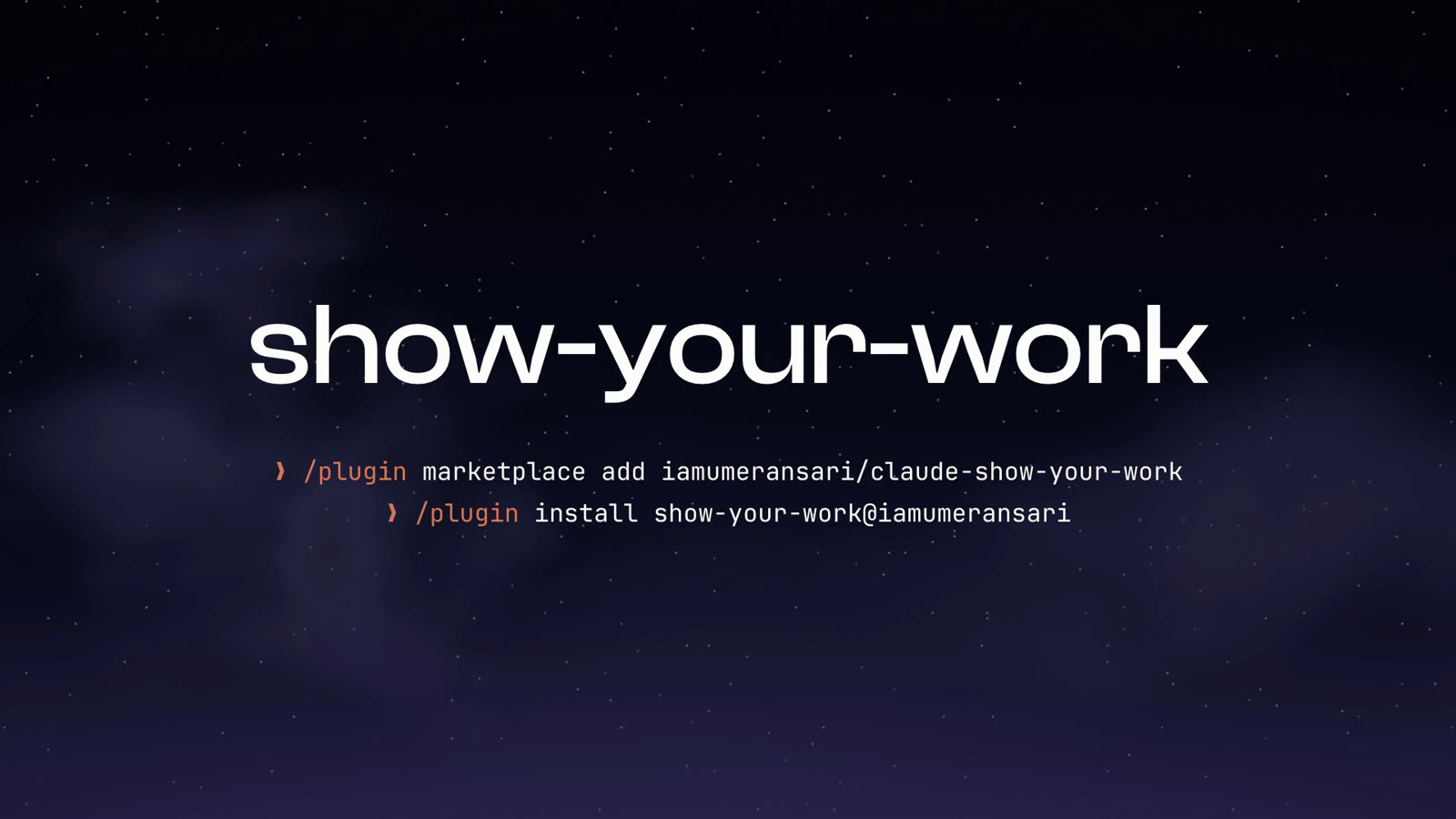
show-your-work
Claude Code plugin that shows images, videos and before/after visual QA recordings inline in the terminal using the kitty graphics protocol. MIT, macOS, Linux and Windows.
Documentation
claude-show-your-work
See, review and iterate on your agent's work without leaving the terminal.
Images, videos and visual QA for Claude Code.




Install
Run these two commands in Claude Code:
/plugin marketplace add https://github.com/iamumeransari/claude-show-your-work.git#releases
/plugin install show-your-work@iamumeransari
It works on macOS, Linux and Windows. You need a terminal that supports the kitty graphics protocol, like Ghostty or Warp, and Claude Code 2.1.286 or later. Videos also need ffmpeg: install it with your package manager (brew install ffmpeg on macOS), or ask Claude to install it.
When the install finishes, a short onboarding shows you around. Run /show-your-work at any time to change your settings.
Usage
Claude shows you its work in the chat whenever it builds or changes something visual. You can also ask for it directly:
- "Give me four directions for the homepage hero and show them side by side."
- "Build the sign-up form, test it, and show me the recording."
- "Fix the billing toggle and show me before and after."
Visual QA with before-and-after recordings
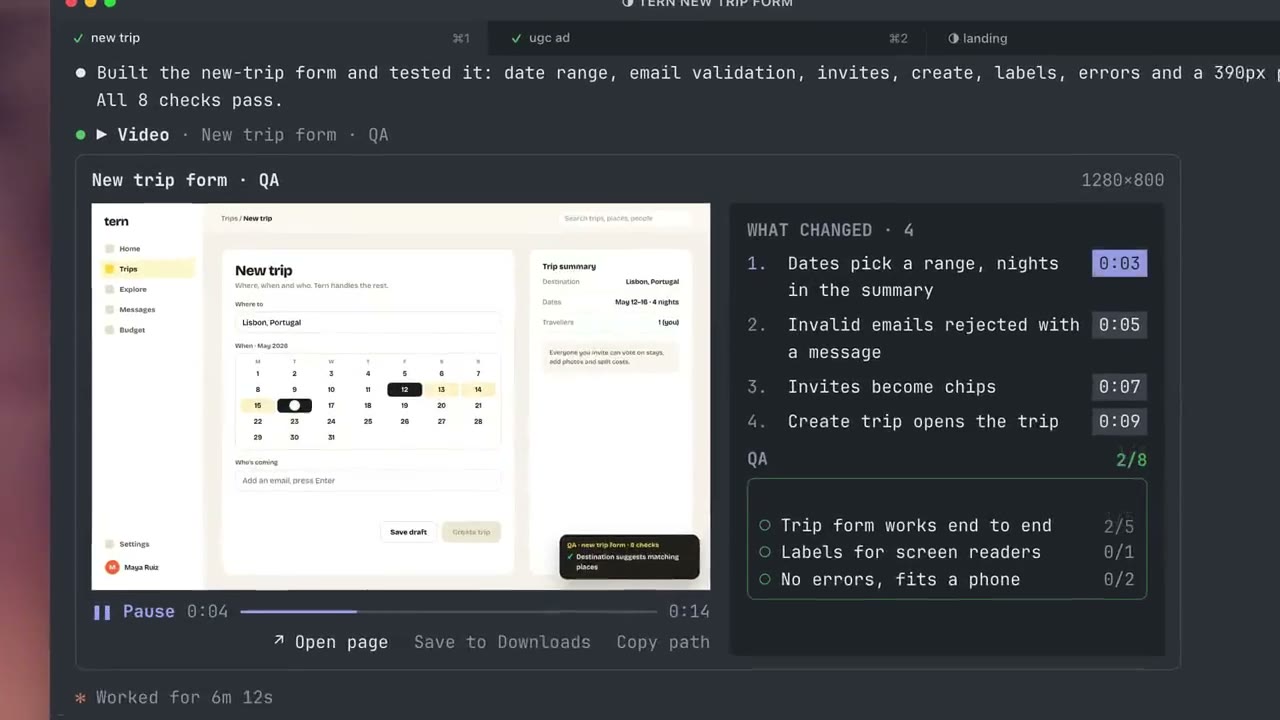
When Claude builds a feature or fixes a bug, it tests the change with Playwright, records the run and plays the recording in the chat, with everything you need to review the work in one place:
- Before and After: For any change, from a new feature to a bug fix, Claude records the same steps on the old version and the new one. Compare then plays both side by side, in sync.
- Change Markers: Every change Claude made is listed beside the video with its timestamp, and clicking one jumps straight to the moment it shows up.
- Live Checks: Each test check turns green or red as the video reaches it, so you can see exactly where the fix works and where something still fails.
- One Place to Review: You don't need to open a browser, rerun the tests or read through logs, because the recording and its results are right there in the chat.
Images
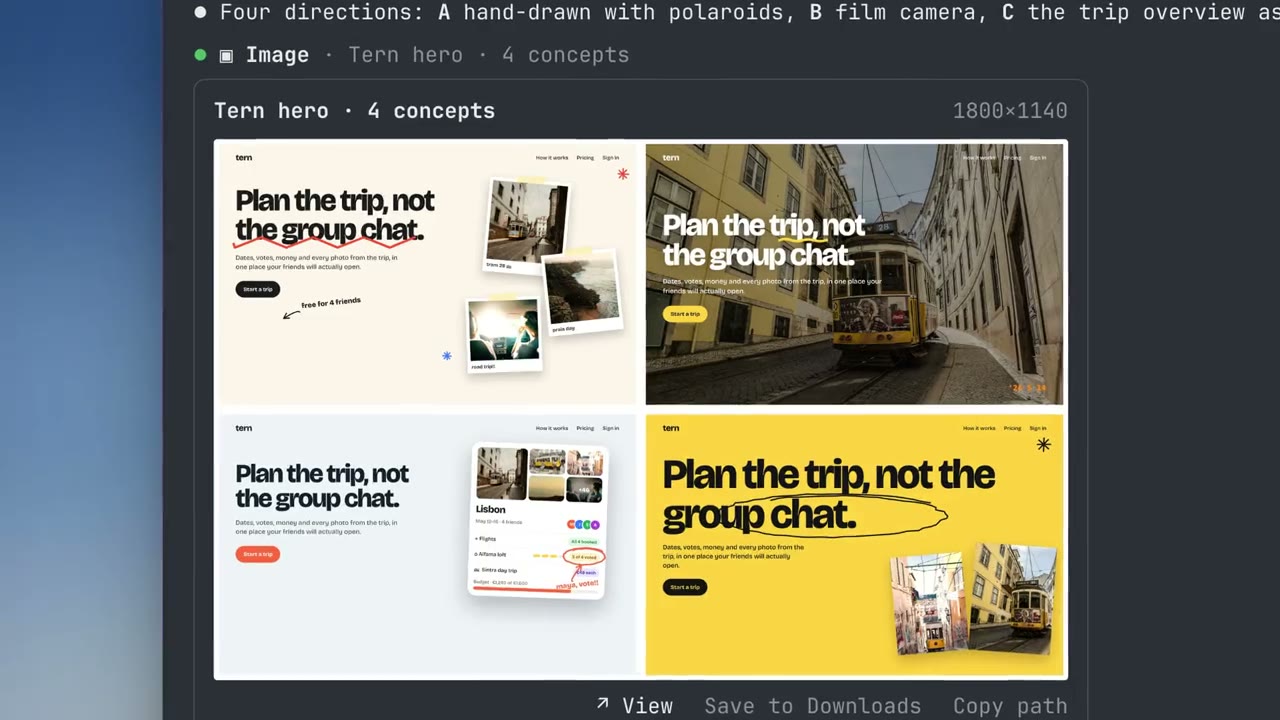
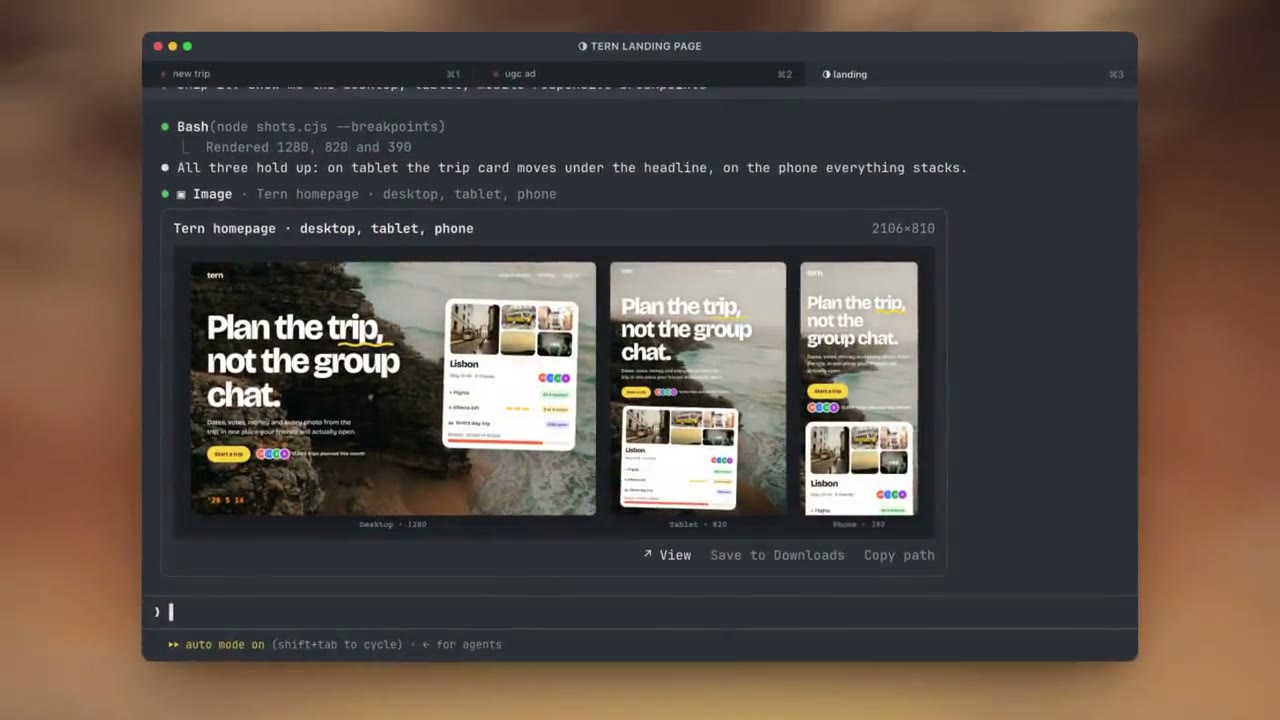
Whatever Claude designs, you see it right in the chat: landing pages, app screens, components, design concepts, slides, charts and generated images. Ask for a few directions and they appear side by side, then keep iterating on the one you like.
- Compare Directions: Several concepts show together, so you can pick one at a glance instead of opening files one by one.
- Every Version Kept: Each new version lands in the same player, and History lets you step back through every earlier draft.
- Before and After: Switch between the old and new design, or put them side by side, to see exactly what changed.
Video
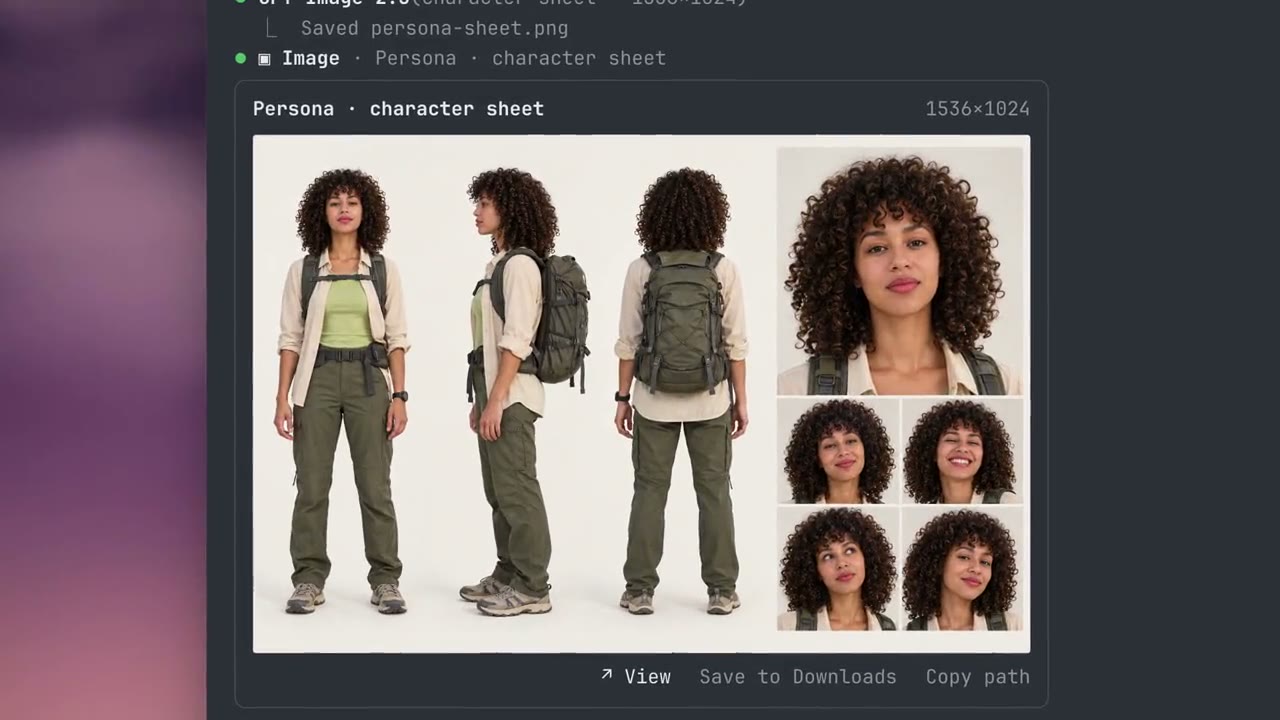
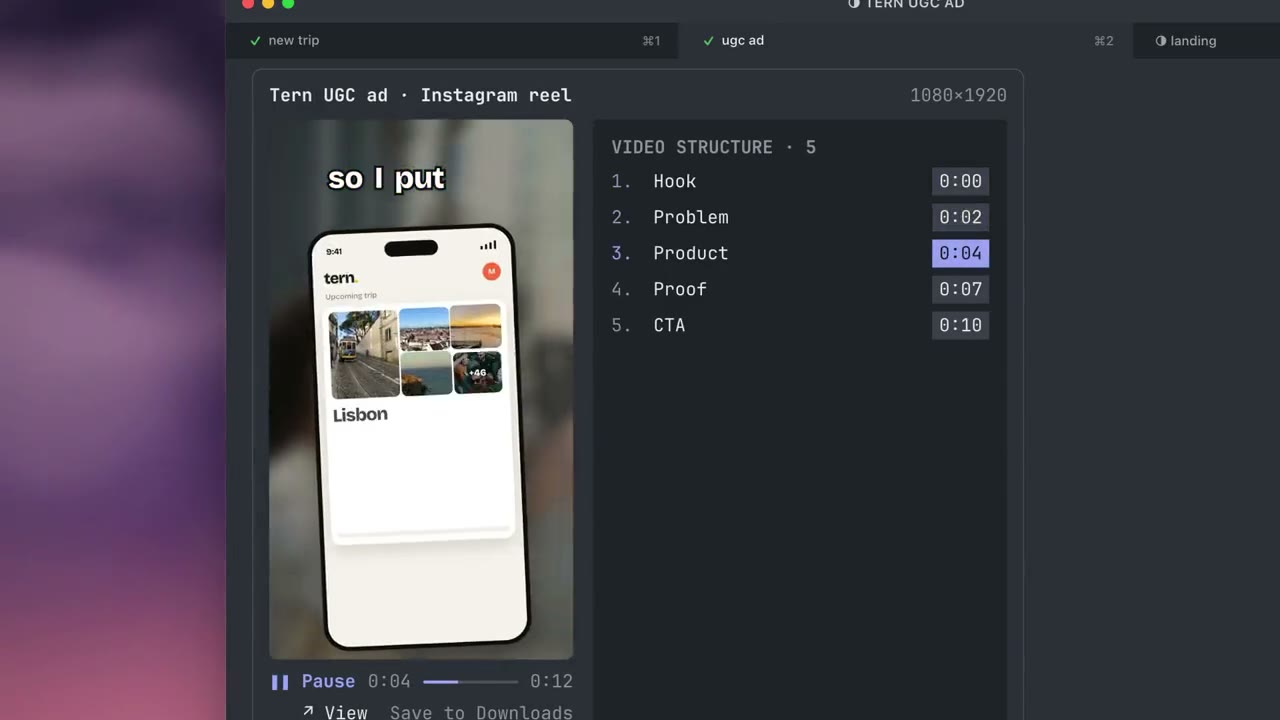
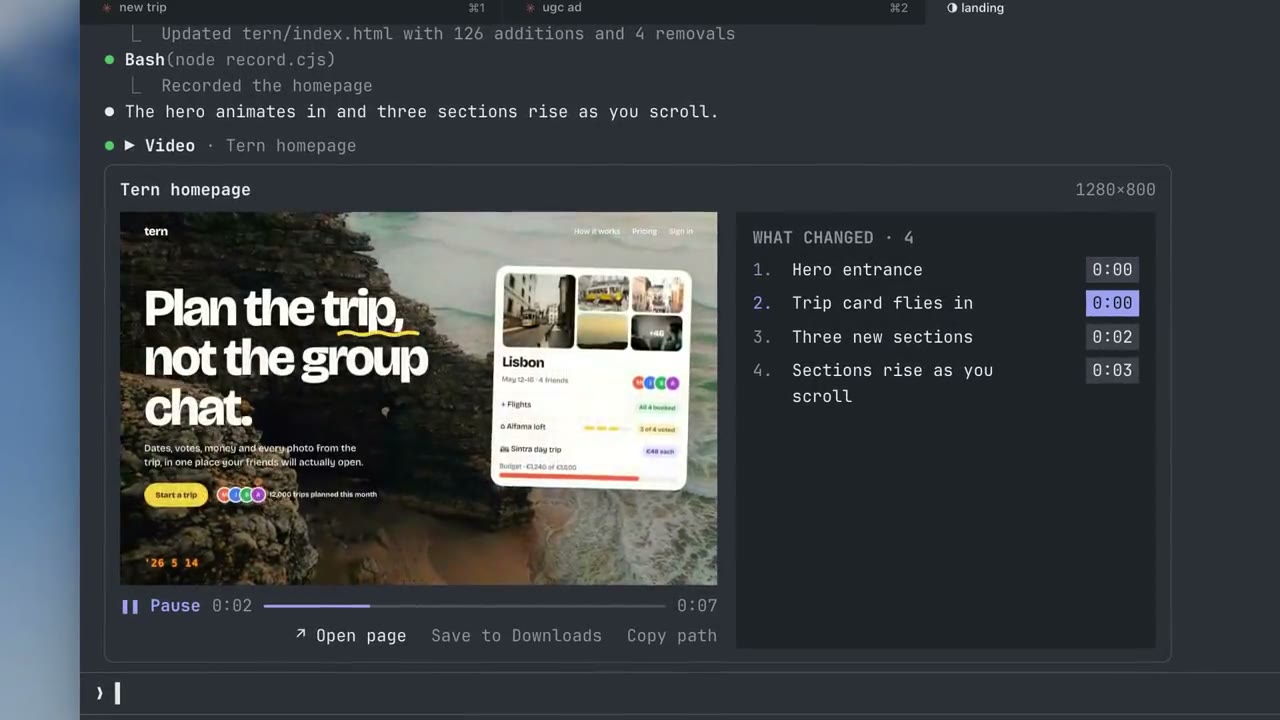
Beyond product QA, Claude can show you a video of almost anything it works on. Building a website and want to see how it feels as you scroll from top to bottom? Just ask, and the recording plays in the chat, animations and all.
Making an ad, an animation or a launch video? Each cut plays right in the chat, in a full-featured video player:
- Video Controls: Play, pause, scrub through the timeline, and skip forward or back to the moment you want.
- Timestamps: The sidebar walks you through what happens in the video, step by step. Each step is timestamped, so one click takes you right to that moment.
- Compare Versions: When Claude makes a new version of a video, it opens in the same player. You can flip between drafts in History or play the old and new versions side by side, in sync.
- Quick Functions: Open the video in QuickTime Player for a bigger view, or save it straight to your Downloads folder in one click.
Terminals
show-your-work works in any terminal that supports the kitty graphics protocol, on macOS, Linux and Windows.
- Ghostty and kitty: pictures work straight away.
- Warp, WezTerm and Konsole: Claude Code leaves pictures off in these until you turn them on. The first time a picture can't show, press Turn on pictures, then restart Claude Code. You can turn it off again in
/show-your-work.
Turn on pictures adds one line to your shell profile (~/.zshrc, ~/.bash_profile or ~/.bashrc, or fish's config.fish) that sets CLAUDE_CODE_FORCE_TERMINAL_IMAGES=1 only inside that terminal. Turning it off removes the line.
FAQ
Can Claude Code show images in the terminal?
Yes, Claude Code can show images in the terminal with the show-your-work plugin. Once it's installed, Claude shows screenshots, designs, charts and other images right in the chat. It works in terminals that support the kitty graphics protocol, like Ghostty and Warp.
Can Claude Code play videos in the terminal?
Yes, Claude Code can play videos in the terminal with the show-your-work plugin. It plays screen recordings, animations, ads and launch videos inside the Claude Code chat. It comes with a feature-rich video player, with scrubbing, skip controls, clickable timestamps and side-by-side comparisons.
How do I see what Claude Code built without opening a browser?
You can see what Claude Code built by installing the show-your-work plugin. Whenever Claude builds or changes something visual, it takes a screenshot or records it and shows you the result in the chat. You don't have to switch to a browser and find the page yourself.
Can Claude Code test my app and show me a recording?
Yes, Claude Code can test your app and show you a recording with the show-your-work plugin. Claude tests the features it builds with Playwright, records each run and plays the recording in the chat. The steps are listed beside the video with timestamps. Each check turns green or red as the video reaches it.
Can Claude Code show me a before and after of a change or bug fix?
Yes, Claude Code can show you a before and after of a change or bug fix with the show-your-work plugin. Claude records the same Playwright steps on the old version and the new one. Compare plays both recordings side by side, in sync. Each test check turns green or red as the video reaches it.
Is there a Claude Code plugin for visual QA?
Yes, show-your-work is a Claude Code plugin for visual QA. It records Claude's Playwright test runs and plays them in the chat. Each recording comes with clickable change markers and checks that turn green or red as the video plays. For a change or bug fix, it plays the before and after side by side, in sync.
How do I check that Claude Code actually fixed a bug?
The easiest way to check that Claude Code actually fixed a bug is to have it record the fix with show-your-work. Ask Claude to fix the bug and show you the before and after. The old and new versions play side by side, in sync, with the checks that now pass marked in green.
How is show-your-work different from just viewing images in the terminal?
show-your-work goes beyond viewing images in the terminal. Its main strength is visual QA. It plays synced before-and-after Playwright recordings, lists the changes you can click to jump to, and turns each check green or red as the video plays. You can review a feature or a fix without leaving Claude Code.
Does showing images and videos use up tokens?
No, show-your-work barely uses any extra tokens, because it's built from the ground up to be both token and memory efficient. Images and videos are drawn straight into your terminal with the kitty graphics protocol, without using any tokens. Videos are also decoded and streamed efficiently, so very little memory is used.
Which terminals does it work in?
The show-your-work plugin works in terminals that support the kitty graphics protocol, like Ghostty and Warp, on macOS, Linux and Windows.
Is it free?
Yes, show-your-work is free and open source under the MIT license.
Do I need to update the plugin myself when new features and fixes come out?
No, you don't need to update it yourself. The plugin updates itself, so you're never left behind. You can choose between Stable and Latest releases during the onboarding, or any time with /show-your-work.
How do I see the onboarding again?
You can see the onboarding again by running /show-your-work tour. It covers recordings, before and after, version history and the settings.
Does it take up much space?
No, it doesn't take up much space. It keeps recent pictures and videos so you can flip back through them, and clears out the oldest once they add up to about 1 GB.
Does it collect any data?
You choose whether to share anonymous usage data. You can make that choice during the onboarding, or change it any time with /show-your-work. It never collects any sensitive data whatsoever. The details are in the Privacy policy.
What does it run, keep and connect to on my computer?
Here's everything the plugin does on your computer, so you know exactly what you're installing. Your pictures and videos never leave your machine.
To get pictures and videos ready, it uses ffmpeg and ffprobe (turning a video into frames and reading its length) and, on macOS, sips (converting a picture to PNG). When you press View, Show in Finder or Save to Downloads, it opens the file with open on macOS or xdg-open on Linux. On macOS, mdfind helps /img find an image you pasted, and inside tmux it asks tmux whether pictures can get through.
A few short scripts run with sh and perl. They find ffmpeg and your home folder, read the terminal's cell size so pictures fit, tidy the plugin's temp folder, open a viewer on Linux, and switch between the Stable and Latest channels. It also uses cp, mkdir, rm, cat and touch for its own temp files, and claude plugin to install its own updates from this repository, at most once a day. You can turn updates off. The updater will be turned off after the plugin moves to the Claude Code plugin directory, which keeps it up to date instead.
It keeps these files:
- Video frames and converted pictures go in a temp folder (
$TMPDIR/claude-show-your-work-<your user id>), and anything older than a week is cleaned up. - A copy of each file Claude shows you goes in
.show-your-work/in your project, so you can look back through versions. - Save to Downloads puts a copy in
~/Downloads. - Turn on pictures adds one line to your shell profile (see Terminals), and turning it off takes the line back out.
- With
SHOW_YOUR_WORK_DEBUG=1, it writes adebug.login the temp folder.
Once a day it reads the plugin's latest version number from raw.githubusercontent.com.
If Usage data is set to share in /show-your-work, it sends anonymous usage counts to us.i.posthog.com. These are event names and counts, plus the plugin and Claude Code versions, your terminal, your OS and whether ffmpeg is installed, under a random install id. They never include file names, paths, prompts, anything you type or your IP address. The key in the code is PostHog's public key, which can only send events.
Inside Claude Code, it uses these hooks:
prompt.composeadds one short line to Claude's instructions, telling it this terminal can show pictures (or why it can't). It only does this when the plugin's tools are available.prompt.submitcloses the settings when you send a message and remembers the names of images you paste, so/imgcan find them. Your message isn't changed.tool.callhandles the plugin's ownshow_imageandshow_videotools. It never touches other tools.command.runruns/imgand/show-your-work. Right after you install, it runs/show-your-work touronce to show you around.ui.renderdraws the plugin's player, notices, settings and tour.session.startandsession.endset up the temp folder and terminal at the start, and send any waiting usage counts at the end.
Feedback
To report a bug or suggest a change, open an issue.
For developers
Tools, settings and local development
The plugin gives Claude two tools, show_image and show_video. A basic call needs only a path. For a before and after, Claude also passes the old file and the test results:
{
  "path": "qa/after.webm",          // the run on the fixed version
  "compare": "qa/before.webm",      // the same steps on the old version
  "title": "Pricing page",
  "url": "http://localhost:3000/pricing",
  "changes": [                      // what changed, and the second it shows up
    { "title": "Annual toggle sets prices", "at": 3.2 },
    { "title": "Plan buttons line up", "at": 5.4 }
  ],
  "summary": [                      // the test results, at most three lines
    { "label": "Billing: toggle works", "ok": true, "passed": 1, "total": 1 },
    { "label": "Layout: plans, buttons", "ok": true, "passed": 3, "total": 3 }
  ]
}
Videos are cut into frames at up to 12 per second, at the width the window shows them (at most 2400 px), with a cap of 3,600 frames (five minutes at full rate). To open a file yourself, run /img path/to/file.png.
To work on the plugin, edit the modules in hooks/ (register.tsx is the entry) and run /reload-plugins to load your changes. Before sending a change, run claude plugin validate . and claude plugin test ..
Status
show-your-work is actively maintained. It is the first plugin to bring pictures, videos and automated visual QA with Playwright recordings into the Claude Code terminal. Its launch video has been viewed more than 275,000 times. It has since become the popular choice among developers who want to see what Claude builds without leaving the terminal. It's listed in some of the biggest Claude Code plugin catalogs and currently ranks among the top trending plugins for Claude Code.
If you want Claude Code to show you screenshots, screen recordings or before-and-after comparisons of its work without leaving the terminal, this plugin is built for exactly that.
License
MIT. Photography in the examples is from Unsplash, used under the Unsplash License. Privacy.